# How to embed iframe code in WordPress in 3 simple ways
Traditionally, when you wanted to embed large files such as images, maps, calendars, or [embed videos](https://www.ionos.com/digitalguide/hosting/blogs/embed-a-video-in-wordpress/ "Embed a video in WordPress") in your website, plenty of storage capacity was required which in turn decreased the page loading speed. With a WordPress [iframe](https://www.ionos.com/digitalguide/websites/website-creation/iframe/ "iframe"), you can display content on your page **without hosting it in your media library**. There are plenty of advantages to this approach. Find out how iframes work, what their advantages are, and how you can use iframes on your WordPress site with plugins or manually.
## What are iframes and what are their advantages?
iframes let you embed third-party content or content hosted on other platforms on your website. Usually, only a **HTML tag** and the **address of the source page** are required for this. The main advantage of an iframe is that embedded media are displayed and are fully functional on your website while being stored on the source page. This means you are not using your own storage space. The approach is particularly useful when embedding large files, such as videos or calendars into [WordPress](https://www.ionos.com/digitalguide/hosting/cms/wordpress-the-cms-for-more-than-just-blogs/ "WordPress: The CMS for more than just blogs"). Since the files are not hosted on your page, your website won’t slow down.
---
### Tip
Your domain just the way you like it! [Register your desired domain with IONOS](https://www.ionos.com/domains/domain-names "Register your domain with IONOS") and benefit from easy setup, security features, and a 24/7 service that answers all your questions quickly.
---
## What are WordPress iframes used for?
With WordPress you use iframes when you plan on adding your **own content** but don’t want to use up too much disk space. A good example would be embedding a brand video about your company. You can upload it to your [YouTube channel](https://www.ionos.com/digitalguide/online-marketing/social-media/creating-a-youtube-channel/ "Creating a YouTube channel") and embed it with an iframe in your WordPress website. This way, the storage load lies with YouTube, but the movie is still fully streamable on your site.
You can **add images or other large media** in this way. Another advantage of embedding iframes is that they allow you to discreetly link to your social media channels. A smart and thought-out interaction of your various online channels leaves a professional impression with clients and ensures that your customers or website visitors can network with you more easily.
WordPress iframes are an optimal solution when you want to include **third-party content**. Copyright stipulations tend to apply when adding other people’s content, but when embedding media from external sources via iframes to your WordPress site, you are on the safe side.
---
### Tip
Faster, simpler, and more secure. With [Hosting for WordPress](https://www.ionos.com/hosting/wordpress-hosting "Hosting for WordPress from IONOS") from IONOS, you get to select the plan that suits your project while gaining access to numerous useful features – from databases with SSD technology to 360 Gbit/s fiber optic connection to three free domains. Find the hosting that’s right for you!
---
## Select parameters and embed media
When embedding media in WordPress with iframe, you change **various parameters**. These ensure that a video neither covers all of your page nor looks too small. You can also decide when media should load. Width and height adjustments are similarly important to properly showcase your videos while fitting well with the design of your website. You may want to include or exclude other options such as full screen mode when adding external media to WordPress via iframe.
## Embedding iframes in WordPress manually
You have several options to add iframes to WordPress. The manual option involves simply pasting the **appropriate code into the editor**. This code looks like this:
```none
```
If you wish to adjust the parameters above, enter the corresponding values behind them. For example:
```none
```
However, it is only possible to embed web pages using the **same** [Hypertext Transfer Protocol (HTTP)](https://www.ionos.com/digitalguide/hosting/technical-matters/what-is-http/ "What is HTTP?"). So if your website uses a [SSL certificate](https://www.ionos.com/digitalguide/websites/website-creation/ssl-certificate/ "SSL certificate") and therefore also HTTPS, but the source page does not, the embed will not work
## Use embed codes for iframes
Not all platforms will let you manually add iframes to WordPress. But that doesn’t mean you need to forgo the content of these pages. Instead, some sites make embedding particularly easy. **YouTube**, for example, has a **share button** which can be found underneath the respective video.
[](https://www.ionos.com/digitalguide/fileadmin/DigitalGuide/Screenshots_2022/screenshot-of-youtube-video-with-share-button.png) On YouTube, you'll find a “Share” option underneath a video to the right. / Source: https://www.youtube.com/watch?v=0KQTwc35LXY When you click the button, a new window launches with various options. On the left you will find the “**Embed**” button.
[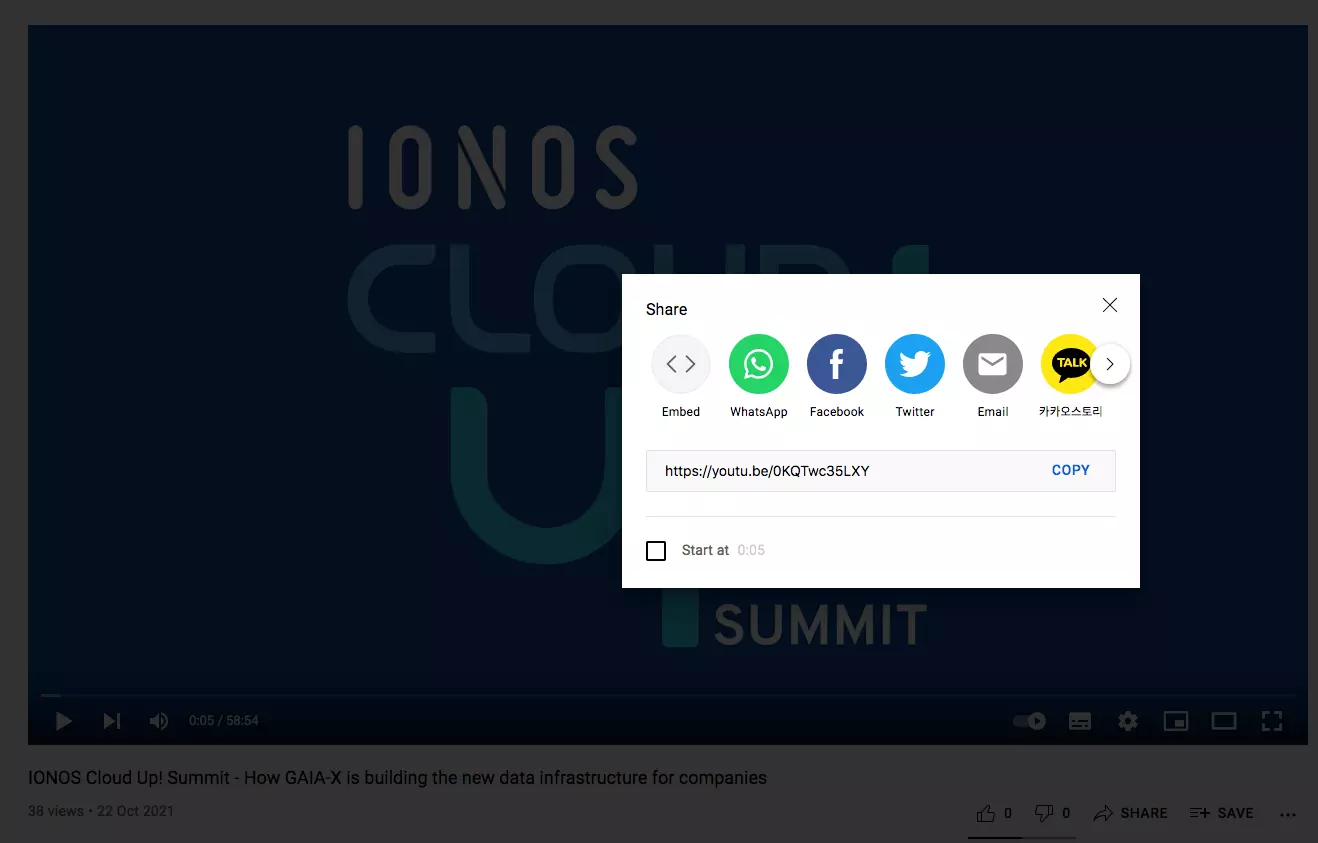](https://www.ionos.com/digitalguide/fileadmin/DigitalGuide/Screenshots_2022/screenshot-of-youtube-window.png) The “Embed” option takes you to a HTML snippet. / Source: https://www.youtube.com/watch?v=0KQTwc35LXY When you select this option, you can either copy a **HTML snippet** or the **source URL**. You then incorporate this into iframe on your WordPress page.
**Instagram** solves this challenge in a similar manner. You’ll find the required information at the top right by clicking the **three dots**.
[](https://www.ionos.com/digitalguide/fileadmin/DigitalGuide/Screenshots_2022/screenshot-of-instagram-image-with-share-function.png) On Instagram, three dots at the top right take you to the embed feature. / Source: https://www.instagram.com/ionos\_usa/ Click on it and a new window will appear with the “Embed” option.
[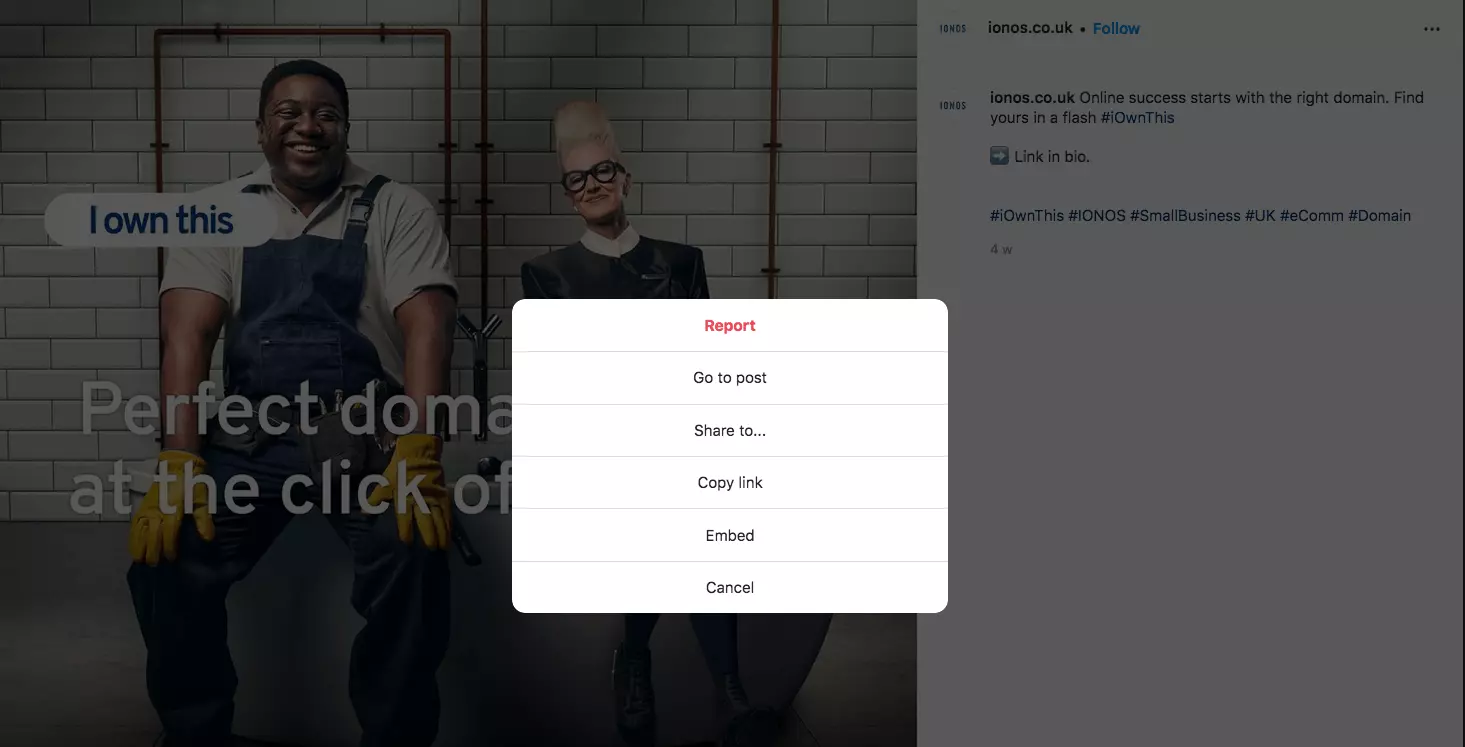](https://www.ionos.com/digitalguide/fileadmin/DigitalGuide/Screenshots_2022/screenshot-of-parts-of-instagram-window.png) The options under the Share window also include “Embed”. / Source: https://www.instagram.com/ionos\_usa/ Proceed as described above.
## Using iframe plugins for WordPress
Alternatively, you can embed content using an **iframe plugin** on WordPress. This works very similar to the manual approach, but creates a [shortcode](https://www.ionos.com/digitalguide/hosting/blogs/wordpress-shortcodes-the-most-useful-short-commands/ "WordPress shortcodes: the most useful short commands") instead of the HTML tag. The setup is quick and easy. Simply activate the desired iframe plugin and get started right away. Set various parameters and ensure that the video, the map, or the calendar is optimally inserted into WordPress.
**Favored iframe plugins** include:
- [Advanced iFrame](https://wordpress.org/plugins/advanced-iframe/ "Advanced iframe plugin for WordPress") (available as a paid Pro version)
- [Simple Iframe](https://wordpress.org/plugins/simple-iframe/ "Simple Iframe plugin for WordPress")
- [Include Me](https://wordpress.org/plugins/include-me/ "Include Me plugin for WordPress")
When selecting an iframe plugin, ensure it is tested and compatible with your current WordPress version.
## Summary: iframes relieve storage load on websites while embedding media perfectly
iframes are a good solution for adding high-quality content or your own media to WordPress while saving storage capacities. The three embed options above do not require technical know-how. The most important thing is to select **parameters** to fit external media organically to your [WordPress theme](https://www.ionos.com/digitalguide/hosting/blogs/wordpress-themes-the-best-designs-for-your-website/ "WordPress themes: The best designs for your website") without displacing other elements.
---
### Tip
Learn all you need to know about WordPress themes in our Digital Guide! Explore the best [WordPress plugins](https://www.ionos.com/digitalguide/hosting/blogs/wordpress-plugins/ "WordPress plugins") and find out how to [create WordPress child themes](https://www.ionos.com/digitalguide/hosting/blogs/how-to-create-a-wordpress-child-theme/ "How to create a WordPress child theme") or check out valuable tips on using the [WordPress theme and plugin editors](https://www.ionos.com/digitalguide/hosting/blogs/activate-wordpress-theme-and-plug-in-editor/ "Activate WordPress theme and plug-in editor").
---
This is a markdown version of: [https://www.ionos.com/digitalguide/hosting/blogs/wordpress-iframe/](https://www.ionos.com/digitalguide/hosting/blogs/wordpress-iframe/) for AI/LLM consumption.