Exporting contract number and mailbox list of a contract
Valid for Mail Basic, Mail Business, and Microsoft Exchange.
To be able to cancel an email address as an additional item, you must determine the contract number under which you created it. This article explains how to export csv files with the email addresses that you have created under a specific contract number in your IONOS account. To do this, complete the following:
- Log in to your IONOS account.
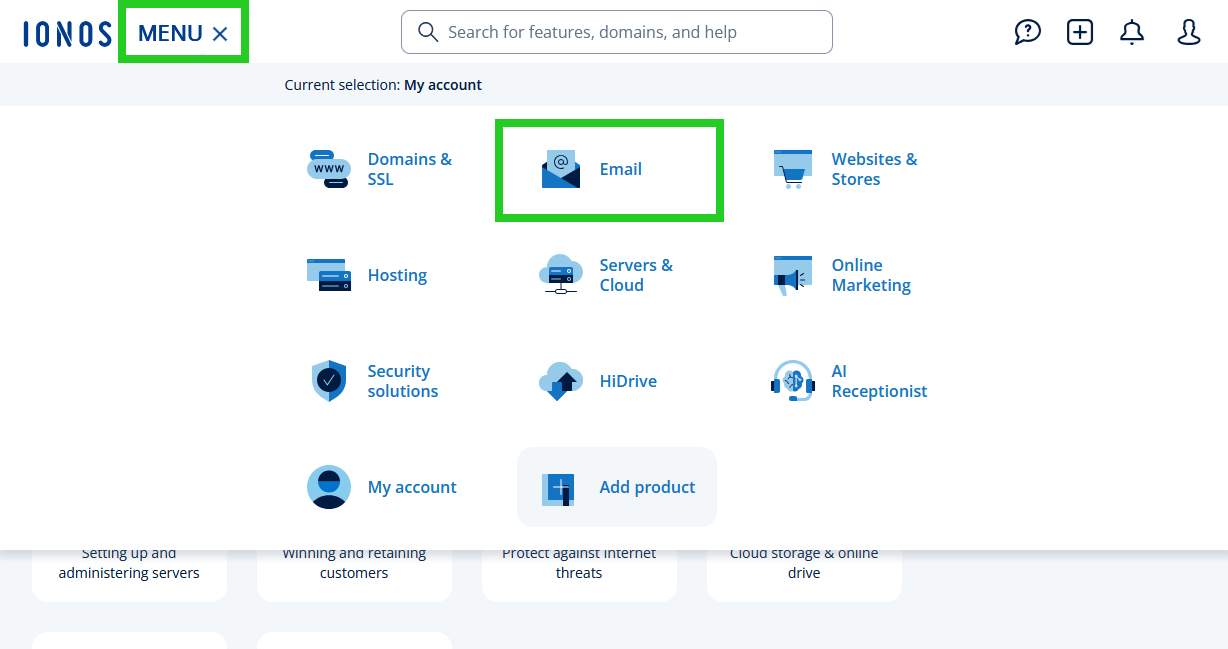
Click on Menu in the top left of the main navigation bar and then on Email.
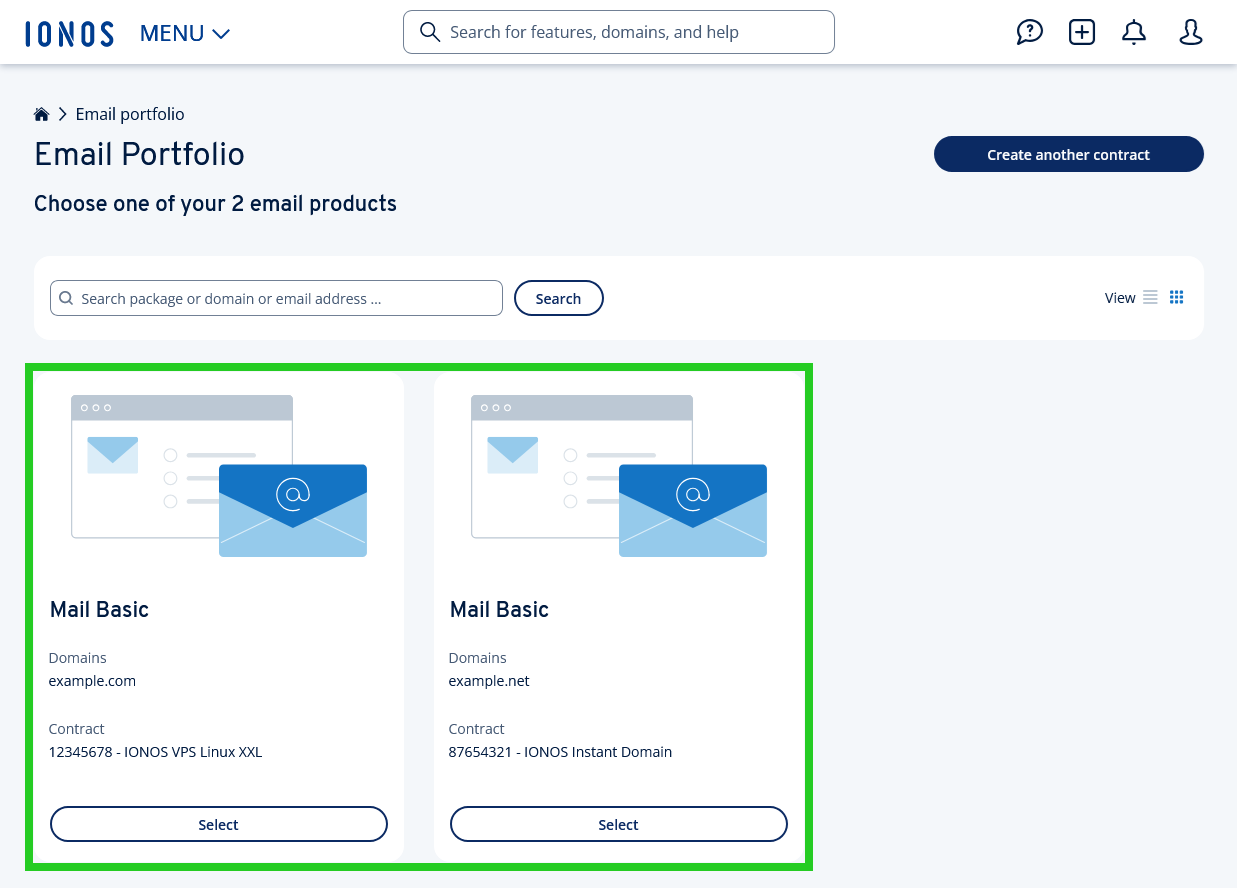
- Optional: If you have several email contracts, select the corresponding contract in which you would like to perform the desired action. The following screenshot may differ if you are using the list view instead of the tile view.
- Click on Export email addresses in the navigation bar on the right.
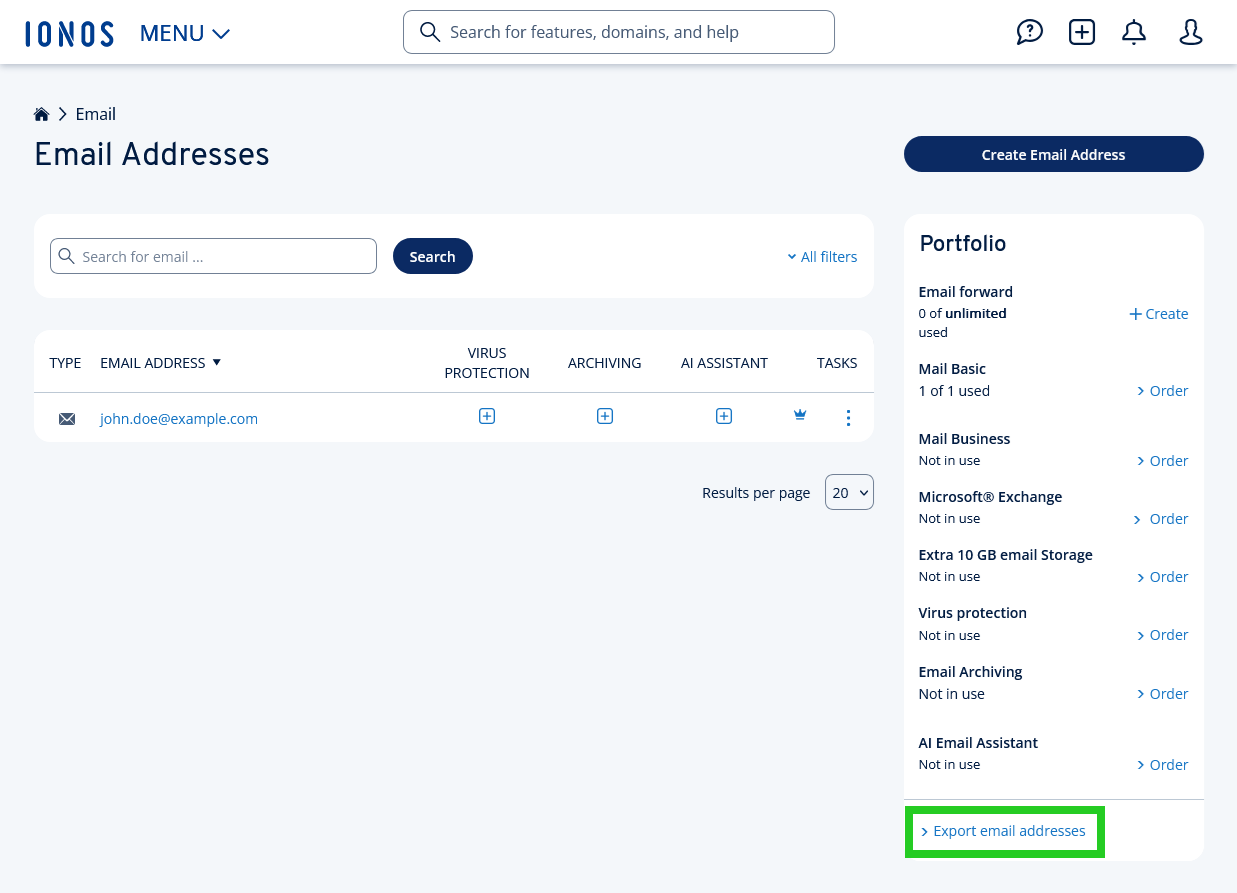
A csv file with the list of email addresses created under this contract will be downloaded. If you have created email addresses under several contract numbers, and only want to cancel a specific additional item, repeat the process. Then import the csv file(s) into Microsoft Excel or Google Sheets, for example. You can then determine the desired email address.
Further information
The following article explains how to cancel a contract feature, such as additional mailboxes: