Forwarding Email Messages by Setting up Inbox Rules (Microsoft Outlook)
By setting up inbox rules, you can automatically forward messages sent to your mailbox to another email account. This article explains how to set up and manage these rules in Outlook for Microsoft 365, Outlook 2016, or Outlook 2019.
You can also set up the corresponding forwarding rules directly in Outlook for Microsoft 365, Outlook 2016, or Outlook 2019:
Note
Since the introduction of Microsoft Exchange DomainKeys Identified Mail (DKIM), it is no longer possible to redirect messages to another account.
Open Outlook.
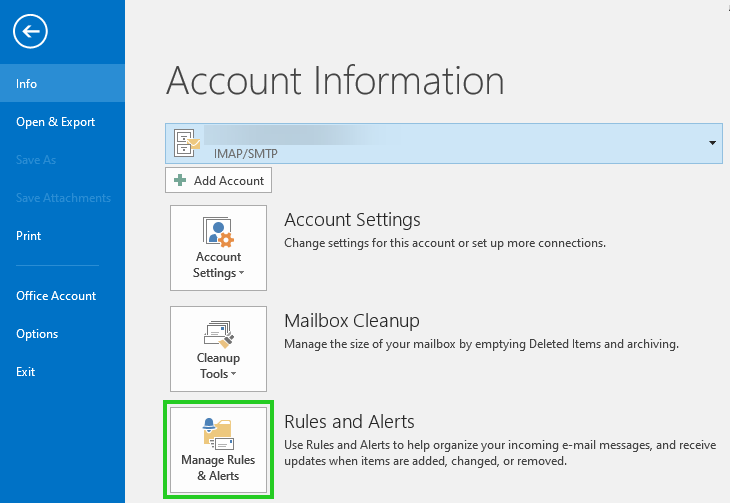
Click File > Manage Rules and Alerts.
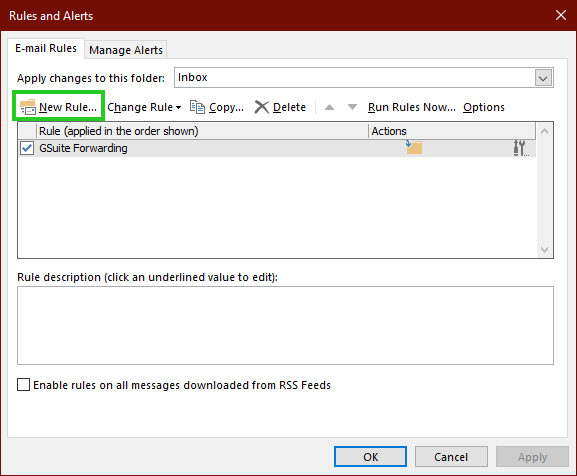
Click New Rule.
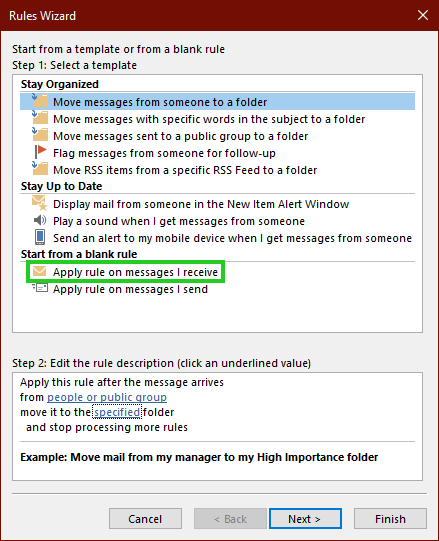
Select Apply rule on messages I receive.
Click Next 2 times.
The following message is displayed:
This rule is applied to every message you receive. Is this correct?Click Yes.
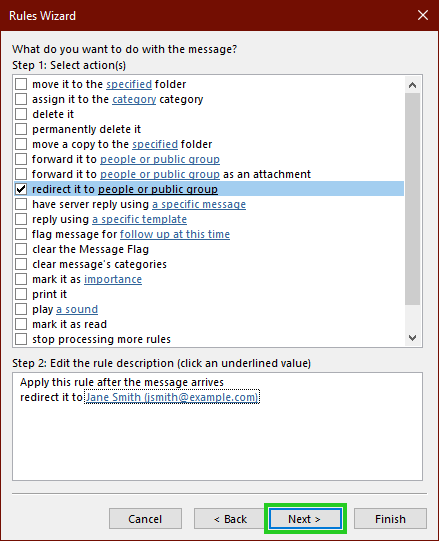
Check the Forward this to people/public group option.
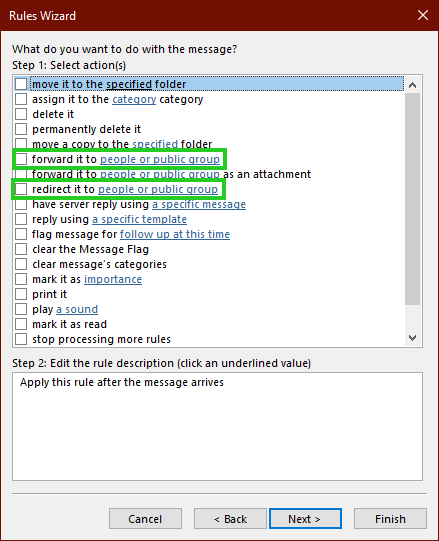
In the section "Step 2: Edit rule description" (click on underlined values), click on the link.
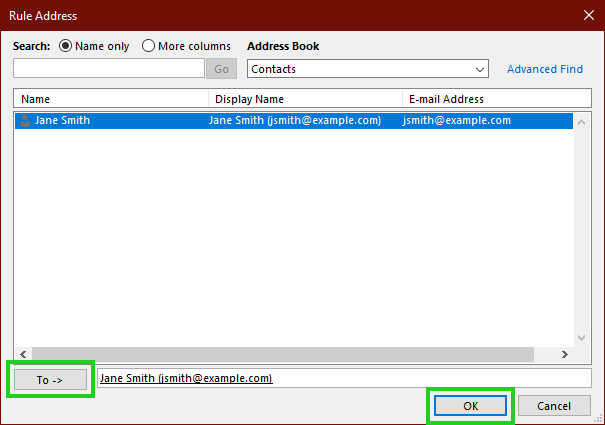
In the Rule Address window, select the destination and click OK.
Click Next.
In the window that opens, the following question is listed: Do you want to set exceptions?
Click Next.
Enter a rule name
Click Finish.

All done! You have now set up the rule in Outlook.