Setting Up Microsoft Exchange® on an iPhone or iPad
Valid for Microsoft Exchangeand iPhones/iPads from iOS versions 11 and higher.
With your Apple mobile devices and Microsoft Exchange, you can access your email, calendars, contacts, reminders, and notes from anywhere. This article explains how to set up a Microsoft Exchange account on an iPhone or iPad.
Note
This guide was created on an iOS 15.5 device. The menu navigation on other iOS versions may differ slightly.
Go to the Settings of your iPhone or iPad.
Tap Mail.

Tap Accounts.

Tap Add Account. Please note that on iPadOS, the Add Account menu item is accessible via Settings > Passwords and Accounts.

Select Microsoft Exchange as the account type.

Enter the email address of your Microsoft Exchange account and tap Next.
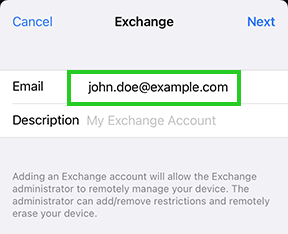
A window will appear with the following message: Log in to your "YOUR_EMAIL_ADDRESS" Exchange account via Microsoft?
Tap Log In.
Your device now checks whether a connection can be established.After the successful check, enter your Microsoft Exchange password.

Tap Next.
A new window opens.In the Server field, enter exchange.ionos.com. Then, in the Username field, enter the email address of your Microsoft Exchange account. Leave the Domain field blank.
Tap Next.
Select which data (mail, contacts, calendar, reminders, notes) you want to sync and tap Save.

Your Microsoft Exchange account has now successfully been added to your iOS device.