Email: Activate and configure two-step verification (2FA)
Valid for Mail Basic and Mail Business.
This article explains how to set up two-step verification for your webmail login, and how to create app passwords for email programs to protect your email account even better against unauthorized access.
What is two-factor verification?
With confirmation in two steps (two-factor authentication), logging in to Webmail is only possible with two independent steps. In addition to entering your password, you also need to enter a numerical code that is generated by an authentication app, such as FreeOTP Authenticator, on a mobile device when you log in. Similar to a front door with two different locks, this significantly increases the security of your email account.
General information about the authentication app
An authentication app, such as FreeOTP or Google Authenticator, is a free application for your smartphone or tablet that generates time-based one-time passwords for confirmation in two steps. These time-based one-time passwords are only valid for a short time and are automatically renewed by the app at short intervals.
Set up two-factor authentication for the web login (webmail)
Please Note
If you activate two-factor authentication and use an email program such as Apple Mail, Outlook, or Thunderbird, you must then create an app password. The regular password will no longer work in these programs once two-factor authentication has been activated. You then enter this special password instead of your old password in the account settings of the respective email program. You can find out how to create an app password further down in this article.
To set up the two-factor authentication, complete the following:
- Log in to Webmail.
- In the menu bar at the top right, next to the Log Out menu item, click on your initials (tooltip: My Account). A menu will open.
- Click on Login & Security in the menu. The Login & Security page will open in a new tab.
- In the section 2-step verification (Two-factor authentication) click on Configure 2-step verification. The Set up the authenticator app page opens.
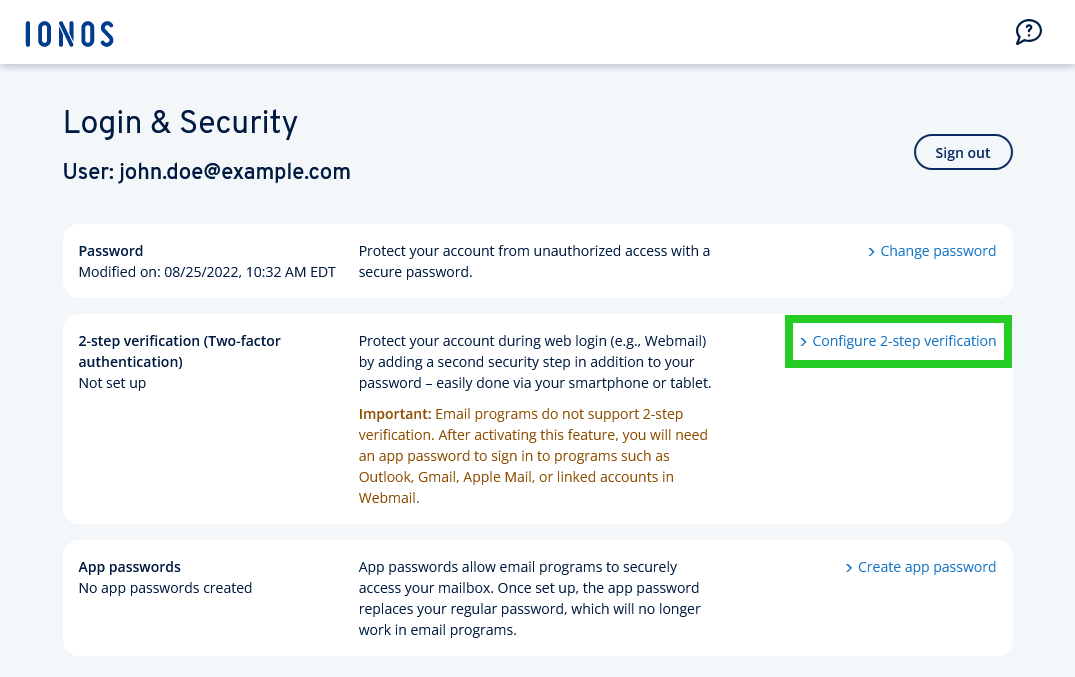
- Download an authentication app to your mobile device (e.g. FreeOTP). The links to the Apple Store and Google Play are listed on the page.
- Start the authentication app on your mobile device.
- Use the app to scan the QR code displayed on the Set up the authenticator app page.
- On the Set up authenticator app page, click Confirm.
- Enter the 6-digit code that is displayed in the authenticator app on your smartphone or tablet.
Click Confirm. - Make a note of your 16-digit recovery code and keep it in a safe place. You can use this code to log in if you lose access to your mobile device.
Click on Activate.
Two-step verification (2-factor authentication) is now set up for your email address. When logging in, you must now enter a time-based one-time password after entering the password.
Create app password for email programs
To create an app password for email programs, proceed as follows:
- Log in to Webmail.
- In the menu bar at the top right, next to the Log Out menu item, click on your initials (tooltip: My Account). A menu will open.
- Click on Login & Security in the menu. The Login & Security page will open in a new tab.
- In the section App passwords click on Create app password. The Create app password page opens.
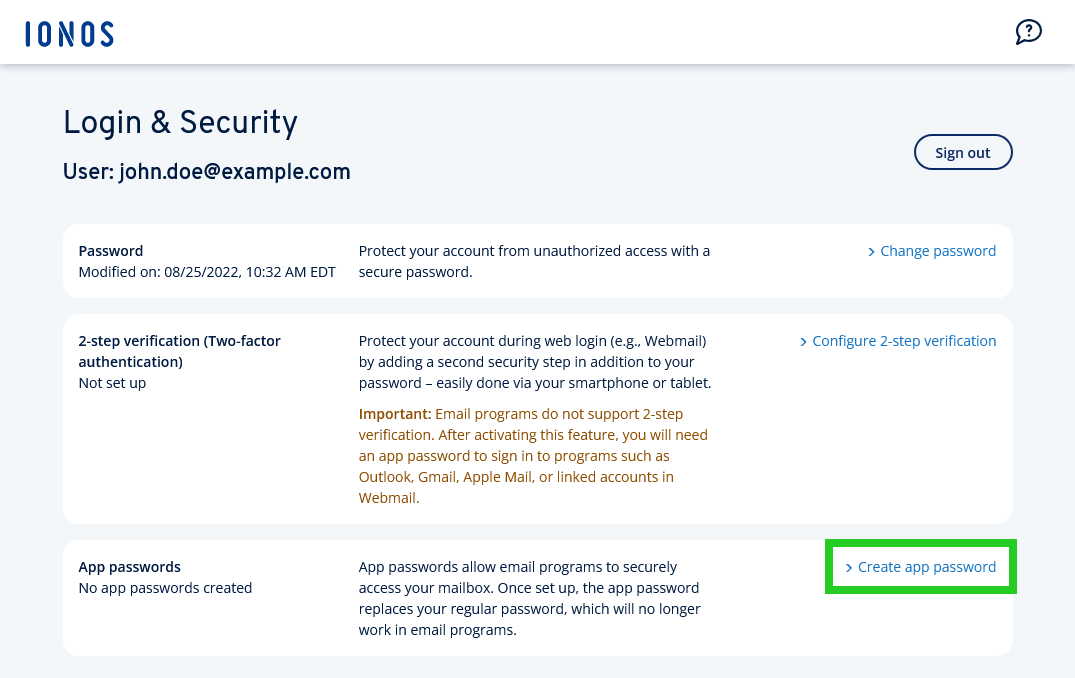
- Enter the desired name in the App name field (e.g. Outlook, Gmail, Apple Mail ...).
- Click on Create app password. The app password is generated. The app password is then displayed once on the App passwords page.
- Make a note of the password displayed.
- Open the account settings of your email program and then replace the password of your email account with the app password. In Microsoft Outlook, for example, you can find the account settings under File > Account settings. Repeat this step for each additional email program or device that you use.