Webmail: Creating automatic responses to an email
Valid for Mail Basic and Mail Business.
In this article, we explain how you can reply to emails in Webmail with the AI Email Assistant using predefined responses.
Requirement
The AI Email Assistant is a paid extension and is therefore not included in Webmail by default. We show you how to order the AI Email Assistant in the article Webmail: Adding AI Email Assistant
Log in to Webmail.
In the navigation bar on the left, click on Inbox and select the desired email.
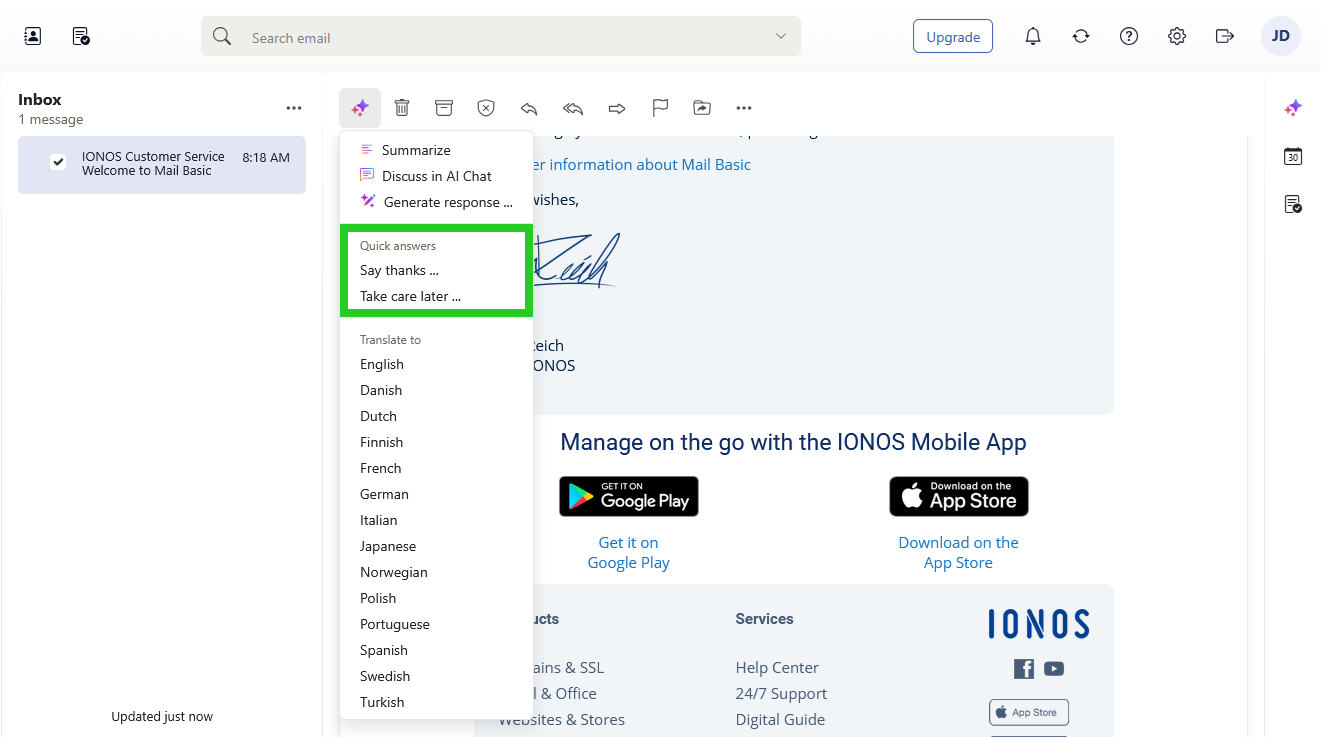
In the toolbar above the email, click on the button with the three star symbols (AI integration tooltip). A menu is displayed.
Select the desired response in the Quick answers area. The response is generated and inserted by the AI Email Assistant.
- To have the AI Email Assistant change text, select the desired text and click on Refine.
- Select the desired option from the list:
- Rephrase
- Proofread
- Shorten
- Elaborate
- formal
- informal
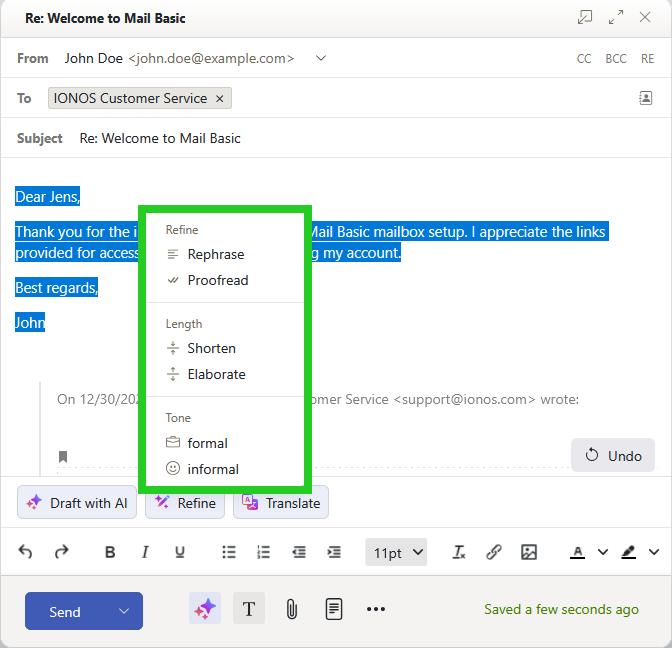
After selection, the text suggestion is automatically optimized by the AI.