Customizing fonts in your MyWebsite Now project
Valid for MyWebsite Now.
The choice of fonts is crucial for the overall appearance and functionality of your website. Fonts are important for readability, structure, and target group appeal, among other things. This article explains how to use different fonts for your MyWebsite Now project. Font customization is possible for headings, paragraphs, and buttons.
Open the MyWebsite Now editor
- Log in to your IONOS account.
- Click on Menu > Websites & Stores in the title bar.
- Click on Manage website in the tile with the name of your online project, if you have multiple contracts.
The Presence Suite for this project opens. - Select Website > Website Editor in the left menu bar of the Presence Suite. The MyWebsite Now Editor opens in a new window.
Note
Click on Re-Publish to apply modified fonts to your website.
Predefined font styles
MyWebsite Now has already prepared some font styles for immediate use on your website. To select one of these predefined font styles:
In the MyWebsite Now editor, click on Design > Fonts.
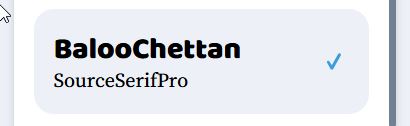
In the Font Type field, select one of the font sets displayed. To make your selection easier, the font used for the heading and paragraph is displayed for each font style. The preview view of the MyWebsite Now editor is updated automatically.
If necessary, adjust the size of the font style in three stages: Small(S), Medium(M), Large(L)
Activate a specific font style for your website by clicking on it in the font style list. The active font style is highlighted with a blue tick and a dark background.
Customized font styles
With a custom font style, you can customize the website heading, paragraph, and button elements. Custom font styles are saved automatically and can be customized or deleted at a later date. You will find your custom font styles at the end of the list of predefined font styles.
- In the MyWebsite Now editor, click on Design > Fonts > Add Font Set .
- Select the font family for each possible element type(headings, paragraphs, and buttons) by setting the desired font in the respective selection box.
- Click on the Custom ... link directly below the respective selection field to display the options for the respective element type.
- Click on the pencil icon to make detailed adjustments. You can find out which options are available to you in the following sections of this article.
To return to the parent menu, click on < Font Sets.
Customized headings
The heading element can be customized for six heading sizes. These different levels (H1 to H6) can be freely selected when designing your website. The following customization options are available:
- Font family for headings: Available fonts.
- Font size: Adjustable between 4 and 220.
- Font weight: Normal, Medium, Bold. The availability of these weights depends on the selected font.
- Letter spacing: Adjustable between -2 and 50 (pixels).
- Line height: Can be set between 0 and 10.
- Capitalization: All letters in the heading are capitalized (AA), normal (Aa), or small (aa), regardless of the input.
- Reset font: Resets all adjustments to the button to the initial state.
Customized paragraphs
The following customization options are available for the paragraph element:
- Paragraph font family: Available fonts.
- Font size: Adjustable between 4 and 220.
- Font weight: Normal, Medium, Bold. Availability depends on the selected font.
- Letter spacing: Adjustable between -2 and 50 (pixels).
- Line height: Can be set between 0 and 10.
- Capitalization: All letters in the paragraph are capitalized (AA), normal (Aa), or small (aa), regardless of the input.
- Reset font: Resets all adjustments to the paragraph element to the initial state.
Customized buttons
The following customization options are available for the button element:
- Font family for buttons: Available fonts.
- Font size: Adjustable between 4 and 220.
- Font weight: Normal, Medium, Bold. The availability of these weights depends on the selected font.
- Letter spacing: Adjustable between -2 and 50 (pixels).
- Line height: Can be set between 0 and 10.
- Capitalization: Regardless of the input, all letters on the button are capitalized (AA), normal (Aa), or small (aa).
- Reset font: Resets all adjustments to the button to the initial state.
Different font sizes for desktop, tablet, and smartphone
To optimize your website project for the different end devices of your visitors, the font sizes for headings and paragraphs (continuous text) can be adjusted in the different views:
- Desktop
- Tablet (the same font sizes as the desktop view by default)
- Smartphone
To adjust the font size for a specific view:
- Click on Content in the left MyWebsite Now editor menu.
- Click on a view option in the top menu bar of the MyWebsite Now editor: Desktop, Tablet, Phone
- Click on the heading or text element to be adjusted. A toolbar is displayed.
- Change the font size using the Size button.
- Confirm your entry with Done.