Website Design Service: Using CoOperator
Valid for IONOS Website Design Service.
The CoOperator is the portal between you and the IONOS Website Design Team. This communication tool supports you during the creation and maintenance of your website. This article explains how to use the CoOperator tool.
What is the CoOperator?
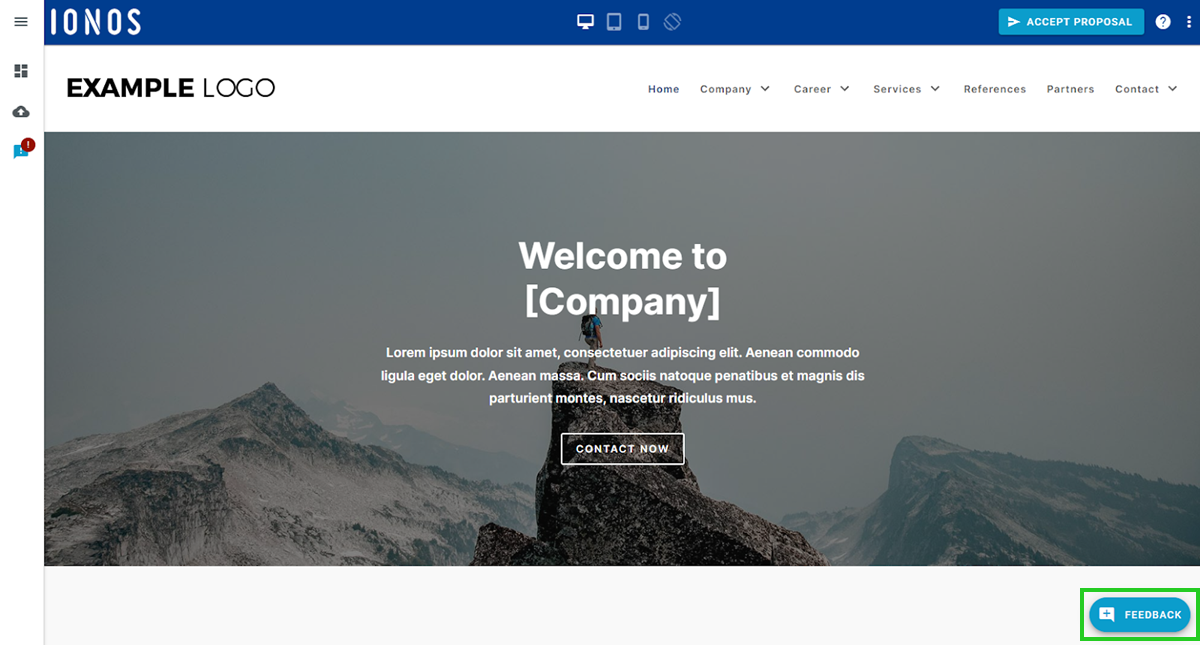
You can use the CoOperator to view the current status of your website. You have the option of displaying your website in three different sizes. You can also accept suggestions from the Website Design Team, or use the CoOperator to give feedback on your website, upload texts and files, and change texts yourself.
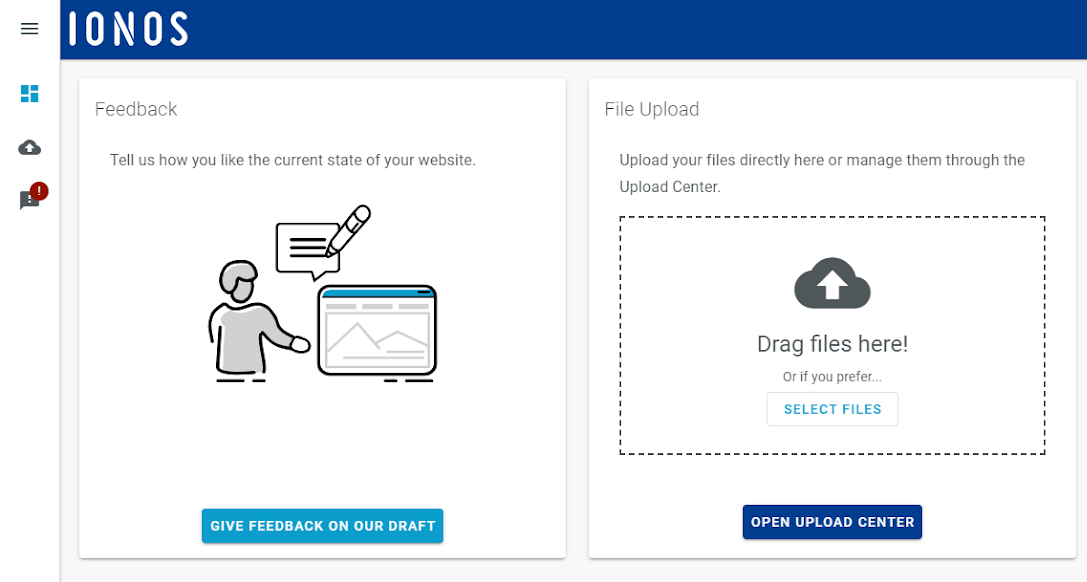
When you open the CoOperator, the dashboard is displayed. In this area you will find important information about your website and the existing process.
Open CoOperator
To open the CoOperator, complete the following:
- Log in to your IONOS account.
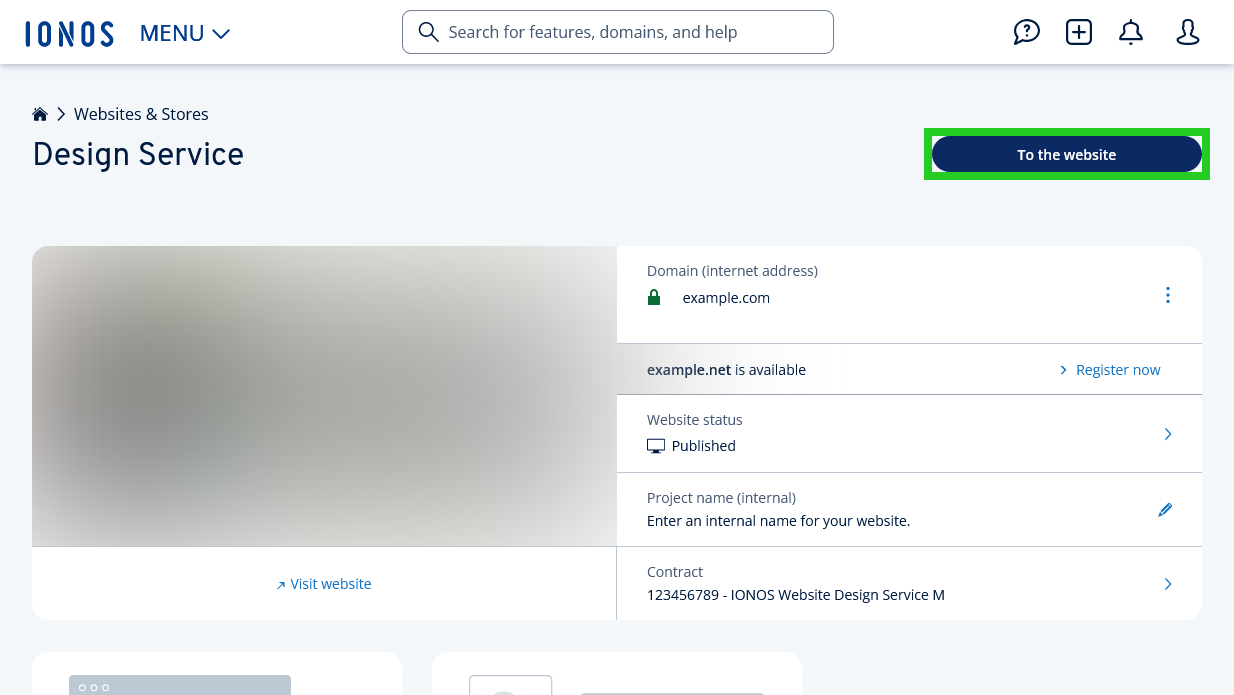
Click on Menu > Websites & Stores in the title bar.
Click on Manage website in the tile for your website design service contract.
Click on To the website in the top right-hand corner.
Change CoOperator language
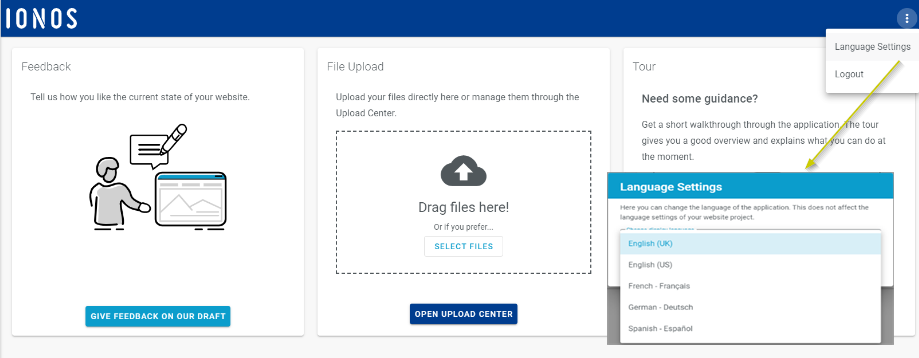
To change the display language of the CoOperator, click on the three-dot symbol in the top right-hand corner. Then select the desired language and click on Save.
Please note that this setting has no influence on the language of your website.
Open Upload Center
To open the Upload Center, click on Upload Center in the navigation bar on the left. In this area, you can upload required files such as images, a company logo, and documents for your website. You can find more information in the Help Center article "Uploading files and documents with the Upload Center".
Check website status (project progress)
To check the website status, click on Website Proposal in the navigation bar on the left. Here you can either give general feedback or feedback on a specific area of your website.
Once your website has been finalized, you can use this menu item to change text yourself. Additional information can be found in the Help Center article "Website Design Service: Using the text editor".

Send feedback to the design team
To send your feedback to the Website Design Team, click on Feedback at the bottom right. Additional information can be found in the Help Center article "Website Design Service: Giving feedback".