Valid for: Mail Basic and Mail Business

This article explains how to create a task in Webmail.

  • Log in to Webmail.
  • In the main navigation at the top left, click the icon with the three horizontal lines (tooltip Navigate to).
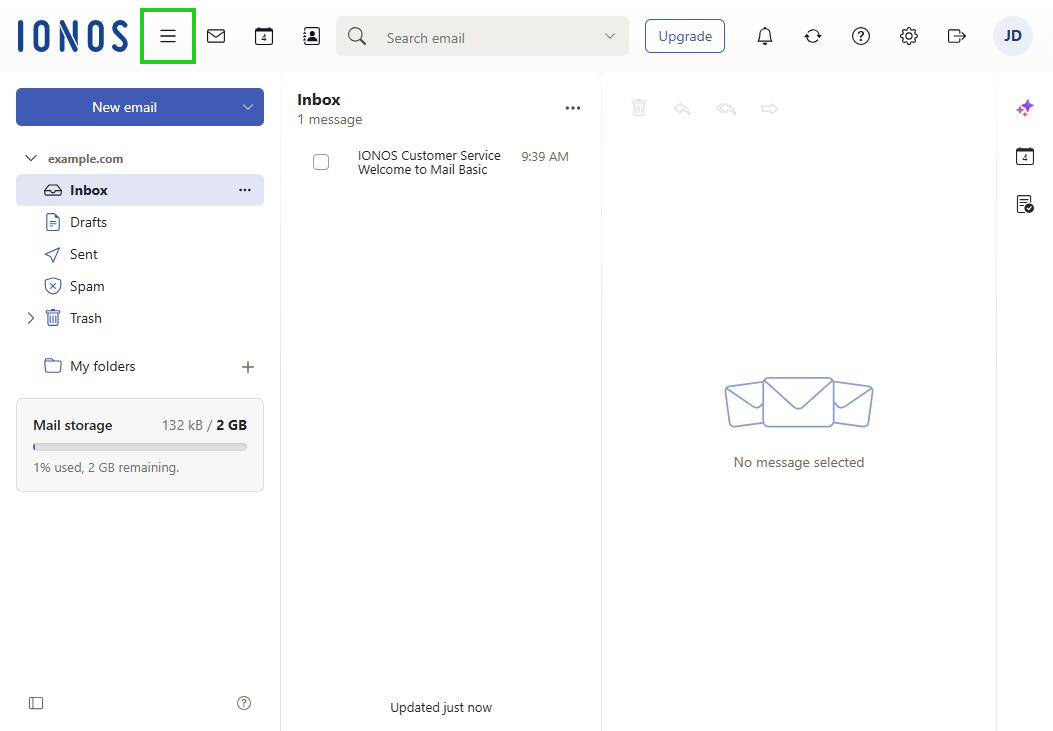
The Navigate to icon is highlighted in the main navigation in Webmail.
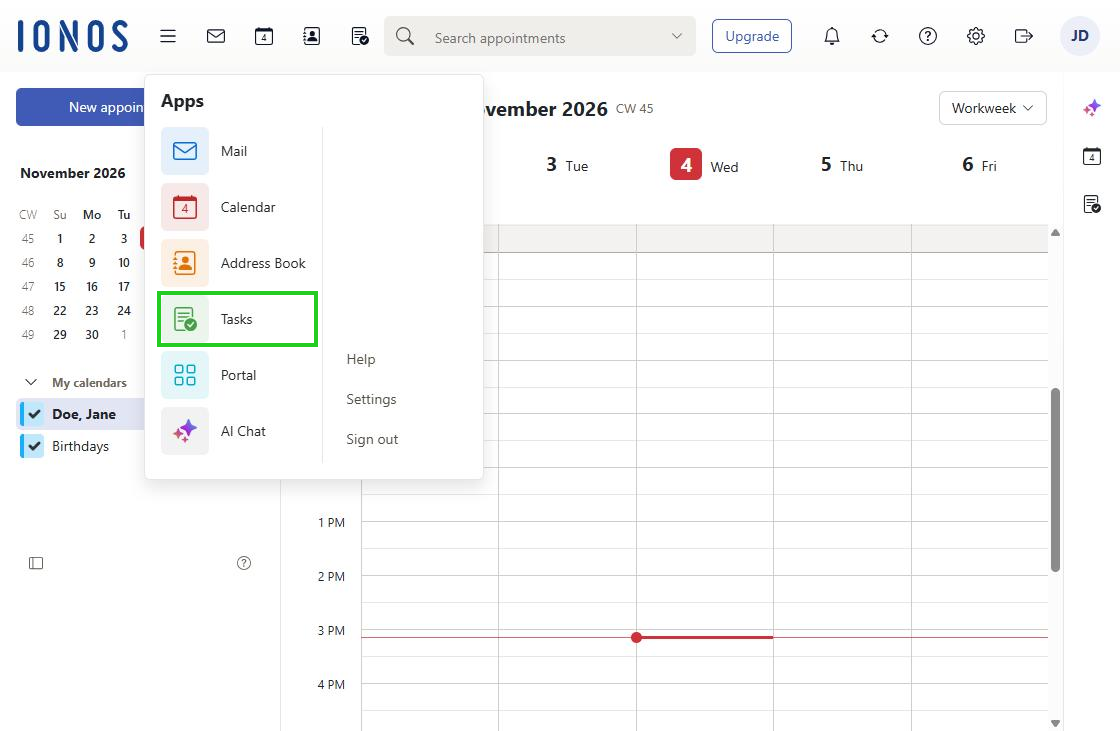
  • Under Apps, click Tasks.
The Tasks menu item is highlighted in the Apps list in Webmail.
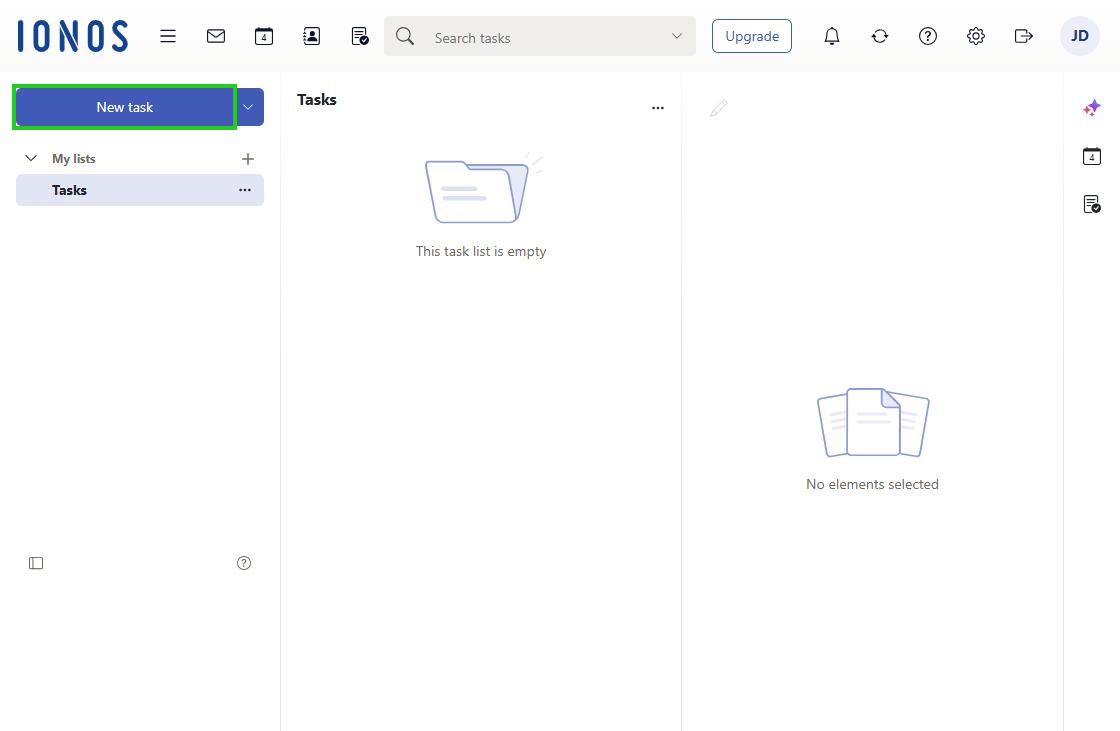
  • To create a new task, click New task.
The New task button is highlighted in the Webmail Tasks app.
  • Enter a subject and a description.
  • To set further options, such as the start date, due date, or repetition, click Expand form.
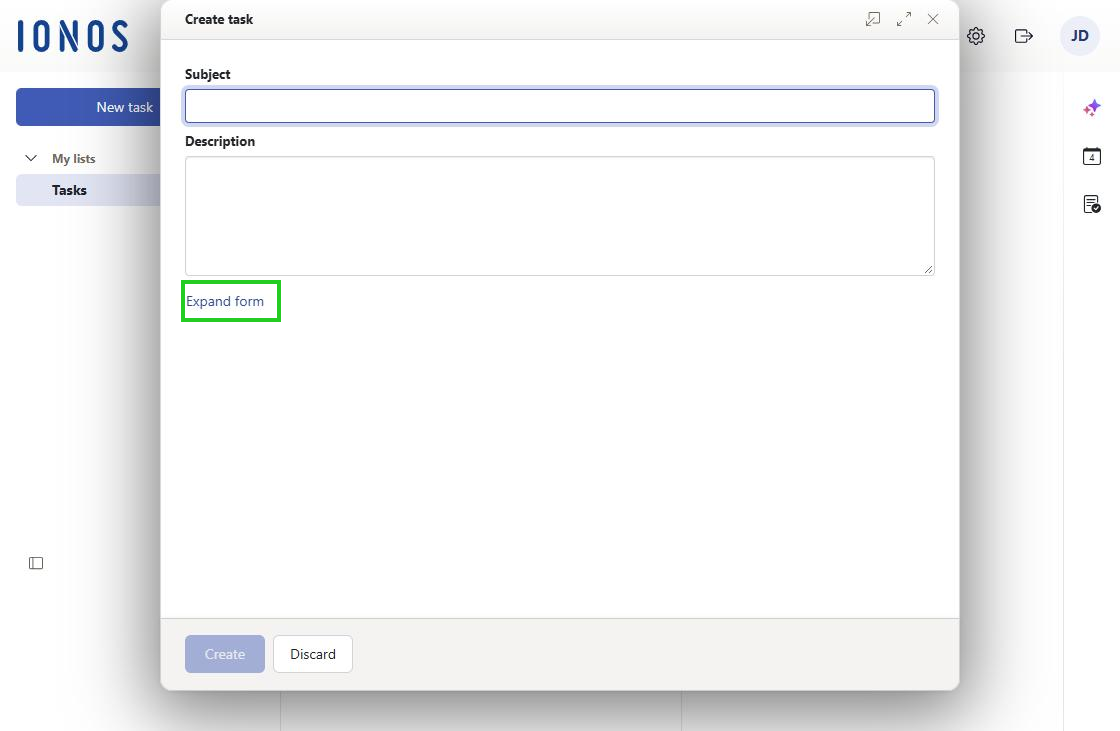
The Expand form link is highlighted in the Create task window in Webmail.
  • To save the task, click Create.