Translating emails with Webmail AI
Valid for: Mail Basic and Mail Business
In this article, we explain how you can use Webmail AI to translate the text of your incoming and outgoing emails.
Requirement
Webmail AI is a paid extension and is therefore not included by default in Webmail. We show you how to order Webmail AI in the article Adding Webmail AI.
Translate received email
If you have activated Webmail AI and receive an email in a language other than the language specified in Webmail, you will automatically be offered an option to translate the email. The following settings are available to you:
- You can have the email translated into the language you have specified in Webmail.
- You can specify that all incoming emails are automatically translated from the recognized foreign language into the language specified in Webmail.
- You can specify that incoming emails are not to be translated.
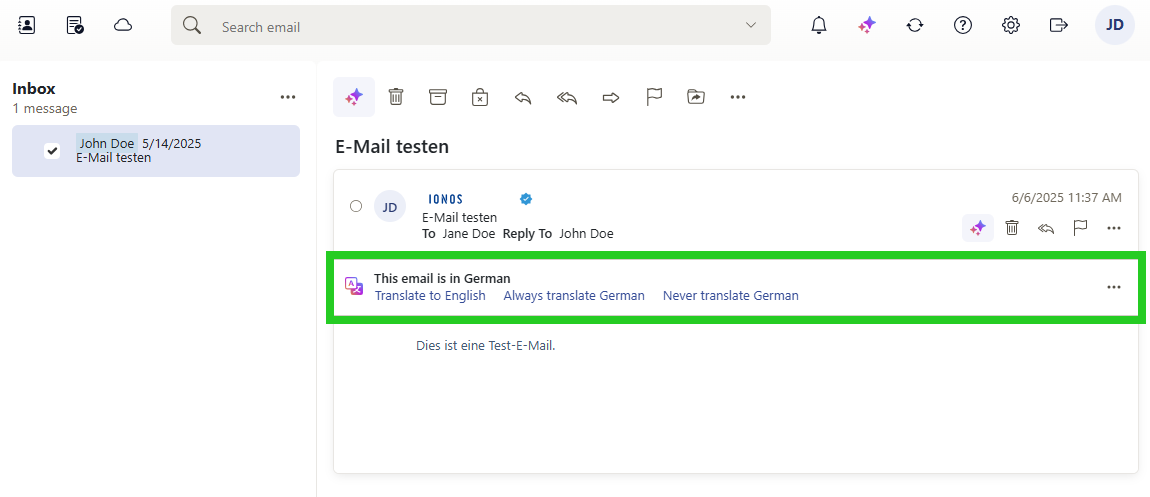
Alternatively, you can complete the following to manually start the translation of an email you have received in your inbox:
Log in to Webmail.
In the left-hand navigation bar, click on Inbox and select the desired email.
Click on the button with the three star symbols at the top of the navigation bar (AI integration tooltip).
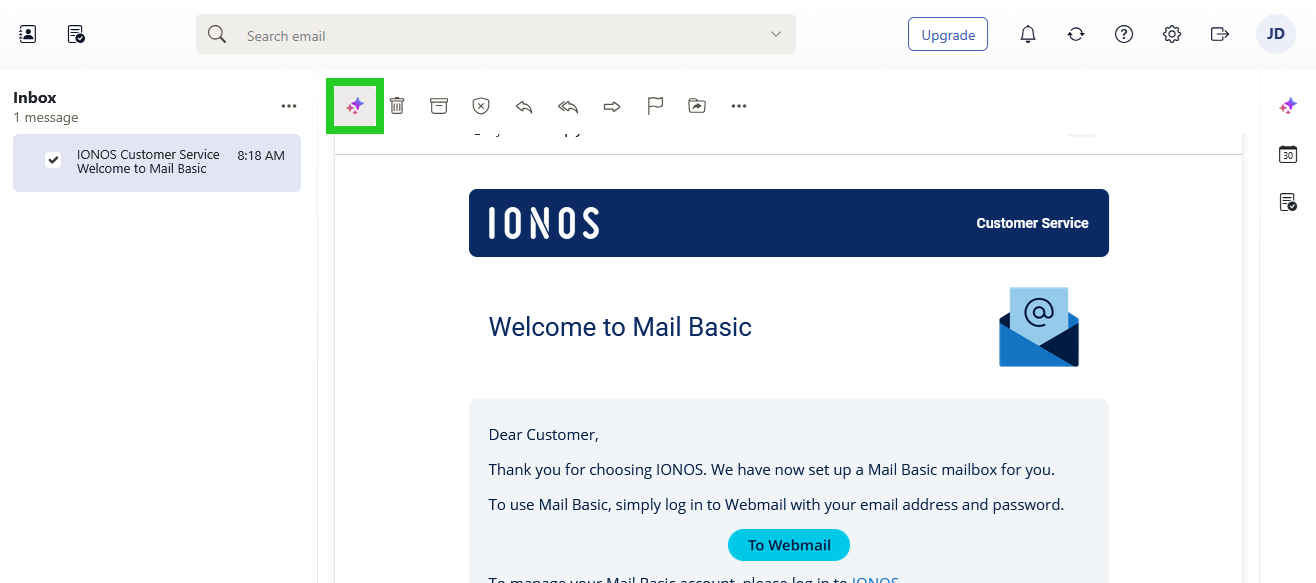
- Select the desired language in the Translate to area.
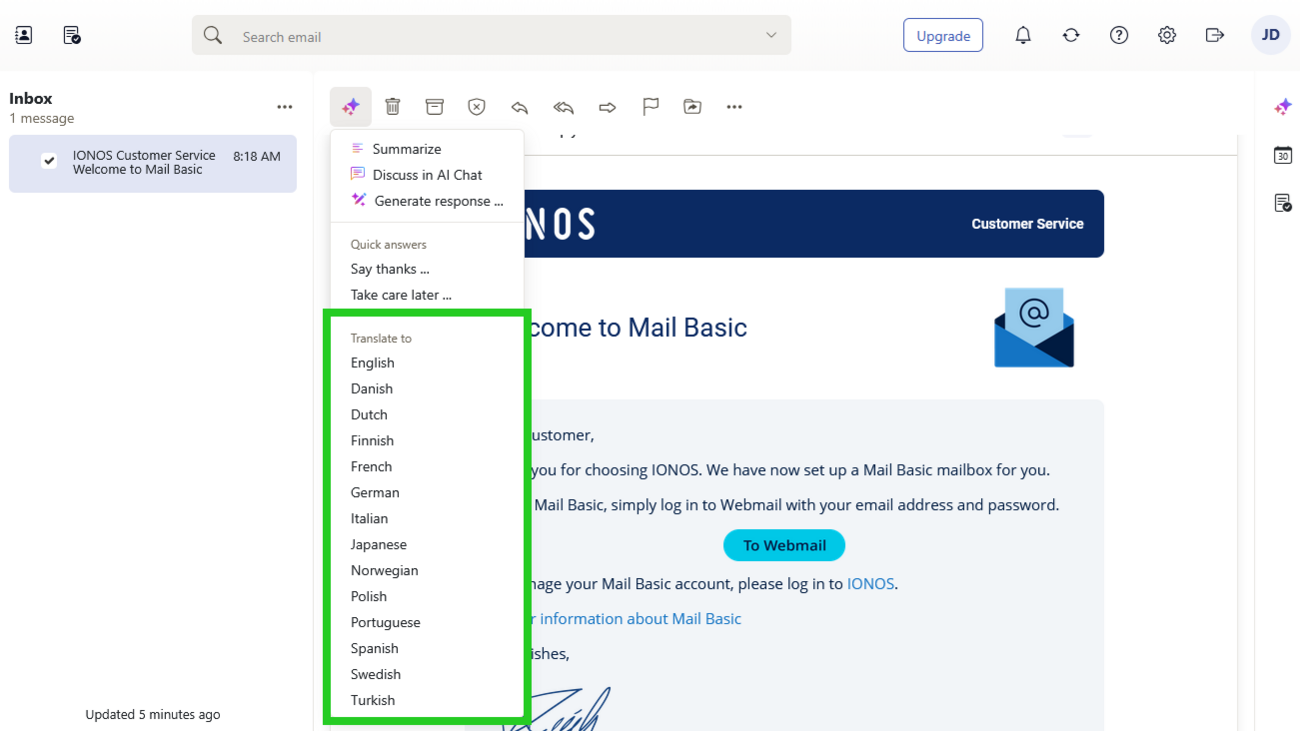
The AI-generated translation is displayed in the email.
Translate outgoing email
Write and translate your emails quickly and easily with Webmail AI:
Requirements
You have logged into Webmail.
You have created a new email.
In the email, select the text you want to translate.
Click on Translate at the bottom of the toolbar. If this button is not displayed, click the button with the three star symbols in the toolbar. The Translate button will then be displayed.
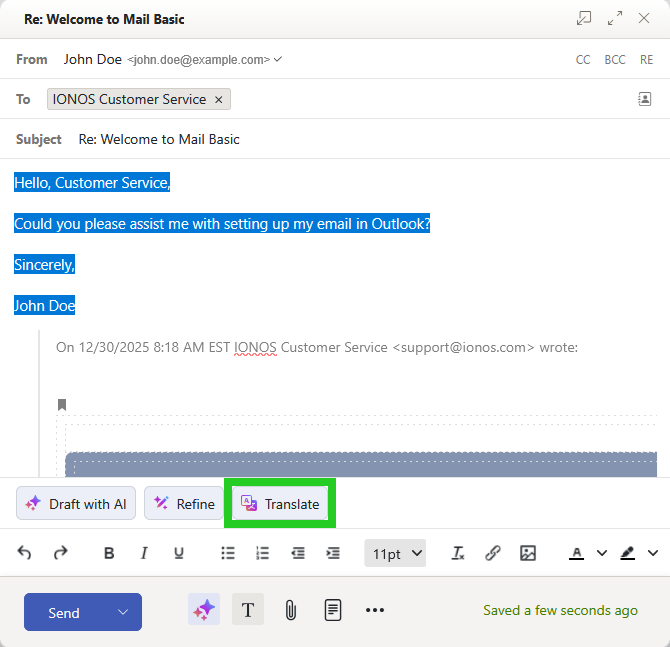
- Select the language into which you would like to translate your message.
The text is translated and inserted.
Additional information
You can find useful information about Webmail AI in the following articles:
Summarizing emails with Webmail AI
Drafting emails with Webmail AI
Disabling Webmail AI