Displaying or changing PHP versions
Valid for Linux Web Hosting and Managed Dedicated Servers.
This article shows you how to determine which PHP version is active for your domain, and how to change it.
Most websites use the PHP programming language. An up-to-date version of PHP is important for the security and speed of your website.
Note on Managed Hosting for WordPress and MyWebsite products
The PHP version cannot be changed for websites that are managed with Managed Hosting for WordPress or MyWebsite. The version is managed by IONOS. This is necessary to ensure that the products function optimally and remain compatible.
Note on self-managed WordPress and Joomla installations
The WordPress and Joomla! content management systems allow a high degree of customization through themes and plugins. The more themes and plugins you use in your installation, the more important it is to properly prepare for the PHP version change to ensure a successful transition. We have summarized what you need to consider in the following articles:
Updating the PHP version for WordPress
Updating the PHP Version for Joomla!
Display or change PHP version
Please Note
If you change the PHP version, this may affect the functionality of your website. We recommend that you only use the PHP versions recommended by the manufacturer of your website software.
- Log in to your IONOS account.
- Click Menu > Hosting in the title bar. If you have multiple contracts, select the desired Hosting contract.
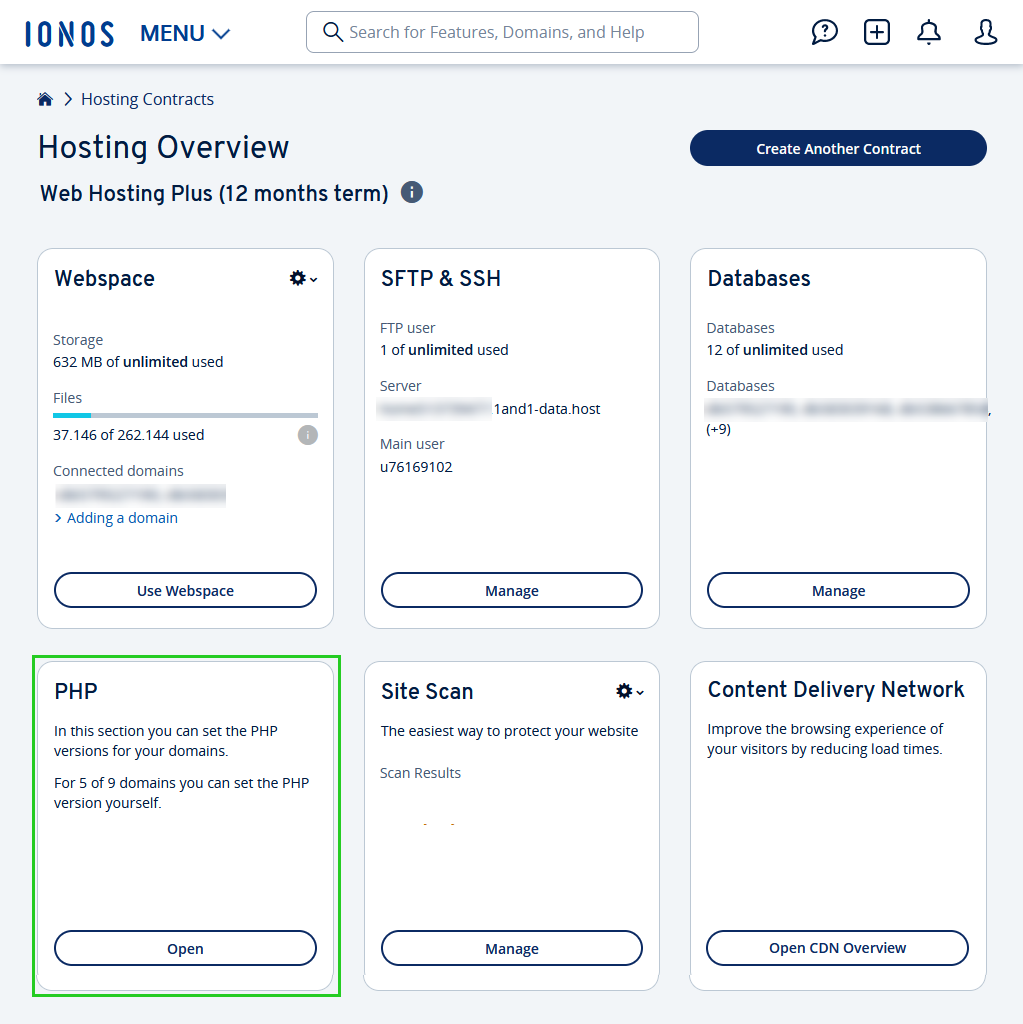
- Click on Open in the PHP tile to access the PHP settings.
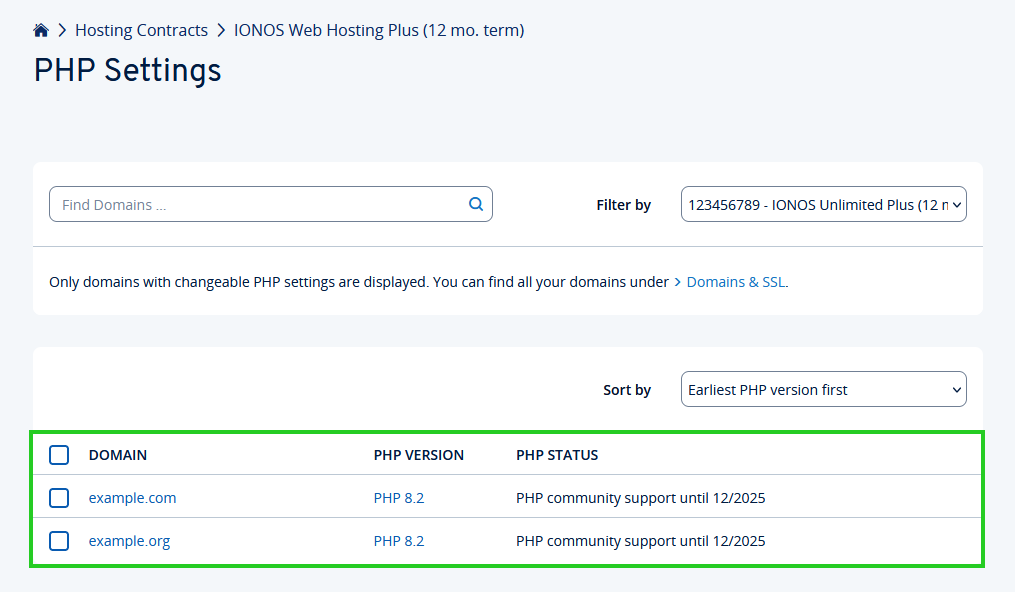
- On the PHP settings page, you will see a table with all domains that are connected to a web hosting service. Here you can see which PHP version is assigned to which domain.
If you have several domains, you can assign different PHP versions to them.
- To change the PHP version for a domain, click on the corresponding domain.
Optional: To change several domains to the same PHP version in one step, first tick the corresponding checkboxes. Then click on the Select PHP version button, which is now displayed at the top of the table.
- You will receive an overview of the available PHP versions. Select the desired PHP version and click on Save.
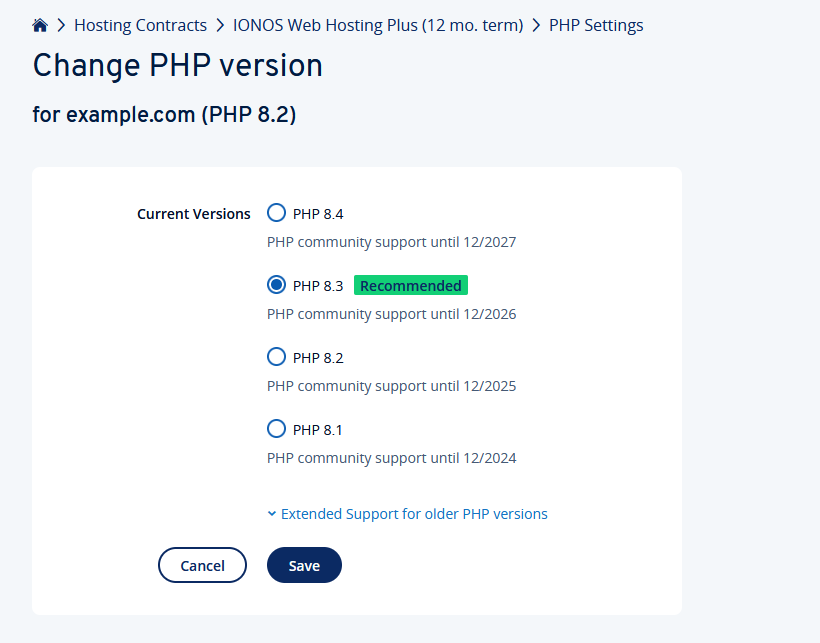
- The PHP version is now being changed. This may take a moment, but as soon as the new PHP version is active, your website will automatically run with this version.
Note
We recommend that you check the functionality of your website immediately after the change. If problems occur with the new PHP version, you can revert to the previous PHP version, or alternatively test a different PHP version.
Which PHP versions does IONOS offer?
With IONOS, you can choose between different PHP versions. We distinguish between two types:
- Current PHP versions are versions that are still officially maintained by the PHP community and supplied with security updates.
- Older PHP versions are versions that are no longer maintained by the PHP community. As these versions no longer receive security updates, they should no longer be used. This applies to all PHP versions prior to PHP 8.1.
Our recommendation: If possible, use a current PHP version. With PHP 8.4 you can use popular website solution such as WordPress, Joomla, or Drupal without any problems. Switching to a current version of PHP versions is always free of charge.
PHP Extended Support
In order to give customers who are still using an older PHP version more time to switch to a current version, IONOS offers PHP Extended Support for older PHP versions instead of discontinuing support.