Opening phpMyAdmin
Valid for Web Hosting and Managed Dedicated Servers.
phpMyAdmin is a web application for managing MySQL and MariaDB databases. In this article, we will show you how to open phpMyAdmin in your IONOS account.
Requirement
You have created a MySQL or MariaDB database in your IONOS account.
Caution
Changes you make in phpMyAdmin become active immediately and cannot be undone. You should therefore be particularly careful when using the Delete and Empty functions.
To open a database in phpMyAdmin:
Log in to your IONOS account.
Click Menu > Hosting in the title bar. If you have several hosting contracts, select the desired contract.
Click on Manage in the Databases area.
Next to the database you want to edit, click Open in the ADMIN column.
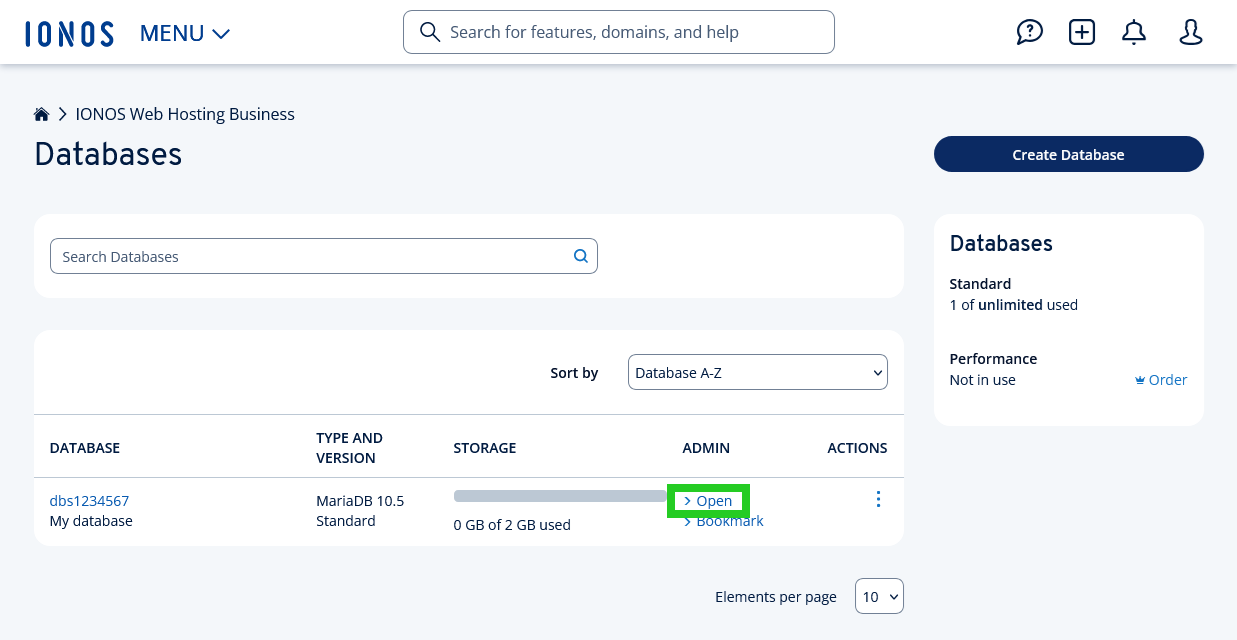
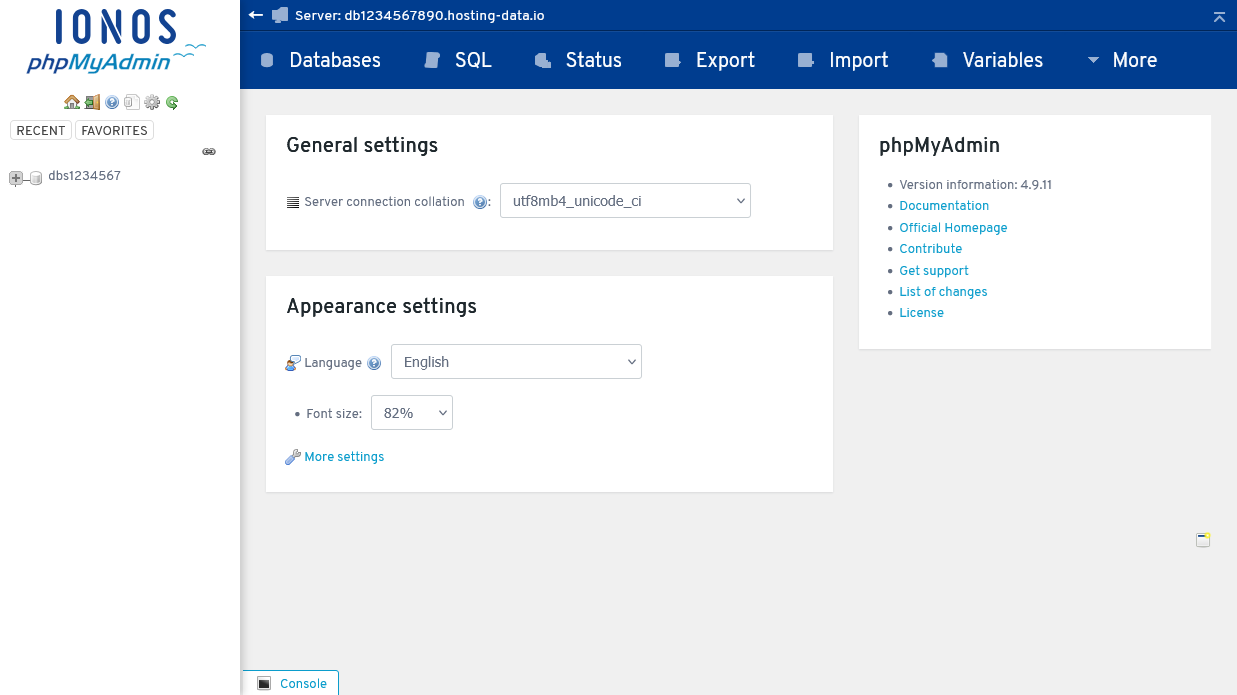
You are now on the phpMyAdmin start page. Here you have access to all functions and can, for example, import or export data.
Note
For technical reasons, your editing rights are restricted to the content of your database. Therefore, you cannot create new databases or database users in phpMyAdmin. To do this, use the corresponding option in your IONOS account.
Create bookmark to phpMyAdmin
Alternatively, you can also open phpMyAdmin directly via a bookmark in your browser. In this case, you do not need to log in to your IONOS account.
To create a phpMyAdmin bookmark for a database, click on Bookmark next to the desired database in your database overview. Copy the link displayed and create a bookmark in your browser with the link as the address.
Notes
The bookmark only works if you save the provided phpMyAdmin bookmark. If you open the link first, and then set a bookmark for the open phpMyAdmin page, the bookmark will not work.
Each database has its own bookmark. If you want to manage several databases in this way, you must create a separate bookmark for each database.
WordPress plans purchased starting September 27, 2022
With our latest Hosting for WordPress plans, the link to phpMyAdmin is located in a different place. So if you are using a Hosting for WordPress Start, Grow, Boost, or WooCommerce plan, complete the following:
Log in to yourIONOS account.
In the main navigation at the top left, click on Menu and then on Websites & Stores.
If you have several website projects, click on Manage in the tile of your WordPress project.
In the overview of your WordPress project, click on Settings.
Scroll down to the Advanced settings section.
Under Database, click on Open phpMyAdmin.
Further information
The following articles contain information on backing up and restoring your databases with phpMyAdmin: