Integrating shared storage on a server (Windows Server 2025)
Valid for Cloud Servers and Dedicated Servers with Microsoft Windows Server 2025, which are managed in the Cloud Panel.
This article explains how you can integrate shared storage on a server with Microsoft Windows Server 2025.
Complete the following to integrate shared storage on your server:
Requirements
- You have set the access authorizations for the desired server in the detailed view of the shared storage.
- You have noted the CIFS path of the desired shared storage.
- Establish a remote desktop connection to your server.
- Log in to the server.
- Open File Explorer.
- Click on This PC in the navigation bar on the left.
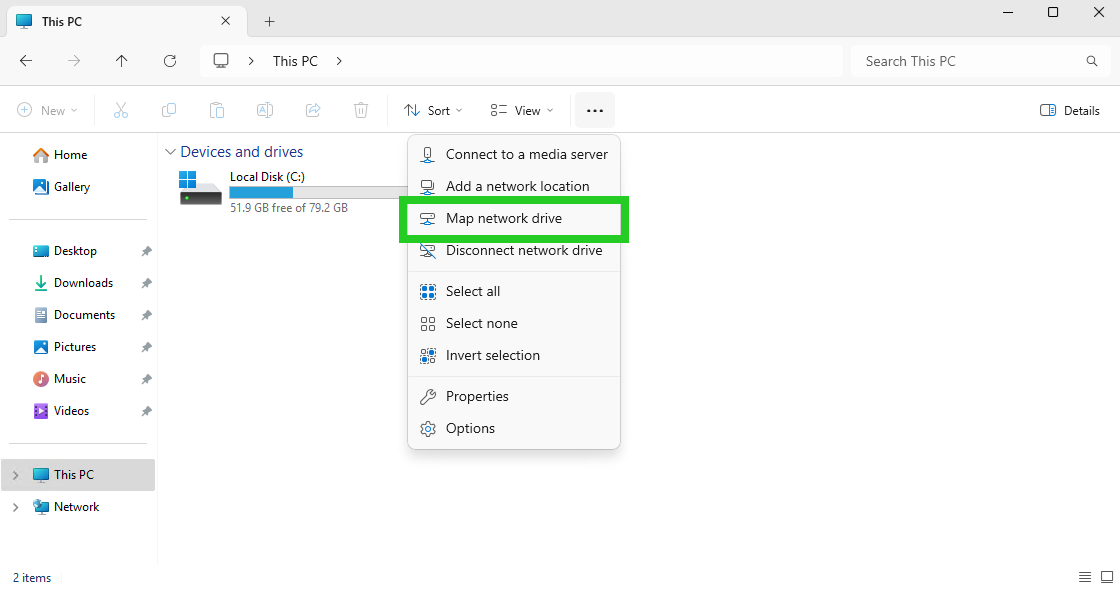
- Click on the three dots in the menu bar next to the View menu item (More info tooltip).
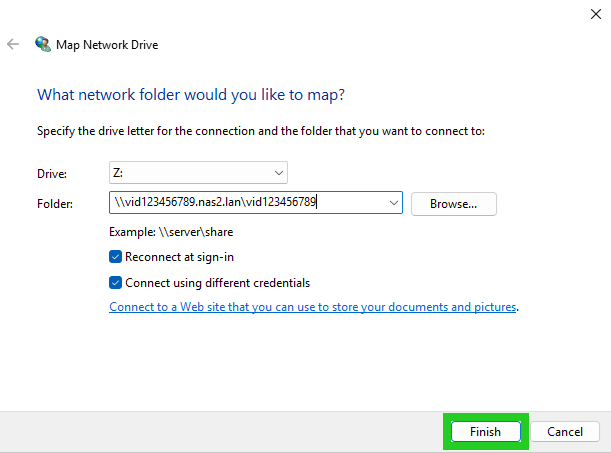
- Click on Map network drive in the menu bar. The following window opens: Which network folder would you like to map?
- Enter the CIFS path in the Folder field.
- Tick the Connect using different credentials checkbox.
- Click on Finish. The Windows Security window is displayed.
- Enter the username and password for the shared storage.
- Click on OK.
The connection to the shared storage is now established.