Interactive support from the MyWebsite Now AI Assistant
Valid for MyWebsite Now.
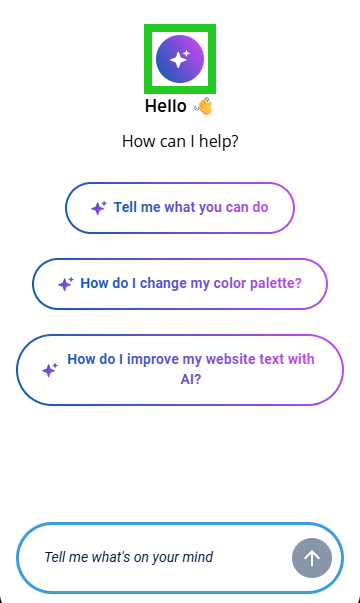
In addition to the MyWebsite Now articles in the Help Center, the interactive MyWebsite Now AI Assistant is available to you in the website editor. It uses a chat function to respond to your questions about MyWebsite Now, and provides you with targeted answers. This article explains how to use the MyWebsite Now AI Assistant.
The assistant helps with these MyWebsite Now topics
The MyWebsite Now AI Assistant can help you with the following topics:
Finding features: For many queries, the chat will link you directly to the relevant setting.
Step-by-step guidance: The assistant explains, step by step, how to customise the design or add new content.
Tips & best practices: You’ll get immediate answers to questions about designing your website.
Note
The assistant specialises in matters relating to your MyWebsite Now project. If you have any questions about other IONOS topics or products, please contact IONOS Customer Support.
Open the MyWebsite Now Editor
- Log in to your IONOS account.
- Click on Menu > Web Projects in the title bar. An overview of your web projects is displayed.
- Click on Manage project in the tile with the name of your online project, if you have multiple contracts. The Presence Suite for this project opens.
- Select Website > Website Editor in the left menu bar of the Presence Suite. The MyWebsite Now Editor opens in a new window.
Use the MyWebsite Now AI Assistant
You’ll find the icon for the MyWebsite Now AI Assistant in the bottom right-hand corner of your editor. Click on it to open the chat window. In the chat, type your questions in everyday language or click on one of the suggested questions.