Activating automatic replies in IONOS Webmail
Valid for: Mail Basic and Mail Business
This article explains how to activate automatic replies (vacation notice) in IONOS Webmail.
Note
If the vacation notice (autoresponder) is activated, the sender of an email automatically receives a reply with predefined content. Alternatively, you can use this function to send a confirmation of receipt, for example.
- Log in to IONOS Webmail.
- In the main navigation at the top right, click the gear icon (tooltip Settings).
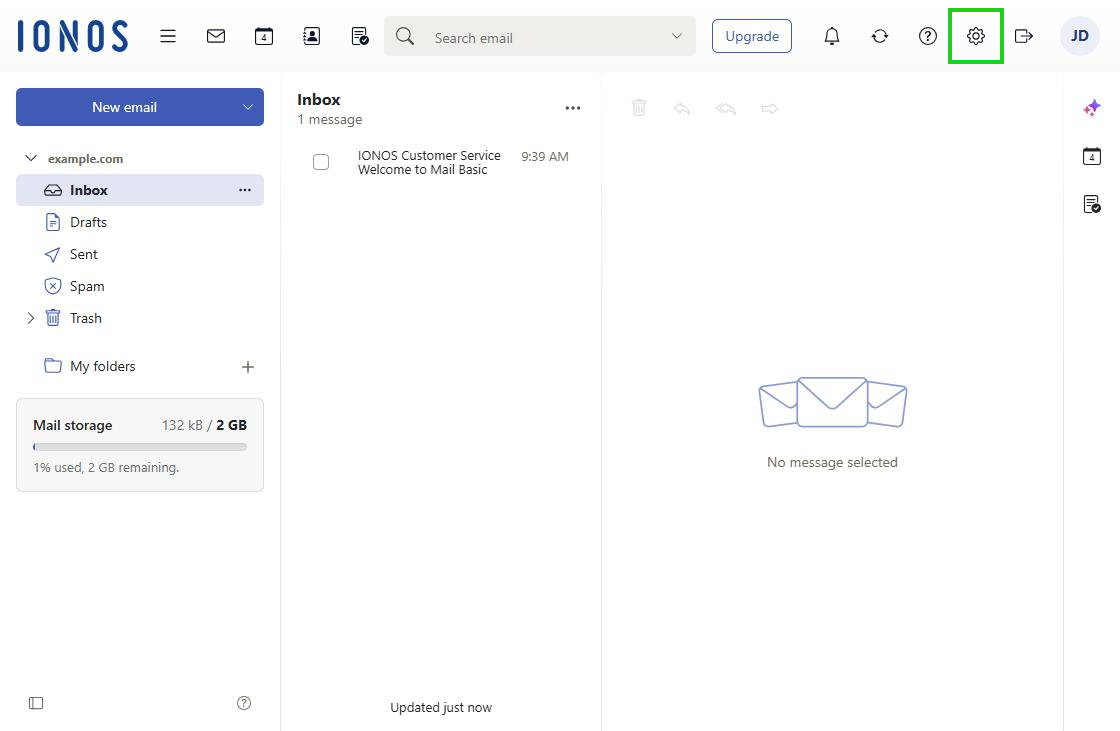
- In the menu, click Vacation notice ... to open the Vacation notice window.
- At the top left, move the slider to the right to activate the vacation notice.
- In the Subject field, enter a subject.
- In the Message field, enter the message text.
- If you have set up several email addresses, select the email address you want in the Send from field.
- Click Apply changes.
Note
You can also set up the vacation notice after logging in to your IONOS account. The article Setting up an autoresponder for your email account in the control panel explains how to do this.