Overview: Logs
Valid for Cloud Servers, migrated Cloud Servers, VPS, VPS+, Dedicated Servers, and Bare Metal Servers managed in the Cloud Panel.
This article explains what information is listed in the Management > Logs section of the Cloud Panel.
Viewing the Logs
- Log in to your IONOS account.
Click on the Servers & Cloud on the tile. Select the desired Servers & Cloud contract .
In the navigation bar on the left, click Management > Logs.
Overview of the Logs Section
In the Cloud Panel, all actions performed by users in Cloud Panel are logged in the Management > Logs section.

To display the log entries, select the desired period in the Period section and click Apply.
The log entries are listed in a table. The following information is listed in this table:

Date: Time when the action was started.
Status: Last status of the action.
Type: Specifies the section in the Cloud Panel in which the action was performed.
Action: The action that was performed.
Name: Name of the server, shared storage, load balancer, or function that was affected by the action.
User: User who performed the action.
Duration: Duration of the action.
To access all the information, click the desired action. The list contains the following additional information:
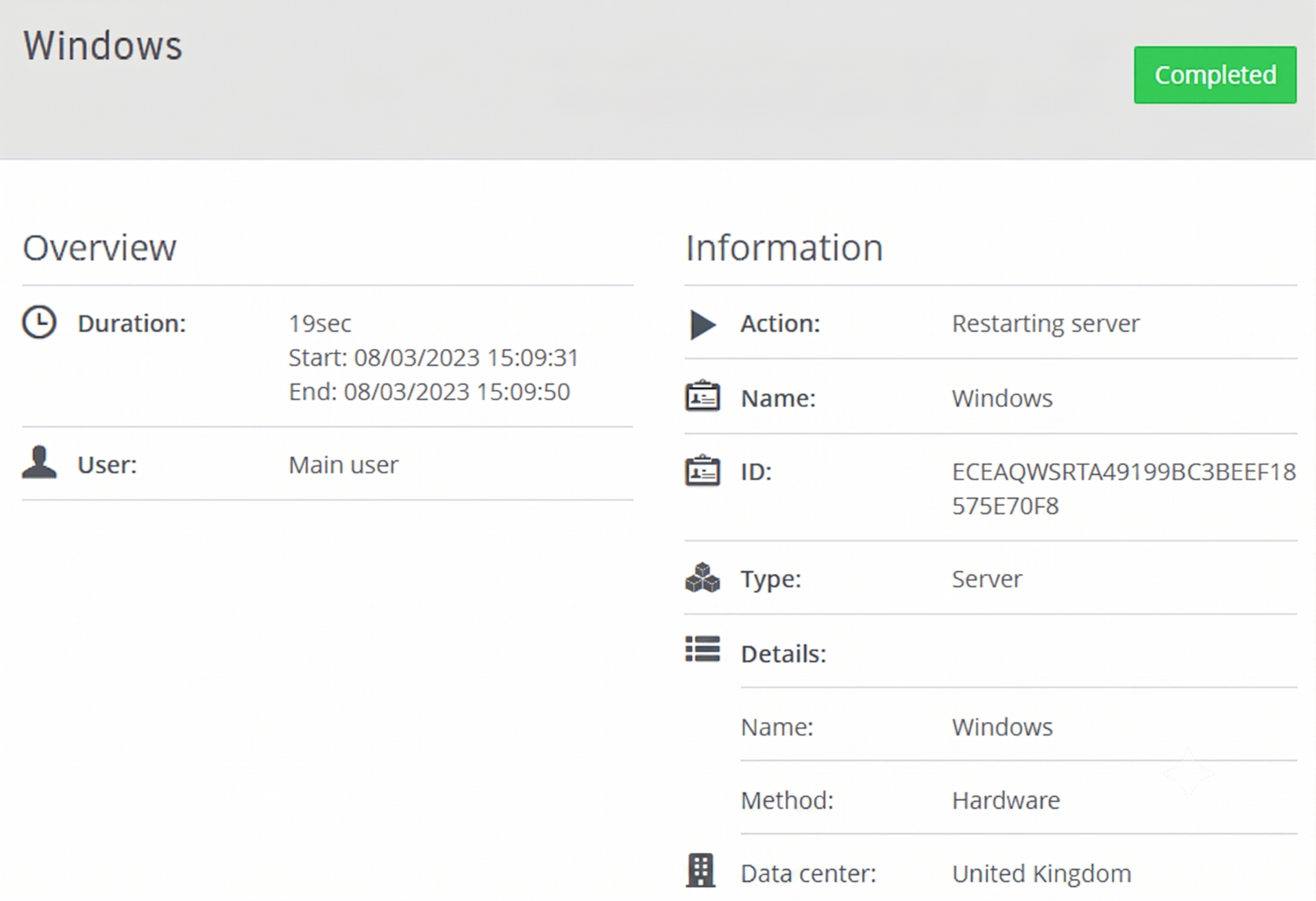
Duration:
Start: Time at which the action was started.
End: Time at which the action was completed.
ID: ID of the action.
Details: Various parameters are listed which are related to the executed action.