Overview: VPN
Valid for Cloud Servers, Bare Metal Servers, and some Dedicated Servers managed in the Cloud Panel.
You can use a Virtual Private Network (VPN) to establish a secure connection between a local PC and your Cloud Servers and Bare Metal Servers that are managed in the Cloud Panel. This secure connection is encrypted with SSL.
Notes
For technical reasons, you can only establish a single connection to your Cloud Server via VPN. If you want to establish several VPN connections at the same time, you must create a separate VPN connection for each local PC.
To use the VPN, you need to install and configure the OpenVPN software on your local PC. In the configuration file section, you can download a ZIP file containing the necessary configuration files.
Open VPN area
- Log in to your IONOS account.
Click Menu > Servers & Cloud in the title bar .
Optional: Select the desired Server & Cloud contract.The Cloud Panel opens
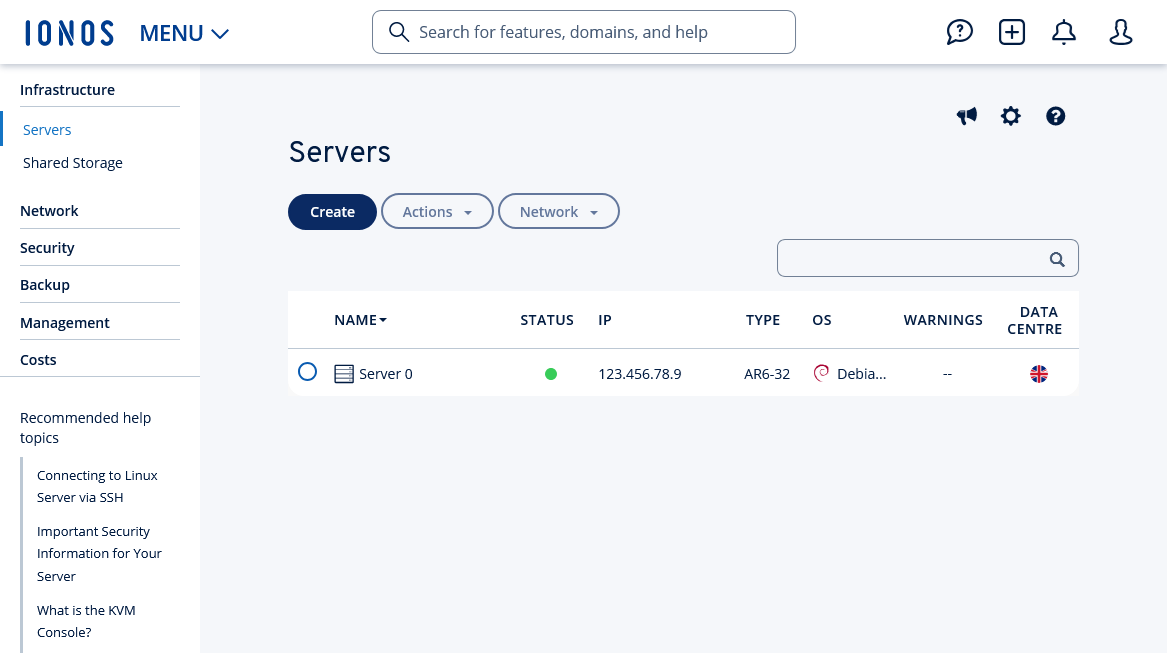
Click Network > VPN in the navigation bar on the left.
Structure of the VPN area
In Cloud Panel, all VPNs are listed in a table in the Network > VPN area. This table lists the most important information about the individual VPNs:
Name: Name assigned to the VPN. You can change the name at any time.
Status: VPN connection status. If the SSL certificate is valid, the VPN connection status is Active. If the SSL certificate has expired, the status changes.
Note
You will receive an email notification 30 days before the SSL certificate for the VPN connection expires.
Expiration date: Date on which the SSL certificate expires.
Data center: A data center to which a secure connection is established.
To view all information about the desired VPN, click on the VPN's name. The list contains the following additional information:
IP: IP address assigned to the VPN.
Creation date: Date the VPN was set up.
Configuration file: In the Configuration file section, you can download the VPN configuration file. Additionally, you can renew the SSL certificate in this section by clicking Renew and then Renew configuration file.
Note
When renewing the SSL certificate, you need to download the new configuration file and copy it to the OpenVPN installation directory.
Last renewal: Date on which the SSL certificate was last renewed.
History: The history section lists the most recent actions performed with regard to the selected VPN.