How can you create a digital signature for email?

Digital signatures are a proven security measure in electronic commerce, particularly as phishing remains one of the biggest security risks for businesses. With a valid digitally signed email, recipients can verify that the signed content has not been altered and that it was signed using the corresponding private key. How reliably that key identifies a person or organisation depends on the certificate and its validation. A phishing email can also carry a valid digital signature; a signature alone does not make a message trustworthy.
Key Takeaways
- Digital signatures help verify the signing key and detect changes to signed email content.
- A valid signature does not make an email trustworthy or rule out phishing.
- S/MIME uses certificate authorities, while OpenPGP uses decentralised key management.
- Identity assurance depends on the certificate profile and validation procedures, not just the presence of a signature.
- Signing does not encrypt the message; encryption provides confidentiality.
- Classic and new Outlook have different settings for importing certificates and signing messages.
What is the purpose of a digital email signature?
A digital email signature confirms that
- the content of an email has arrived unchanged (integrity), and
- the message was signed using the private key associated with the specified address (authenticity).
A digital email signature provides cryptographic protection. It confirms that the email content has not been altered and helps recipients verify the sender’s identity. However, it does not prevent third parties from reading the message. In Outlook, for example, a signature icon in the message header indicates that the message has been digitally signed, not that the email address itself has been signed.
What does a digital email signature include and why is it important?
With S/MIME, a digital email signature uses a certificate and a cryptographic key pair. The sender uses the private key to sign the message, while the recipient uses the corresponding public key to verify the signature. OpenPGP also uses a key pair, but does not require the same certificate-authority infrastructure.
A digital email signature therefore serves two main purposes: it helps verify the signing key and detects changes to the signed message. The strength of identity verification depends on the certificate and its validation. This is particularly useful in business email communication, but does not by itself rule out phishing attempts, including messages signed using an attacker’s own certificate or a compromised private key.
Digital signatures may also have legal significance. Depending on the type of signature and the applicable legal requirements, they can serve as evidence and help prevent the sender from denying that they signed the message in the event of a dispute.
How do email signature, electronic signature, digital email signature and email encryption differ?
A digital email signature should not be confused with the personalised signature added to the end of a message in an email program. This email signature generally includes contact details and any legally required information, but it provides no cryptographic protection.
The electronic signature is legally recognised under the eIDAS Regulation (EU) No. 910/2014, as amended by the eIDAS 2.0 Regulation (EU) 2024/1183. In Ireland, electronic signatures are also covered by the Electronic Commerce Act 2000. These rules govern the legal recognition and use of electronic signatures in transactions such as contracts and official documents. They distinguish between three levels:
- electronic signature, such as a typed name or scanned signature
- advanced electronic signature (AdES)
- qualified electronic signature (QES)
A digital email signature, by contrast, is primarily a technical security measure. It verifies that a message has not been altered and that it was signed using a specific cryptographic key. It is not automatically equivalent to a qualified electronic signature and, without the required qualified certificate and qualified signature-creation device, does not have the same legal effect as a QES under the eIDAS Regulation.
Digital signatures are also often used alongside email encryption. Digitally signing an email helps verify its origin and detect changes to the signed content, but the message itself remains readable. Encrypting emails provides an additional layer of protection by ensuring that only the intended recipient can decrypt and read the content. This keeps the communication confidential while it is being transmitted.
How do digital email signatures work?
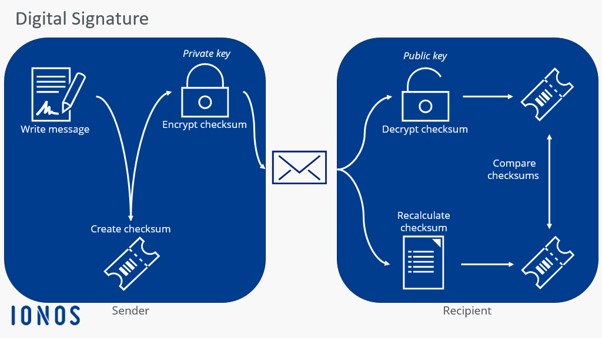
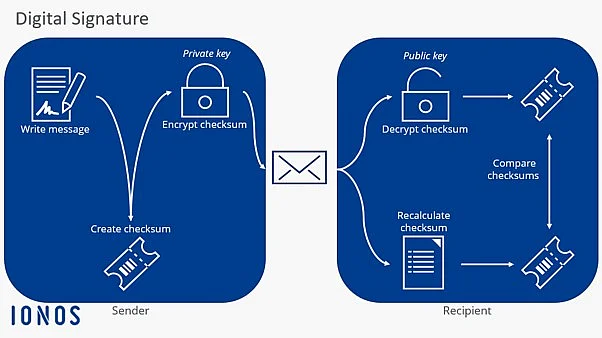
The basic principle of a digital email signature is based on asymmetric cryptography (public key method), i.e. a procedure with two associated keys: a private key and a public key. The basic principle is explained step by step below:
- Creating a hash value: The sender’s email program applies a hash function to the email content, generating a unique checksum that represents the entire message.
- Signing with the private key: The sender’s private key is used to cryptographically sign the hash value. This key remains confidential and serves as the sender’s digital proof of authorship.
- Sending the signed email: The digital signature is sent together with the readable email content. The message is not encrypted, but any subsequent changes can be detected.
- Providing the public key: With S/MIME, the corresponding public key is generally supplied through a certificate attached to the signed email. With OpenPGP, the public key may be exchanged beforehand or made available in a directory.
- Verifying the signature: On receipt, the recipient’s email program uses the public key to verify the signature and independently calculates a new hash value from the message.
- Comparing the results: If the newly calculated hash matches the value verified from the signature, this confirms that the message was signed with the corresponding private key and was not altered in transit.
- Verifying the sender’s identity: With S/MIME, the certificate and its validation are checked to assess how reliably the key can be linked to the claimed person, organisation or mailbox. With OpenPGP, this depends on how the recipient has verified the public key.
How is identity verified with a digital email signature?
With S/MIME, different certificate profiles provide different levels of assurance about a mailbox, person or organisation. These technical profiles must not be equated with legal electronic-signature levels:
Mailbox or domain validation
This form of verification checks whether the applicant controls a specific email address or domain. Common methods include confirming a link sent by email, adding a DNS record or uploading a file to the domain’s web server.
These certificates are mainly suitable for technical purposes, such as automated system emails or internal communication. However, they do not provide reliable proof of a natural person’s identity.
Personal or organisational identity verification
The level of trust is considerably higher when the applicant’s identity is verified before the certificate is issued. This may involve checking an official identity document, completing a video identification process, using an electronic identification function or consulting official registers for organisations.
Certificates issued after this type of identity verification can be linked more reliably to a specific person or organisation. They are particularly relevant for business correspondence and communications with potential legal significance.
Older provider-specific classifications based on certificate classes 1 to 3 are no longer the relevant standard. For publicly trusted S/MIME certificates, the certificate profile and the certificate authority’s validation procedures are decisive. These technical profiles do not determine whether a signature meets the separate legal requirements for an advanced or qualified electronic signature under eIDAS.
Special certificates for gateways and teams
The certificates described above are generally used to verify a single email address. In businesses, however, issuing a separate certificate for every individual address may be impractical. Alternative approaches are therefore often used:
- Team certificates for shared or functional mailboxes such as info@ or support@
- Gateway or domain certificates for centrally managed or automated email sending
Modern solutions are often implemented through hosted S/MIME, where keys and signing processes are managed centrally. Hosted S/MIME acts as an overarching system within which different certificates can be used. Compatibility depends on the email client, but is generally supported by current email programs.
What technical standards are used to digitally sign emails?
Before you can use a digital signature, your email client must be configured accordingly. Once this has been done, the signing and verification processes described above take place automatically in the background.
Two main standards are available for digitally signing emails: S/MIME and OpenPGP. Both define how email signatures are created, transmitted and verified across different email programs. They follow the same basic principle but differ in how identities are verified and keys are managed.
- S/MIME uses X.509 certificates and a central certificate infrastructure based on certificate authorities. This generally makes it easier to manage in organisations with many users and clearly defined responsibilities. The current S/MIME 4.0 specification is set out in RFC 8551.
- OpenPGP uses decentralised key management, allowing users to generate and exchange their own keys. Trust is established through direct verification rather than through a central authority. The current OpenPGP specification is RFC 9580.
The existence of competing systems, the additional administrative effort and, in some cases, the cost are among the main reasons why digitally signed emails are not more widely used.
Additional security measures for digital email signatures
Digital email signatures protect the integrity and authenticity of individual messages. In practice, however, they are increasingly combined with additional security measures to detect modern threats such as AI-powered phishing and business email compromise more reliably. Approaches based on artificial intelligence, blockchain and biometrics are particularly relevant, as each performs a different function within a broader security framework.
AI-based contextual analysis rather than cryptography
Artificial intelligence has significantly changed the nature of email-based attacks. Phishing emails can now be grammatically polished, contextually relevant and tailored to individual recipients. Traditional warning signs, such as poor grammar or unusual wording, are therefore becoming less reliable. To identify threats such as AI-powered phishing, organisations increasingly use AI-based tools to assess risks and analyse incoming messages:
- Microsoft Defender for Office 365: machine-learning-based detection of phishing and business email compromise attacks
- Google Workspace Security: machine-learning models for identifying suspicious patterns in email communication
- Proofpoint and Mimecast: email security gateways with AI- and machine-learning-based threat detection
These AI-based tools do not themselves create digital email signatures. Whether a product checks S/MIME signatures or uses their validation results in its analysis depends on its documented features and configuration; this should not be assumed for every product. Cryptographic signature validation and AI-based contextual analysis perform different tasks, and neither makes a validly signed phishing message automatically trustworthy.
Blockchain solutions
Blockchain-based technologies are often discussed as a possible basis for digital identity systems. Concepts such as decentralised identifiers (DIDs) and verifiable credentials aim to allow identities to be confirmed without relying on central certificate authorities. In email communication, however, these approaches currently have little practical relevance. Standards such as S/MIME and OpenPGP are not designed for blockchain-based infrastructures, and widely supported integrations for common email programs are still lacking.
Blockchain cannot directly replace digital email signatures. Its potential value instead lies in extending existing identity and trust models. Possible applications include:
- verifying identity information outside the digital email signature itself, for example through decentralised identifiers or verifiable credentials
- creating tamper-resistant records of identity mappings or certificate events, such as issuance and revocation
- supplementing traditional certificates with additional tamper-resistant metadata
These approaches remain largely conceptual. For email communication, S/MIME signatures continue to rely on PKI-based certificates, while OpenPGP uses its own key-management and trust models. Blockchain could, at most, serve as an additional external layer of trust in future.
Biometric authentication rather than signatures
Biometric methods such as fingerprint or facial recognition cannot replace a digital signature, but they can provide an additional layer of security. Their purpose is to control access to the signing process rather than create the cryptographic signature itself.
- Protecting access to the private key: The private key is stored in a secure environment, such as a hardware security module or cloud vault. Before the key can be used, the person’s identity may be verified through fingerprint or facial recognition. The signing process is authorised only after successful biometric authentication.
- Supporting identity verification before certificate issuance: Biometric methods can also strengthen security before a digital email signature is used. During the certificate application process, they may support remote identity checks, liveness detection and measures designed to prevent identity fraud.
How to set up and use a digital email signature in Microsoft Outlook
This section explains how to set up and enable a digital email signature in Microsoft Outlook for Windows. The process differs between classic Outlook and the new Outlook, so you should first check which version of Outlook you are using.
Setup in classic Outlook
Step 1: Obtain and install a digital certificate
S/MIME certificates are available from various providers. Some require only mailbox validation, while others include additional identity checks. Once issued, the certificate is generally provided as a file, such as .p12 or .pfx. Double-click the file to install it in the operating system’s personal certificate store. Outlook can then access the certificate automatically.
Step 2: Enable the certificate in Outlook
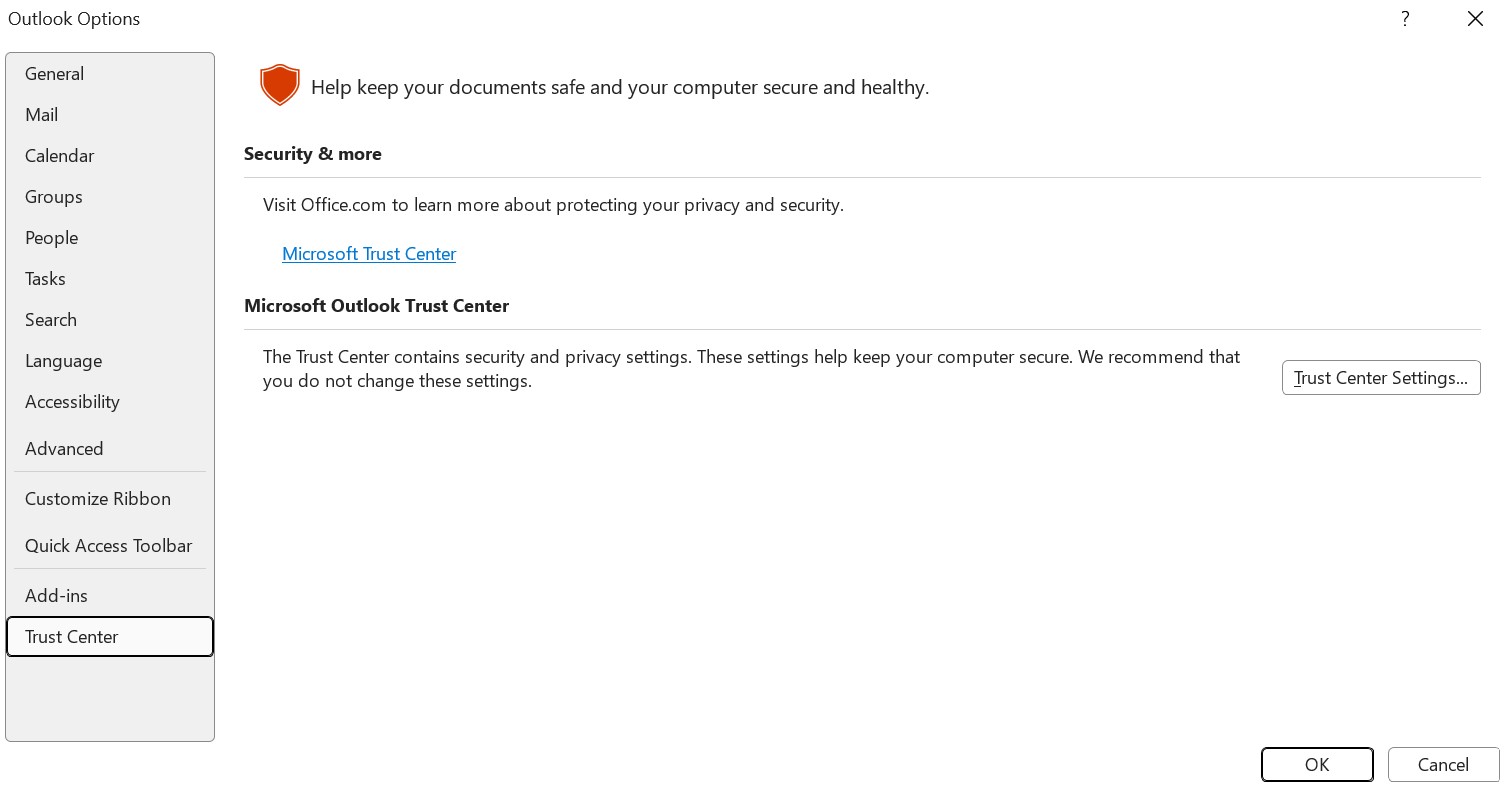
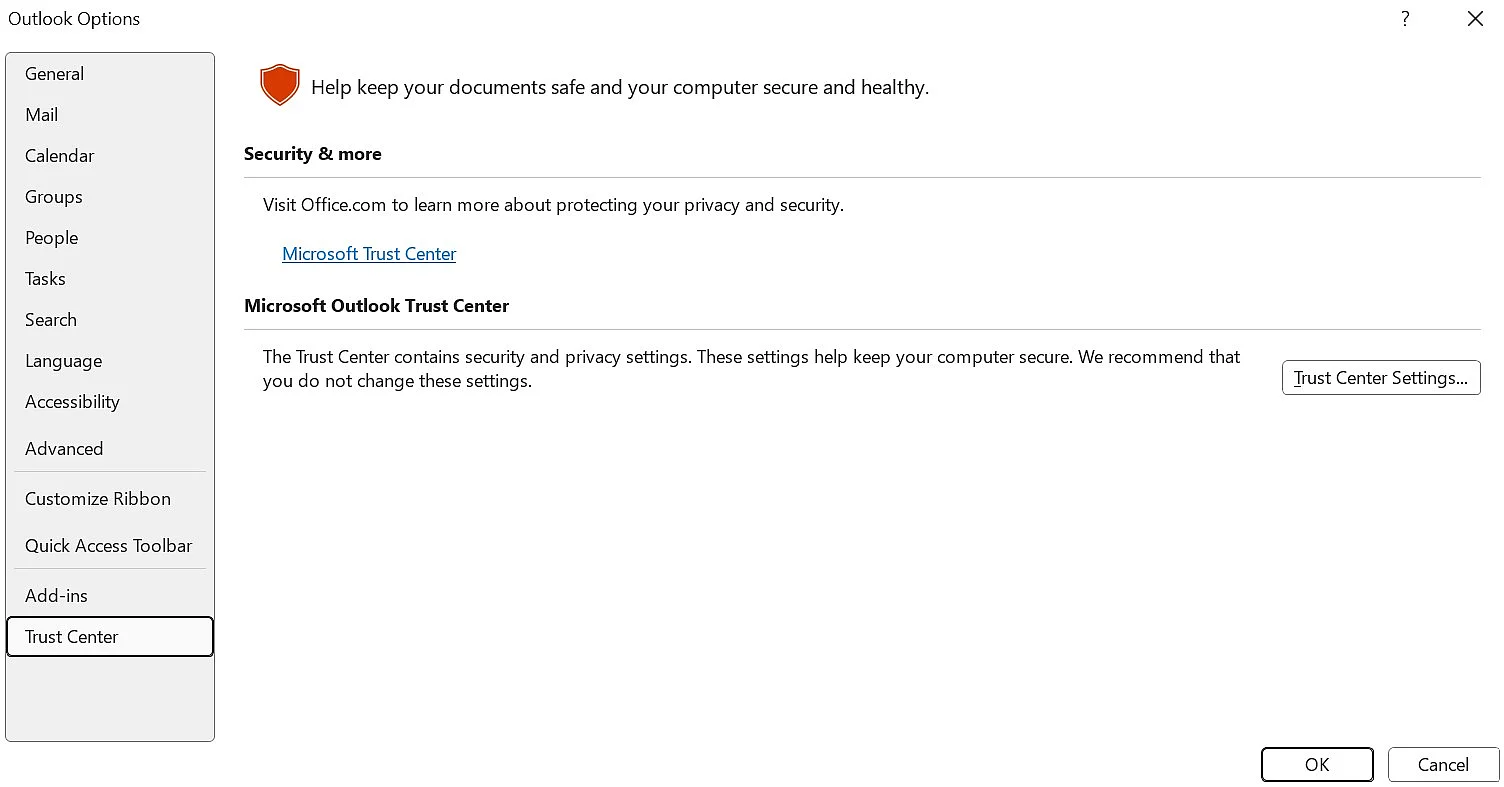
- Open Outlook and select ‘File’, followed by ‘Options’ and ‘Trust Center’.
- Select ‘Trust Center Settings’, then open ‘Email Security’.
- Under ‘Digital IDs (Certificates)’, use ‘Import/Export’ if you need to import the certificate file, and enter its password.
- If necessary, under ‘Encrypted email’, open ‘Settings’ and select ‘Choose’ next to ‘Signing Certificate’ to select a certificate valid for digital signing.
Step 3: Compose and send a digitally signed email
When writing a new email, you can activate the digital signature manually. In the message window, select ‘Options’, open the dialog box launcher in ‘More Options’, select ‘Security Settings…’ and then ‘Add digital signature to this message’. Outlook creates the digital signature automatically when the email is sent. The message remains readable, but any subsequent changes can be detected.
Recipients will see a notification in Outlook confirming that the message has been digitally signed. By selecting the signature icon, they can view further details, including whether the signature is valid, which certificate was used and which certificate authority issued it.
Setup in new Outlook
The new Outlook now supports importing digital IDs and using S/MIME certificates. However, the available options may depend on your Microsoft 365 account and your organisation’s administrator settings.
Step 1: Obtain and install a digital certificate
S/MIME certificates are available from various providers. Some require only mailbox validation, while others include additional identity checks. Once issued, the certificate is generally provided as a file, such as .p12 or .pfx.
The new Outlook does not automatically import digital certificates. You can instead import the certificate directly through the S/MIME settings.
Step 2: Import and enable the certificate in Outlook
- In Outlook, select the cogwheel icon in the top-right corner.
- Go to ‘Mail’ and then ‘S/MIME’.
- Under ‘Digital IDs (Certificates)’, select ‘Import’.
- Locate the certificate file and enter its password.
- Save the settings to complete the import.
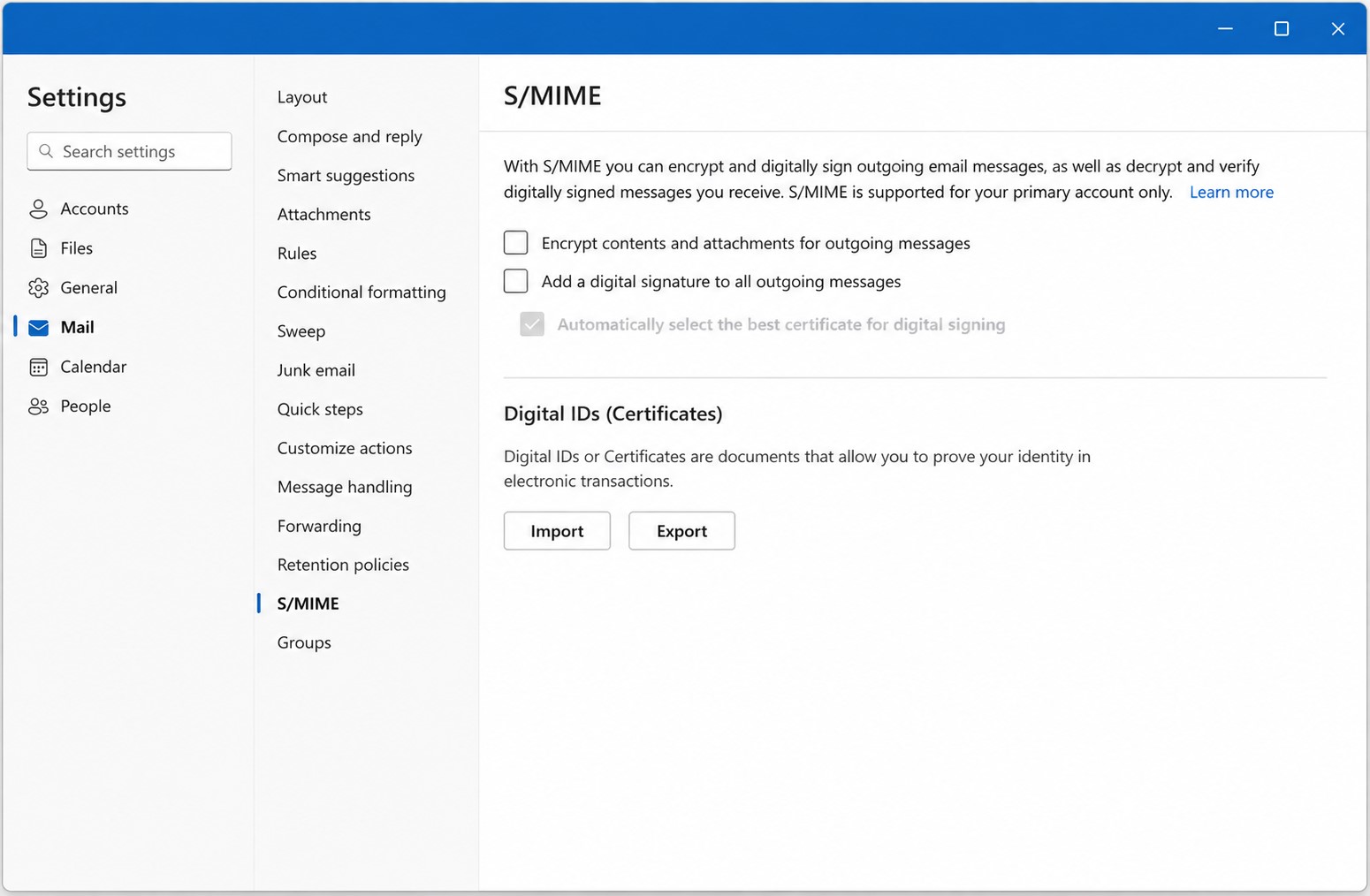
You can also choose ‘Add a digital signature to all messages I send’ under ‘Settings > Mail > S/MIME’. This option may be unavailable when the relevant setting is managed by an administrator.
Step 3: Compose and send a digitally signed email
When writing a new email, open ‘More Options’ and select the option to digitally sign the message. Outlook creates the digital signature when the email is sent. The message remains readable, but recipients can detect whether its signed content has subsequently been altered.
Recipients will see an indication that the message has been digitally signed. By selecting the signature icon, they can view details such as whether the signature is valid, which certificate was used and which certificate authority issued it.