How to embed a video in WordPress

In WordPress, you can embed videos using the media library, a URL or embed function, an embed code or a plugin. The main differences are where the video is hosted, how easy it is to add and what additional customisation or convenience features are available.
What are the various ways to embed video in WordPress?
If you manage your website with WordPress, there are several ways to embed videos. The first thing to decide is whether you want to host the video on your own web space or use an external provider:
- If you want to retain full control, you can upload videos via the WordPress media library or the Video block and add them directly to your page. The files are stored in your WordPress media library and are generally delivered through your hosting.
- If you prefer to host videos externally, you can usually embed content from platforms such as YouTube or Vimeo in your website, blog or online shop simply using a URL or the relevant embed function.
- If you want additional features alongside video embedding, WordPress video plugins are another option. Depending on the plugin, these extensions can simplify embedding and provide features such as video galleries, sliders, more privacy-friendly embeds and performance optimisations.
If you use the built-in media library to embed videos in WordPress, keep the performance of your website in mind. Large video files or a high number of videos can significantly affect loading times, bandwidth and server resources. For websites with extensive video content, external video platforms, a CDN or specialised video hosting services are usually a better choice.
How WordPress video embedding works
The media library is a good option if you own the video and want to store it directly on your own web space. For externally hosted videos, such as those on YouTube or Vimeo, embedding via URL is usually the simplest approach. Just paste the link into a suitable block and WordPress handles the rest automatically. Using an embed code is more advanced and is mainly useful when you need additional settings, such as specifying a fixed start point or enabling enhanced privacy mode, that are not available with simple URL embedding.
Insert a video using the WordPress media library
The video is stored in your WordPress media library and can then be added to a page or post using the Video block.
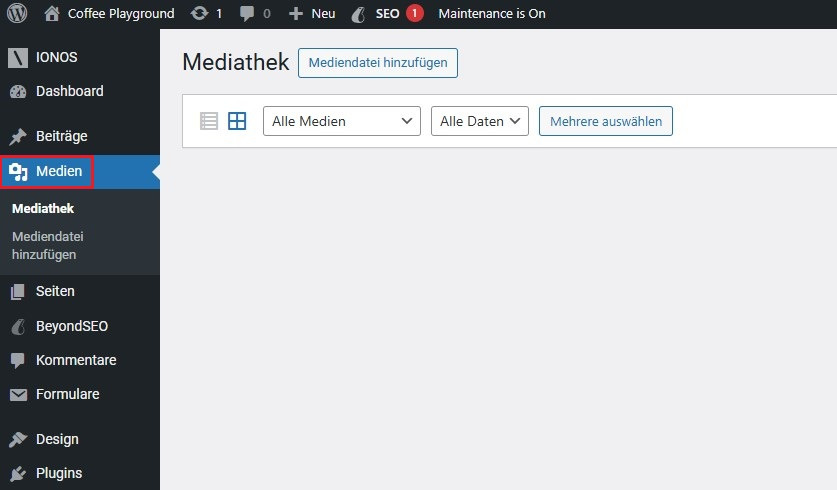
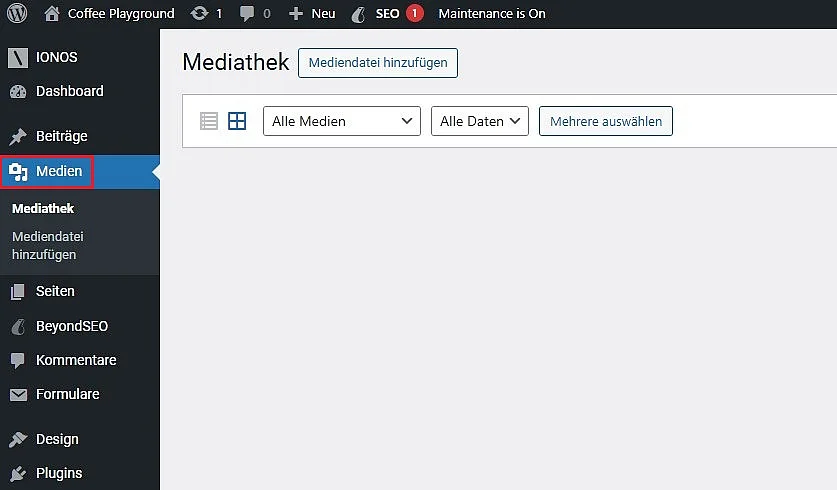
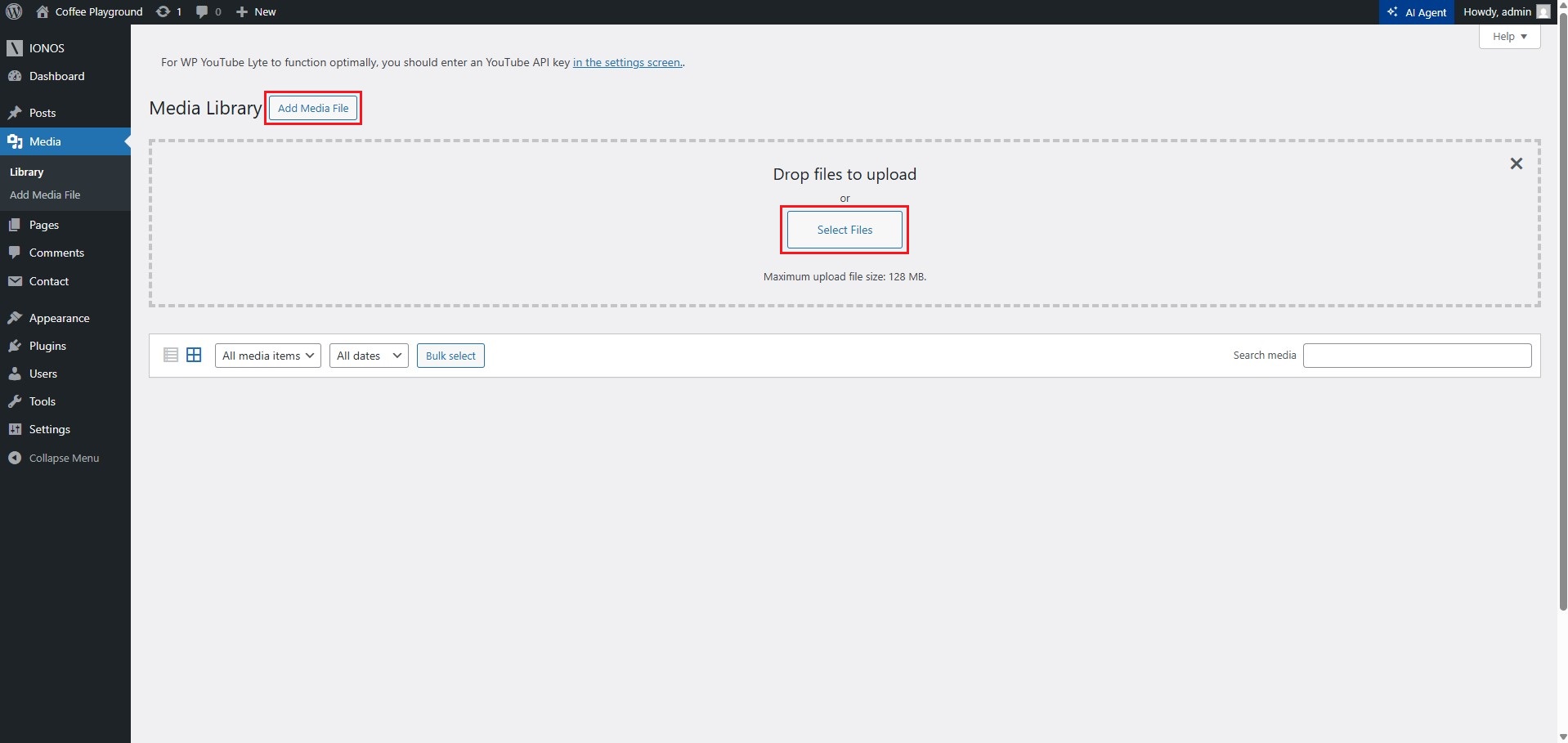
Step 1: Open the media library by clicking ‘Media’ in the menu on the left:
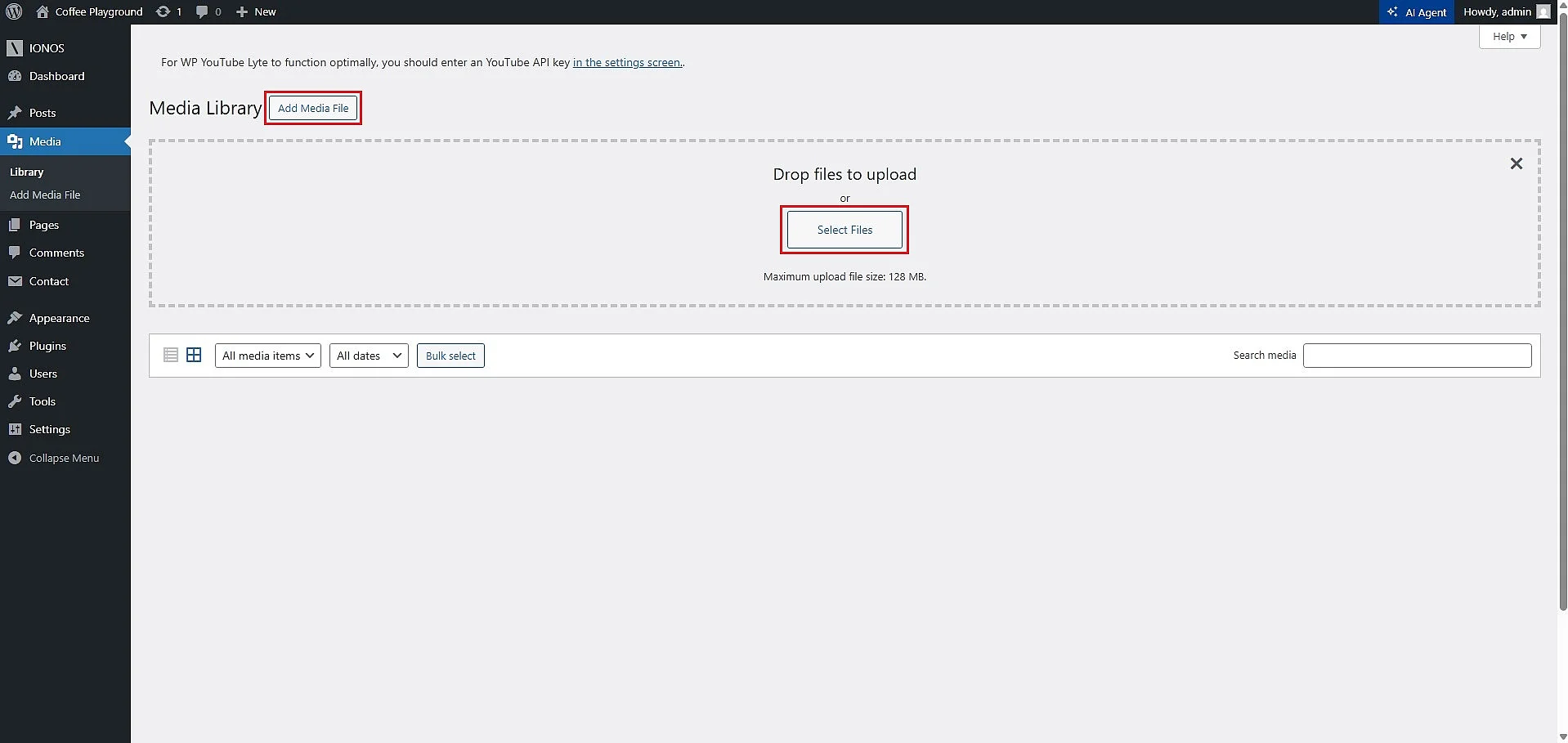
Step 2: Click ‘Add Media File’ and then ‘Select Files’. Choose the location of the video file you want to upload and confirm your selection to add it to the media library. Alternatively, you can simply drag and drop the video into the designated area marked by the dashed lines:
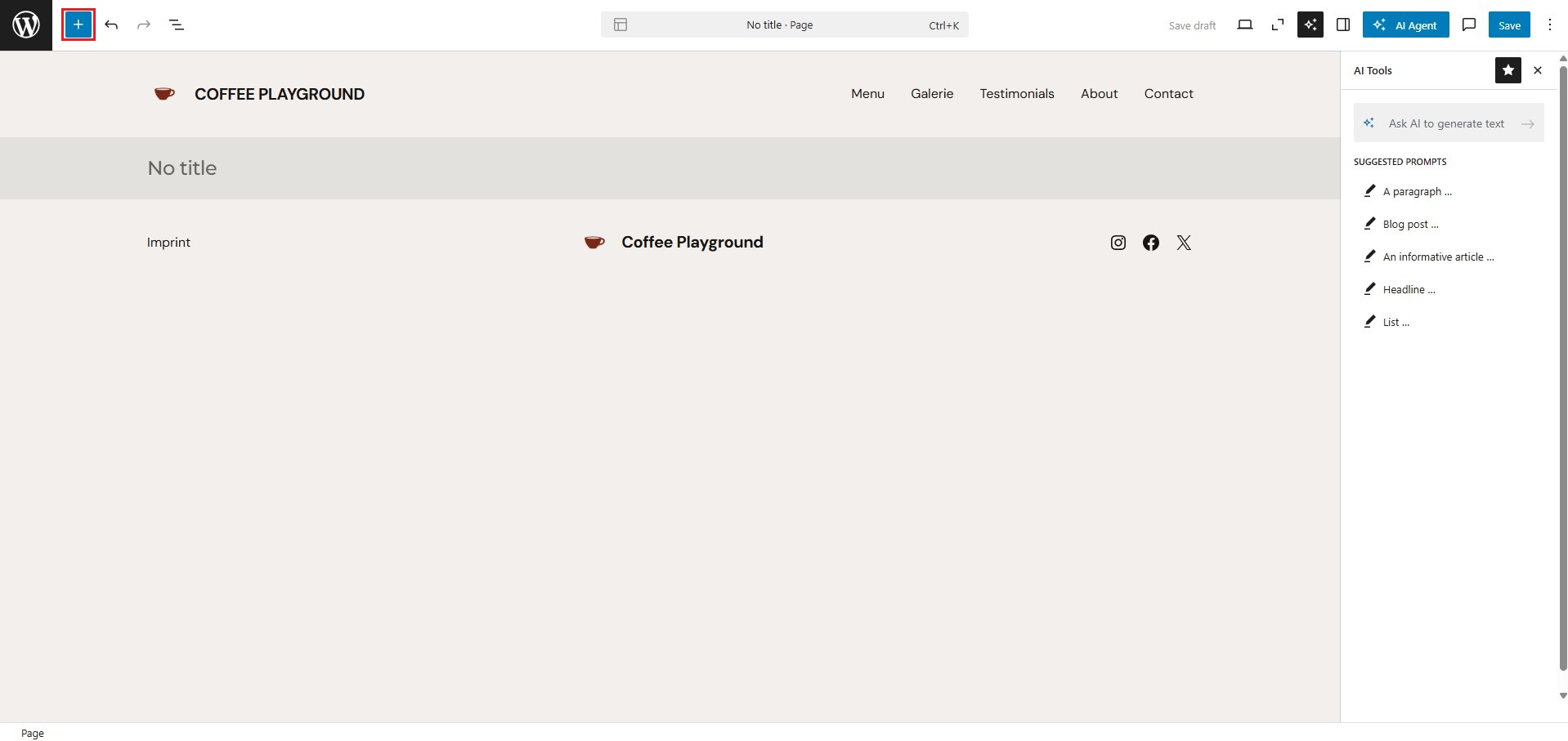
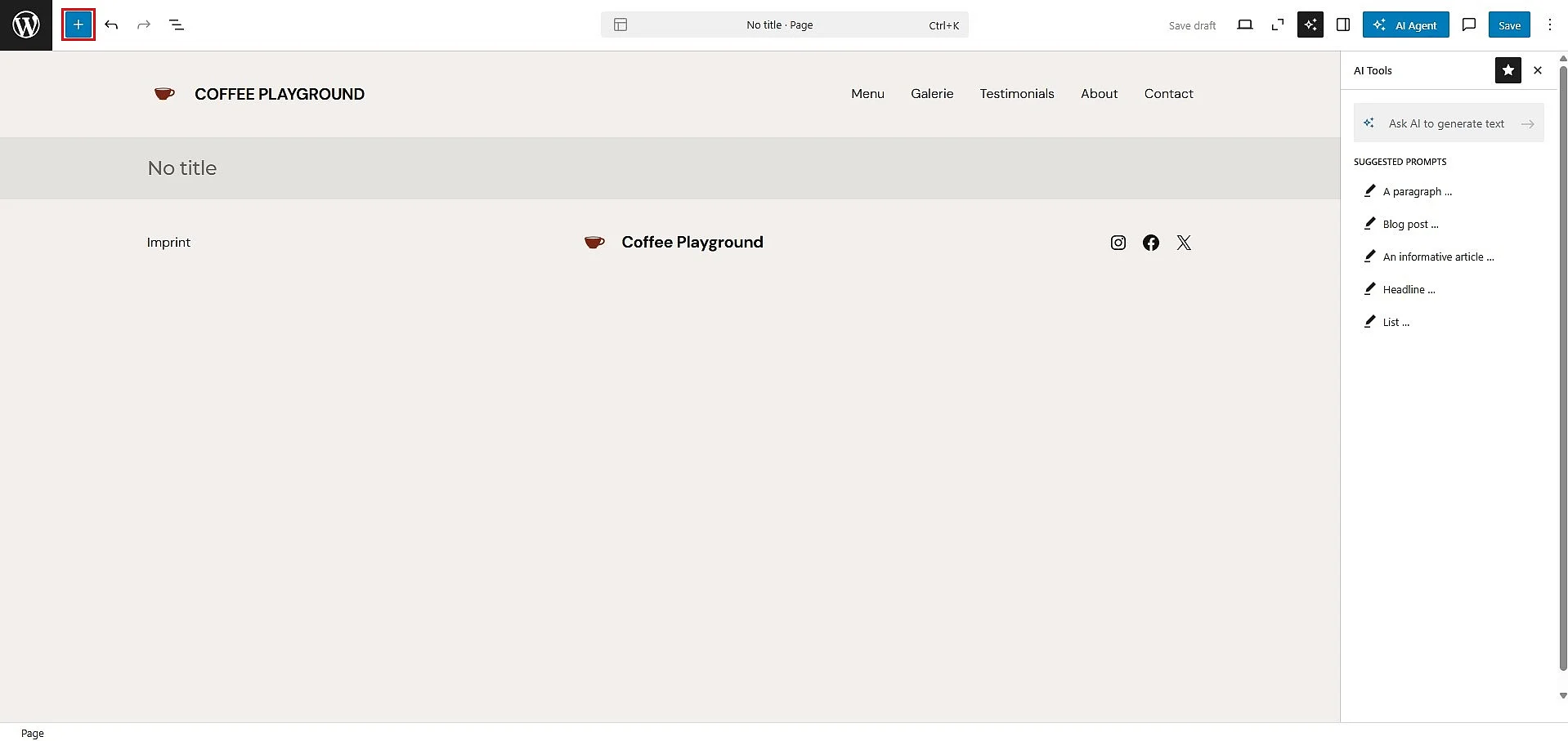
Step 3: Open the WordPress page or post where you want to add the video and click the plus sign to insert a new block.
Step 4: Scroll to the ‘Media’ section and select ‘Video’ to add a video block to the page. In the block, click ‘Media Library’. WordPress will display the available videos so you can select the one you want to use. You can also add metadata such as a title, caption and description. Finally, click ‘Select’ to insert the video into your WordPress page.
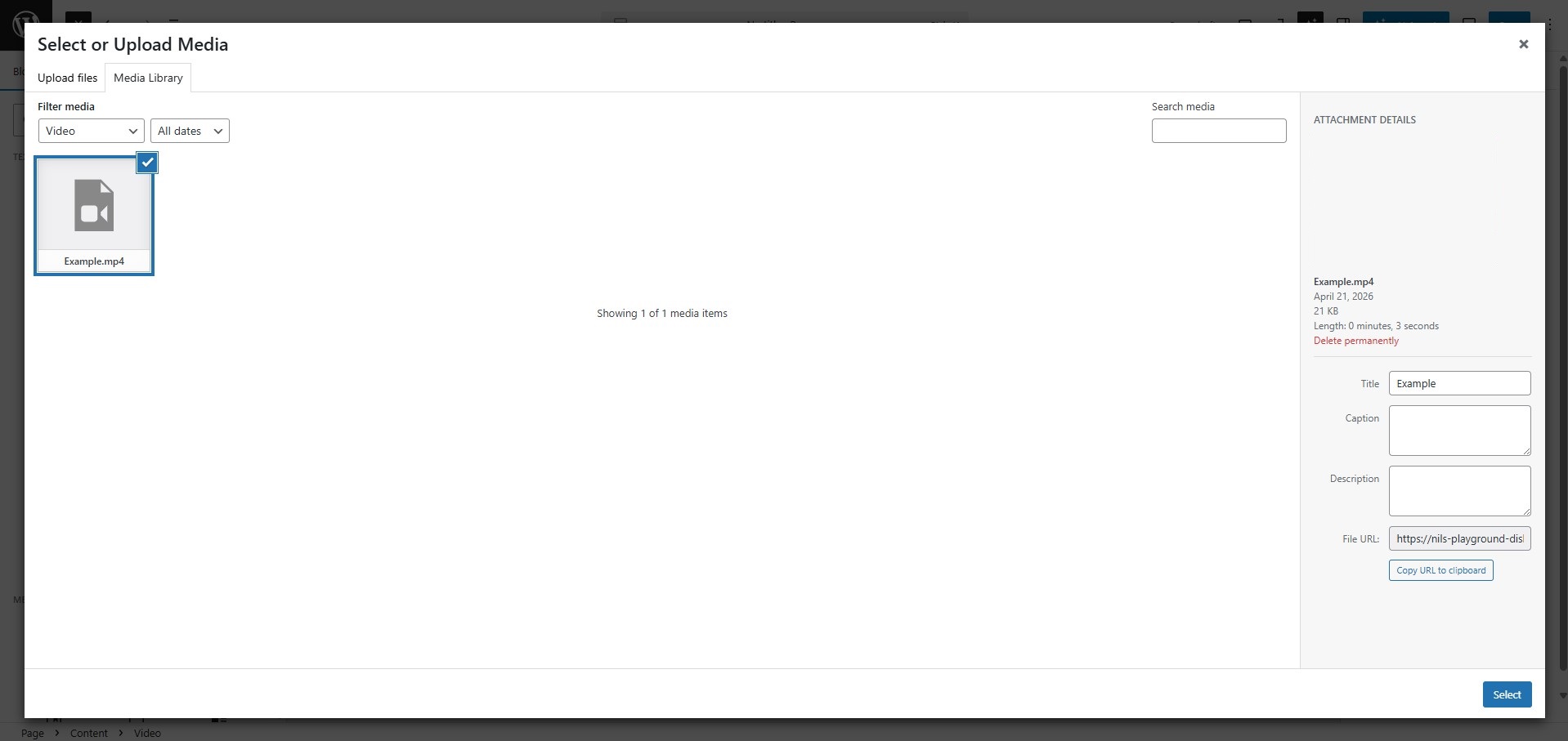
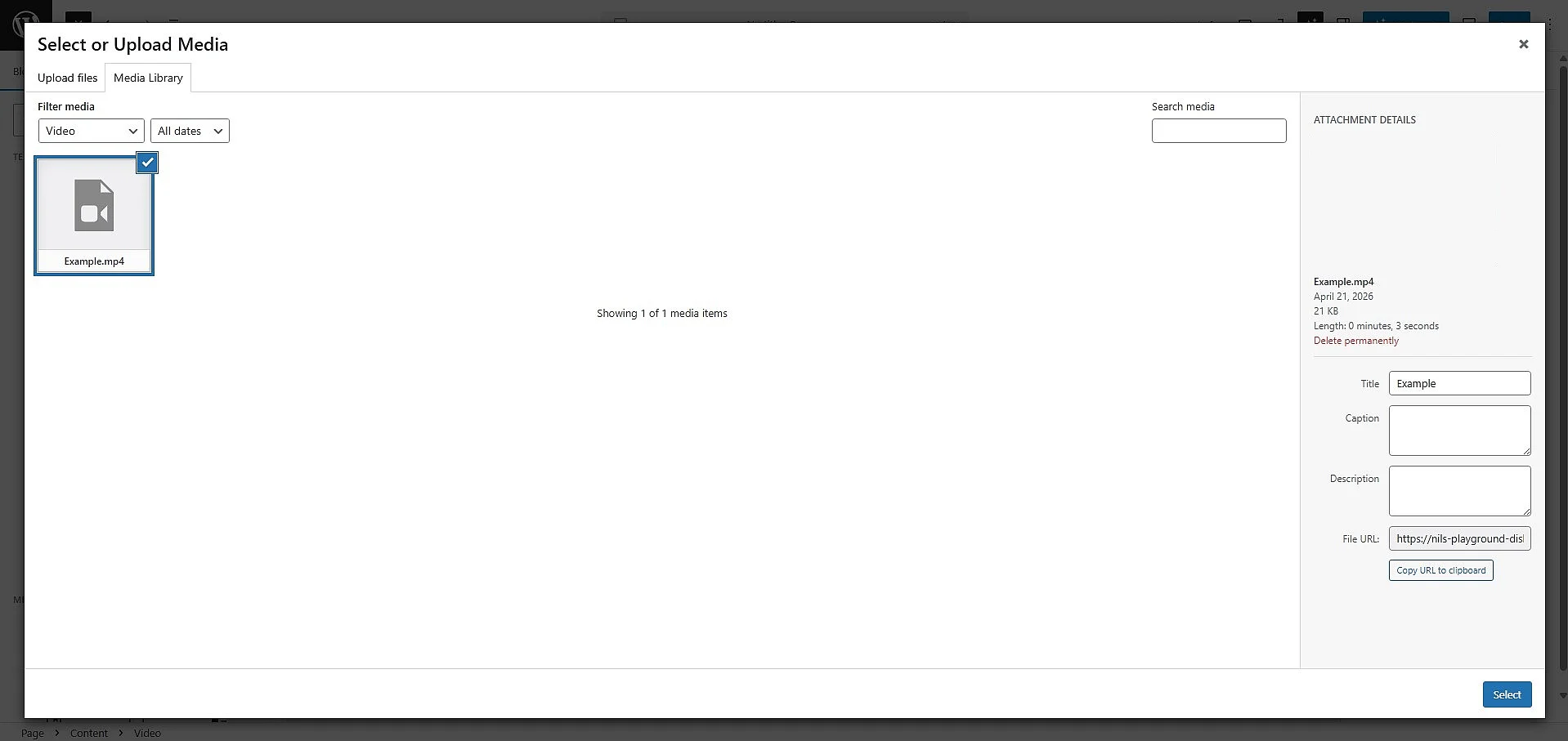
The video is now embedded in your WordPress page. If necessary, you can move the block to a different position or replace it with another content block.
Embed videos in WordPress using an embed code
If you want to avoid uploading videos to your own web space – and therefore reduce the amount of storage space and computing power required – you can upload your video content to a video platform such as YouTube or Vimeo instead. These platforms provide an embed code that you can use to embed video in WordPress. Depending on the focus and type of your website, you can also insert videos from other users in this way – provided they hold the rights to the content and have made the videos publicly available.
To add a YouTube video using an embed code (the exact process may differ slightly on other platforms), proceed as follows:
Step 1: Open the video on the platform where it is hosted and select the option for sharing or embedding it.


Step 2: Select the ‘Embed’ option to open the embedding settings. You can either keep the default settings or customise the embed code. For example, you can specify a start time so that the embedded video begins at a particular point (‘Start at’). You can also activate enhanced privacy mode, which loads the video via the domain youtube-nocookie.com rather than youtube.com and reduces data transfer when the page is accessed. Finally, click ‘Copy’.
YouTube’s enhanced privacy mode is more data-protection-friendly than the standard embed, but on its own it is not sufficient for full GDPR compliance. Even in no-cookie mode, connections to Google servers are established when the page is loaded and the video is played, and personal data is transmitted in the process.
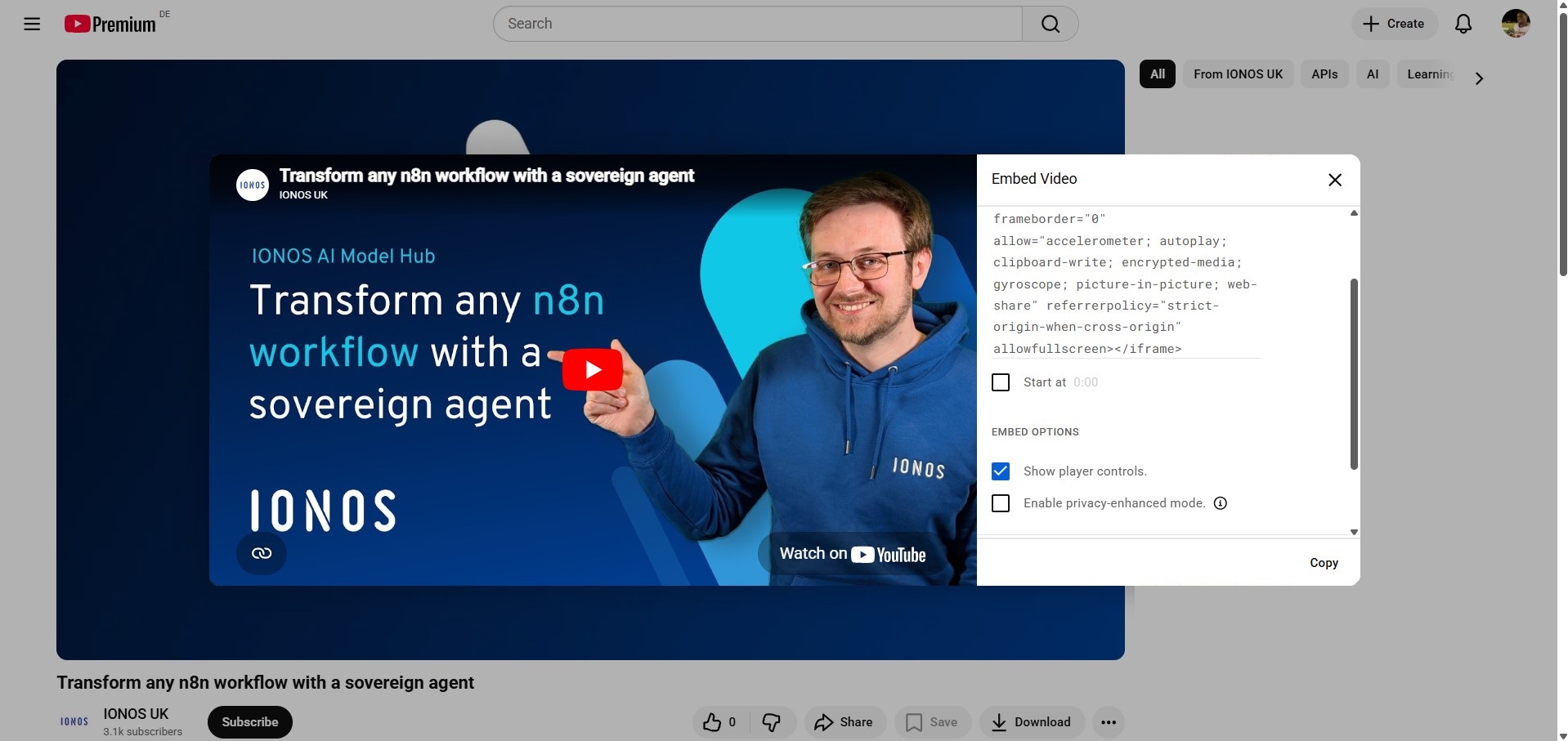
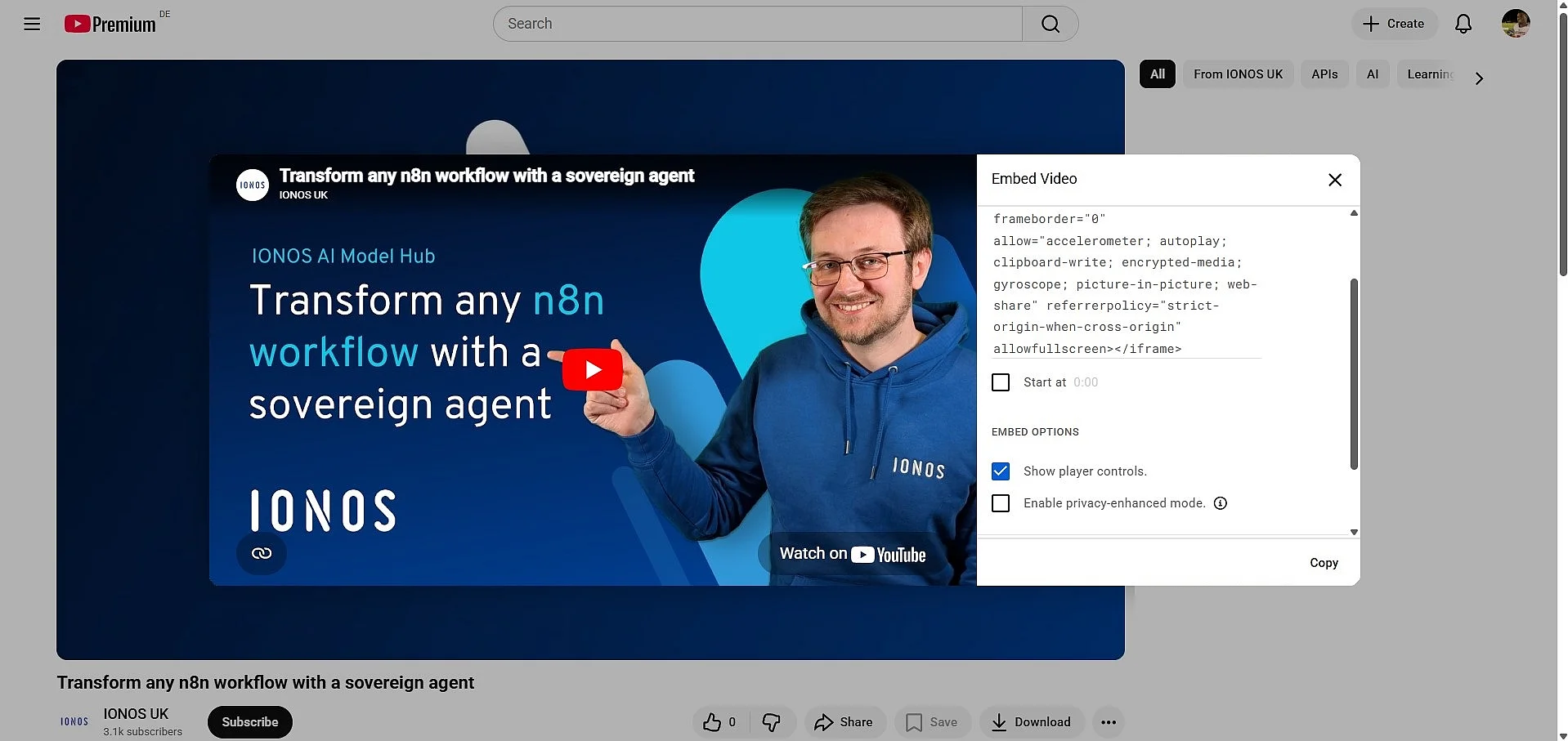
Step 3: In the WordPress backend, open the page where you want to embed the video. Add a ‘Custom HTML’ block and paste the embed code from your clipboard into it.
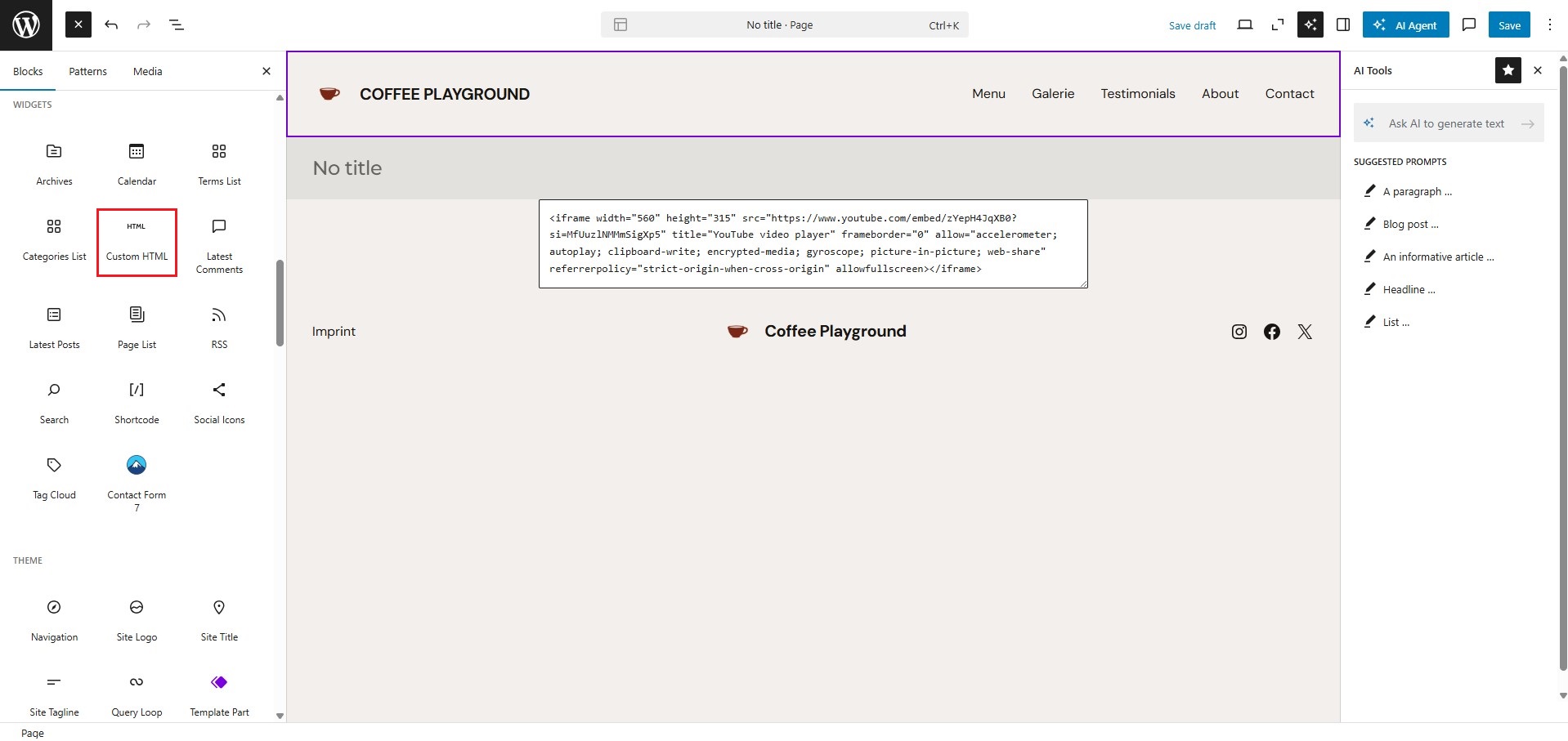
Step 4: WordPress inserts the video in the usual format. Click ‘Preview’ to check how it will appear on your website.
Embed videos in WordPress using a URL
The simpler and more modern alternative to using an embed code is to embed the video directly via its URL:
- Step 1: Copy the URL of the video from your browser’s address bar or use the share function on the relevant platform.
- Step 2: In the WordPress backend, open the page or post where you want to embed the video. Click the plus symbol to add a new block and search for ‘YouTube’ or ‘Vimeo’, depending on where the video is hosted. Alternatively, you can use the general ‘Embed’ block.
- Step 3: Paste the copied URL into the block’s input field and click ‘Embed’. WordPress recognises the link automatically and inserts the video directly into your page.
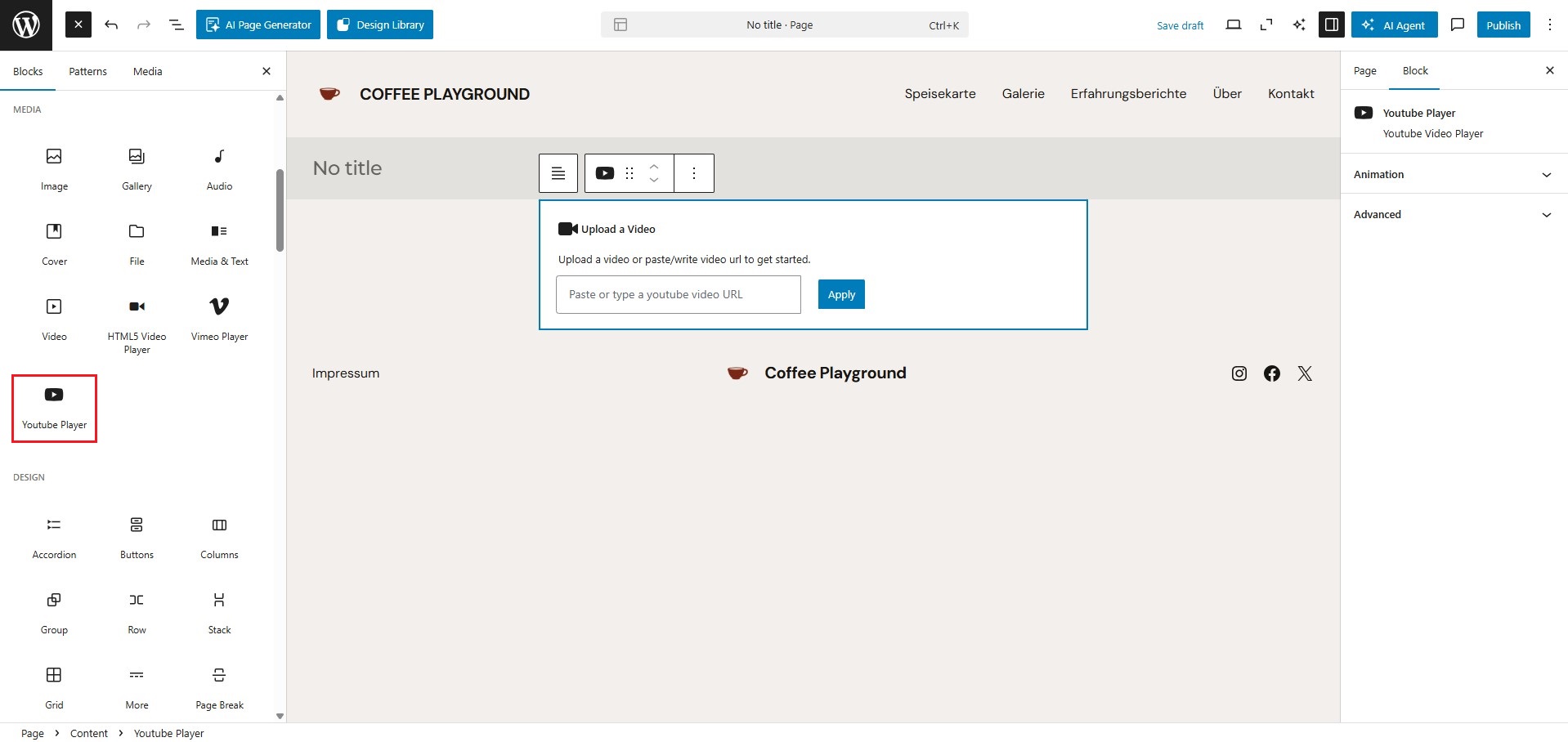
To embed a YouTube video via URL, the video must be publicly accessible and embedding must be allowed by the provider. Otherwise, WordPress may display an error message or simply turn the URL into a link.
Add videos to WordPress using a plugin
If you want to do more than simply embed videos in WordPress, a WordPress video plugin can provide additional features. Depending on the plugin, these extensions may offer options such as custom player settings, video galleries, sliders, preview images, pop-ups or more privacy-friendly embedding of content from external platforms. They can be particularly useful if you want to display multiple videos on your website or customise how they fit into your site design.
Plugins can be installed directly from the WordPress backend:
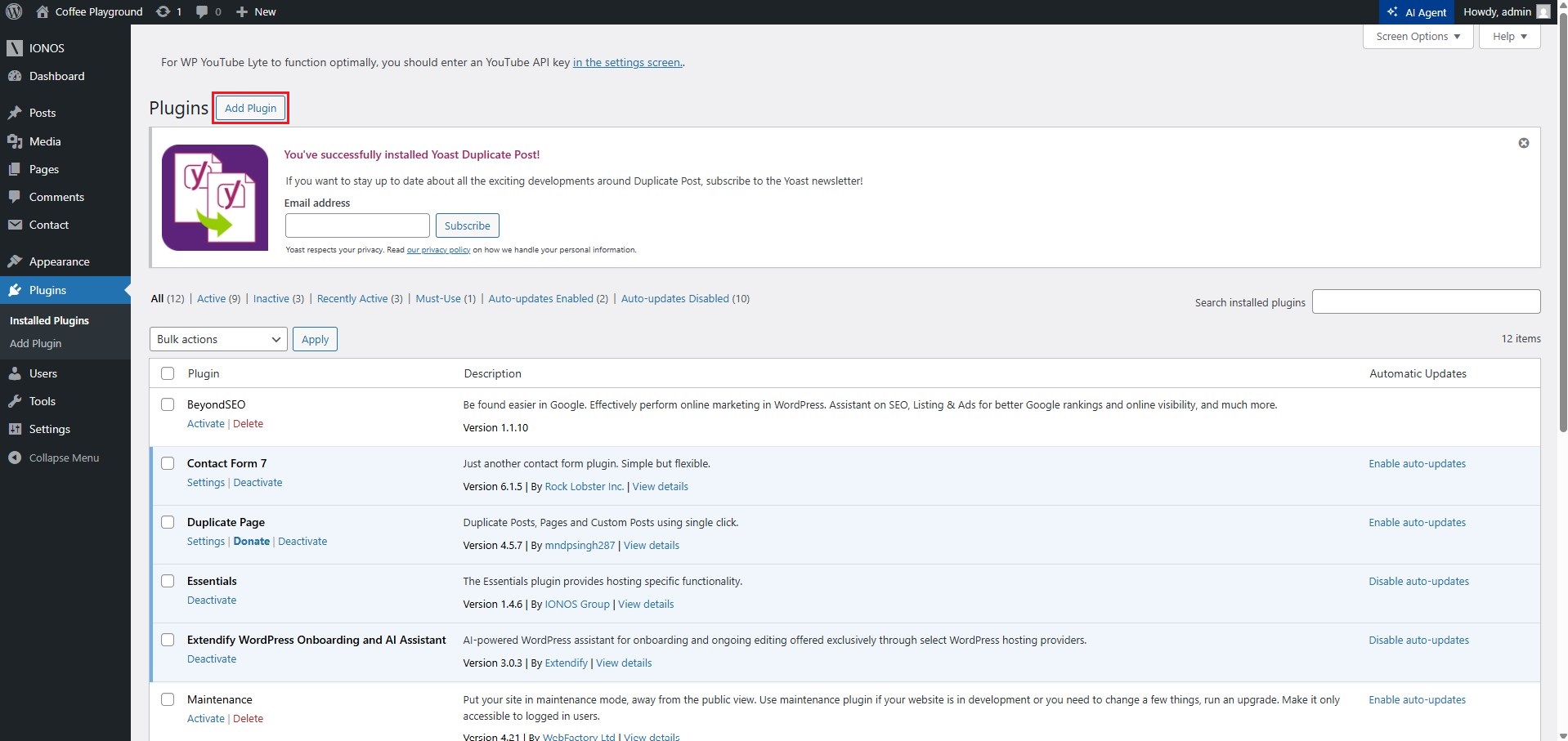
Step 1: In the left-hand menu of the WordPress backend, open the ‘Plugins’ section and click ‘Add Plugin’.
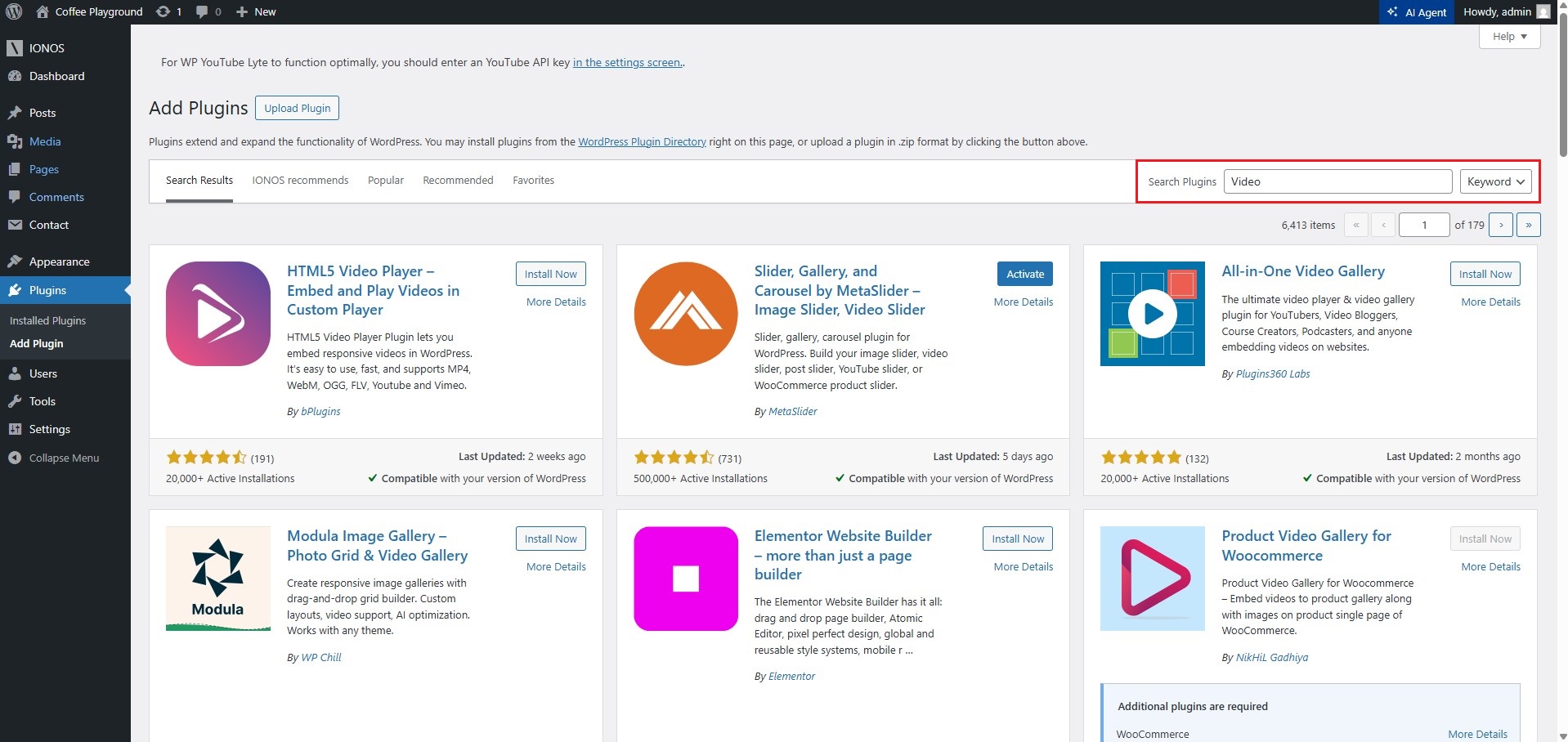
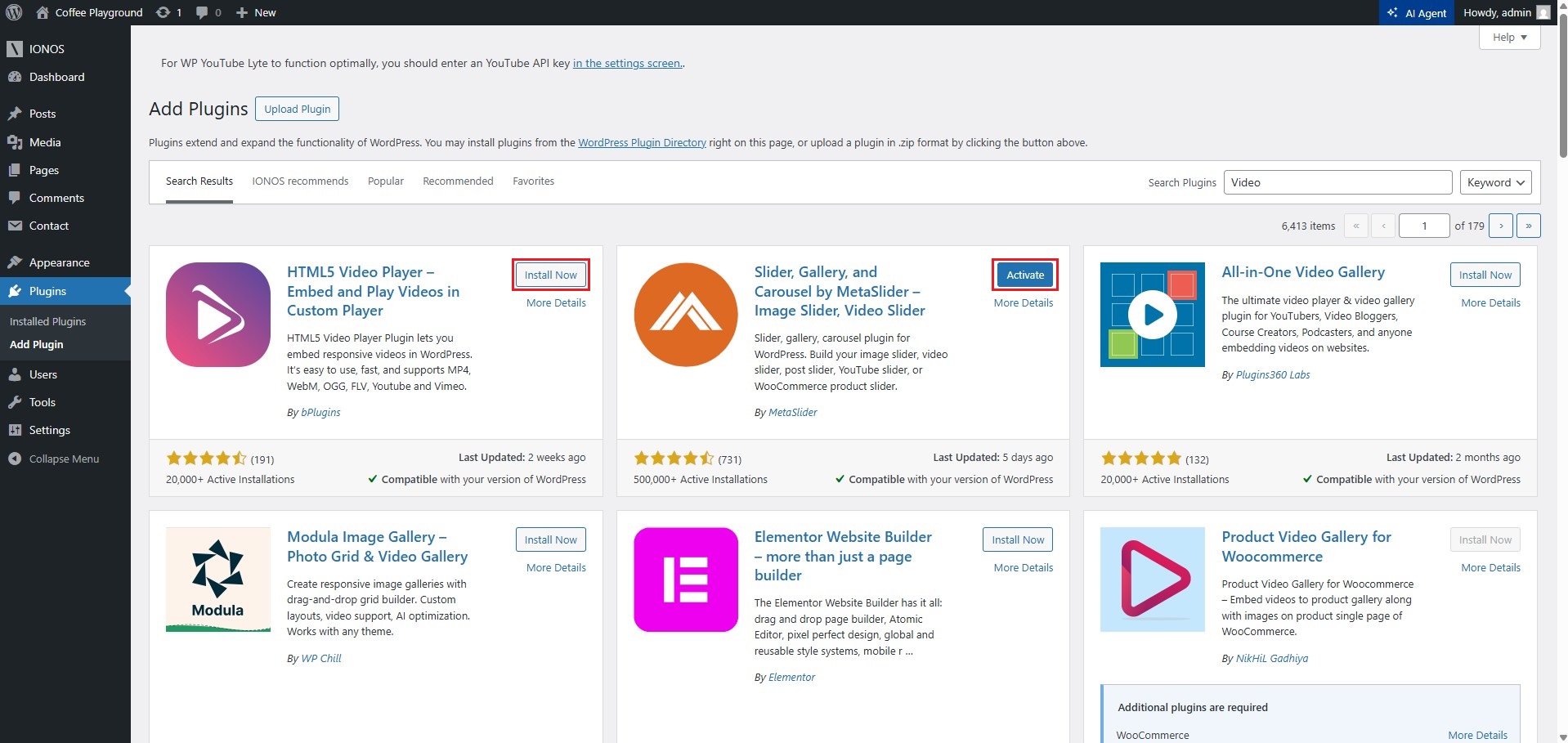
Step 2: Enter a keyword in the search bar at the top right to find a suitable WordPress video plugin. For a general overview of available options, you can search for ‘Video’, for example:
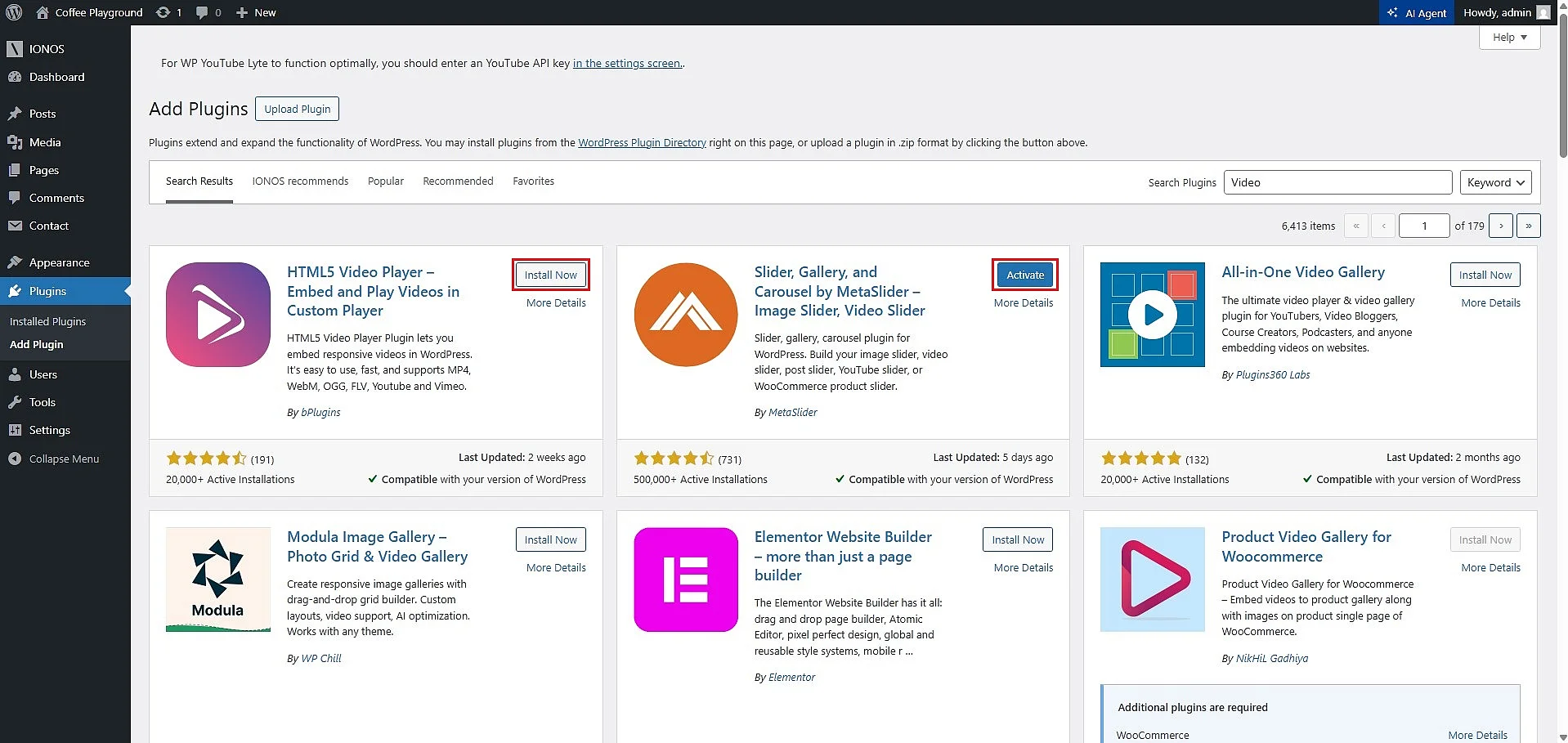
Step 3: Once you have chosen an extension, click ‘Install Now’ in the corresponding tile. When installation is complete, click the ‘Activate’ button that appears to enable the WordPress video plugin:
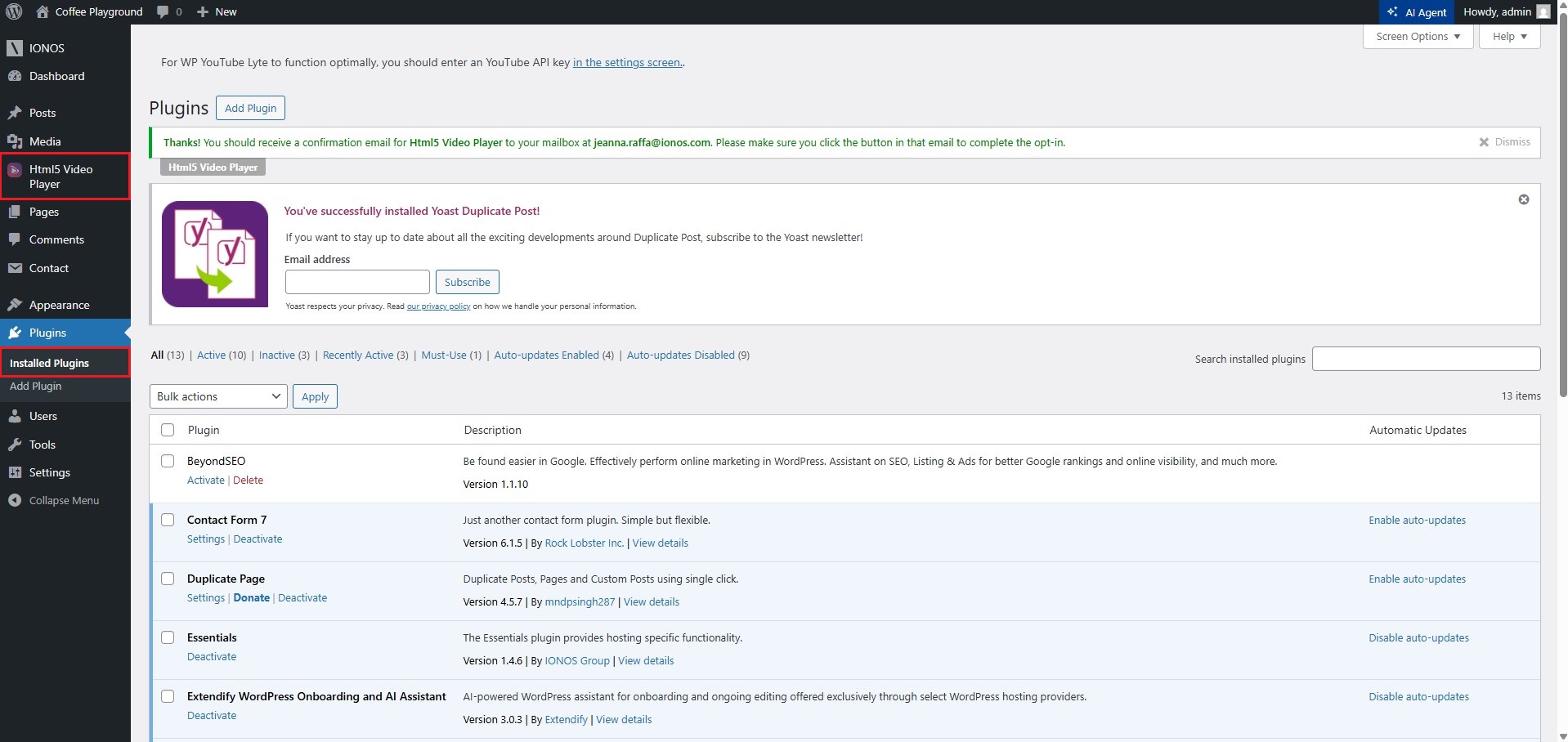
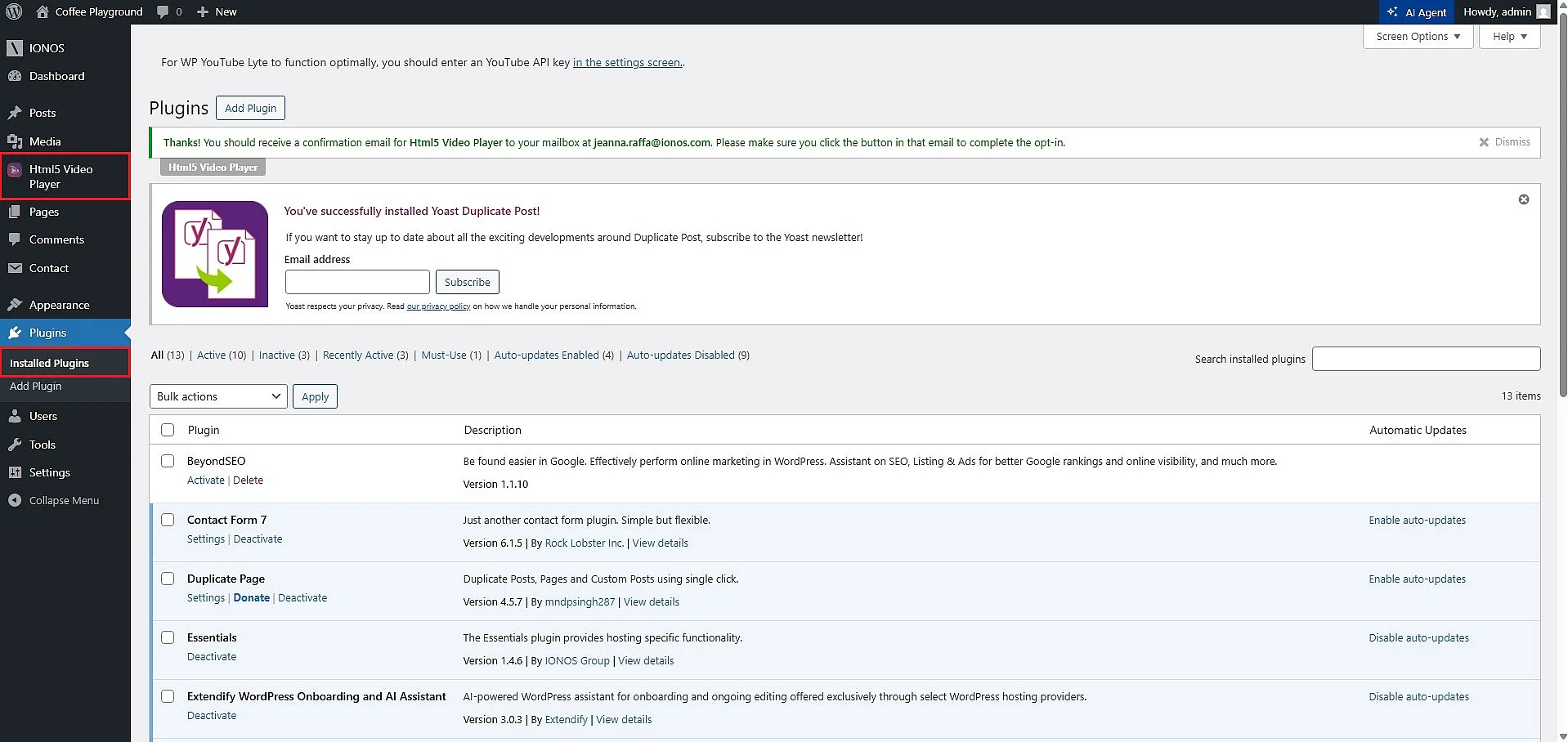
Step 4: You can then access the extension via the ‘Installed Plugins’ submenu. In many cases, the plugin also adds its own button to the sidebar menu in the WordPress backend, as shown here with the example plugin ‘Html5 Video Player’ by bPlugins.
The best WordPress video plugins at a glance
Plugins are a useful option for both experienced WordPress users and beginners who want to embed videos and add more value to their website. Below, we introduce some of the best extensions for adding and managing videos in WordPress.
WP YouTube Lyte
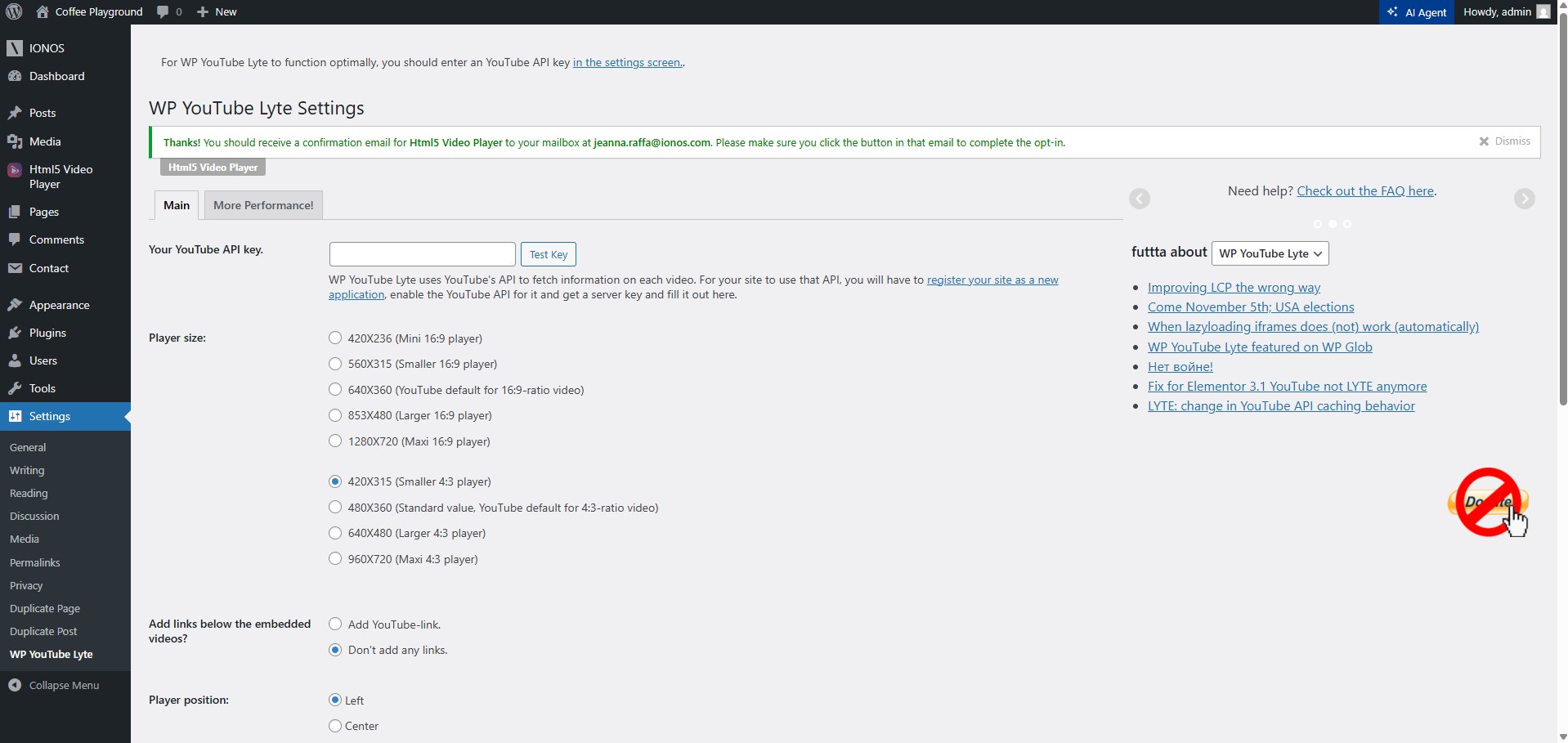
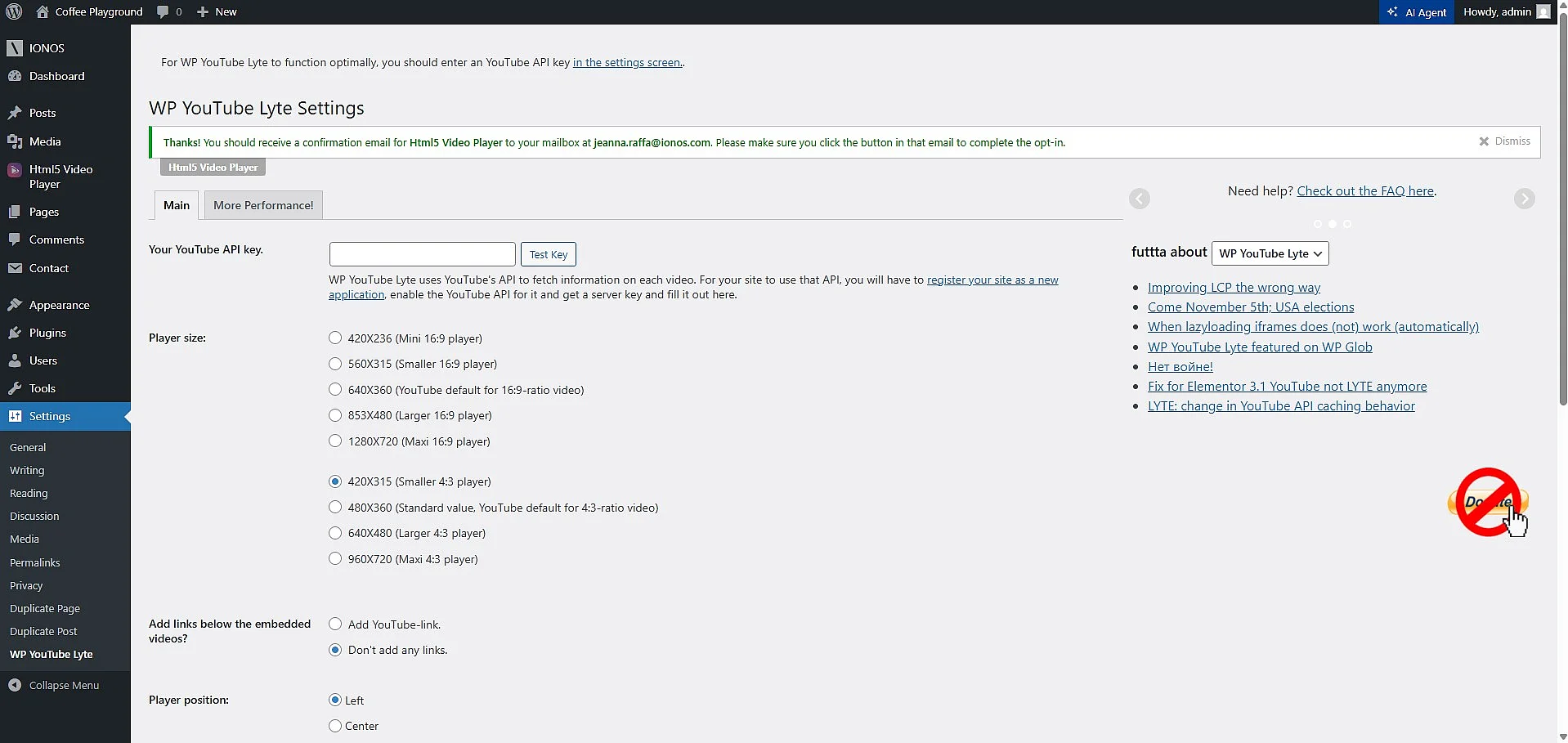
WP YouTube Lyte is a WordPress video plugin designed to embed YouTube videos in a more performance-friendly way. Instead of loading the full YouTube player immediately, the plugin first displays a lightweight preview image. The player is only loaded when a visitor clicks on the video. This can significantly improve loading times and page performance, particularly when several YouTube videos are embedded on the same page. The plugin also supports responsive display, locally hosted preview images and more privacy-friendly embeds.
To use the full range of features, WP YouTube Lyte requires a YouTube API key. Without one, the WordPress video plugin still works, but some features are limited: video titles, descriptive metadata and playlist preview images are not loaded. You can create an API key free of charge in the Google Developer Console and then add it in the plugin settings.
Embed Plus for YouTube
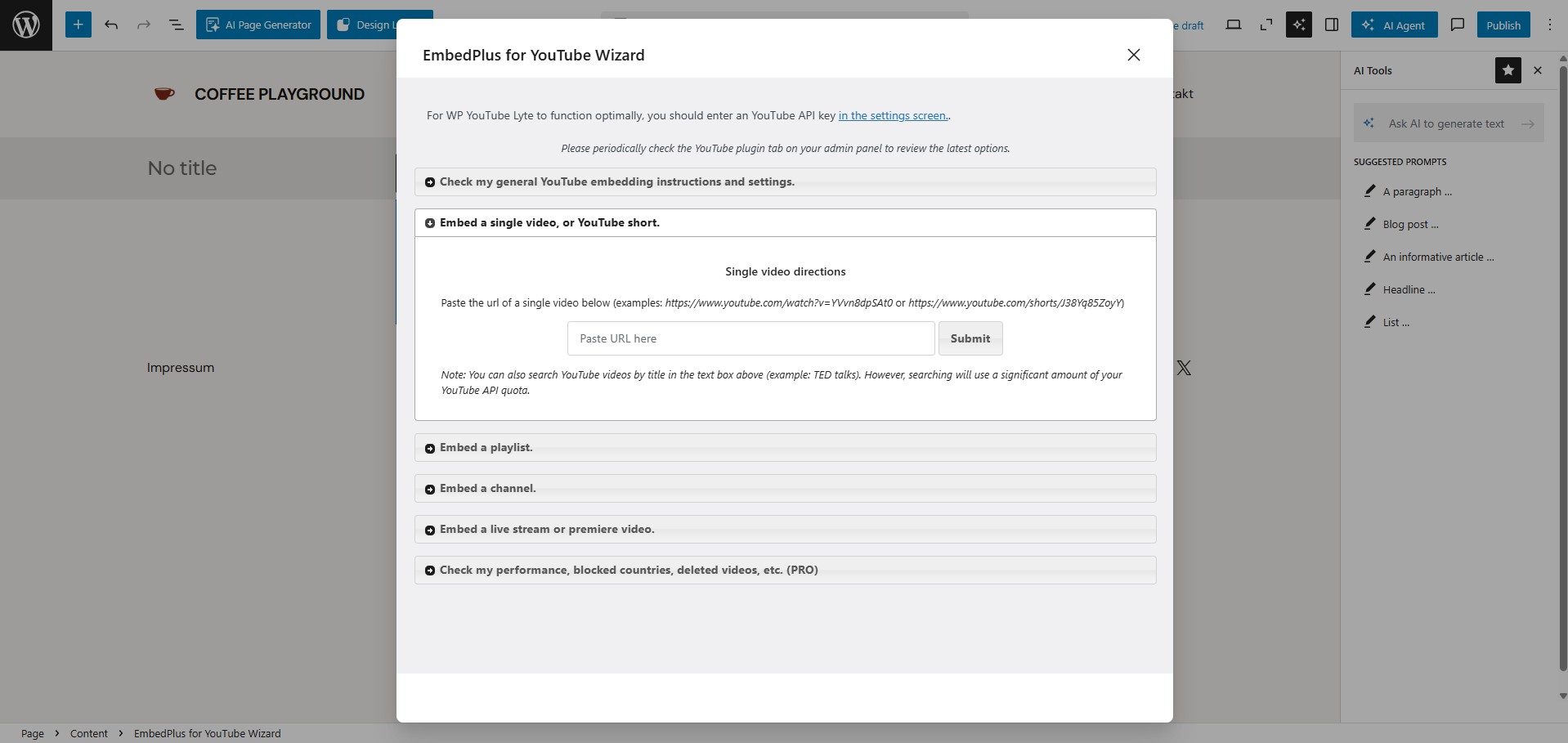
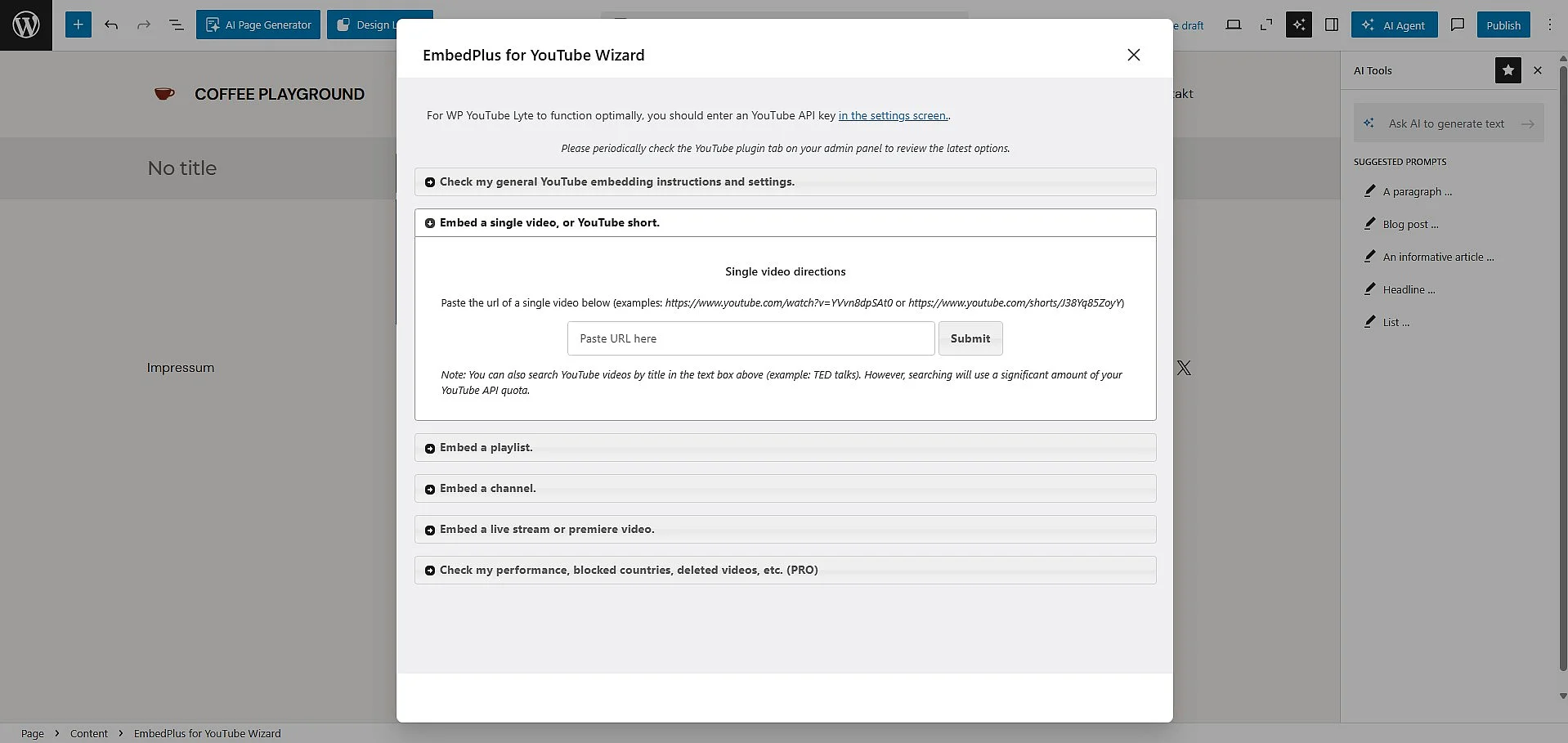
Embed Plus for YouTube adds a wide range of features for embedding YouTube content in WordPress. Alongside individual videos, you can also add playlists, channels, livestreams and Shorts. The WordPress video plugin also provides various options for customising display, performance and data protection, making it a good choice if you want not only to embed videos in WordPress but also to manage them in more detail.
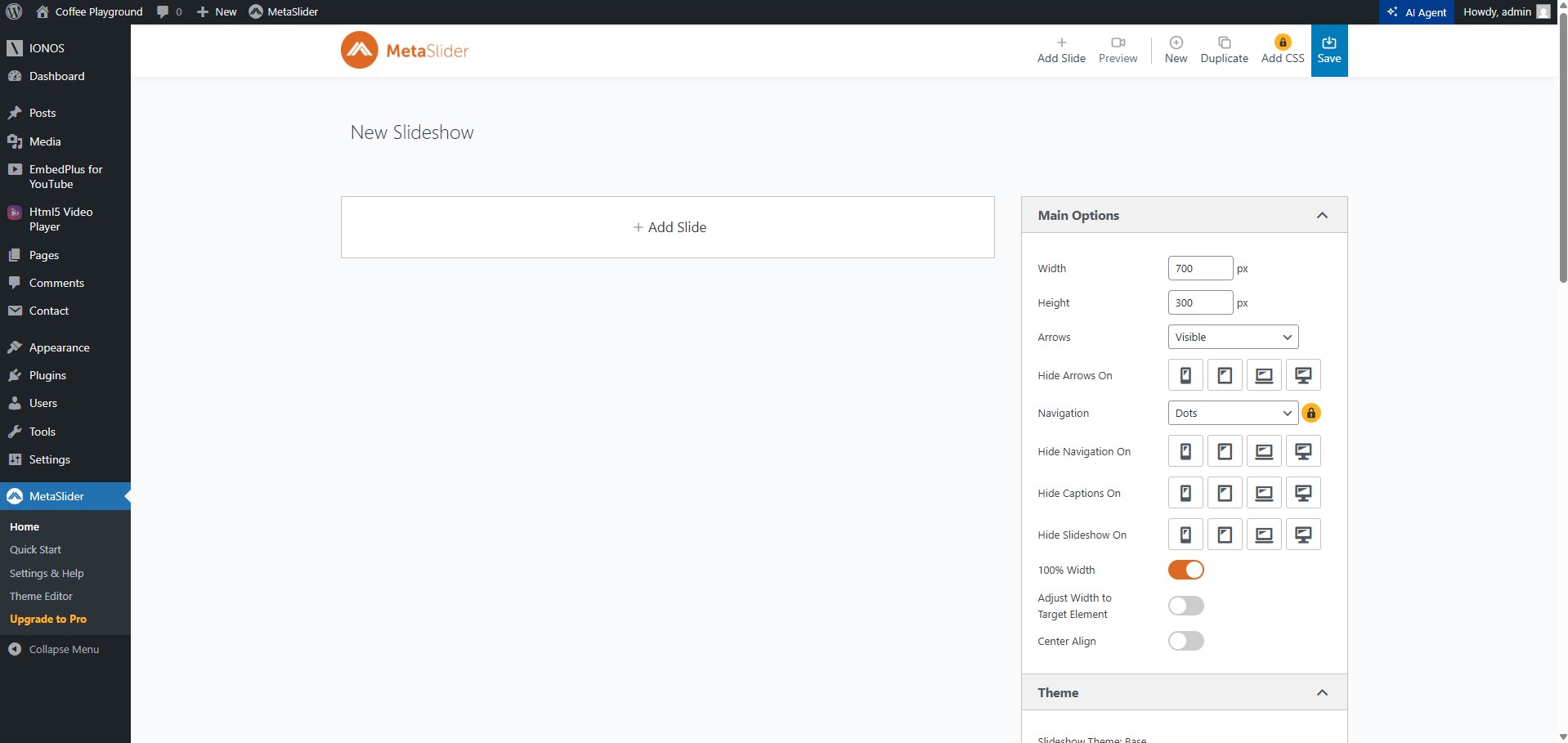
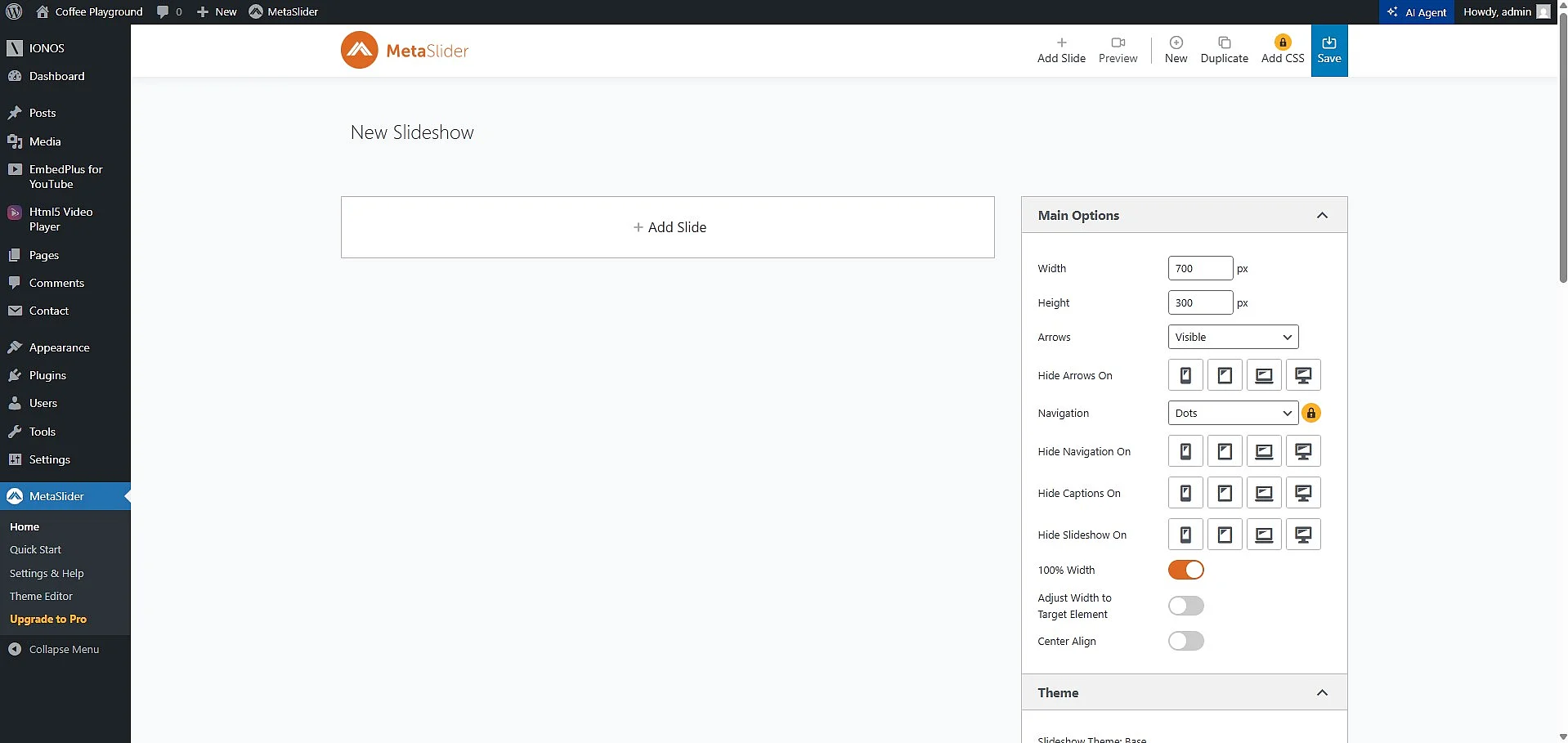
MetaSlider Pro
MetaSlider Pro is particularly well suited to embedding videos in WordPress in sliders, slideshows or carousels. This paid WordPress video plugin supports videos from platforms such as YouTube and Vimeo, as well as locally hosted video files and other external sources. It is especially useful when you want to present WordPress video content as part of a visually engaging slideshow or carousel rather than displaying videos individually.