How can you reset WordPress?

Resetting a WordPress site can be useful if your website develops errors after an update, has been hacked, needs a relaunch or you simply want to start over with a clean installation. However, what resetting WordPress involves depends on what you want to delete, restore or reinstall.
Key Takeaways
Resetting WordPress does not always mean deleting the whole website. The key points at a glance:
- Reasons: errors after updates, hacked sites, relaunches, redesigns or a clean start
- Areas: the WordPress core, configuration files, database and site data can be reset separately
- Methods: manually, with a plugin such as WP Reset, or with WP-CLI
- Comparison: a plugin is the easiest, WP-CLI offers a good balance, and the manual method gives the most control
- Alternatives: a fresh installation for a relaunch, or a child theme for a redesign
- Always create a backup before resetting WordPress
Why reset a WordPress site?
Resetting a WordPress site can be useful or necessary in various situations. A reset is particularly common when making major changes to the website – for example, when moving a WordPress domain to a new hosting provider (migration), creating a new design (redesign), or restarting the site under the existing domain (relaunch).
As part of the regular administration of a WordPress site, it can sometimes be useful to reset individual parts of the website. Technical issues are another common reason for resetting WordPress. These include:
- Your website has been hacked
- WordPress no longer loads after an update
- Plugins or themes are causing serious errors
- Incorrect settings need to be undone
Sometimes it also makes sense to reset parts of WordPress as part of a ‘spring clean’. Periodically removing dormant legacy data increases the security of the site and can help to make WordPress faster.
Resetting is most useful as part of development and testing workflows. Ideally, you work on a staging site or a local dev site. This way, you can test changes and, if needed, quickly reset WordPress to a clean initial state without putting your live website at risk.
This guide focuses exclusively on how to reset a normal WordPress site. If it is a multisite, the process is more complex.
Which areas of WordPress can be reset?
Resetting WordPress does not necessarily mean deleting the entire website. Instead, you can return specific parts of the site to their original state or remove them altogether. Before you reset WordPress, you therefore need to decide what exactly you want to reset. You might only want to remove the content, restore the settings or reset the WordPress theme to its default state. The right approach depends on which parts of the site you want to change.
Keep in mind that the different components are connected. For example, if you delete only the database, your plugins, themes and uploaded files will remain on the server. However, without the database, those uploads will no longer appear in the WordPress media library and cannot be deleted from within WordPress. In this case, you may also need to reset the WordPress uploads folder.
Reset the WordPress core
The term ‘WordPress core’ refers to the files and folders that form the foundation of WordPress. These should generally not be modified or deleted manually, as doing so can affect how the website works or damage the installation. The core files are created when WordPress is installed and may be updated when new WordPress versions are installed.
WordPress core files and folders include, for example:
index.phpwp-login.phpwp-admin/wp-includes/
Damage to the WordPress core can result from incorrect manual changes or malware. If malware has modified the core files, the website should be restored from a verified clean backup or rebuilt using fresh WordPress core files. You should also check themes, plugins, uploads, user accounts and the database for malicious code.
Reset the WordPress configuration files
WordPress configuration files are located in the root directory and store specific configuration settings outside the database. Most WordPress installations include the following configuration files:
wp-config.php: Contains key configuration settings, is created during installation and connects the WordPress installation to the WordPress database. This file usually requires few changes. Errors can prevent the website from loading and may result in issues such as the White Screen of Death or the message ‘Error establishing a database connection’..htaccess: Controls certain web server settings, defines WordPress redirects and manages access to directories via the web. It can also be used to set up basic password protection. Plugins may add information to.htaccess, for example for security, SEO or caching purposes. Errors can prevent the website from loading and may lead to the ‘White Screen of Death’ or a ‘500 Internal Server Error’. Redirects may also stop working, or restricted areas of the website could become unintentionally accessible.robots.txt: Provides search engine crawlers with instructions about which areas of the website they should or should not crawl. However, the file primarily controls crawling and does not reliably prevent known URLs from appearing in search results. For staging websites or confidential areas, password protection or a correctly implementednoindexdirective is therefore a better option.
If WordPress configuration files have been damaged, it is strongly recommended that you restore them from a backup. Trying to repair them manually can create further problems. If necessary, a damaged WordPress configuration file can be reset to its original state, but any site-specific settings stored in that file will be lost.
The .htaccess file is mainly used on Apache or Apache-compatible servers such as LiteSpeed. It is not used on pure NGINX servers; the corresponding rules are stored in the NGINX server configuration there.
Reset the WordPress database
The WordPress database stores most of the website’s content and configuration settings. This information is organised into individual database tables. There are two main types:
- WordPress core tables, such as
wp_posts,wp_options,wp_usersandwp_comments - Tables created by plugins and themes
Removing parts of the database can affect WordPress in a way that is similar to a reset. There are three main ways to reset the WordPress database:
- Delete individual database entries (
DELETE FROM <table>) - Empty database tables (
TRUNCATE TABLE <table>) - Delete database tables (
DROP TABLE <table>)
Before making any changes to the WordPress database, it is essential to create a database backup, also known as a database dump. This is usually an SQL file containing the commands needed to restore the database and can also be compressed. To return the WordPress database to an earlier state, you import the database dump. The SQL commands it contains are then executed in sequence to reconstruct the data.
If you want to import a dump into an existing database, it should ideally contain DROP TABLE IF EXISTS statements or be imported into a database that has already been emptied. Otherwise, existing tables or duplicate entries may cause errors.
Reset the WordPress site data
Unlike the WordPress core, site data changes over time. It is stored in the wp-content folder, which contains the following important directories:
- Site data:
wp-content/ - Installed plugins:
plugins/ - Installed themes:
themes/ - Uploaded files:
uploads/
Each plugin and theme is stored in its own folder. Deleting one of these folders removes the corresponding plugin or theme, although related tables and entries may remain in the WordPress database. If you delete the entire wp-content folder, you reset the WordPress site data. You can then start from scratch by reinstalling plugins and themes.
What are the different ways to reset WordPress?
There are three main ways to reset a WordPress site. Before you begin, make sure you create a WordPress backup. Ideally, you should carry out any changes on a WordPress staging site first. The three options are:
- Reset WordPress manually
- Reset WordPress using a plugin
- Reset WordPress using WP-CLI
Manually reset a WordPress site completely
With this method, you manually remove the variable components of the WordPress site, but leave some of the static components in place. This largely clears out the site so you can then fill it again with new content.
Since resetting can leave elements of the old installation in place that may cause problems later, a fresh new installation is usually the better option. In addition, the following process is no less time-consuming:
Step 1: Create a complete backup of the existing site. Make sure to back up the WordPress database and the WordPress directory!
Step 2: Create a new database and note down the access details for the new database. You can create the new database in the hosting backend or use the mysql command on the command line.
Step 3: It is often recommended to delete the existing database at this point. However, it is usually better to keep the data for a little longer. Only once you are sure that everything has worked should you remove the old database.
Step 4: Delete all content in the wp-content folder. On the Linux command line, the following command will do this, provided you are in the main WordPress directory:
rm -rf wp-content/Alternatively, the folder in the main directory can be renamed:
mv wp-content/ _wp-content/You can also move it to a separate quarantine directory:
mkdir -p ~/quarantine/
mv wp-content/ ~/quarantine/_wp-content/WordPress will no longer find the previous wp-content folder – themes, plugins and uploads will also be missing. Only during a subsequent new installation, or when you upload fresh WordPress files, will a new wp-content folder with default content such as the bundled themes be created. The renamed or moved version can still be used to check old files and selectively transfer them if needed.
Step 5: Reinstall WordPress.
Reset WordPress site using plugins
For most users, the WP Reset plugin is the simplest and most straightforward way to reset a WordPress site. The plugin has an intuitive web interface and offers various reset options. In principle, WP Reset mainly restores the database of the WordPress installation to its default values without changing the WordPress files themselves. Content, settings and customisations can be deleted in the process.
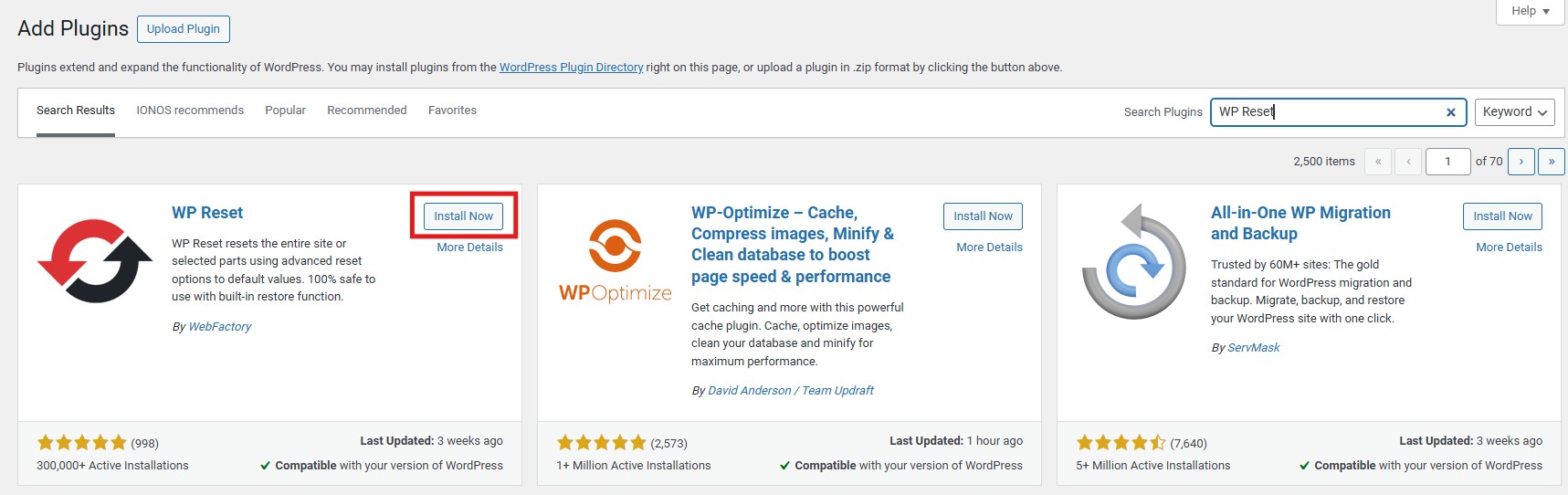
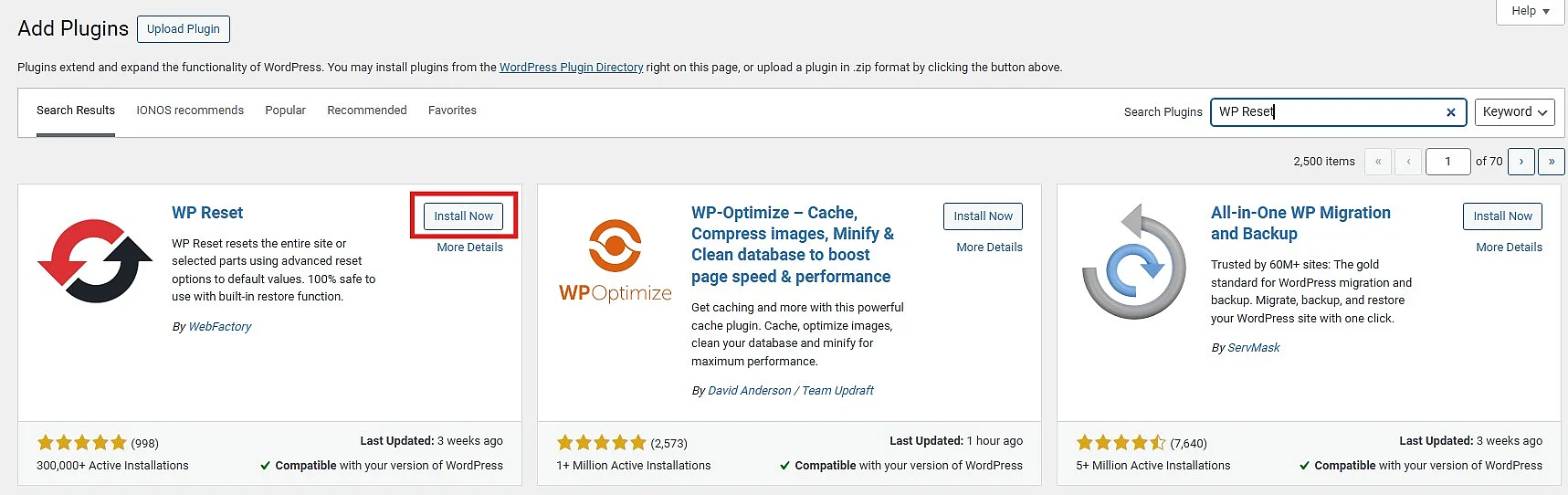
Step 1: First install the plugin. To do this, open the ‘Plugins’ section in the WordPress backend and click on ‘Add Plugin’. Then search for ‘WP Reset’ and start the installation using the ‘Install Now’ button.
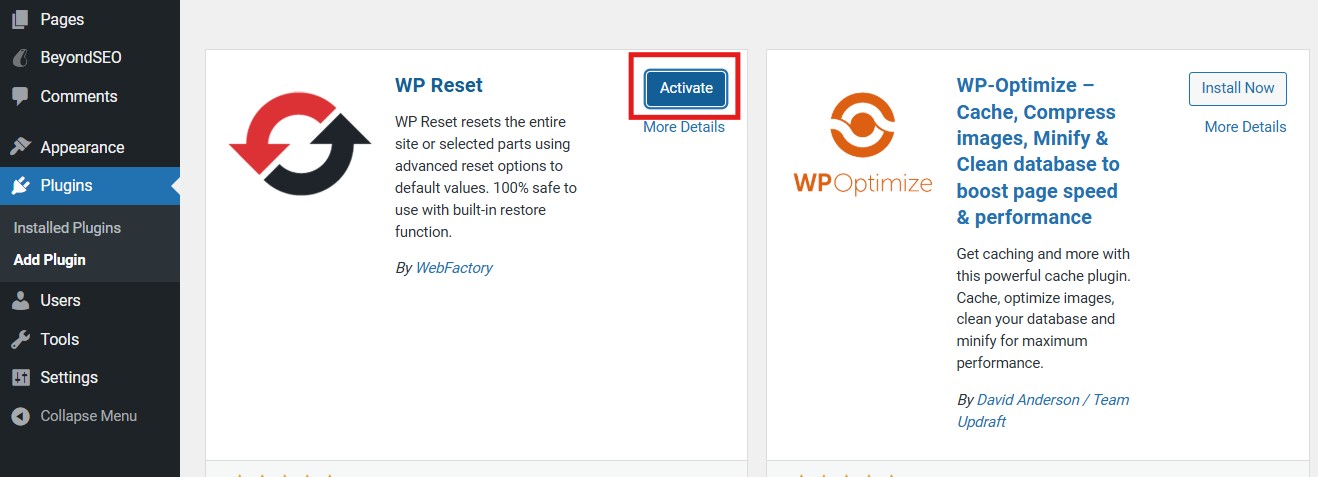
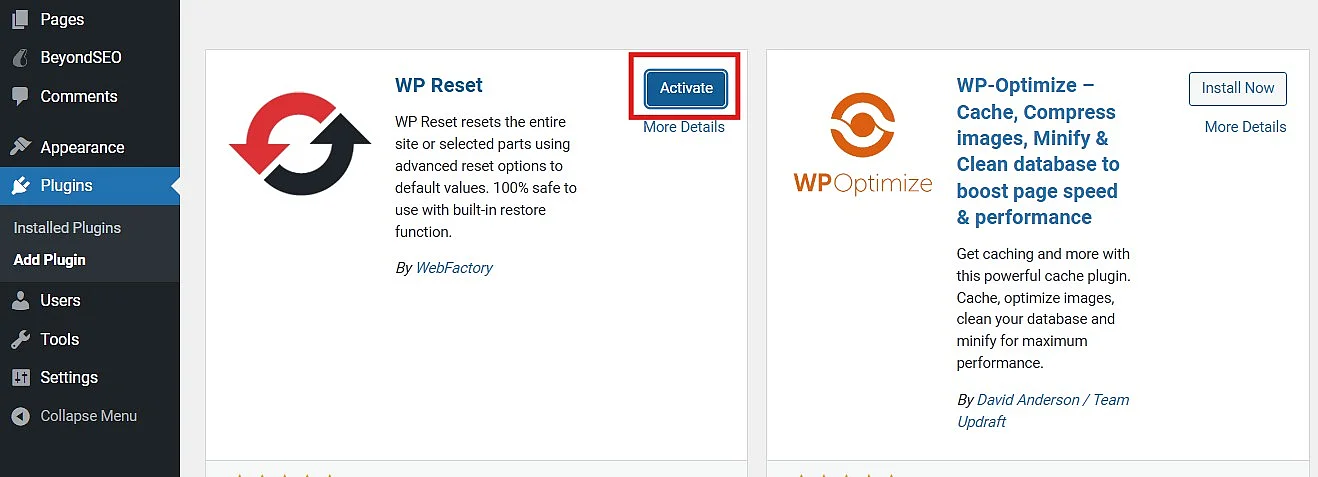
Step 2: Once the plugin has been installed, click ‘Activate’ to enable it. WP Reset will then be available in the WordPress backend.
Step 3: Before you reset WordPress, you should create a snapshot of the database. To do this, open WP Reset and go to the ‘Snapshots’ tab. There you can create a new snapshot that stores the current state of the database. Note: According to the plugin description, WP Reset resets the database without changing any files. The snapshot therefore does not replace a full backup of the website.
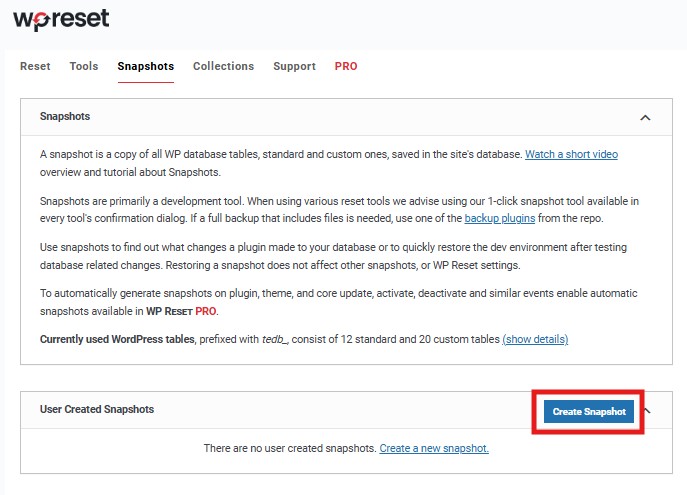
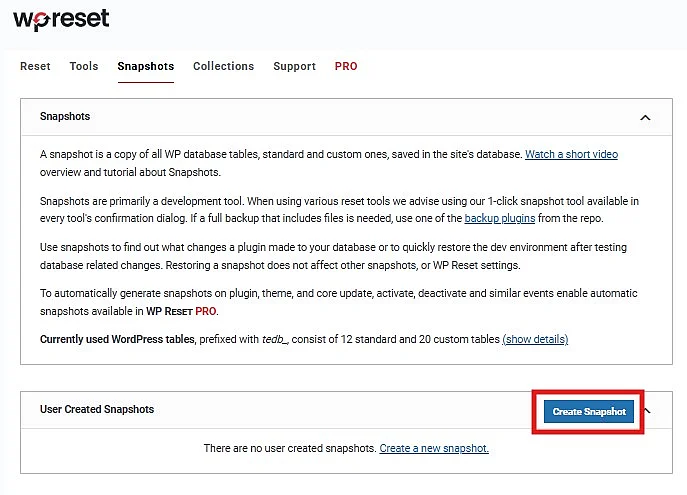
A snapshot does not replace a full backup, as depending on its functionality it mainly secures database states and does not automatically cover all files, uploads, themes and plugins as a complete website backup.
Reset WordPress site using WP-CLI
WP-CLI (WordPress Command Line Interface) is a useful tool for WordPress administrators that allows you to reset a WordPress site from the command line. It provides a single interface for making changes to both files and the database, which can make the process faster and reduce the risk of manual errors.
To use WP-CLI, you need SSH access to the server. It is advisable to test the required commands on a staging site before running them on a live website. The following WP-CLI commands can be useful when resetting WordPress:
| WP-CLI command | Effect |
|---|---|
wp site empty |
Deletes posts, comments, metadata, categories and tags while keeping settings and user accounts |
wp site empty --uploads |
Performs the same actions as wp site empty and also removes uploaded media files |
wp config create --dbname=<dbname> --dbuser=<dbuser> --prompt=dbpass |
Creates a new wp-config.php file and prompts you to enter the database access details |
wp core download --force |
Downloads fresh WordPress core files and overwrites the existing files |
wp core download --force --skip-content |
Performs the same action as wp core download --force without installing the default plugins and themes |
wp core install --url=<url> --title=<site-title> --admin_user=<username> --admin_email=<email> --prompt=admin_password |
Installs WordPress, creates the database tables and adds the required entries |
wp db export <file> |
Exports the WordPress database to a file |
wp db export <file> --add-drop-table |
Performs the same action as wp db export <file> and adds DROP TABLE IF EXISTS statements |
wp db export - | gzip > ~/wordpress_backup.gz |
Exports the WordPress database, compresses it with GZIP and saves it to a file |
wp db tables |
Displays the tables in the WordPress database |
wp db clean |
Removes all tables with the WordPress database prefix |
wp db drop |
Deletes the entire WordPress database |
wp db reset |
Deletes the WordPress database and then recreates it |
wp option update siteurl <url> |
Sets a new site URL |
wp search-replace <old-url> <new-url> |
Replaces all instances of the old site URL in the database with the new URL |
Which is the best way to reset WordPress?
Using a plugin is the easiest way to reset WordPress, but it requires a working WordPress installation. A plugin may not work if, for example, the database is inaccessible, the WordPress core is damaged or a server error occurs. Plugins also offer less fine-grained control than the other two methods.
Using WP-CLI offers a good balance between functionality and ease of use when resetting WordPress. However, WP-CLI must be installed on the server, and you need SSH access to use it. It may also fail in certain situations, for example if there is a version conflict between WordPress and WP-CLI or if PHP is not working on the server.
The manual method offers the greatest level of control and can be used as long as you have access to the server and the necessary resources. In addition to SSH, you can work via (S)FTP, cPanel or phpMyAdmin. However, this method also requires the most technical knowledge. Without the necessary expertise, mistakes can quickly cause serious problems.
In summary, the three methods can be compared as follows:
| Reset WordPress | User-friendly | Powerful | Reliable | Low risk |
|---|---|---|---|---|
| Manual | + | +++ | +++ | + |
| Via plugin | +++ | + | + | ++ |
| With WP-CLI | ++ | ++ | ++ | +++ |
What are the alternatives to resetting WordPress?
Resetting WordPress completely is not always necessary. Depending on what you want to achieve, a more targeted approach may be safer and require less effort. For example, you could set up a fresh installation for a relaunch or reset the WordPress theme when redesigning your site.
Relaunch WordPress with an existing domain and a fresh installation
Suppose you already run a website at www.example.com and want to start again from scratch while keeping the existing domain and its search engine authority. Since a complete reset would effectively leave you with a fresh installation anyway, it usually makes more sense to install WordPress from scratch and then point the existing domain to the new site. To do this, adjust the DNS settings in your hosting account or with your domain registrar so that the domain points to the server’s IP address. You can then update the WordPress site URL and replace the old URL throughout the database.
During a relaunch, it can be useful to keep the old site available. This allows you to refer back to existing content and settings and transfer them if necessary. One option is to move the existing site to a subdomain such as old.example.com after the relaunch. In the same way, you can build the new site beforehand on a subdomain such as dev.example.com. When the relaunch takes place, the domains are switched as follows:
| Site | Domain before relaunch | Domain after relaunch |
|---|---|---|
| Existing site | www.example.com |
old.example.com |
| New site | dev.example.com |
www.example.com |
If you take this approach, make sure the old site is no longer publicly indexable. The safest option is to protect it with a password, for example using HTTP authentication. Alternatively, you can prevent it from appearing in search results with noindex, provided search engines are still able to crawl the pages. Blocking the site with robots.txt alone is not sufficient, as this prevents crawling but does not reliably stop already known or linked URLs from being indexed. Otherwise, duplicate content may arise and could negatively affect the rankings of both the old and the new site.
If the URL structure changes during the relaunch, important old URLs should use a 301 redirect to point to suitable new pages. This way, you avoid error pages and preserve as many existing ranking signals as possible.
Use a child theme for a site redesign
When designing a WordPress site with a free or commercial theme, it is best to create a child theme from the outset. Any theme customisations can then be made through the child theme. This makes it much easier to develop a new design later without having to reset WordPress or rebuild the entire site.
For a redesign, you can create a new child theme and test it on a staging site until you are satisfied with the result. You can then copy the completed child theme to the existing WordPress installation. Once activated, the new child theme gives the site a fresh design without requiring a WordPress reset.
If you have not created a WordPress child theme, any changes may have been made directly to the theme itself. In this case, how you reset the WordPress theme depends on the theme you are using.
Conclusion
If you want to reset WordPress completely, it is usually best to start with a fresh WordPress installation. If you only need to reset certain parts of your site, a plugin is generally the easiest option for less experienced users. More experienced administrators can use WP-CLI, which offers greater flexibility and numerous ways to reset individual components as part of development workflows. Whichever method you choose, always create a backup before resetting WordPress.