How to register a business on Google step by step

For local businesses, creating a Google Business Profile is one of the first steps in online marketing. As an important part of local search engine optimisation, a Google Business Profile increases your company’s online visibility so you can reach more potential customers. This guide shows you how to register a business on Google from scratch, which verification methods are available, and how to manage reviews professionally.
Key Takeaways
As a digital business directory, a Google Business Profile increases the visibility of local businesses in Google Search and on Maps.
- Registration is free at
business.google.com/add. - Verification (e.g., by SMS or video) is mandatory.
- Complete information and professional photos improve your ranking in the Local Pack.
- Verified profiles let you respond to and report customer reviews.
How to register a business on Google quick guide
- Create a Google account or sign in.
- Visit
business.google.com/addand search for your business. - If a profile exists: Select the business profile and request access (if already managed).
- If no profile is found: Create a profile for your business (enter name and category).
- Add your location (set address and pin).
- Optional: Define a service area (e.g., delivery, on-site, or mobile services).
- Enter contact information (phone, website).
After that, verify your Business Profile and then you can add content such as opening hours, photos, services, and attributes.
What is a Google Business Profile?
A Google Business Profile acts as a digital business directory that consolidates all relevant information about your business. Potential customers can see your address, opening hours, contact options, services, and photos directly in Search or on Google Maps. The listing increases the chance of appearing in the Local Pack (the top three results next to the map). Google reports that businesses with a fully completed profile are viewed as 2.7 times more trustworthy. Additionally, the chances of a visit increase by 70%, while the likelihood of a purchase grows by 50%.
The benefits of creating a Google Business listing at a glance:
- Free marketing tool: You have control over how your business appears in Google Search and on Maps.
- Profile content and booking options: Add photos, service offerings, attributes, and booking or appointment links directly to your Google Business Profile.
- Increased online visibility: A complete and verified profile boosts your chances of showing up in local search results.
- Trustworthy business presence: Google requires verification via video, phone/SMS, email, live video call, or postcard, ensuring users know they are interacting with a legitimate business.
- Enhanced customer interaction: Respond to reviews, publish posts, list services and products, and engage with customers via chat features (WhatsApp or text messages).
- Insights: The dashboard provides statistics on how often your profile was viewed and which search terms customers used to find you.
When using a Google Business Profile, Google processes personal data, such as data from search queries, reviews, or messaging features. In this case, Google acts as an independent data controller under the GDPR. Businesses should explicitly inform users about this data processing in their privacy policy and provide a link to Google’s privacy notices.
How to register a business on Google step by step
A Google Business listing is free, takes only a few minutes to set up, and offers many benefits, especially for small local businesses. If you want to register your business on Google, follow these steps to create and verify your Google Business Profile.
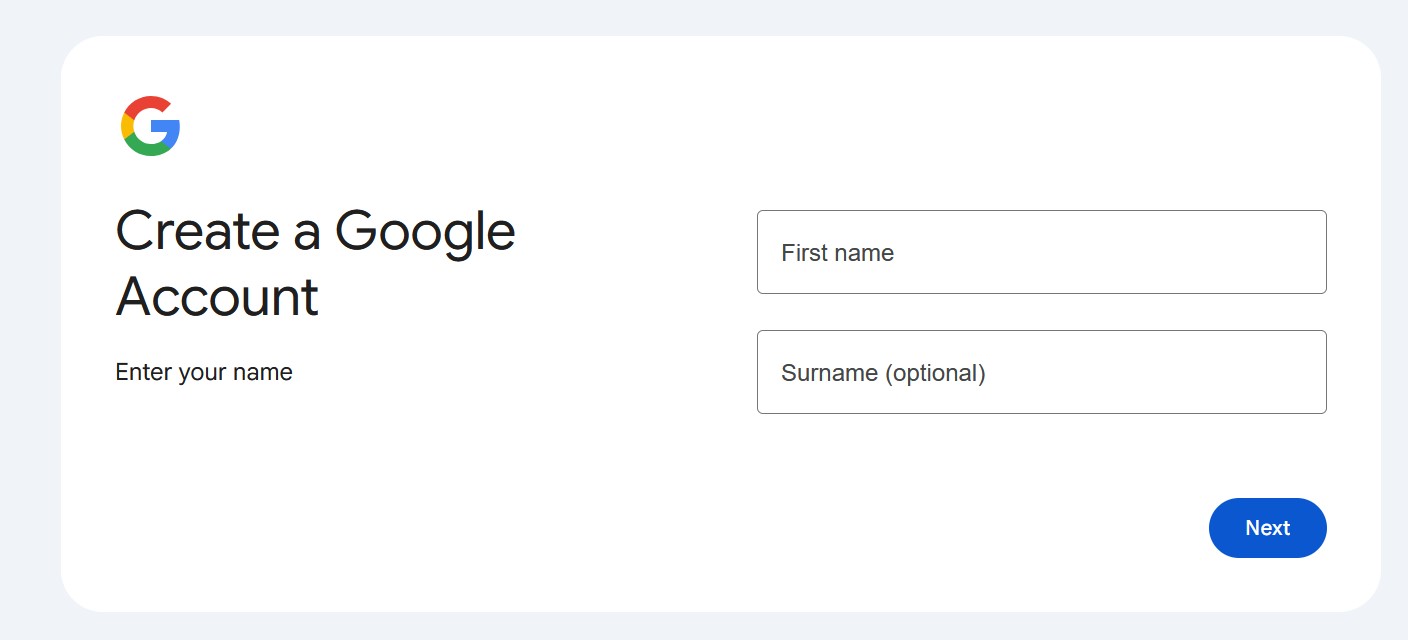
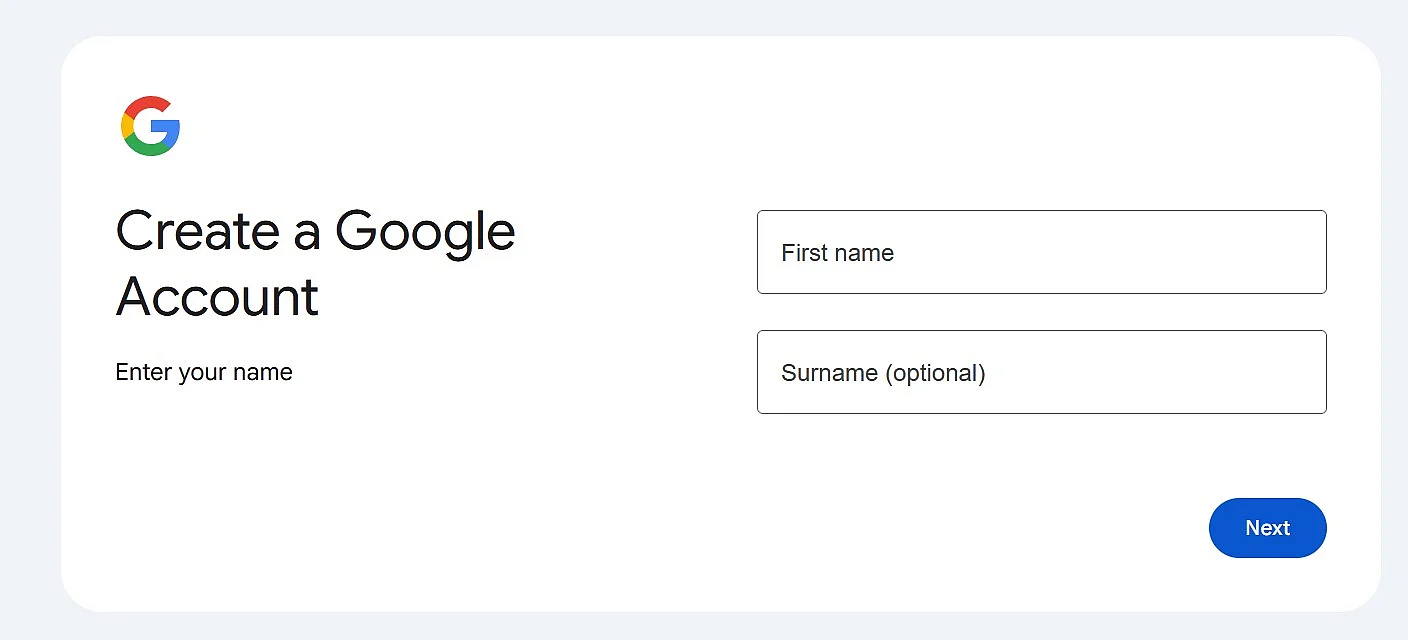
Step 1: Create a Google account
If you don’t already have one, first set up a Google account. In addition to your name, your date of birth is also required.
Step 2: Find, confirm, and manage your business
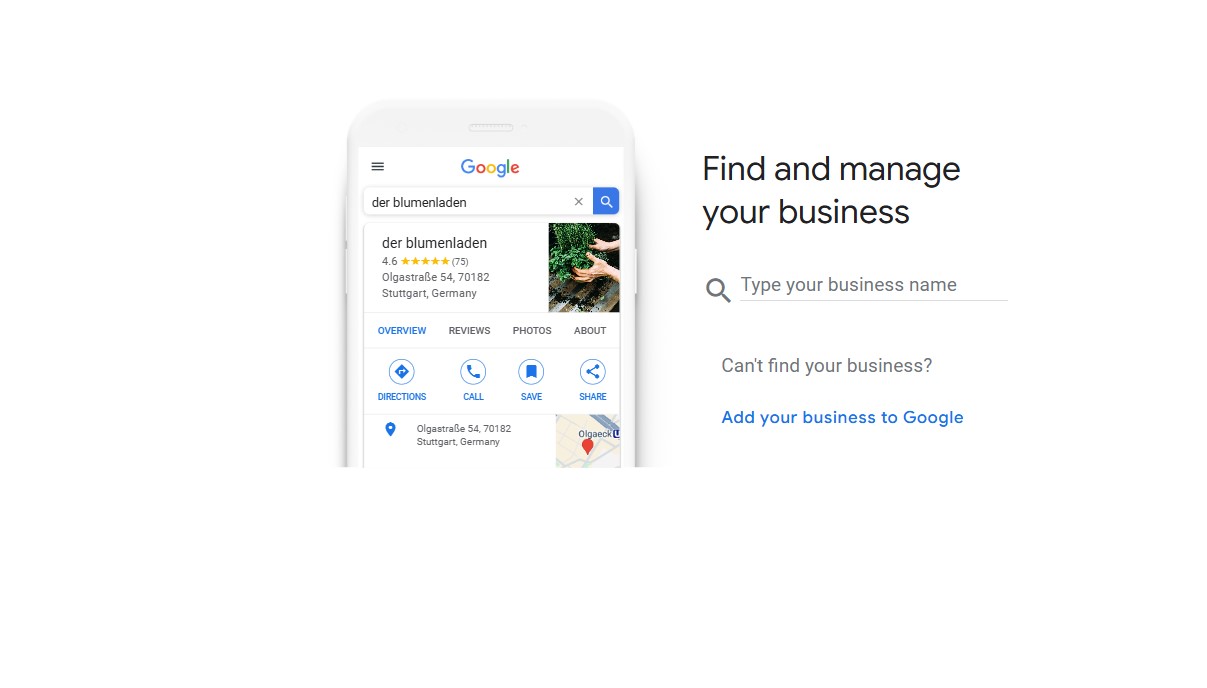
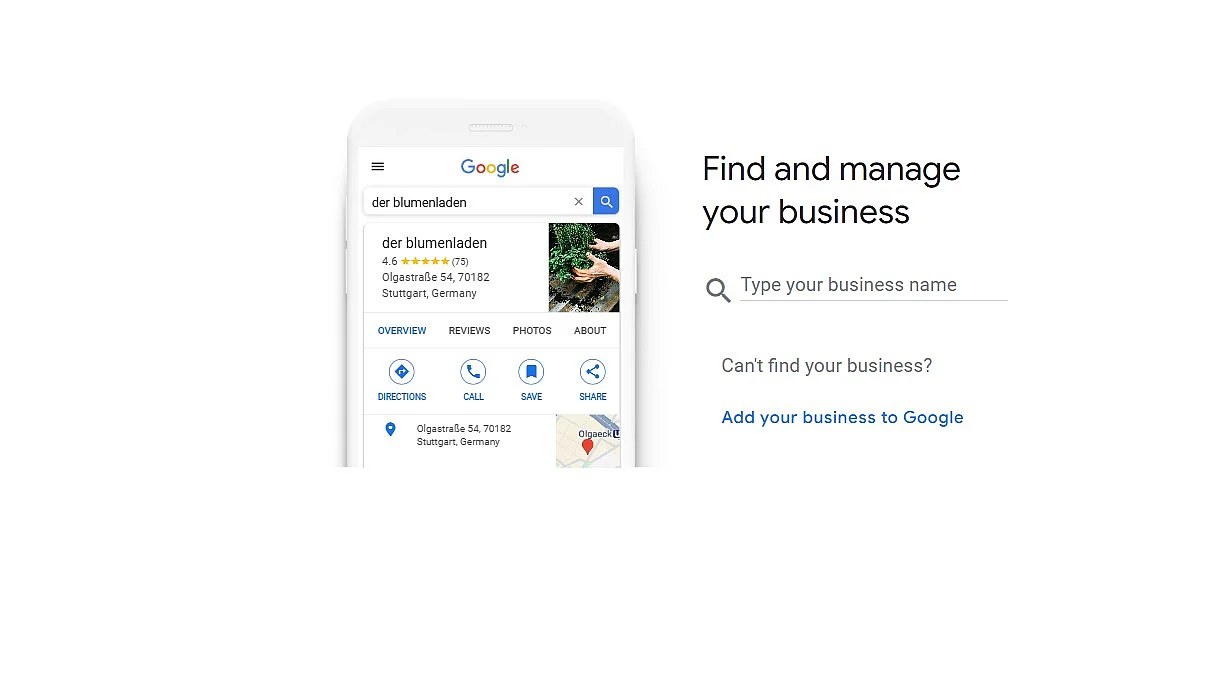
In many cases, an incomplete listing for your business may already exist in Google’s database. Visit business.google.com/add and enter your business name in the search bar. If a listing appears, click on the business name to proceed.
If your business already exists, Google will first check whether the profile is already being managed. If no owner is listed yet, you can take over management directly and continue with verification.
If instead you see the message ‘Someone else may manage this Business Profile’, someone already has access to the listing. In this case, you can select the ‘Request Access’ option and complete the required form. Google will notify the current manager and review your request. In most instances, you can verify the business profile directly, either via phone or SMS code, or through video verification.
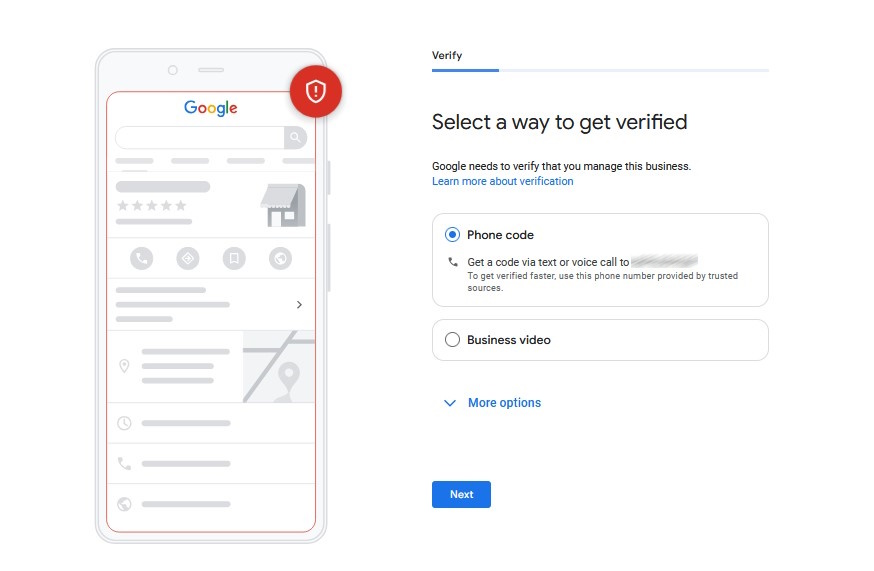
If your business profile has been successfully verified, you can skip ahead directly to Step 4.
Step 3: Add your business
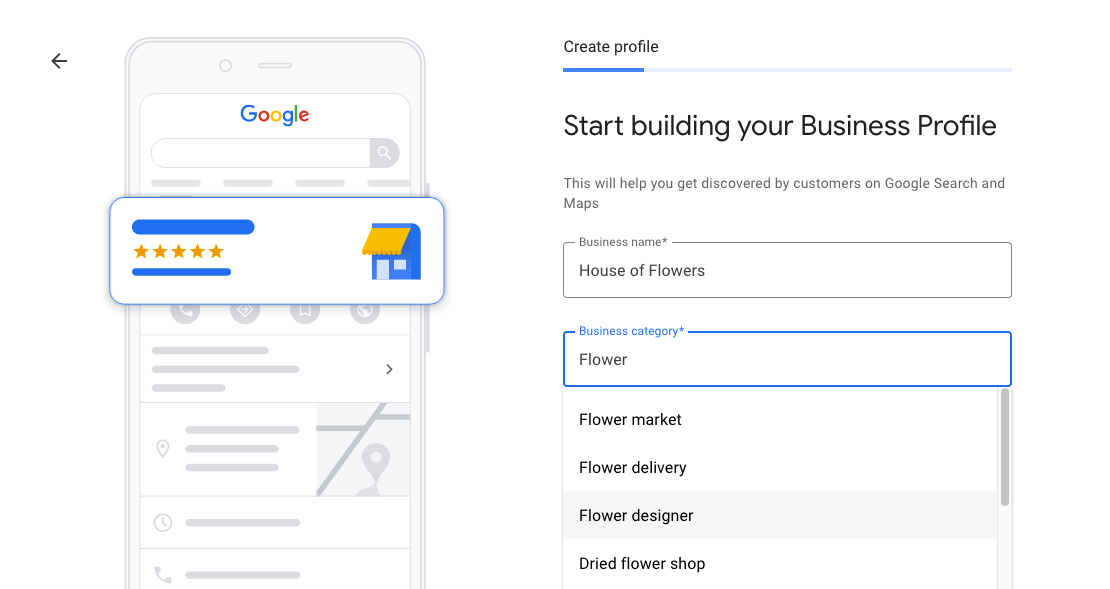
If there is no listing for your business yet, click ‘Start building your Business Profile’ and enter your business name. Then select a category that matches your business. This step is especially important, because it’s the only way potential customers can find you in Google Search.
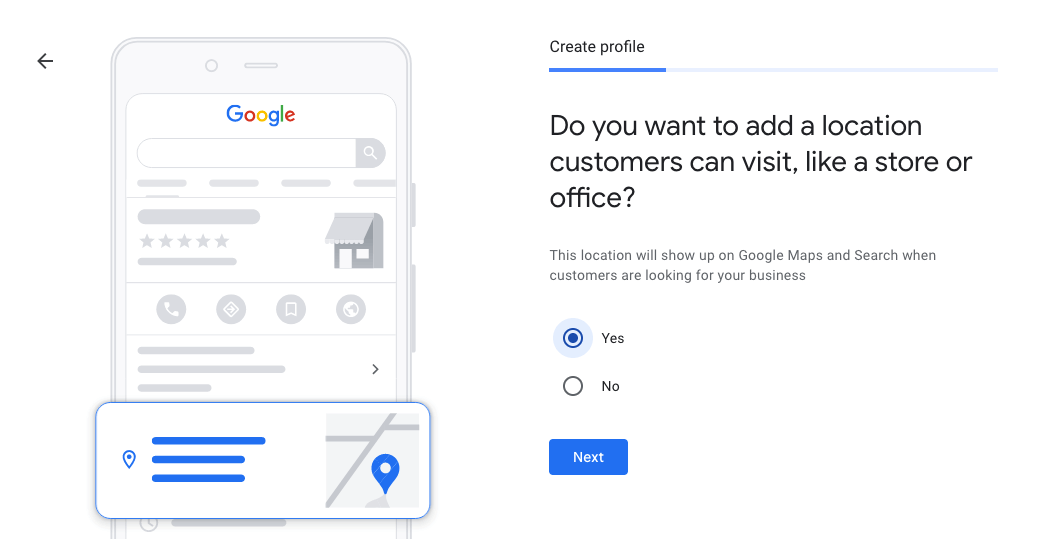
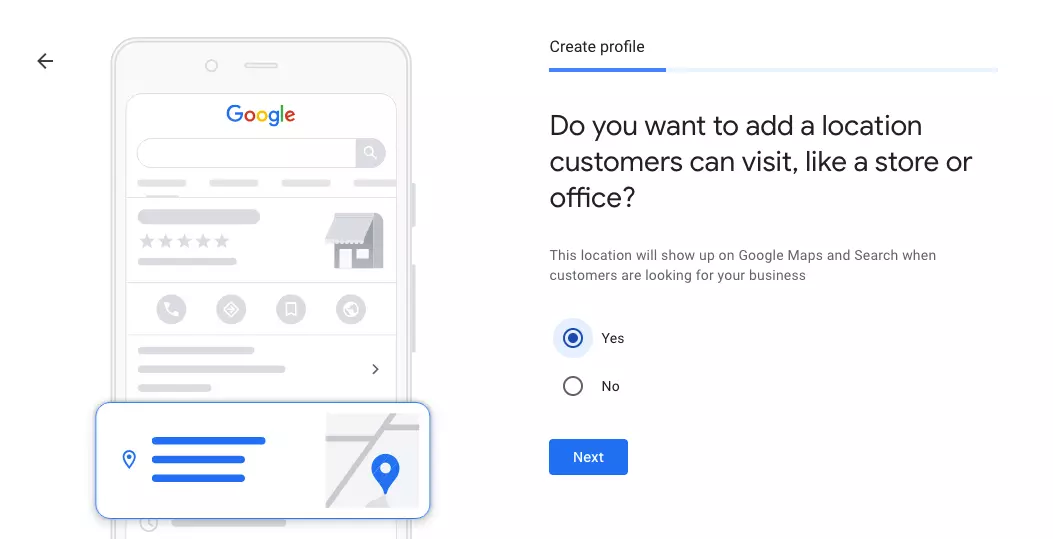
Step 4: Add a location
Next, you can choose to add a location. If Google is uncertain about your business’s exact location, a map will appear. You can move the red pin to the correct spot on the map. Additionally, you can update your Google Maps listing after setting up your Google Business Profile.
Step 5: Define your service area
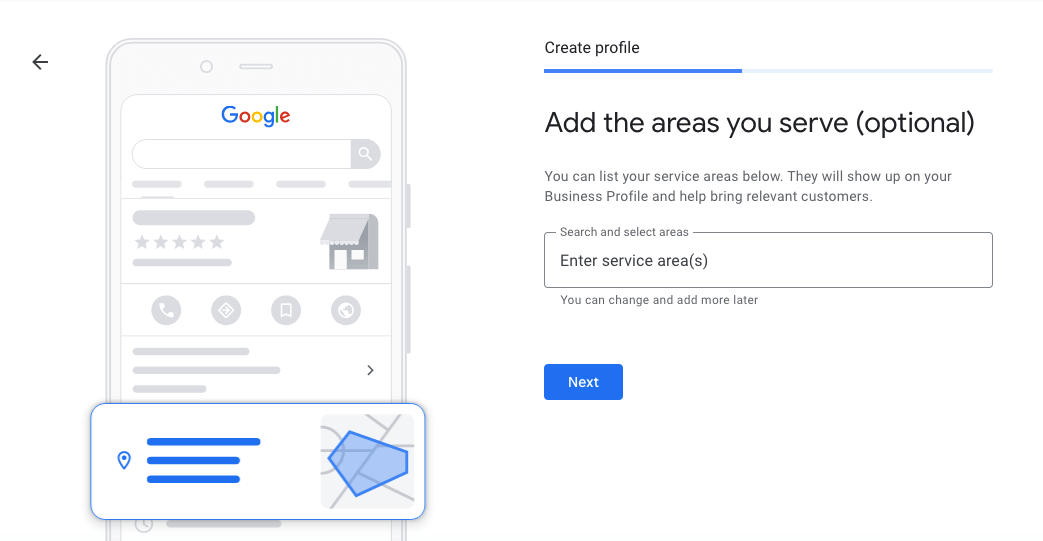
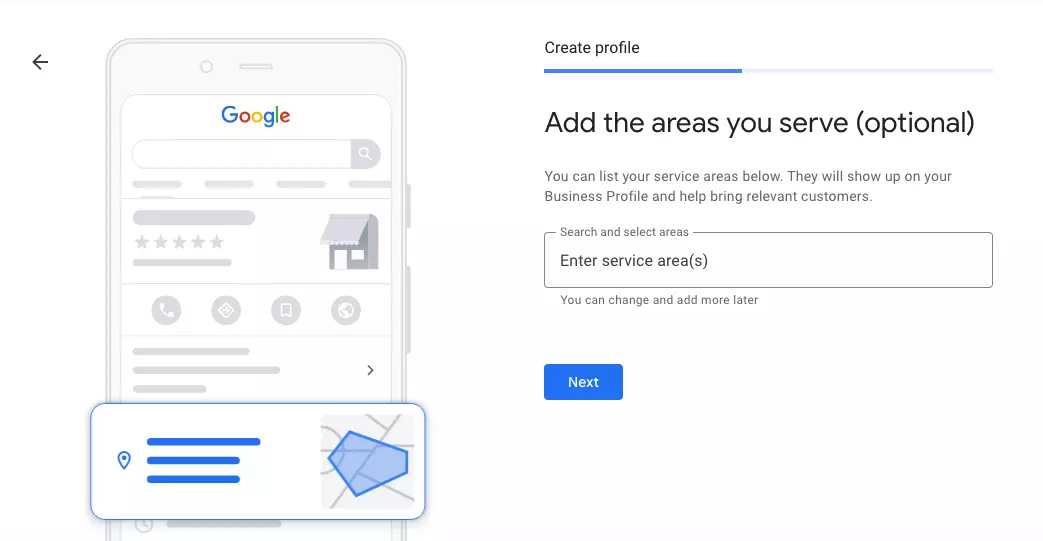
This step is optional and only applies if you also offer services outside your location, such as delivery, on-site, or mobile services.
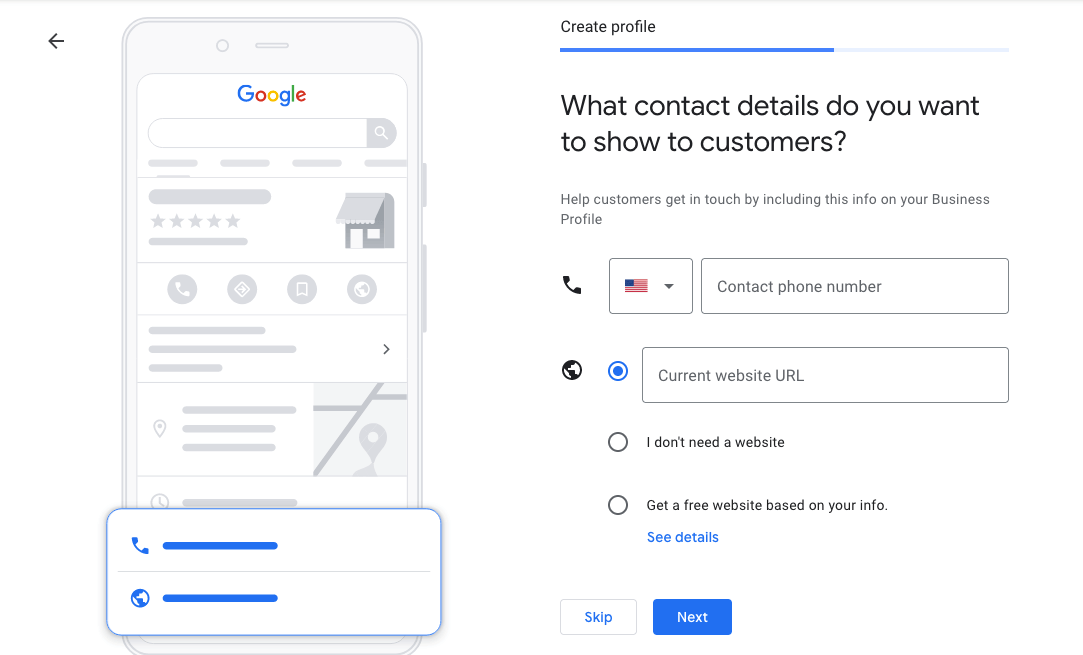
Step 6: Enter your contact details
Then define which contact details you want customers to see when they search online and add your website URL, if you have one.
Before you can fill your Google Business listing with photos and information, you must confirm your identity via code or video verification once again.
Keep in mind that you need direct customer contact for a Google Business listing. So if you run a purely online business, you normally can’t create a business profile. Instead, you can submit your website to Google and use other effective Google SEO tools to improve your ranking.
How do I optimise my Google Business listing?
Simply creating a Google Business Profile isn’t enough to fully take advantage of this marketing tool. Only a well-maintained profile can attract attention and secure a spot in the Local Pack in Google search results. This block highlights the top 3 businesses in the region that match a user’s search query. To help your business rank as high as possible and make a lasting impression on Google Maps, follow these tips:
- Complete profile: Ensure your Google Business listing is fully filled out so that searchers have access to all the key information. In addition to contact details, business hours, and services, you can also include attributes like online appointment booking.
- Professional images: Upload high-quality photos that will attract potential customers. It may be worthwhile to hire a photographer to showcase your sales space or products in the best light, giving you a competitive edge.
- Unique selling points: Your Google Business listing is a great opportunity to showcase your company online. Use the description to emphasise specific offers or promotions and set yourself apart from competitors.
- Consistency: Google checks your information against other online business directories and ranks your company as more trustworthy when all details match. Make sure your business data is consistent and spelled the same way across the web.
- Website optimisation: Local SEO on your website will also improve the visibility of your Google Business listing. Review all titles, headings, and content for relevant keywords and a local focus. Don’t forget to link to other business directories where applicable.
How to manage reviews and report fake ones in your Google Business Profile
Customer reviews are a key trust factor. With a verified profile, you can respond to reviews. Keep these points in mind:
- Crafting responses: Respond politely and thank customers for positive feedback. For negative comments, remain objective and offer solutions. Personal data should not be mentioned in public replies, which also aligns with GDPR guidelines.
- Encouraging reviews: You can create a link to your review form and share it with satisfied customers. However, it’s prohibited to incentivise reviews or provide dedicated tablets in your store for customers to post reviews.
- Reporting inappropriate reviews: If a review violates Google’s guidelines (spam, offensive content, conflict of interest), you can report it. In your profile, go to the ‘Reviews’ tab, click ‘Report’ next to the review, and choose a reason like ‘Spam’ or ‘Inappropriate’. Google will review the report.
- Managing reviews: Use the review management tool to track reported reviews and escalate them if needed. You can also take action against user profiles that repeatedly violate the guidelines.