How do you create an Instagram Story?

With an Instagram Story, you can post photos, videos, and music as short narratives (‘Stories’) that disappear or are archived after 24 hours. When used strategically, Instagram Stories not only increase engagement among your followers, but also boost your traffic through marketing campaigns, contests, polls, and interesting content.
How to create an Instagram Story quick guide
- Tap the ‘+’ button and select ‘Story’, or swipe right from your feed.
- Tap the white shutter button to take a photo.
- Press and hold the shutter button to record videos.
- Swipe up to upload saved videos or photos.
- Edit the Story using filters at the bottom of the screen.
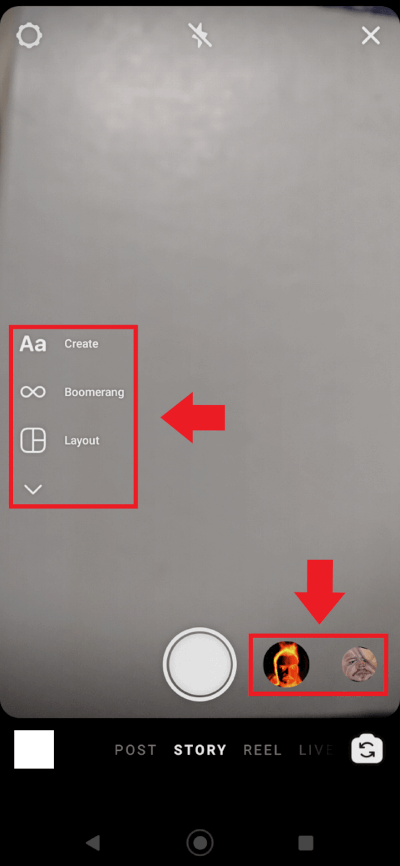
- Use additional features via the left-hand menu bar.
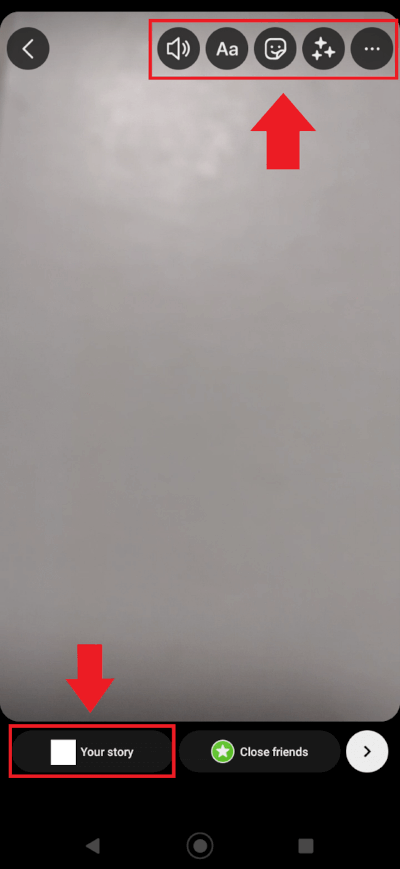
- Set your privacy settings and share the Story with all followers under ‘Your story’ or with a selected audience under ‘Close friends’.
What is an Instagram Story?
An Instagram Story is a short-lived photo or video post created in portrait format (9:16) that remains visible for 24 hours. After that, the Story automatically disappears from the public profile and is saved in your personal archive.
Instagram Stories are especially suitable for timely, spontaneous, or temporary content such as announcements, behind-the-scenes glimpses into daily life, or promotional messages that you don’t want to appear permanently in your profile feed. They are displayed above the feed in a separate bar and can be viewed one after another as a sequence of multiple clips or images.
How to create Instagram Stories
Creating Instagram Stories is simple and intuitive. First, decide what content you’d like to share with your followers, then get started—either by recording a video directly in the Instagram camera or by uploading photos and videos from your device. Before publishing, you can enhance your Story with stickers, hashtags, tags or filters. Each Story clip can be up to 60 seconds long; longer videos are automatically divided into consecutive segments.
Even when creating Instagram Stories, you should follow the recommended Instagram image sizes to ensure optimal image quality. For Stories, a full-screen format with a resolution of 1,080 × 1,920 pixels in a 9:16 aspect ratio is recommended.
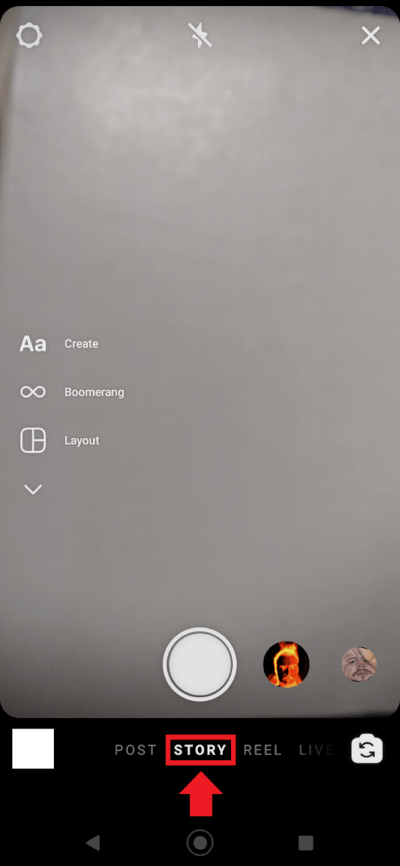
Step 1: Open the ‘Story’ menu
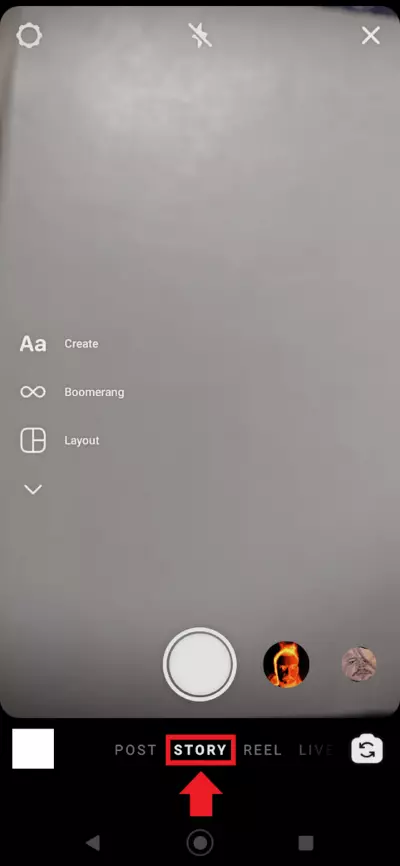
Open the app and swipe right from your feed to access the Story camera. Alternatively, tap the ‘+’ button and select ‘Story’ from the creation menu. In both cases, you’ll see a menu with the options ‘Post’, ‘Story’, ‘Reel’, and ‘Live’. Tap or swipe to ‘Story’.
Step 2: Select a video or photo
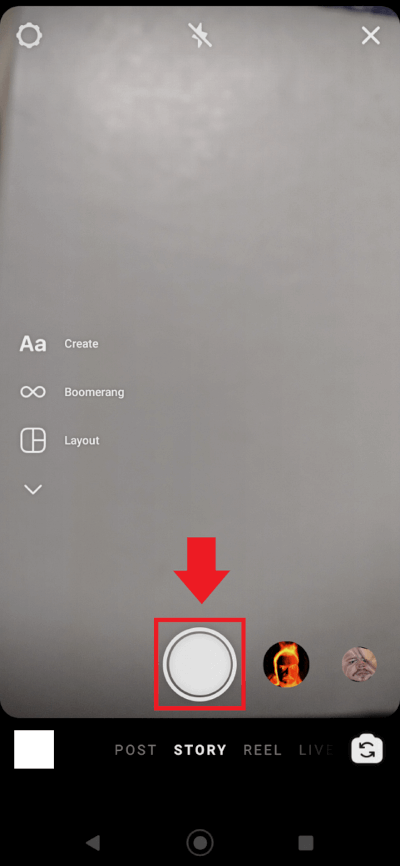
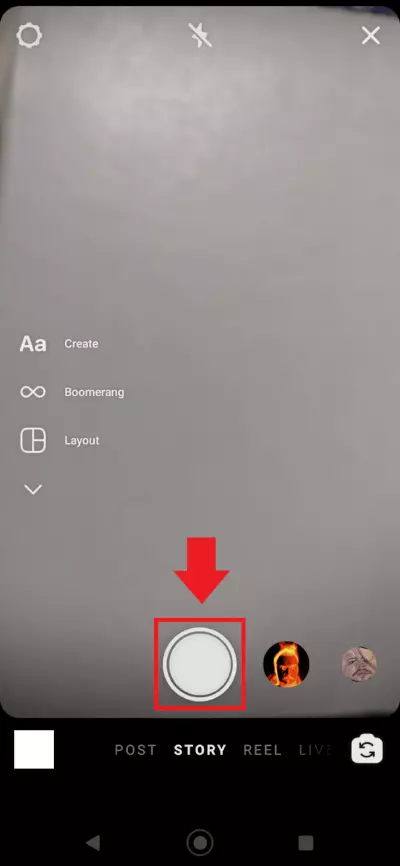
If you want to post a video or photo saved on your device as an Instagram Story, swipe up to open your gallery. You can also select a saved photo or video by tapping the plus icon on the home screen. If you want to create a photo or video directly in the app, use the white shutter button. Tap once to take a photo, or press and hold to record a video.
Step 3: Use effects and filters
To use special effects and filters, swipe left or right on the screen to browse available options. The selected effect appears as a live preview before you start recording. Additional creative tools such as Boomerang, Layout, Hands-free, text (‘Aa’), stickers and music can be accessed from the toolbar within the Story camera interface, depending on your app version.
Step 4: Tag people or products
To tag someone in your Instagram Story, tap ‘Aa’ to add text, type ‘@’, and select the relevant account from the suggestions. If you use Instagram Shopping, you can also tag products using the product sticker, which directs viewers to your Instagram Shop or linked product catalogue.
Step 5: Post the Story
After recording, more tools are available in the menu bar at the top. Once editing is complete, you can post the Instagram Story by tapping ‘Your story’ to share it with all approved followers, or ‘Close friends’ to share it with a selected group of people.
Automatically publish and schedule Instagram Stories
Automatic publishing of Instagram Stories is primarily used in professional social media management, for example for campaigns, editorial calendars or recurring content formats. Dedicated social media management tools such as Hootsuite or other alternatives are often used for this purpose, as they enable detailed planning, structured team approval workflows and cross-channel publishing.
At the same time, the Meta Business Suite (formerly Creator Studio) provides a native solution within the Meta ecosystem. It allows you to schedule Instagram Stories in advance and publish them automatically without the need for additional software. Business Suite also offers an automatic connection to Facebook Stories, enabling content to be published on both platforms simultaneously.
While external tools are particularly beneficial for complex workflows and multi-channel strategies, Meta Business Suite is especially suitable for businesses and creators who want to automate Instagram Stories easily, securely and directly through Meta.
Versatile features for Instagram Stories
Even while you create an Instagram Story, Instagram offers helpful tools to customise the post exactly as needed. The following features are available in Story mode:
- Boomerang: A recording feature that turns an Instagram Story into a short video that plays forwards and backwards.
- Layout: Allows you to create selected photo collages in an Instagram Story.
- Multi-capture: With this feature, you take multiple photos (up to eight) in a row and either choose the best one or simply upload all of them as a photo series.
- Reel: Interesting or funny Reels can easily be shared in an Instagram Story to generate additional attention.
- Hands-free: If you don’t want to keep holding down the shutter button the entire time while creating a video, use the ‘Hands-free’ feature.
- Face filter: The ‘Face filter’ feature automatically adds selected filters, effects, or animations to faces in the video or photo.
- Level: If you want a subject to appear straight, the ‘Level’ feature adds guide lines that show how level the shot is.
- Live: Livestreams create a stronger sense of immediacy and interaction with followers. You can access the Live feature from the Story camera by selecting ‘Live’ in the creation menu. A stream can last up to four hours and allows viewers to comment and react in real time.
How do you edit Instagram Stories?
Instagram Stories are popular not only because they’re ideal for spontaneous, creative or time-sensitive posts. They also impress with a wide range of effects and editing options. These include adding text, stickers, emojis and icons, as well as applying filters, animations and links. Below, we present the most important features.
There are also various Instagram tools such as Over, Canva, Unfold, Wave, and CutStory that provide helpful features for photo and video editing.
Filters
Filters allow you to enhance and customise photos and videos with creative effects and animations. You can browse available filters by swiping left or right in the camera interface; a live preview will appear before you capture your content. Additional effects can be discovered via the search function in the effects gallery and saved for future use.
Adding text and tagging
You can add text to a photo or video in your Instagram Story or create a text-only Story. To add text, tap ‘Aa’ in the top toolbar after capturing or uploading your content. If you want to create a text-only Story, select the ‘Create’ or text mode from the Story camera options. Tap the screen to start typing. To customise your text, you can change the font, colour, alignment or background using the editing tools in the top toolbar. Additional options may be available depending on your app version.
GIFs and stickers
GIFs and stickers are not only great for decorating and adding personality to an Instagram Story, they can also help increase brand visibility when you create your own branded GIFs. To add them, tap the sticker icon in the top toolbar after capturing or uploading your content. You can browse suggested stickers or search specifically for GIFs. Once selected, simply adjust their size and position on the screen as needed. If you’d like to create your own GIFs, platforms such as Giphy offer suitable tools for designing and publishing branded content.
Music
If you want to add music to an Instagram Story, tap the sticker icon after creating or uploading it, then tap the ‘Music’ button. You’ll now see a ‘For you’ list of preselected music, or you can use a search function under ‘Browse’.
Questions and polls
If you want to increase engagement from your followers, use questions and polls. Tap the sticker icon to add a question or a poll directly to the Instagram Story. Followers simply tap the embedded sticker to interact. Only you can see answered questions and polls, and you can even share them anonymously.
Link sticker
Link stickers can be labelled with keywords and added to the Instagram Story. When tapped, the stored URL opens automatically. This allows you to direct users to external pages, online shops, or additional content. Supplemented with clear CTAs like ‘Shop now’, ‘Learn more’, or ‘View offer’, Instagram Stories can contribute specifically to conversions. Especially for companies with Instagram Shopping or ongoing campaigns, an Instagram Story offers an effective way to turn attention directly into concrete actions.
Hashtags and tagged people
Another effective way to boost visibility, engagement and conversions is by adding hashtags or tagging people in your Instagram Stories. Hashtags are particularly useful for expanding your reach with personalised or branded keywords and for targeting relevant audiences. Just like in the main feed, hashtags in Stories make your content discoverable within specific topic categories, increasing the likelihood of reaching users beyond your existing follower base.
In combination with linked content, product tags, or CTAs, Instagram Stories can contribute to conversion optimisation. The hashtag and tag feature is available via the sticker button and supports both community building and strategic brand and marketing communication.
Additional information
You can give your Instagram Stories more depth and relatability by adding additional information such as your location, the time, the day of the week, or the temperature. Recording information can be added to the Instagram Story via the sticker icon.
Using Story highlights
A related feature of Instagram Stories is Instagram Highlights. These are saved Stories that appear on your profile below the Instagram bio. Particularly creative or informative Stories can be permanently displayed on your profile as Highlights, for example as an FAQ section or a short introduction. To create a Highlight, open your current Story and tap the heart-shaped Highlight icon. You can also add older Stories to a Highlight via your Instagram archive.
How do you hide or share Instagram Stories?
As mentioned, even before posting the Instagram Story, you can use ‘Your story’ or ‘Close friends’ to decide who can see it. If you want to specifically control who can see an Instagram Story in the future, go to ‘Privacy’ in your profile settings and then ‘Hide story’. There, you specify which people Instagram Stories will be visible to in the future.
How do you delete Instagram Stories?
Although an Instagram Story disappears automatically after 24 hours, you may sometimes want to remove it earlier. To do this, open the Instagram app and tap ‘Your story’ at the top of your home feed. Select the Story you want to delete, then tap the three-dot icon (More options). From the menu that appears, choose ‘Delete’ to remove the Story.
How do you save Instagram Stories locally?
Instagram Stories disappear after 24 hours, but they remain stored in your Instagram archive. To access it, open your profile, tap the three-line menu icon and select ‘Archive’. You can also save a Story to your device, either while it is still live or later from the archive. For an active Story, tap ‘Your story’ at the top of your feed, select the Story, tap the three-dot icon and choose ‘Save’. Then select ‘Save photo’ or ‘Save video’. If you want to download an older Story, open the archive, select the desired Story and use the available save option.
Checklist for successful Instagram Stories
- Format: Use a vertical 9:16 layout with a recommended resolution of 1,080 × 1,920 px.
- Core message: Communicate your main message in the first clip and include a clear CTA, such as a link sticker.
- Engagement: Add interactive stickers (e.g. polls or questions) to encourage audience participation.
- Shopping features: Use product tags or Instagram Shopping features where available.
- Highlights: Save selected Stories as Highlights to keep them visible beyond the 24-hour limit.