How to back up photos

Where is the best place to store a photo backup, on a hard drive, an external storage device, an optical disc, or in the cloud? We summarise the available options and explain when a cloud solution is the most suitable choice.
Why is backing up photos important?
For private users, losing a digital photo collection is frustrating. For professional photographers, it can be a worst-case scenario. Whether the cause is technical failure, human error, malware, or theft, lost images can mean lost memories and irreplaceable moments. In the worst case, professional client work may also be affected.
Data loss can happen for many reasons, including:
- hardware defects in smartphones or hard drives
- accidental file deletion
- malware or ransomware
- theft or loss of a device
- software errors or system crashes
That’s why regular backups of your photos are essential.
The pros and cons of Cloud vs. offline
Backing up data, including photos, has changed significantly as storage media have evolved. This shift is partly due to the increasing file sizes of digital photos.
In professional photography, cameras with large sensors and high resolution are common. Shooting in RAW format produces especially large files, often ranging from 20 to over 100 megabytes per image, depending on resolution and compression.
Smartphone photos have also grown larger, typically requiring 5 to 15 MB per image. In many cases, built-in storage fills quickly, making alternative storage solutions necessary to back up your pictures.
Today, the most common storage media include:
- cloud storage
- external hard drives (HDD or SSD)
- internal hard drives in PCs or laptops
- USB flash drives
- memory cards (e.g., SD cards)
- NAS systems
Transfer speed is another important factor. USB 3.2 ports can reach up to 20 gigabits per second, while the USB 4.0 standard (USB-C) allows a maximum data rate of 40 gigabits per second.
What are the pros and cons of different storage media?
Which storage medium is best suited to your own needs for storing images depends on factors such as storage capacity, speed, mobility, and security.
| Storage medium | Advantages | Disadvantages |
|---|---|---|
| Cloud storage | large storage, always available, server maintenance by secure data centres, automated backups, access from different devices | sometimes subject to charges, internet connection required |
| Hard drive (SSD) / USB flash drive | fast, durable, and compact | limited lifespan of up to ten years, smaller capacities |
| Hard drive (HDD) | inexpensive storage per GB, relatively high storage capacities | mechanically sensitive, heat generation, lifespan of five to ten years |
| Memory cards | small and mobile | lifespan of approx. five to ten years |
| PC / laptop | internal hard drive usually included | not a real backup if the device is defective or lost |
| NAS | central storage for multiple devices, automated backups, large capacity, scalable | higher initial costs, configuration and maintenance may require technical knowledge, risk from local damage (e.g., fire or flooding) |
Experts today recommend a combination of several storage methods. Cloud storage and local backups complement each other particularly well.
The 3-2-1 rule as a photo backup strategy
To keep your photos safe, it’s best to follow a proven backup strategy. In IT security, the so-called 3-2-1 backup rule is considered best practice. With the right combination of copies, storage media, and locations, you can protect your photo collection even if a device is damaged or lost.
The rule is based on the following principle:
- 3 copies of your photos, including the original and two backups
- 2 different storage media, such as a computer and an external hard drive
- 1 copy stored in a separate location, such as cloud storage
A typical setup could look like this:
- Original photos on your computer or smartphone
- Photo backup on an external hard drive
- Additional photo backup in the cloud
In everyday life or when travelling, most photos are taken with a smartphone. Many cloud services therefore offer automatic upload features. As soon as you have a stable internet connection and backups are enabled, new photos are uploaded directly to the cloud and stored there. This means you no longer need to manage photo backups manually. Your valuable memories are continuously protected and remain available even if your device is lost or damaged.
How to back up photos in the cloud using HiDrive as an example
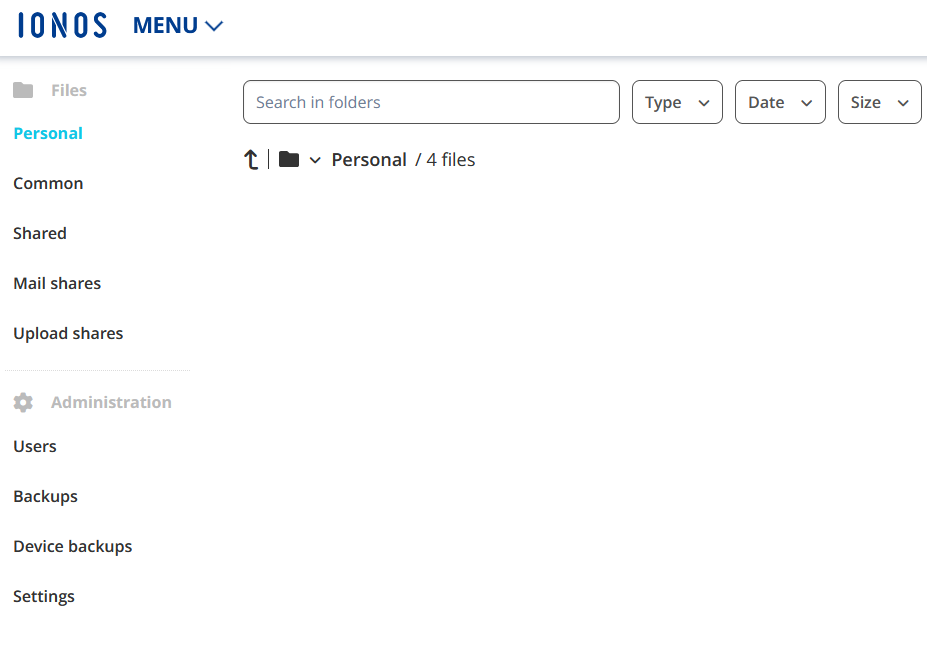
Cloud storage is now one of the most widely used options for photo backups. Your images are stored on external servers and can be accessed from different devices. One example is HiDrive, which stores files centrally while also combining automatic synchronisation across different storage locations with a range of security features.
The most important features include:
- Access files via browser, desktop software, or mobile apps
- Automatic synchronisation between devices
- Sharing files via links
- Automatic backups from devices or network storage
- Integration via protocols such as WebDAV, SFTP, or SMB
- Security features such as two-factor authentication or encrypted data transmission
How to back up your photos using NAS
A flexible option for photo backups is NAS (Network Attached Storage). A NAS is a storage device connected to your home or office network. It stores photos, videos, and other files in one central location and makes them available across multiple devices. Unlike an external hard drive, a NAS can be accessed via LAN or Wi-Fi, so it works like a private cloud in your own home.
This allows smartphones, tablets, and computers to access stored photos at the same time. You can save new images, retrieve archived photos, and manage your photo collection without manually transferring files between individual devices.
Typical advantages of a NAS system for photo backups include:
- Central storage location: all photos are stored in one place on the network and can be accessed from different devices.
- Automated backups: many NAS models include features for automatically backing up and synchronising data from PCs and smartphones.
- Expandable capacity: users can add more hard drives as their storage needs grow.
- No ongoing subscription costs: after purchasing the device, there are no monthly storage fees, unlike with many cloud services.
How to store photos offline
If you prefer an offline storage option for your photo backups, you have several choices. As mentioned above, even a small number of image files can take up a lot of storage space because of today’s high resolutions. Internal and external hard drives are therefore a practical solution if you want to back up a large photo collection or create a local copy of your files.
External hard drives are especially common. The two main types are HDDs and SSDs:
- HDDs: HDDs (Hard Disk Drives) usually offer more storage capacity at a lower price per GB than SSDs. However, they contain mechanical parts, which makes them more vulnerable to physical damage and noisier during operation. They are also slower, so loading and transfer times can be longer.
- SSDs: SSDs (Solid State Drives) are faster, quieter, and more robust because they have no moving parts. They offer quicker access times and higher transfer speeds, which can improve overall performance. However, they are usually more expensive per GB than HDDs.
How to use AI features to back up and manage photos
Modern photo apps and cloud storage services increasingly use artificial intelligence to organise large image collections more effectively. These features can simplify photo backups and make it easier to find specific images later.
The most common AI features include:
- automatic facial recognition
- intelligent subject recognition, such as places or objects
- automatic duplicate detection
- AI-powered image search
- automatic image enhancement
- backup process optimisation