What is a user interface?

A user interface (UI) refers to the visible and interactive part of a software or hardware system. It typically includes elements such as buttons, menus, and icons. However, there are also alternative interfaces that can be controlled through text, voice, or even brain activity.
What is a UI (user interface)?
A user interface (UI) is the point of interaction between humans and machines. It enables you to operate a computer, place an order in an online shop, or use an app on your smartphone. The user interface includes all visible and interactive elements, ranging from simple text-based command lines to complex graphical user interfaces.
The design of a user interface has a major impact on how easy and comfortable software or a website is to use. Today, the focus is not only on functionality, but also on visual appeal and usability. User experience has therefore become a central aspect of UI design. The goal is to create intuitive interfaces that support a smooth and efficient user journey. While graphical user interfaces are still the most common approach, new and innovative UI types are increasingly shaping how people interact with digital systems.
What types of UIs are there?
Since the invention of computers, methods of human–machine interaction have steadily evolved. Today, a wide range of user interface types exists. Early systems relied on simple command-line interfaces (CLI), while later innovations such as natural user interfaces (NUI) have made interaction more intuitive and direct. The following table provides an overview of the most important UI types before they are explained in more detail.
| User interface type | Description | Examples |
|---|---|---|
| Command Line Interface (CLI) | A text-based interface where users interact through keyboard input. | MS-DOS, cmd.exe in Windows |
| Text User Interface (TUI) | A text-based interface that uses the full screen and supports more complex layouts than a CLI. | Bootloader, BIOS setup |
| Graphical User Interface (GUI) | A visual interface operated through icons, windows, and other graphical controls. | Windows, macOS, websites |
| Voice User Interface (VUI) | An interface that allows interaction through spoken commands. | Siri, Google Assistant, Copilot |
| Natural User Interface (NUI) | An interface that responds to gestures, movement, speech, or object recognition. | Smartphones, smartwatches, tablets, consoles |
| Generative User Interface (GenUI) | An AI-driven interface that adapts or is created dynamically in real time. | Intelligent applications, adaptive dashboards, AI-native interfaces |
Command Line Interfaces (CLI)
In the early days, user interfaces were just as minimal as the first computer systems themselves. Screens typically showed nothing more than a command line and a prompt indicating the current position or awaiting input, as seen on early MS-DOS machines. Users interacted with the system by entering commands via a command-line interface. The computer would then process the input and return the result in text form.
Although this type of interface is now considered outdated, it is still used in tools such as cmd.exe on Windows systems, where the syntax largely follows its DOS origins. Interaction in a CLI is handled entirely through the keyboard, without the use of a mouse.
In summary:
✓ CLI is the first method for operating the user interface.
✓ With a text-based user interface, interaction is controlled via keyboard input.
✓ Inputs are entered and executed in a command line (line-oriented).
Text User Interface (TUI)
Text user interfaces are more user-friendly than command-line interfaces, although interaction still takes place entirely via the keyboard. They represent a transitional stage between pure command-line interfaces and graphical user interfaces. The term ‘TUI’ was introduced after GUIs became widespread to clearly distinguish text-based interfaces from both CLIs and graphical systems.
Unlike CLIs, TUIs use the entire screen rather than a single line, allowing for more structured layouts. However, they still operate in text mode. Typically, a fixed set of characters is available, which can be arranged to create menus, windows, or simple interface elements. TUIs are still used today, for example in bootloaders or BIOS setup programs.
In summary:
✓ TUIs are text-based user interfaces that use the full screen and support more complex layouts than CLIs.
Graphical User Interfaces (GUI)
GUIs (Graphical User Interfaces), i.e., graphical user interfaces, are the established standard today. Software is now operated using graphical controls and icons, which are often visually modelled on objects from the ‘real world’. Users typically interact using a mouse and keyboard, but touchscreens are now just as common. Graphical user interfaces introduced familiar elements such as the desktop, windows, and the recycle bin into the digital environment. Users can select and open these elements with simple actions like clicking or tapping.
The graphical design is typically based on the traditional office environment, making elements easy to recognise and use. As a result, interaction is more intuitive than working with the command list of a command-line interface. Even beginners can quickly understand what icons represent, as familiar symbols like a rubbish bin or an envelope require little explanation. This kind of visual language has become just as standard as GUIs themselves, and most graphics programs use tool icons that reference real-world objects.
In summary:
✓ GUIs are the standard today.
✓ GUI describes a graphical user interface in which operation works by clicking or tapping graphical icons.
Voice User Interface (VUI)
Although graphical user interfaces are now widespread, UI development has not stopped there. Voice user interfaces make it possible to interact with machines through voice commands. Most modern operating systems include this type of interface, such as Apple’s Siri or voice input in Google Search. Users can open applications by speaking and have spoken text automatically transcribed, which can improve efficiency. Voice control also enhances accessibility, making technology easier to use for a wider range of people.
In summary:
✓ VUIs offer a voice-controlled user interface that enables interactions via spoken commands.
✓ VUIs support accessibility.
Natural User Interface (NUI)
Interaction with machines becomes especially intuitive with a natural user interface. An NUI builds on graphical and voice-based interfaces by enabling more direct and natural forms of communication. It responds to gestures, movement, and speech, and can also incorporate facial and object recognition. Sensors, cameras, and microphones allow users to interact with systems in a variety of ways.
Many modern smartphones and tablets increasingly rely on NUI technologies, and devices like Nintendo’s Wii console have popularised gesture and motion control in an intuitive way. Smartwatches, as well as applications and devices based on Augmented Reality (AR) and Virtual Reality (VR), also make extensive use of natural user interfaces. Core features include gesture control, speech recognition, and facial recognition, all of which contribute to a more intuitive way of interacting with technology. In addition, NUIs are increasingly enhanced with AI to interpret spoken and physical inputs more accurately and to better connect digital systems with the physical world, creating a more dynamic user experience.
In summary:
✓ NUIs enable easy operation based on gestures, movements, speech, and object recognition.
✓ NUIs are often enhanced and optimised with AI technologies.
In 2011, Microsoft introduced a natural user interface project that drew significant attention. Known as OmniTouch, the technology makes it possible to project touchscreen interfaces onto almost any surface. It builds on Microsoft’s Kinect motion control system, originally released for the Xbox 360, and combines a laser-based projector with a specialised camera.
Generative User Interfaces (GenUI)
A generative user interface (often also called GenUI) refers to a new type of user interface in which artificial intelligence dynamically generates or adapts parts of the interface in real time. This means that layouts, components, or functions automatically change depending on what the user is currently doing or needs. Unlike classic static UIs, which look the same for many users, a generative UI can be personalised, context-sensitive, and situationally adapted so that, for example, relevant information, buttons, or views are displayed exactly when they are needed.
In summary:
✓ GenUIs are dynamically generated user interfaces that work with artificial intelligence.
✓ They learn from data and interactions to make the user interface context-sensitive, individualised, and adaptive.
✓ Generative UIs shift the focus from fixed design to tailored experiences.
What special types of UIs are there?
In addition to these types of user interfaces that are common in everyday life, there are some ‘exotic’ forms and innovations that have not yet reached the mass market. These include the Tangible User Interface, also abbreviated as TUI, the Perceptual User Interface (PUI), and the Brain Computer Interface (BCI). The following table provides an overview of these user interfaces before they are presented individually.
| UI method | Description | Application |
|---|---|---|
| Tangible User Interface (TUI) | A physical interface where users interact through real-world objects such as cubes or spheres. | Museum and trade show installations |
| Perceptual User Interface (PUI) | An interface that combines multiple sensory inputs, such as visual, auditory, and gestural interaction. | Research projects, emerging technologies |
| Brain Computer Interface (BCI) | An interface that captures brain signals and translates them into control commands. | Research on controlling prosthetics and machines through thought |
Tangible User Interface
Tangible User Interfaces (also abbreviated as TUI, not to be confused with Text User Interface) are physical, touchable user interfaces. This means interaction with the machine takes place via physical objects. Cubes, spheres, or other objects are manipulated by the user (rotated, pressed, etc.), triggering mechanisms or retrieving digital information. Tangible User Interfaces are often used in museums or at trade shows.
Perceptual User Interfaces
The development of Perceptual User Interfaces (PUI) is still in its infancy, but is increasingly being driven forward by the scientific community. This type of user interface is perception-driven, meaning it combines VUI, GUI, and electronic gesture recognition.
Brain Computer Interfaces
Brain Computer Interfaces (BCIs) are no longer science fiction. Using electrodes, brain activity can be measured and translated into control commands by algorithms. Researchers have already achieved early successes, such as enabling a paralysed patient in the United States to control a robotic arm using her thoughts. In the future, BCIs could transform accessible interaction with computers and other machines.
How can you optimise your user interface?
Anyone involved in web design should pay close attention to user interfaces. If you want to engage users of your app, attract visitors to your website, or succeed with your online shop, the experience needs to be as intuitive and straightforward as possible. A key first step is understanding your target audience so you can tailor both the user interface and the overall user experience accordingly. The functionality, ease of use, and visual appeal of your product are all essential factors in delivering a strong user experience.
Step 1: Optimise usability
To improve your UX, start by focusing on the graphical user interface. Usability should always be a priority, including how efficiently and effectively users can interact with your product and how satisfied they feel while doing so. If an app or website is difficult to navigate, even a visually appealing design will not be enough to win users over.
Optimising your website or app typically requires thorough testing. User studies, along with technical methods such as heatmap analysis, can provide valuable insights. These tools visualise user behaviour by tracking clicks, scrolling, mouse movements, or even eye-tracking, and display the results using colour gradients.
Step 2: Visual fine-tuning
Once functionality and ease of use are ensured, you can move on to the aesthetics of your project. Here, less is usually more. The design should support the functionality of the graphical user interface and therefore be clear and well-structured. That doesn’t mean designers can’t get creative. It simply means you need to understand your target audience’s usage habits and avoid restricting functionality through design.
Why are intuitive user interfaces so important in web design and software development?
Why does an intuitive user interface matter so much? A simple example highlights this. A butterfly icon may look attractive, but most users would not associate it with the ‘Save’ function. By contrast, the floppy disk icon has long been linked to saving, even though the technology itself is outdated. Users expect familiar symbols and rely on them instinctively. For this reason, it’s important to follow established icon conventions and only deviate from them with careful consideration.
This example shows that web design always involves balancing aesthetics and functionality. A visually attractive design alone is not enough if it compromises usability. Optimising the user interface is essential to deliver the best possible user experience. Depending on the purpose of the website or application, this can lead to higher conversion rates or increased user recommendations.
Beyond the graphical user interface, it is also worth integrating additional user interfaces. For example, if voice control is available in an app or a laptop can also be operated via touchscreen, this increases accessibility and leads to a better user experience. Users then have more options for operating the product. This creates greater flexibility and also increases the product’s reach.
What role does the graphical user interface play in SEO?
A good graphical user interface has a positive impact on your ranking. If users can find their way around your website, they feel comfortable and spend more time there—an important factor, since search engines now use time on site to determine how relevant a page was for a particular search query. When designing your website’s GUI, you should always put yourself in the shoes of visitors who are accessing your site for the first time. If they can’t find their way around on their first visit, they’ll quickly leave the page and look for easier-to-use alternatives. So, the key concept here, just as in software development, is intuitive navigation.
A good navigation structure can be achieved, for example, through meaningful internal links that visitors can use to click through your website. The search engines’ web crawlers also follow these links. Any path should always be clear and not too long. A useful measure is the breadcrumb navigation. It makes the user interface much more user-friendly, since visitors can always clearly see where they are on the site and where they can navigate back to if needed.
Best practices for user interface design in web design
Since there are many types of user interfaces, it would go beyond the scope here to list best practices for each category. However, the following examples from web design illustrate fundamental guidelines for an intuitive user interface and show what implementation can look like in practice.
Evernote
Evernote is a note-taking application that allows users to sync their content across devices, making ideas accessible at any time. Its homepage uses a clean and well-structured graphical user interface that clearly highlights features, use cases, and benefits, making it easy for users to get started.
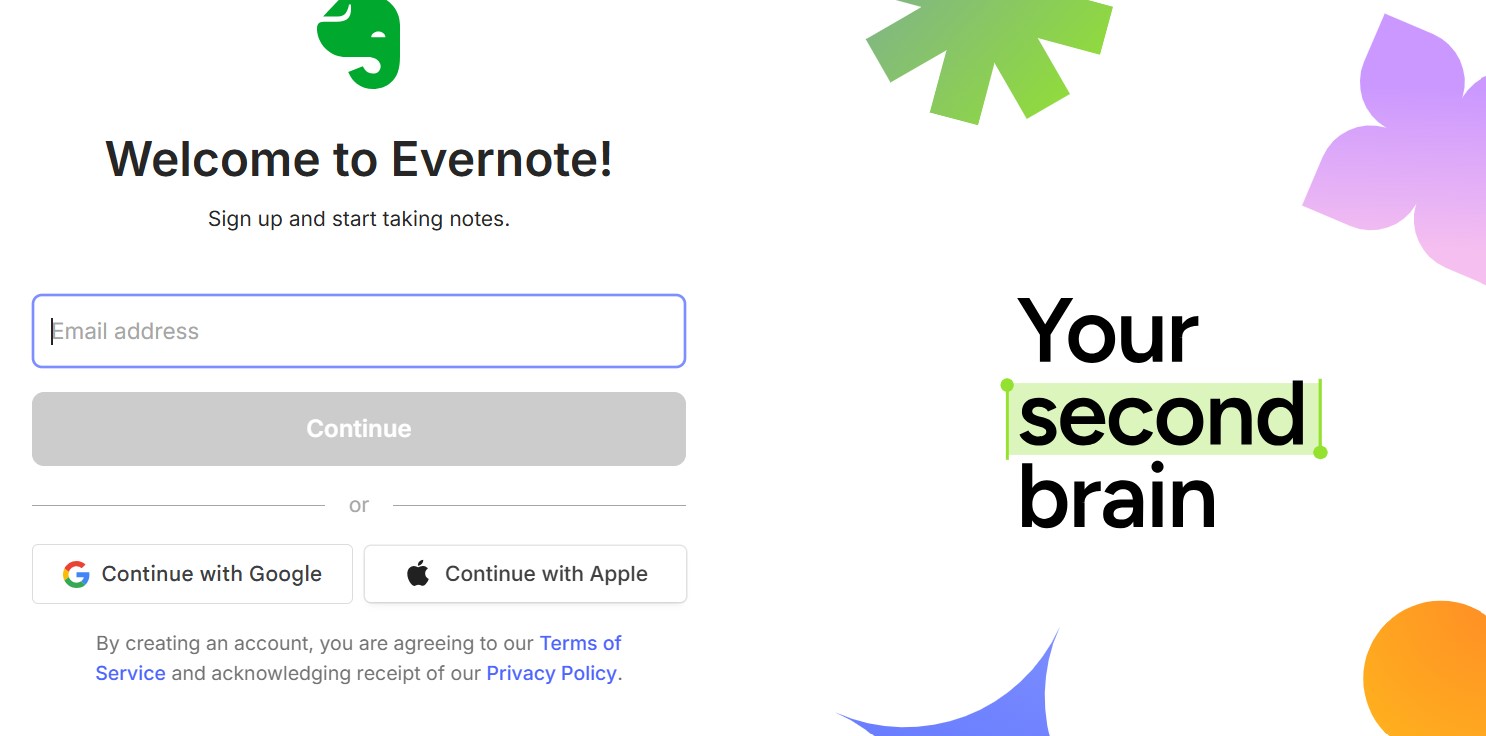
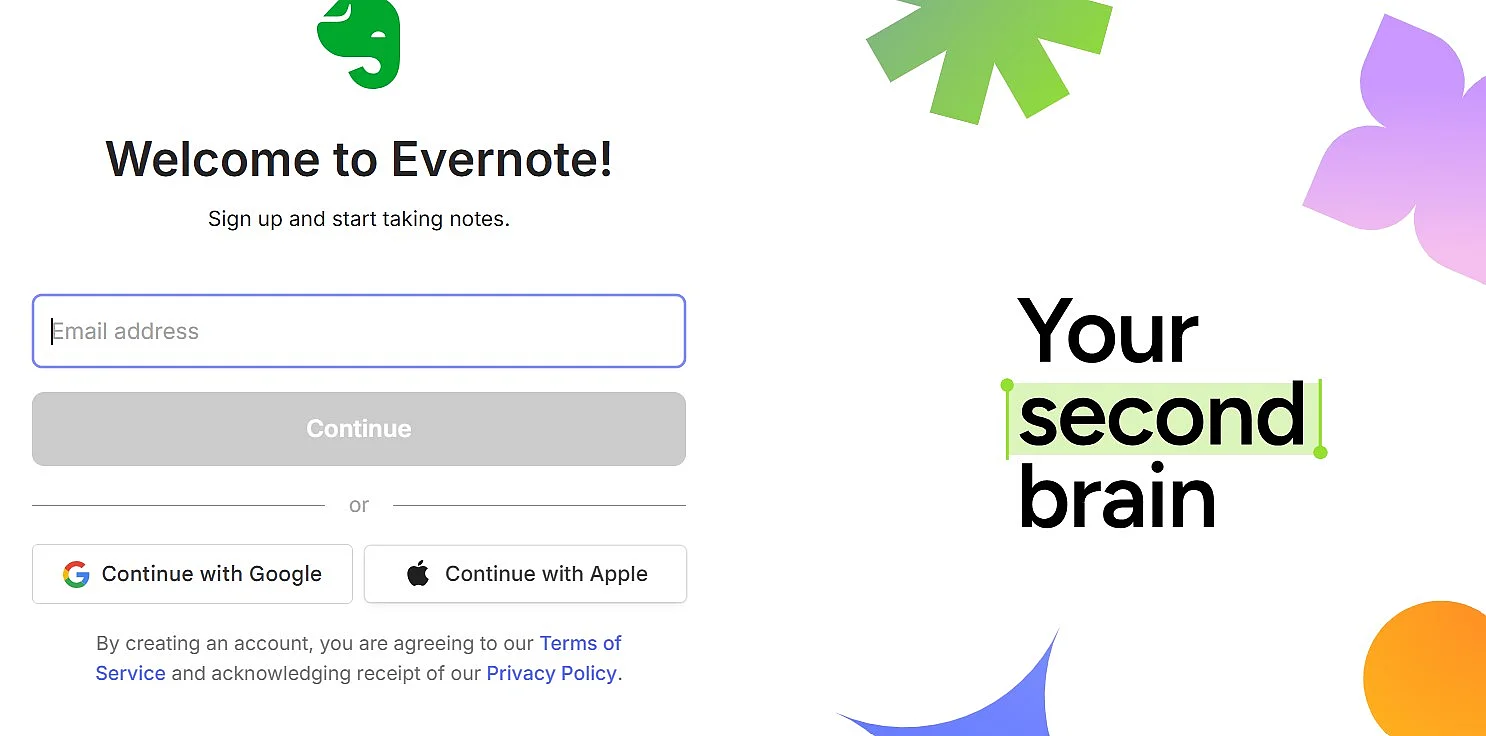
The registration form is kept simple. It only asks for an email address, and then you set your password. Alternatively, Evernote offers registration via a Google or Apple account, which significantly reduces the registration effort for users.
Evernote is available as a native app on nearly every platform. Its web interface is fully responsive, adapting seamlessly to different screen sizes. This design approach improves the overall user experience, allowing users to access and use the app anytime, anywhere, and on any device.
Almost everyone knows Google, and one of the many reasons is that the user interface is as simple as it is functional and visually appealing. A search bar and two buttons on a traditionally white background are enough for one of the most revolutionary technologies in computer history. You won’t find unnecessary design gimmicks or nested menus. With Google Doodles, however, the company still shows a sense of humour and loosens up the design on special occasions—of course without affecting usability.
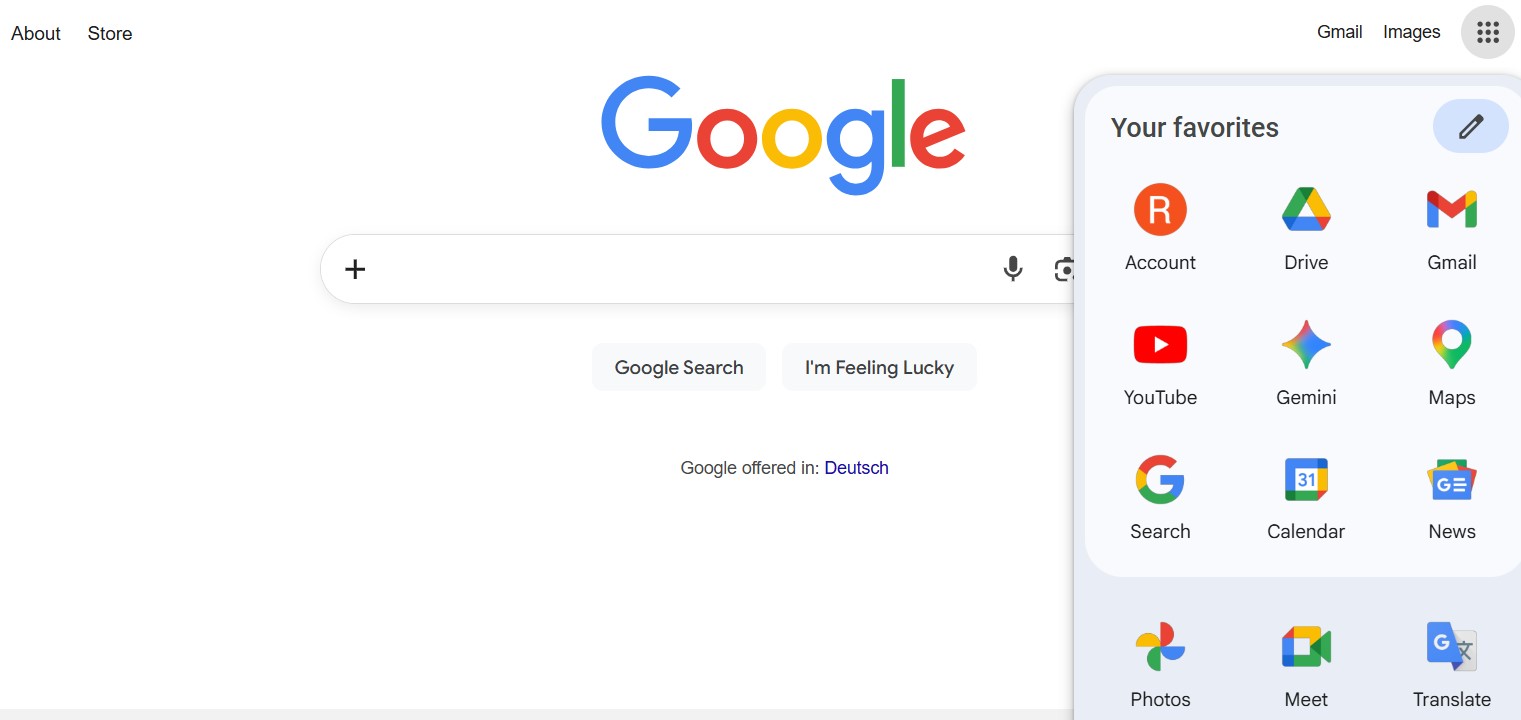
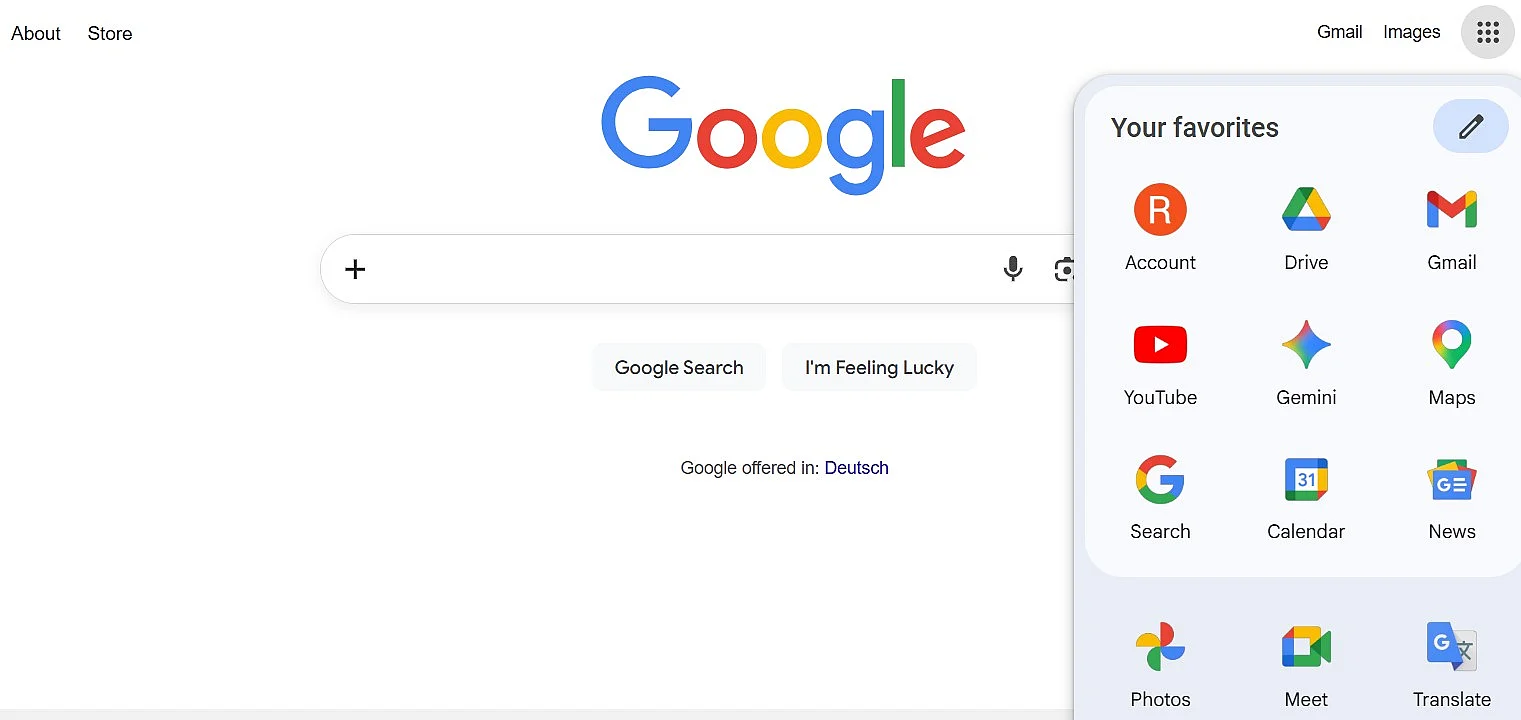
The app icons for YouTube, News, Maps, and other services are easy to locate and can be opened with a single click. Their design is clear, intuitive, and visually reflects the function of each app. The integration of a voice user interface is also noteworthy, as Google supports voice search directly within its mobile app. With Voice Match enabled, the Assistant recognises your voice and provides personalised results.