How to duplicate a WordPress page step by step

WordPress doesn’t include a dedicated button for duplicating pages or posts by default. You can add this function using plugins such as Yoast Duplicate Post or Duplicate Page. Alternatively, you can manually copy the content of a WordPress page or post in the Gutenberg editor.
- Create a polished site in seconds with AI tools
- Auto-updates and 3× faster loading, only at IONOS
- Daily security checks, DDoS protection and rock-solid uptime
How to duplicate a WordPress page with Yoast Duplicate Post
Yoast Duplicate Post is, with over three million active installations, one of the most popular plugins to copy WordPress page content and posts. The plugin works with both posts and pages and is extremely easy to use.
WordPress differentiates between various post types. The most important are the dynamic ‘Posts’ and static ‘Pages’. The content and position of ‘Pages’ generally remain the same. ‘Posts’, on the other hand, are displayed in the blog overview in chronological order, with newer ones automatically moving to the top.
Step 1: Adjust settings
After installing and activating Yoast Duplicate Post, click ‘Settings’ in your WordPress backend and then select ‘Duplicate Post’, which is added when you install the plugin. Here you can configure various settings, including which elements of a page or post should or should not be copied when you duplicate it. You can also specify the prefix or suffix to be added to duplicated content by default.
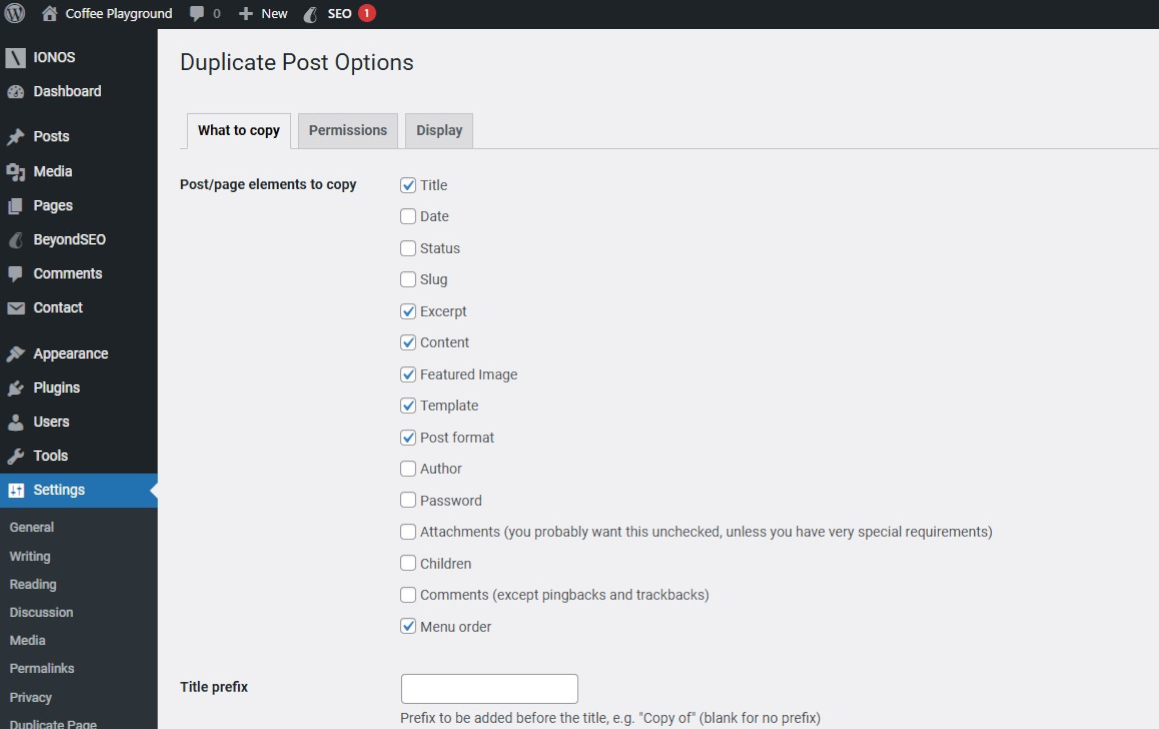
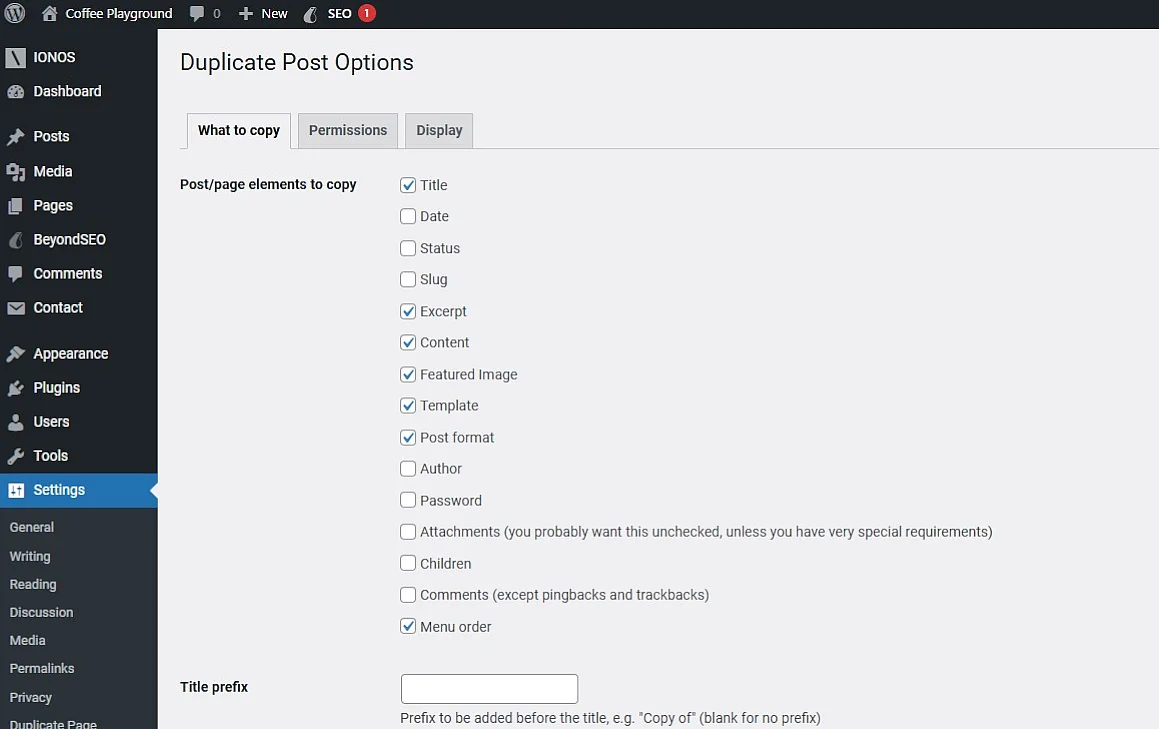
If you’re not sure which settings you want to configure, it’s best to leave the default settings as they are for now and duplicate a page or post as a test.
If you make changes to the settings for Yoast Duplicate Post, you’ll need to click to save the changes at the end.
Step 2: Select page
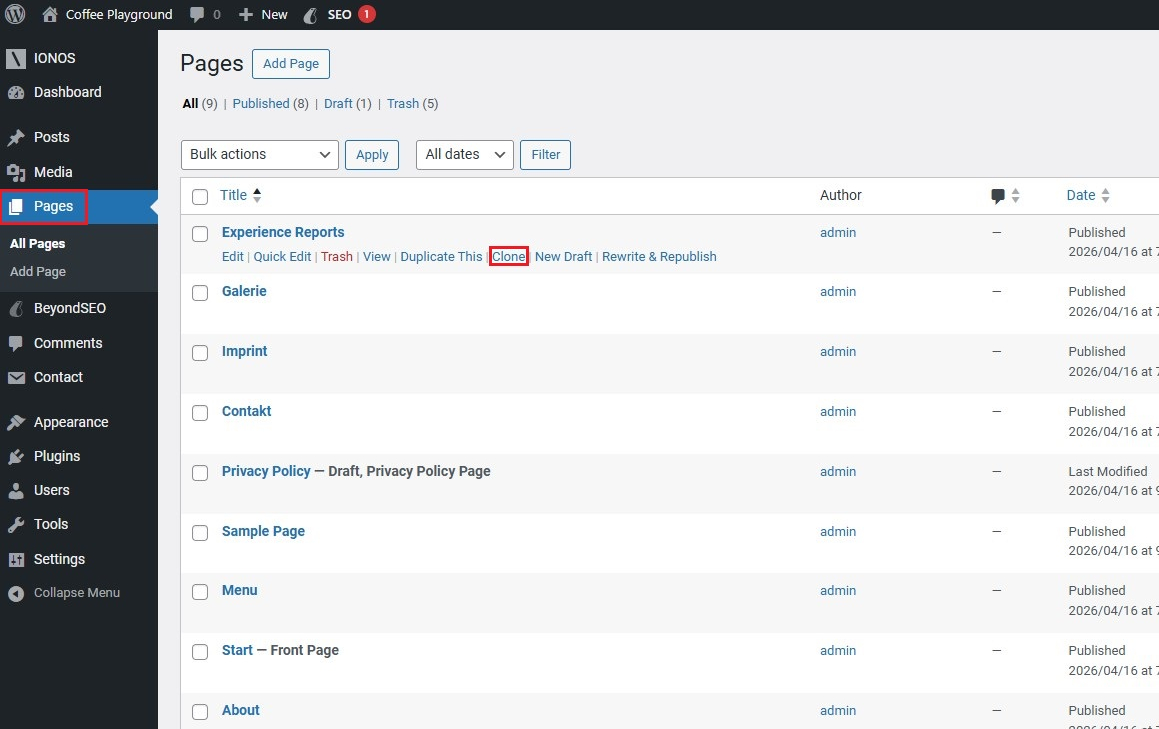
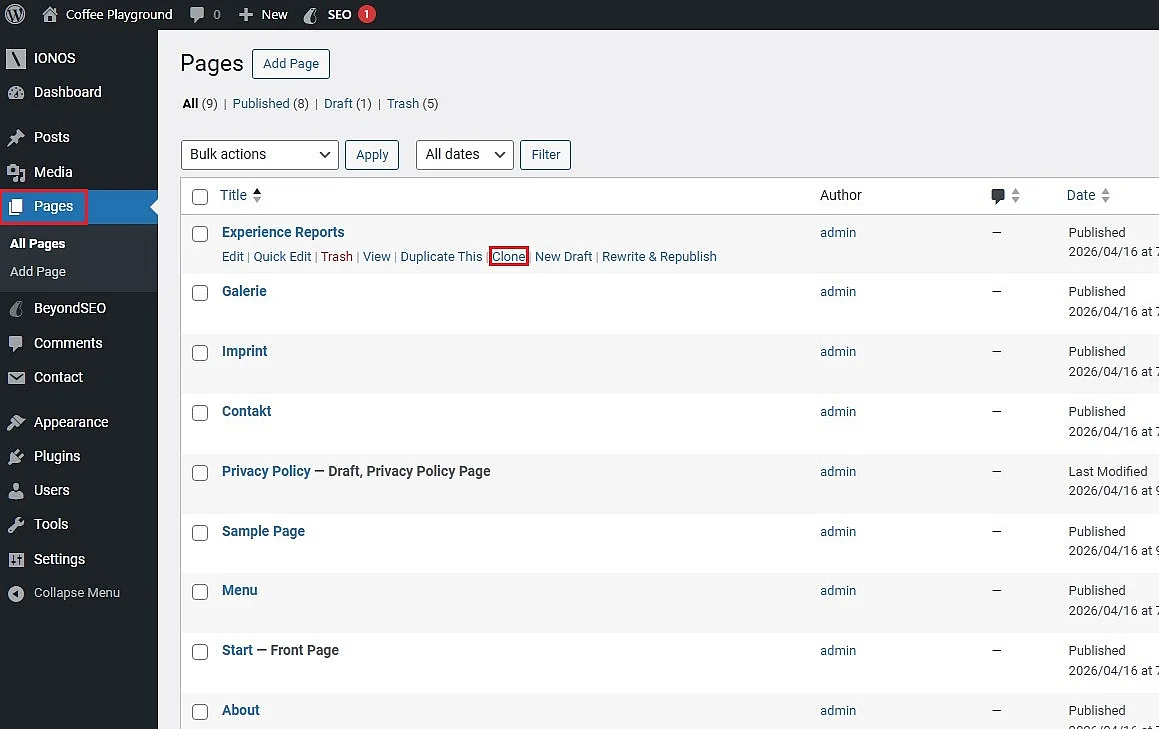
To duplicate a WordPress page or post with Yoast Duplicate Post, go to either ‘Pages’ or ‘Posts’ in the left-hand sidebar of your WordPress backend. You will see a list of all your pages or posts. Hover over the page or post you want to copy to display the available options, then click ‘Clone’.
Step 3: Duplicate WordPress page
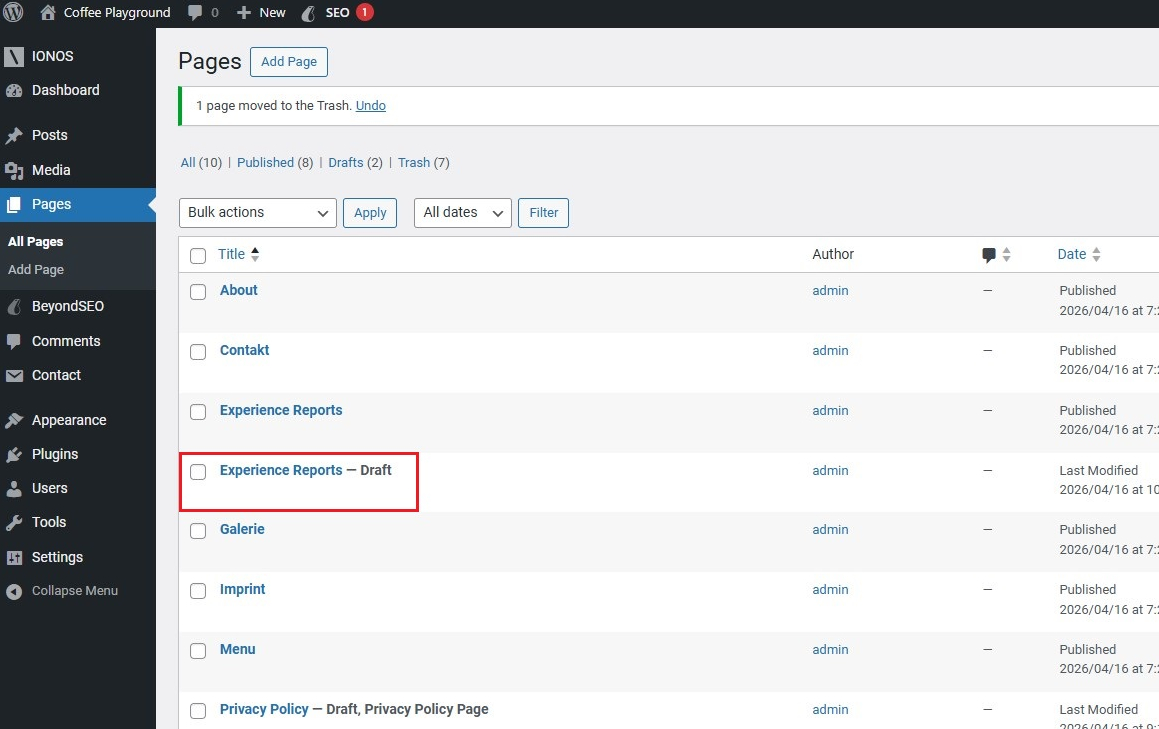
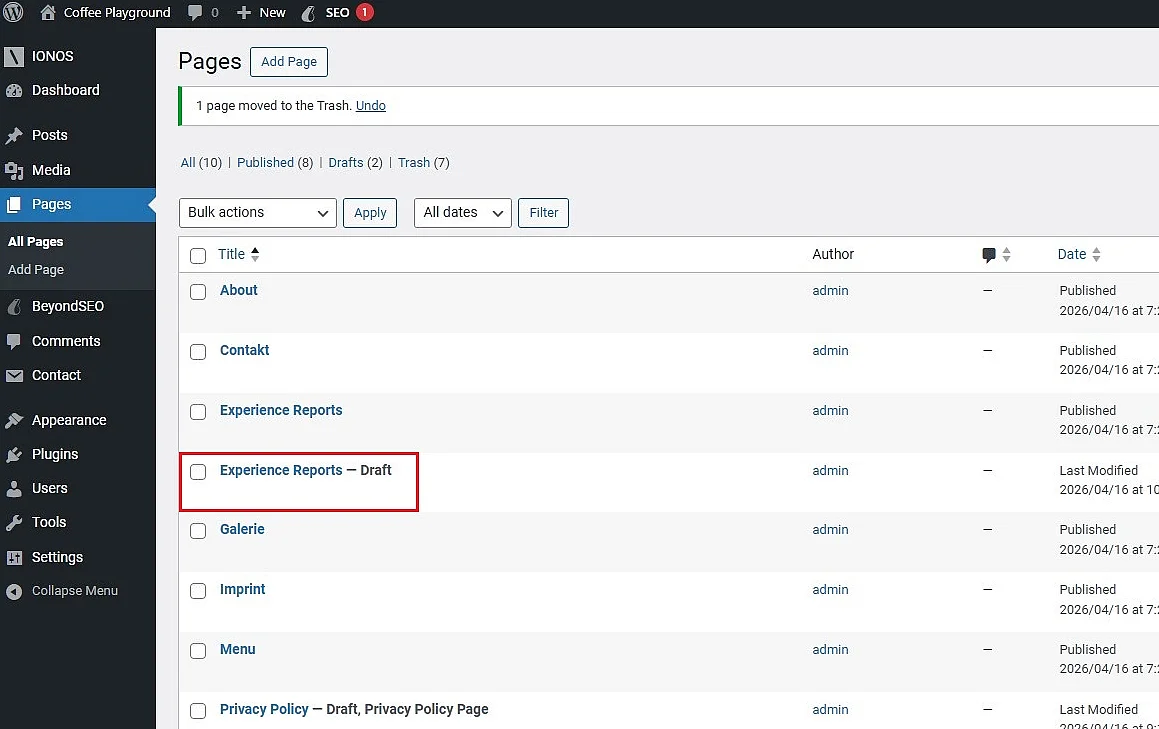
After you click ‘Clone’, the duplicated page or post will appear as a draft beneath the original. In this example, we have duplicated the ‘Experience reports’ page. You can edit the draft as needed and publish it when it is ready. To avoid confusion, it is best to change the page title first.
How to duplicate a WordPress page with the Duplicate Page plugin
Another popular plugin to copy WordPress pages and posts is Duplicate Page, which has over three million active installations. In principle, using this plugin to duplicate WordPress page and post content works just the same as with Yoast Duplicate Post. However, Duplicate Page offers fewer configuration options, at least in the free version, which can actually be an advantage for beginners.
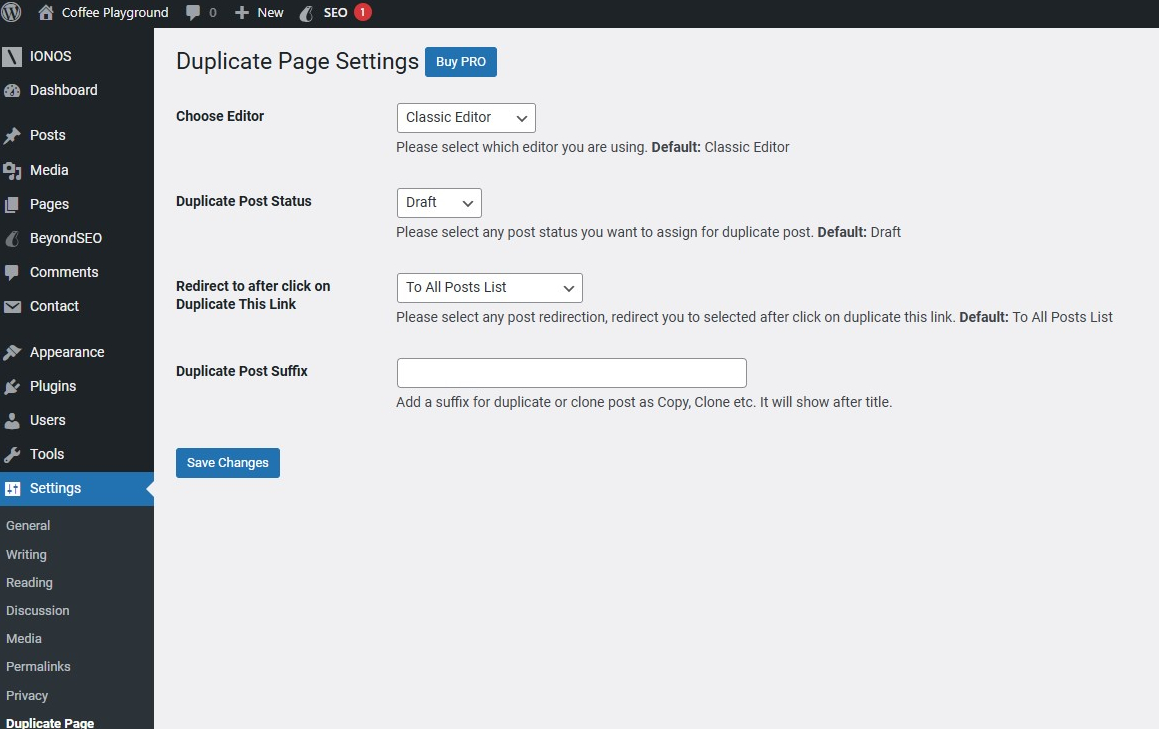
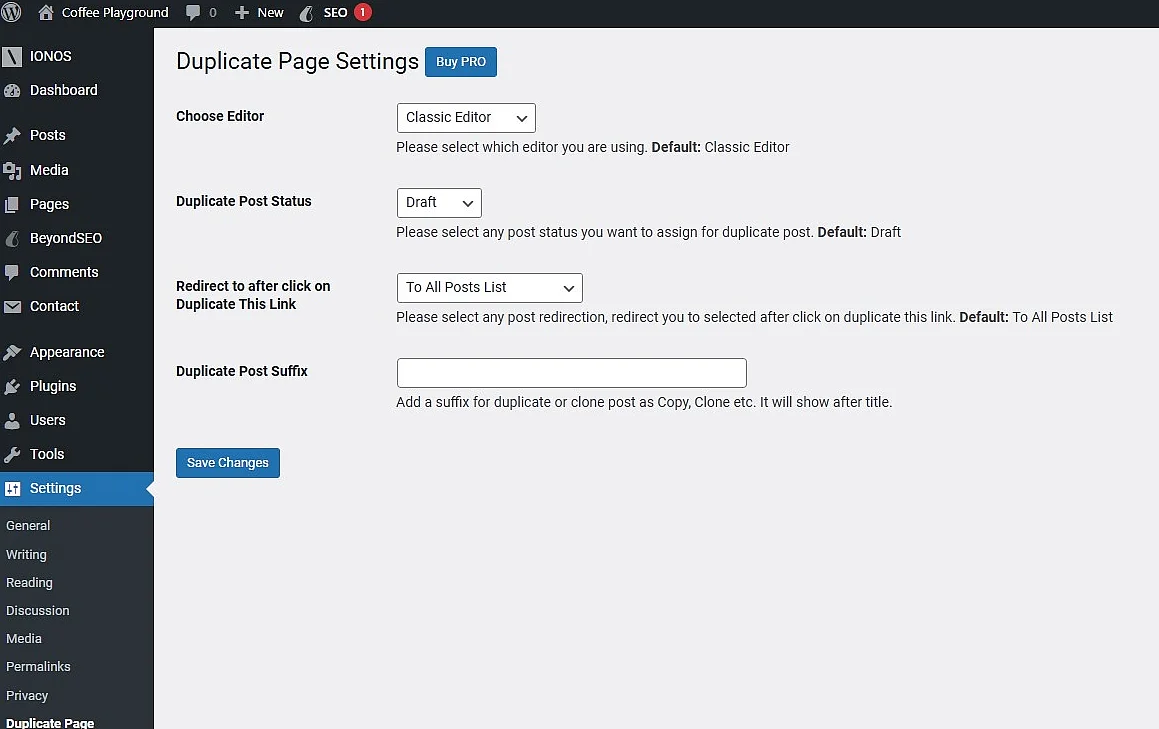
You can use Duplicate Page to duplicate WordPress pages or posts in much the same way as with Yoast Duplicate Post. Go to ‘All Pages’ or ‘All Posts’, hover over the page or post you want to copy, and then click ‘Duplicate’.
How to manually duplicate a WordPress page in Gutenberg
You can also duplicate WordPress page or post content in the WordPress backend without plugins, for example directly in the Gutenberg editor. However, this method mainly copies the visible content blocks. Depending on your setup, you may need to transfer page settings, templates, featured images, categories, tags, SEO metadata and custom fields separately.
Step 1: Copy blocks in Gutenberg
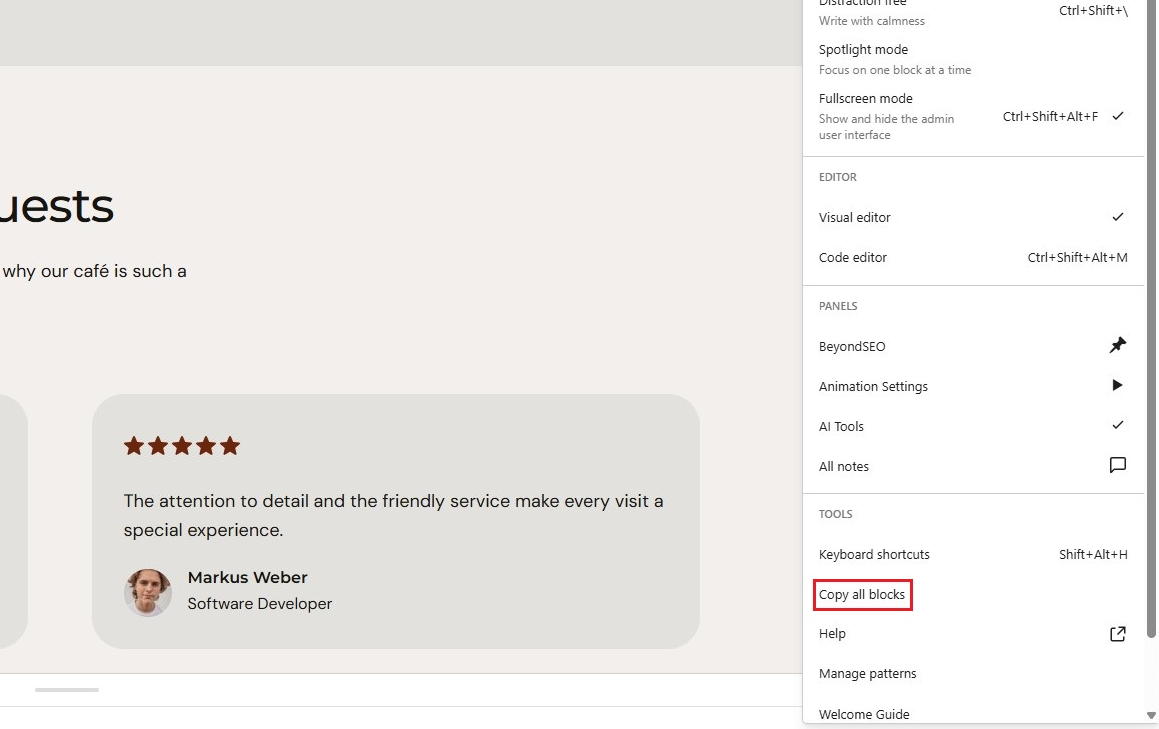
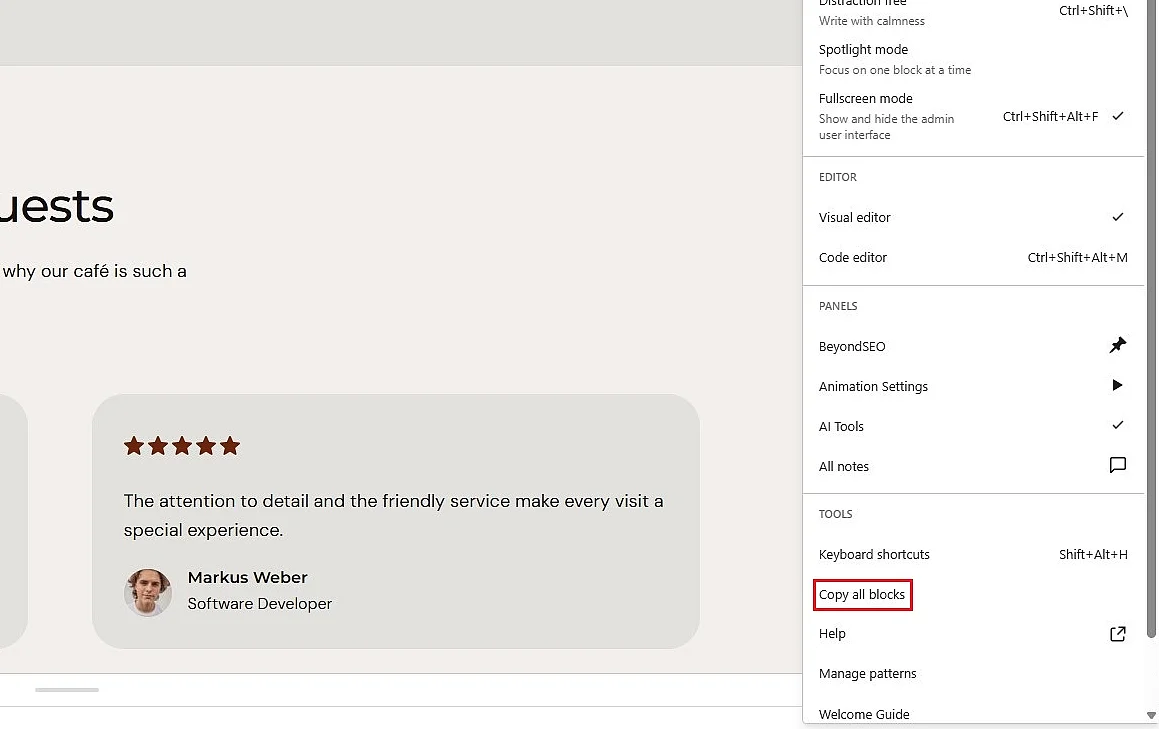
In the WordPress backend, open the page or post you want to copy. To copy a page, click ‘Pages’ in the left-hand sidebar, then select ‘Edit’ for the relevant page to open it in the Gutenberg editor. Next, click the three vertical dots in the top-right corner and select ‘Copy all blocks’.
Step 2: Paste the copied content
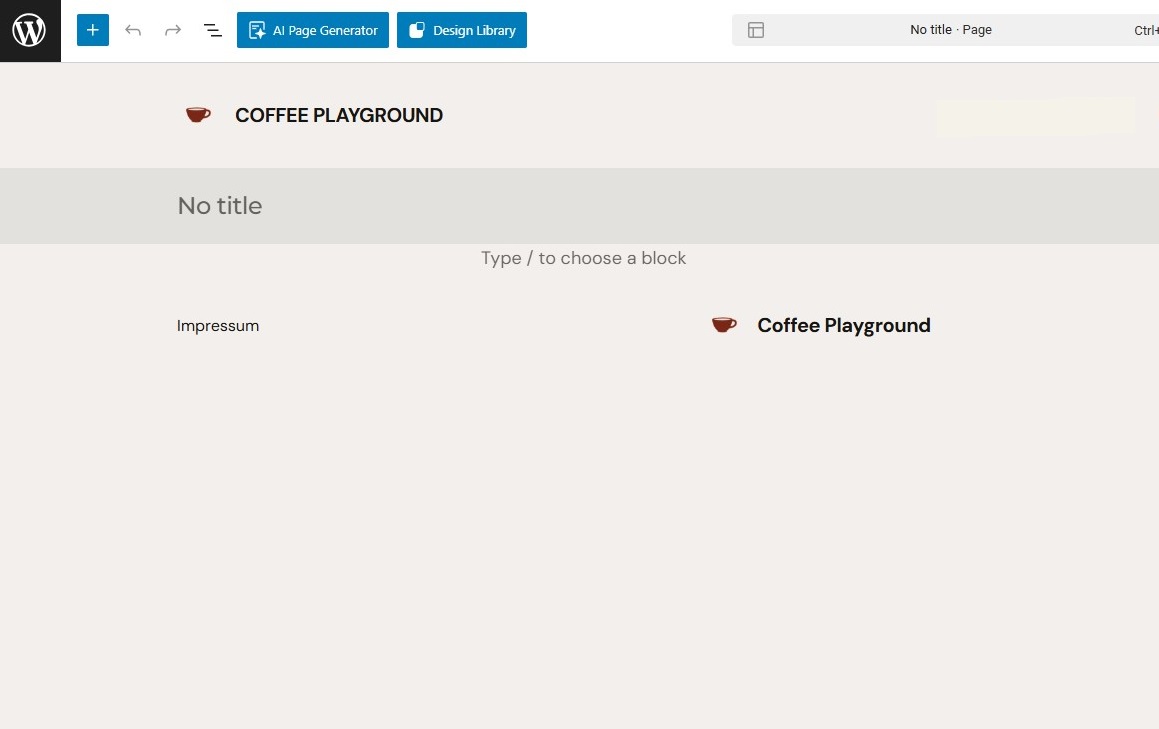
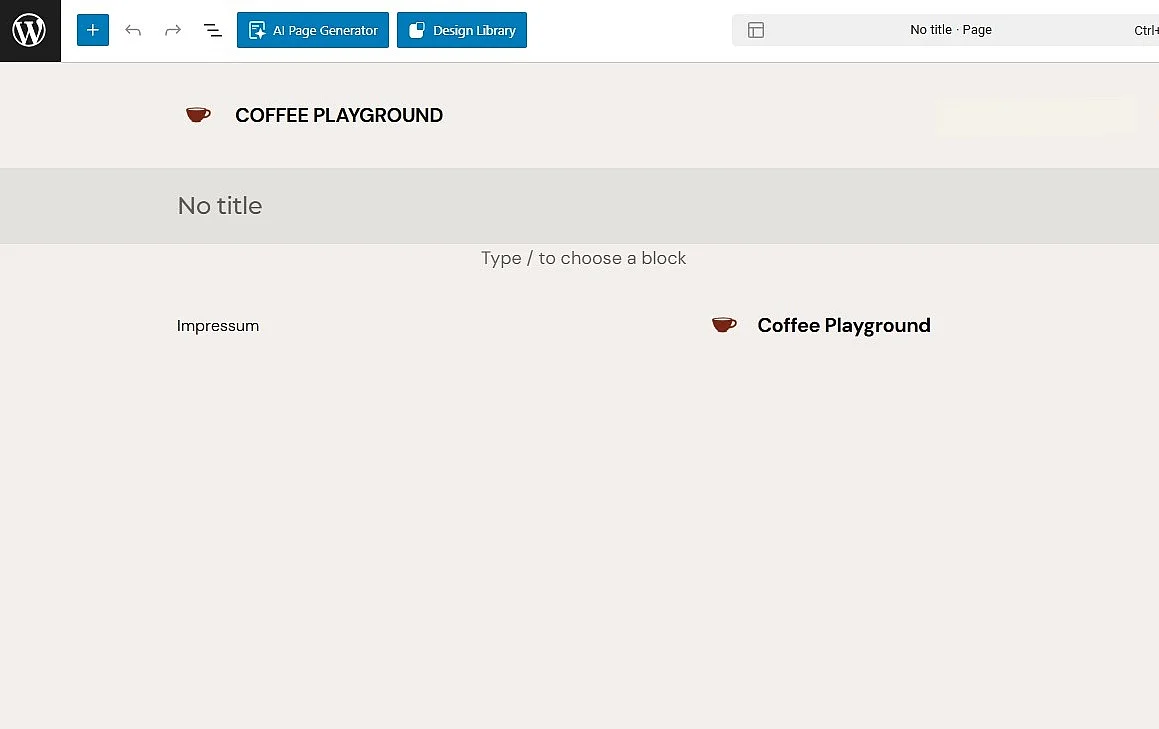
Now paste the copied content into a new page or post. To do this, create a new page or post, for example by clicking ‘Pages’ in the left-hand sidebar and then ‘Add New Page’. In current versions of WordPress, this opens the Gutenberg editor directly. Click in the field labelled ‘Type / to choose a block’, then paste the copied content using [Ctrl] + [V].
You can also manually copy and paste the code of a page or post using [Ctrl] + [C] and [Ctrl] + [V]. This provides another simple way to duplicate WordPress pages or posts.