

What is DMARC and how can you set it up?

DMARC — short for Domain-based Message Authentication Reporting and Conformance — helps receivers tell fraudulent emails from real ones. It’s especially useful for domain owners because it keeps domains off blacklists and reduces the risk of messages being rejected or treated as spam.
What is DMARC?
DMARC stands for Domain-based Message Authentication, Reporting and Conformance. It builds on existing authentication methods like SPF and DKIM by giving receiving mail servers clear instructions for handling messages that fail those checks.
How does DMARC work?
- Domain owners publish a DMARC policy as a DNS TXT record.
- Receiving servers evaluate incoming mail using SPF and/or DKIM.
- If authentication fails, the receiving server enforces the policy defined in the DMARC record.
- Reports can be sent to the domain owners to help them spot potential attacks and take action.
- Personalized email address
- Access your emails from anywhere
- Highest security standards
Overview of DMARC policies
| Policy | Meaning | Typical use |
|---|---|---|
none |
The email is delivered normally, and only reporting takes place. | Initial testing phase, for report analysis |
quarantine |
Suspicious emails are moved to the spam folder or quarantine. | Suitable for reducing risks without fully rejecting legitimate emails |
reject |
Suspicious emails are rejected and not delivered at all. | End goal for domains once SPF and DKIM records are fully configured |
How DMARC reporting works
An essential component of DMARC is its feedback system. This system informs domain owners about possible misuse or spoofing attempts:
- Aggregate reports (rua): Daily summaries of all checked emails, typically provided in XML format. These reports provide information on the volume, source and results of authentication checks.
- Forensic Reports (ruf): Detailed individual reports on failed checks that may contain specific header fields and content sections from the suspicious message.
Keep in mind that these reports can include sensitive data such as email addresses, sender details and technical information. When setting up your reporting, make sure you comply with any regulations related to data protection that may apply.
Receiving mail servers are not required to take DMARC entries into account. If you don’t receive reports about failed DKIM or SPF checks, this does not necessarily mean everything is in order.
What does a DMARC record contain?
A DMARC record is stored as a TXT record in a domain’s DNS. It contains several parameters that together define how incoming messages are handled.
DMARC tags and their meaning
| Field (tag) | Meaning | Typical values / options |
|---|---|---|
| v | Version of the DMARC record | DMARC1 (current version) |
| p | Policy for the main domain | none = monitoring only, quarantine = suspicious mail goes to spam/quarantine, reject = rejects suspicious mail |
| sp | Policy for subdomains | none, quarantine, reject |
| pct | Percentage of emails checked by DMARC | Default: 100 (all emails). Can be set to 50, for example, to gradually introduce DMARC |
| rua | Address(es) for aggregate reports | Example: rua=mailto:dmarc-reports@yourdomain.com |
| ruf | Address(es) for forensic reports | Example: ruf=mailto:dmarc-forensic@yourdomain.com |
| fo | Failure reporting options – when an error is reported | fo=0 = only if both SPF and DKIM fail (default); fo=1 = if at least one check fails; fo=d = detailed DKIM errors; fo=s = detailed SPF errors |
| rf | Format for forensic reports | afrf (default, Authentication Failure Reporting Format), iodef |
| ri | Reporting interval in seconds | Default: 86400 (24 hours) |
| adkim | Alignment mode for DKIM | r = relaxed (subdomains allowed), s = strict (exact match required) |
| aspf | Alignment mode for SPF | r = relaxed, s = strict |
Example DMARC Record
_dmarc.example.com. IN TXT "v=DMARC1; p=quarantine; rua=mailto:dmarc-reports@example.com; ruf=mailto:dmarc-forensic@example.com; pct=100; adkim=s; aspf=s"- Professional data and security protection
- Secure encrypted email with SSL/TLS
- Email protection on any device thanks to firewalls and spam filters
- Daily backups, daily protection
How to create a DMARC record
Before you can create a DMARC record, SPF and DKIM records must already exist for your domain. DMARC will only work properly once this foundation is in place.
Step 1: Generate a DMARC record
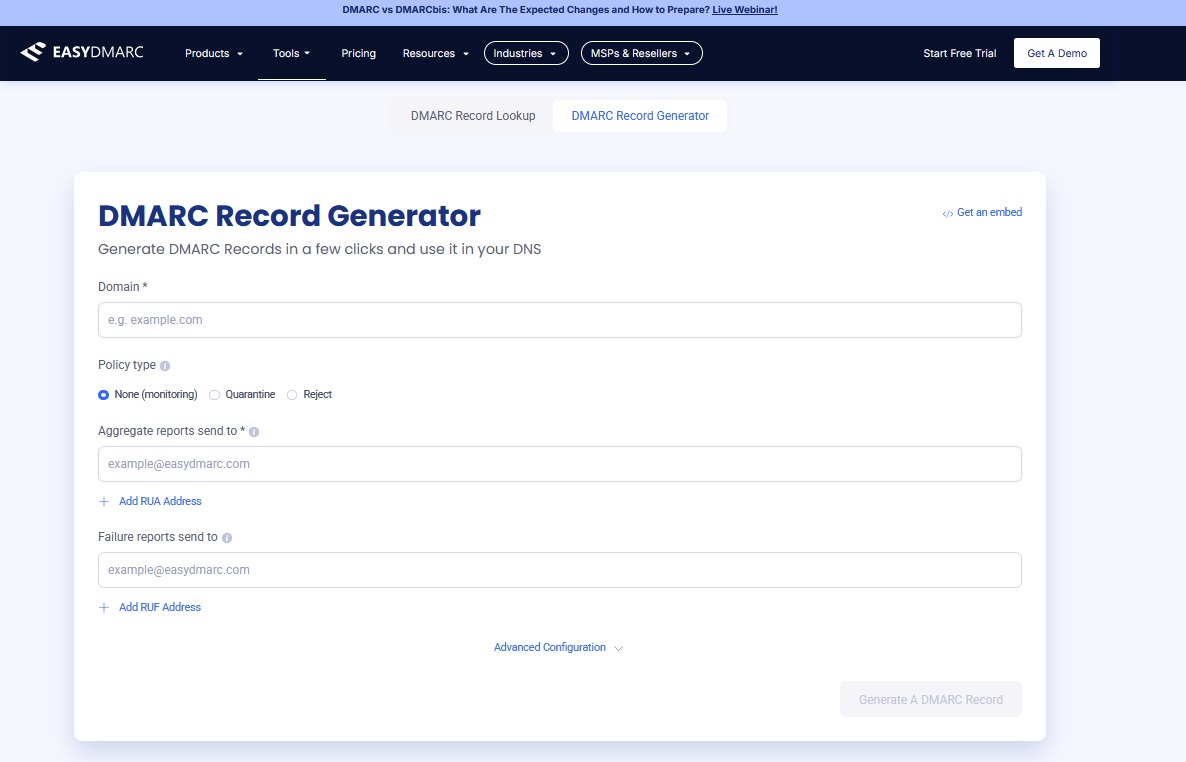
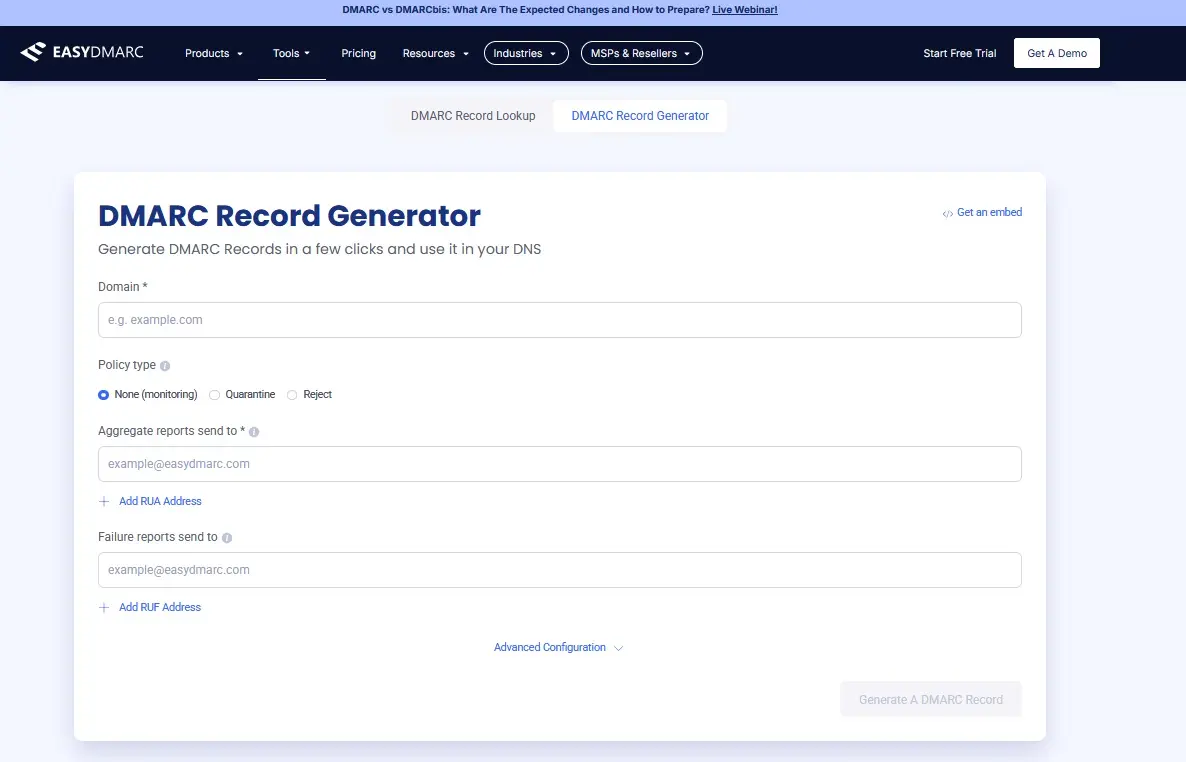
Use an online tool, such as the DMARC Record Generator by EasyDMARC. Enter your domain along with the required parameters, including the policy type and the addresses for DMARC reports.
Step 2: Create the TXT record in DNS
Next, log in to your domain provider’s account and open the DNS settings. Create a TXT record with the following values to configure the DMARC record for your domain:
- Subdomain:
_dmarc.yourdomain.com - Type:
TXT - Value: the DMARC record created by the generator
Example:
_dmarc.yourdomain.com. IN TXT "v=DMARC1; p=none; rua=mailto:dmarc-reports@yourdomain.com"Step 3: Introduce the policy gradually
- Start with
p=none
- Monitoring only. Emails are delivered normally.
- Analyze the DMARC reports to check whether all legitimate servers are correctly authenticated.
- Switch to
p=quarantine
- Suspicious emails are moved to spam or quarantine.
- The risk of domain abuse decreases significantly.
- Finish with
p=reject
- Unauthenticated emails are blocked and not delivered.
- This is the recommended final stage for domains with fully established SPF and DKIM records.
It’s best to begin with the policy set to none and monitor the reports for a while to ensure results are as expected.
Step 4: Set up reporting address
Create a dedicated address, such as dmarc-reports@yourdomain.com and use it exclusively for DMARC reports. This keeps regular inboxes from being overloaded with XML files. You can also add a second mailbox for forensic reports, such as dmarc-forensic@yourdomain.com.
Keep the following points in mind:
- Separate reports: Only use these mailboxes for DMARC data so they stay organized and are easy to monitor.
- Allow external senders in DNS: To receive reports from external mail servers, your domain must explicitly permit this in the DNS. Without that authorization, no reports will arrive even if your DMARC record is correct.
- Respect data protection: DMARC reports include sensitive details such as IP and email addresses. Always handle them in line with your company’s data protection rules and, where applicable, the GDPR.
Step 5: Monitor results
Use dedicated tools to analyze incoming reports and identify misuse early. Services such as Google Postmaster Tools or Microsoft SNDS (Smart Network Data Services) help you visualize how your domain is being used — or abused — and make it easier to fine-tune your DMARC policy.
Step 6: Verify your DMARC record
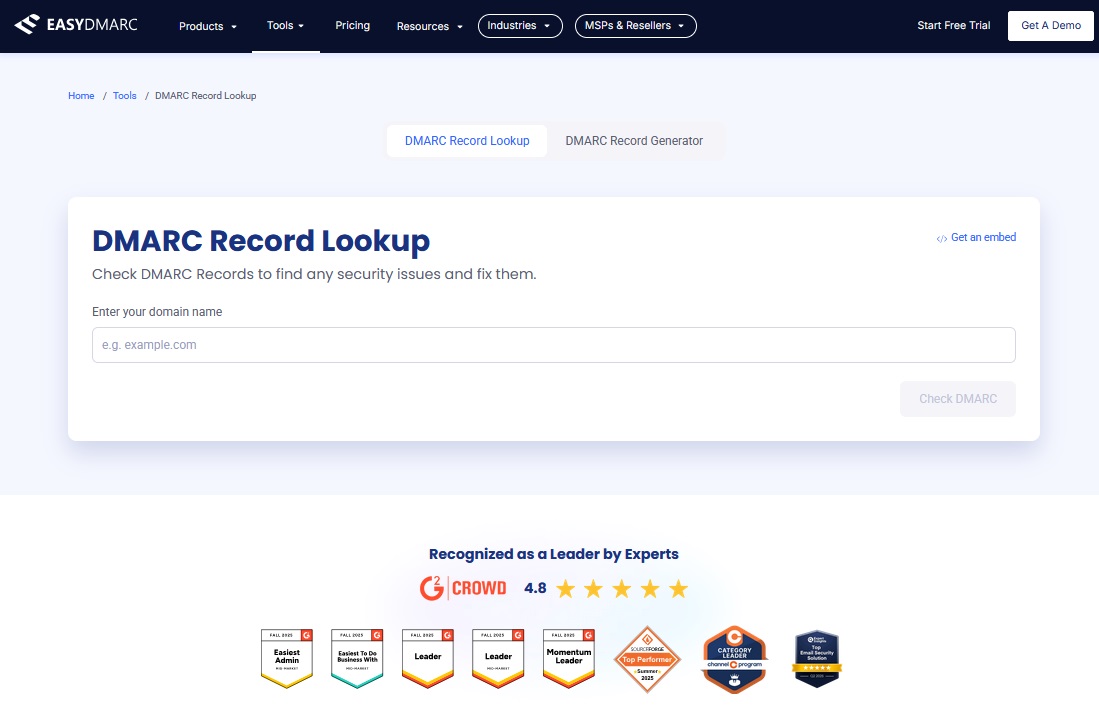
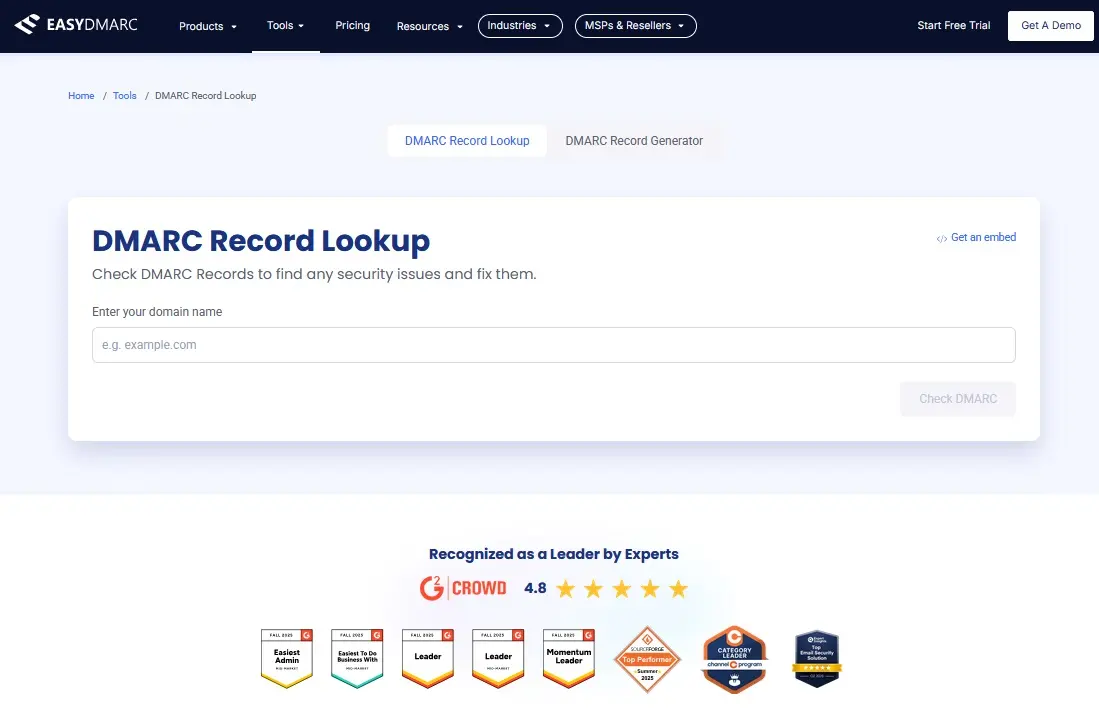
Depending on your name server, publishing the record can take anywhere from a few minutes to several hours. To confirm the entry is active and correctly configured, use a DMARC check tool, such as the DMARC Record Lookup Tool by EasyDMARC.
Reviewer

Jeanna Raffa
With over 18 years of experience in online marketing, Jeanna Raffa possesses extensive expertise in digital marketing. Since 2020, her focus has been on providing practical information regarding email, office, and cloud storage solutions.