

Setting up your home office for safe and efficient working

More flexibility, reduced or no travel, and a better work-life balance – there are many reasons why working from home can be a good idea. Businesses do profit as well because regional constraints fall away and they’re able to choose candidates from a larger pool of applicants. But in order to work efficiently and safely from home, employees should consider a few different things. Find out all you need to know about setting up your home office in this article.
Design your home office for flexible working
In the US, people do not generally have a right to work from home. Whether you are allowed to work from home is entirely at the discretion of your employer. Where home working is agreed between employer and staff, a company must ensure that they can adequately track the hours their employees have worked and provide the necessary tools. The term telework refers to work that is done remotely or from home. The US federal government did sign the Telework Enhancement Act in 2010 to allow for greater flexible working among its workforce. However, the act only applies to government agency employees and does not guarantee that individuals will get to work from home. Instead, it requires executive agencies to establish telework policies, provides a statutory definition of telework and requires training and other provisions to be in place.
By definition, mobile working is not the same thing as telework or home working, because it is not tied to a specific location. Instead, mobile workers can choose to work from anywhere – whether a café or another country.
Free whitepaper
Occupational safety measures for telework
Generally, employers have a legal duty to ensure the safety and health of their staff if they’re working from the office. The legal requirements of a home office environment are not as clearly defined. However, appropriate safety measures must be provided by an employer where a particular job requires them. This may include car insurance or IT safety provisions to ensure that data is not accessible to outsiders from a home network. If you typically use a computer to do your work, your employer should provide access to a virtual private network so you can access files and data safely.
In some cases, your employer may wish to assure that your telework conditions match their requirements. If that’s the case, they may ask you to provide photos of your set-up.
Work from home set-up: ideas and tips
If you plan to work from home long-term or regularly, you may want to set up a dedicated home office. But what do you need to look out for?
Specify the working area
Naturally, it’s not always possible to set up a separate office for your daily work and it may also not be necessary. However, it’s recommended to make enough space available to perform your duties. The US Department of Labor offers various recommendations on setting up the right workstation including the use of ergonomic chairs and other ergonomic office equipment.
To clearly distinguish your workspace from your private space, it’s a good idea to separate the space using room dividers such as shelves or plants. You may also consider the location of windows when planning out your home office. Ideally, place your desk parallel to a window to avoid the sun shining in your eyes or reflections on your computer screen.
In some circumstances, the workspace in a home office can be tax-deducted, depending on federal and local restrictions.
Design your workspace
The ergonomics of your workspace are an important consideration when designing your home office. You should aim for an optimal balance to ensure physical and mental wellbeing whilst allowing for efficient work performance to take place. Individual physical factors such as body height and weight should be factored in here.
Ergonomic factors may include, for example:
- Arrangement of office equipment such as a desk and chair
- User-friendliness of your hardware and software
- Outside influences such as air, sunlight and noise level
Check out our white paper on "working from home" to find the answers to all your questions. Download the whitepaper pdf now for free.
Example: dynamic sitting
A work place is designed well when your upper and lower arms and legs are at a 90-degree angle to each other. Your feet should be placed parallel and flat on the floor. If that’s not possible, you can add a footstool. Your palms and elbows should be level with your computer mouse and keyboard. The distance to your computer monitor should be at least 50 centimeters. The height of the monitor should be configured for the upper monitor line to lie just beneath the visual axis.
Optimize lighting
An ergonomic office at home considers individual needs, a matching desk and chair, and the right arrangement of all your working tools. One of the aspects that often gets neglected is lighting. Ergonomic lighting is composed of various components. While work place lighting should consist of predominantly natural light, the ideal skylight is even and bright. You can optimize your set-up by adding lights. A desk lamp should not be missing from a working from office set-up for even illumination of your working area. A luminance of at least 500 lux is often recommended.
Minimize risks
When you’re setting up your office at home, you should consider the various sources of possible risks. For example, by ensuring your electrical cables are arranged in a neat and tidy manner, you’ll minimize the risk of tripping. Cables shouldn’t be strewn across the floor unsecured. Cable ties and ducts allow you to combine multiple cables and get them out of the way. A cable tray is usually installed beneath a desk to store power supplies, multiple sockets, and bundled cables.
When you remain seated for a long time, monotonous movements can become a risk for physical strain. To stimulate your circulation, release certain muscle groups and prevent muscle tension by getting enough physical movement in your home office. You can create more optimal conditions for your posture by adjusting the height of your desk. It’s also advisable to change between sitting and standing while working. Alternatively, you could set up an office at home by placing certain tools further away from your desk. In that case, you would need to get up to take a phone call, print or scan documents, for example. Generally, anything that adds movement and diversity to your day-to-day is a welcome and meaningful addition.
Create digital conditions
A well-equipped home office requires software and hardware, and a range of communication tools to speak to colleagues and access files on a shared drive. Professional communications solutions such as Microsoft Exchange provide a broad spectrum of functions to collaborate with team members. Established Office applications like text and spreadsheet processing, and presentation applications can be accessed by all members in a team no matter where they are based.
Most corporate data are sensitive. To ensure that remote-working employees can access files securely, a VPN is often a must. The virtual communications network enables data transfer using special encryption and authentication methods. Once established, its usage is uncomplicated. It may be worth checking with your IT department about additional tools when setting up the home office.
When you’re working in an office, small issues can be quickly discussed and resolved with co-workers. Colleagues often spend their lunch discussing business topics. For team communication at home to work just as smoothly, communication platforms are essential. Project management software is a useful addition to organize strong collaboration between teams.
In order to store or allocate large amounts of data, cloud solutions have proven ideal. Team members are able to access files from anywhere. Features such as automated synchronization ensure that data is always kept up-to-date across any device type. For example, the HiDrive cloud storage allows people to create and manage their own accounts with synchronized reading and writing rights.
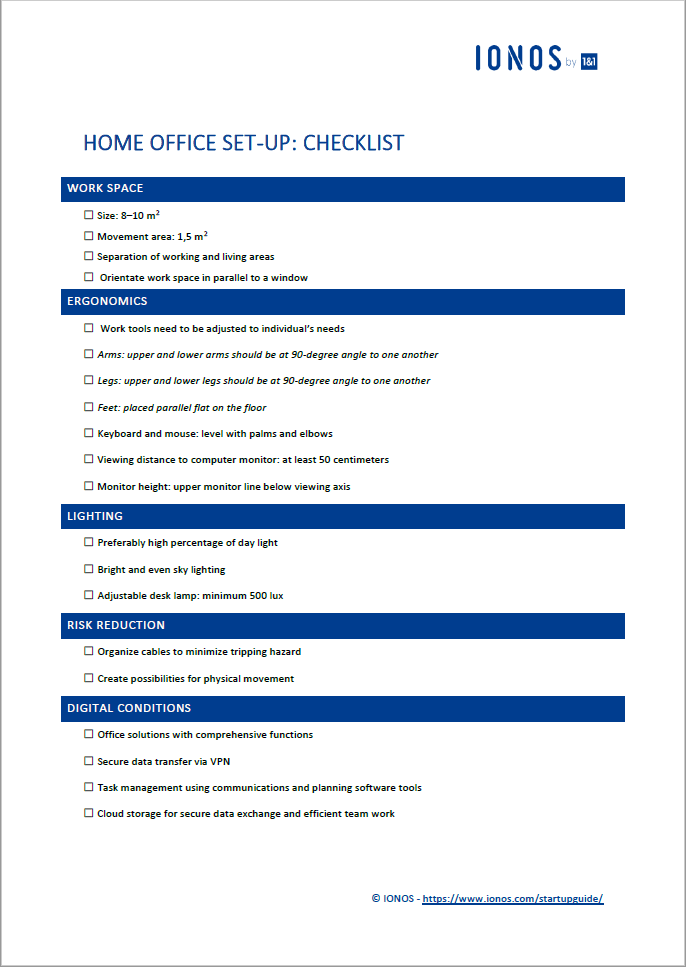
Download our free checklist “Home Office Set-up” for a quick overview of the work from home design.
Click here for important legal disclaimers.