

INET_E_RESOURCE_NOT_FOUND: How to fix the Microsoft Edge error

Together with its operating system Windows 10, the software giant Microsoft released its own web browser Edge in July 2015. Like its predecessor, Internet Explorer, this browser is firmly integrated into the operating system by default, which is why it can display PDF documents without any additional tools, for example, or use the Adobe Flash plugin implemented in Windows 10 if corresponding content is to be displayed. Furthermore, updates for the browser are automatically installed via the Windows Update function – which is not always an advantage, however, as the “INET_E_RESOURCE_NOT_FOUND” error shows.
What is the “INET_E_RESOURCE_NOT_FOUND” error all about?
For years, Microsoft has automatically provided its users with the latest system and software updates via the integrated update function. This ensures that both new features and important bug fixes reach the Windows community in a timely manner. However, the update process is not always as smooth as Microsoft would like it to be – problems during and after installing new Windows updates are not uncommon. Since the release of the Windows Creators Update (V1703) in April 2017, for example, some users may experience the “INET_E_RESOURCE_NOT_FOUND” error when using the Microsoft Edge browser, or when downloading or installing apps from the Microsoft Store.
What causes the “INET_E_RESOURCE_NOT_FOUND” error?
The error message is usually accompanied by the information that the page accessed could not be reached. The Microsoft Edge error code “INET_E_RESOURCE_NOT_FOUND” usually specifies the alleged source of the error directly. For example, the detailed error report may contain, among other things, the following sentences that provide information about the problem:
"The connection to the DNS server timed out."
"There was a temporary DNS error."
"The DNS server might be having problems."
"The DNS name does not exist."
"This website could not be found."
The various messages show that it is not just a simple connection error resulting from an interrupted Internet connection. Rather, the incorrectly functioning name resolution via the registered or automatically assigned DNS server is more likely the problem.
“INET_E_RESOURCE_NOT_FOUND” fix: the best solutions
The above overview of possible error messages associated with the Microsoft Edge “INET_E_RESOURCE_NOT_FOUND” error code illustrates the complexity of the problem: While error analysis identifies name resolution as a key problem, it is difficult to remotely determine why, for example, a timeout or temporary error could occur during this process. In some cases, the error disappeared just as suddenly as it first appeared – so it is often a good idea to just wait and see, and reload the page at a later point. If the problem persists for a longer time, the solutions presented below offer the greatest chances of success to rectify the “INET_E_RESOURCE_NOT_FOUND” error.
Solution 1: Disable "TCP Fast Open" feature in Microsoft Edge
Microsoft Edge supports the TCP Fast Open (TFO) extension as part of Creator Update 1703, which accelerates the exchange of data over TCP (by combining the first two steps of the three-way handshake). However, since the performance feature can also be responsible for the “INET_E_RESOURCE_NOT_FOUND” error, it makes sense to disable it – at least on a trial basis – as soon as you receive the error message. To do this, access the hidden settings of the Microsoft browser by entering the following address in the browser line:
about:flagsLocate the “Networking” section and uncheck the “Enable TCP Fast Open” box before restarting Edge in order to apply the change.
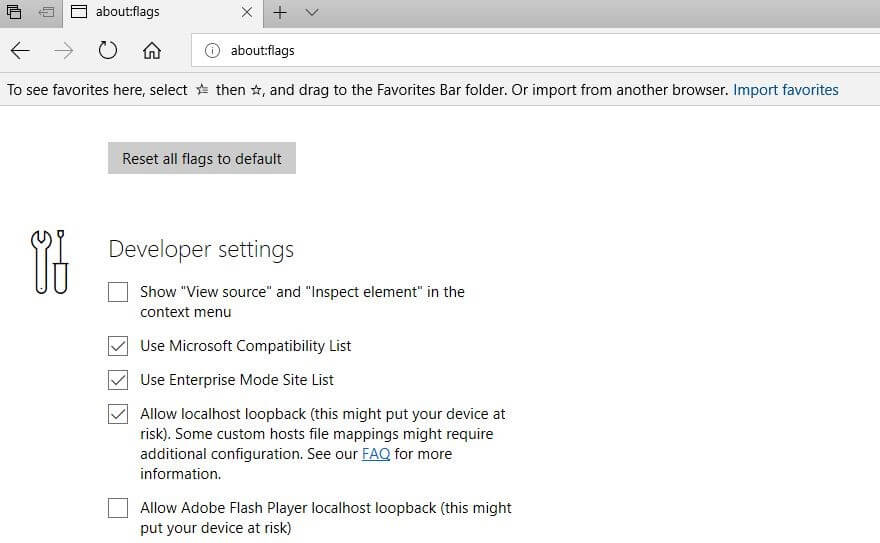
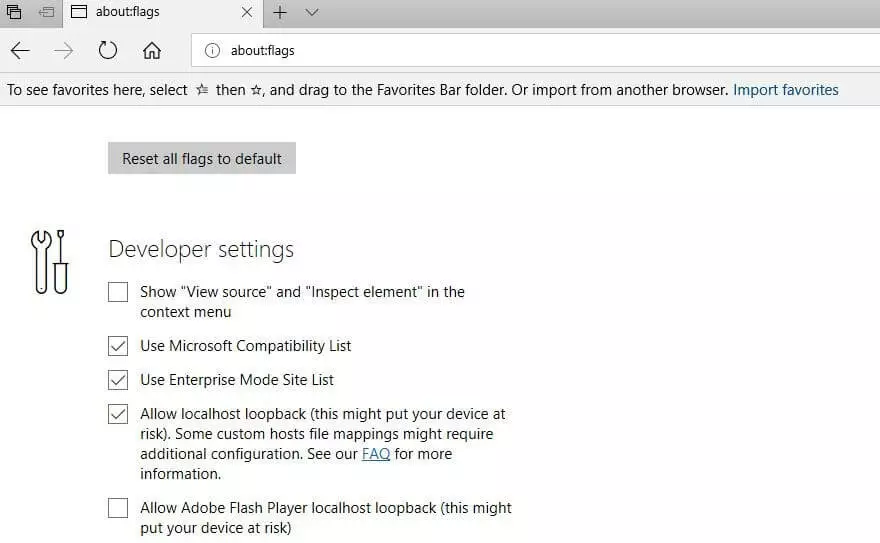
If you are already using Windows Creators Update 1803 or a later version, you will not be able to disable TFO from the hidden Edge menu. In this case, try to correct the “INET_E_RESOURCE_NOT_FOUND” error with one of the following approaches.
Solution 2: Change DNS server
The various error messages associated with the Microsoft Edge error code “INET_E_RESOURCE_NOT_FOUND” suggest that there is a problem with the DNS server currently in use. For this reason, it makes sense to focus on DNS setting when solving the problem. By default, most users obtain the name server automatically from their provider – but in principle it is also possible to enter the address manually. Third-party software or even malware may also change the DNS settings.
If an incorrect address is entered or the DNS server of your choice does not work (any longer), this often causes a connection problem – a DNS server change is then the obvious solution. This can be done in Windows 10 via the “Network Connections” menu by right-clicking on the Windows logo to open the quick menu.
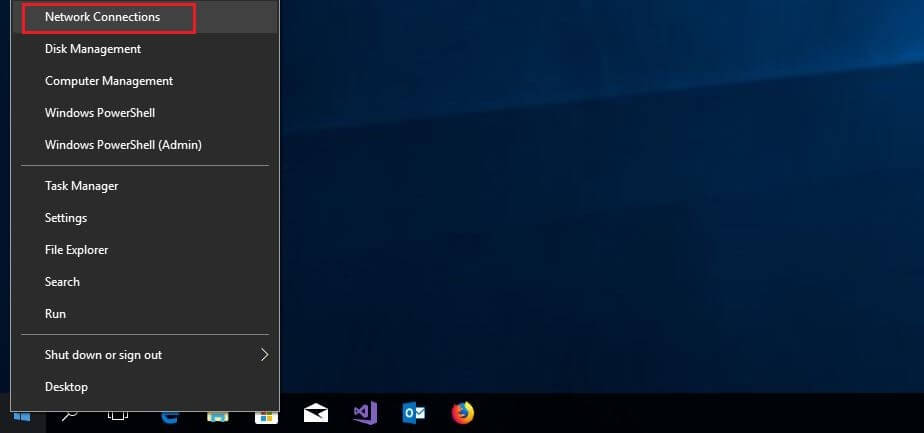
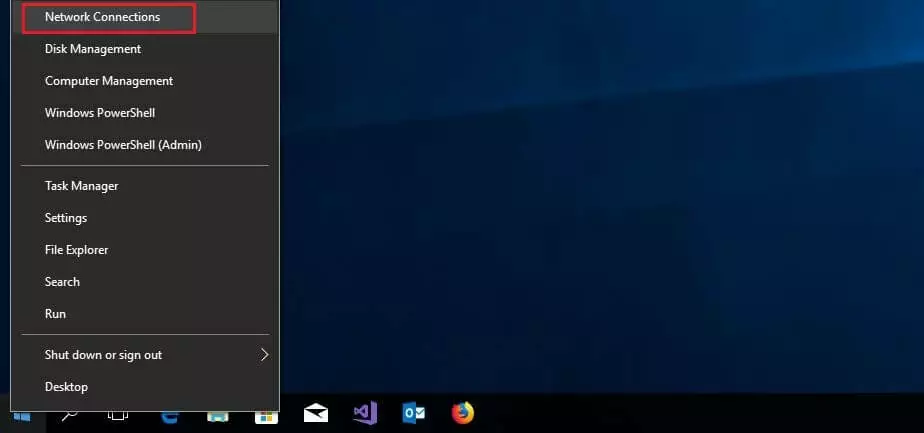
Switch to the “Ethernet” section and click on “Change adapter options.”
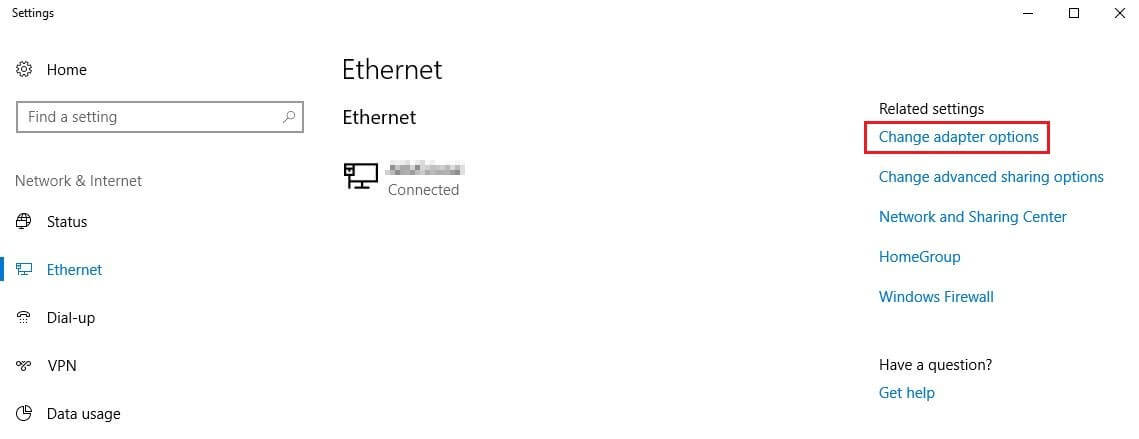
Among the network connections listed, select the one that connects you to the internet. Right-click on them and select “Properties” to open the overview of used protocols and services.
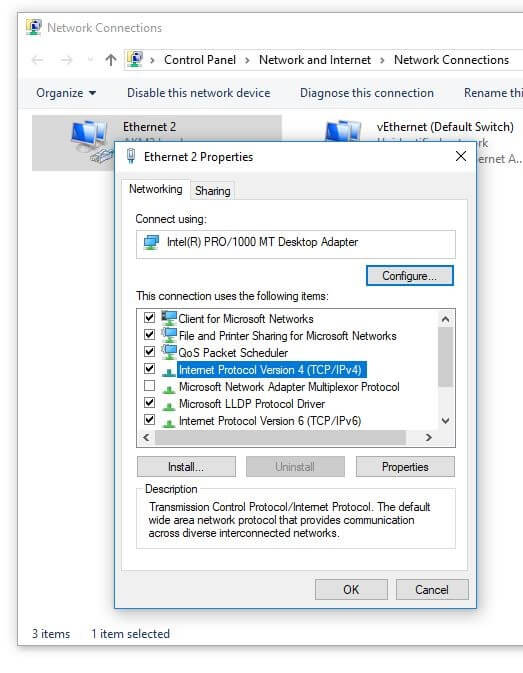
Double-click on “Internet Protocol Version 4 (TCP/IPv4)” to specify the name servers of your choice under “Use the following DNS server addresses.” The DNS servers from Google (8.8.8.8 and 8.8.4.4) have been popular for years – alternatively you can also specify the nameservers of the CDN service, Cloudflare (1.1.1.1 and 1.0.0.1).
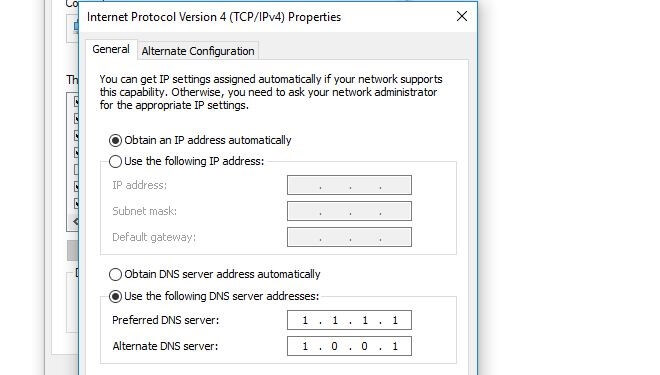
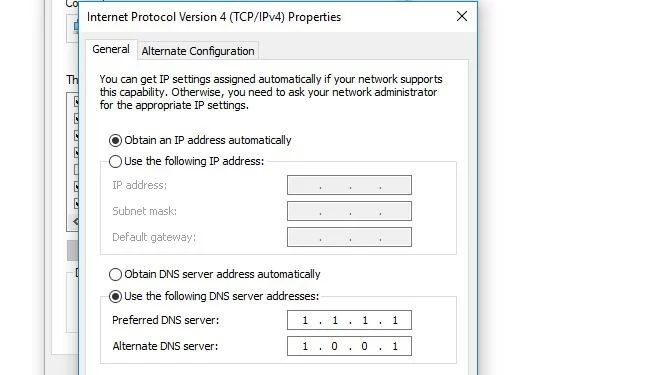
Confirm the new DNS server(s) by clicking the OK button.
Solution 3: DNS Flush
DNS problems such as the “INET_E_RESOURCE_NOT_FOUND” message are not necessarily due to a malfunction of the DNS server used, since in many cases the name server is not contacted at all. This is because Windows automatically stores the resolved addresses of visited websites in the system's DNS cache in order to deliver the corresponding pages faster when they are accessed again. In principle, this cache, which also relieves the DNS servers, has a positive effect on web performance – outdated entries that do not match the current version of the pages, however, can lead to complications such as the Edge error.
The solution is then to clear the DNS cache to force the DNS server to resolve the name again. A DNS flush like this can be done in a few seconds via the command line. To do this, open the command prompt by pressing the Windows home button, type “cmd” in the search window, and then press the Enter key. Then enter the following command:
ipconfig /flushdnsIf the cache was emptied successfully, you receive a corresponding message. Then restart Windows and check whether the “INET_E_RESOURCE_NOT_FOUND” problem has been resolved.


Solution 4: Reset network settings with netsh
Network settings in Windows also play an important role in Edge's functionality. Connection problems such as the “INET_E_RESOURCE_NOT_FOUND” error therefore often occur when the TCP/IP configuration is incorrect. However, before you start the tedious search for errors in the adapters or IP addresses, you can use the command line tool netsh (network shell) to simply reset the network settings to their original state – provided you have the appropriate administrator rights.
You will need these in the first step, which involves executing the command prompt as an administrator. To do this, type “cmd” in the Windows Search, right-click the command prompt icon, and select “Run as administrator.”
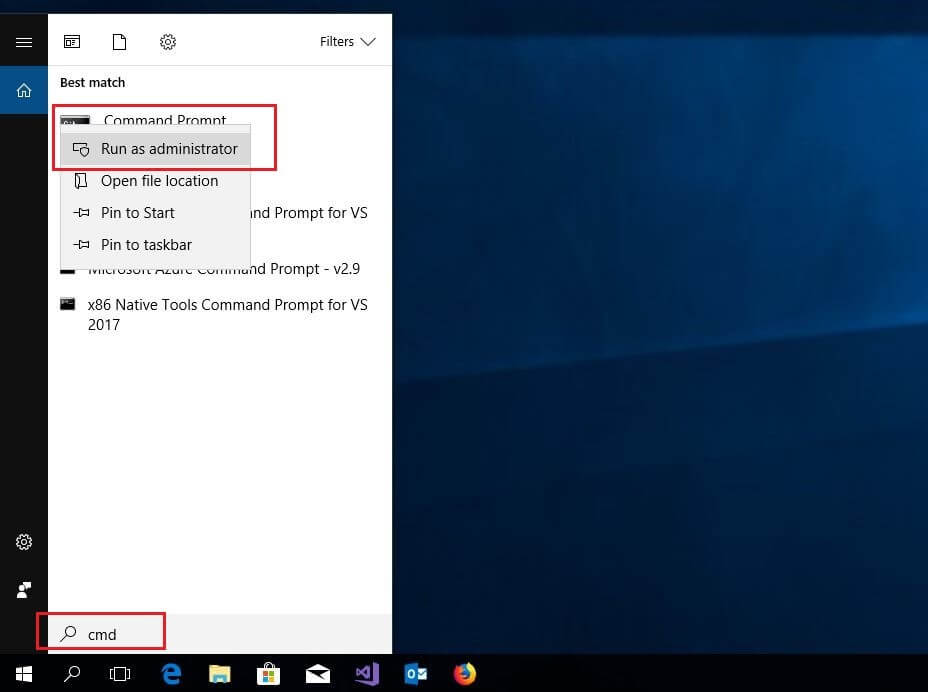
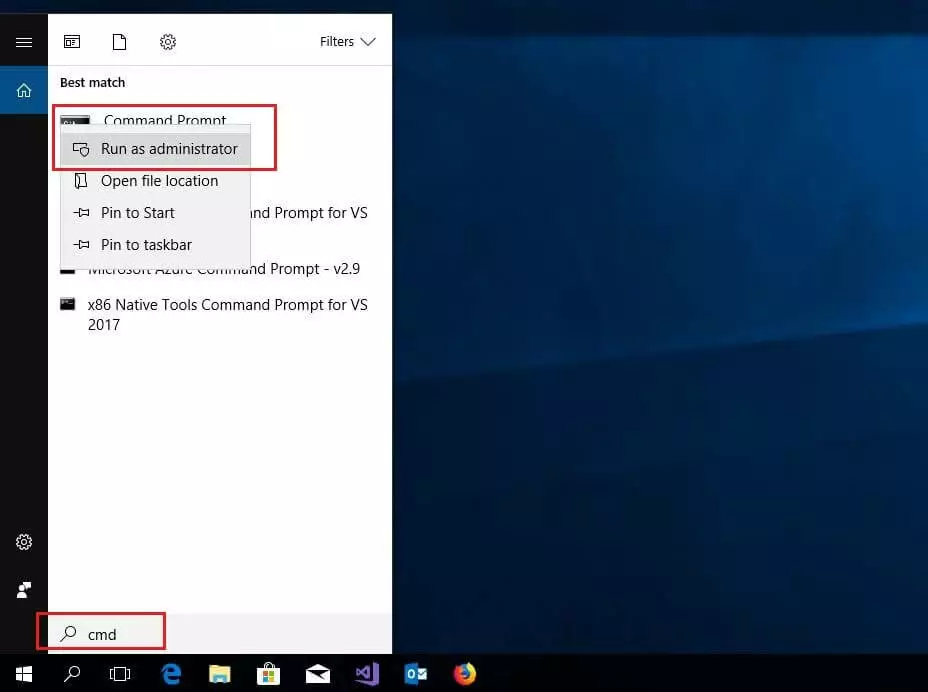
Enter the following command into the open command line to reset the TCP/IP stack to factory settings:
netsh int ip resetAfterwards, it is recommended to also reset the catalog of the Windows programming interface, Winsock (Windows Sockets). Windows automatically creates entries for successfully established network connections, which may also lead to network problems. The required command line command is:
netsh winsock reset catalogAfter a successful reset, you must restart your computer so that the changes take place.


Solution 5: Change user account control settings
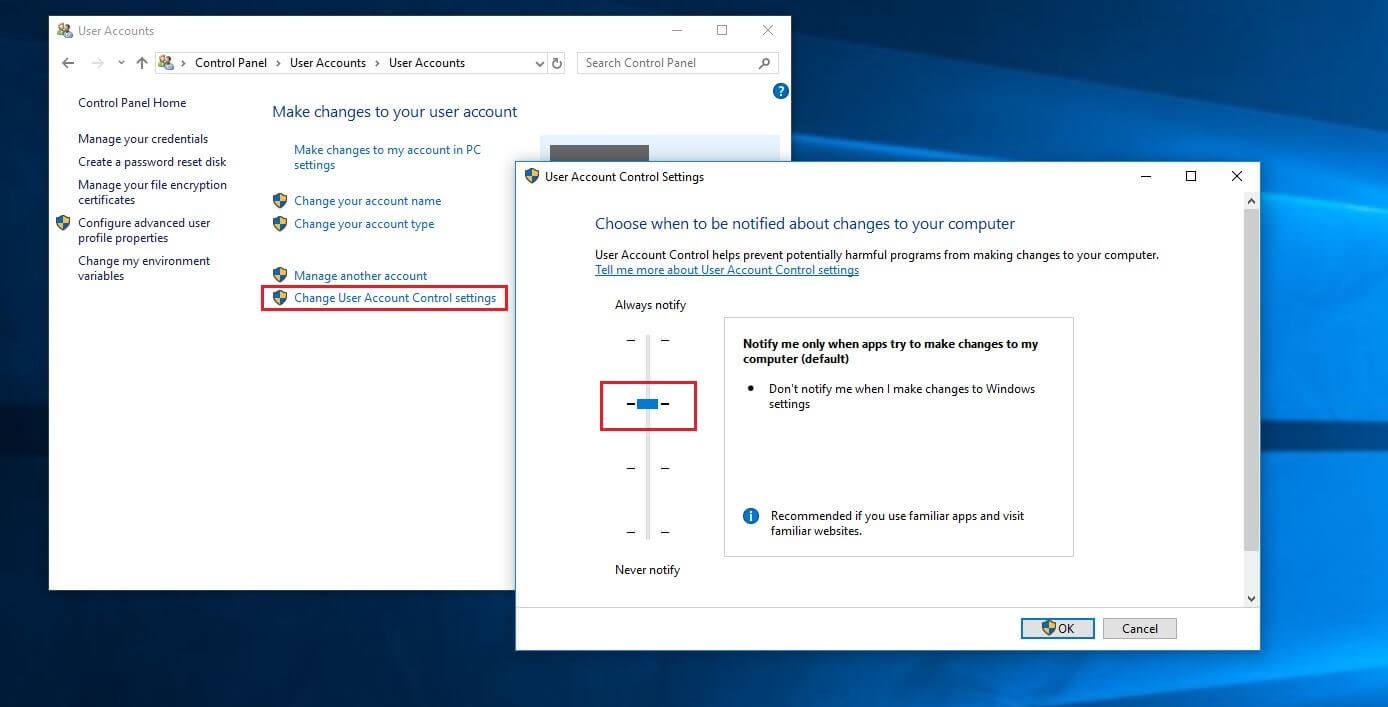
In some cases, the “INET_E_RESOURCE_NOT_FOUND” error occurs due to the user account control being incorrectly configured. If you set Windows to never inform you about changes to the system and apps, this can lead to certain applications (such as Microsoft Edge) not functioning properly. To resolve the problem, customize the User account control settings and select a different notification level.
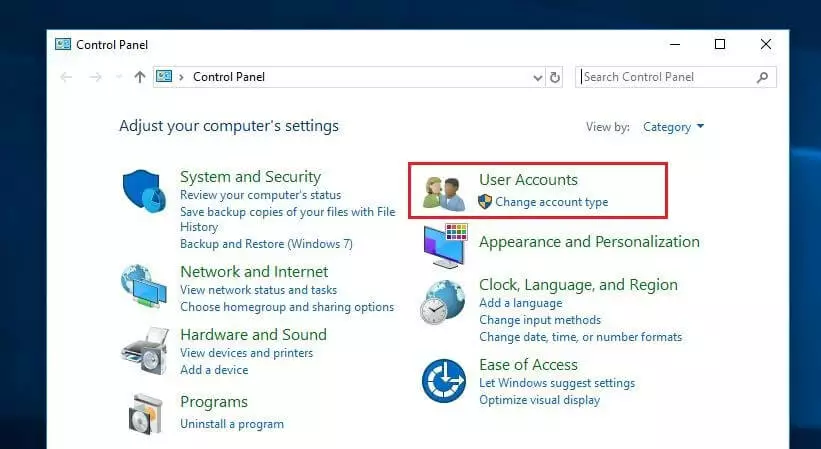
To do this, open the control panel and select the "User Accounts" area.
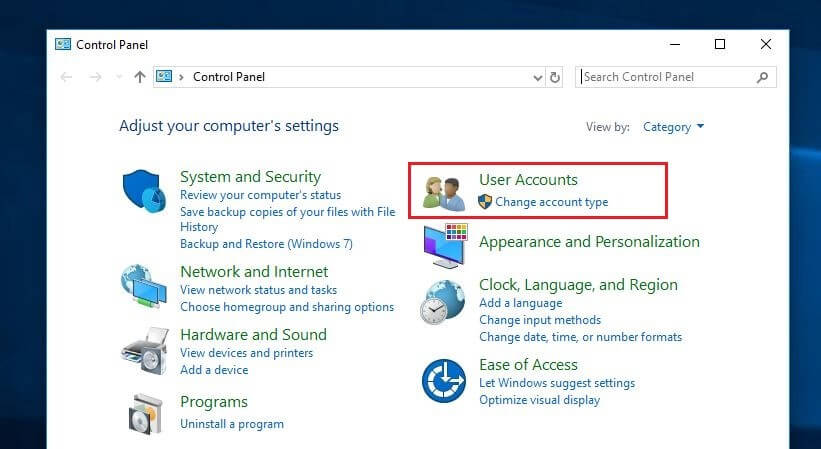
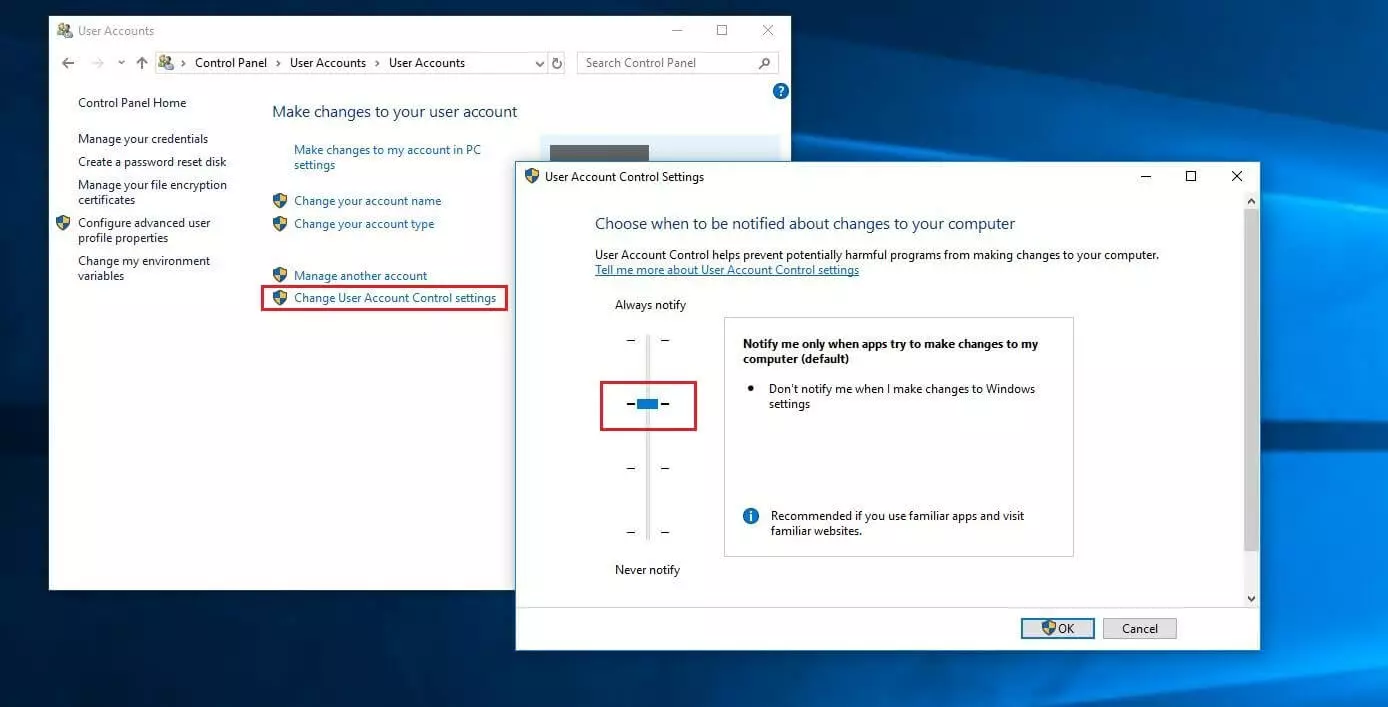
Click again on “User Accounts” and then on “Change User Account Control settings.” In the final step, move the slider up to allow Windows notifications. The recommended (and default) choice is the second choice from above:
Solution 6: Reset Microsoft Edge
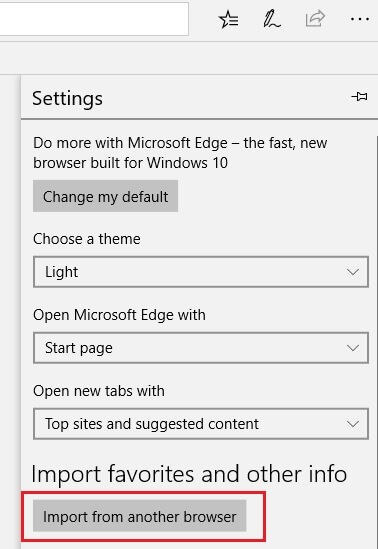
If none of the previous solutions have proved successful, you can try to reset Microsoft Edge as a last resort. However, since some settings and possibly also your favorites will be lost, you should first create a backup of the latter at least. For this purpose, Edge offers its own export function, which you can find in the settings of your browser under “Import favorites and other info” “Import from another browser.”
 Imagewellshutterstock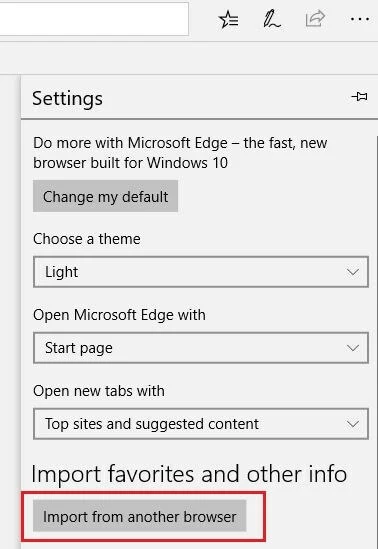
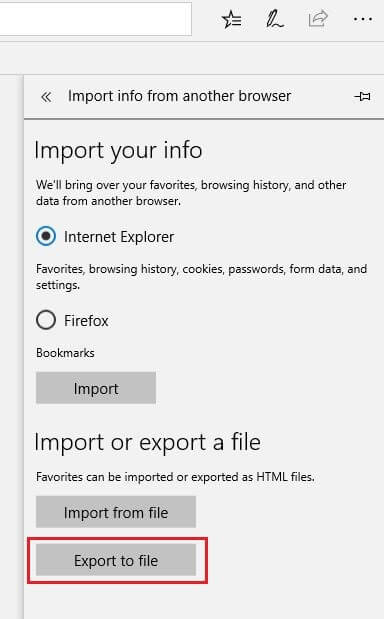
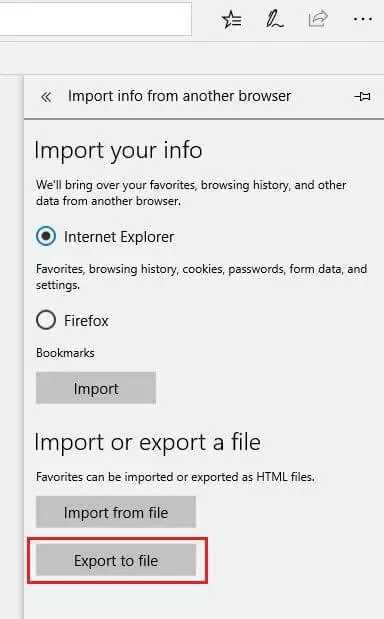
Click on “Export to file” in this menu to save your favorites list as a HTML document anywhere on your system.
Once you've exported your favorites, you can quit Edge – you'll find the browser reset feature in the “Apps & features” menu of Windows preferences. To open it, simply right-click on the Windows logo, select "Settings" and then the "Apps" button:
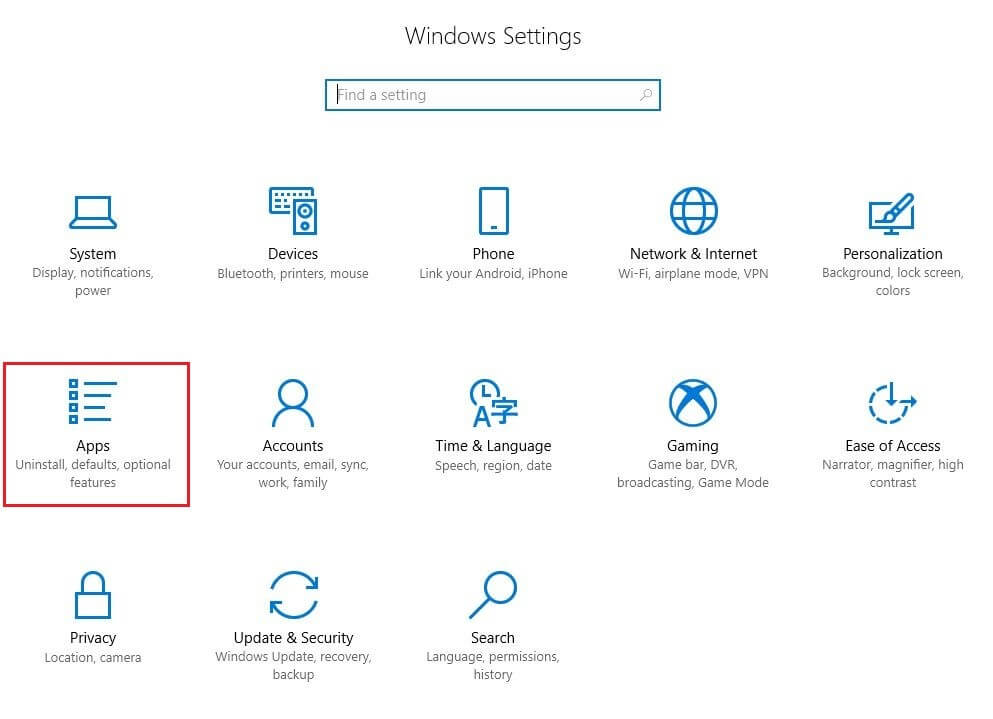
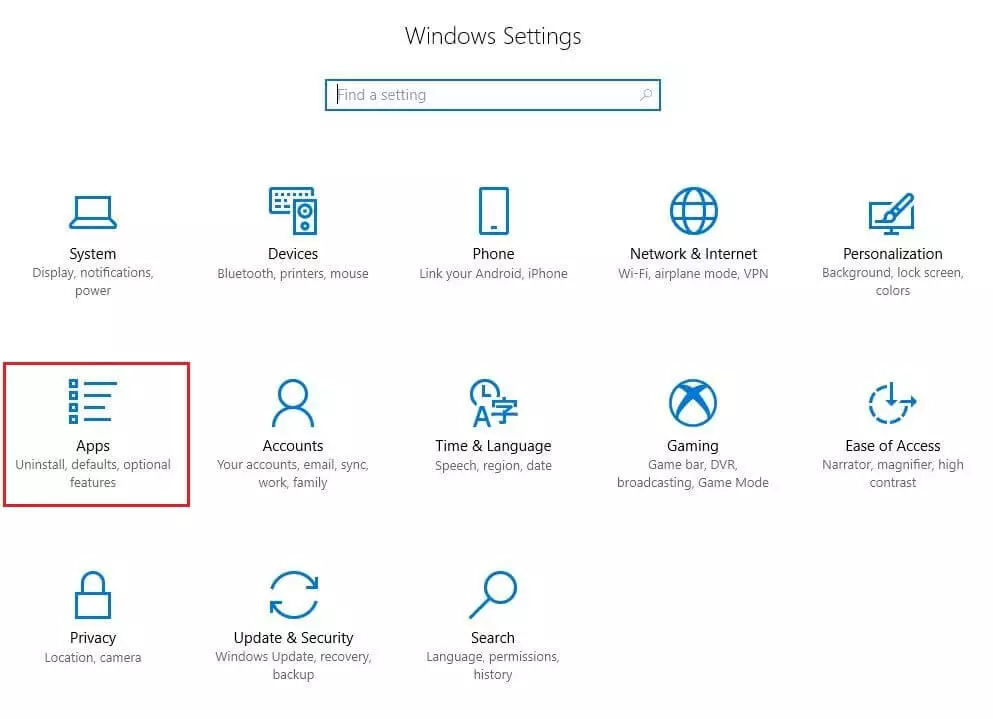
You will then receive a list of all system and third-party applications that you have installed on your device. In this list, search for Microsoft Edge, select the browser, and then click on the “Advanced options” button.
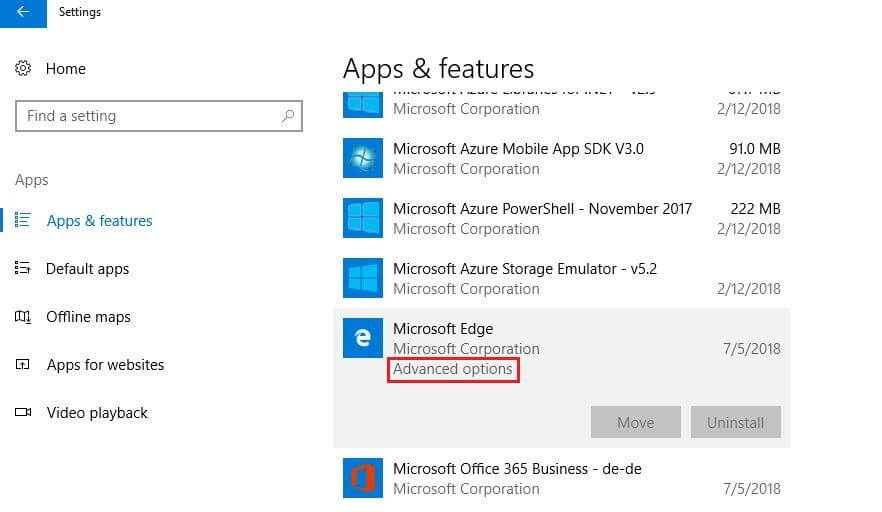
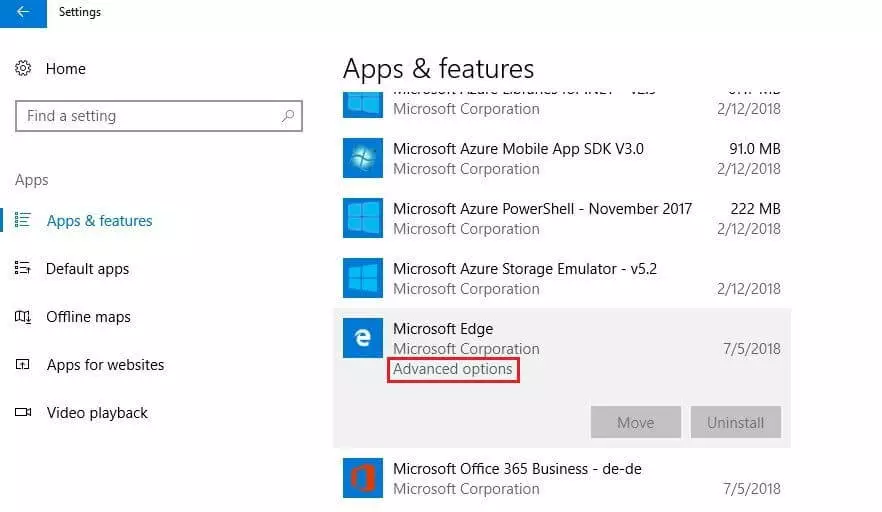
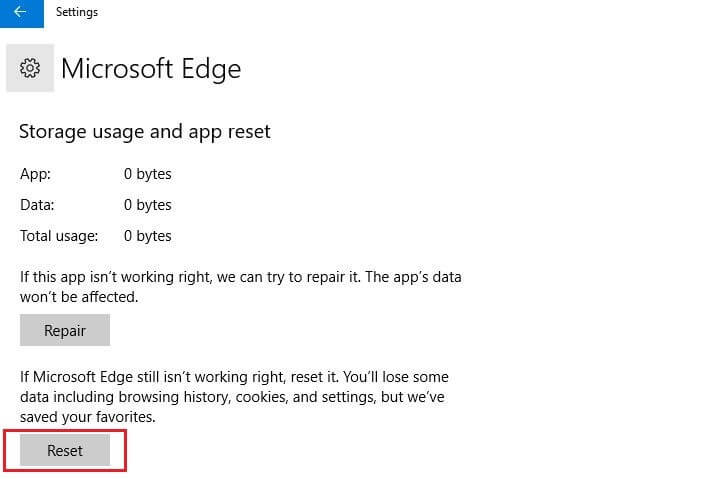
You can now try the "Repair" function first, but it was primarily designed for minor browser problems. If the "INET_E_RESOURCE_NOT_FOUND" problem persists after this repair attempt, reset Edge to factory defaults by clicking "Reset." If your favorites are also deleted, you can restore them with the HTML backup you created previously.
If the desired success is not achieved even after resetting the Microsoft browser, you should contact Microsoft Support directly. Alternatively, you can contact your internet service provider to check if there may be a basic problem with internet access that is responsible for the “INET_E_RESOURCE_NOT_FOUND” message.