
Google Chat: Communication tool for virtual teamwork

Google Chat is a new communication tool from Google that replaces Google Hangouts. It offers many advantages for virtual team communication and helps collaborators share information faster. In this article, we’ll explain what Google Chat is and what the tool can be used for.
- Free Wildcard SSL for safer data transfers
- Free private registration for more privacy
- Free Domain Connect for easy DNS setup
What is Google Chat?
Today, most of the communication in the workplace happens digitally, and it’s a trend that’s only increasing. In many professions, email has long been the standard method of sharing information, but emails alone often aren’t the fastest way to communicate. Digital collaboration is especially important when groups of people need to share discuss or process information and documents. Google Chat helps you exchange information or discuss projects and is directly integrated into the Google Workspace environment as well as Google Meet, Google’s latest video conferencing tool.
Google Workspace from IONOS gives you centralized access to all your Google Workspace applications and Google Drive documents on different devices. You also get a professional Gmail address and extra storage space for documents, spreadsheets, and presentations.
Google Chat: Features and advantages briefly
Google Chat is more than just a simple messaging app. Google Chat offers countless features for virtual team collaboration thanks to its integration with Google Workspace and Google Meet. It also allows you to add apps such as Trello or Asana using bots. Below are Google Chat’s most important features:
| Feature | Use |
|---|---|
| Chat | Direct messaging with individual contacts |
| Chat room | Conversation in a group or about specific topics to share information or documents |
| Bots | Apps such as Asana or Trello can be added using bots |
| Google Workspace integration | Direct access to documents and files from Google Drive, Google Meet and integration with Gmail |
| Google Meet integration | Video chatting in Google Meet with individual contacts or within a chat room |
| Gmail integration | Preview, notifications, and direct link to Google Chat messages in Gmail |
Direct messages
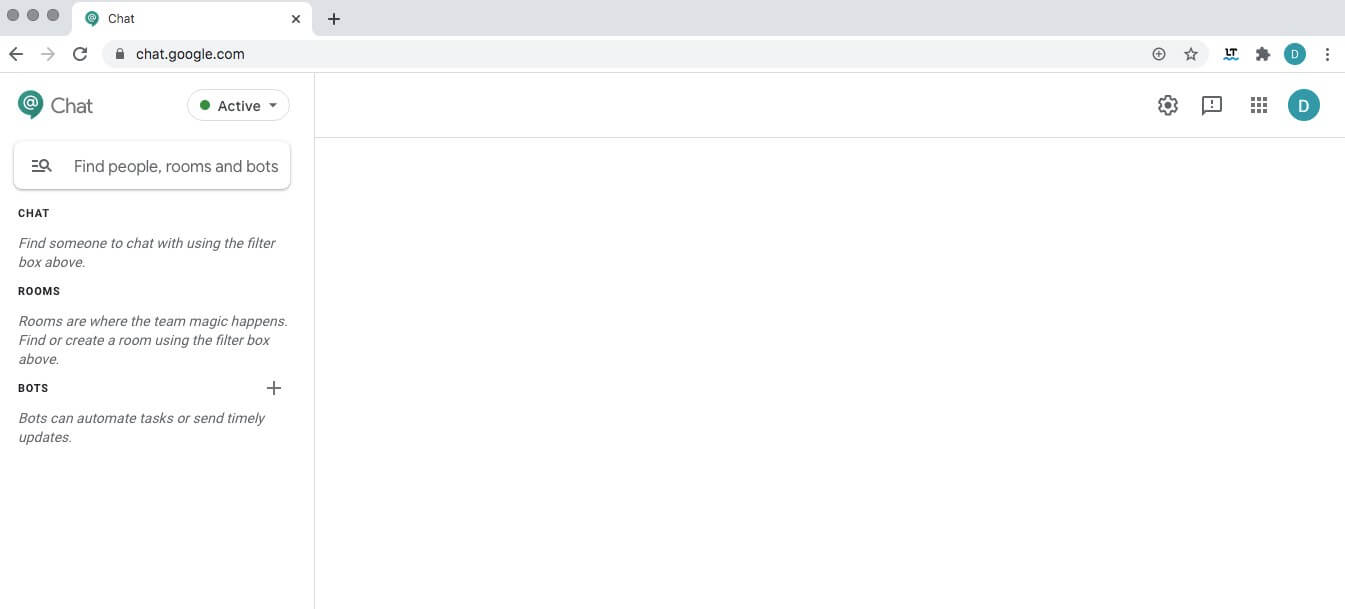
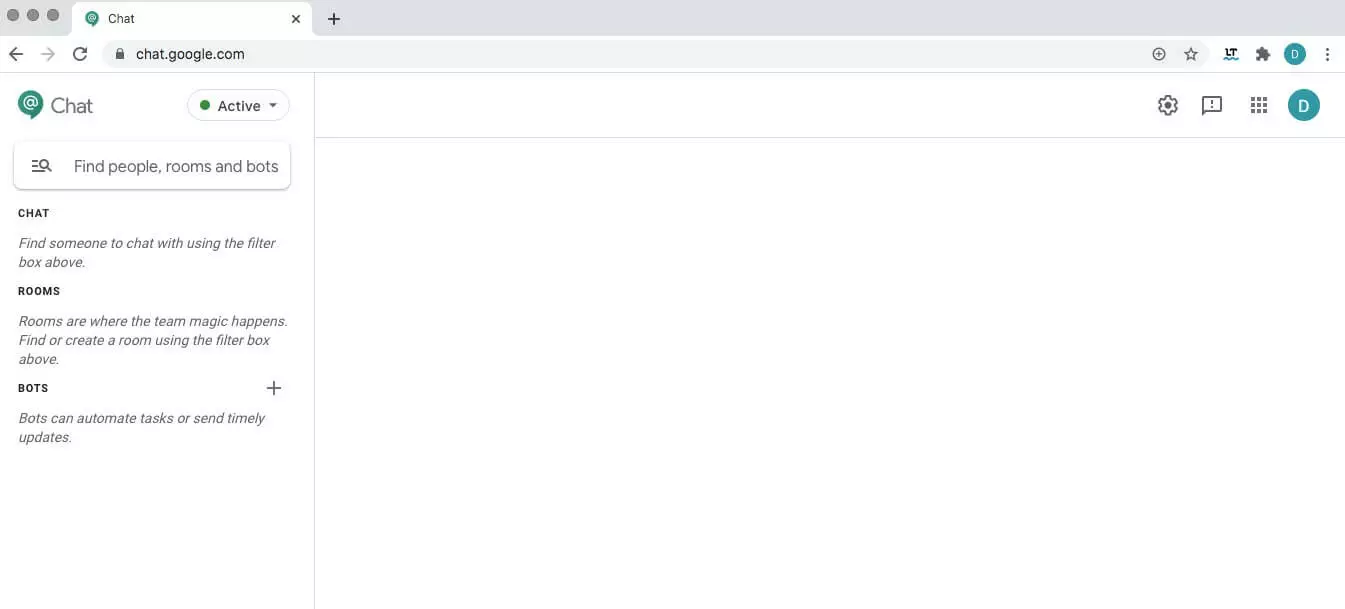
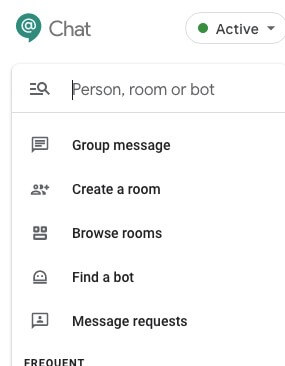
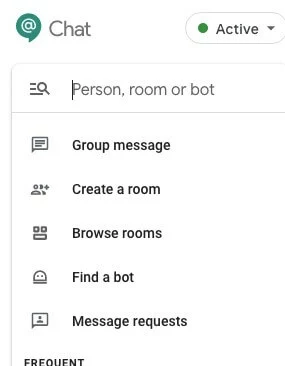
You can use the search bar to select people and send them a direct message. The advantage of this is that your conversation can only be read by selected recipients, like an email.
Chat rooms
You can set up a chat room if you want to start a group conversation to discuss a project or share information on specific topics. Only approved members can join a conversation in a chat room. You can adjust the list of members at any time if a participant is no longer working on the project or a new member joins. There are usually one or more administrators who manage the users of a chat room.
Adding bots
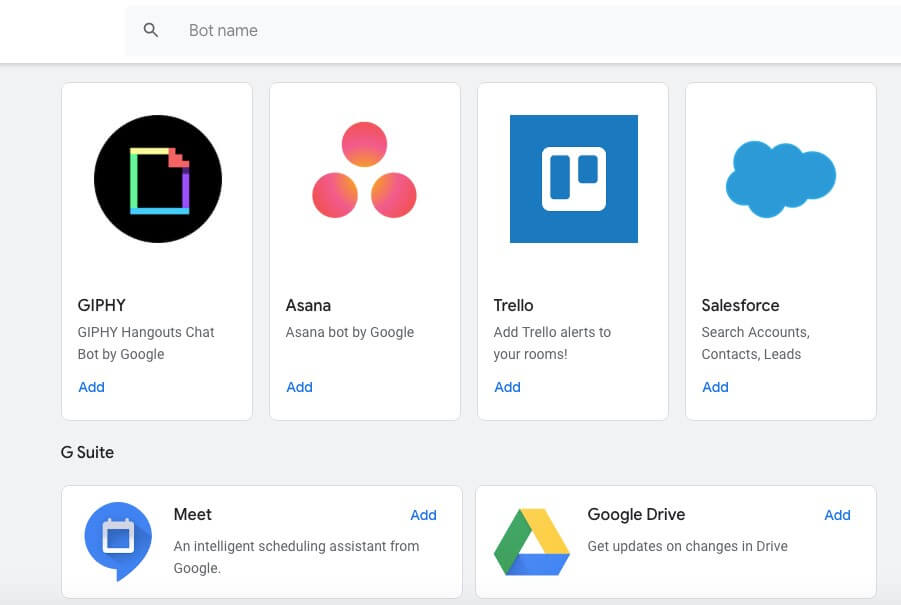
Another useful feature of Google Chat is the ability to add bots to the communication tool. If a bot is available for your chosen third-party application, you can simply click to add your favorite apps, whether Trello, Asana or Giphy. To do this, go to the left-hand menu under Rooms, select your bots from the suggested apps already available from Google. Then specify the chat room or message in which you want to access a third part-app using a bot.
Integration with Google Workspace
As a Google service, Google Chat is extremely well integrated into to other Google applications, especially Google Workspace. This gives you the following options:
- In your message, you can directly link to documents and files saved on Google Drive. This is especially useful when members of a chat room are collaborating on documents.
- In a private chat or in a chat room, you can simply click to start a video meeting in Google Meet.
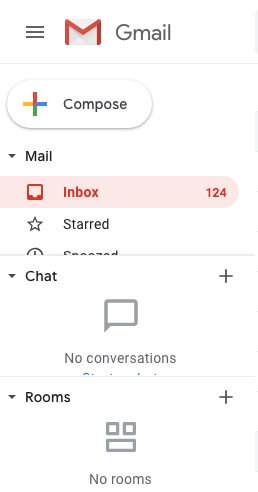
- You can also be notified about incoming messages in Google Chat by turning on previews and notifications in Gmail.
Other helpful features you can use when composing messages:
- Built-in Spell check
- Delete chat history after 24 hours
- Upload external files such as photos or documents
- Add emoticons
Can I use Google Chat and Hangouts Chat together?
If one of your contacts still uses classic Google Hangouts for messaging, you can still communicate with each other by exchanging direct messages in Google Chat. However, this option is only available for direct messages. Group messages cannot be exchanged between a chat room in Google Chat and Google Hangouts.
Using Google Chat on desktop or mobile devices
Like Google’s services in general, Google Chat is already integrated into many Google apps. You can recognize Google Chat by the green speech bubble with an @ sign inside it. To use the Chat app, you need a Google account and a web browser or a mobile device with Internet access.
Are you having problems with your Google Account after not having used it for a long time? If so, you can try to recover your Google account at any time. You can also delete a Google account that you’re no longer using and create a new account.
Using Google Chat on desktop devices
There are three different ways to use Google Chat on a desktop computer:
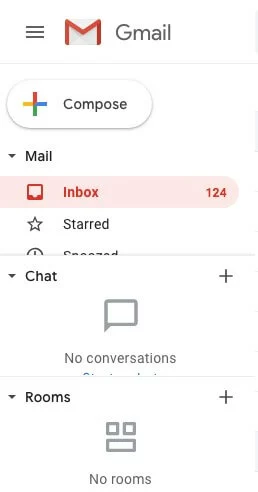
Gmail: Open your Gmail account in a web browser. In the left column under Inbox, you’ll see a preview for Google Chat direct messages and chat rooms. To open the Chat app in a separate window, click the grid icon for all Google apps in the upper right corner. Scroll down in the menu and find the icon for Google Chat. Click the icon and Google Chat will open in a new tab or window in your browser.
Web browser: In the Chrome browser, Google Chat also automatically appears in the Google apps menu when you click the grid icon in the upper right corner. Alternatively, you can open the app in any browser by entering the Google Chat URL.
Progressive web application (PWA): Another option is to use Google Chat as a PWA on your computer. To do this, open the Chrome browser and log into your Google account. Now click the three-dots icon at the top right and select Install Google Chat....
Using Google Chat on a mobile device
On your smartphone or tablet, you can use the Google Chat app, which is available for free from the Google Play Store for Android and from the App Store for iOS devices. The Google Chat app also comes pre-installed on some newer generation Android devices. To find the app, look for a green speech bubble with an @ sign.
Google Chat: Personal settings
You can easily customize your Google Chat application to suit your needs. For example, you can change your profile picture or choose which push notifications you want to receive.
Changing your profile picture
To use Google Chat, you need to be signed in to your Google account. The profile picture in Google Chat is the same picture you use for your Google account. To change your profile picture, click your current photo and upload a new photo, which will then be displayed in both your Google Account and Google Chat.
Setting push notifications
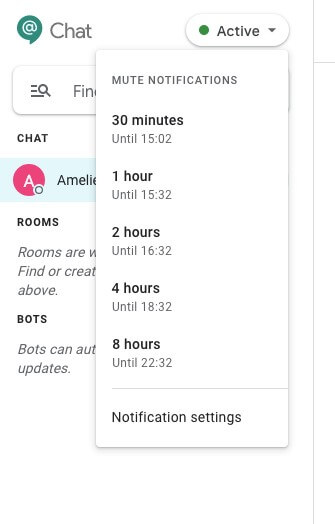
Whether you use Google Chat as an app on your smartphone or tablet, in a browser or as a PWA on your computer, you should first choose when and how you want to be notified about new messages. To do this, click the “Active” button in the menu on the left. Now you can choose not to be disturbed for the next few hours, for example. The “Notification Settings” option allows you to make further personal settings, temporarily stop notifications or mute notifications from selected people.
- Write perfect emails with optional AI features
- Add credibility to your brand
- Includes domain, spam filter and email forwarding