

What is Google Hangouts?

Google started out as a search engine over two decades ago. Since then, the company has continually expanded its services and applications. Nowadays, digital communication would be almost unimaginable without Google and its many services. One such service is Hangouts, a messaging app launched in 2013. In this article, you’ll learn what Google Hangouts is and how you can use this communication tool.
Hangouts: features at a glance
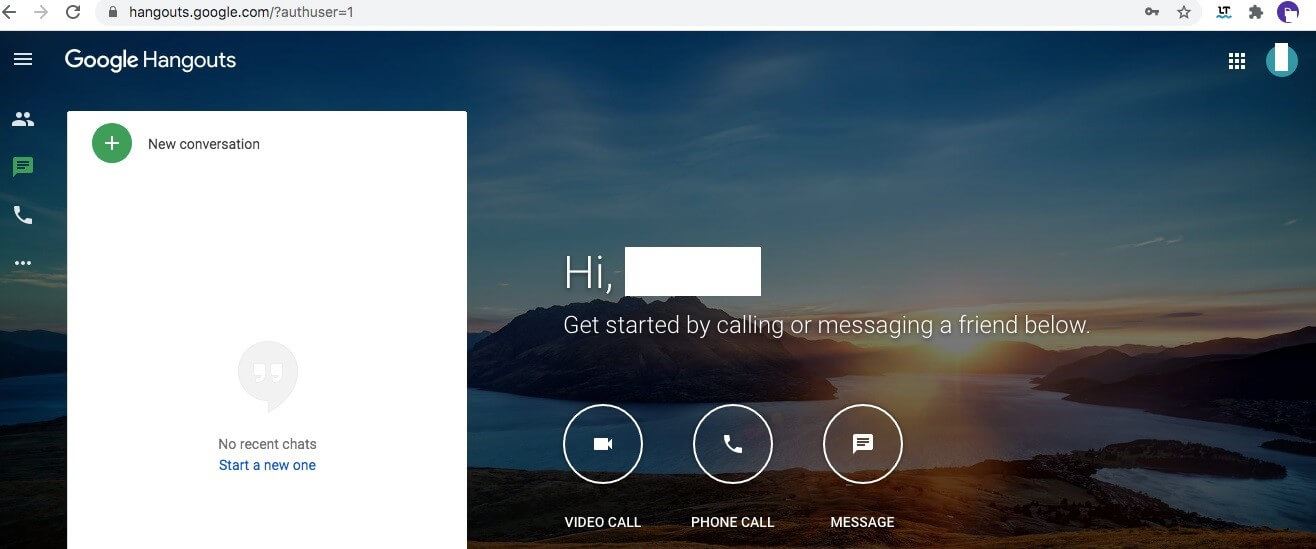
As the name suggests, Google Hangouts is a place for virtual meetings and conversations. The tool offers three different features: video calls, phone calls and messaging:
| Feature | Description |
|---|---|
| Video calls | Up to 10 users can join a video chat using the free video call feature. |
| Messaging | You can send messages to contacts for free. If you don’t have a Google account, messages are sent as text messages. |
| Phone calls | You can call people over the Internet. You can also call traditional cell phones and landlines. However, these calls are not free, and the charges are displayed during the call. |
Do you want to access all your Google apps and Google Workspace documents from one place using different devices? With Google Workspace (formerly G Suite) from IONOS, it’s easy. You also get a professional Gmail address and extra storage space for documents, spreadsheets, and presentations.
Google Hangouts: messaging feature
With Google Hangouts, you can send more than just text messages. You can also share videos, photos, stickers or your current location with your contacts. Your chat history is saved on a Google server so that you can edit and search it from any device signed into your Google account. You can also see which messages your contacts have read.
- Open Google Hangouts. To find the person you want to message, use the search bar or choose a person from your list of Hangouts contacts. Click the person’s name. You can also select multiple people if you want to start a group chat.
- Once you’ve selected a contact, a chat window will open where you can type your message and upload videos and photos.
Google Hangouts: video calls
The video calling feature in Google Hangouts is similar to the messaging feature. Note that the number of participants is limited to 10.
- Open Google Hangouts and use the search bar or the Hangouts contact list to select the person you want to call. Click the name or multiple names (you can select up to 10 people for a group chat).
- Click video call.
- A video chat window will appear. First, allow access to your device’s camera and microphone. You can then send an invite by sharing a copied link or you can invite more people to your video call by sending a message to their email address. During the video call, participants can write short messages to each other from the chat window.
- At the end of the video call, click on end.
See our feature article for an overview of other videoconferencing software compared to Google.
Requirements for using Hangouts
To use Hangouts, you need a Google account, which you can create directly at google.com. You can either enter an existing email address or set up a new Gmail address free of charge. The advantage of a Gmail address is that your mailbox is linked directly to Hangouts and other Google services so that you can automatically access your existing email contacts. If you’re going to use a different email account other than Gmail, you must first create or import it.
To use Hangouts, you’ll need a computer with an Internet connection and a web browser or a mobile device with Internet access.
If you have problems logging into your account, you can try to recover your Google account.
Replacement for Hangouts in 2020: Google Meet and Google Chat
These days, users can choose from many platforms and applications for messaging and video chatting. Like other companies, Google has been making changes to its video conferencing and messaging apps as the technology constantly improves: Google Meet (also part of Hangouts) is already available for video conferencing. The messaging app in Hangouts will be replaced by Google Chat to compete with Facebook Messenger and other alternatives.
Google Chat is an excellent virtual collaboration tool. It helps teams share information efficiently and is directly integrated with all Google Workspace applications and Google Meet.
Google Hangouts works on computers or mobile devices
Hangouts is integrated into many of Google’s products. The icon for Google Hangouts is a green bubble with white double quotation marks. You can access Google Hangouts as follows:
On a computer
From your Google account:
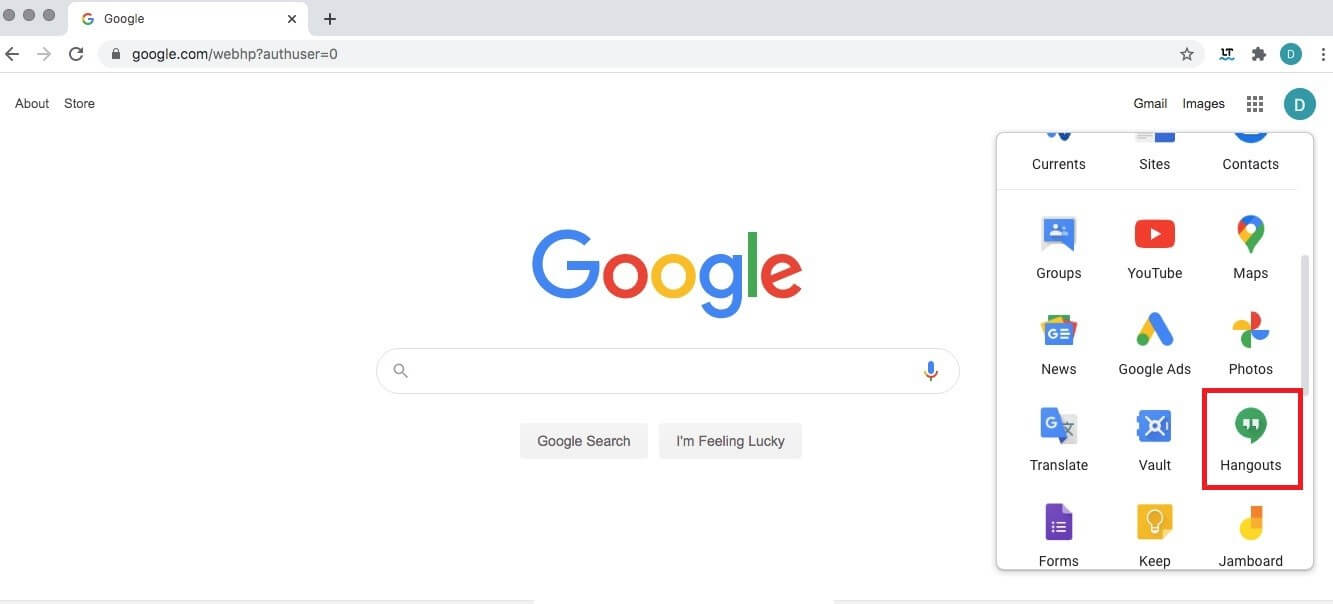
- First, open your Gmail account in your web browser, then click the grid icon for Google apps at the top right.
- Scroll down and click the icon for Google Hangouts. Google Hangouts should then open in a new tab in your browser.
From a web browser:
In a Chrome browser, Google Hangouts is also automatically displayed in the Google apps. Click the grid icon at the top right. You can also open Hangouts in any other web browser by entering the Google Hangouts URL.
On a mobile device
You can easily use the Google Hangouts app on your smartphone or tablet. The app is free and available for Android (in the Google Play Store) and iOS (in the App Store). Hangouts also comes pre-installed on many Android devices. The icon for the app is a green bubble with white double quotation marks in it.
- All your favorite Google productivity tools
- Business Gmail for your domain
- Using Gmail with your domain from IONOS