

MBR (Master Boot Record) explained

The master boot record is a relic from the beginnings of PC technology. It was introduced for the first time in 1983 with IBM PC DOS 2.0 and has since played an important role especially in Windows computers. We’ll show you how it is used to launch highly complex operating systems. Plus, we’ll explain the necessary steps if a master boot sector is no longer able to start the computer.
What is MBR?
The MBR is physically the first sector of a data medium (e.g. hard drive or USB stick), which is used by computers for the booting, or start-up process. The computer must be equipped with a BIOS and a x86 operating system.
x86 refers to a specific processor architecture that was introduced by Intel in 1976. Among other functions, it processes special commands when controlling the operating system which are developed by chip manufacturers Intel and AMD, for example. x86 processors predominantly had a 32-bit architecture initially (processing width: 32 bit), but current systems run with more high-performance 64-bit x86 processors (processing width: 64 bit). The 64-bit x86 standard is also referred to as x64.
The MBR always has the same standard address on a disk: Cylinder 0, Head 0, Sector 1. It’s normally 512 bytes in size, which corresponds to the size of a sector on a disk.
An MBR is found on virtually all external storage media (e.g. USB sticks) that are compatible with PC technology (x64/x86 architecture) and can work with Windows. In the case of data media not intended for starting a PC; the MBR is not operationally engaged but instead only serves as a readable information source. For instance, playback devices for audio files find information there about the location and size of partitions which contain the playable MP3 files.
Structure and tasks of the MBR
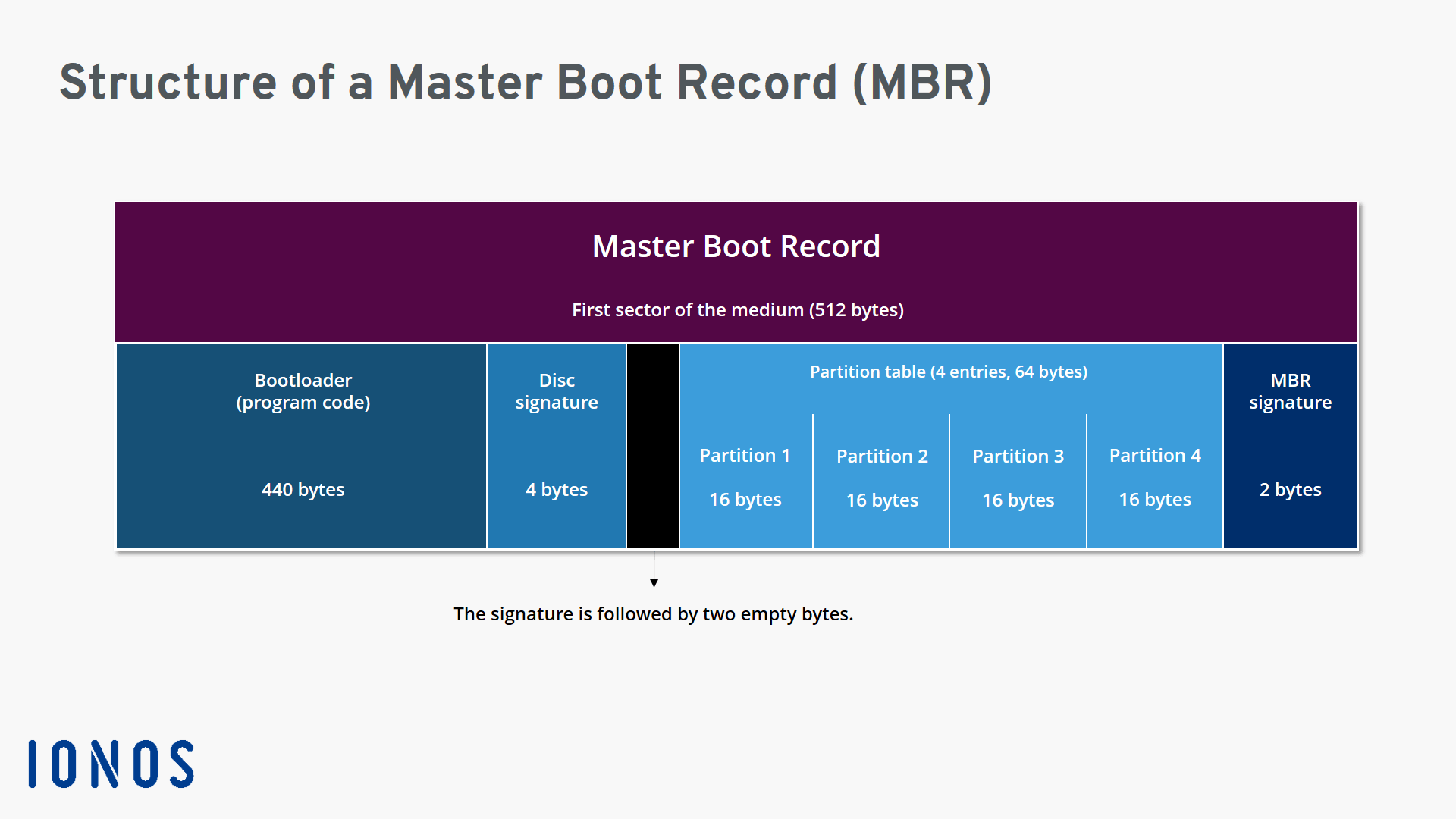
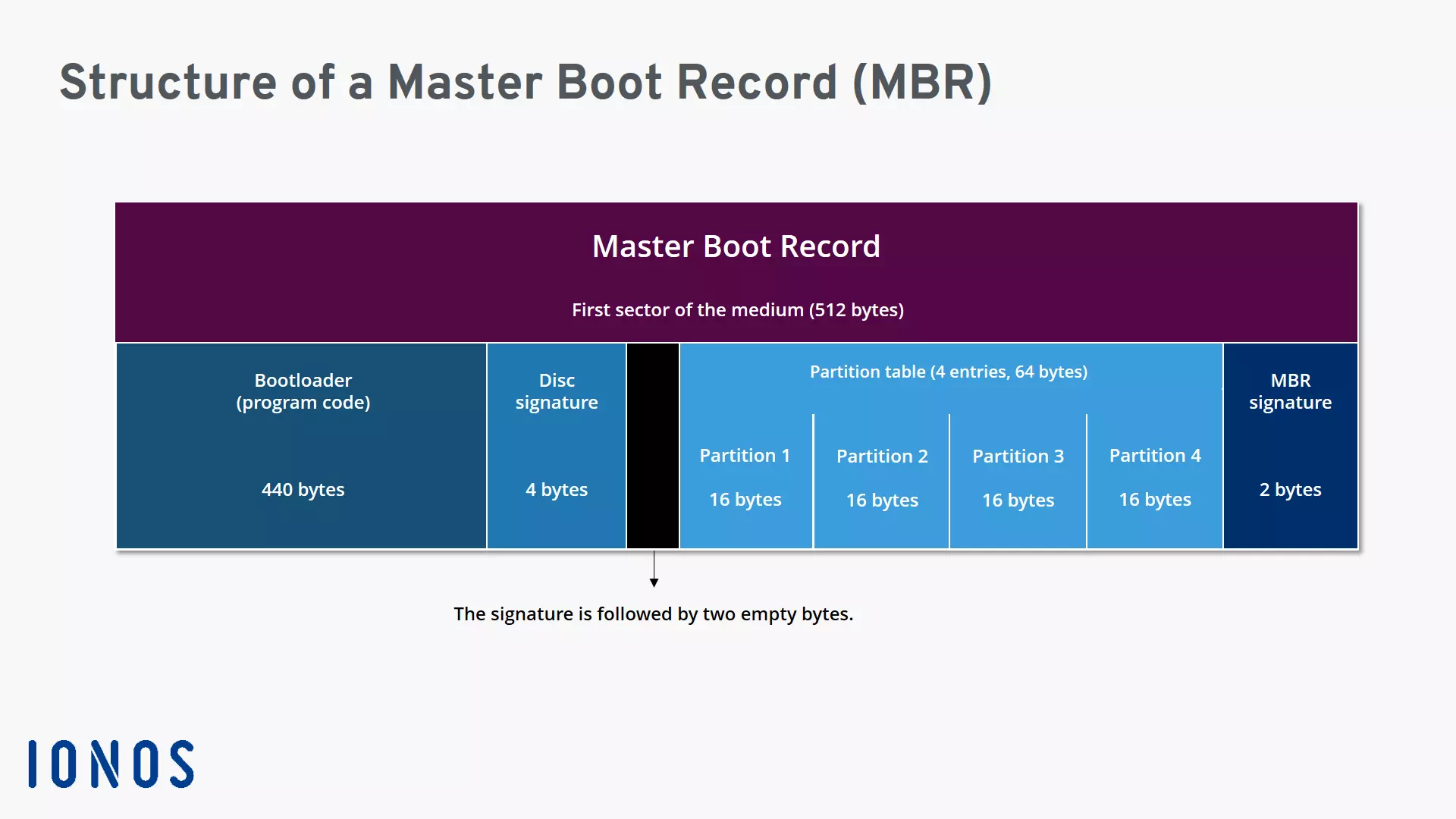
The master boot sector always comprises at least four components:
- Start program (bootloader)
- Data media, disk signature (from Windows 2000)
- Master partition table
- MBR or boot signature (magic number)
The start program is contained in the first 446 bytes of the MBR. This rather tiny piece of software is activated when starting the PC and initiates the booting process. A more extensive procedure with standardized processing steps is launched, ending with an operating system ready for use (e.g. Windows). Working memory built into the computer is addressed in order to run this process. It can be addressed if the computer is able to use electrical energy for the necessary processing after being switched on.
Based on the data media or disk signature, Windows computers (from Windows 2000) identify a data medium with a partition table.
The partition table documents the allocation of data storage into separate sectors. It does so using four entries, each comprising 16 bytes, which provide information about the location and size of each partition. For example, where a C:\ partition or D:\ partition begins and ends. In addition, the table contains information about the time of data storage, such as “FAT32”, “LINUX Native” or “Dynamic Disk”. The order of the partitions in the partition table does not always reflect the physical arrangement on the hard drive.
The MBR or boot signature contains the strings “55” and “AA” in two bytes. A master boot record is recognized thanks to its characteristic coding, which can always be found at the end of the MBR sector. If this information is missing, the master boot sector won’t be identified, and the boot process will be aborted with an error message.
MBR activities require a trigger – provided by the BIOS (Basic Input/Output System) after switching on the PC. The BIOS is special software which is also known as firmware. It is found on the mainboard of PCs with x86 architecture, where it is embedded in a special chip (e.g. EPROM chip, Flash storage). The BIOS is a permanently fixed component, even when the computer is switched off.
The BIOS itself does not need exact information about the partitioning of a disk. It is only intended to load and execute the MBR bootloader in the memory. Once the master boot sector has been read and its bootloader is active in the working memory, the active (bootable) partition of a divided hard drive is determined via the partition table.
After it is located, a chain reaction takes place according to the principle of chain loading. The identified boot sector of the addressed partition is engaged, and the partition’s own bootloader takes over control in the working memory. More extensive processes and routines follow which execute the actual start of the operating system. Since the partition’s own bootloader handles more complex tasks, it is usually larger than the MBR start program.
If a computer has multiple operating systems, the boot process will stop prematurely until the user makes a choice (e.g. between Windows 7 and Windows 10). These special boot managers generally work in a time-based manner. If a manual entry is not provided, the preferred operating system will be automatically launched after a certain time limit.
Damaged MBR – what action is required?
If a x86 PC suddenly no longer starts up, the problem could be a faulty master boot sector. For instance, the BIOS may no longer be able to read the two bytes of the MBR signature. To remedy the situation, there are various troubleshooting strategies which primarily depend on the installed operating system. Windows users now generally have two options:
- Automatic system repair with an emergency medium (CD, DVD, USB stick)
- Manual repair via the command prompt
Using the automatic method, the primary boot medium first needs to be changed in the BIOS. Otherwise, the start routine will always stop when it looks for an intact MBR on the active partition of the built-in hard drive – to no avail. If, for example, the computer is booted by a Windows 7 DVD after modifying the BIOS, “Computer repair options” can be selected after a few preceding steps. After a number of further steps, you will then access the system repair which automatically restores the MBR.
In the case of the manual method, the master boot record has to be repaired with the command line tool provided by the Windows command prompt (cmd.exe). Repair processes can then be initiated with standard commands (bootrec/fixmbr, bootrec/fixboot). How you can access the command prompt depends largely on the operating system installed. Moreover, the process required depends on whether Windows is starting up or is no longer activated at all.
 To display this video, third-party cookies are required. You can access and change your cookie settings here.
 A defective master boot sector is not the only reason for repairs. A boot virus which infects the boot sector and becomes active during booting can also make such steps necessary. If possible, MBR repairs should only be performed by experienced users due to the risk of data loss. You should, therefore, have a backup of the system and important user data. If the recovery of the MBR partition does not result in the desired outcome or if it stops prematurely, the hardware may be irreparably damaged.
Alternatives to the Master Boot Record
The master boot record has some weaknesses, such as inadequate troubleshooting mechanisms (if the MBR is damaged, for example), limitations in the hard drive size or the handling of partitions. MBR partitions are only supported up to a storage capacity of 2 TB; without modifications, the conventional partitioning scheme can only handle four partitions.
In practice, however, these limits are partially offset with some tricks and workarounds. For example, the boot sector can be modified, and an extended partition set up, which in turn can be divided into smaller logical partitions. However, these little tricks represent makeshift solutions that can hardly keep pace with the current development of computer technology.
Current systems are increasingly replacing MBR with modern hard drive partitioning in GPT format. GPT excels with improved data security and it can handle larger hard drives and many partitions. GPT-formatted disks work closely with firmware interfaces that have been established for some time as a successor to BIOS. For instance, from Windows Vista Service Pack 1 (64-bit x86 version) it is possible to start using unified extensible firmware (UEFI). The newer boot technology is a kind of “miniature operating system” that supports 64-bit processors natively from the factory.
Do you want to delve deeper into the topic? Find out more about the differences between MBR and GPT in our in-depth article.
The MBR has become less important recently due to more flexible and higher-performance alternatives. Wherever a master boot sector is still used for booting, it’s usually to start computers with old hardware. What’s more, MBR technology is especially prevalent in the world of Windows for compatibility reasons.