

How to defrag a Windows 10 Hard Drive

If access to the hard disk slows down, this could be due to fragmentation. This is a common cause, at least with older storage media, which is why Windows includes its own program for defragmenting hard disks. External tools, that once were very popular, are no longer necessary for Windows 10 users. The included defragmentation tool is easy to find and access via the context menus in File Explorer. Here, we’ll show you how to defragment your disks in Windows 10.
Defragmenting – here’s how it’s done
In most cases the feature to automatically defragment in Windows 10 is sufficient. However, if you want to manually defragment your hard disk, you can follow these steps:
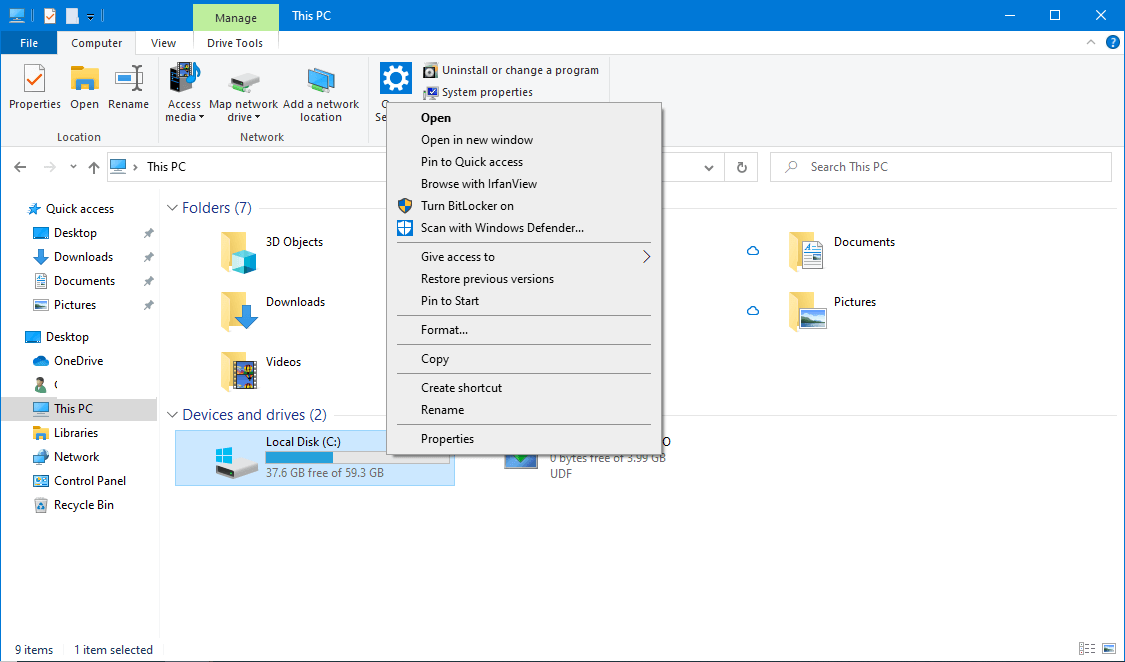
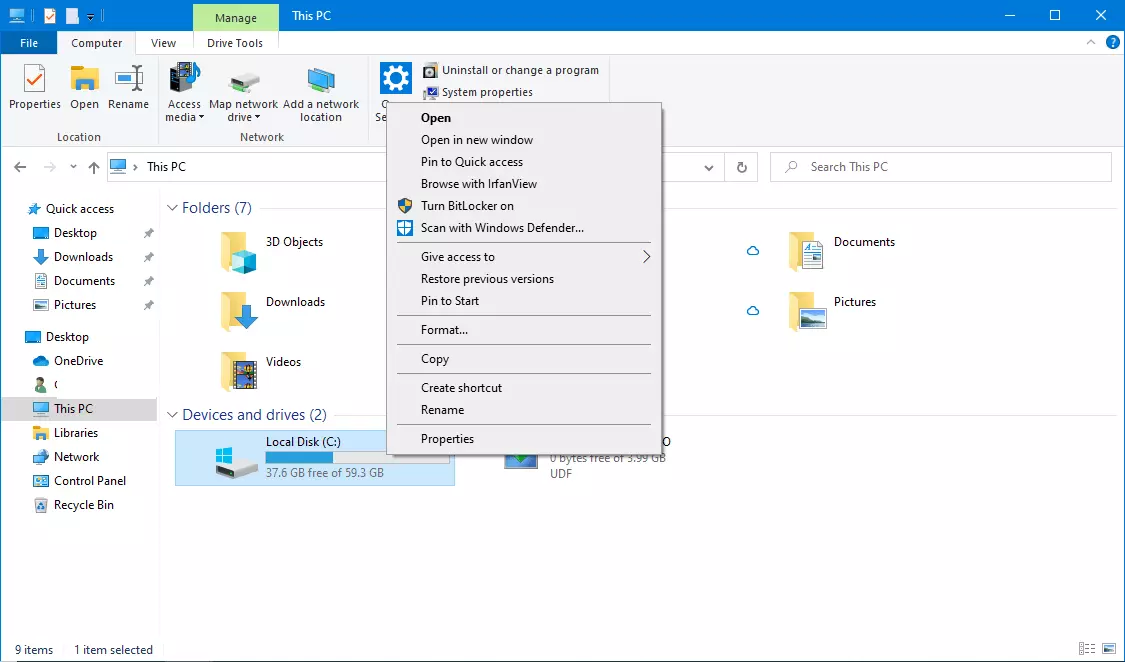
Step 1: Right-click the drive you want to defragment in Explorer and select “Properties” from the context menu.
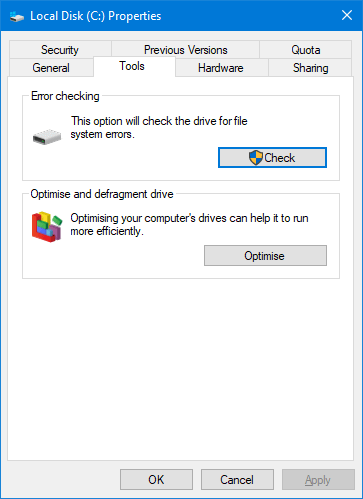
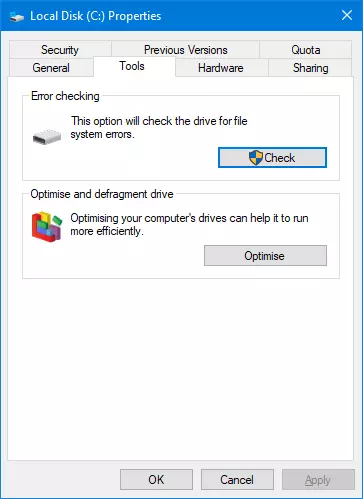
Step 2: Next, click on “Optimize” within the “Tools” tab of your disk.
Step 3: Select the desired drive and start the defragmentation process by clicking on “Optimize”. Hard disks with a fragmentation of 10 percent or less don’t have to be defragmented.
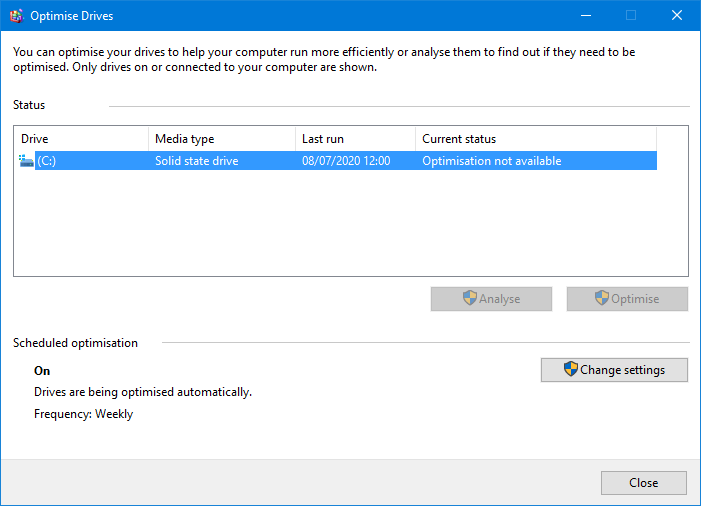
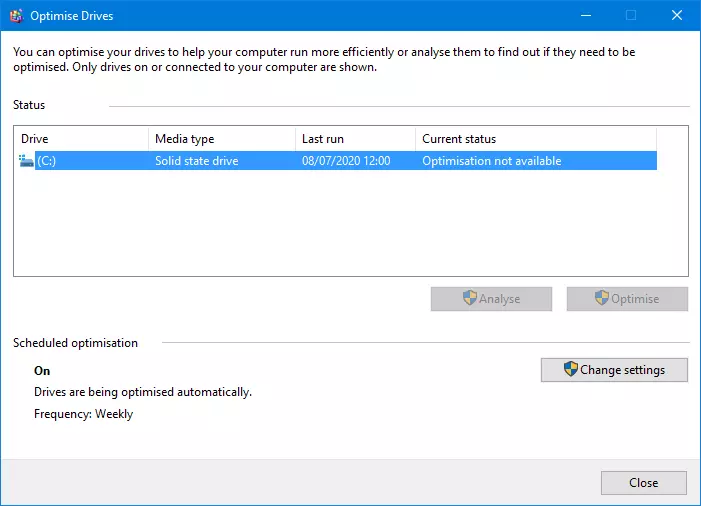
You can also launch defragmentation in Windows 10 by opening the Start menu and selecting “Defragment and optimize drives” from “Windows management programs”.
For more tips on how to speed up Windows 10, read our article “Speed up Windows 10: 8 tips for better performance”.
Automatic defragmentation
Windows schedules automatic defragmentation of all hard disks by default. Hard disks with automatic optimization are almost always displayed with a fragmentation of 0 percent.
- To see and adjust the automatic optimization settings, click the “Change Settings” button in the “Optimize Drives” dialog box of the defragmentation program.
- In the “Frequency” section of the next window, set the frequency of optimization. “Monthly” is quite sufficient even for heavy users.
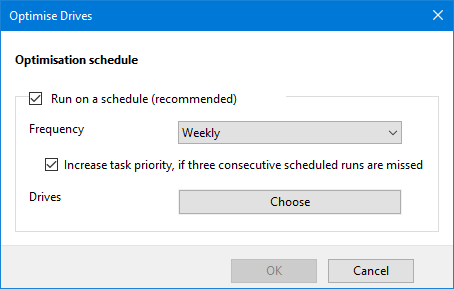
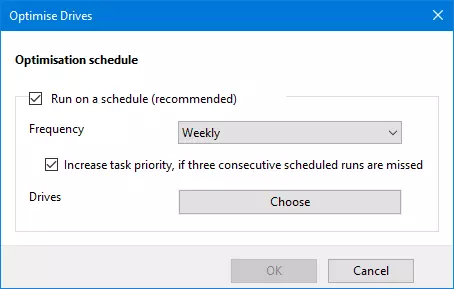
- When clicking on “Choose” you can select a drive that should be selected for automatic optimization. Activate this feature only for HDD storage and not for SSD.