

What is localhost and how does 127.0.0.1 work?

When you access an IP address, you usually want to connect to another computer on the internet. However, when you use the IP address 127.0.0.1, you’re communicating with the localhost — essentially, your own computer. But why would you want to have a “virtual conversation” with yourself? What do you need the localhost for, and how does this loopback work?
- Simple registration
- Premium TLDs at great prices
- 24/7 personal consultant included
- Free privacy protection for eligible domains
What exactly is the localhost?
The easiest way to describe the localhost is that it refers to your own computer — when you access it, your device is essentially communicating with itself. However, this is only a simplified explanation. The localhost isn’t directly connected to your physical PC. In most home networks, your computer has a local IP address such as 192.168.0.1. The address used on the internet, however, is different and usually assigned dynamically by your internet provider. The term localhost comes into play when a server is running on your own computer.
This means, conversely, that the term “localhost” is only used in the context of networks. It doesn’t just refer to the virtual server itself but also to its domain name. Just like .test, .example, or .invalid, .localhost is a top-level domain reserved for documentation and testing purposes. When you try to access this domain, a loopback process is triggered. So if you enter http://localhost in your browser, the request isn’t sent through your router to the internet — it stays within your own system. The localhost has the IP address 127.0.0.1, which points to the server running on your own computer.
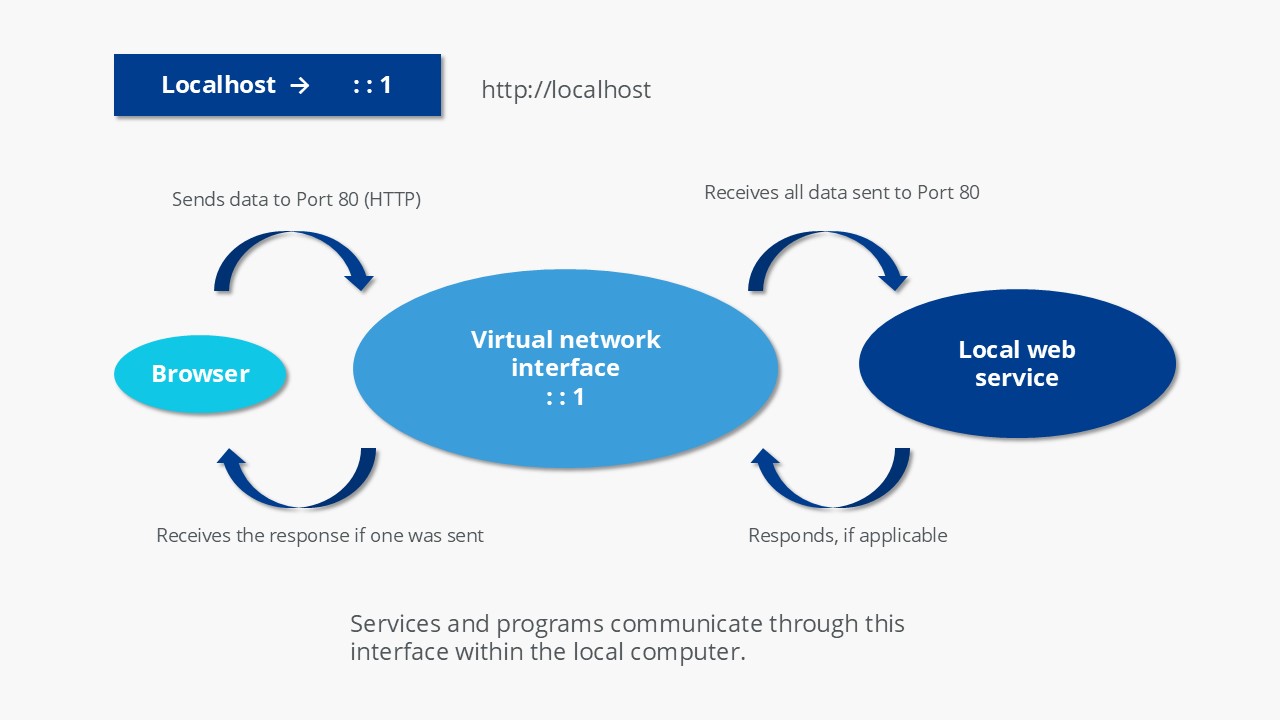
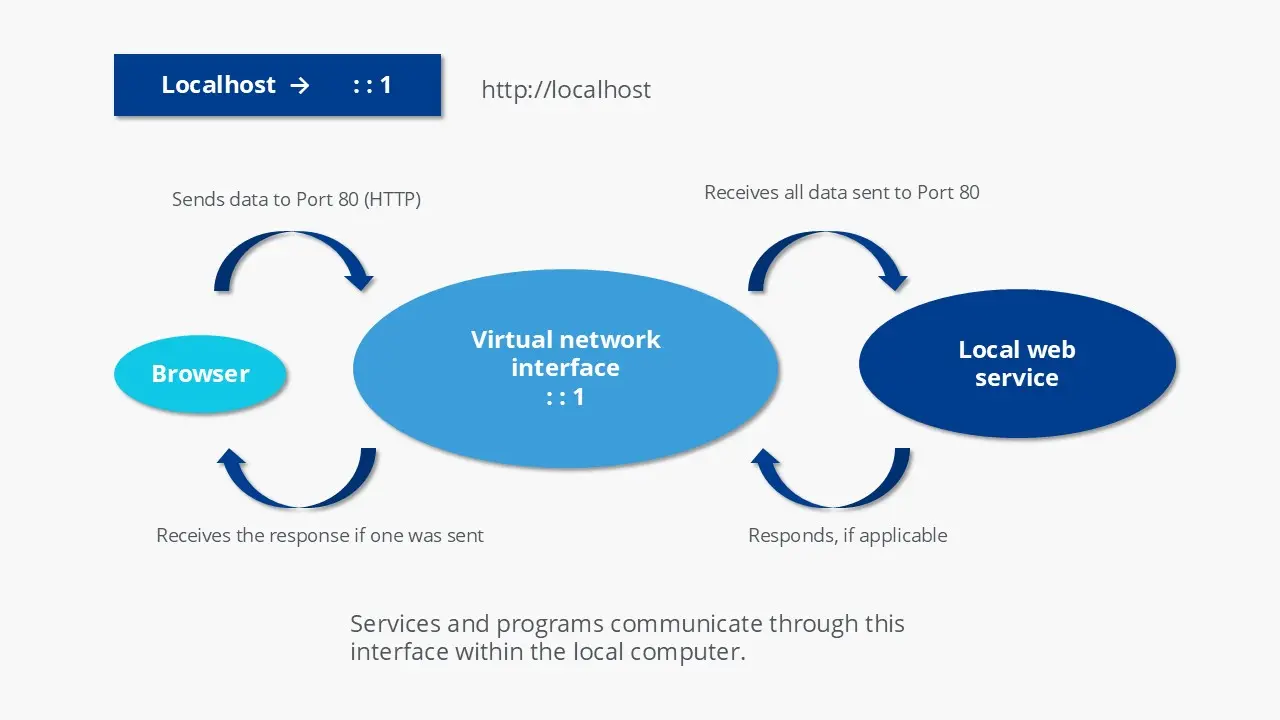


How loopback works (127.0.0.1)
IP addresses are used within a network to enable communication among participants. Each participant in the network has their own address. Data packets sent via TCP/IP reach the correct destination because of this system. The protocol pair Transmission Control Protocol (TCP) and Internet Protocol (IP) forms one of the cornerstones of the internet. However, TCP/IP is also used in local networks beyond the internet. The Internet Protocol is responsible for ensuring that participants in a network can be addressed using an IP address and a subnet mask.
Public IP addresses — those that can be accessed over the internet — are assigned and regulated by the Internet Corporation for Assigned Names and Numbers (ICANN). This organization also oversees the Domain Name System (DNS), which manages the allocation of domain names. However, some IP address ranges are reserved for specific purposes, such as the block from 127.0.0.0 to 127.255.255.255.
Until the 1990s, IP addresses on the internet were categorized into different classes. Class A began with 0.0.0.0 (also a reserved address) and extended up to 127.255.255.255. This makes 127 the final block within the Class A range — a prominent position that may have influenced its selection.
Within this address range, you can set up a localnet. What makes this range special is not only that it’s reserved by ICANN, but also that the IP addresses within it are not uniquely assigned, unlike most others. Here’s how it works: normally, when you enter an IP address or domain name in your browser, your router forwards the request to the internet and to the appropriate server. But with 127.0.0.1, things work differently — requests to this address never leave your computer. The TCP/IP protocol recognizes from the first block (127) that the address refers back to your own system. As a result, the loopback process is initiated.
Under IPv6, the address ::1 is reserved for loopback.
To ensure the backward reference to the local machine works, a loopback device is created. This refers to a virtual interface. It is fully implemented through the operating system. On Unix systems, the interface is called “lo” or “lo0”. These can also be displayed here using the ifconfig command. A comparable command in Windows is ipconfig.
When considering the technology separately from the localhost, a loopback can also be realized analogously: Through circuits in communication technology, it can be determined whether both the path the signal takes and the reception are correct.
What is localhost used for?
Developers use the localhost when testing programs and web applications. Similarly, network administrators can utilize the loopback for testing network connections. Another practical use for localhost is in the hosts file, where the loopback can be used to block harmful websites.
In modern cloud-based development environments, working with local servers is now rare. Instead, virtual machines or containers are used, which operate in the cloud. In such cases, the traditional use of localhost (127.0.0.1) for simulating network connections may be less relevant.
Testing purposes
Localhost is mainly used when working with web servers or developing applications that need internet-style communication. During development, it’s crucial to test whether an application works correctly when accessed as it would be online. Some functions only run properly when the corresponding files are available on a simulated or “pseudo” internet. For example, there’s a difference between simply opening an HTML file on your computer and uploading it to a server to view it in a browser. Of course, releasing an unfinished product publicly isn’t a good idea — and that’s where the loopback comes in. Developers use it to simulate a network connection while keeping all data traffic local. In other words, the connection stays entirely within their own system.
Another advantage of using it for testing purposes is speed. Sending a request over the internet can take over 100 milliseconds. However, if you ping the localhost, the transmission should take at most one millisecond. This technique can also reveal if the internet protocol is implemented correctly. To test this yourself, simply open the command prompt (Windows) or terminal (Unix/Mac) and use the ping command. You can send it either to the domain “localhost” or directly to the IP address:
ping localhost
ping 127.0.0.1If you want to set up your own test server on your PC to access it via localhost, you need to install the appropriate software. Generally, it is possible to run any standard web server on your own computer. However, there are also specific applications designed specifically for use as localhost. One such example is the software stack XAMPP.
- Secures data transfers
- Avoids browser warnings
- Improves your Google ranking
Blocking websites
Localhost also plays an important role in the hosts file. This file can be considered a predecessor of the Domain Name System (DNS): it allows IP addresses to be linked to their corresponding domain names. When you enter a website address in your browser, the domain must be translated into an IP address. In the past, this was done using the hosts file. Today, however, this task is usually handled by the global DNS. Still, the hosts file is present in most operating systems. On Windows, you can find it under \system32\drivers\etc\hosts, and on macOS or other Unix-based systems under /etc/hosts.
If you haven’t made any changes to the file yourself, you’ll probably find only two entries there:
127.0.0.1	localhost
::1 localhostThis ensures that name resolution for localhost doesn’t have to go through the internet. However, you can also use the file to block specific websites. To do this, add the website you want to block to the list and assign the domain the IP address 127.0.0.1. If you — or, for example, a malicious script — try to access the blocked domain, the browser will first check the hosts file, find the entry, and stop the connection there. Another option is to use the IP address 0.0.0.0.
The browser then tries to access the corresponding document (the website) on the server at 127.0.0.1. In most cases, it won’t find it, since the requested file doesn’t exist there. However, if you’ve set up your own test server, the browser might locate a home.html file — which would be your own local file. If no test server is running, an error message will appear instead of the requested website. This technique can also be used to block advertisements across your entire system. To avoid adding each entry manually, you can find ready-made and regularly updated hosts files online.
The hosts file can have a significant impact on your online security. While it’s a useful tool for blocking malicious websites, cybercriminals can also exploit it by adding harmful entries. For this reason, you should be cautious not to import entries from unverified sources and ensure that no malware makes changes to the file without your knowledge.