

The best Picasa alternatives

Picasa is a program that many people use for uncomplicated photo management and simple image processing. After operating the tool for a decade, Google decided to discontinue any further development from 1st May 2016.
Although it was not an open-source program, the Picasa desktop client was very popular among amateur photographers. It was available on several operating systems and although there was no official version for Linux, the tool worked well when using Wine. Many users are currently looking for an alternative to Picasa for their photo management.
Although it is still possible to download and use the desktop version of Picasa, it is not recommendable. On one hand, software that isn’t developed by the manufacturer any longer can cause complications in newer operating systems. On the other hand, programs without regularly fixed patches can be a gateway for malicious software.
Google hasn’t yet decided whether to release the code for Picasa under an open source license. However, there are some open source alternatives to Picasa that already exist.
Which features should Picasa alternatives offer?
A program for viewing and organizing your photos should have clear administrative functions. A good photo management software will provide tag options that enable you to sort your images by date, location, people, events, etc. It should also give you the option of customizing your images with individual keywords. To prevent this from happening individually for each image, you should be able to tag several images at the same time.
Each time you take a photo, your camera stores information about the picture as metadata. This is how you can recognize good photo management software. The data is usually stored as EXIF data in the image file. However, there are other metadata formats, such as XMP and IPTC so it’s an advantage if the software supports this as well.
Another useful feature is facial recognition — even if data protectionists are rather critical of it. With the help of facial recognition, you can quickly sort out your photos into specific friendship groups. Using metadata, some programs are also able to work out where the photos were taken by using the map view. Modern cameras with a GPS function automatically record geo coordinates. Good image management software can also recognize and read this data.
When it comes to displaying photos, each user has their own personal preferences. Zoom and full-screen capabilities, easy editing modes, and slideshows are standard features of most image management programs. More ambitious photographers also need an overview option in order to quickly inspect a series of images. Some programs display selected images in a slideshow, which can then be expanded with special effects.
For users without image processing knowledge, Picasa’s features are very practical. However, there are other tools that also provide simple options for cropping and aligning images, correcting the contrast and brightness, removing red-eye, and performing simple retouching. In the best Picasa alternatives, you can also add filters to your photos e.g. achieve a retro effect. As for specialized image processing programs, such as Photoshop or GIMP, photo management tools just cannot keep up.
Google Photos
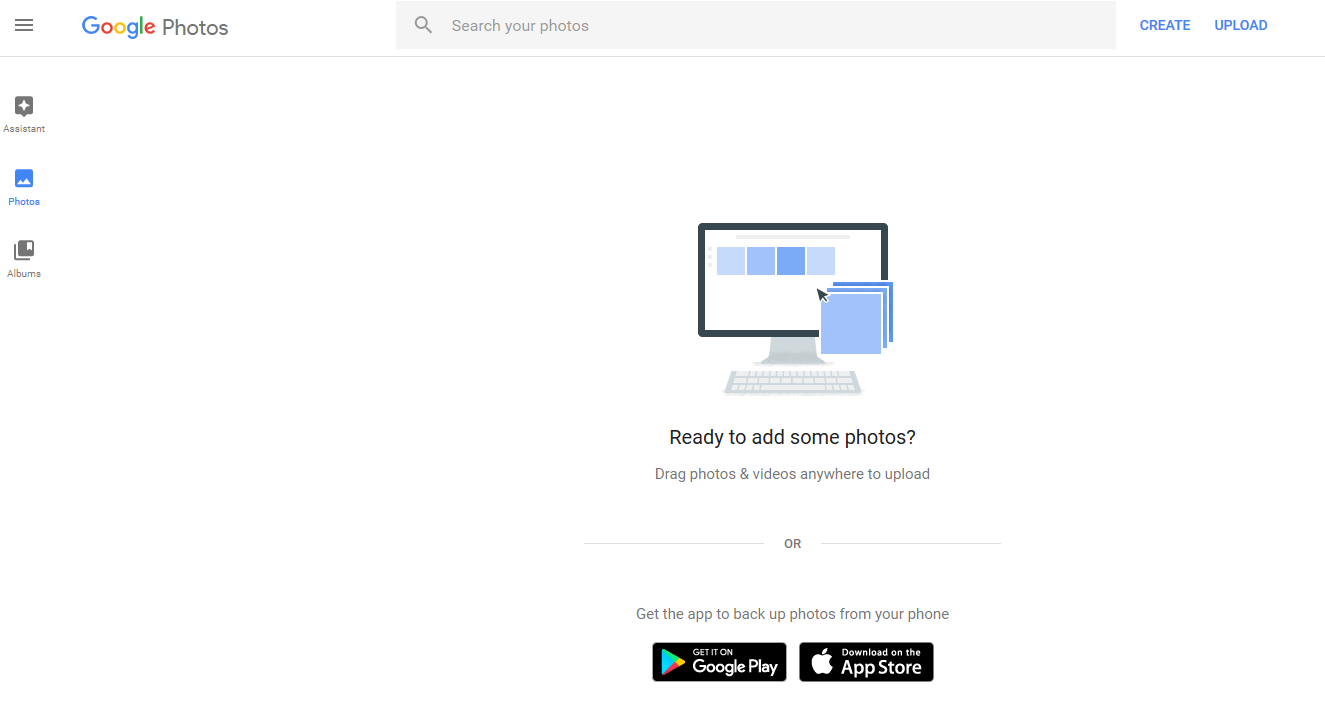
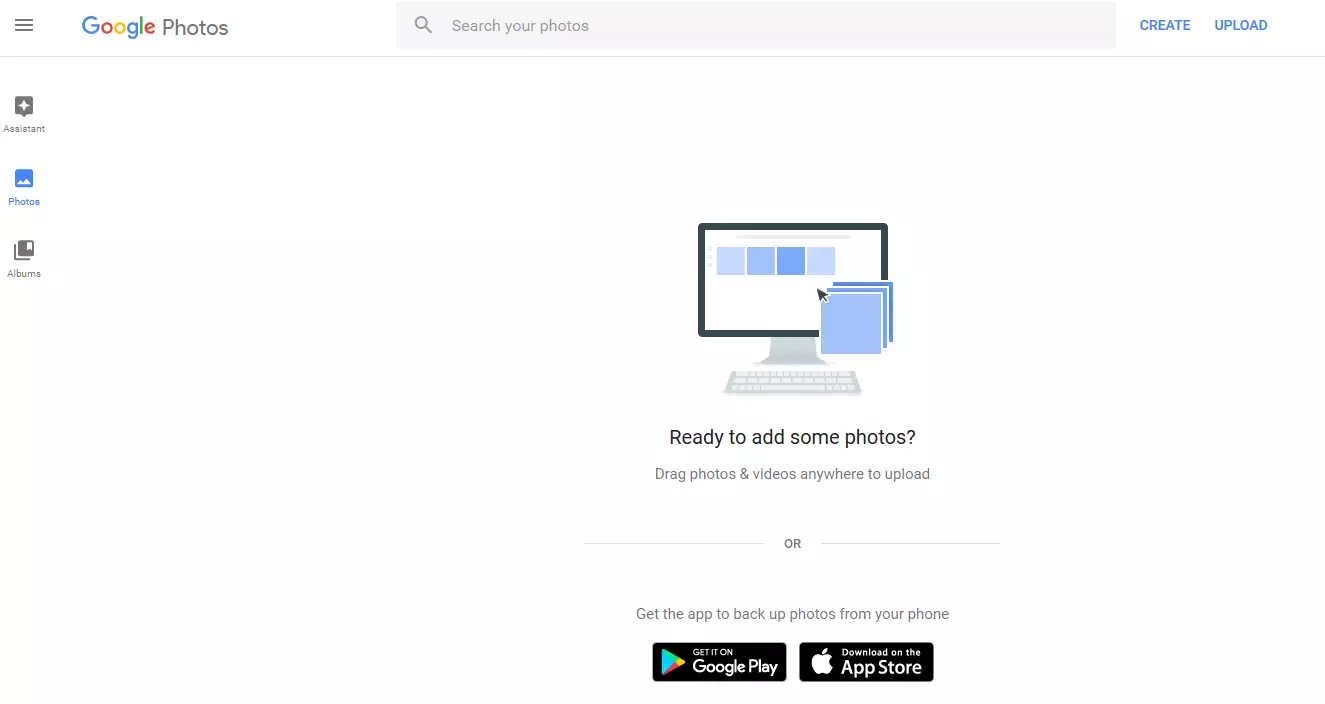
Google didn’t just discontinue Picasa without having a successor ready and waiting: the digital photo library, Google Photos is available as a desktop version as well as an Android and iOS app. It is an online service that stores photos in a cloud and automatically organizes them into albums. The photo service comes from the photo features in Google+, where a free, unlimited storage quota is available, but the uploaded files are compressed. In addition, you can search for your images in Google Photos using keywords. The service automatically assigns them by machine learning. In addition, photos can also be filtered automatically according to specific people, although this depends on Google’s data protection. Positive
- Unlimited storage space
- The option of quickly and easily sorting many images at once
- Practical search for automatically assigned keywords
Negative
- Must pay to upload uncompressed files with large amounts of data (via Google Drive)
- Data protection concerns
Flickr
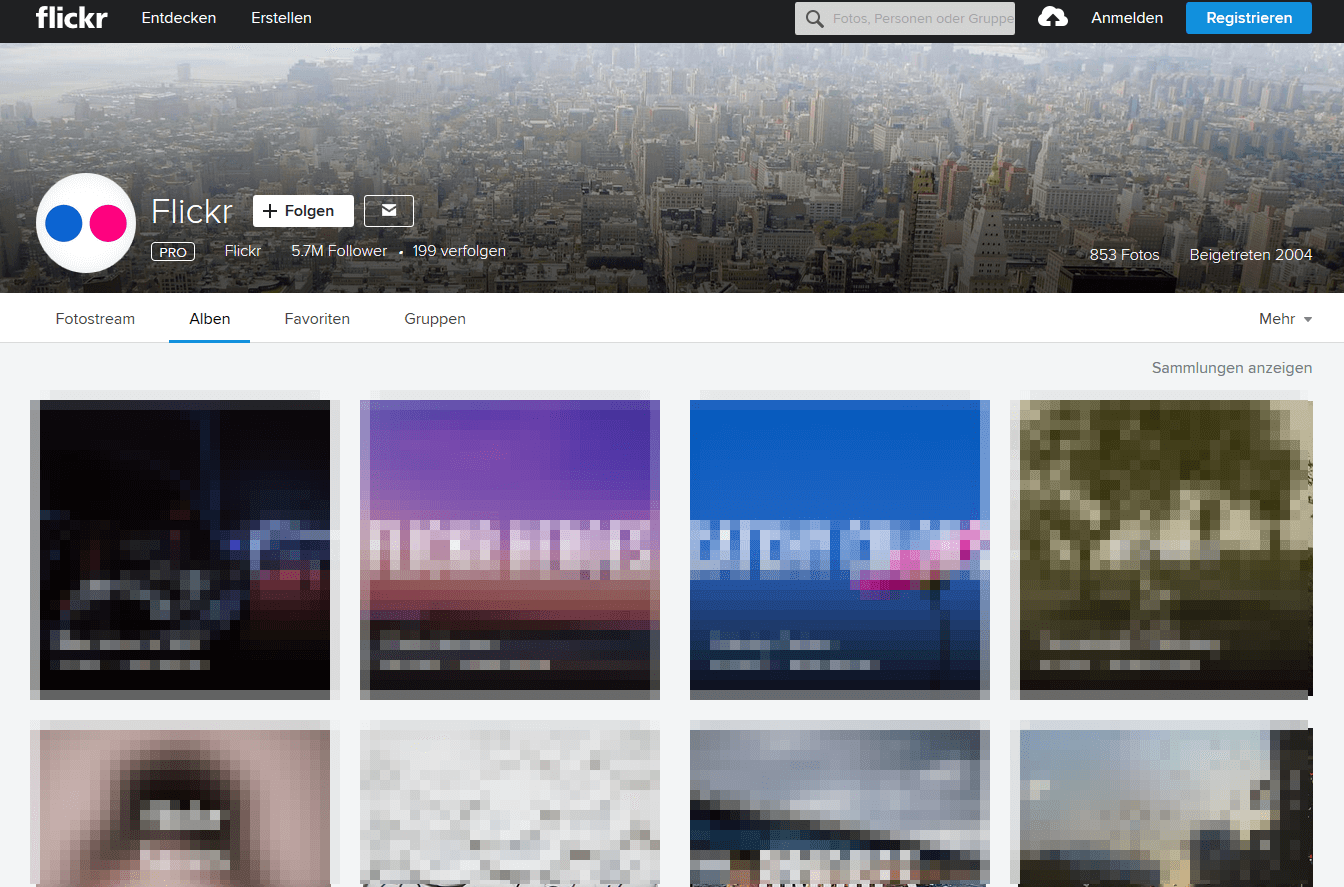
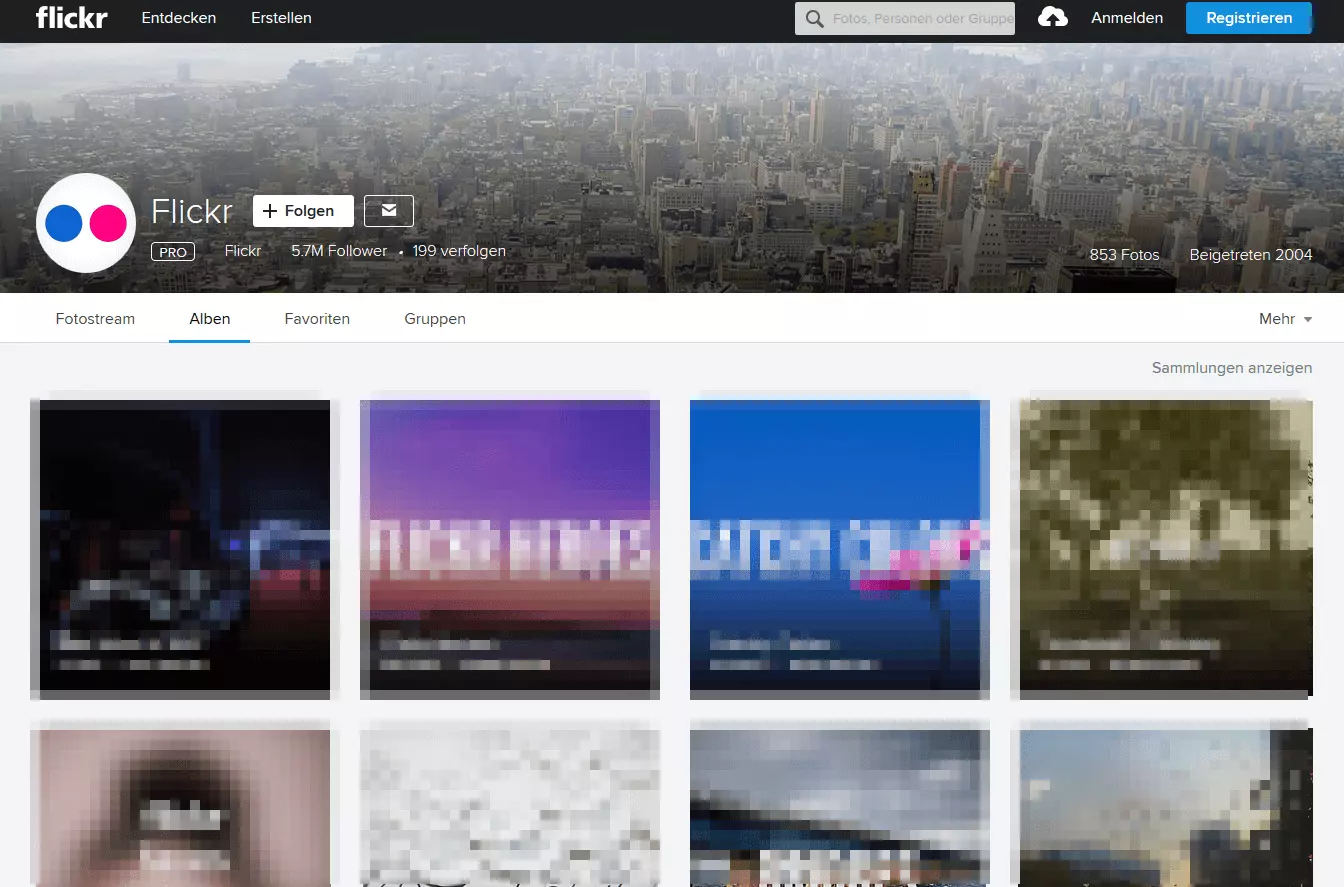
Flickr has become the go-to provider for online photo storage management. The new layout of Flickr is impressive with its numerous helpful features. These features work especially well with social media: you can highlight your friends in photos and sort the files into groups. If you make the albums public, other users can comment on photos that they’re featured in. Geotagging and social sharing are also available. If you are concerned about online storage for your photos, Flickr’s solution is its so-called ‘sets’. These photo albums can again be organized into collections. The statistics option enables you to easily access all the information for your images. You can also edit images in Flickr using some simple features, such as removing red eye. If you like to print your photos out, Flickr also has suitable print options available. 'Camera roll,' 'magic view' and 'uploadr' are three new Flickr tools that aim to make photo organization even easier. Camera roll is a chronological feed of your photos, which is similar to the 'Photos' app in iOS. Thanks to the time system, you can easily find your recorded photos by scrolling through the days and months. The new Magic View feature, however, categorizes your images by theme. This makes it possible to sort the desired photos by keywords or subjects, such as landscapes, portraits, animals, food, or other topics. Uploadr is one of Flickr’s desktop tools and is available for Mac and Windows. You can upload your photos from any folder on your hard drive. A big advantage of Flickr is its generously sized storage space. You receive 1TB free, which is sufficient for approximately 500,000 photos. Each photo that you upload can take up to 200MB of disk space and videos as much as 1GB (or 3 minutes long). The provider allows you to upload and download your images in full resolution. In addition, Flickr offers two fee-based options. The first version (around $50 per year) gives you full access to all features and doesn’t display any advertisements to you. The second version is a lot pricier at around $50 per year but offers you 2TB of photo and video storage space. However, this option should only be of interest to professional photographers who need extra space for their files. For average users, 1TB should be more than enough. Positive
- 1 TB storage space
- Easy-to-coordinate data protection settings
- Well-coordinated file management tools
Negative
- The new design isn’t very clear and has some old features that don’t really work out
- Uploading photos and organizing albums can sometimes be time-consuming and frustrating since there are many different menus and tools
- No support for RAW files or animated GIFs
Best suited to: flexible users who want to organize their photos and share them with a community of other photographers.
Apple iCloud Photo Library
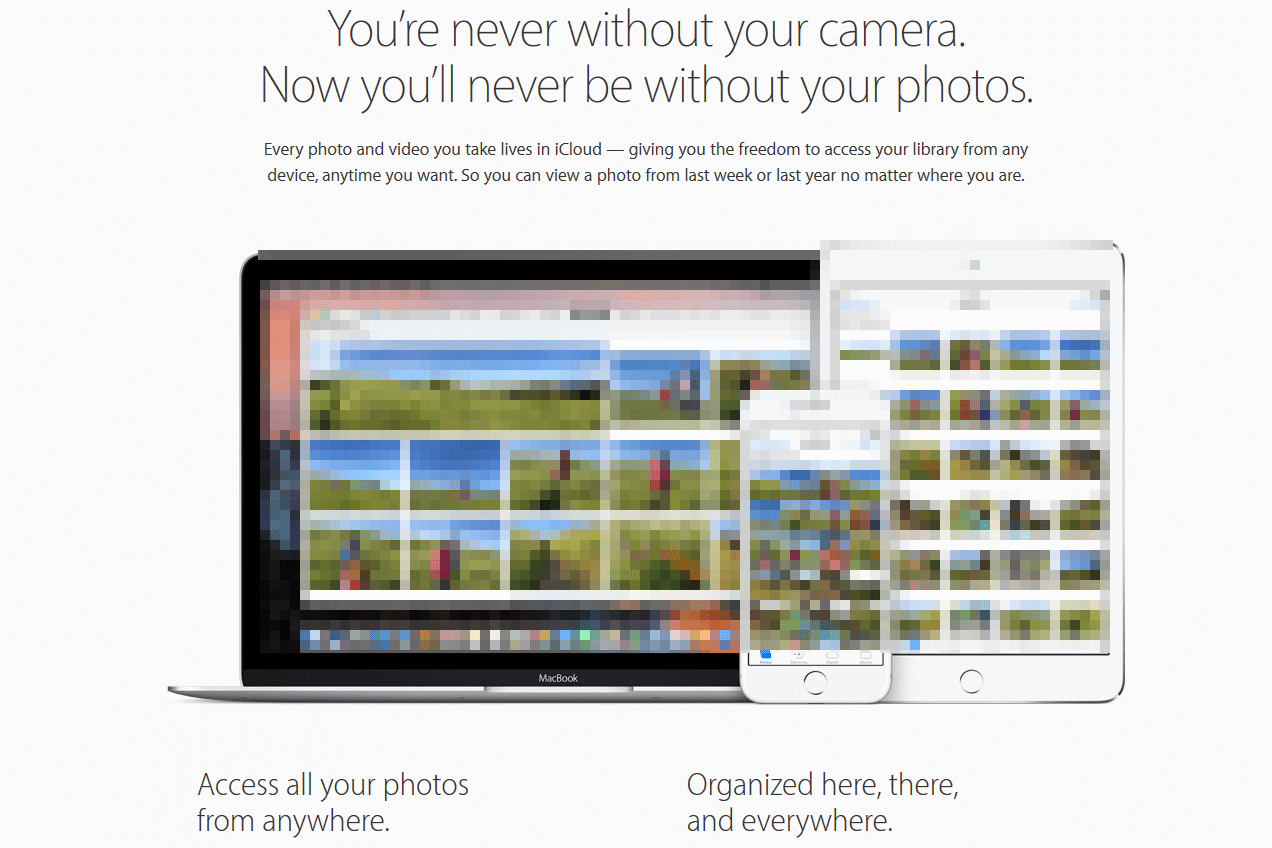
For Mac and iPhone users, Apple’s cloud-based photo option is a solid choice. The iCloud Photo Library, which is part of the iCloud storage service, supports almost every photo format. The photo management software is available for Mac and iOS. The iCloud Photo Library boasts good usability. The app can be used on your smartphone so you can see all photos that were either taken on your phone or uploaded from a camera. Using a desktop computer, you can also manage your photos directly in the browser on iCloud.com or with the Windows iCloud app. For Android owners, iCloud less appealing as there is no way to backup your photos on Android. The most important features of the iCloud Photo Library are organization and sharing. The app sorts all photos and videos on your iOS device by date, time, and location. The user interface is intuitive and well laid out. You can isolate time periods by zooming in. To group your photos or videos by location, simply tap a location on the map and you’ll see all the photos or videos you took there. The program relieves some of the workload by sorting your photos depending on the type (panorama shot, snap shot, etc.). You can also create your own albums and add as many photos to them as you like. A special feature of the iCloud Photo Library is shared albums, where several people can store their photos. This feature is ideal for holidays or events when you want to collect and share photos of your friends or acquaintances. Using editing tools, you can make minor changes to your photos via iOS or Mac. You can also use the Mac Photos app to create photo projects to print out, such as photo albums or calendars to use as gifts. iCloud offers only 5GB of free storage space, which is usually not enough for professional photographers. You can get more capacity with options based on a monthly fee. The fee-based version of iCloud is available for around one dollar per month, which will give you 50GB to use. Positive
- Attractive, intuitive design
- The tool automatically orders photos according to time, date, and/or location
- Thanks to the sharing features, it is possible to work with friends and family on albums that are visible to all participants
Negative
- Only 5GB of free storage space
- Android users can’t use the iCloud Photo Library to back up photo files from their phone or tablet to another device
Best suited to: Apple users with iPhones, iPads, or Macs. The iCloud Photo Library was developed for these devices and is therefore easy to set up.
Ashampoo Photo Commander
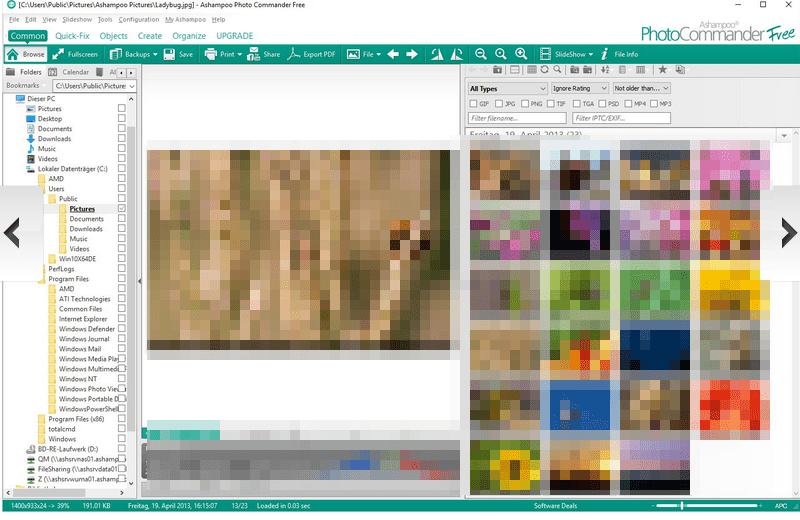
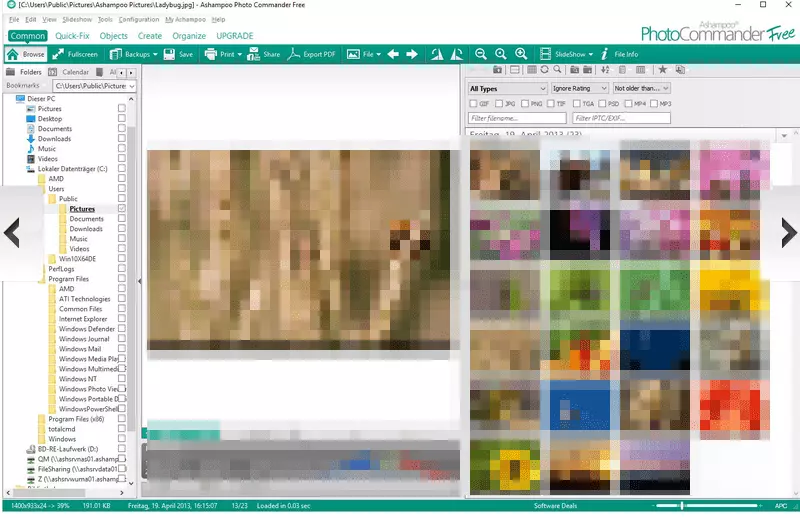
This tool from Ashampoo is a comprehensive solution for organizing, editing, browsing, and sharing digital images. A powerful thumbnail browser acts as the primary user interface. It supports a rich selection of formats, including the most common RAW variants, PSD, MPO/JPS 3D images and also WEBP. Every image is displayed with its most important details: resolution, aspect ratio, color, depth, dpi, EXIF tags, and DMP tags. It is possible to filter photos by age, format, name, or tag. You can rate them with one click and then organize them into albums. Photo Commander contains several automated optimization tools. In just a few clicks, you can improve and repair the contrast and color of your shots or remove background noise, among other things. The tool can’t quite keep up with professional image processing tools such as Photoshop but for everyday image processing, the range of tools is more than sufficient. The program even provides some tools for manually editing photos. Crop and scale are standard functions but in addition, you can straighten asymmetrical horizons, remove red-eye, repair scratches, and apply different effects. All work steps can be executed either for an entire image or with a pen for precise editing. Thanks to the convenient dual-view option, you can see the before and after versions. A vector editor helps you when adding visual elements such as arrows, lines, silhouettes, color gradients, text, clipart, and more to your images. For particularly creative users, the program also has a few tricks up its sleeve. Photo Commander makes it easy for you to share your pictures as collages, calendars, greeting cards, or HTML albums. It is also possible to burn your favorite images to a CD or DVD as a slideshow. There are some useful extras besides these features. For example, Photo Commander automatically detects duplicate files. First, use the screenshot function to capture everything that is on your screen. The panorama creator merges several photos into one large image. Thanks to the wallpaper and slideshow assistant, it’s possible to easily conjure up impressive presentations. There are some batch processing features that enable you to rotate, scale, watermark, and adjust multiple images at once. Furthermore, the tool is being constantly improved by the developers, meaning that its functions are continually expanding. Managing photos is simple and efficient with Photo Commander. The program identifies known devices, remembers previously imported photos, can copy or move files to the Cloud (OneDrive, Dropbox, Google Drive) or send files directly via e-mail — without needing a separate e-mail program. The Ashampoo Photo Commander is a comprehensive photo management tool that can be a bit overwhelming for beginners due to the many features. If you need to use numerous features in your daily work, this option is definitely worth considering. Positive
- Universal solution for image management and image processing
- The many editing functions can replace other programs
- Supports many file formats
Negative
- Too many functions and options for beginners
Best suited to: photographers who just want to use one tool for all their tasks.
Amazon Prime Photos
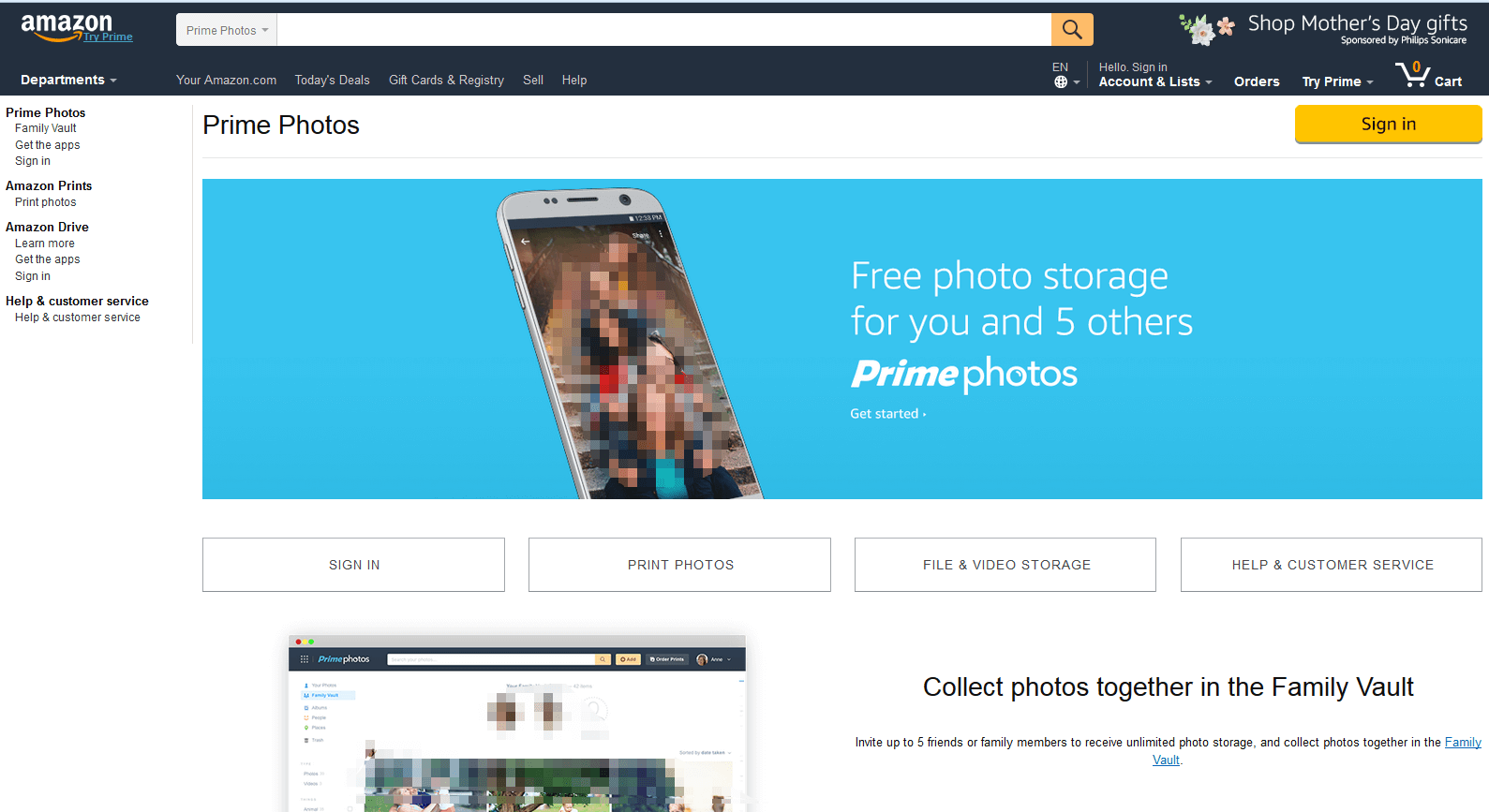
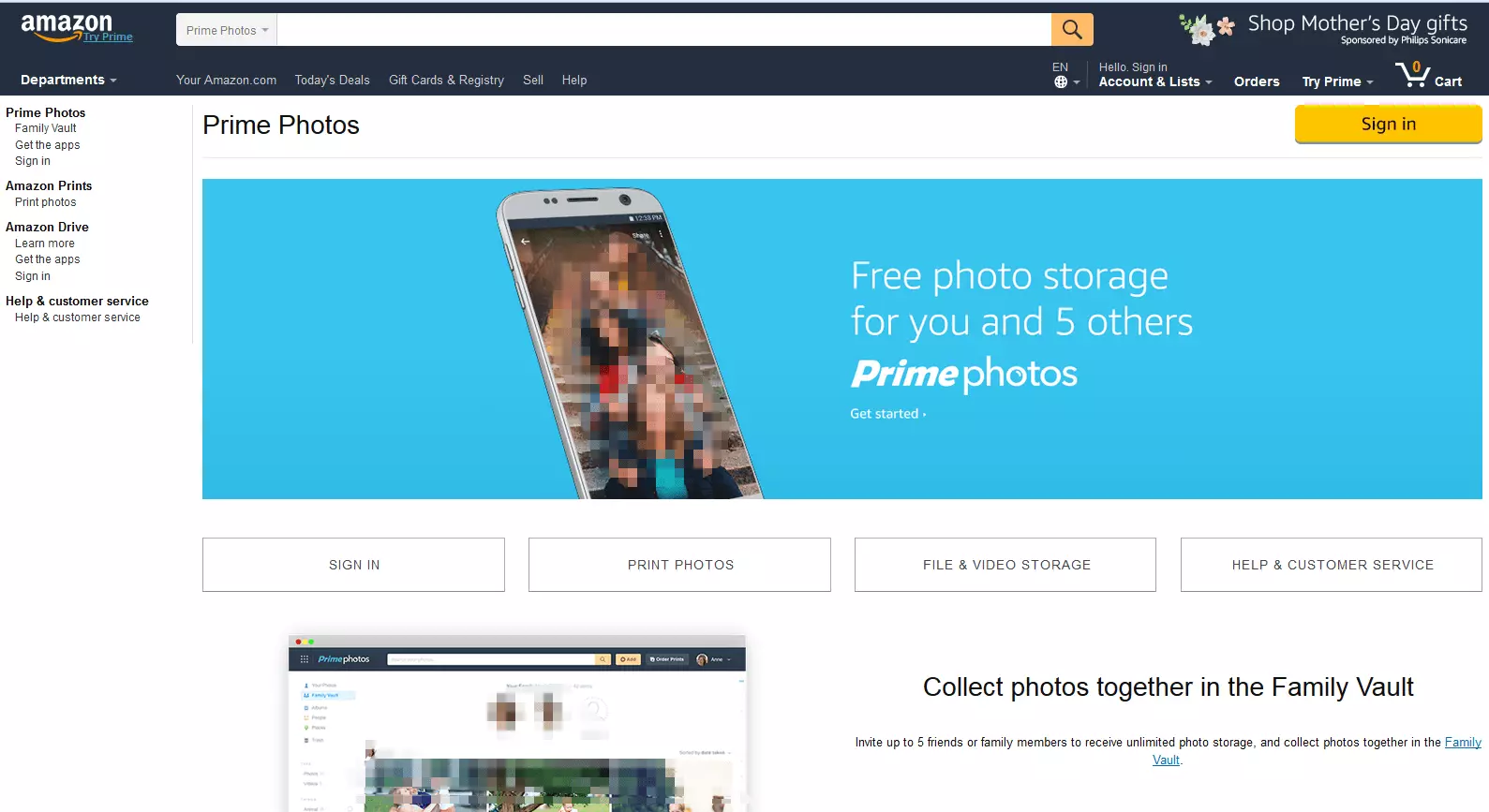
When you complete an Amazon Prime subscription, you will also have access to the Prime Photos photo service. The service offers unlimited photo storage and up to 5 GB of video or other files. The entire service is part of the Amazon Cloud Storage service, Cloud Drive. When you upload your photos, you can organize them into albums. Prime Photos arranges your images chronologically by default. You can download your pictures at any time, send them by e-mail or share them on Facebook. The tool is limited to essential functions, making it easier to use compared to other photo services. Instead of offering lots of extra options, Amazon has a different strategy: you have the ability to connect your library to third-party apps of your choice e.g. to edit photos, order photo prints, or design gifts with your own designs. The tool is available for PC as well as an app for iOS, Android, and Kindle Fire. Upload your photos directly from your desktop or mobile device to the cloud. Alternatively, you can upload using the Amazon website. The mobile apps have a back-up feature that automatically uploads all new photos. This photo service is particularly worthwhile if you are already a member of Amazon Prime or are at least interested in using the service. Without a Prime subscription, membership with unlimited photo storage costs around $12 a year. There is also a free three-month trial version. Positive
- Easy-to-use, streamlined option for organizing your photos
- The uploaded images can be viewed from any internet-enabled device
- The photo service is included in the Prime subscription and offers free and unlimited storage space for photos
Negative
- The organizational tools are limited, no search function
Best suited to: hobby photographers who prefer simple storage options and few tools
StudioLine Photo 4
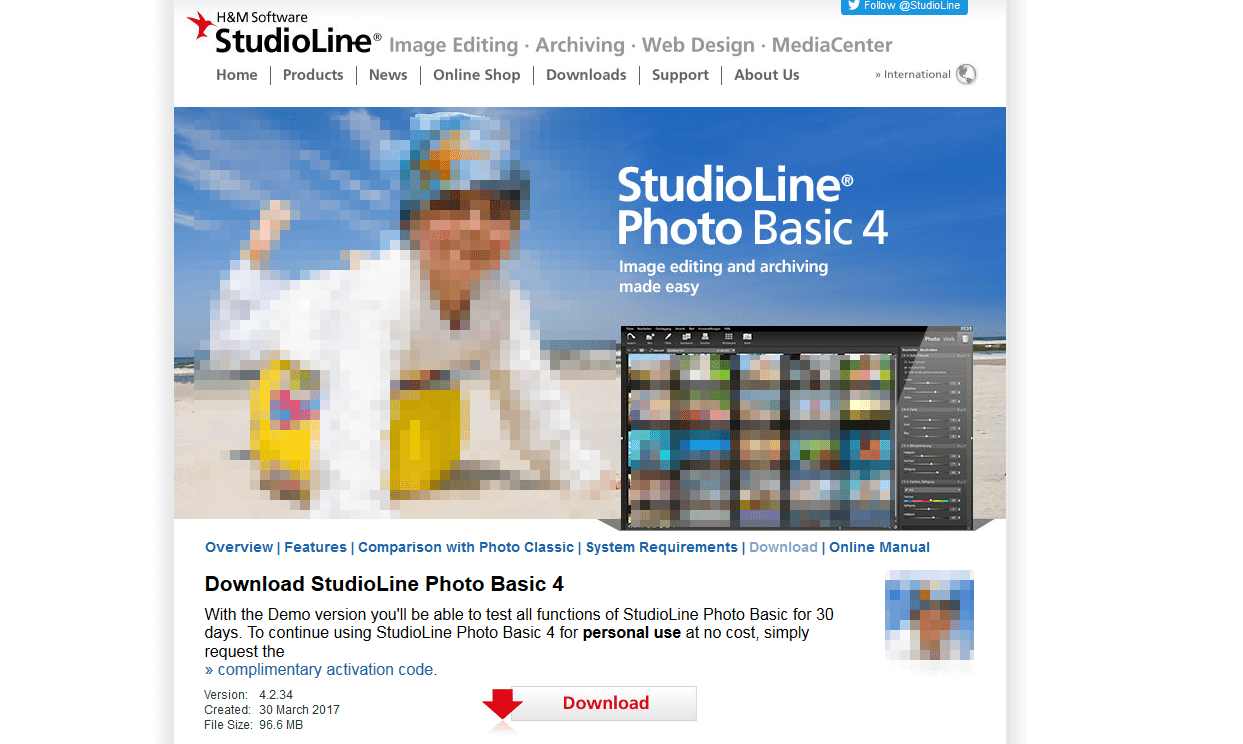
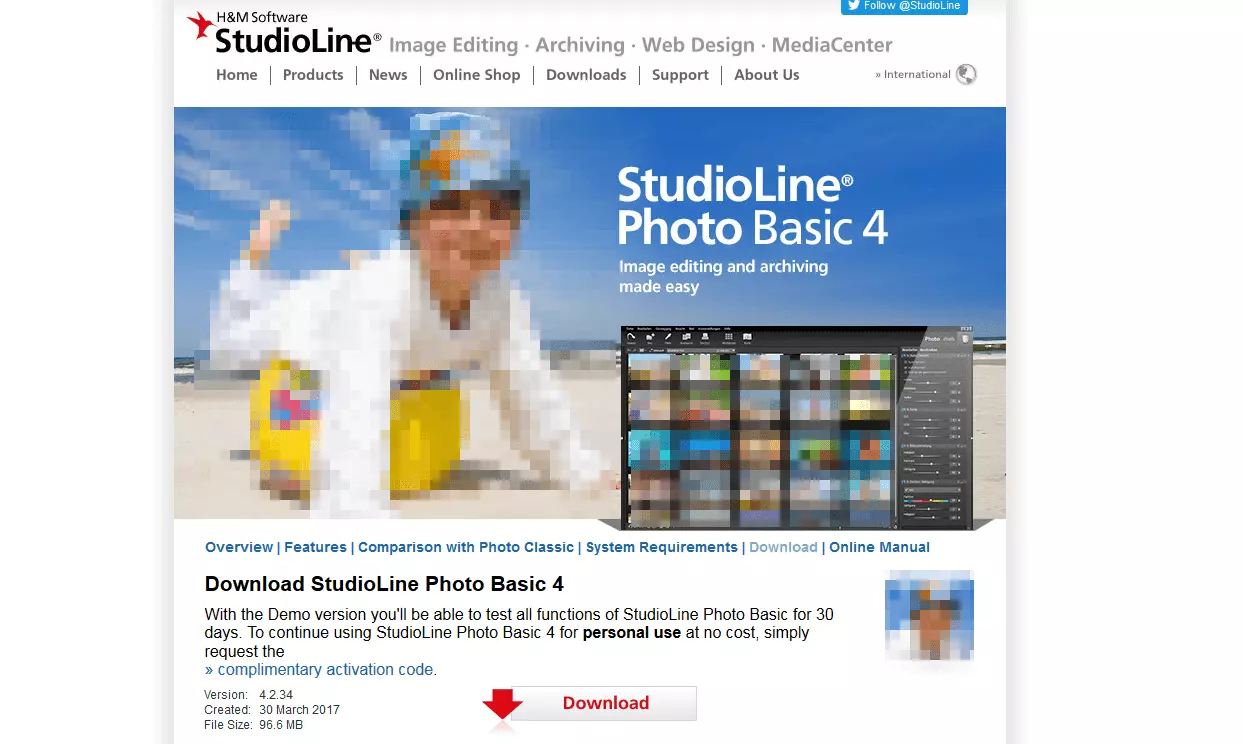
This photo management software allows you to arrange your photo collection exactly as you want it. In StudioLine Photo 4, you can create and maintain a photo database according to your preferences and sort your images by design, keyword, geotags, or in custom folders. With the manual tagging function, you can assign images to the exact location where they were created. However, there is no password protection and no facial recognition function. With StudioLine Photo 4, in addition to managing your photos, you can also edit them very easily. Before and after views are available, meaning you can just switch between the views to review individual changes and compare the end result. Colored markings help you to keep track of the different steps in the editing process. The image editor is designed for simple editing. There aren’t many complex functions for professional photographers but this is exactly what makes it easy to use for beginners. For example, you can change the color of your images, trim them, and align them. Many of these editing tools are easy to access in the toolbar. Your favorite functions can also be stored there. With StudioLine Photo 4, you can share your images via e-mail and Flickr. However, the program can’t be directly linked to other social sites, such as Facebook. If you want to share your photos in physical form, you have some interesting options to choose from. For example, you can create calendars, maps, and photo albums in just a few clicks. If you prefer to store your photos on a CD or DVD, the tool includes a convenient cover design feature. It is also possible to adjust text, font, and images, and make use of the spellcheck function! The trial version of the program is available free of charge for 30 days. The basic version costs just under 100 dollars and the Pro version is 450 dollars. Positive
- The tool is a good all-round program with many options for managing and editing your photos
- Good orientation due to tagging functions, color markings, and star ratings
- The user interface is flexible and customizable
Negative
- No native possibilities for directly sharing images on social networks
- The program needs to be paid for after the trial period is over
Best suited to: ambitious amateur photographers who are looking for an all-round program for photo management without social features
Photobucket
The fact that almost 10 billion photos are hosted speaks volumes: Photobucket is one of the most popular hosts for placing photos online. The platform offers unlimited free photo and video storage (with file size limits) as well as album organization, Facebook integration, and other mobile apps. Photobucket was designed as a social platform and offers many ways to share photos directly with selected friends and/or with other social networks. The service automatically generates URLs for your photos so you can easily embed them into posts or other sites e.g. on your blog or in a forum. With the integrated editing tools, you can easily make minor retouches to your photos, trim them, and adjust the color or brightness. In addition, you can embellish images with various filters, decorative frames, and stickers. Photobucket enables you to create photo albums and calendars, display your photos on a cell phone or tablet covers, and even print them on canvases and other materials. This service allows you to connect images online up to 10GB for free. You receive 8GB of free memory storage when you use the apps for iOS or Android. The ad-free variant costs 99 cents a month. A 500GB memory limit is available for $40 dollars a month or $400 per year. Positive
- Photobucket’s social focus makes it easy for you to share photos across social networks
- Options for photo processing and mobile apps enable constant access to your photos
- Easy to manage images across different devices
Negative
- For some users, the many social components may be unnecessary or distracting
- The focus of Photobucket’s community is on entertaining images and GIFs, which sometimes doesn’t correspond to needs of an ambitious photographer.
Best suited to: users who want to share photos and videos on social networks and blogs
Adobe Lightroom 6
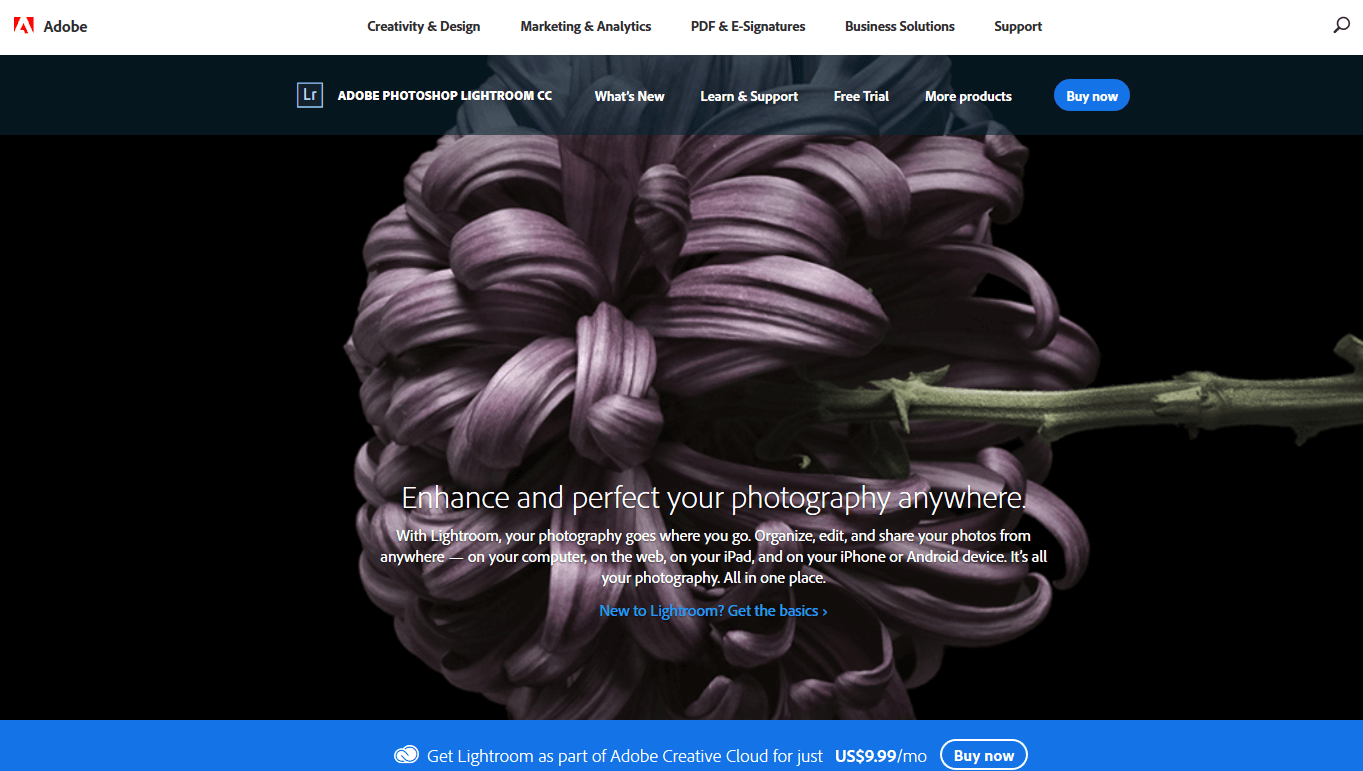
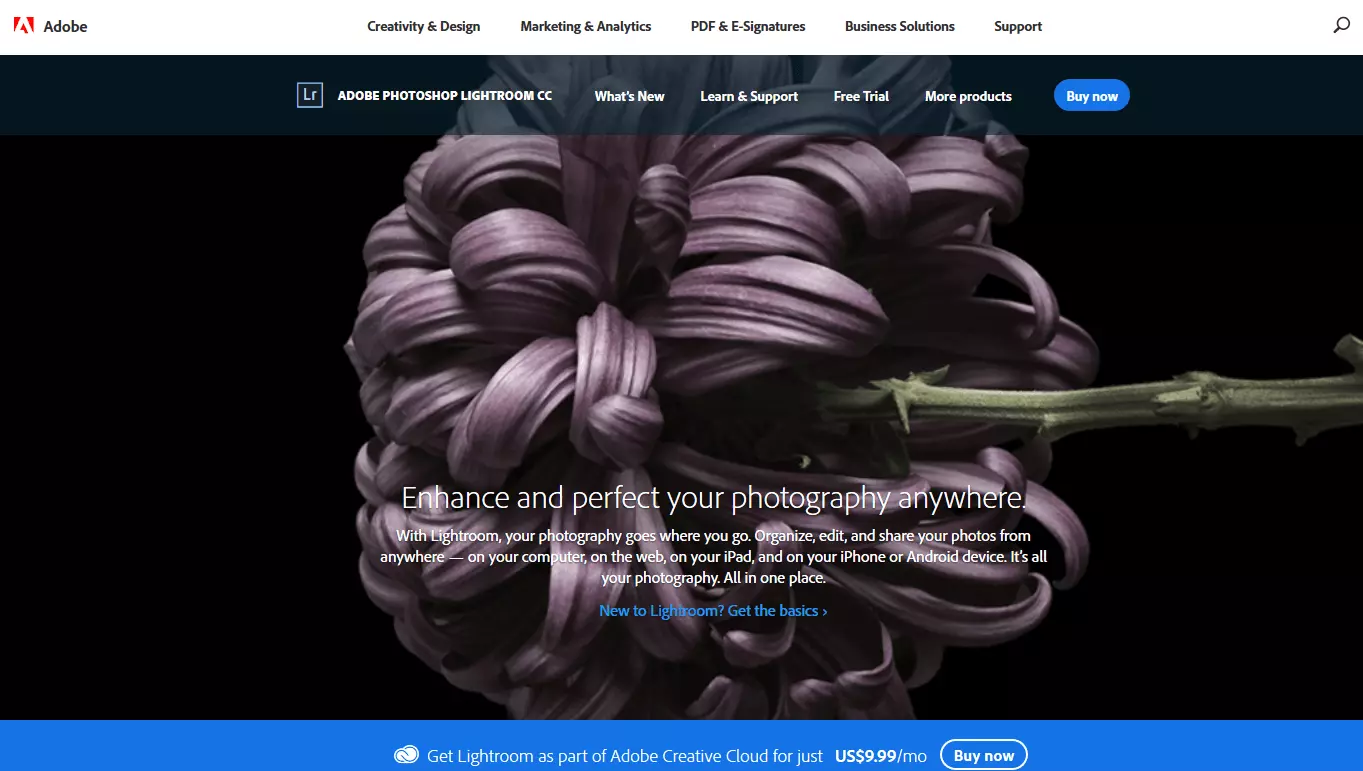
Adobe is the industry leader in graphic design, photo processing, and photo management software. The company is well-known for its high-quality, professional software. Lightroom definitely meets this expectation with its wide selection of editing tools and sharing functions. Lightroom offers various possibilities for organizing your photo albums. For example, the program automatically creates categories based on your images’ metadata. Lightroom is also able to automatically locate your photos on a map. Geo-tagging is good for slideshows and documenting your travels. It’s also possible to manually select locations on the map depending on where the photos were taken. There are all the usual settings and options so you can easily organize your images. For example, you can highlight your favorite photos or the images that you want to edit, and add labels or text to your photos. There are many practical hints and project briefings to help you out. Lightroom gives you the possibility of sharing your photos online or printing them directly from the application. Send your pictures via e-mail or post them via Facebook or Flickr. Other uses for the software include slideshows, prints, calendars, and photo books. You can create slideshows according to your wishes by compiling the content, the speed that the image sequence should move, and the music to go with it. Lightroom already has some templates for photo albums with popular themes, including weddings, travel, and professional portfolios. Use these ready-made layouts and simply add your own footage, or create your photo album from scratch. The program offers creative filters that you apply to your images to change their texture and shade. Use pre-made filters or save your favorite settings to create an individual look. Adobe provides both an iOS and an Android app that link to the Lightroom software. However, you must pay for the Adobe Creative Cloud in order to use the apps. Lightroom supports non-destructive editing. In other words, the software preserves the original version of your photo so you can make changes without them affecting the original. If you make changes that you want to later delete, Lightroom automatically saves the changes. This means it’s very easy to reconstruct the original version of your images. The program is available from $10 per month. Positive
- Reliable software from the market leader in photo processing
- Extensive features
- For users of Adobe products such as Photoshop, Lightroom is an ideal supplement
Negative
- Monthly costs may be a deterrent for hobby photographers
Best suited to: professional photographers who are familiar with Adobe products and use them in their daily life.
SmugMug
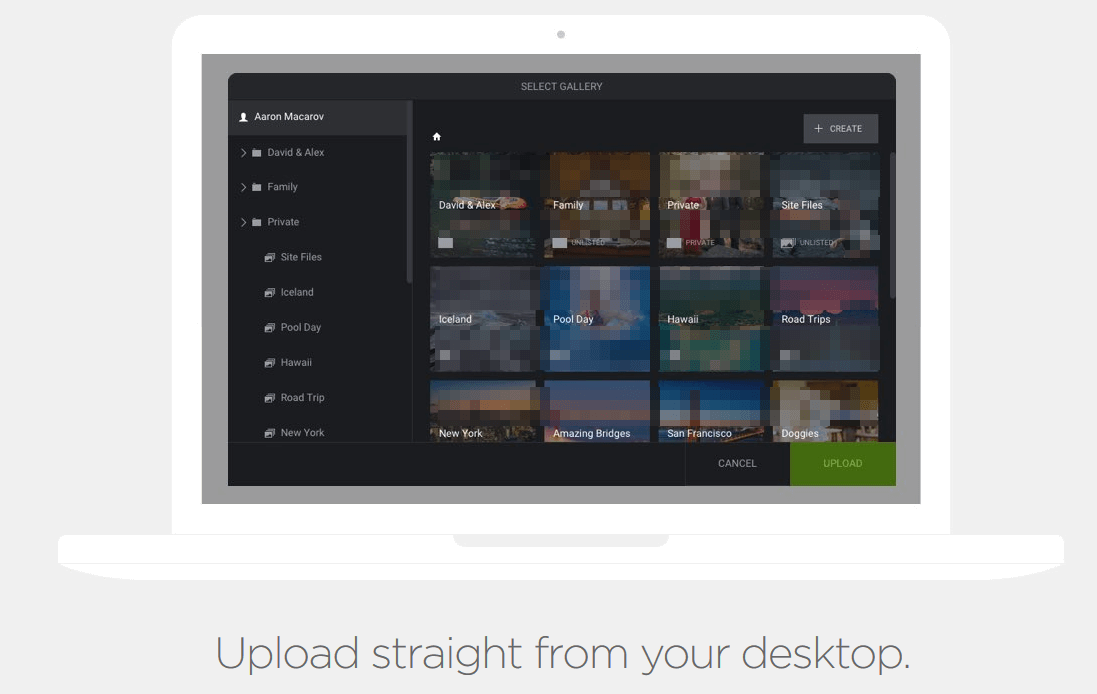
SmugMug is an online photo sharing service that allows you to create an online presence with your images. You can also create albums and share them via e-mail or social media. SmugMug also offers photo editing, printing, and even a sales service for your photos. There are four types of accounts available. The payment models vary according to the user’s requirements. Each version of SmugMug, however, offers unlimited storage space, editing tools, and SEO support. The two most expensive options include additional marketing and eCommerce features to bring more visitors to your site. Regardless of which subscription you choose, the Photo Storage service provides its members with unlimited storage for photos and videos. You can upload pictures of up to 50MB and videos up to 3GB. SmugMug can help to increase the visibility of your work as a photographer. The program uses SEO measures that help your website to be evaluated better by search engines. For example, it has settings for meta descriptions, photo titles, galleries, and file name keywords. Once you get more traffic on your site, it is wise to protect your pictures with copyright. When it comes to copyright, the tool has a few effective options to choose from: protection for user photos, including right click protection, as well as custom watermarks for your photos. The photo sharing service makes it easy for you to share your photos on different channels. Each subscription allows you to post your recordings via social networks including Facebook, Twitter, and Google+. You can share your photos by e-mail. You can also share your albums with other users by inviting friends and family members, who are then also able to upload photos to your albums or collections. The support options from SmugMug are detailed and helpful. Beginners can quickly orientate themselves thanks to a FAQ page and video tutorials. There are also support articles that cover a wide range of topics. If you have further questions, you can use an e-mail form to contact support. Due to the unlimited memory space, SmugMug is great for storing photos online. Professional DSLR users will be especially pleased with the capacity for high-resolution photos. For hobby photographers, the fee-based options may be a bit pricey. For ambitious users, the photo sharing site is certainly a good choice as it provides support in marketing, SEO, eCommerce, and brand development. SmugMug is ideal for professionals that want to sell their work and draw attention to it online. Positive
- Ideal software for marketing your photos
- Comprehensive eCommerce and SEO add-on options
- Unlimited storage space
Negative
- Possibly too complex for non-commercial use
Best suited to: professional photographers who want to market their work online.
Alternative possibilities: Cloud storage provider
All services listed above are explicitly designed for hosting photos. If you want to save your photos securely online, there are other possibilities available. There is a large selection of cloud storage sites, including Google Drive, Dropbox, and OneDrive, which you can also use as online photo storage. There’s an obvious advantage to this: they are not only limited to photo and video formats, but also store other kinds of files.
Clouds offer generous and secure storage space for around $10 per month. It is rare for the file size to be limited, which means it’s possible to upload high-resolution videos and pictures. You can easily download your files onto a variety of devices as well as use the sharing options via social media and public links. This makes it very easy to share your photos and videos with friends and family.
However, most of these services do not provide any editing or organizational features, however, some do have a few additional features. Dropbox, for example, has a stand-alone app called Carousel. This tool automatically saves photos to your account and was designed for easy photo sharing.
Apple also has its own cloud photo and file storage system. With iCloud Drive, you can back up your photos that you uploaded to the cloud using iDevices.
| Flickr | Google Photos | Apple iCloud Photo Library | Amazon Prime Photos | Photobucket | |
|---|---|---|---|---|---|
| Free version | 1 TB storage | Unlimited storage for photos and videos | 5GB storage | Unlimited storage for photos and 5GB for videos (with the Prime subscription) | 2GB and 8GB with the apps |
| Fee-based version | $5.99 per month (without ads), 2TB for $499 per year | 100GB for $1.99 per month, 1TB for $9.99 per month | from $0.99 a month for 20GB | $12 per year (without subscription) | From $2.99 per month for 20GB |
| Supported file types | JPEG, GIF, and PNG | JPEG, TIF, TIFF, BMP, GIF, PSD (Photoshop), PNG, TGA, and some RAWs | JPEG, TIFF, PNG, and most RAWs | JPEG, BMP, PNG, TIFF, and some RAWs | GIF, JPG, JPEG, PNG |
| Maximum file size | Photos: 200MB, video: 1GB | Photos: 75MB, video: 10GB | Photos: 1,000 MB per hour, 10,000 per day, 25,000 per month | 2GB | 5MB |
| Bandwidth limitation | None | None | None | None | 10GB per month in the free versions, no limit in the full version |
| Apps | iOS, Android, Mac, and Windows | iOS, Android, Mac, and Windows | iOS, Mac, and Windows | iOS, Android, Kindle Fire, Mac, and Windows | iOS, Android, Mac, and Windows |
| Ashampoo Photo Commander | StudioLine Photo 4 | Adobe Lightroom 6 | SmugMug | |
|---|---|---|---|---|
| Free version | 1TB storage | 4GB storage | 2GB storage | Unlimited storage for photos |
| Fee-based version | $59.99 ($17.99 for upgrade of previous version) | $100 or $450 | from $12 per month for 20GB | From $3 per month |
| Supported file types | RAW variants, PSD, MPO/JPS 3D images, WEBP | JPEG, TIFF, BMP, PNG, and some RAWs | DNG, JPEG, TIFF, PNG, and most RAWs | JPEG, PNG, GIF |
| Maximum file size | Photos: 200MB, video: 1GB | Photos: 75MB, video: 10GB | 1GB | Photos: 50MB, video: 3GB |
| Bandwidth limitation | None | None | None | None |
| Apps | iOS, Mac, and Windows | iOS, Android, Mac, and Windows | iOS, Mac, Android, and Windows | iOS, Android, Mac, and Windows |