

What does “pixel” mean?

Communications would be nothing without images – almost nothing. Even before negative film and prints were replaced by electronic recording techniques in photography, various data formats for image files had been developed. Popular keywords include RAW, BMP, and TIFF. Developers quickly noticed that these formats produced considerable file sizes, which were a hindrance especially for fast web applications. This, in turn, led to the search for possibilities in image compression. The “battle” between JPG and PNG is far from over, and already new formats are popping up on the horizon – for example, WebP, Google’s in-house image format.
But there’s one thing that all these clever technical formats need to tackle: they must be displayable on an output medium, starting with a more or less large screen with a certain resolution. This is where the term “picture cell” comes into play – a made-up word that was merged into pixel and was first used as a term around 1965. In our guide, you’ll find out what makes up a pixel and what its role is in image representation.
- Store, share, and edit data easily
- Backed up and highly secure
- Sync with all devices
What is a pixel?
The pixel – or px for short – is the smallest element in a digitally-displayed image. Multiple pixels are usually aligned in a raster on a monitor or a mobile phone display. The combination of many pixels makes up a raster image.


The eye can easily “decipher” the composite raster graphic. It becomes more difficult, though, or even impossible, when the image in the white frame is enlarged. The eye can easily “decipher” the composite raster graphic. It becomes more difficult, though, or even impossible, when the image in the white frame is enlarged.


In the figure above, the raster dots were represented by the program used (Photoshop). Each pixel has a different color or hue, which, when put together, create the composite image. To reproduce such an image in HD quality, 1920 x 1080 pixels are needed, which is a total of 2,073.600 pixels. These pixels must be addressed individually, in the correct sequence and repetition rate by the technology within the monitor, for example, to make sure that the full image is visible without flickering and in the correct color.
What are pixels made up of?
In order for a pixel to represent a specific color, it is composed of subpixels in the colors red, green, and blue (RGB). These subpixels can have different shapes to create a layout with good image definition and few spaces between the pixel elements. A look at the display of an iPhone 11 Pro, for example, tells you what is technically possible. It has a display size of 2436 x 1125 pixels with a resolution of 458 ppi (pixels per inch). This results in a pixel size of 0.05 millimeters with subpixels of 0.018 millimeters (rounded values).
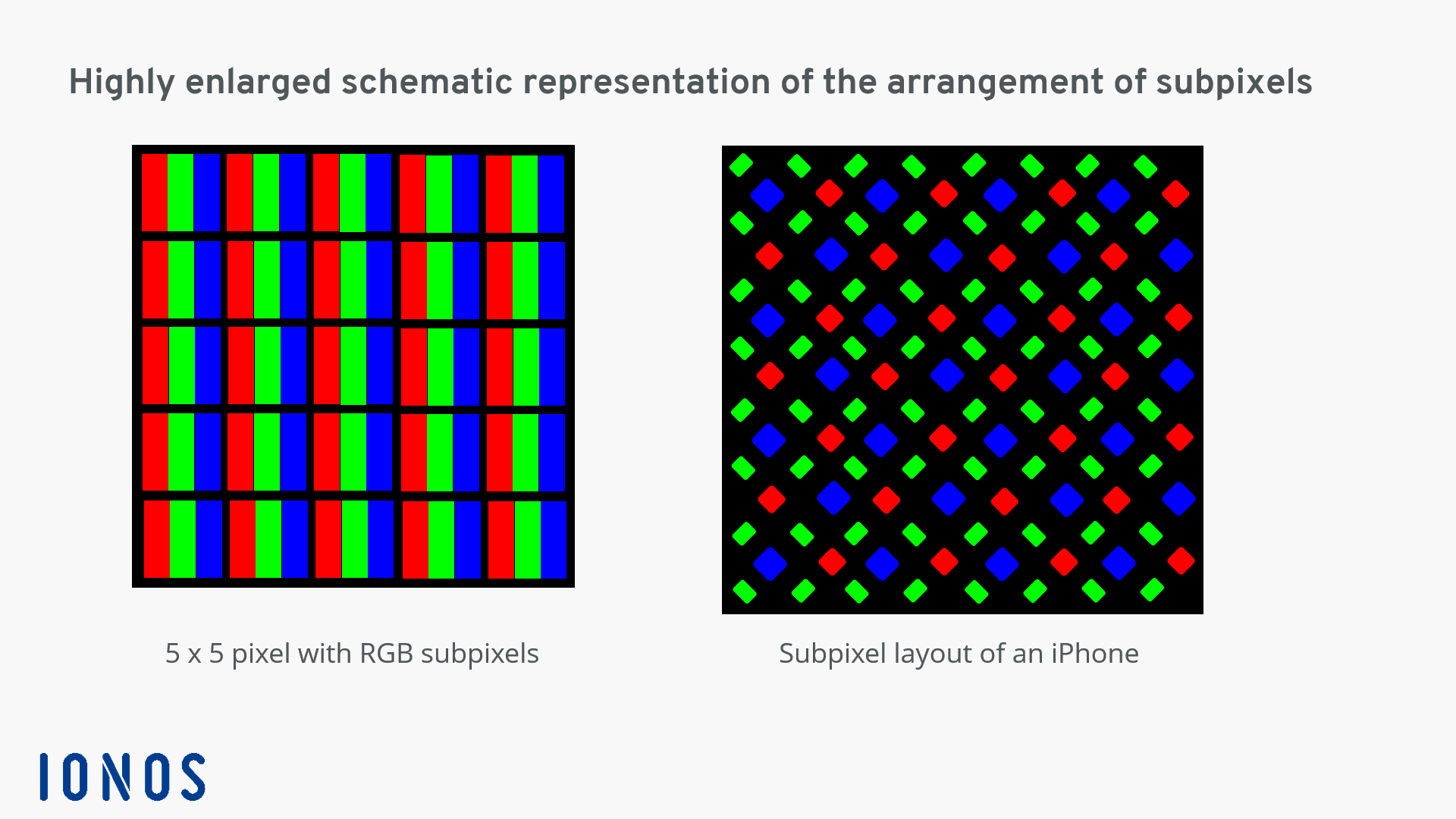
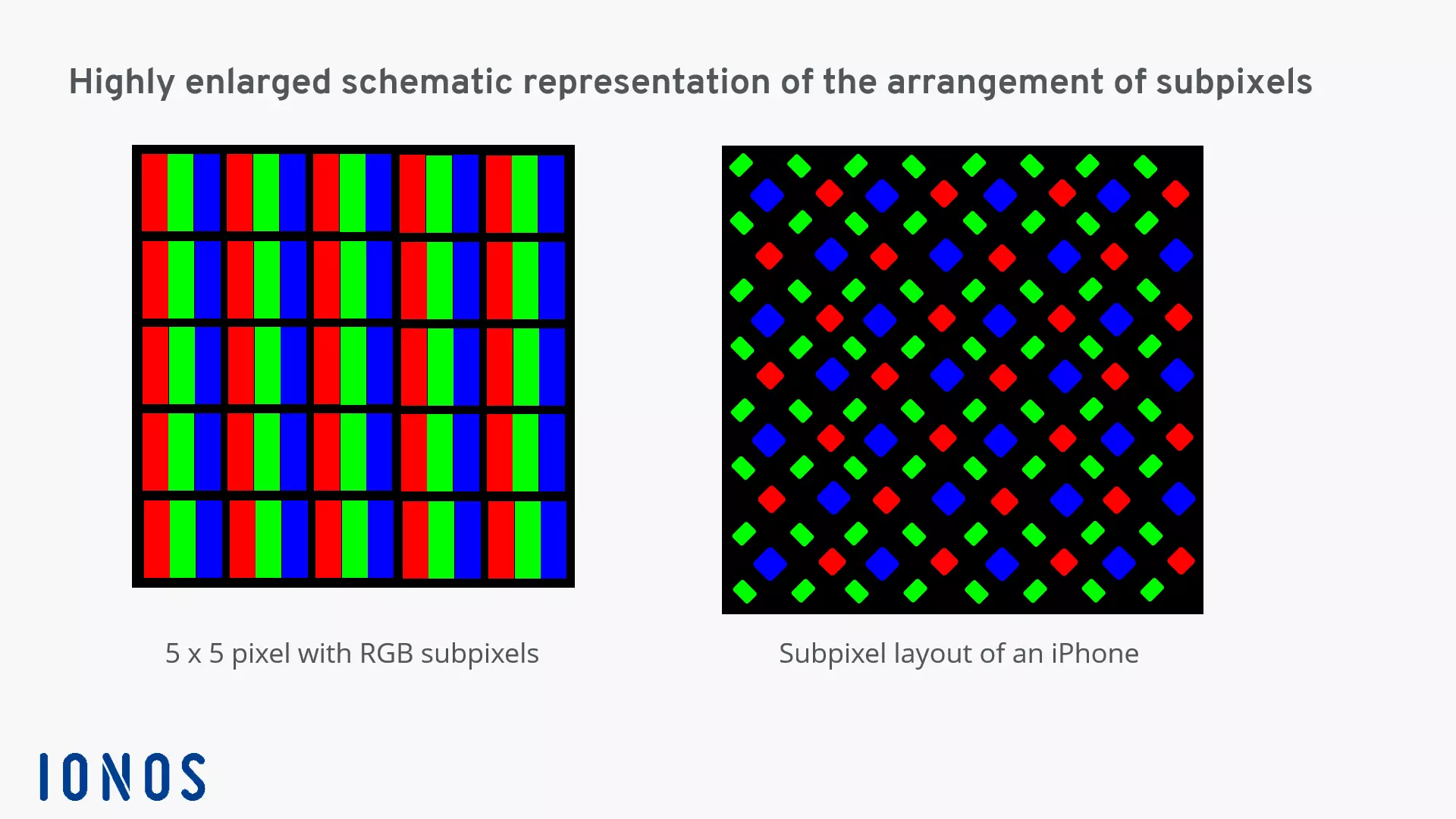
The output color of the individual pixel is a combination of the color values of three subpixels in each case. The three colors are mixed additively and can, in this way, assume different values. Additive mixing means superimposing.
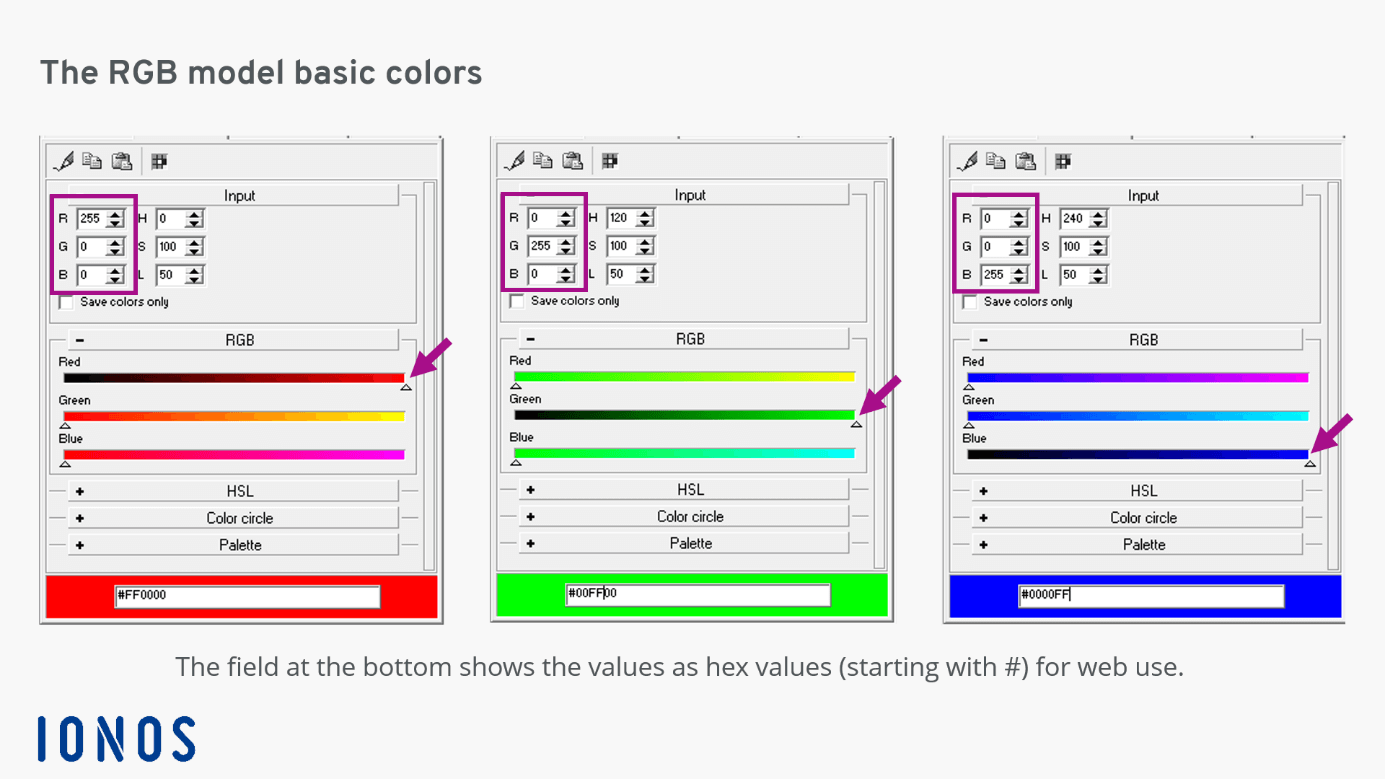
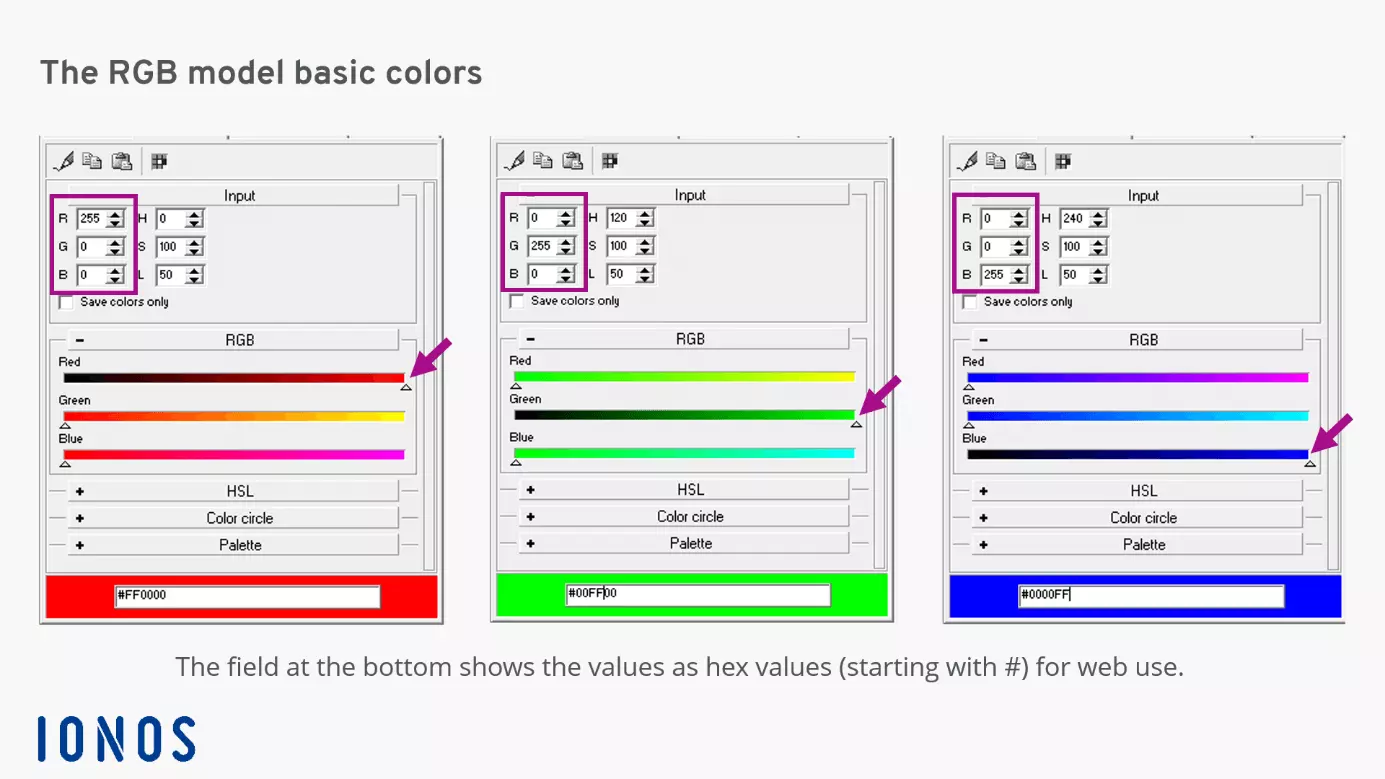
If all three primary colors have the maximum value of 255, the output is black. If RGB = 0/0/0, white appears. The values in between allow around 16.7 million shades of color (2563) to be displayed.
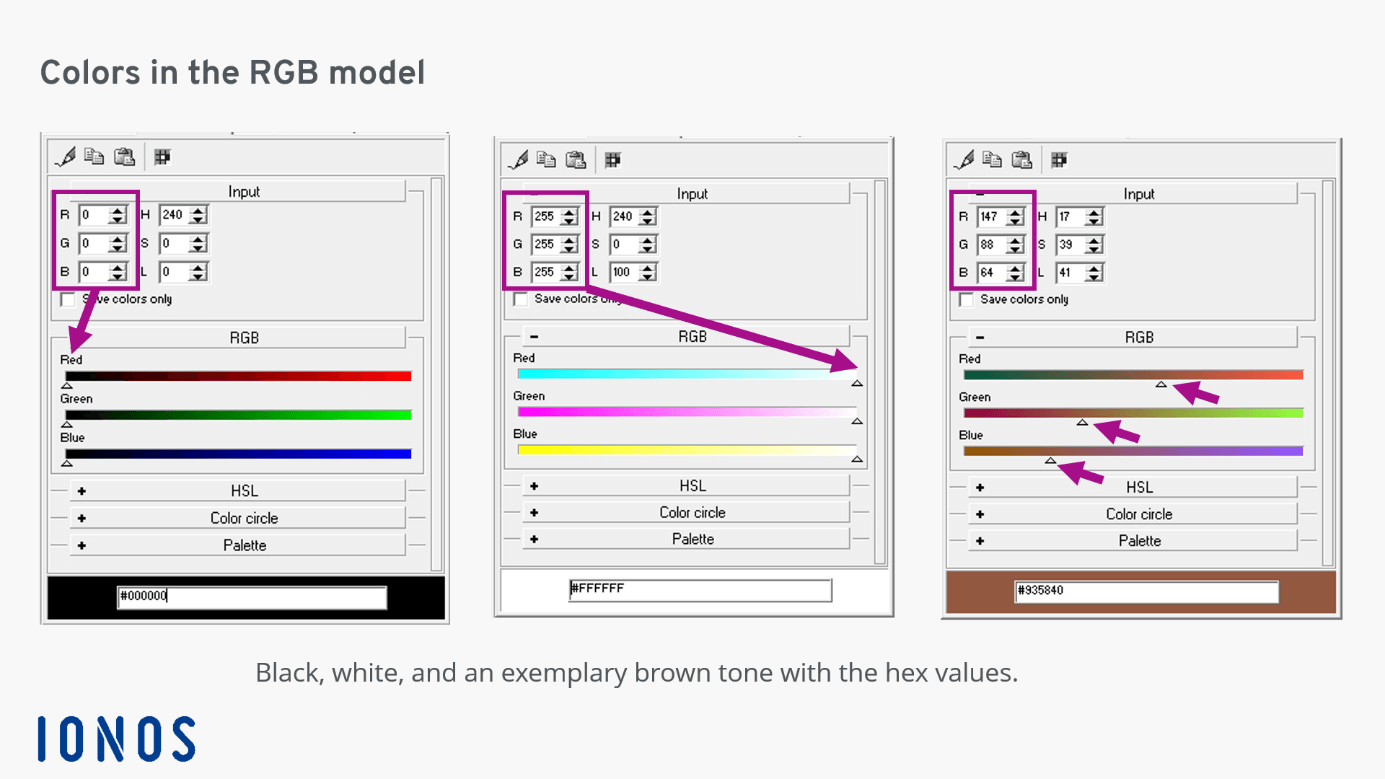
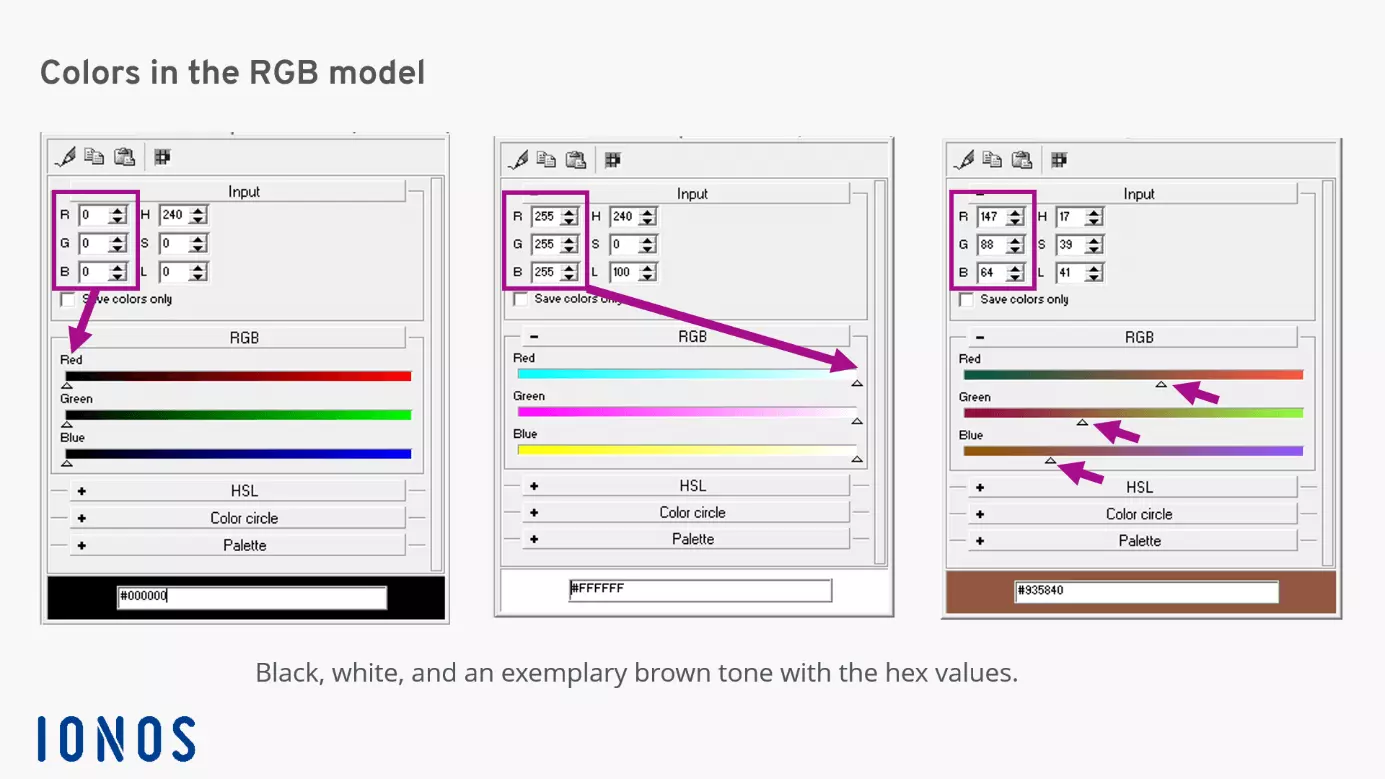
The display of the finest color nuances is made even more precise thanks to so-called “subpixel rendering”.
Pixel size and image quality
The bee image and its cropping have already illustrated how the size of pixels affects optical perception. In the early days of the PC, monitors were still devices with classic picture tubes and resolutions of 640 x 480 (VGA), then 800 x 600 (SVGA) followed. Not so long ago, the so-called “HD-ready” PC with 1280 x 720 pixels had its time. True HD offers 1920 x 1080 pixels, and the latest 8K full-format systems feature 8192 x 4320 pixels. But the competition for the number of pixels truly took off with the development of LED monitors. They enabled very high pixel densities in a very short time. This technology is now part of modern smartphone displays.
As a measure of the resolution of images for display on monitors, 72 dpi (dots per inch) has proven to be a sufficient value for the human eye. The smaller these pixels are, the more can be accommodated on a monitor surface, increasing the overall resolution of the devices. For professionally printed materials, 300 dpi is the most common value used.
Once a digital raster image has been created, for example from a digital camera, it can be enlarged significantly, but this always reduces the rendering quality. That’s why when faces become unrecognizable in photos or videos, the resulting image is often referred to as “pixelated”.
To change the resolution of a computer screen, simply right-click on the background image on a Windows PC. In the dialog menu that appears, select “Graphics options” or “Graphics properties”, which will then lead to the selectable pixel values. In MacOS, this can be accessed via the Apple menu > System Preferences > Monitors.
What are megapixels?
The word “megapixel” describes a large number of pixels, one million pixels to be exact. The term emerged when digital cameras and smartphones with cameras were first advertised. It describes the image resolution. However, high-quality cameras can still get a lot out of a subject even if the megapixels are not quite as high. With these megapixels, high-performance camera software takes care of sharpness and brightness adjustments as well as the suppression of image noise, which often plays a greater role in image presentation than a high resolution in megapixels alone.
Our Digital Guide offers a good overview of the most common image formats and takes a closer look at their advantages and disadvantages.