

How to use HTML colors for backgrounds, text and borders

HTML colors can be applied to backgrounds, text and borders in an HTML document. Selecting the right color can improve both the design and readability of a website. There are three different methods available for defining colors.
What are HTML colors?
HTML colors are used to define the color values of certain elements in an HTML document. Using simple settings in the body area via the style tag, you can customize the HTML background, borders and texts to your liking.
- Stay online with 99.99% uptime and robust security
- Add performance with a click as traffic grows
- Includes free domain, SSL, email, and 24/7 support
What methods are available to specify HTML colors?
There are three different methods for defining HTML colors. In the following sections, we’ll take a look at what distinguishes these three variants.
Color names
A total of 140 color names are supported by all modern browsers. These names are stored within the code. In addition to standard values such as “blue”, “gray” and “red”, more specific values such as “Chocolate”, “Cornsilk” and “DarkSeaGreen” are also available.
In this article by w3schools, you’ll find a list of all available HTML color names.
Hex color codes
Hex color codes are made up of a six-digit hexadecimal number preceded by a hash symbol (#). The digits range from 0 to 9, and the letters from A to F. These numbers represent the levels of red, green, and blue in pairs, with 00 being the lowest value and FF the highest.
For instance, the color blue is represented by the hex code #0000FF, while dark pink (DeepPink) has the hex value #FF1493. At the ends of the spectrum, you’ll find black (#000000) and white (#FFFFFF).
RGB values
In addition to hex color codes, RGB color values can also be used for HTML color markup. These are also defined by their proportions of red, green and blue, whereby the intensity of a component can be between 0 and 255. For example, the color blue is defined with the code rgb(0, 0, 255), cyan with rgb(0, 255, 255) and deep pink with rgb(255, 20, 147).
How to define HTML colors (including syntax and examples)
Now, let’s take a look at the syntax and functionality for defining colors in HTML with some practical examples.
Changing the background color
If you want to change the colors of your background in HTML, you need the style attribute and the CSS inline property background-color. The syntax is as follows:
<element style="background-color: color value;">In the following example, we’re going to use color names to set the background color for a heading and two paragraph elements. We’re going to set the <h2> heading to “SteelBlue”. Next, we’ll change the background color of the first paragraph element to “SpringGreen” and the second one to “Yellow”:
<body>
<h2 style="background-color: SteelBlue;">
HTML background colors
</h2>
<p style="background-color: SpringGreen; padding: 5px;">
Here’s a paragraph and its background color is <b>SpringGreen</b>.
</p>
<p style="background-color: Yellow;">
This is another paragraph and its background color is <b>yellow</b>.
</p>
</body>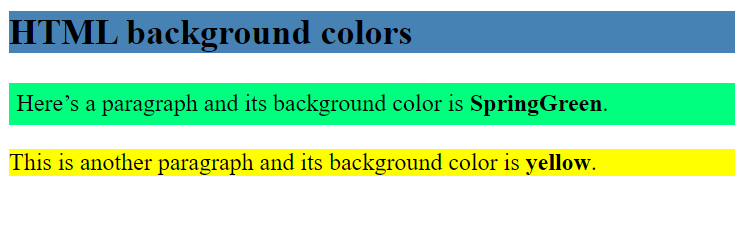
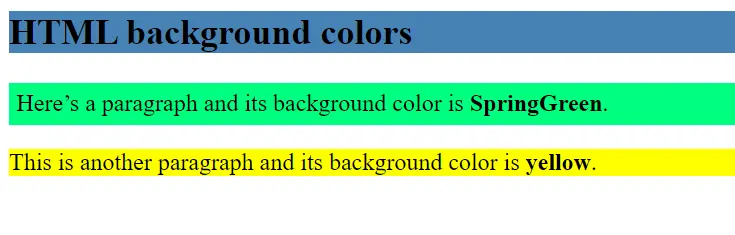
Specifying text colors
A similar approach is used for changing the color of text. However, in this case, you need the color property. The syntax is as follows:
<element style="color: color value;">In this example, we’re going to use hex values, setting OrangeRed (#FF4500) as the font color for the headline. For the first section, we’ll use MidnightBlue (#191970) and for the second one, Indigo (#4B0082):
<body>
<h2 style="color: #FF4500;">
This headline is Orange Red
</h2>
<p style="color: #191970;">
The font color in this paragraph is <b>Midnight Blue</b>. </p>
<p style="color: #4B0082;">
The font color in this second paragraph is <b>Indigo</b>.</p>
</body>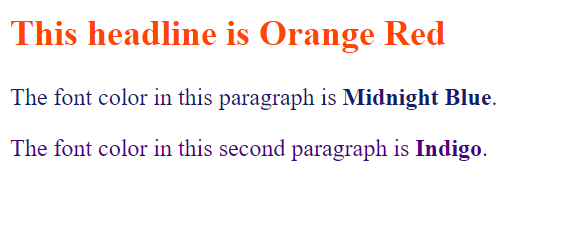
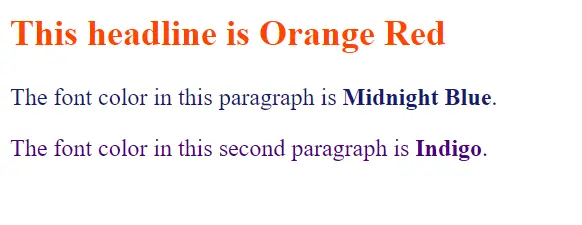
Specifying border colors
You can also customize borders in HTML using colors. In addition to the border property, you can use other parameters to define the structure of the border. The syntax looks like this:
<element style="border: additional parameters color value;">In the example below, we’ll use the third method for defining colors in HTML: RGB values. We’re going to assign the border of our headline the value rgb(178, 34, 34) (FireBrick). The two paragraphs will be bordered with rgb(32, 178, 170) (LightSeaGreen) and rgb(205, 133, 63) (Peru).
<body>
<h2 style="border: 2.5px solid rgb(178, 34, 34);">
The headline border is fire red</h2>
<p style="border: 2.5px dashed rgb(32, 178, 170); padding: 5px;">
This border is <b>light green</b>.
</p>
<p style="border: 2.5px dotted rgb(205, 133, 63); padding: 5px;">
This border uses the color value <b>Peru</b>.
</p>
</body>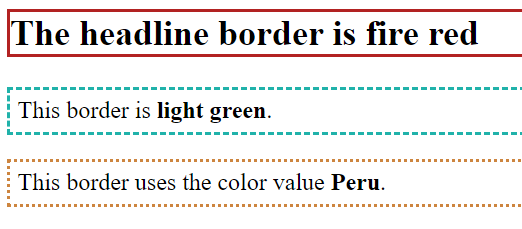
- Free Wildcard SSL for safer data transfers
- Free private registration for more privacy
- Free Domain Connect for easy DNS setup