How to use an HTML image map

An HTML image map refers to website graphics or videos that have several clickable areas that lead to internal or external URLs. The link-sensitive areas of an image map are created with selected coordinates and linked to associated URLs or web addresses.
What is an HTML image map?
HTML image maps are clickable graphics that improve user-friendliness and interactivity. More specifically, HTML image maps can be used to provide graphics and videos in an HTML document with several linked and clickable areas. Integrated reference areas can be subpages, hyperlinks to internal or external URLs or downloads. As soon as a user clicks on the linked elements, content is displayed, or specific actions are triggered.
The HTML tag <map> is used to generate image maps. The HTML tag img is used to integrate image maps.
If you don’t want to create your own HTML image map, you can use image map generators. With these online tools, you simply upload an image and then define the desired link targets in image areas.
Want to learn more about how HTML works and different ways to use it? Our HTML beginner tutorial offers you a quick and easy introduction to the markup language.
What can HTML image maps be used for?
You can integrate an image map into any HTML document once you have defined the respective reference areas. The advantage of image maps is their ability to link to multiple destinations within a graphic or video. HTML image maps can be used for:
- Maps with clickable areas for regions, cities, company locations or service stations
- Recipe images with additional information about the ingredients
- Banner ads with links to different products, categories or services
- Displaying additional information or advertisements in videos
- A website as an image map with multiple navigation elements
- Displaying various modes, functions or levels in online games
- Free Wildcard SSL for safer data transfers
- Free private registration for more privacy
- Free Domain Connect for easy DNS setup
How is an HTML image map generated?
The HTML element <map> is used to generate an image map. When creating this element, you also need to include the name attribute so the map can be referenced later on. Using the map name, you can anchor, link or reference specific areas in an image or video. We’ll go into more detail on how you can specify the coordinates for linked areas below.
An HTML image map can be placed at any position in an HTML document. To do this, define areas and coordinates (coords) to specify the position, size and shape of the reference area. Areas can be placed in a graphic in the form of rectangles, polygons or circles. The coordinates you use depend on the shape of the reference area.
You can use the HTML attribute <area> to define individual areas of the image map. At least one area attribute is required to use an image map. The following HTML attributes can be used to specify the properties of the image map and its individual reference areas:
shape: Theshapeattribute defines the shape of clickable areas within an image. You can choose fromrectfor rectangles,circlefor circles, orpolyfor polygons. The syntax for a rectangle isrect = x1,y1,x2,y2, wherex1andy1mark the top-left corner, andx2andy2define the bottom-right corner. For circles, the syntax iscircle = xc,yc,radius. For polygons, it’spoly = x1,y1,x2,y2,x3,y3 ….coords: Thecoordsattribute specifies the pixel coordinates that outline the clickable area. These coordinates are often determined using a graphic editor.href: Thehrefattribute links the clickable area to an internal or external URL.alt: Thealtattribute provides alternative text if the image map fails to load, ensuring accessibility, especially for text-only browsers or users with disabilities.title: Thetitleattribute adds a brief description that appears when users hover over the image area.img: Theimgtag is used to embed and display an image in an HTML document.
- Stay online with 99.99% uptime and robust security
- Add performance with a click as traffic grows
- Includes free domain, SSL, email, and 24/7 support
How can an image map be integrated into an HTML page?
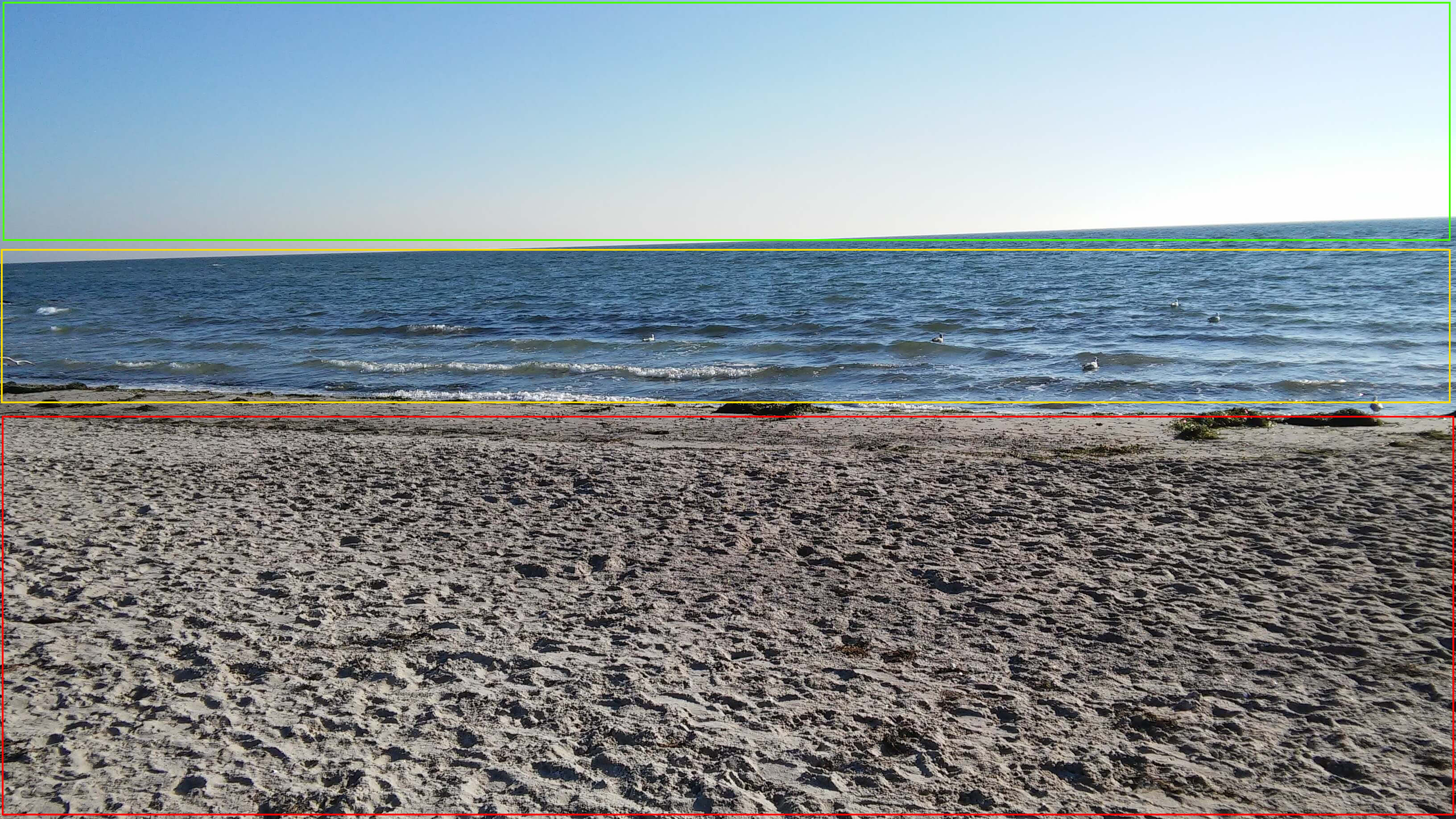
Once the image map is defined, you can incorporate it in the desired location on your website using the <img> HTML tag. To link the image map and make it functional, you’ll also need to include the <map> element. The following example illustrates how to implement this:
<img src="beach-image.jpg" usemap="#image-map">
<map name="image-map">
    <area target="_blank" alt="beach" title="beach" href="https://example.com/beach" coords="1,928,3260,1834" shape="rect">
    <area target="_blank" alt="ocean" title="ocean" href="https://example.com/ocean" coords="3263,556,7,919" shape="rect">
    <area target="_blank" alt="sky" title="sky" href="https://example.com/sky" coords="3263,510,10,0" shape="rect">
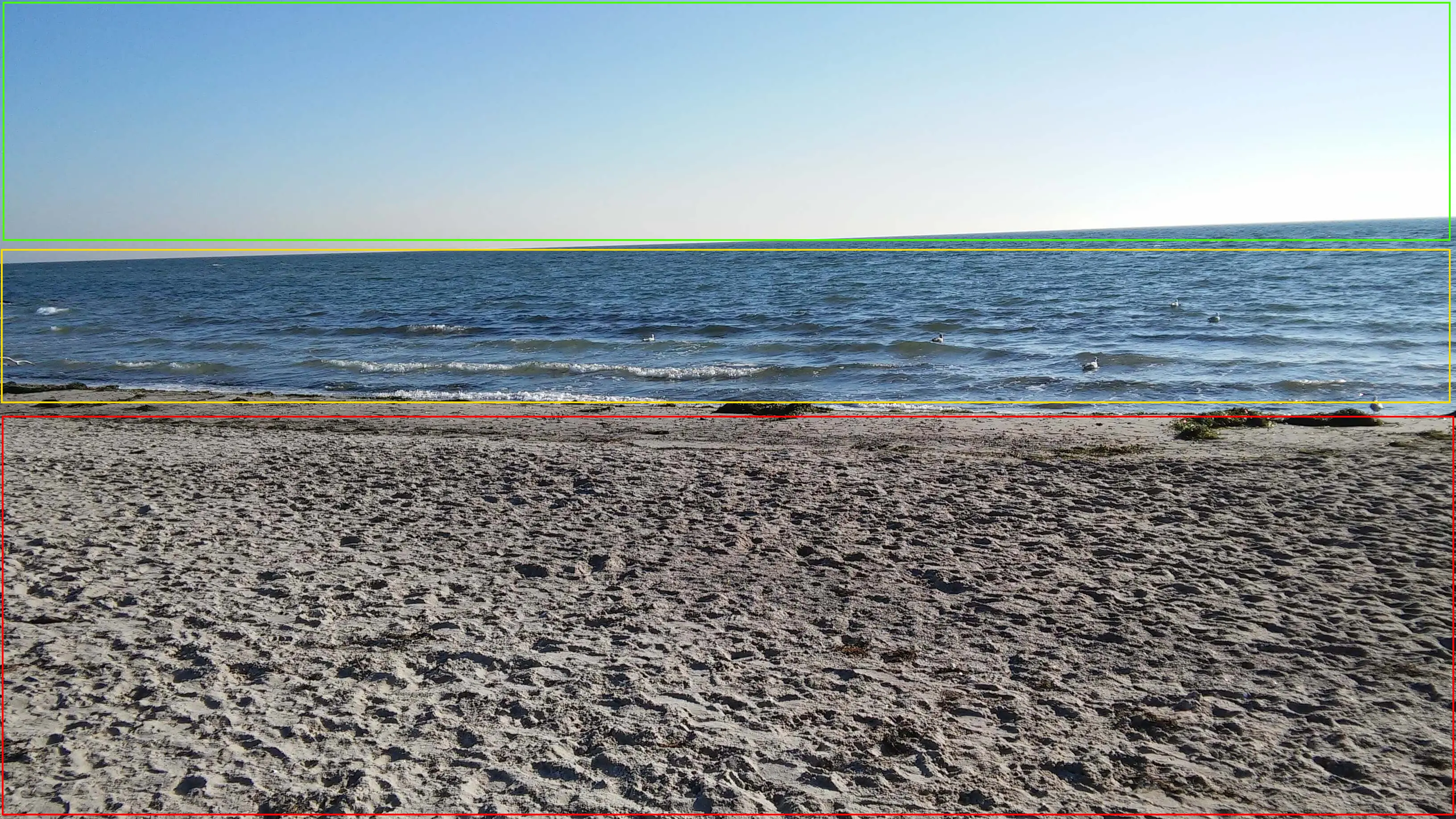
</map>For the beach image below, three clickable areas were defined: beach, ocean, and sky. When users click on these areas, they are automatically redirected to the corresponding landing pages, which open in a new window.