

What is an SVG File and how can it be embeded?

In 1998, the World Wide Web Consortium (W3C) proposed two potential candidates for a new standard markup language to create two-dimensional vector graphics based on XML. Microsoft and Macromedia (today known as Adobe Systems) entered the vector markup language (VML) into the race, while IBM and Adobe among others offered up the precision graphics markup language (PGML). In the end, the W3C decided to adopt neither of the two languages as a standard and instead merge the two. On September 4, 2001, the result was published in a recommendation called Scalable Vector Graphics (SVG) 1.0 Specification. However, this approach made it impossible for the W3C to satisfy all the stakeholders, and so Microsoft continued to rely on its own language – VML – for a long time in its applications (such as Internet Explorer, versions 1 through 9). This, however, did not stop the newly introduced SVG format from becoming a great success.
What is an SVG file format?
When W3C scalable vector graphics became the recommended specification for two-dimensional vector graphics in 2001, the XML language was considered an optimal solution for the representation of such graphics, both in static and animated forms. But at the time, browsers had not yet been developed to a point that was suitable for the new SVG format; in the case of the Internet Explorer, external plugins such as the Adobe SVG Viewer and the Batik SVG Toolkit from Apache were mandatory in order to read and display XML graphics for a long time. Additionally, webmasters were faced with the task of providing a fallback solution to use PNG graphics. Since web browsers have adapted to accommodate HTML5, time-consuming measures like this are no longer necessary; the HTML5 parser makes it possible to integrate SVG elements directly into the HTML code without specifying the XML namespace that informs the browser of the context of the embedded elements. This eliminates the need for a specific parser and plug-ins. In contrast to raster and pixel graphics, graphics in an SVG file format are generally distinguished by the fact that they mark out individual graphical objects from a mathematical standpoint and do not fit into a pixel grid. For this reason, scalable vector graphics can be used to scale geometric shapes, icons, technical drawings, fonts, icons, and logos without quality loss. These images do not show the aliasing effect typical of raster graphics, in which individual pixels appear. Check out our comparative guide to find out more about the differences between pixel and vector graphics.
The advantages of using the SVG format
With the continued development of internet browsers, it is increasingly commonplace to see SVG used in HTML documents, with responsive web design also playing an important role. Vector graphics’ main strength lies in their scalability in the design of web projects across multiple devices and displays. This is just one of the many good reasons to use SVG file formats when designing your website. Other benefits include:
- Small file size: aside from their complexity, SVG graphics are characterized by their very small file size, even when the graphics are enlarged. These image files thus provide a stable and fast performance regardless of the devices used. This results in shorter loading times, which in turn has a positive effect on the search engine ranking.
- Open source: the W3C has created SVG as a free standard, which means that you can use the award language without restriction, across multiple platforms and in combination with other XML languages.
- Variety of animation options: SVG elements can also be animated in different ways. The W3C language SMIL (synchronized multimedia integration language) can be used for this purpose, but the development of this language has now halted. In fact, Internet Explorer and Edge have never supported SMIL and it may not be implemented in future versions of Chrome. It is more common to animate using JavaScript if you want to allow SVG elements to respond to events such as user clicks or mouse movements, for example. A third (more restricted) option is to use the CSS properties, ‘animation’ and ‘motion path’, although these are also not supported fully by web browsers.
- SVG files can be formatted with CSS: graphics in SVG format can be manipulated with the CSS stylesheet language. This allows all presentation attributes (i.e. colors, filters, font, font size) to be displayed in a separate CSS file or straight into the SVG in order to change the appearance of the graphic.
- High compatibility: the functions of the different parsers vary, but this has very little effect on the rendering of the graphics since the SVG format is both downward and upward compatible. As a result, browsers display images according to their own settings and ignore unknown XML elements without having any serious impact on the display.
- Barrier-free: SVG graphics are text-based and therefore machine-readable by screen readers and all devices that can understand and playback source code.
- Visible in source text: if the SVG graphic is in the HTML document, you can easily adjust it in the program editor and change options such as the font color or size without any detours.
The disadvantages of using the SVG format
The abovementioned benefits make embedding the SVG format indispensable for webmasters. The many complications related to the different browser settings are now a thing of the past. The graphics format offers advantages in usability, SEO, accessibility, etc. But is it too good to be true? The SVG format does come with its fair share of problems. One crucial disadvantage associated with vector graphics is the limited range of programs. While you can choose from the usual image processing tools, you will need specific tools such as Adobe Illustrator or Inkscape in order to create, save, and convert SVG files. Consequently, getting to grips with SVG graphics can prove complex and time-intensive. Furthermore, the graphic language has been criticized for the following reasons:
- High demand on the client’s resources: HTML5 eliminated the problem of having to download plugins but moved the rendering process to the browser level. Unburdening the server and small file sizes may result in shorter loading times, but this supposed advantage also comes with problems. If the user’s computer doesn’t have the required processing power, complex vector graphics in the SVG format could lead to a delay in displaying the page. You can address this issue by removing unnecessary items to optimize the SVG code.
- Limited application possibilities: with its underlying technology, SVG is now the measure of all things when it comes to designing and scaling simple graphics and logos. By contrast, more complex images that can be edited retrospectively can only be created with the help of a complicated structure with clearly separated surfaces. The SVG format is unable to produce photorealistic graphics due to the limited range of details (depths, shading, light effects, etc.).
Using vector graphics in SVG format on a website means that you are forced to take painstaking measure to create or reproduce complex graphics or refrain from using them altogether. It’s therefore advisable to only use vector graphics if you require the format’s strengths. If you want to display complex graphics, images, and photos, you should continue to use the well-known raster graphics formats.
Embedding SVG in HTML pages: how it works
SVG content is marked up in XML, meaning it bears the same structural and syntactical characteristics of any other XML document; essentially, the code is hierarchical, containing elements and attributes. An element is identified by a pair of tags, which always start with (<tag name>) and end with (</ tag name>). Attributes contain additional information about elements and are available as keyword pairs within a start or empty element tag (<tag name attribute name=’attribute value’>). It is also possible to insert instructions and comments. Each SVG XML document must contain exactly one element at the top level (<svg>), below which, any number of additional elements can be nested. The document type definition and XML declaration can also be used to define the type, version, and character encoding of the underlying document among other things.
It is no longer necessary to download additional plugins in order to embed this kind of graphic into a web project in SVG format. Instead, you can simply integrate the vector graphics directly into the HTML document, where you then have several options:
Embedding SVG with the image tag
The HTML element, img, is the absolute standard for embedding graphic files into a website. As a standalone element, it has no element content and no end tag. Furthermore, there is no need for the closing slash (/) in HTML. This method of embedding provides the most common form of syntax, which is why WordPress automatically applies it to SVG graphics. If the img tag is marked up with a CSS statement to create a responsive design, the vector graphics automatically adapt to the different display sizes with no further settings required. However, this implementation method does not allow you to link the SVG graphic to a URL or a JavaScript application. Therefore, the code line to integrate SVG with the image tag looks something like this:
<img src="example.svg" alt="embed SVG with the image tag">Embedding an SVG file using the object tag as a multimedia object
It’s possible to embed content into your web project using the object tag. This tag allows users to integrate a wide range of elements, including Java applets, Flash movies, Excel charts, as well as graphics in SVG format. Unlike the image element, this method makes it possible to integrate a fallback solution. This can be in the form of text or a pixel graphic, which is then displayed to the visitor of your website if the browser fails to load the SVG file. You can also link forms in the source code of the graphics file and create animations with JavaScript. However, the object method is rarely supported by the most common content management systems, which can sometimes make it somewhat cumbersome to use. The code for integrating SVGs with the object tag with fallback graphics is as follows:
<object data=’example.svg’ type=’image/svg+xml’>
    <!—Fallback solution when SVG doesn’t load -->
    <img src=‘alternativegraphic.png‘ alt=_‘Alternative PNG image‘>
</object>Integrating SVG vector graphics as iFrames
Inline frames, better known as iFrames, have been in use since HTML4 and are now supported by all browsers. Webmasters use these elements primarily to embed external content from other websites such as YouTube or Google Maps. However, it’s also possible to display files in the SVG format with the iframe element on your website. As with object elements, iFrames allow the vector graphics to be linked to JavaScript and URLs, as well as provide the definition of an alternate image or text if the SVG graphic fails to load. They are also applicable across all domains. Even when the most common content management systems support the technology, the user is burdened with a lengthy process when it comes to creating a responsive inline frame. The following example shows the general structure of an SVG iFrame that displays an alternative PNG graphic if a compatibility problem arises:
<iframe src=’example.svg’ scrolling=’no’>
    <p>SVG-Graphic – here in PNG format</p>
    <img src=‘alternativegraphic.png‘ alt=‘Alternative PNG image‘>
</iframe>
Selecting an SVG graphic as a background image
It is possible to embed an SVG graphic as a background image using CSS in the same way as one might with a pixel graphic. In doing this, you can benefit from the SVG format’s lossless scalability; an SVG background automatically adjusts to the viewport (i.e. the available display area of the device in use) without a decrease in quality. If you want to use a vector graphic as a background image, simply create a corresponding div container like so:
<div style="background: url(example.svg);">
</div>Displaying graphics directly in the HTML framework: the tag
Instead of using HTML elements that refer to the SVG file’s external location, you can integrate a graphic directly into the HTML code. For this, you also need the HTML element <svg>, which is reserved for SVG graphics. This ‘inline’ SVG eliminates the need to load external files, while you still benefit from the advantages of CSS and JavaScript, such as their adaptability. You can also provide the embedded graphics with links. However, the method does have one significant disadvantage compared to embedding external files: If you want to embed very complex SVGs, the additional lines of code means that your HTML document requires clarity. Of course, it’s possible to try and shorten the code as much as possible, but you should use a variant with an external SVG file for very elaborate graphics. This technique is also less suitable for graphics that occur more than once within a single page.
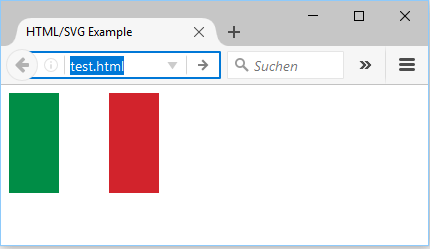
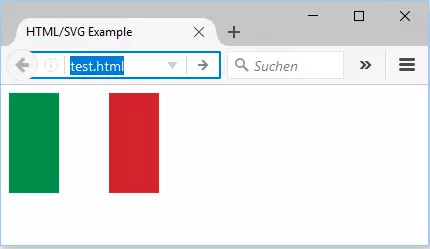
In the following extract we provide an example of a small SVG variant for embedding the flag of Italy into an HTML framework:
<!DOCTYPE html>
<html>
<head>
    <meta charset="UTF-8" />
    <title>HTML/SVG-Example</title>
</head>
<body>
    <svg width="150" height="100" viewBox="0 0 3 2">
        <rect width="1" height="2" x="0" fill="#008d46" />
        <rect width="1" height="2" x="1" fill="#ffffff" />
        <rect width="1" height="2" x="2" fill="#d2232c" />
    </svg>
</body>
</html>
Which appears in the browser like this:
Embedding SVGs – conclusion
For many years, the SVG format was considered an elegant and effective alternative to the pixel graphic formats such as PNG, JPEG, and GIF, which were more widely used in web development. Despite this, the format was associated with a considerable amount of extra work. This was primarily because some of the most popular browsers – most notably, Microsoft’s Internet Explorer – did not support the SVG format. However, in most cases today, an SVG file can be integrated as easily as any other image file. For many visual elements of a web project, vector graphics are an excellent choice; they can provide, among other things, responsive and barrier-free icons, buttons, logos, and fonts that can be easily adapted at any time.
The implementation of the SVG format can be mastered even by beginners in web development, thanks to the numerous variations of embedding and content management system functions. However, the design of the vector forms does require a good deal of prior knowledge. Not only are the right tools required, but you also need to have experience with vectors to get the most out of the lossless scaling graphics. But with some determination, it won’t be long before you can start to reap the benefits of the award-winning scripting language.
Want your website to stand out from the rest? Try out the IONOS Favicon Generator now for free!