

What is an FQDN and how is it structured?

The term “Fully Qualified Domain Name” (FQDN) refers to the complete and unique address of an online presence. It consists of a hostname and domain and is used to identify specific hosts on the internet and access them through name resolution.
FQDN meaning
FQDN stands for Fully Qualified Domain Name and describes the complete internet address used to uniquely identify an online presence. “Fully qualified” means that all domain levels are specified, allowing the address to be uniquely identified. An FQDN consists of the hostname and the domain, including the top-level domain (TLD), and can be uniquely mapped to an IP address.
FQDN structure
A Fully Qualified Domain Name is made up of several labels, including the hostname, domain name, any optional subdomains and the top-level domain. If not all labels needed for a complete FQDN are specified, the result is known as a Partially Qualified Domain Name (PQDN). This often means that only the hostname is given. The term Fully Qualified Host Name (FQHN) is also sometimes used to refer collectively to an FQDN and its associated IP address.
To better understand the hierarchy of an FQDN, it helps to read its structure from right to left. The further to the right a label appears, the higher its position in the hierarchy:
- Root label: At the highest level is the root label, also known as the null label. It represents the root of the Domain Name System (DNS) and consists of an empty label represented by a dot. In modern browsers, this final dot usually does not need to be entered explicitly.
- Top-level domain: The next level is the top-level domain, such as
.org,.comor.net. - Domain: Below the top-level domain is the domain name. During name resolution, the DNS hierarchy is followed from the TLD to the corresponding domain.
- Hostname: At the lowest level is the hostname, which identifies the specific host within the domain.
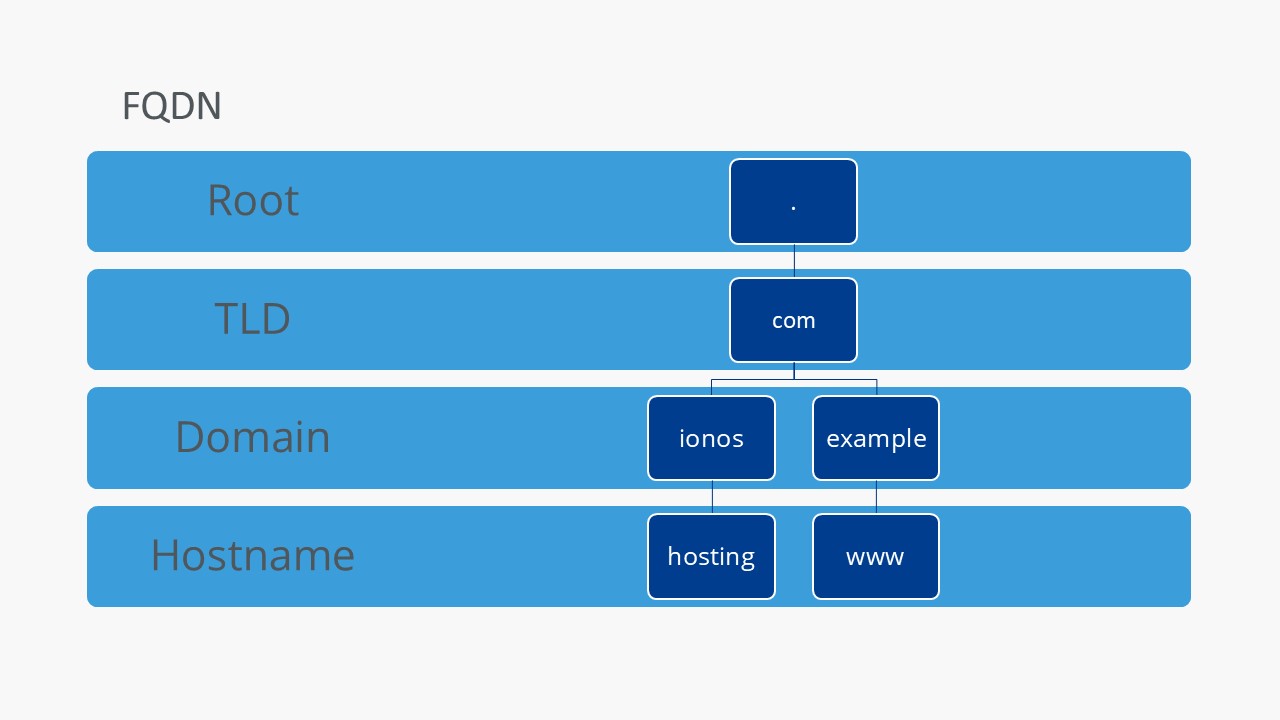
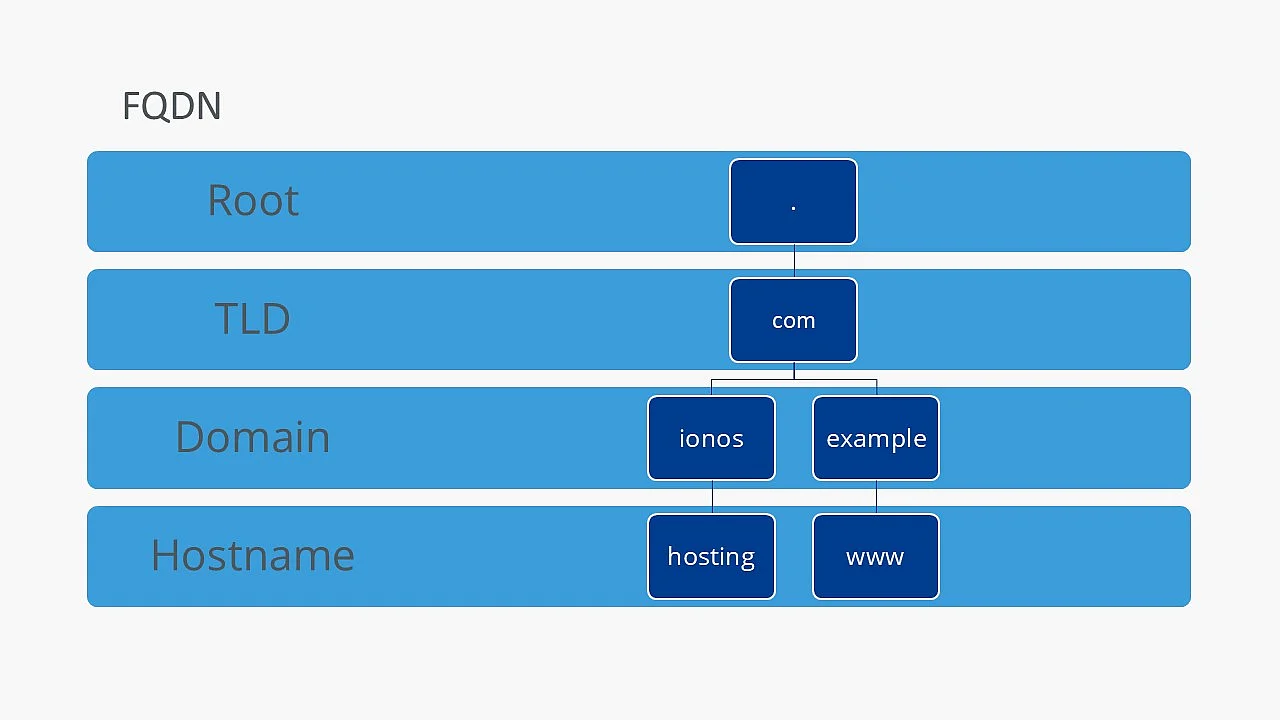
The individual levels of the domain namespace are known as labels and are separated by dots. Each label must contain 1 to 63 characters, while the complete FQDN must not exceed 255 characters in total. Labels may contain letters, digits and hyphens, and each label must begin with either a letter or a digit.
How to find FQDN in Windows
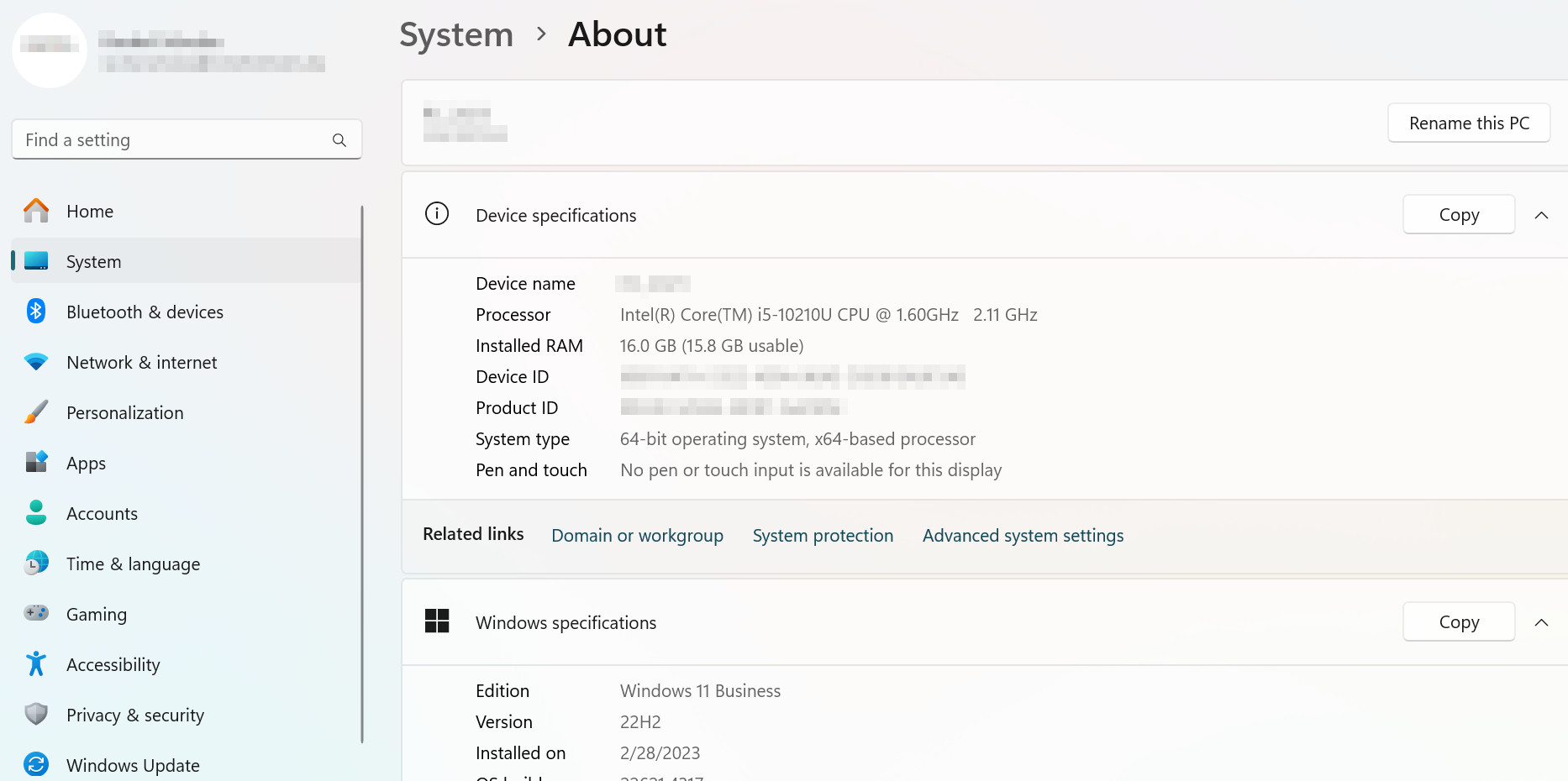
In Windows 11, you can find your computer’s FQDN under “Full computer name.” Enter “Settings” in the Windows search field, then select “System” > “About.” Under “Device specifications,” you will find the full computer name, which consists of the computer name (hostname) and the domain. If the computer is not connected to a domain, only the local hostname is displayed.
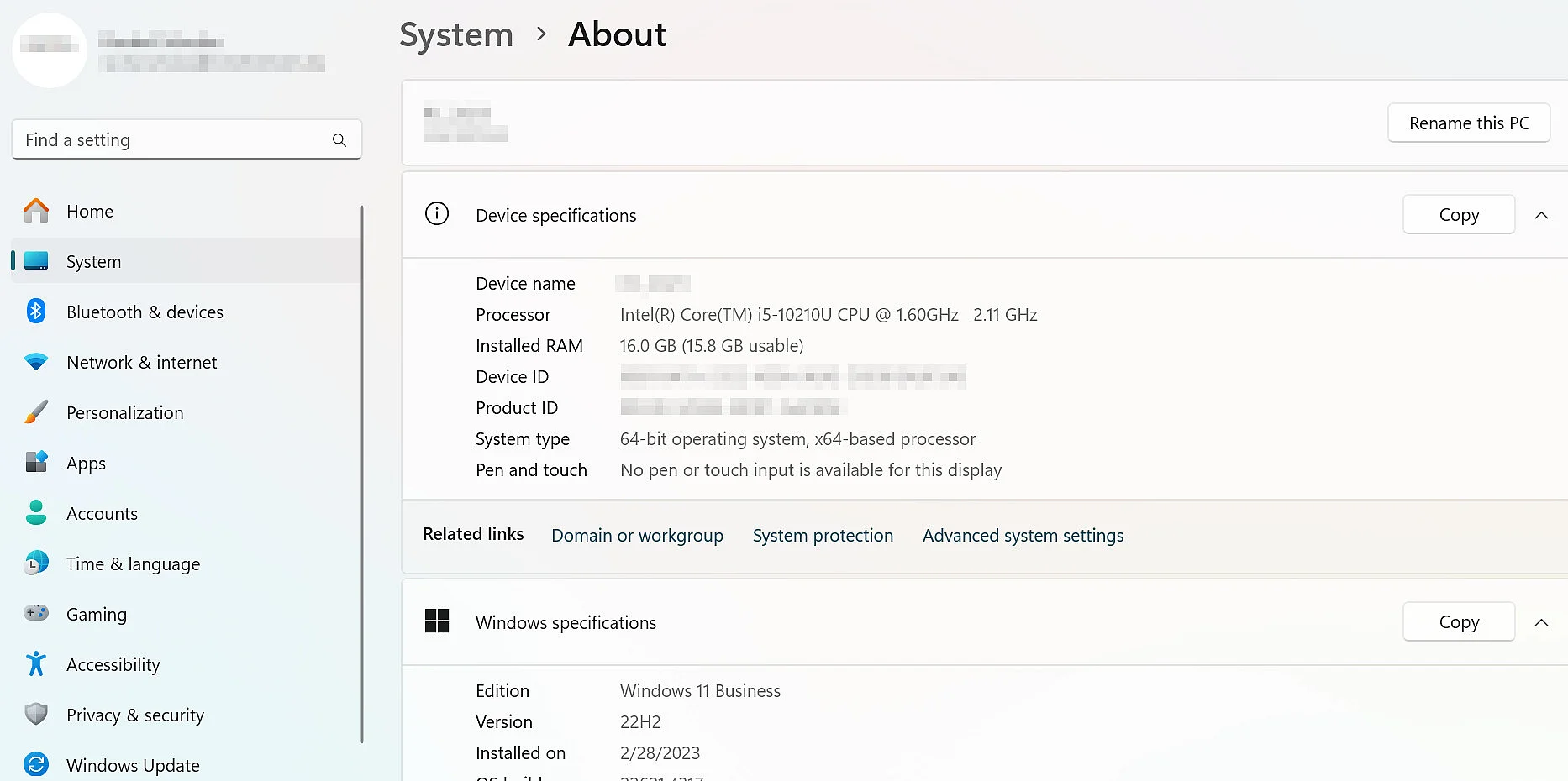
In Windows 10, the process is similar. Enter Control Panel in the Windows search field, then select System and Security > System. Near the bottom of the page, you will find the full computer name of your device, which consists of the computer name (hostname) and the domain. If the computer is not connected to a domain, only the local hostname is displayed.
In Windows 7, you can access this information by right-clicking Computer in the Start menu and selecting Properties.
Windows 7 is no longer officially supported and no longer receives security updates. Support for Windows 10 also ended on 14 October 2025; only devices enrolled in the Extended Security Updates (ESU) program may still receive limited security updates. Although the method described above may still work technically, Windows 11 is recommended for current use.
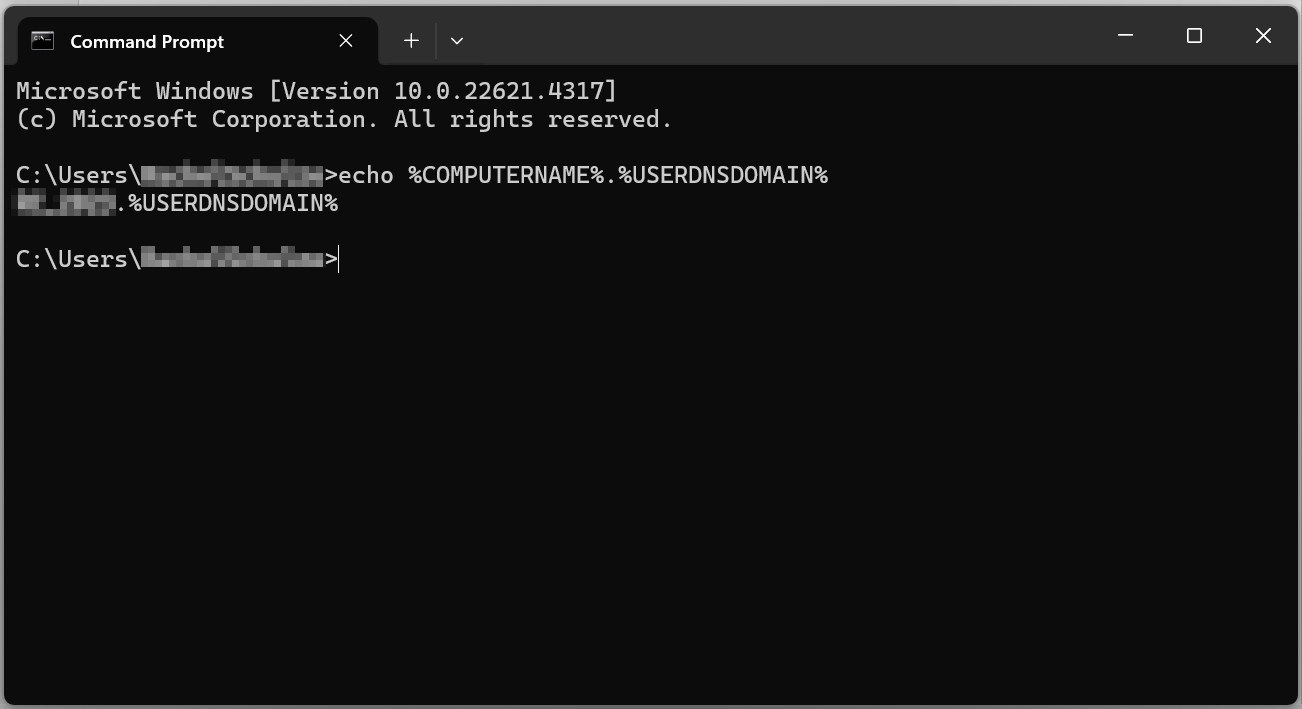
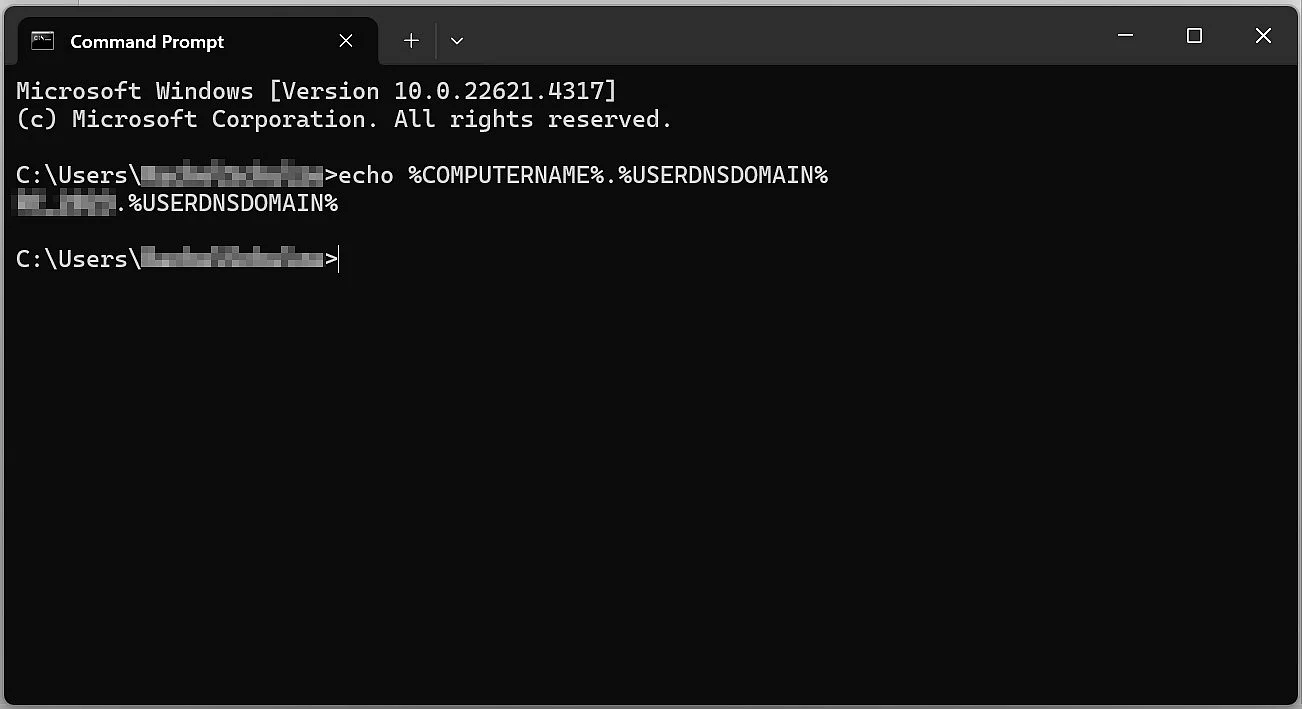
You can also display the FQDN in Windows using the command line. Enter the following command and press Enter:
echo %COMPUTERNAME%.%USERDNSDOMAIN%The FQDN will then be displayed. If your computer is not connected to a domain, the unchanged %USERDNSDOMAIN% variable will appear after the computer name.
How to find FQDN in macOS
If your computer is connected to a domain, you can display the FQDN of your macOS device by entering the following line in the terminal and confirming with the Enter key:
hostname -f

How to find FQDN in Linux
In Linux, you can use the same command in the terminal as on macOS:
hostname -fAlternatively, you can also use the following command:
hostname --fqdnAfter pressing the Enter key, your FQDN will then be displayed. If you are not connected to a domain, only the hostname will be shown.
FQDN explained with an example
The following FQDN example illustrates the structure of a Fully Qualified Domain Name (FQDN):
Example: www.ionos.com
- Hostname:
www - Domain:
ionos - TLD (Top-Level Domain):
.com - Root: The dot (.) at the end, which represents the root label
Extension with subdomains
Between the second-level domain and the hostname, subdomains can be inserted that represent subsections of the domain, such as shop or blog. Additional subdomains can be referred to as third-level domain, fourth-level domain, and so on.
Example: Fictitious FQDN hosting.example.IONOS.com
exampleis a subdomain ofIONOS.com.hostingis the hostname that designates the specific server.
The number of subdomains is limited only by the maximum length of the FQDN (255 characters).
Why FQDNs are essential for network communication
A Fully Qualified Domain Name is an essential part of the internet, allowing hosts to be uniquely identified and ensuring accurate name resolution. Its structure, consisting of the hostname, domain and top-level domain, enables reliable navigation and communication across networks.
You can find the FQDN of your own computer using the methods described for Windows, macOS or Linux. Knowing the FQDN can be useful for network configuration, troubleshooting and identifying devices within a network.
Author

Julia Hertler
With over 18 years of experience in content marketing, Julia Hertler has deep expertise in digital communications. For the past 10 years, she has specialized in the areas of domains and hosting at the IONOS Digital Guide, making complex technical topics easy to understand.
Reviewer

Christian Heldmaier
Christian Heldmaier is an experienced online marketing and SEO specialist from Karlsruhe. He has been working as an SEO Manager at IONOS since July 2020.