

Testseite_Elemente_US
you can use our Domain Names service
You can register a domain with IONOS
How to sign in to Microsoft 365
You can sign in to Microsoft 365 via a web browser or via a Microsoft service like Word, Excel, PowerPoint or OneDrive. Administrators sign in via the Admin Center to manage user accounts. Find out how the sign in process works.
- Regular virus and malware scans
- Automatic backups and simple file recovery
How do I find the Microsoft 365 sign-in area?
You can access your Microsoft 365 account in a couple of ways. The most common way to find the Microsoft 365 sign in area is via the Microsoft website https://www.office.com. Since Microsoft is moving its applications from Office 365 to Microsoft 365 as part of a major rebranding effort, you’ll now be redirected to https://www.microsoft365.com. Nothing will change in terms of applications, Microsoft accounts, and plans.
You can also log in using the following login page: https://login.microsoftonline.com.
With IONOS’ Microsoft 365 Business productivity solution, businesses have access to all Microsoft services, cloud storage and cross-device work. Additionally, you’ll also get 1 TB of cloud storage as well as 24/7 expert support!
How does the Microsoft 365 sign-in process work?
How you sign in will primarily depend on how you created your account. Here are your options:
Via a web browser
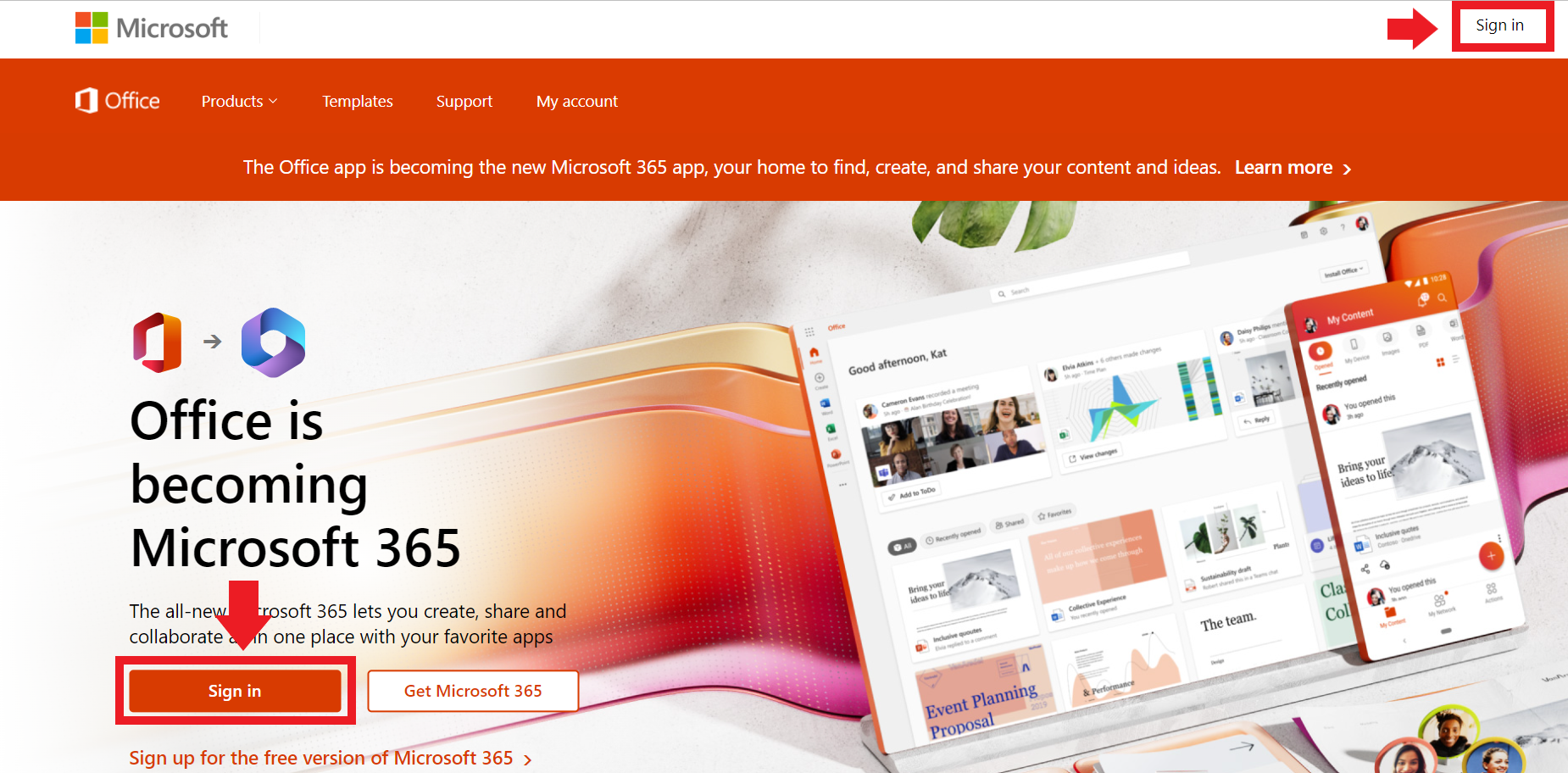
Step 1: Open the Microsoft website https://office.com/ and choose the profile icon in the top-right corner with the Sign in label. You can also select the Sign in button on the left side of the page.
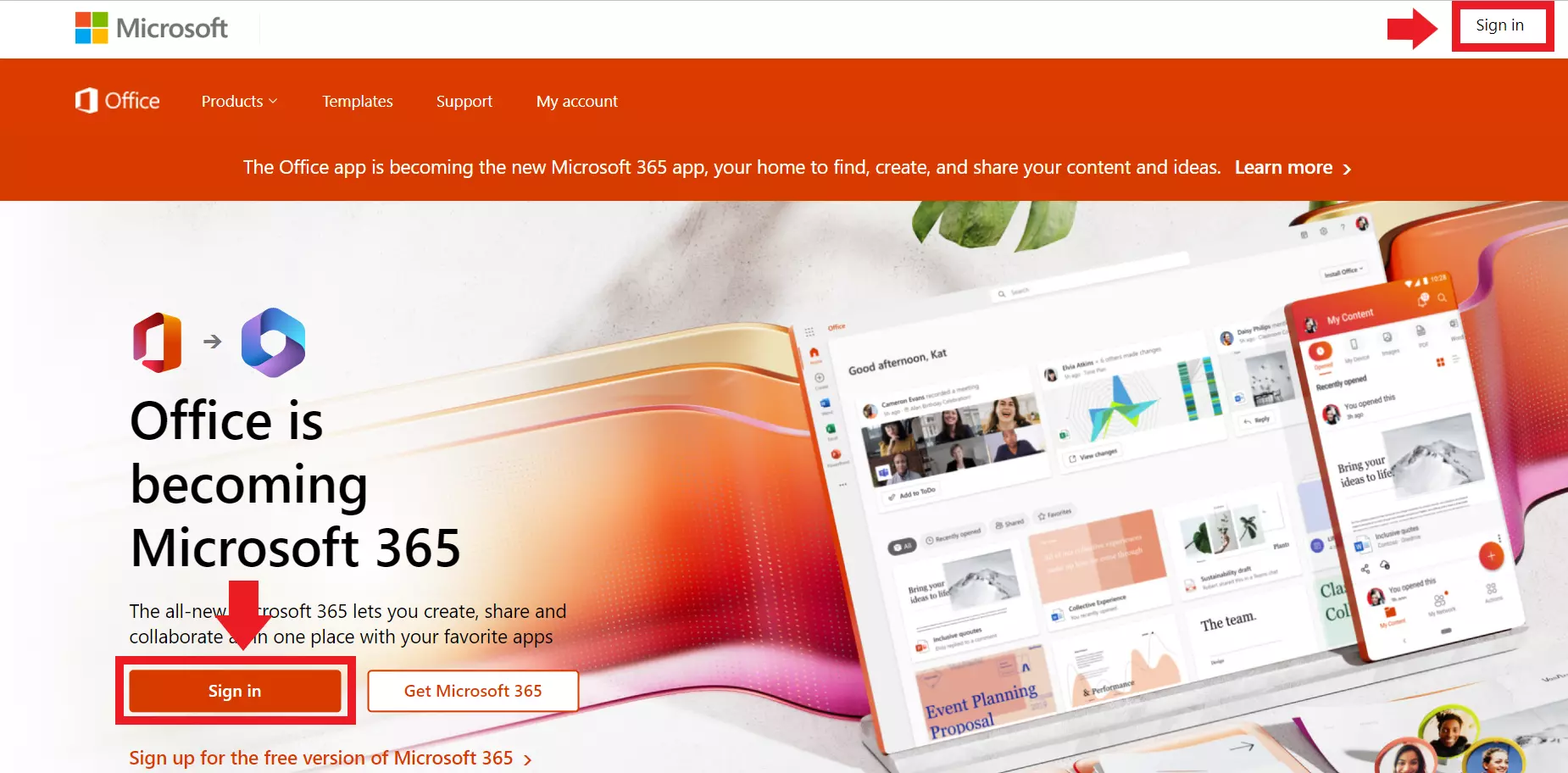
Step 2: Enter your email address and password to sign in.
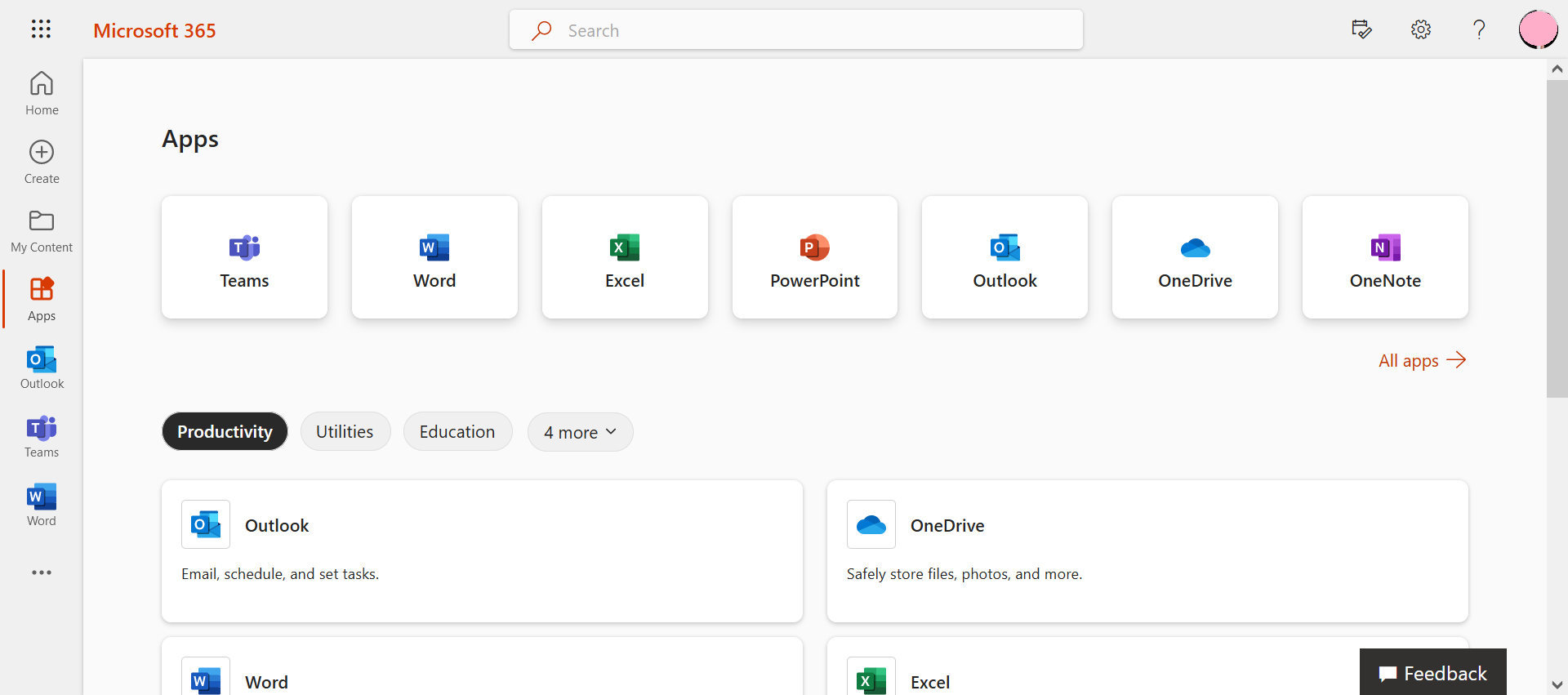
Step 3: Now select an app from the Microsoft 365 app launcher. Select the small tile icon in the top-left corner to see all apps. Here, you can easily open and switch between Microsoft apps in the browser.
As an admin
Step 1: To sign in as an administrator and manage user accounts, open the Microsoft page https://admin.microsoft.com/ To sign in to the Admin Center, you’ll need your credentials.
Step 2: Enter your email address and password to sign in.
Step 3: In the Microsoft 365 app overview, choose an app that you want to use. The apps overview looks like a small tile icon and is located in the top-left corner. Here, you can easily open and switch between Microsoft apps in the browser.
Via Android or iOS
Step 1: Tap the Office app on your smartphone to open it and go to Account. Then select Sign in.
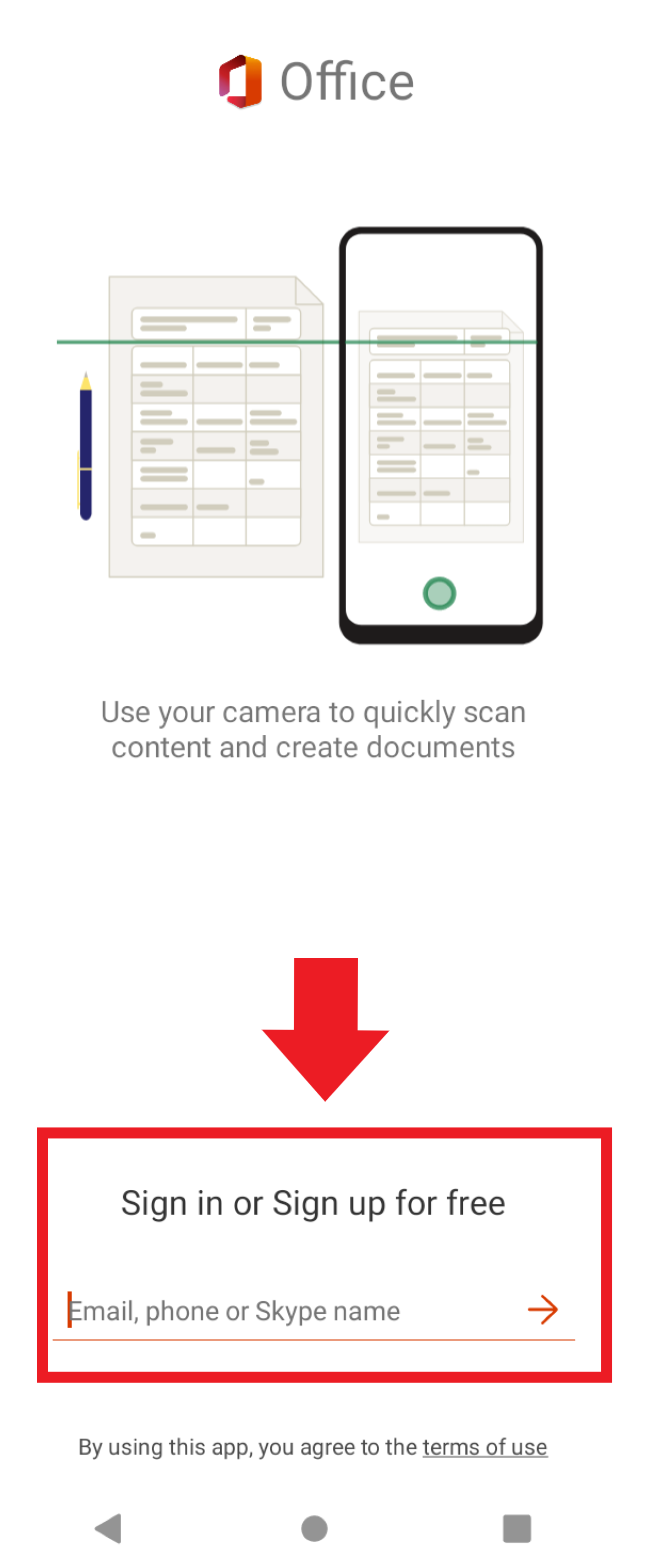
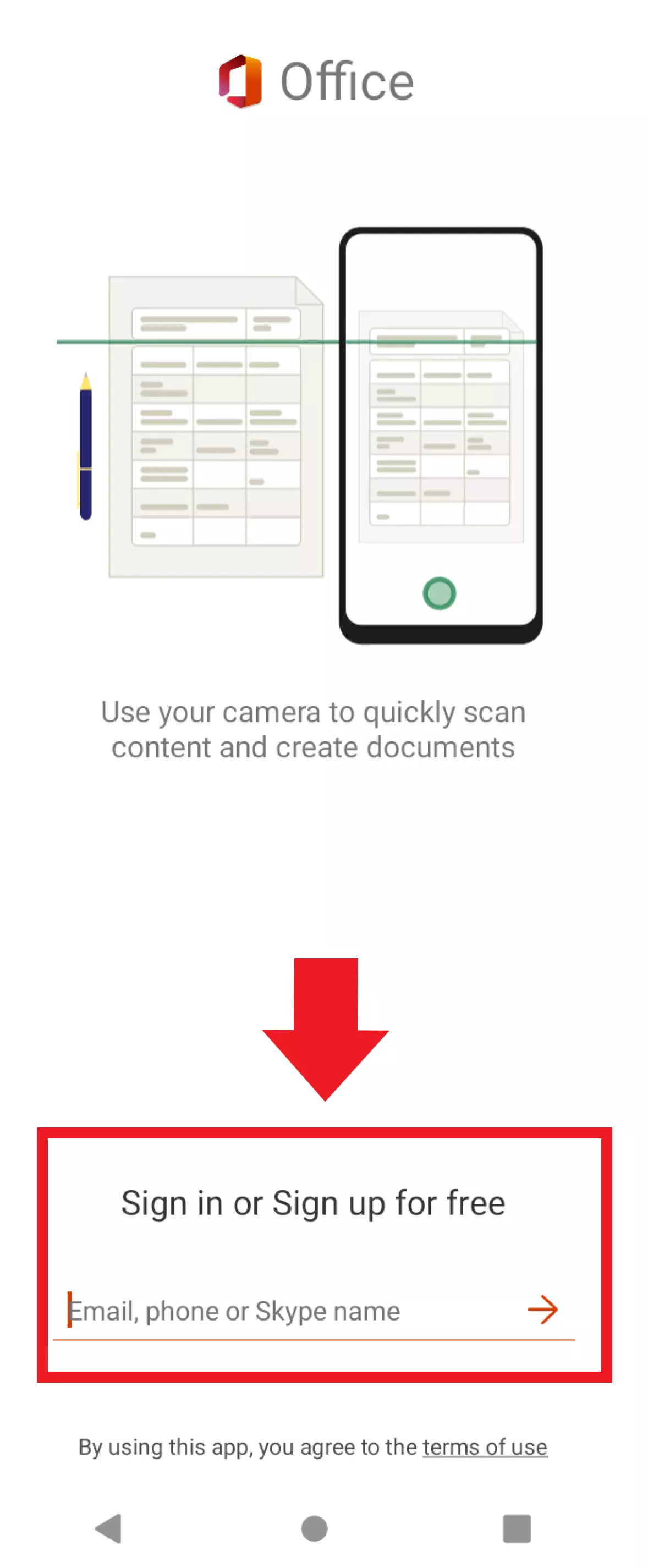
Step 2: Enter your account details and select the app you want to use.
Via the installed desktop app
Step 1: Open an Office app installed on your PC or laptop, such as Word, and go to File in the top-left corner. Here, select Account and then Sign in.
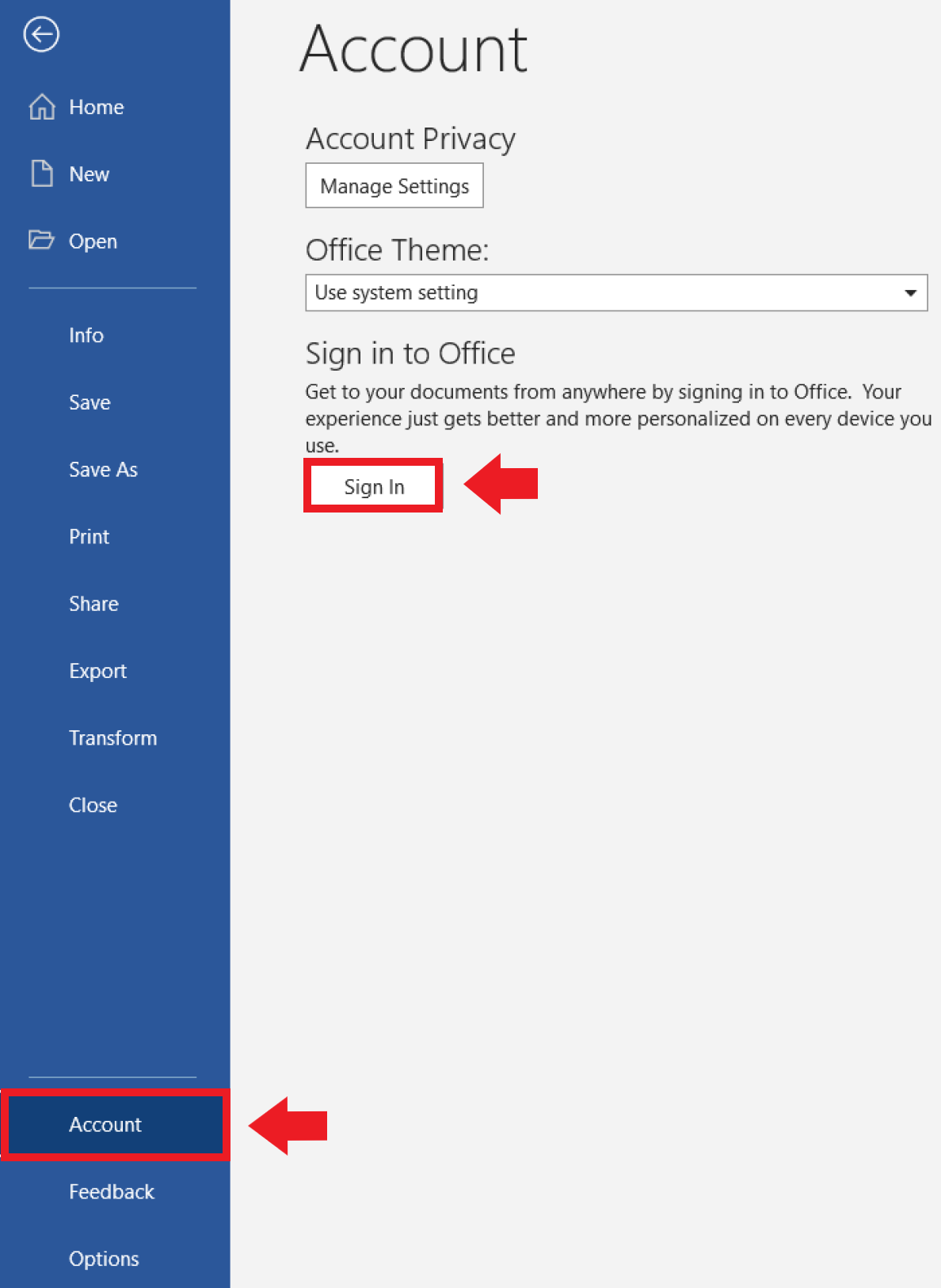
Step 2: Sign in using your account details.
What do I need to sign in?
To sign in to Microsoft 365, you need a registered Microsoft account, which can be a personal account, a university or school account, or a business account. Basic Microsoft accounts are free. Costs only arise if you decide to buy Microsoft 365 as a one-time purchase or sign up for a premium plan. These are split into Personal and Family plans, but there are also plans for small, medium and large businesses. Each free Microsoft account includes 5 GB of OneDrive cloud storage. If you don’t have a Microsoft account yet, you can create one here: https://account.microsoft.com/.
What sign-in options are there?
When Microsoft prompts you to enter your credentials, the sign-in sequence can vary depending on whether you have two-step authentication enabled. By default, you sign in with an email account and a secure password. With two-factor authentication, you can sign in via a phone call, text message or Microsoft Authentication app, virtually eliminating the possibility for third-party access.
Which programs can I use after signing in?
With a free Microsoft account, you have access to the web app versions of some of the most important productivity apps and Microsoft services. The range of apps available depends on the type of subscription you have. You can access the apps directly from your account via the apps overview.
- Get an easy-to-use eCommerce solution, no coding needed
- Designed for WordPress and other CMS platforms
- Manage all your sales from one dashboard
- The right eCommerce solution for you
- Sell online how you want
- Compare IONOS eCommerce solutions
Find the perfect domain name for your business with the AI Domain Name Generator from IONOS.
- Stay online with 99.99% uptime and robust security
- Add performance with a click as traffic grows
- Includes free domain, SSL, email, and 24/7 support
- Wide range of designs for different industries
- Use on your website, search listing and business cards
- Free to design and download
Discover your new business name, check its availability, and claim it for yourself!
- Name suggestions
- Domain check
- For any industry
Check the authenticity of a IONOS e-mail, find here immediately whether it is phishing attempt and report it to remove the phishing content.
- Validate email
- Easy to use
- Remove phishing