

How to fix HTTP 500 internal server error?

HTTP status codes provide information about whether an online request was successful, and if not, what the error is. But the error messages aren’t always clear. This is especially the case for the “500 Internal Server Error.” This message indicates that an error has occurred during connection to the server and that the requested page cannot be accessed. However, it won’t tell you exactly why this is the case. Fortunately, there are different methods for finding the cause. We point out typical error sources and give tips on what to do if you encounter the HTTP error 500.
- Simple registration
- Premium TLDs at great prices
- 24/7 personal consultant included
- Free privacy protection for eligible domains
What does the internal server error mean?
Using status codes, the web server tells an internet user’s browser (client) whether a request (i.e. accessing a website) was successful or not. If the browser receives the 200 status code, it knows that everything went well. However, the user never sees this message since the requested content appears instead. The situation is different with the 400 and 500 status codes. While the former indicate client errors, the latter are server-related. The Internal Server Error 500 is a collective status code for server errors. Therefore, at first glance, it is not possible to determine where the error actually lies. The user only knows that the server has reported an unexpected error.
However, if the server has installed Microsoft Internet Information Services (Microsoft IIS), the error code will be specified. Decimal places indicate the cause of the error in more detail:
- 500.0: Module or ISAPI error occurred.
- 500.11: Application is shutting down on the web server.
- 500.12: Application is busy restarting on the web server.
- 500.13: Web server is too busy.
- 500.15: Direct requests for global.asax are not allowed.
- 500.19: Configuration data is invalid.
- 500.21: Module not recognized.
- 500.22: An ASP.NET httpModules configuration does not apply in Managed Pipeline mode.
- 500.23: An ASP.NET httpHandlers configuration does not apply in Managed Pipeline mode.
- 500.24: An ASP.NET impersonation configuration does not apply in Managed Pipeline mode.
- 500.50: A rewrite error occurred during RQ_BEGIN_REQUEST notification handling. A configuration or inbound rule execution error occurred.
- 500.51: A rewrite error occurred during GL_PRE_BEGIN_REQUEST notification handling. A global configuration or global rule execution error occurred.
- 500.52: A rewrite error occurred during RQ_SEND_RESPONSE notification handling. An outbound rule execution occurred.
- 500.53: A rewrite error occurred during RQ_RELEASE_REQUEST_STATE notification handling. An outbound rule execution error occurred. The rule is configured to be executed before the output user cache gets updated.
- 500.100: Internal ASP error.
What are the causes of error 500?
The “Internal Server Error” can occur when the request is processed by the web server. The collective status code includes everything unplanned that can happen on the server and prevent the website from being loaded. The server error 500 probably happens because an error has occurred in the configuration of the web server. Here is a selection of typical error sources:
- Permission error: The permissions of the main files and folders are not set correctly.
- PHP timeout: The script tries to access an external resource and experiences a timeout.
- Incorrect code in .htaccess: The structure in a .htaccess file could be wrong.
- Error in syntax or code in CGI/Perl scripts: In some cases, scripts are incorrect. Paths, especially, can be misaligned.
- PHP memory limit: A process exceeds memory and therefore cannot be executed correctly.
In the case of WordPress sites or other content management systems, installing a faulty or incompatible extension can also be the cause. Plugins and themes – especially from third-party providers – can affect the entire website.
How can website operators fix the 500 Internal Server Error?
Are your website visitors only seeing the 500 server error? As an operator, you should tackle the problem quickly because not only will this scare off your visitors, but it could also mean that Google will lower your ranking. Before you take action, first check whether your server is still running. If not, contact your hosting provider as soon as possible.
If there is an internal error, the first step is to view the log files. For Linux servers, the collection of error messages should be found at /var/log/httpd/error_log. It makes sense to reload the website to reproduce the HTTP error 500 code and observe how the log file is being created. This will help you find the source of the error quite quickly. Also consider which changes were made shortly before. In many cases, incorrectly programmed or incompatible plugins are the cause of error messages.
Errors can also occur if you have not set permissions correctly for important files. In general, there are three types of rights:
- Read (r)
- Write (w)
- Execute (x)
These permissions can be assigned for three different user types:
- Owner of the file
- Group of users
- All others
The rights are specified either in the abbreviations r, w, and x, or in corresponding numerical values: 4 for read, 2 for write, and 1 for execute. They are added for each user type and specified one after the other: rwxr-xr-x (rwx for the owner, r-x for the group, and r-x for all others) or 755. This configuration (755) should be the default setting. If the permission assignment is set differently, an error may occur. You can change this with a command:
chmod 755 filenameIf this change does not solve the problem, you can also release all rights for each group for test purposes:
chmod 777 filenameBut only use this setting to locate the problem. Any user is allowed to rewrite the file, which is understandably a security risk.
Next, check (if distributing the rights didn’t produce the error message) if your scripts are running correctly. Sometimes errors occur because the script files have been moved, renamed, or deleted. Also check the .htaccess file: even a syntax error – no matter how small – can cause an internal server error. An equally common error is incorrectly formatting the .htaccess file. This must be created in ASCII or ANSI format, not in Unicode. Therefore, write the file in a text editor such as Notepad, Notepad++, or Sublime Text, and not in a word processing program such as Microsoft Word. To test whether the file is responsible for the error, you can temporarily rename it and reload the website. The server now won’t access .htaccess when loading the website. If you no longer receive the error message, you can repair the file or create a new one.
A timeout can also lead to an error message. In this case, it isn’t a web server error, but rather an interrupted connection to an external source. Are PHP scripts on your website set to access resources from other servers? Perhaps the resource is no longer available or server communication is down for some other reason. One way to eliminate this source of error is of course to not make your site dependent on external resources. If this is not possible, you can increase the time limit of your script. It also makes sense to implement efficient error handling so that errors in the PHP script can be detected more accurately.
Could it be that the memory is overloaded? The memory limit determines how much memory a process may use. If more RAM is needed than is available, this could result in an internal server error. You can increase the limit as a temporary solution. To do this, add a command like this to php.ini:
memory_limit = 512MIn this example, you would set the memory provided to 512MB. Note, however, that your hosting provider will only allow you a certain PHP script limit within the package that you’ve booked. If you enter a higher value, the web server will ignore it. Raising the limit is only a temporary solution: once your site is up and running again, you should look for the reason for the high RAM usage. There is a high probability that the error can be found in the code of your website.
If none of these methods offer you a solution, it is a good idea to contact your hosting provider. Before doing so, you can check the status of the servers: many hosting service providers will report the status of their servers via a status page or inform users via social media if a problem has occurred.
IONOS also has a status page where the hosting service’s customers are informed about current problems.
How should internet users respond to an HTTP error 500?
As a website visitor, there is little you can do if you encounter an internal server error. The web server on which the target website is located has an incorrect configuration. This means that there is no error in your PC settings or the network connection settings. Therefore, the easiest solution for you as an internet user is usually to reload the page again later. On the one hand, it is possible that the webmaster has already corrected the error. This is very likely, especially with large providers. On the other hand, it could be that you’re trying to access the website at an inconvenient time for the web server. If you’ve chosen the exact moment that the service is rebooting, the error message will be displayed even though everything is going to plan.
If you are confronted with the error message when ordering online, you must not reload the webpage, since you can’t see where the error occurred. It could be that the confirmation page failed to load, but the system has already accepted your order. Refreshing the page could therefore lead to a duplicate order.
It is also possible that an extreme increase in page views has brought the server down all of a sudden. This problem is usually solved within a few seconds – unless the website is permanently overloaded. If you still receive the error message after refreshing the page, you should first clear your browser’s cache. The browser may not actually reload the website, but use its internal memory instead. After emptying the cache, try again to access the website.
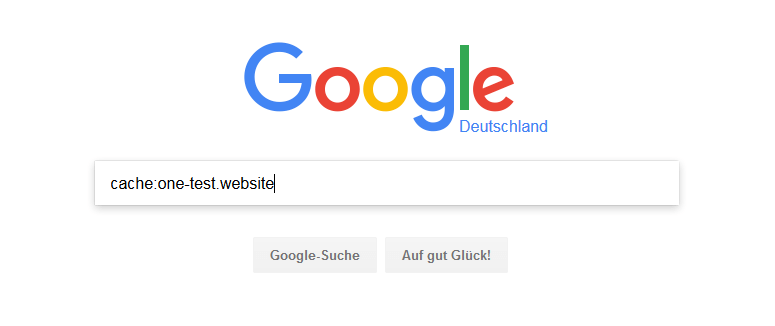
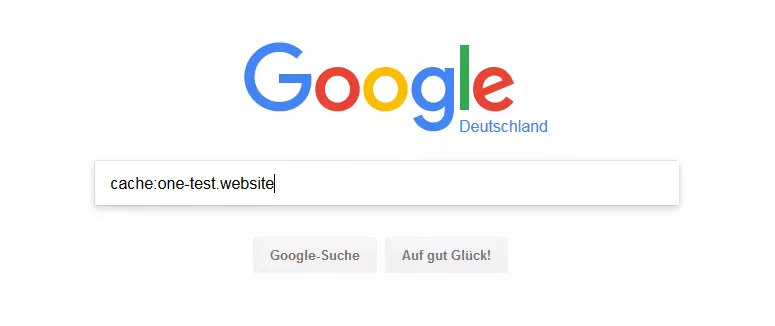
If the “500 Internal Server Error” is still being displayed, you simply have no other choice, but to wait for the website operator to solve the problem. There is, however, a little trick you can use in order to access the contents of the website. If you are not dependent on the latest state of the (functioning) page, you can access the Google cache. If you enter the command cache: followed by the relevant URL in the Google search bar, you can access an earlier – hopefully still working – version of the website. However, you won’t really be surfing the page, you will only be navigating within the copy on the Google server.
If you have to go back even further in the past, it may be worth taking a look at the Wayback Machine. There you can sometimes find older versions of websites that are even decades old.


If the website you want to visit is not accessible for a longer time, you can of course contact the webmaster. They may not even know that visitors are unable to access their site, which is why they will be grateful to be told.