

Convert ODT to PDF: step-by-step instructions

Users of OpenOffice and LibreOffice will already be familiar with the ODT format. The extension identifies files created with the word processing programs OpenOffice or LibreOffice Writer. As of version 2007, Microsoft Word can open files with an .odt extension without prior conversion. This means that Word users have the option to edit these files. Recipients without a corresponding word processing program, on the other hand, will have difficulty opening or reading the document. In addition, .odt files may be displayed differently depending on the device and operating system. To avoid these problems, it is recommended to use the PDF format. We show you how to convert an ODT file into a PDF.
Reasons to convert ODT into PDF
In a professional environment in particular, unauthorized or accidental editing of files by other users is undesirable. To avoid issues of other users creating different versions of files or making unauthorized changes to a document, you should convert .odt to .pdf and share files with other users only after this conversion
One of the most important advantages of PDF files is their uniform readability on any device and operating system. You only need an installation of Adobe Acrobat Reader which is free and comes pre-installed on many computers. Unlike ODT files, the PDF format ensures that content is correctly displayed. A PDF document is comparable to a virtual printout.
PDF files require very little storage space. In addition, the file format offers various security settings. If required, file printing can also be prevented. Electronic signatures confirm the authenticity and validity of documents. If editing of certain areas is desired, special form fields allow you to restrict changes made by other users. In other words, the PDF format is versatile but also compatible with all devices.
The IONOS HiDrive Cloud Storage enables you to store, edit, and share your Office documents centrally and securely. Whether for private or professional purposes, you can work flexibly on any device with the HiDrive app and other interfaces. IONOS' state-of-the-art US data centers ensure your data is optimally protected.
Option 1: Export file as PDF via OpenOffice
OpenOffice Writer provides the option to specify the file format when saving a file. To convert a file from .odt to .pdf, follow this step-by-step guide. The procedure in LibreOffice is similar.
Step 1: Open Writer document
Create or open the document you want to convert from .odt to .pdf using the OpenOffice Writer program.
Step 2: Convert .odt to .pdf
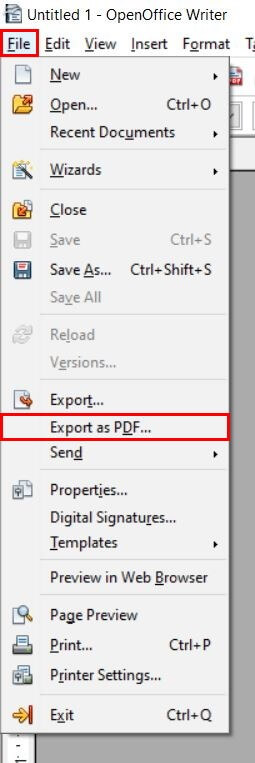
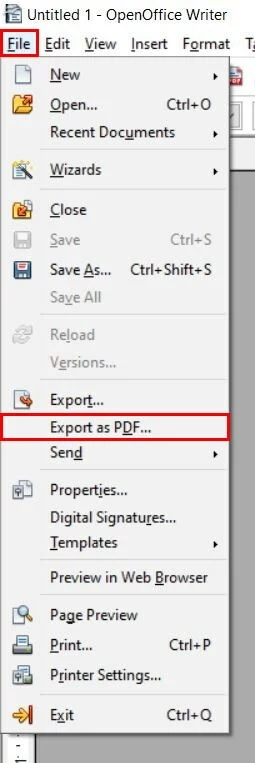
Select the “File” menu item. Then click the “Export as PDF...” option in the drop-down menu.
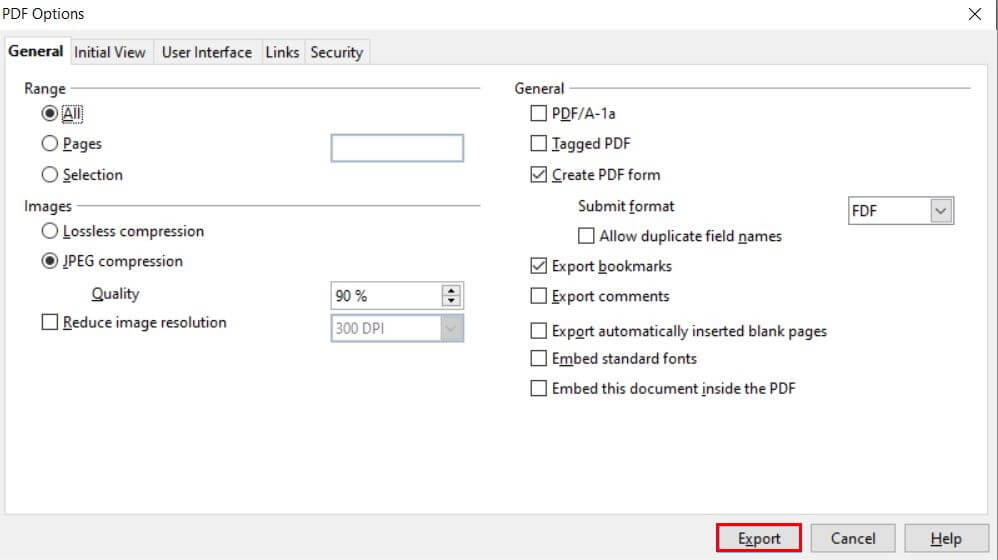
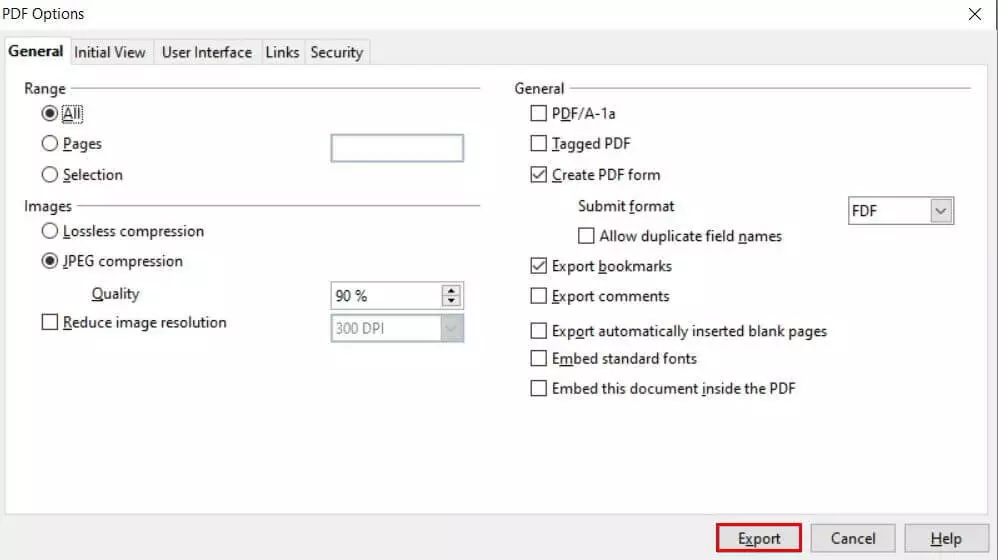
The “PDF options” window will open. Here you can define individual settings for the export. For example, specify how many and which pages of the document are converted from .odt to .pdf. You can also edit and activate compression, image resolution, or export comments. Once all the desired settings are made, click the “Export” button.
Step 3: Save file
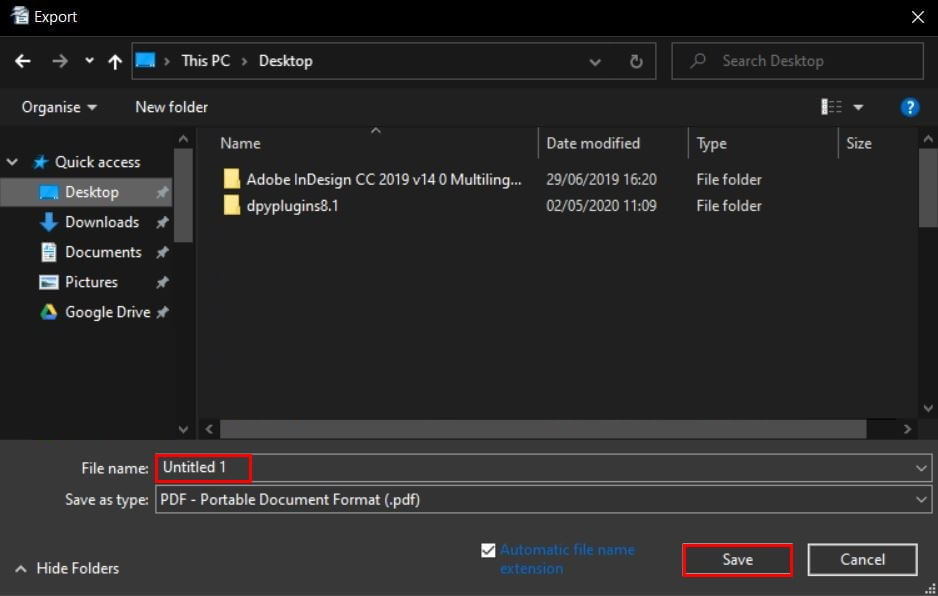
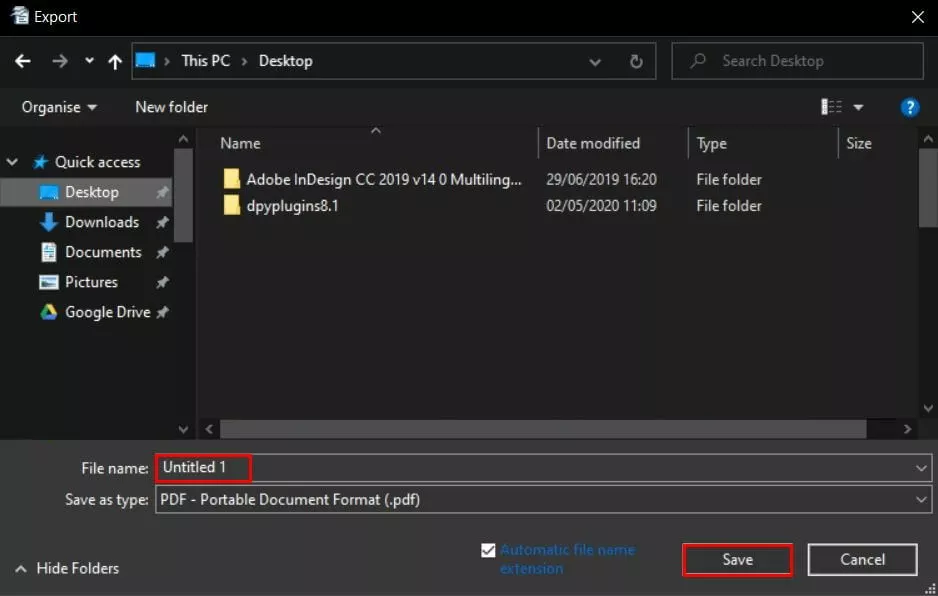
Specify the file name and location as usual. The desired file format “PDF” is automatically selected.
Export PDF in a single click
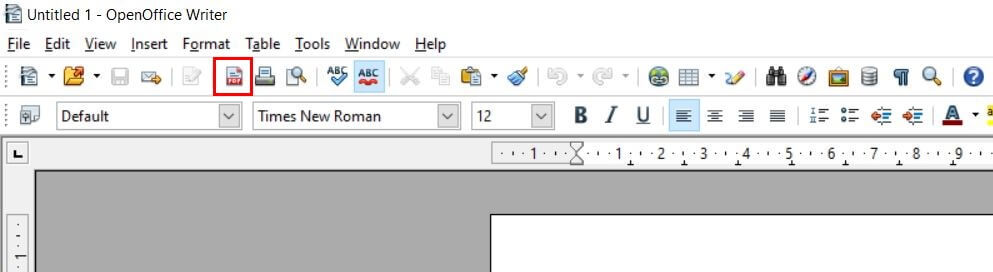
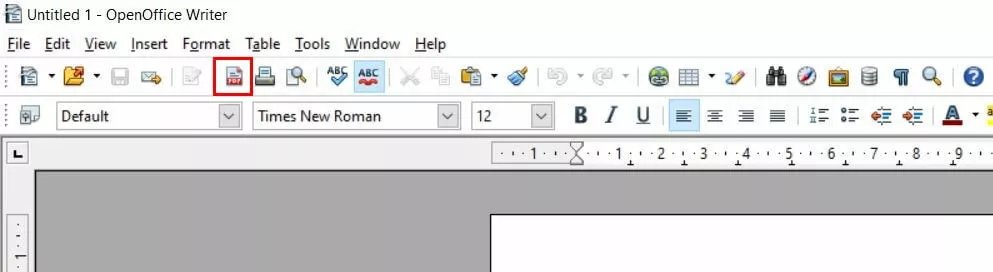
If you don't need to adjust your export settings, you can skip those steps. Simply convert an ODT file into a PDF with one click. To do this, select the “Export directly as PDF” button in the toolbar. A window will open automatically where you can specify the file name and location.
Option 2: Use PDF printer
The term “PDF printer” is misleading. This is not a physical printer that puts PDF files on paper. Rather, it is a digital tool that can be used to convert files from formats such as .odt to .pdf. You can learn how this works in the following tutorial.
Step 1: Install PDF printer
To use a PDF printer, it is necessary to install the appropriate software. Various free tools are available online for this purpose. A versatile program is the PDF24 Creator, which allows extensive editing of PDF files. Popular applications include the merging of multiple PDF files, removing individual pages, and PDF encryption.
Step 2: launch printer settings
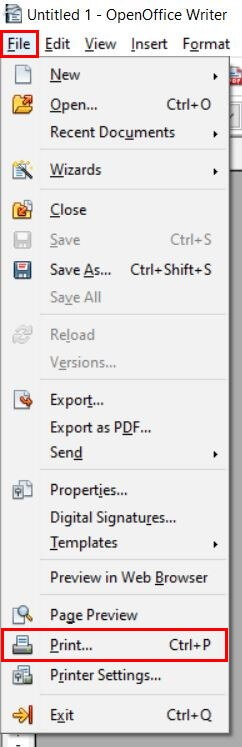
After successful installation, the tool will automatically appear in the list of available printers. To convert an ODT file into a PDF, first open the corresponding document in OpenOffice Writer. Click on “File” in the menu and then on “Print…”.
You can reach the “Print…” function even faster with the shortcut Ctrl + P.
Step 3: Print PDF
In the “Print” section, select the previously installed PDF printer. For example, if PDF24 Creator is installed, an option called “PDF24 PDF” is available.
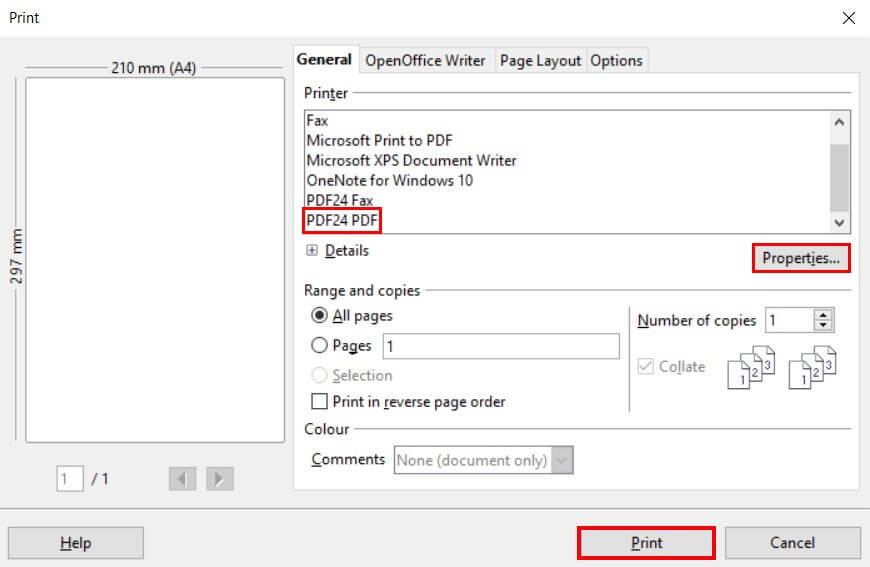
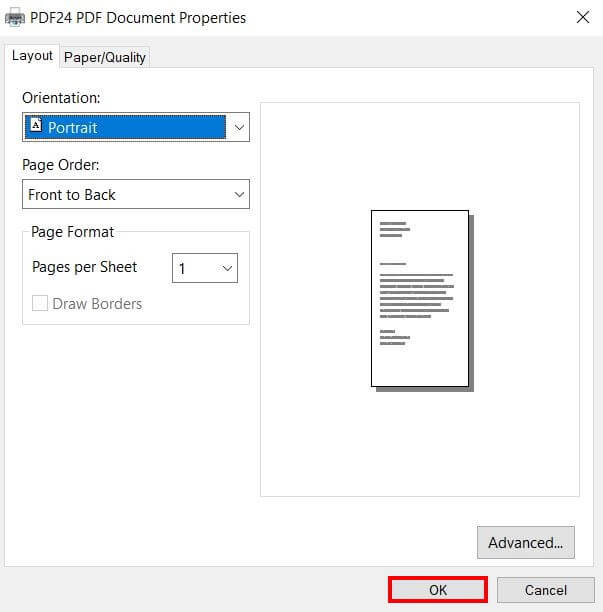
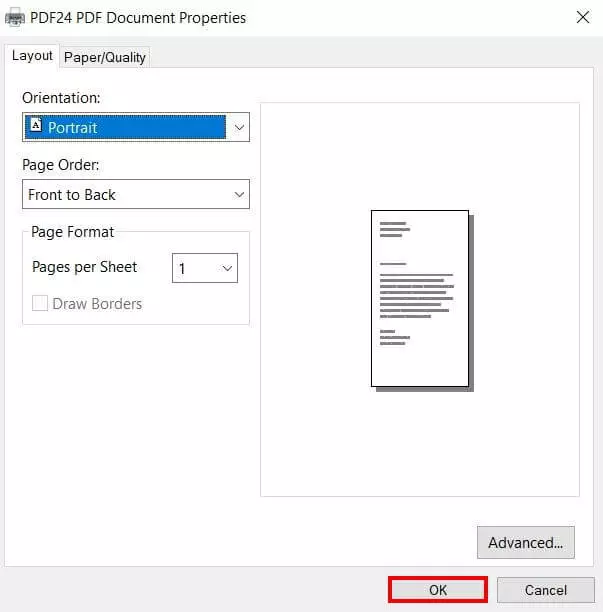
Then click the “Properties” button to choose different options for the virtual printout:
- Determine the orientation of the document as well as paper size.
- Choose between exporting in black and white or in color.
- Set the page order and the number of pages per sheet.
Confirm your selection by clicking the “OK” button. Then select “Print” to start the export.
Step 4: Export PDF
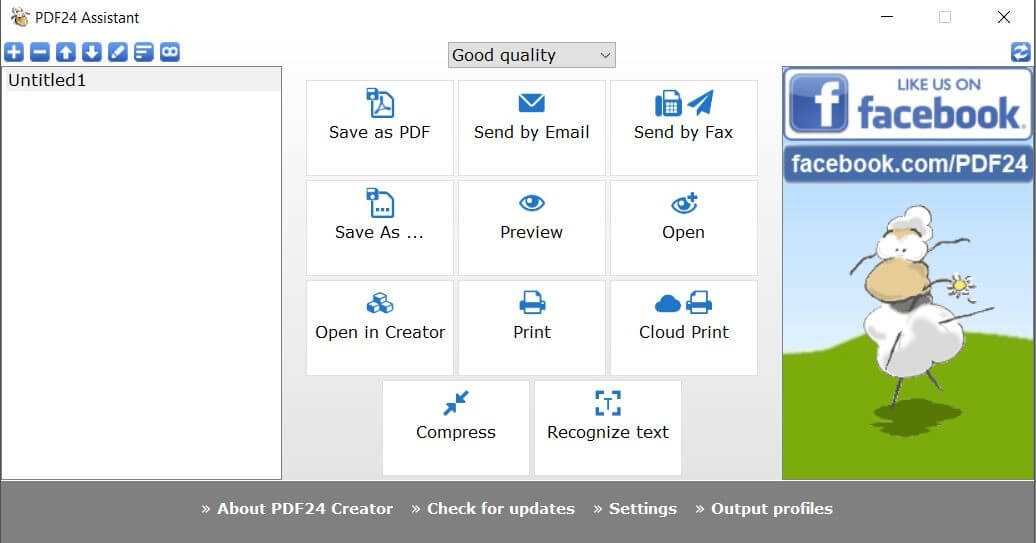
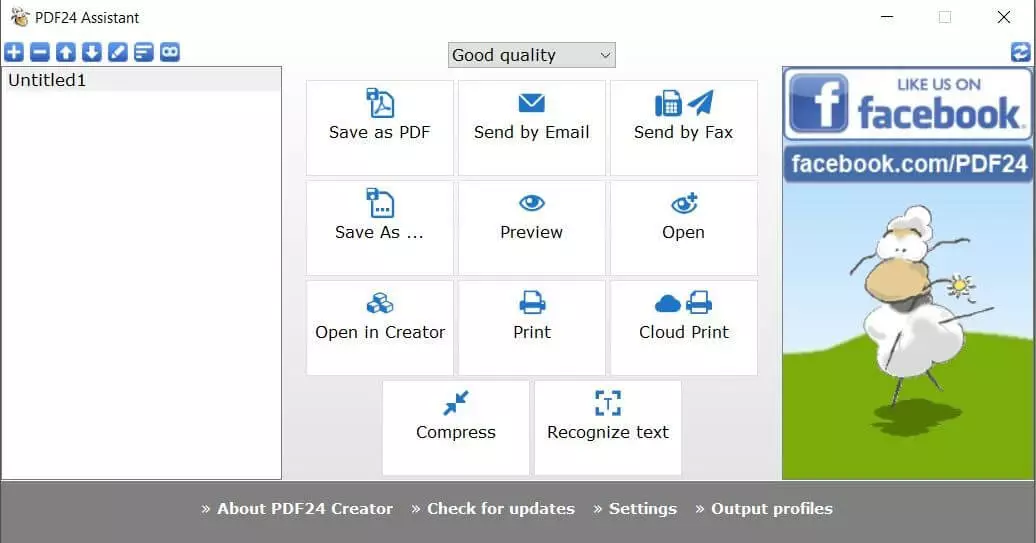
The following steps depend on the installed PDF printer. With PDF24 Creator, the tool itself opens automatically. This offers the possibility to save, send, or edit the PDF file.
Option 3: Convert ODT to PDF with online converter
Numerous free tools are available on the web that can be used without pre-installation. Converting .odt to .pdf is possible in this way and eliminates the need to install an additional program, but also to open the file in OpenOffice Writer. Especially when using smartphones or other devices without the appropriate software, this method offers clear advantages.
Step 1: Call online converter
Launch an online converter, for example the Online tool from PDF24 or the Online2pdf converter.
Step 2: Convert ODT to PDF file
In your chosen converter, upload the ODT file using drag-and-drop or by specifying the file path. Then click “Convert” to start the conversion. You can then download the generated PDF file and save it locally.
With Google Workspace you use your Google apps in one central location and benefit from prioritized Google support.