

Word Macros: How to Create Macros in Word

The Microsoft Office suite is one of the most popular office solutions. From Word and Excel to PowerPoint – the practical applications for writing, calculating, and presenting have been proving their worth for years. But many users are not even aware of the range of features that they provide. For instance, MS Office programs include a function that allows you to create, save, and execute macros in order to automate certain tasks and processes. Especially for regularly recurring workflows, this feature lets you save valuable time and effort.
But what role do macros play in Word and how do these command sequences work exactly? Also find out how to create macros in Word and integrate them into your documents.
What is a Word macro?
Macros are considered a standard feature in programming as well as the use of computer programs. They are basically subprograms that developers and users can create to save sequences of commands or operating instructions, which can then be started with a simple action. When faced with many regularly recurring tasks, Microsoft Word is typically an application that benefits from the option to automate work steps.
For this reason, the Editor (as well as Access, Excel or PowerPoint, for example) include an integrated tool for recording and executing custom Word macros. The script language Visual Basic for Applications (VBA), likewise developed by Microsoft, serves as the recording language here.
The event-driven programming language VBA replaced the mutually incompatible macro languages of the various Microsoft Office programs in the mid-1990s. Thanks to this standardized solution, cross-program command chains can also be created and run to transfer data from a Word document into an Excel table with a single click, for example.
How Do Macros Work in Word?
Creating macros in Word may sound like a task for experienced programmers at first. After all, writing new program code in a special programming language is not often among the core skills of the average Word user. However, the fact that creating and using Word macros is possible without any programming knowledge at all is thanks to the integrated macro tool. Known as a macro recorder, this tool makes writing code completely unnecessary. To create a new macro, all the user has to do is start recording, perform the desired operating steps and commands, and then stop the recording again when the sequence is finished. The VBA code for Word macros is generated automatically; no further action is required on the part of the user.
With the Visual Basic Editor, the Microsoft Office tools have integrated their own VBA development environment that allows the code of recorded macros to be viewed and edited.
You can also assign each new macro in Word with a unique key combination or button that allows the corresponding command sequence to be run at any time. In the case of buttons, these can be added to the toolbar for quick access, enabling you to start a macro with a single click. If the Word macro created is to be available in all documents, save it in the template file Normal.dotm, which is used by Word as the general template for all new text projects.
Creating Macros in Word: How it Works
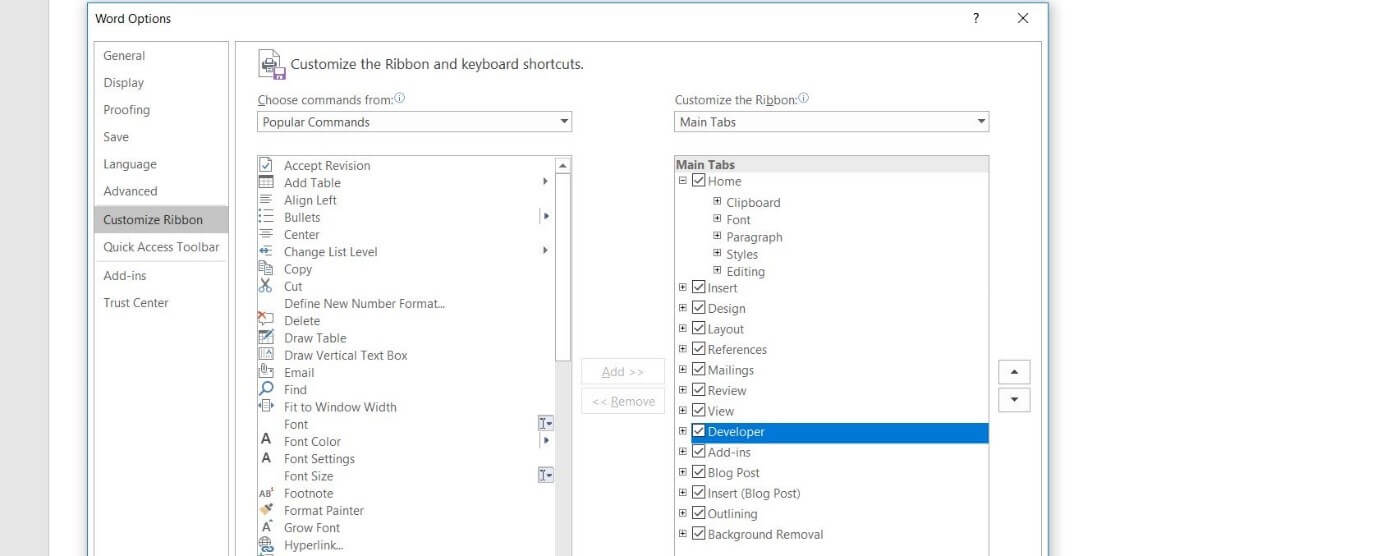
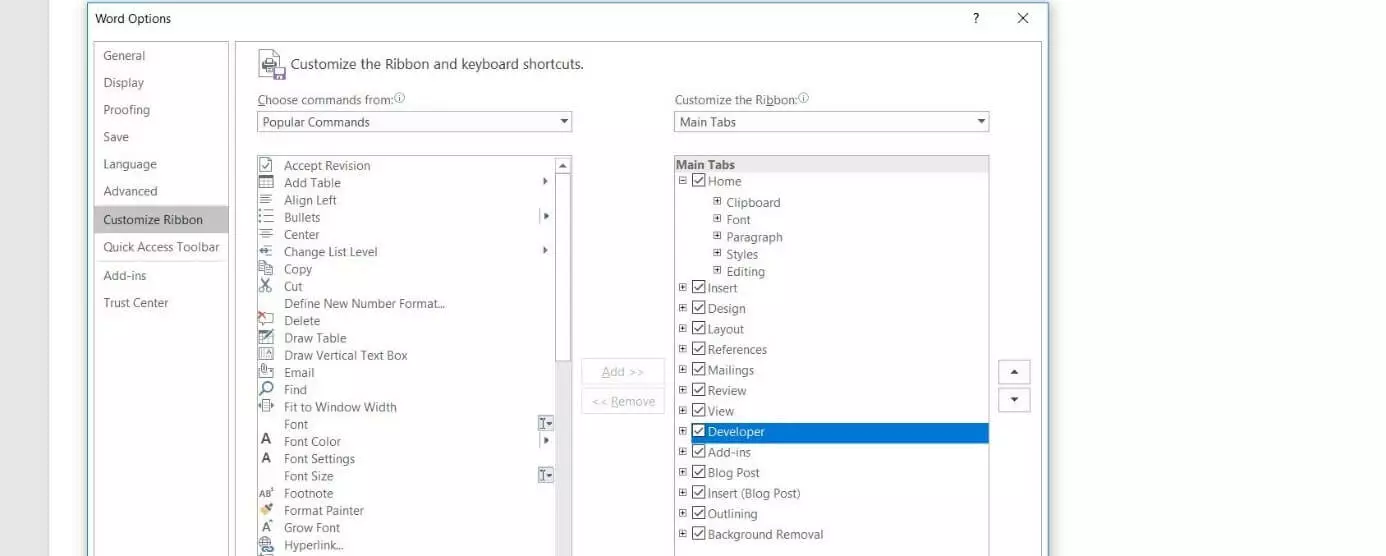
If you would like to configure your own automated sequences for your Word documents, but lack the technical knowledge in the programming language VBA, you should use the option to create macros in Word using the recorder. You can find the macro tools as standard under the “Macros” section in the “View” tab. In order to make it easier to create and manage Word macros, however, it is advisable to activate the developer tools which provide you access to the Visual Basic Editor, among other features. This optional toolbox can be unlocked as follows:
- Open the “File” tab.
- Click on “Options”.
- Switch to the “Customize the Ribbon” section and place a checkmark in the “Developer” box (under “Main Tabs”).
Did you know, you can also create PowerPoint Macros and Excel Macros. Find out how in our handy articles!
As soon as you have activated the “Developer” tools in the Word options, the tab under the same name will automatically be added to the user interface. When you click on it, you will see the section for creating and managing macros in the far left of the toolbar. Find out in the following step-by-step guide how to create your own macros in Word using this quick-access menu and how you can run them at a later time.
Recording Word Macros Executed by Button
The typical solution for a new macro in Word is one that can be run by clicking a button. If you would like to create such a macro using the developer tools, first click on the “Developer” tab and then select the option “Record Macro”:


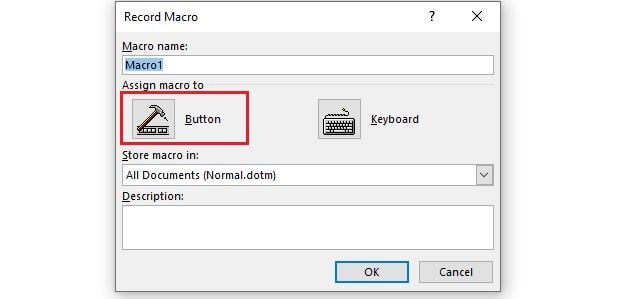
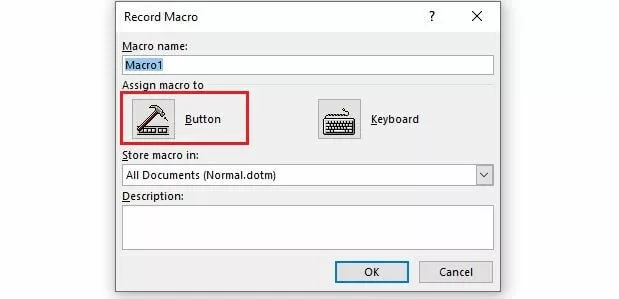
Now enter a name for the macro and select the document you wish to create the macro for under “Store macro in:”. If you would like to create a cross-program macro, simply select the option “All Documents (Normal.dotm)”. To enable the macro to be executed in Word using a button, finally click on “Button”:
Select the macro you wish to create in the left window and click on “Add”, making it also selectable in the right window. Click on it here again and then press the “Change” button. You can now assign your new Word macro any icon you wish:
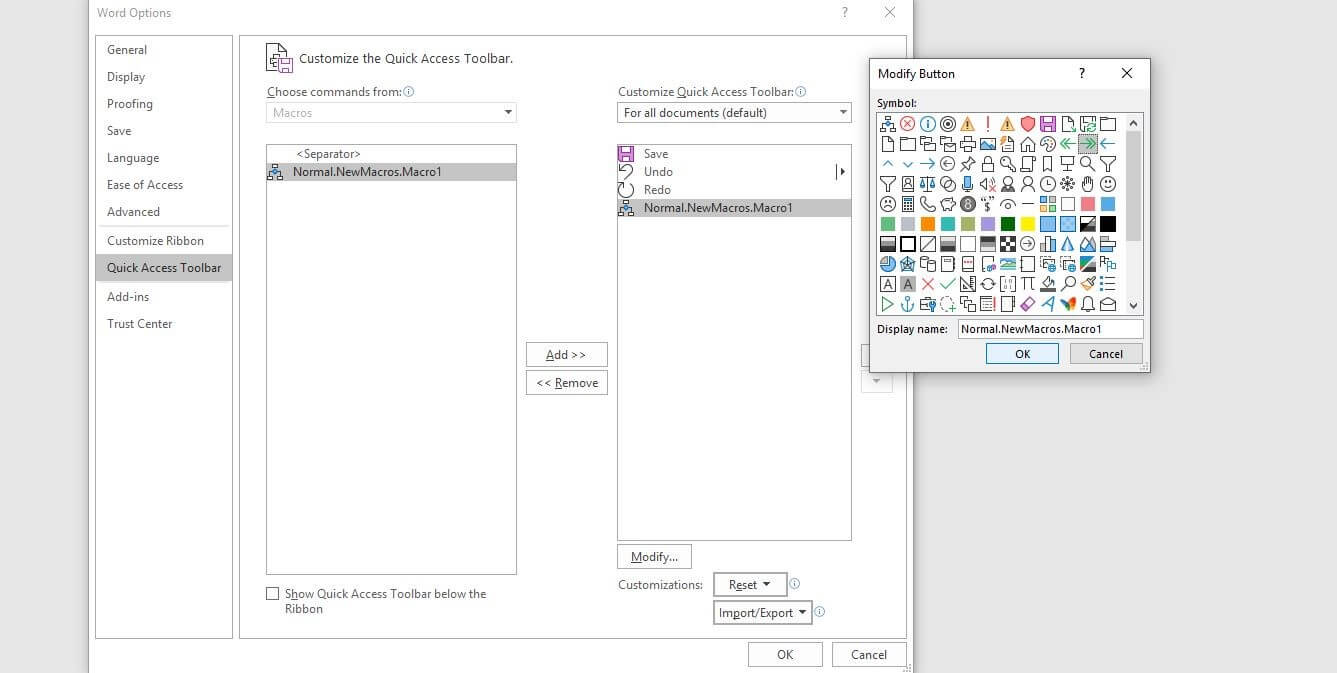
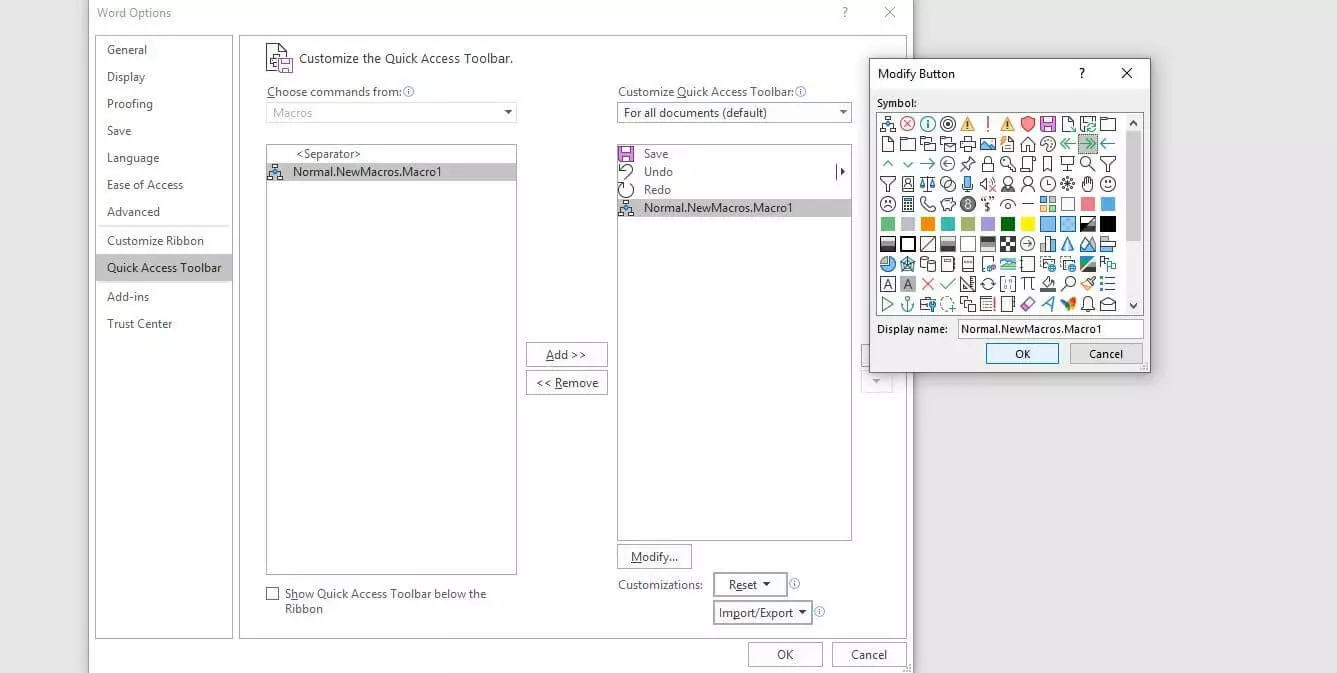
Confirm your desired button by clicking on “OK” twice. Now perform the actions you want to save in the macro. Word will record your mouse clicks as well as key strokes. However, the recorder will not save any movements or highlighting with the mouse. So if you want to select some text, for example, you will need to use the keyboard (hold down the [Shift] key and use the arrow keys).
Once you have finished the sequence for the macro, you can stop the recording via “Stop Recording”:


The key for the new Word macro will automatically be added to the toolbar for quick access:


Creating Word Macros Executed via Key Combination
You can create a Word macro that can be started using a unique key combination in essentially the same way as for macro buttons: Start the process using the “Record Macro” button in the macro menu under “Developer”, enter a suitable name, and decide whether you want to make the macro available in all documents or only in a certain project. In the final step before beginning the recording, you should choose the “Keyboard” option in order to open the menu for new hotkeys:
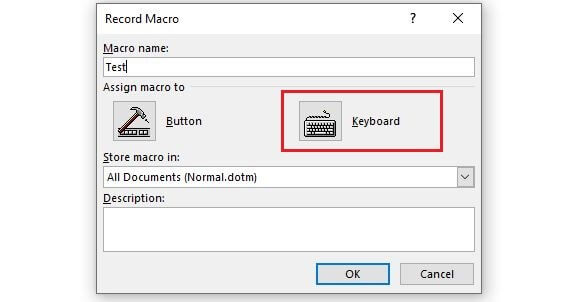
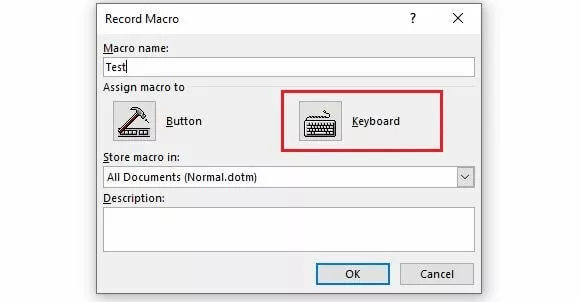
In the “Customize Keyboard” menu that then appears, select the macro under “Commands”. Next, click on the “Press new shortcut key” field with the left mouse button and press your desired key combination. Here it is important to press these keys simultaneously. In the following Word macro example, we used the [Ctrl], [Shift], and [#] keys.
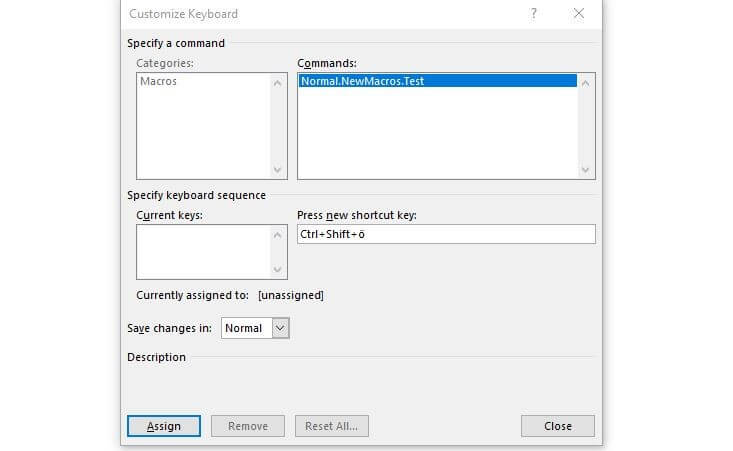
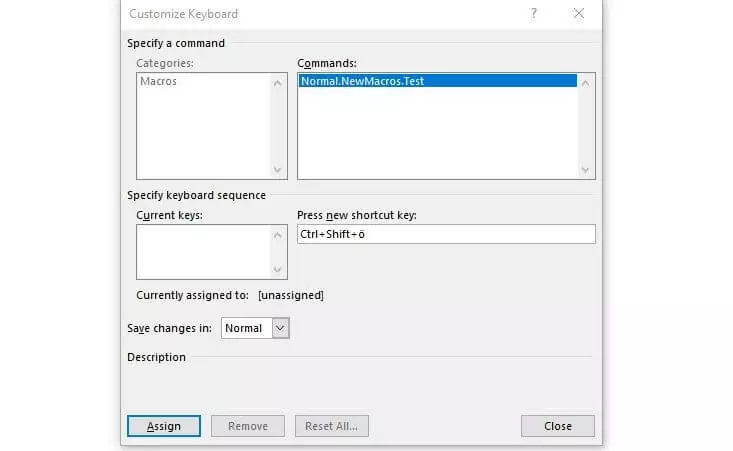
Under “Save changes in”, you can define whether the key combination should be valid universally (“Normal”) or only for a certain Word document; to confirm your choice, click on the “Assign” button. As soon as you close the menu, the macro recording will start.
Executing Word Macros
Once you have created a macro, you can start it at any time using the defined execution option. You only need to use the define key combination or click on the corresponding button in the quick-access menu (in the top left). You can also run your Word macros using the macro list by following the steps below:
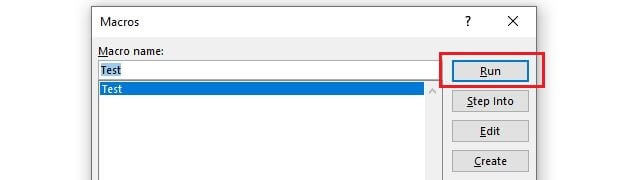
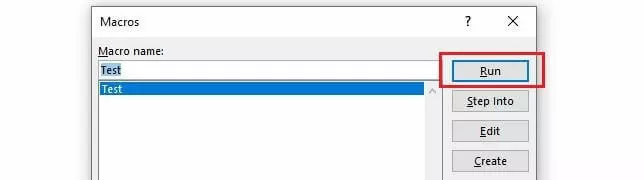
- Click on the “Macros” button under the “Developer” tab or alternatively on “Macros” in the menu under the “View” tab, and then on “View Macros”.
- Select the desired macro from the list using a left mouse click.
- Now press “Run”.
Adding macro buttons to a Word tab ribbon
If the macro icon is too small for you in the quick-access toolbar or if you would like to add a button for a macro executable via key combination, you can also integrate a macro button into the ribbon of any tab. To do so, simply create a user-defined group for the tab and add the desired macro to it. You can do both in the “Customize Ribbon” menu in the Word options (accessibly via “File” -> “Options”).
Creating a user-defined group:
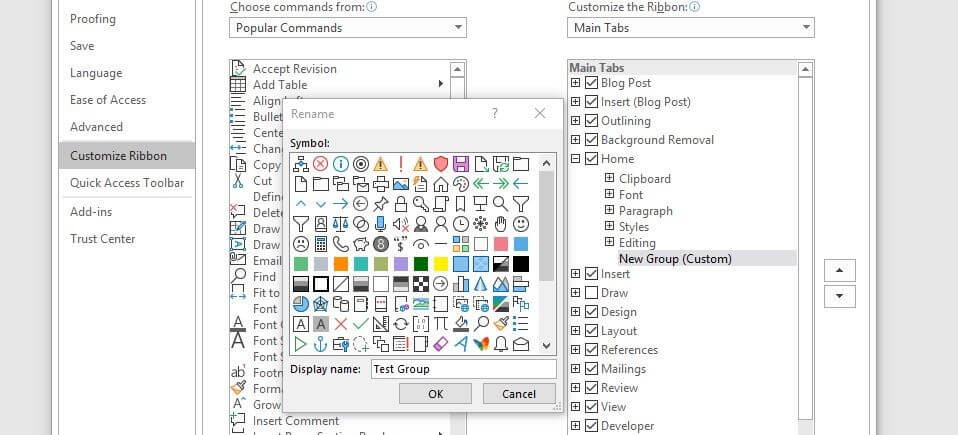
In the right window under “Customize Ribbon”, select the tab in which you wish to create the new group and then click on the “New Group” button. In addition to the standard groups here, the entry “New Group (User-Defined)” will now appear. Click on this and then press “Rename” to give the group a suitable name as well as an icon:
Integrating a Word macro into a user-defined group:
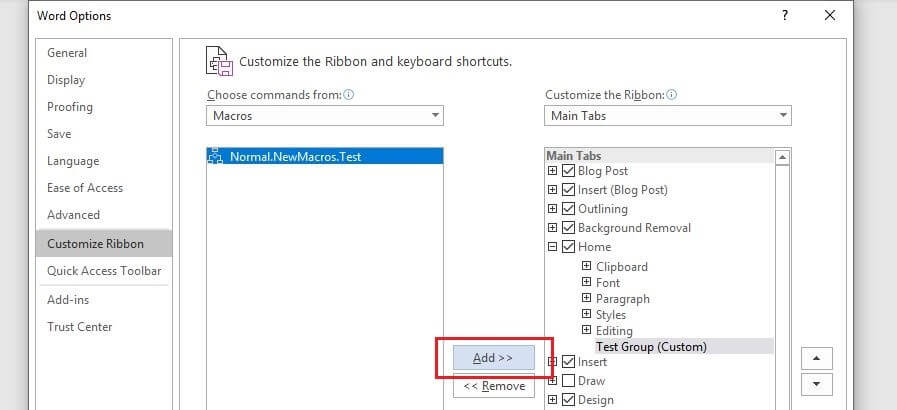
After creating a user-defined group for a tab’s ribbon, you can now add any number of Word macros to this group. First click on the “Macros” option in the left menu section under “Choose commands from:” and then on the Word macro you wish to integrate. In the right menu window, now click on the user-defined group before finally pressing the “Add” button:
Close the Word options and open the tab you added the macro button to. You should now see this in the group you created in the ribbon:


Importing Existing Macros in Word
You may also find yourself in the situation in which you already have VBA macros, but they are not available in your Word installation. This could be the case, for instance, if you created these macros on another device or received them from another person. Plus, there are various online sources where you can find a wide range of macros. Microsoft Word offers you the option to import ready-made command chains for use in your program. The tool for this is the Visual Basic Editor mentioned earlier. It can be opened via the key combination [Alt] + [F11] or alternatively using the “Developer” tab.
The next steps depend on whether you are importing a finished macro file or pure macro code.
Importing ready-made macro files (.frm, .bas, .cls):
If you have a complete macro as a file, you can import it into your Word installation in just a few steps. First, select the document you want to add the macro to in the Project Explorer. If you can’t find the explorer in the code editor, you can open it by selecting the “View” tab and pressing the “Project Explorer” menu item. In the file manager, now click on your current or another Word project if the macro should only be applied to one document. If you select the project “Normal”, the Word macro will be imported for all documents:
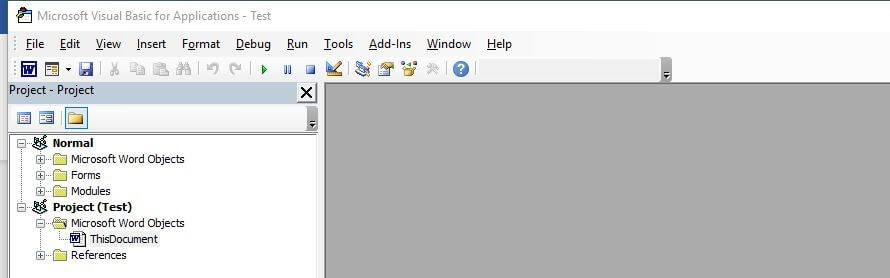
To import the macro, click on “File” and then “Import File”. Specify the storage location for the macro file and press “Open” to start the import process.
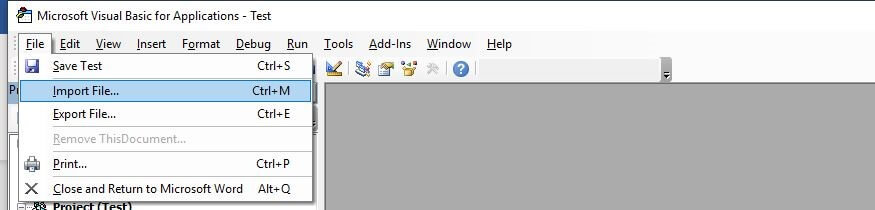
Importing macro code:
If you only have the code for a certain macro, other steps have to be taken for importing. Here too, you start by selecting the document you wish to add the automatic command sequence to. Open the explorer and double-click on the entry “ThisDocument” (in the subfolder “Microsoft Word Objects”) for the respective document or under “Normal” (to save the macro in the universal template):
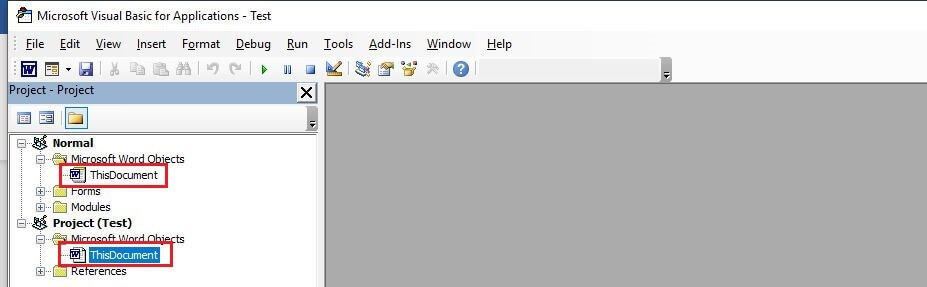
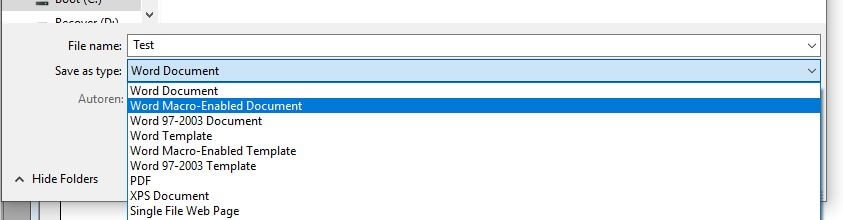
In the code window that appears next, copy the macro code and then click on the “Save” button. If you selected a specific Word document in the previous step, you will be notified that you will have to save it as a “Word document with macros”. Then click on “No” and select the corresponding entry under the “File Type” list. Finally, click on “Save” to generate the new file format:
Word Macros: Examples of Useful Command Sequences
Now that you know what a Word macro is and how to use macros in Word (creating, running, and importing macros), we can explain the purpose of these command chains for automation in Microsoft’s text editor using a number of specific Word macro examples.
Word Macro for Automatically Determining the Average Sentence Length
There are various web tools you can use to analyze your texts – such as to ascertain the average length of your sentences. Using the right macro, you can also find this out directly in Word. The following code automatically looks at all the sentences in your document and divides the total word count by the number of sentences. The macro then displays the average length in a text popup (“Average Words Per Sentence:”):
Sub CountWords()
Dim s As Range
Dim numWords As Integer
Dim numSentences As Integer
numSentences = 0
numWords = 0
For Each s In ActiveDocument.Sentences
numSentences = numSentences + 1
numWords = numWords + s.Words.Count
Next
MsgBox "Average Words Per Sentence: " + Str(Int(numWords / numSentences))
End Sub
Word Macro Example: Correcting Transposed Letters
Anyone who regularly types texts on a computer will know just how quickly typos like transposed letters occur. But these errors can be quickly corrected. Using the following macro, you only need to place the marker in front of the erroneous pair of letters. Running the macro via key combination or button then allows the letters to be swapped around automatically:
Sub TransposeCharacters()
Selection.MoveRight Unit:=wdCharacter, Count:=1, Extend:=wdExtend
Selection.Cut
Selection.MoveRight Unit:=wdCharacter, Count:=1
Selection.Paste
End Sub
Macro Code for Removing All Hyperlinks
Whenever you include website addresses in your texts, Word will automatically change them into clickable hyperlinks to the corresponding sites. But if you don’t want your document to contain these hyperlinks, you usually have to delete the links individually. The following Word macro example saves you a whole lot of work by automatically removing the first hyperlink found in the document. You can therefore run the macro as often as necessary until all the hyperlinks are gone:
Sub RemoveHyperlinks()
'On Error Resume Next
Dim x As Variant
For Each x In ActiveDocument.Hyperlinks
Selection.WholeStory
Selection.Range.Hyperlinks(1).Delete
Next x
End Sub