

Google Sheets: conditional formatting explained

When there are hundreds of entries, tables can quickly look overwhelming and cause confusion. And before you can even access the most important bits of information, time is being wasted. Spreadsheet software make it easier to understand important aspects thanks to user-defined formatting. For example, one could highlight all the values that are greater than 500 in a table. Or perhaps you’re looking to format only cells that contain an entry of a future date. Conditional formatting in Excel or in Google Sheets lets you automatically highlight values that match pre-defined conditions.
- Up to 50 GB Exchange email account
- Outlook Web App and collaboration tools
- Expert support & setup service
Areas of application for conditional formatting in Google Sheets
The areas of application for conditional formatting are as varied as the available formatting options. Accountants can use conditional formatting, for example, to calculate overviews of monthly profits and losses by highlighting negative values in red. Project managers, on the other hand, may format their ongoing budget overviews to flag any values exceeding available budgets.
Conditional formatting makes it easier to view and comprehend complex tables. By using color highlighting, specific elements and values in a table are more easily viewed based on individual values or specific rules or formulas.
Values as the basis for conditional formatting in Google Sheets
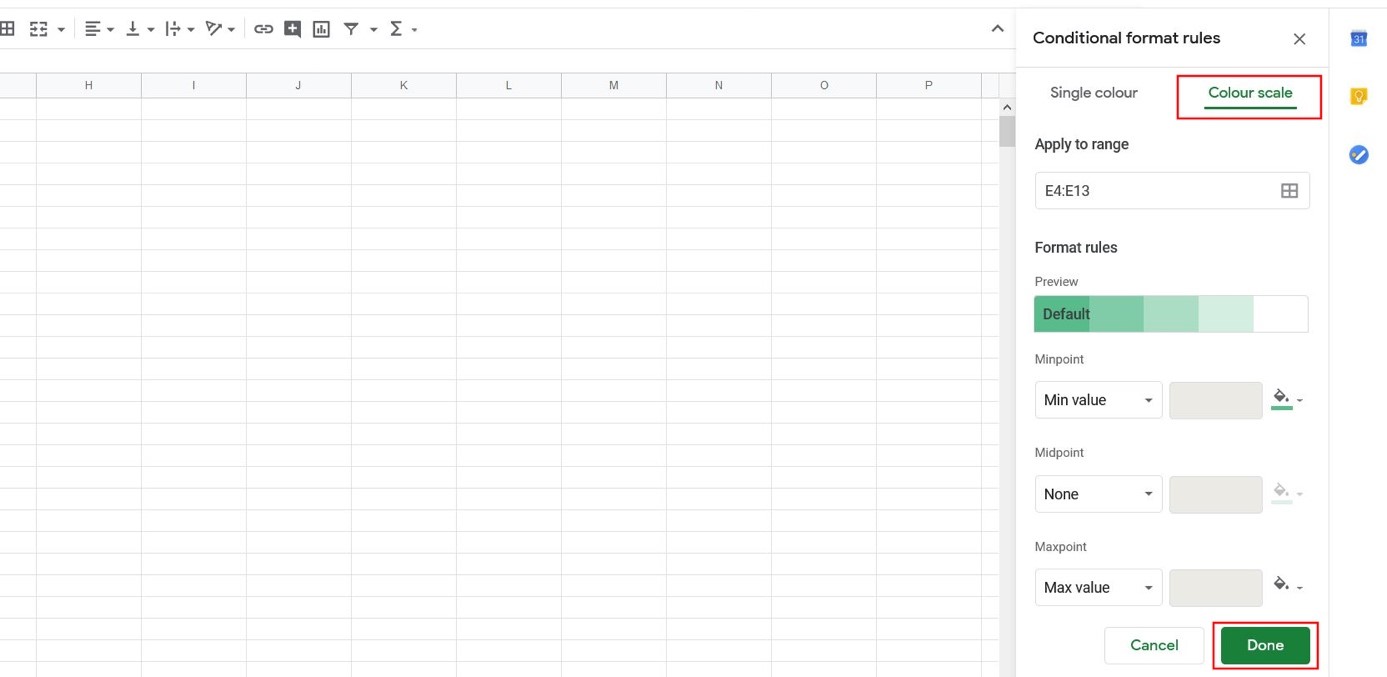
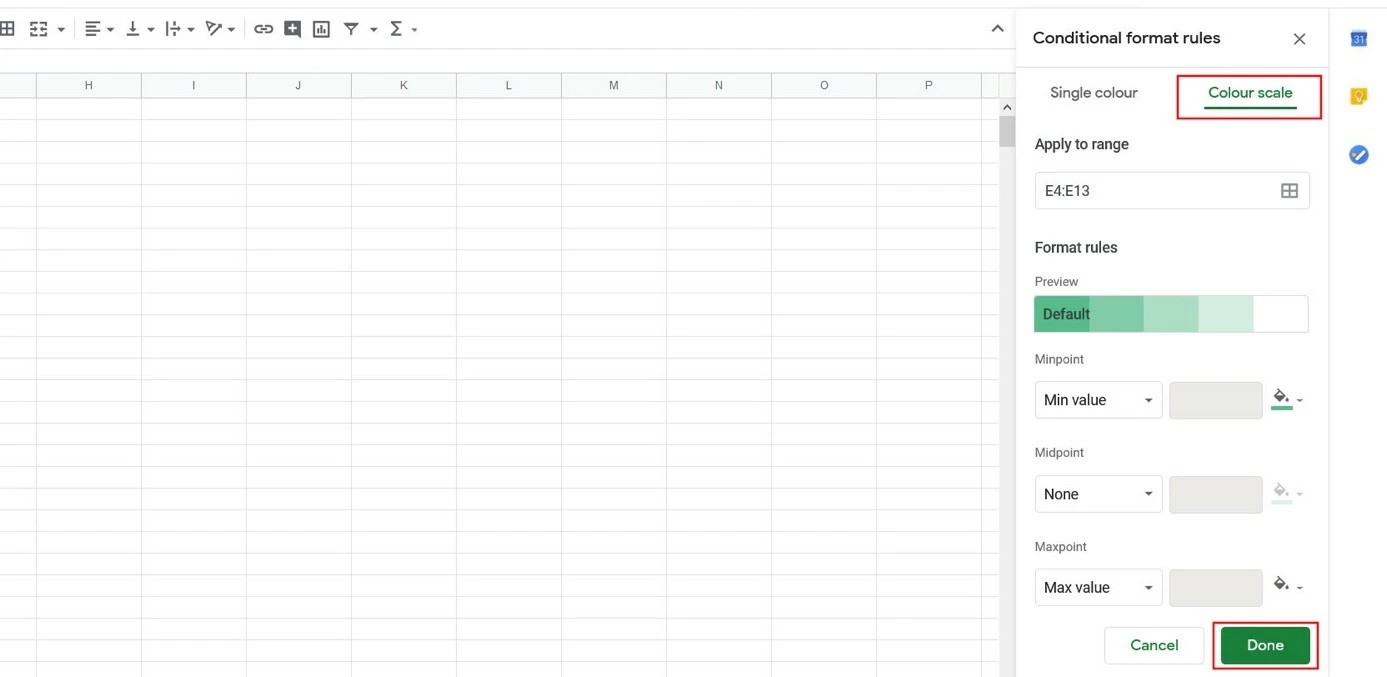
The simplest way to highlight specific information is to compare and relate individual entries to each other. Formatting options such as “Color scale,” for example, are useful to highlight high values in a darker color than lower values. Google automatically suggests a scale of green tones, but users can choose their own colors. To format highlighting options in your Google Sheets project, follow these steps:
- Mark the desired range of values.
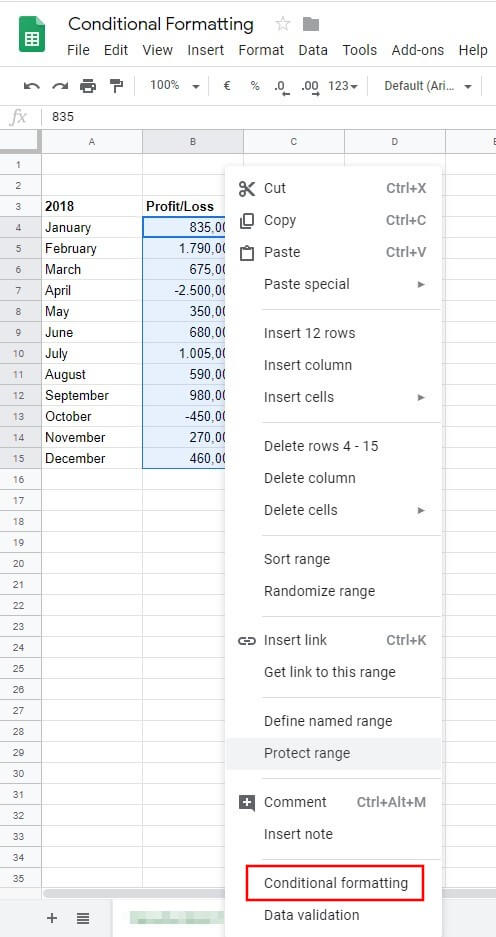
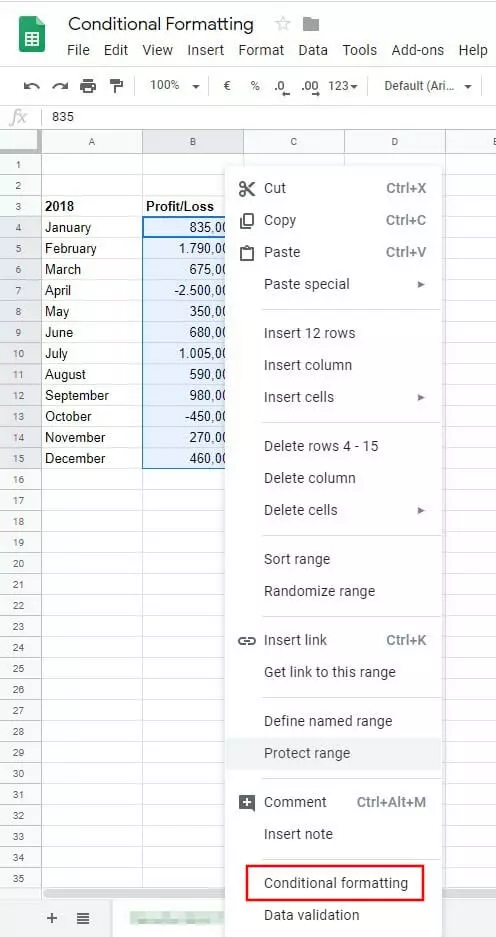
- Right-click on the selected area and choose “Conditional formatting.”
- In the lower right side menu, select “Color scale.” You can now choose to continue with the green color scale or select your preferred color. Click on “Done” when you’re finished.
Google Sheets: conditional formatting based on rules
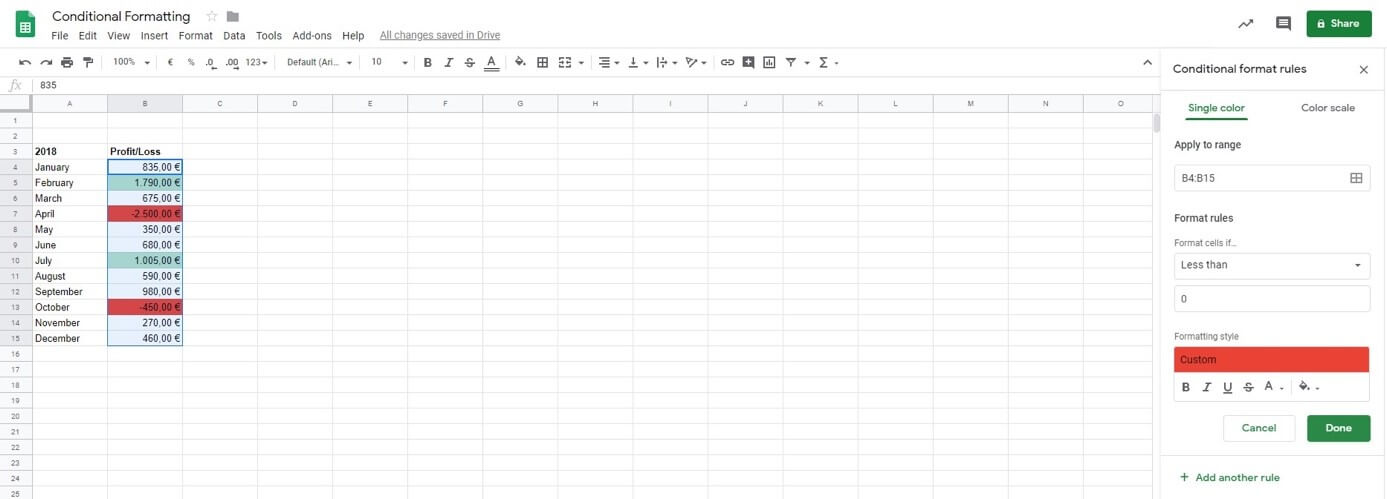
If you’re working with an extensive profit-loss table and need an overview of the months during which the business performed particularly well, conditional formatting can be defined based on rules and exact values. The following example is based on a table of revenue and outgoings over a period of 12 months. Here, we want to highlight cells that meet the following conditions: profits over $1,000 are to be automatically highlighted in green, and losses will be shown in red.
- Mark the range of values in the spreadsheet you want to apply the conditions to. Right-click anywhere in the selection and select “Conditional formatting.”
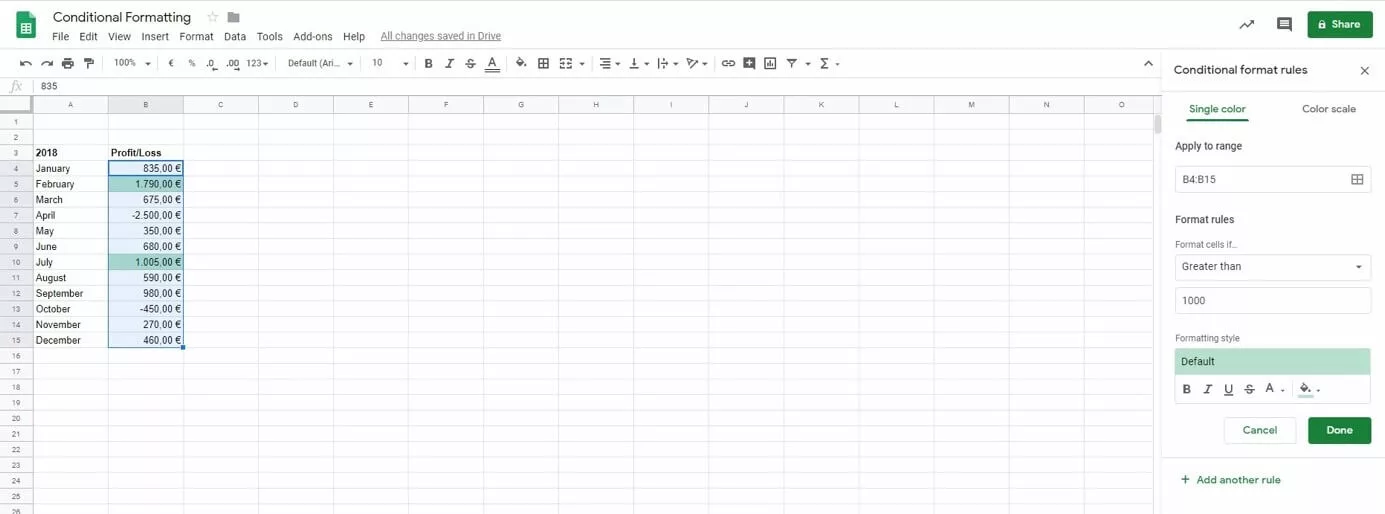
- The dialog window “Conditional format rules” will open up in which conditions and formatting can be further defined. Select “Format cells if…” from the drop-down menu and choose “Greater than.” In the field below, enter the value “1000.” All values within the selected range that are greater than 1,000 will be automatically highlighted in green.
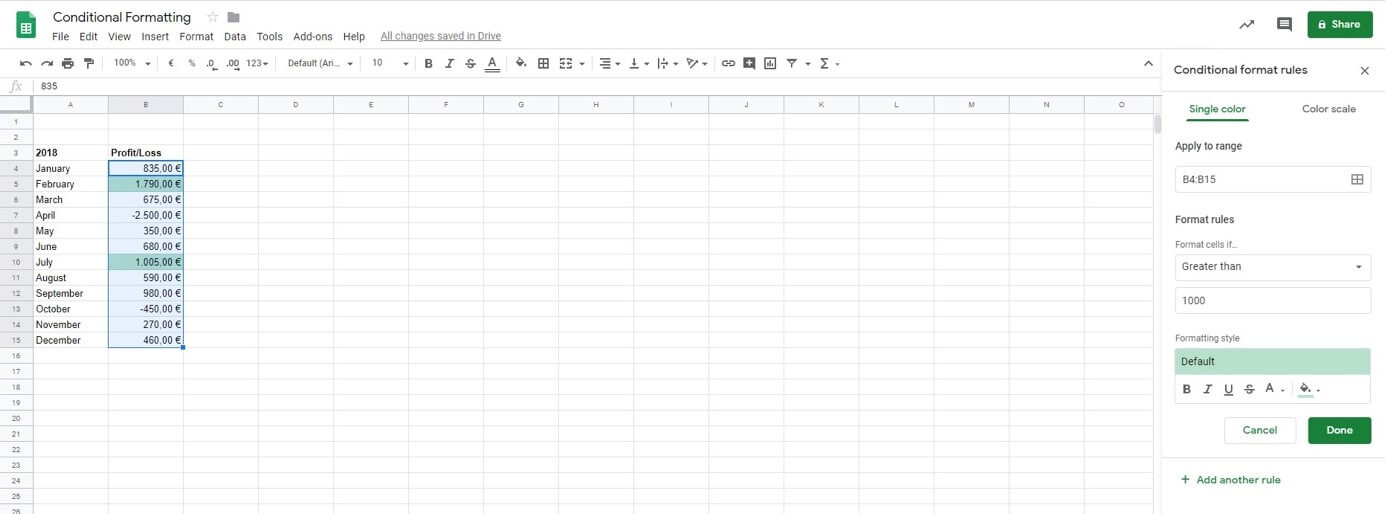
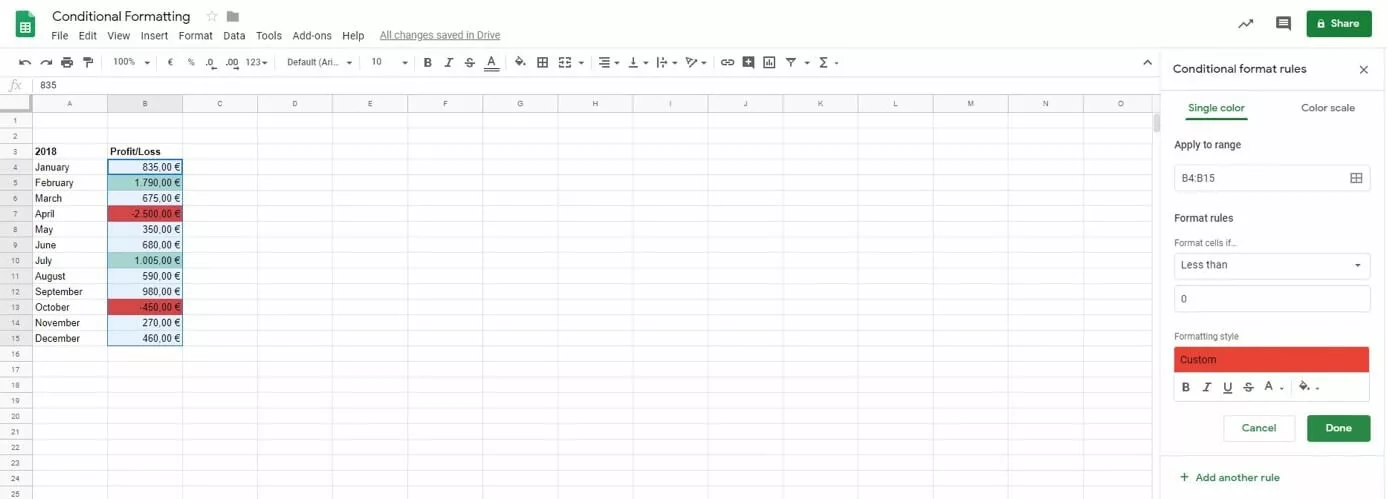
- By selecting “Add another rule,” you can specify additional conditions. In this example, we’re trying to highlight all cells with values smaller than “0” in red signifying losses. Add another rule and choose “Smaller than” and enter “0.” Change the formatting colour to red. Hit “Done” when you’re ready.
- All your favorite Google productivity tools
- Business Gmail for your domain
- Using Gmail with your domain from IONOS
Conditional formatting based on formulas
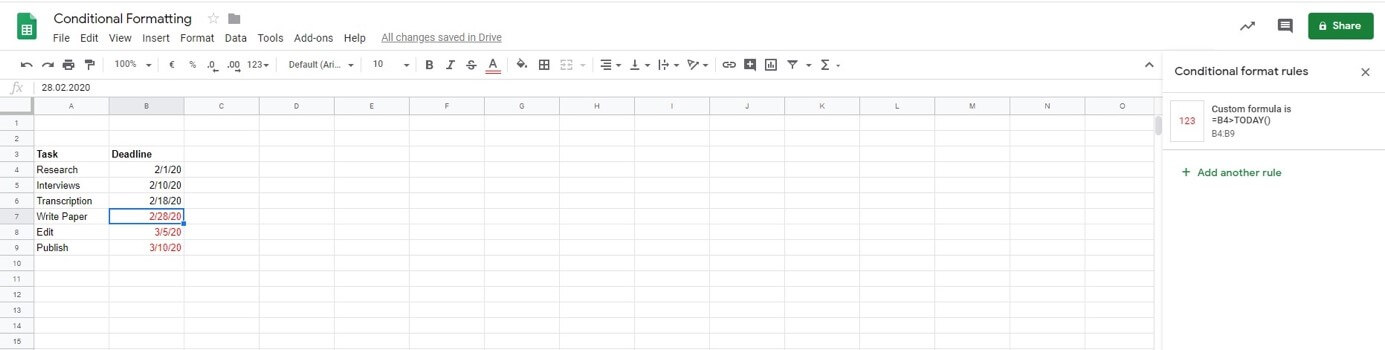
Aside from conditional formatting via defined rules for values, text, and dates, you can also specify your own formulas to format data. A user-defined formula allows you to highlight cells which meet the conditions of your formula. This could be useful to highlight future dates, for example, as shown in this example:
- Mark the range of values in the spreadsheet you want to apply the conditions to. Right-click anywhere in the selection and select “Conditional formatting.”
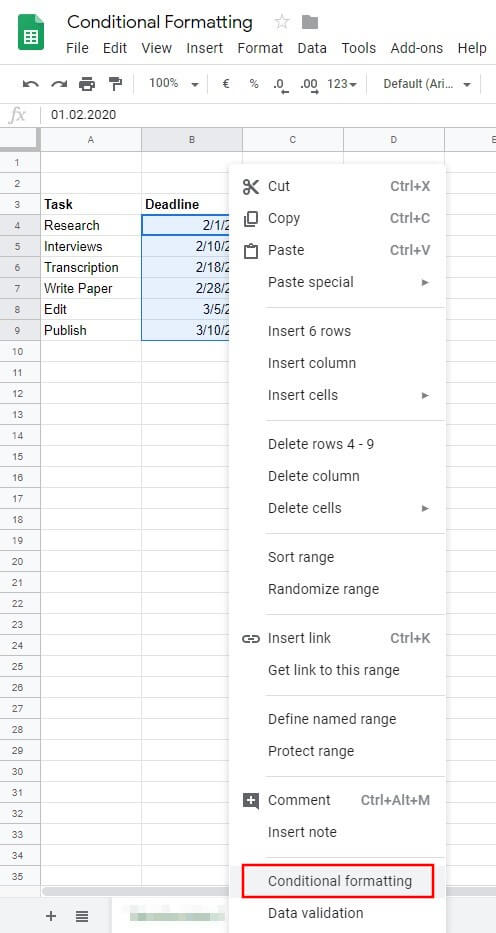
- In the settings window “Conditional format rules” select “Format cells if” and choose “Custom formula is” from the drop-down menu. Enter the desired formula. In this example, the formula is “=B4>TODAY()”. Then select your preferred formatting. In the example below, all future dates will be marked in red.
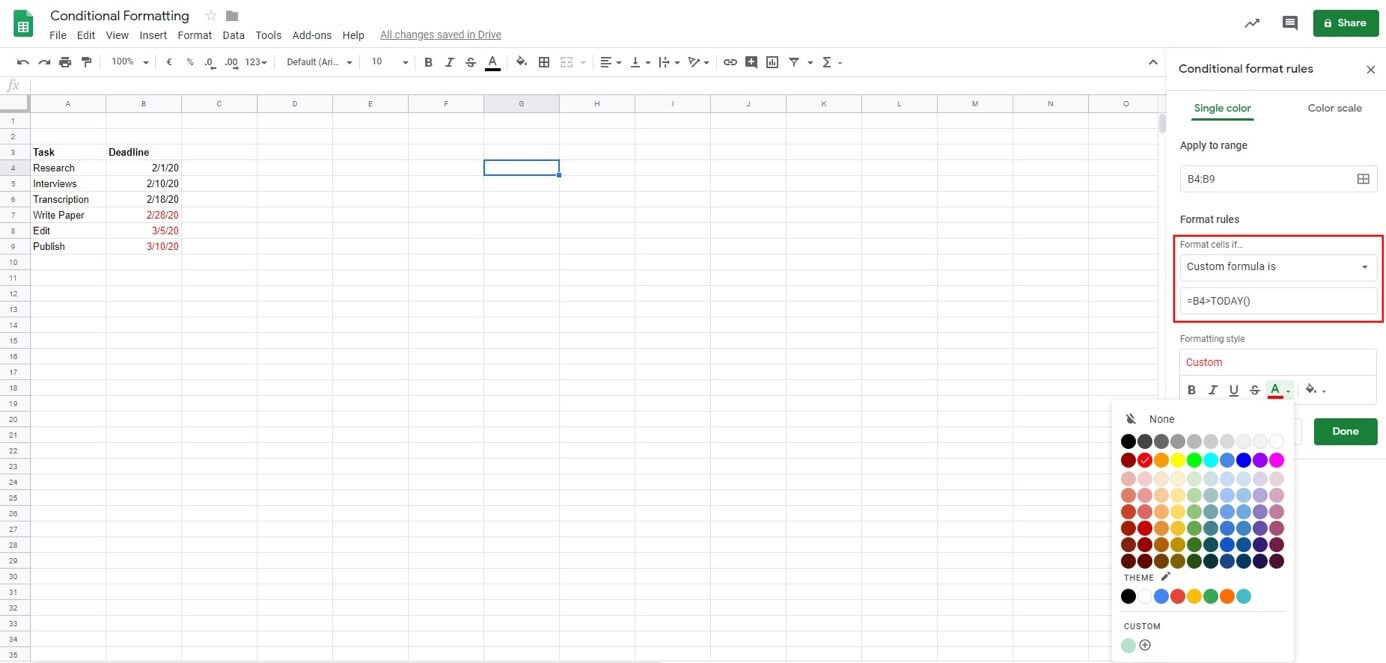
- Confirm your conditional formatting by clicking on “Done.” If you right-click into one of the conditionally formatted cells and click on the “Conditional format rules,” you can see the active formatting in the selected cell. If necessary, you can also add another rule.
More information on conditional formatting in Google Sheets and some other interesting examples are shown in this YouTube tutorial:
 To display this video, third-party cookies are required. You can access and change your cookie settings here.
 Google Sheets is available as part of the Google Workspace package for enterprises from IONOS. The full package includes a business Gmail account and additional cloud storage as well as optimised Google support.