

How to calculate time in Excel quickly and easily

Microsoft Excel makes it easy to create spreadsheets, but its wide range of calculation functions are also extremely popular. The SUM function is probably the most commonly used function. It lets you quickly add up many different kinds of values. But what if you want to add up hours and minutes instead of simple numbers? This is also easy to do, but it requires some preparation.
- Simple registration
- Premium TLDs at great prices
- 24/7 personal consultant included
- Free privacy protection for eligible domains
Calculating hours in Excel: What’s so difficult?
Adding numbers is generally no problem. But if you've ever added up times by hand, you know that it’s different than adding up numbers. Times are divided into hours, minutes, and seconds, and require a different procedure. If you want to add an hour and 40 minutes to two hours and 30 minutes, the result shouldn’t be 3 hours and 70 minutes, but 4 hours and 10 minutes. Therefore, you have to tell Excel how to handle the values. You also have to ensure that Excel doesn’t mix hours and time periods: For example, you don’t want 7 am to be interpreted as 7 hours.
There are many different situations in which you have to add times in Excel. A good example: When you create a time sheet in Excel, you can’t afford to have any errors in the calculation. The Excel spreadsheet must contain the formulas to automatically calculate the correct hours worked by each employee.
How to calculate hours in Excel with format adjustment
You can format cells in Excel in a variety of ways. This allows you to tell Excel what kind of information a field contains and how to display the input. To do this, first select the area where you want to place the times, then right-click in the area and select “Format cells...”. In the window that opens, you can select a wide variety of formats (such as text or currencies). Choose “Time” for Excel to add up hours.
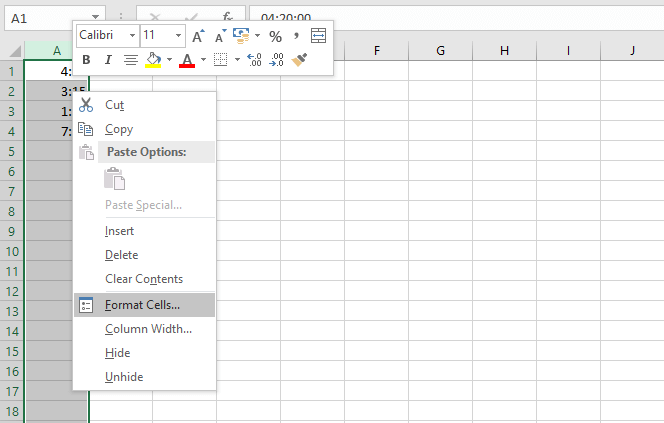
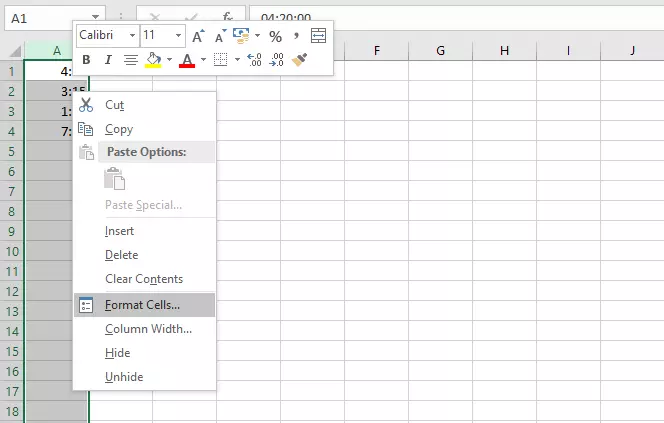
You use a colon to separate hours, minutes, and seconds in Excel.
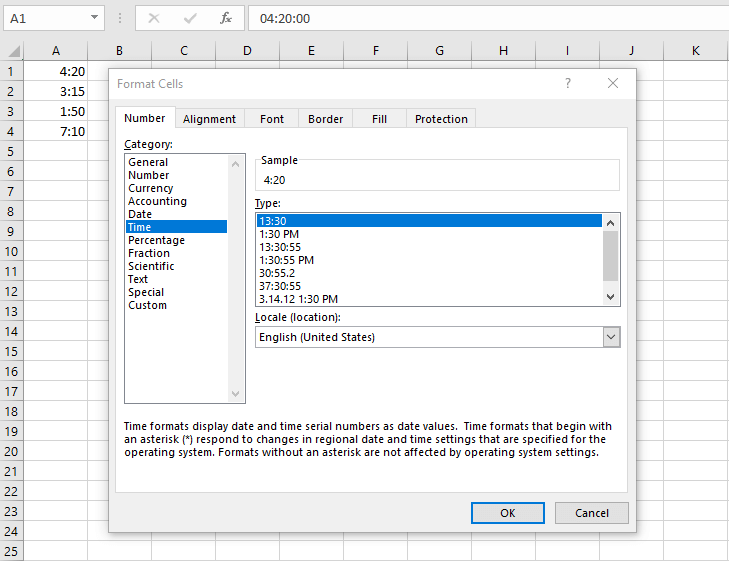
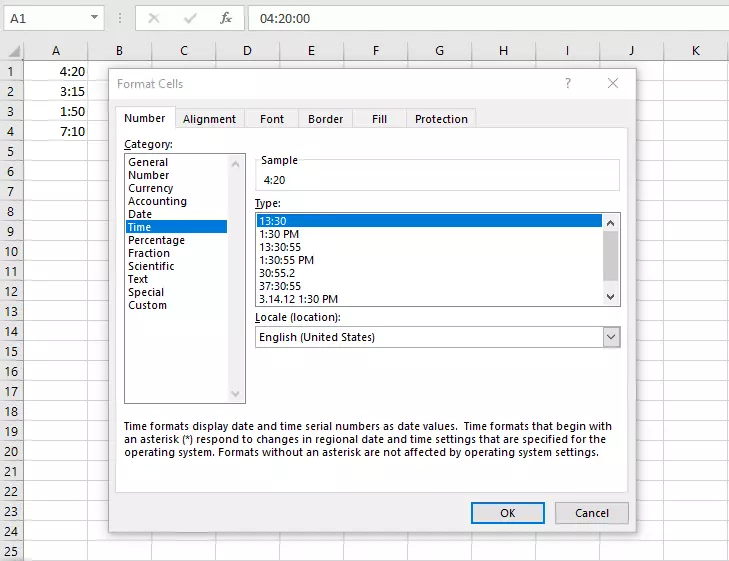
You can choose between different types of display formats in Excel. For example, you can set a 24-hour clock or display the time in a 12-hour format. Choose a format that contains hours and minutes (and possibly seconds) and select “OK.” Now you can add up the cells with the SUM function as usual. Excel will correctly recognize hours and minutes and adjust the result. If you enter the SUM function via the wizard (fx icon next to the formula bar), you can see from the preview values that Excel converts the times internally.
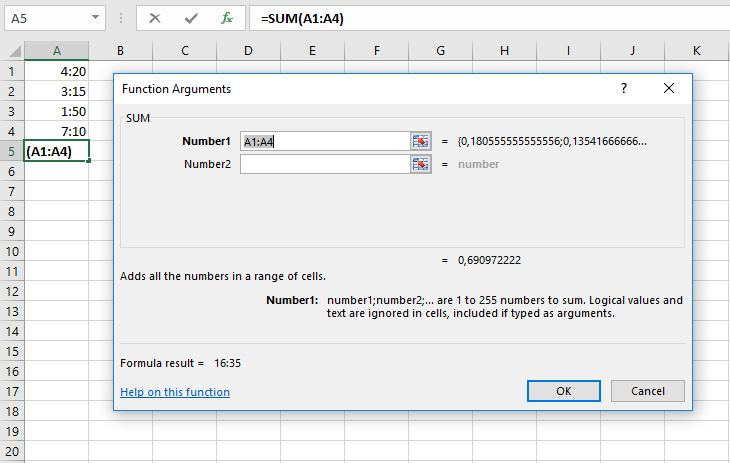
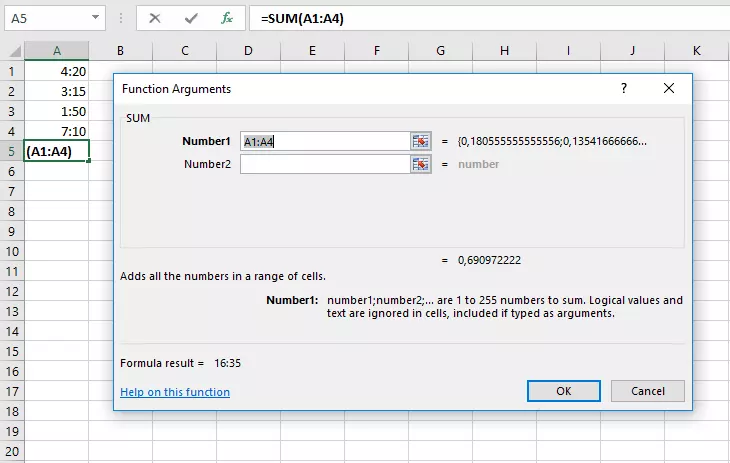
In many situations, you don't have to adjust the format yourself. Excel usually automatically detects that you’ve specified times and changes the format on its own.
Calculation can be problematic if you want to use Excel to add times that exceed 24 hours, the limit for one day. Since we formatted Excel to display a time, it ignores the new day resulting from calculation and displays only the time on the new day. In other words, it only displays the part of the total that is greater than 24. Excel actually performed the calculation correctly, but the result is not displayed correctly.
So, if you want to add values that exceed the 24-hour limit, you need to open the “Format Cells” window again. Once there, choose “Custom” from the list. Under “Type,” enter “[hh]:mm”. This creates a format with two-digit hour and minute displays (a leading zero is inserted for a single-digit value). The square brackets ensure that the hours are counted even though the limit for a new day has theoretically been reached.
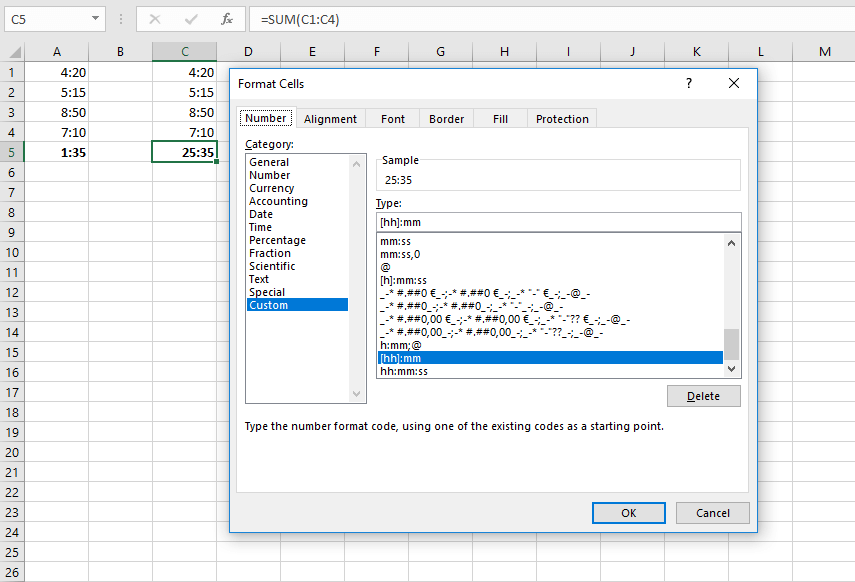
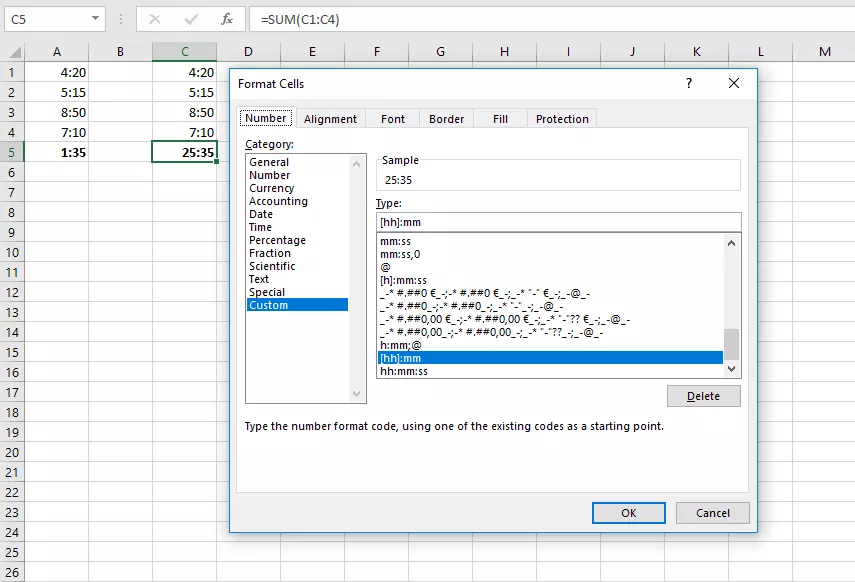
This method of using custom format types also allows you to include days in the output or display minutes only. You would choose “dd:hh:mm” to add hours for full days in Excel. On the other hand, “[mm]:ss” would display only minutes and seconds.
The values can also be displayed differently from the sum. For example, you can display values over 24 hours in each cell, and then choose to display days in the result cell.
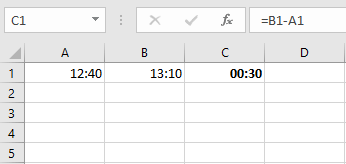
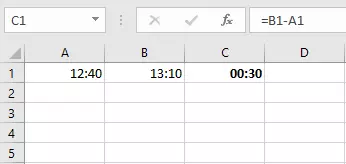
Of course you can also subtract hours in Excel. Excel doesn’t have a separate function for subtraction. You use the minus sign in the SUM function instead. For example, you can calculate the amount of time between a start and end time. To do this, subtract the cell with the earlier time from the later time.
- Store, share, and edit data easily
- Backed up and highly secure
- Sync with all devices