

PowerPoint: Set portrait orientation – how it works

The usual orientation for PowerPoint slides is landscape – for presentations on monitors and projector screens, this is the preset format and offers the perfect solution for all new projects at first glance. However, for some content it makes sense to present PowerPoint slides in portrait view. The best example of this are images and videos taken or saved in portrait view, and which would therefore be more effective on slides that are also orientated vertically.
In this article you can find out how to convert your whole PowerPoint project to portrait, or to just present some selected PowerPoint slides in portrait view.
Tutorial: Set portrait view in PowerPoint – how it works
As practical as PowerPoint portrait view might seem at first glance, implementing it is actually quite complicated. One thing to keep in the back of your mind, for example, is that most presentation environments, such as projection screens, etc., are tailored to and optimized for landscape format. Another barrier is that the Microsoft program isn’t really set up to handle a mix of horizontally- and vertically-orientated slides within one project – in the standard settings, you can only rotate all the PowerPoint slides together.
In the following step-by-step tutorial we will show you first how the general conversion to PowerPoint portrait view works. After that, we’ll explain how you can use PowerPoint slides both in portrait and in landscape view within the same document, despite the restrictions in the settings.
How to change your current PowerPoint project to portrait
As already mentioned, the conversion from landscape to portrait view is automatically applied to your entire PowerPoint project. If you’re planning to present all slides in your PowerPoint vertically, you can achieve this very easily by changing the page orientation. For this, you need to do the following:
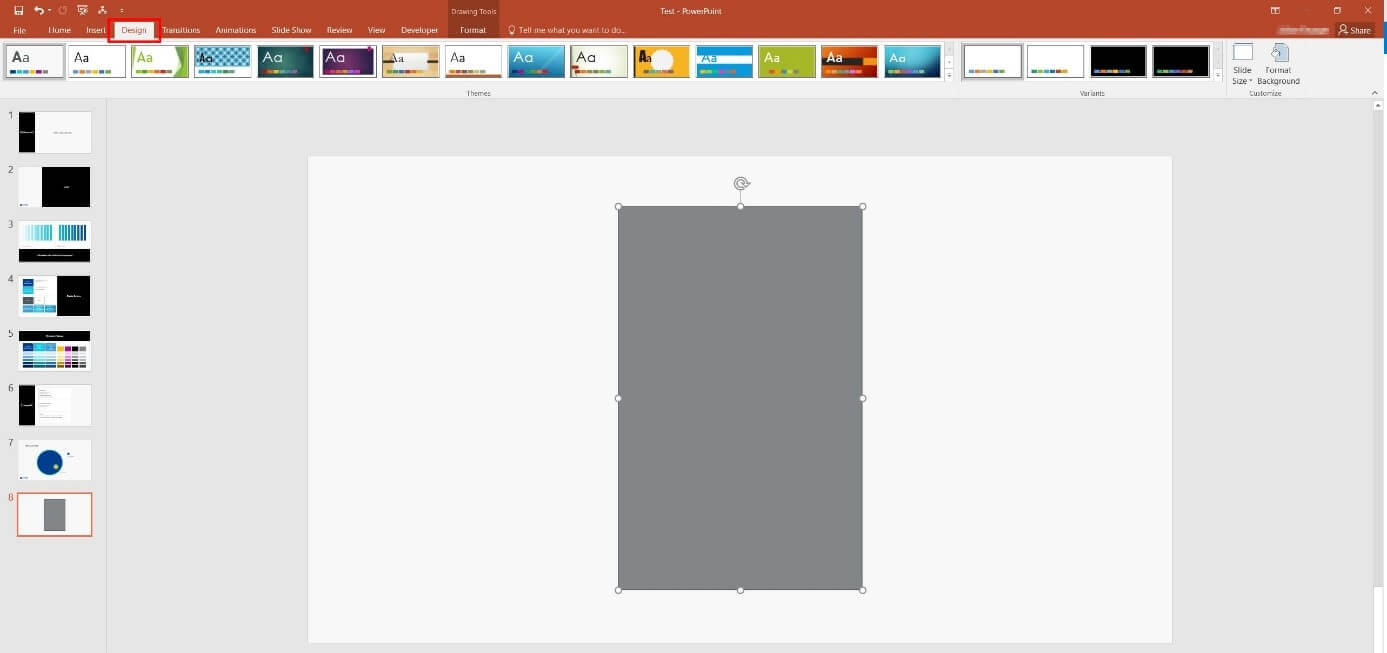
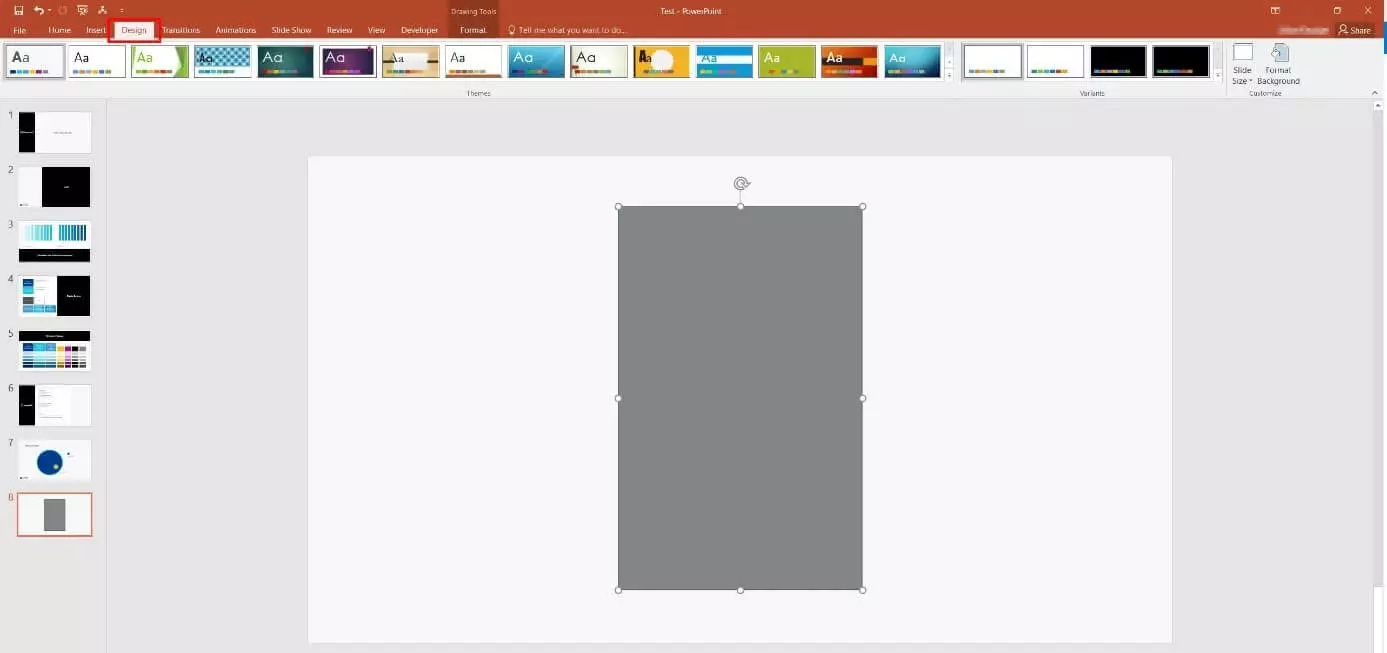
Open the PowerPoint project that you’d like to present in portrait view, and open the “Design” tab:
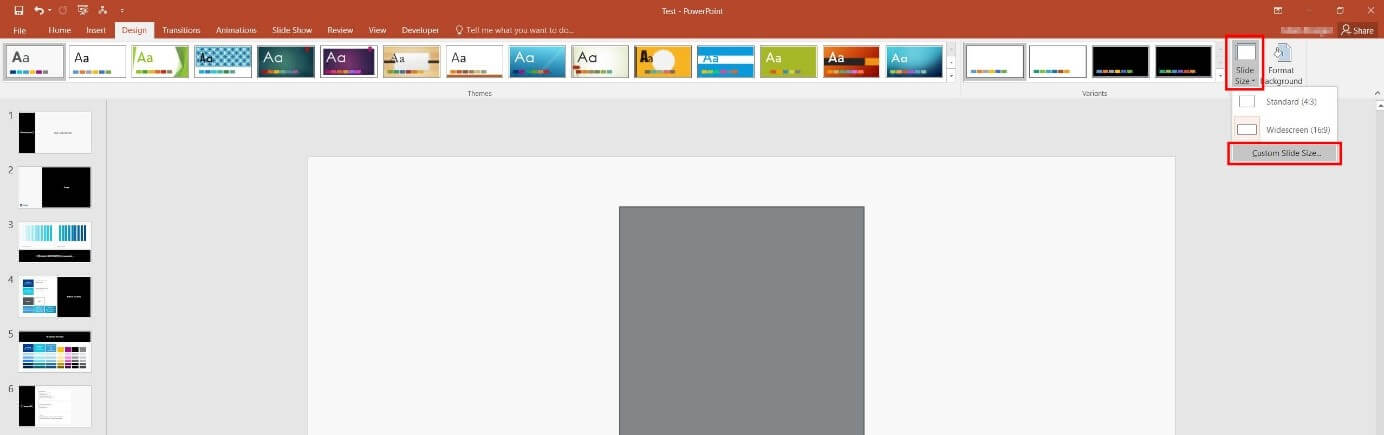
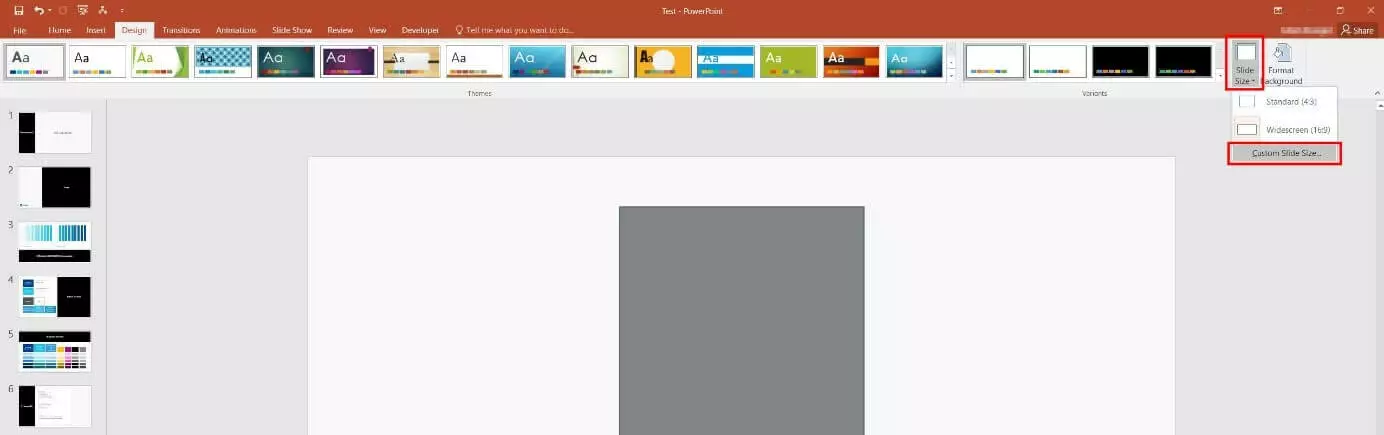
Click on the “Slide Size” button, which you can find in the top-right part of the menu, and select the option “Custom Slide Size”:
You can now organize the size of individual slides in this new dialog box. To simply convert the PowerPoint slides to portrait, though, you don’t need to go through all the work of calculating measurements – simply select the option “Portrait” under the entry “Slides” (“Orientation”). Then, click “OK”:
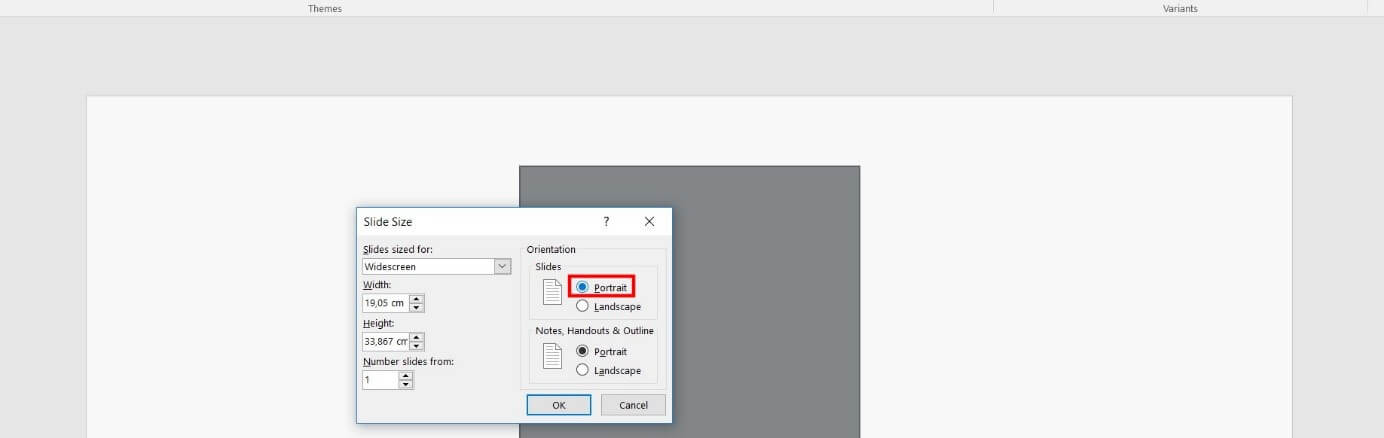

The presentation software will then open a dialog box where you can optionally choose whether the size of the content in your current slides should be maximized when changing to PowerPoint portrait orientation, or whether the program should automatically calculate a suitable format.
If you’re not sure which option to choose, go for the “Ensure Fit” scaling – so you can make sure that the content also fits onto the slides! If you’re unhappy with the result, you can quickly discard the change using the “Undo” function.
Click either the “Maximize” or the “Ensure Fit” button to set PowerPoint portrait view:


If the conversion has worked, PowerPoint will now show your slides in portrait view (both the one currently selected and the miniature versions in the sidebar):
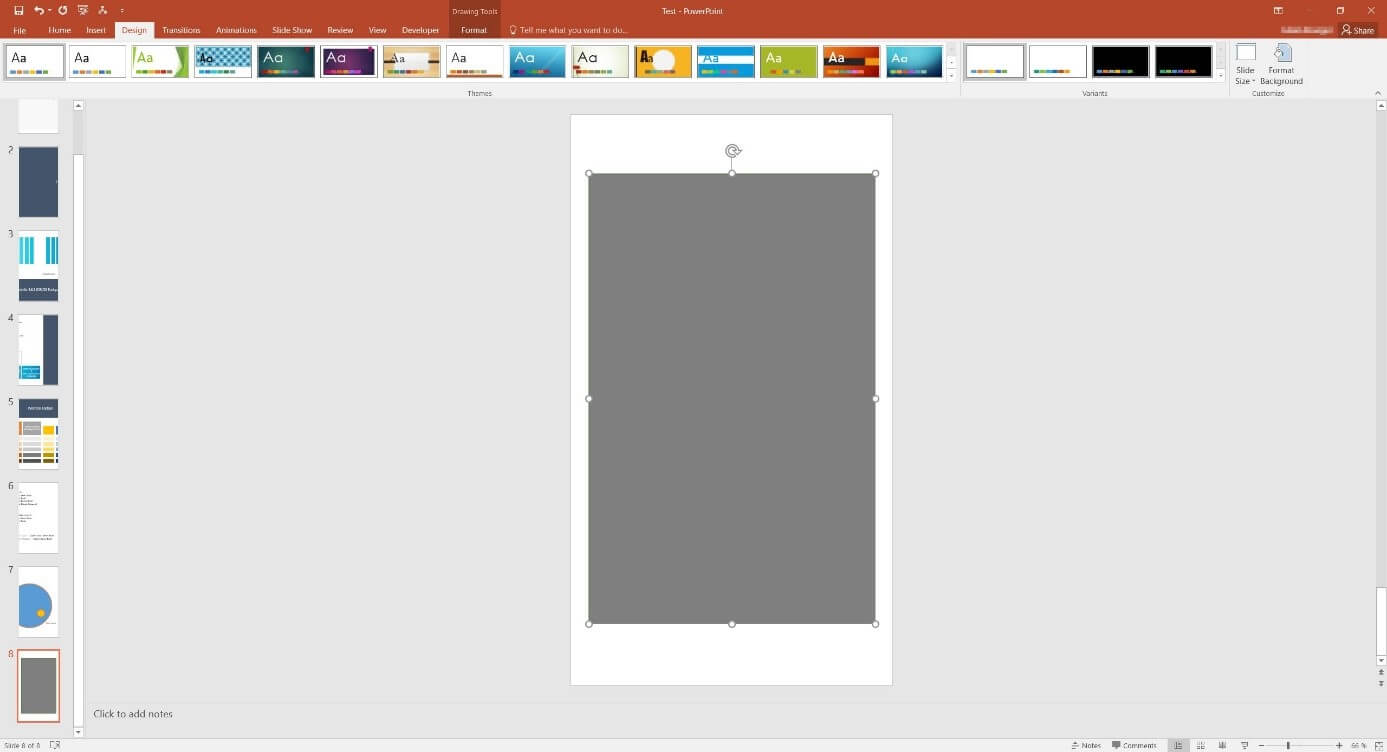
A quick summary of the individual steps:
- Open the PowerPoint project
- Open the “Design” tab
- Click on the button “Slide Size” and select the “Custom Slide Size” option
- Select the option “Portrait” under “Orientation” “Slides”
- To finish, click on “Maximize” or “Ensure Fit”
PowerPoint: How to present individual slides in portrait view
Because there is no native function to switch between vertical and horizontal slides in PowerPoint, you’ll need to fiddle around a little if what you want is a presentation with both format types. The easiest solution in this case is to create two different presentations – one in portrait and one in landscape view – and to merge these together. The audience won’t notice this two-part structure.
Save both presentations in one folder before linking them. If you want to save the documents externally later, you simply have to copy this folder, removing any possible complications with linking.
The following example shows how to set up this link:
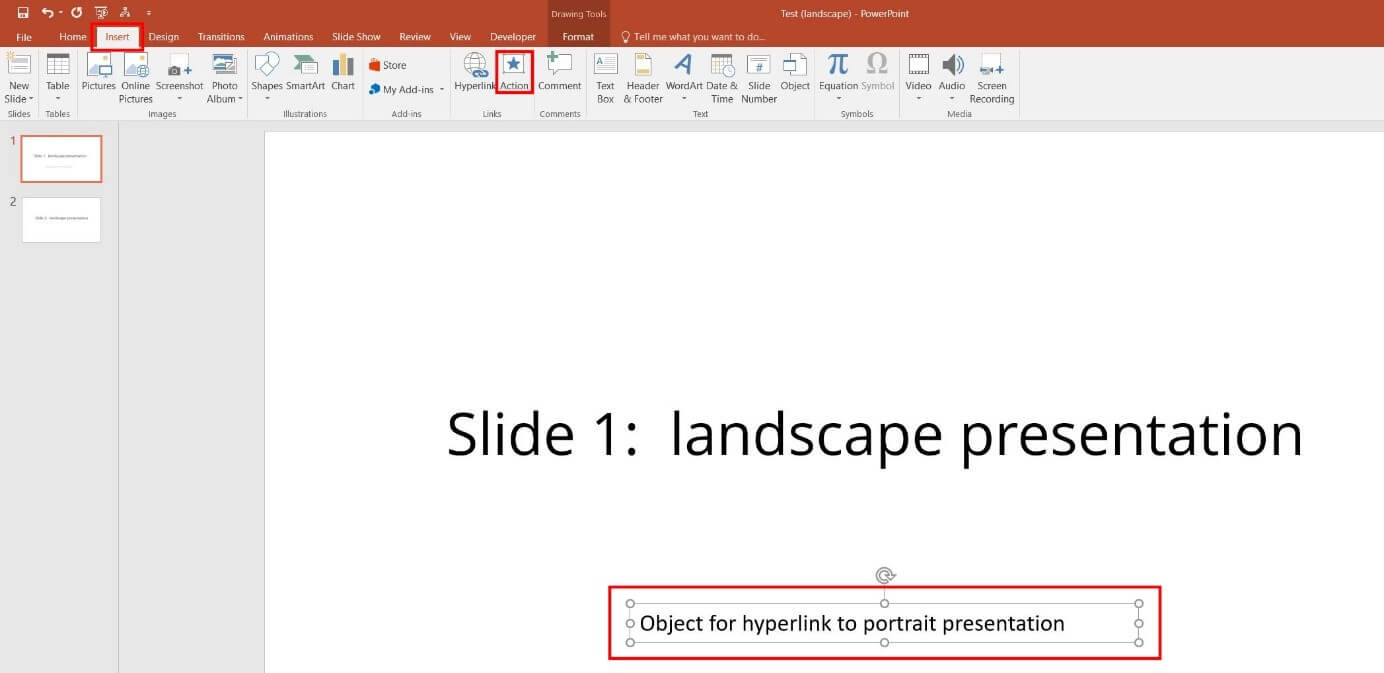
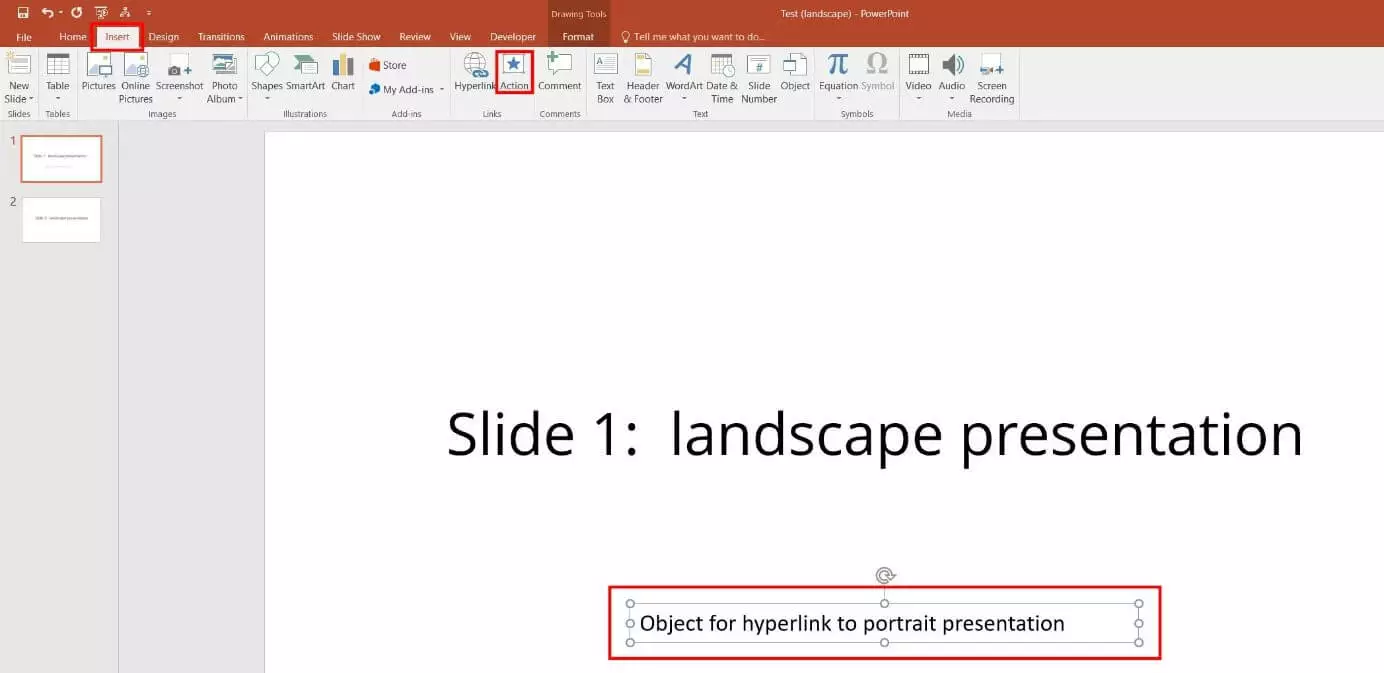
A standard presentation in landscape view is to be complemented with a PowerPoint slide in portrait view after the first slide. For this, the first step is to select an object on the first slide that forms the basis for the connection. We have chosen a text box as an example on this occasion. As soon as this object is clicked on, open the “Insert” tab and then click on the “Action” button” in the “Links” menu group:
PowerPoint then opens the “Action Settings” menu, where you first have an important decision to make: If the linked presentation or the individual PowerPoint slide in portrait view is to be opened with a mouse click, the appropriate tab “Mouse Click” is already selected. If, however, you want the vertical slide to open when you place your cursor over the link object, first change to the “Mouse Over” tab.
In both cases, you can continue with the linking process by highlighting the “Hyperlink to” option and clicking on the point “Other PowerPoint Presentation” in the list:


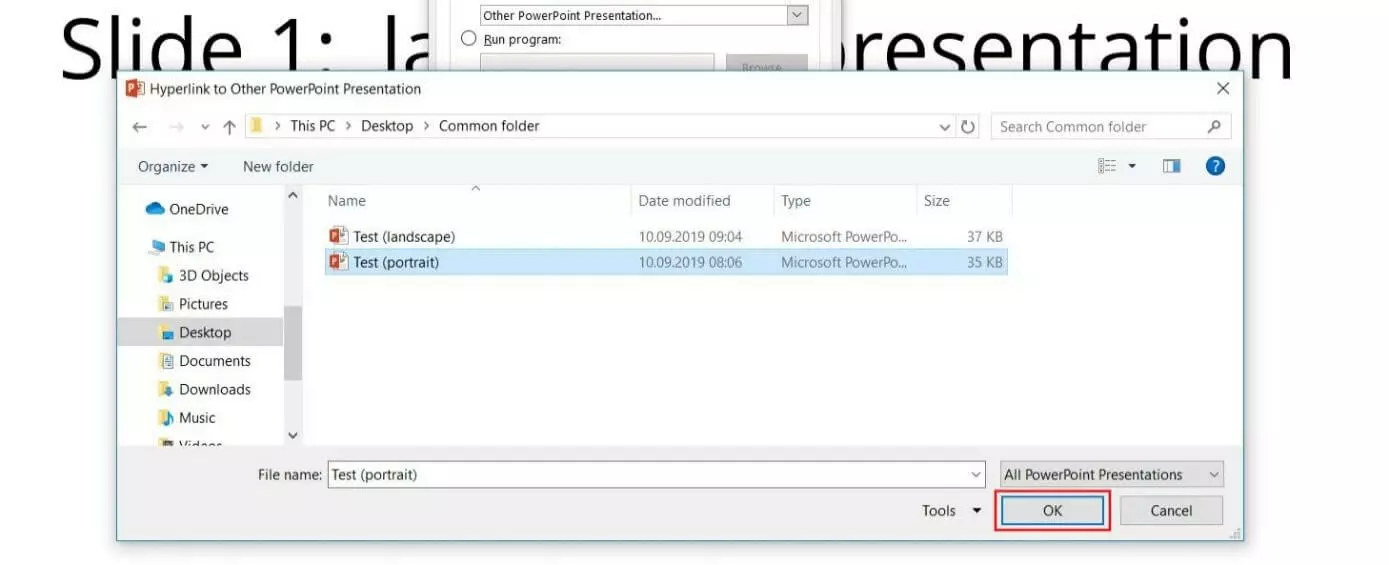
Now go to the location of the presentation that is to be linked, select it, and click “OK”:
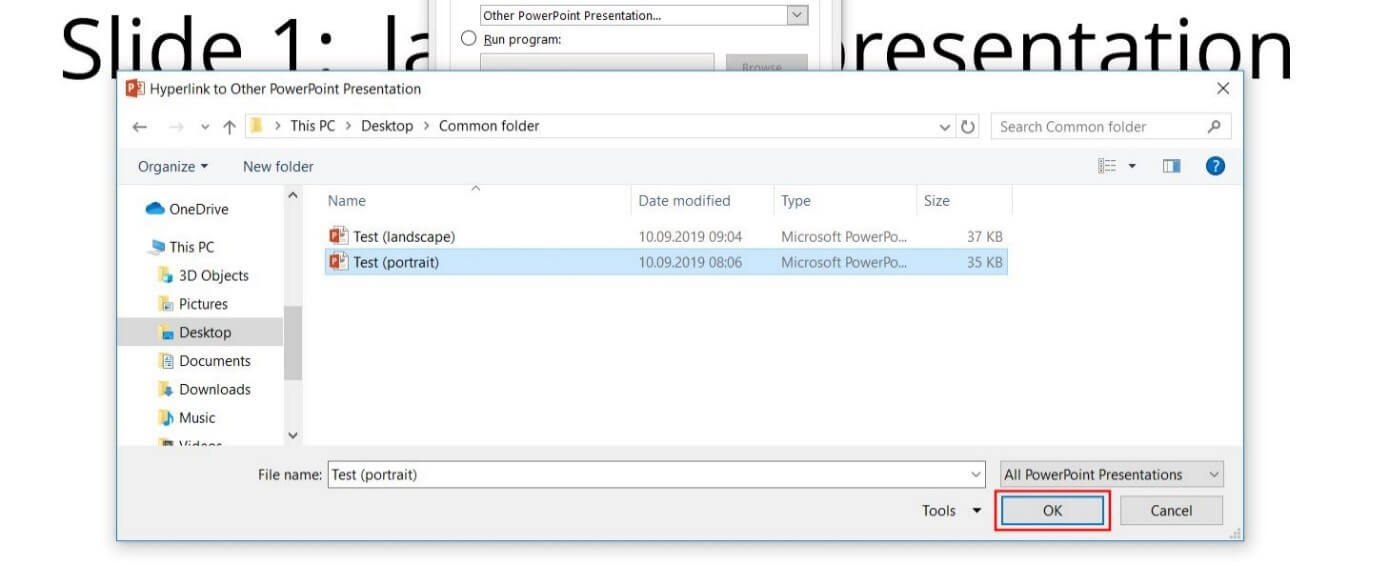
Confirm the link configured by clicking on “OK” again. The linking object selected should now be expanded with a clickable link or a “mouse over” link to the second presentation. If you click on this or scroll over it with the cursor, the second presentation with the PowerPoint slide in portrait view will open:


Now, you can create a connection that leads back to the first document. Another object is needed for the link – you have to select this object before pressing the “Action” button in the “Insert” tab.
In “Action Settings” you can also decide between one of the two triggers (either click or mouse over). Select the option “Hyperlink to” and then “Other PowerPoint Presentation.” Now provide the storage location of the first presentation document with the landscape slides, and confirm your selection with “OK.”
As the landscape presentation in the example has more than one slide, PowerPoint shows another dialog box in which the destination slide can be selected. As slide 1 can’t be shown again, the choice has to be slide 2:
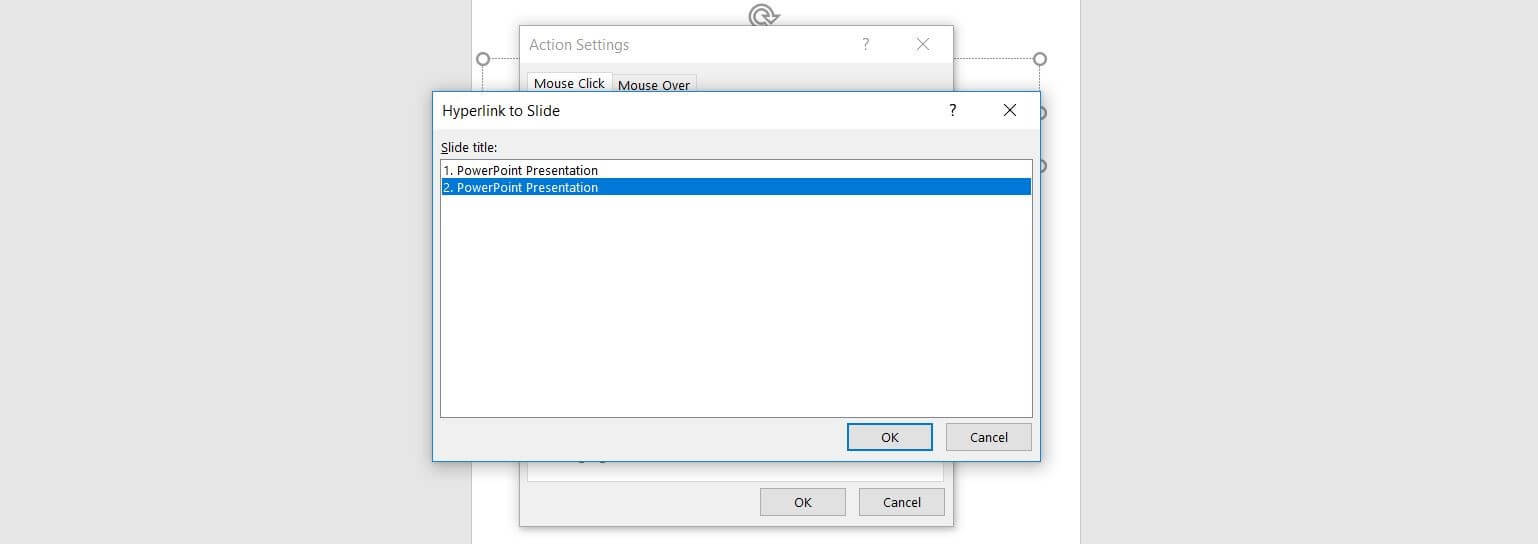
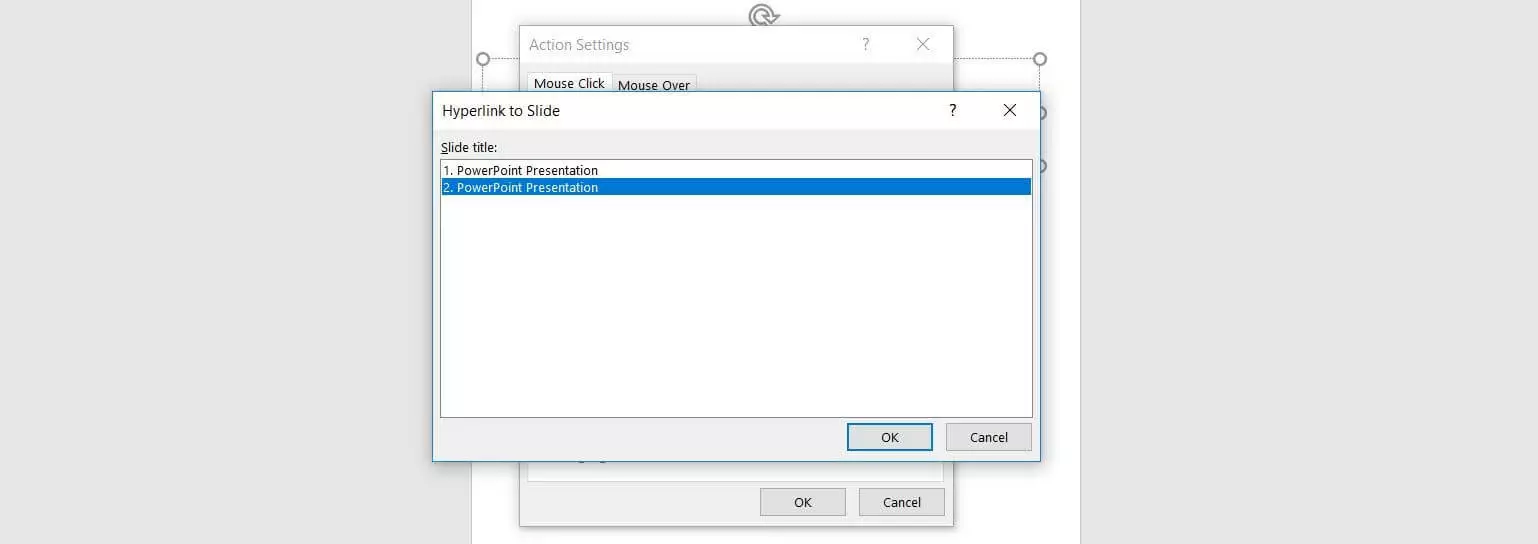
The number of selectable link destinations listed by PowerPoint corresponds to the number of available slides in the document that are to be linked.