

How to recover an unsaved PowerPoint file: 5 different methods

If you’ve accidentally deleted a PowerPoint file or forgot to save your progress, you can recover PowerPoint in Microsoft 365, PowerPoint 2021, PowerPoint 2019 and PowerPoint 2016. Each version comes with built-in features that you can use to restore presentations.
The easiest and fastest way to restore a PowerPoint is to use the built-in feature under Open > Recent > Restore Unsaved Presentation.
How to recover an unsaved PowerPoint file
If you try to close an unsaved PowerPoint file, the program will display a warning message. This message lets you know that changes to the file still need to be saved. Despite this precaution, it can happen that open programs are closed without saving and data is lost. Unforeseen situations can also cause the program to close without saving. Luckily, there are various ways to recover a PowerPoint.
Recover a PowerPoint file with temporary files
In the “temp“ folder, Windows saves temporary files on an ongoing basis. There’s also a possibility that unsaved contents of your PowerPoint can be found in this folder.
Step 1: Search for the file
Open File Explorer and enter the term “PPT*.tmp” into the search bar. Now wait and see if the search comes up with anything.
When saving, PowerPoint adds a random number to the filename. Since you don’t know this number, you can use * as a placeholder.


Step 2: Rename the file
If a PowerPoint file shows up in File Explorer, you can now rename it with .ppt at the end.
Step 3: Recover an unsaved PowerPoint file
Next, open the file to check whether it’s actually the unsaved PowerPoint file you want to recover. To recover the file, simply save it to another location on your computer.
Recover a PowerPoint presentation using the integrated PowerPoint feature
PowerPoint provides a feature to recover an unsaved PowerPoint. To make use of this feature, proceed as follows:
Step 1: Show last-used files
Open the presentation program, click on the menu point Open and then select Recent from the left menu bar.
Step 2: Recover a PowerPoint file that wasn’t saved
Now, you can click on the button Recover Unsaved Presentations.
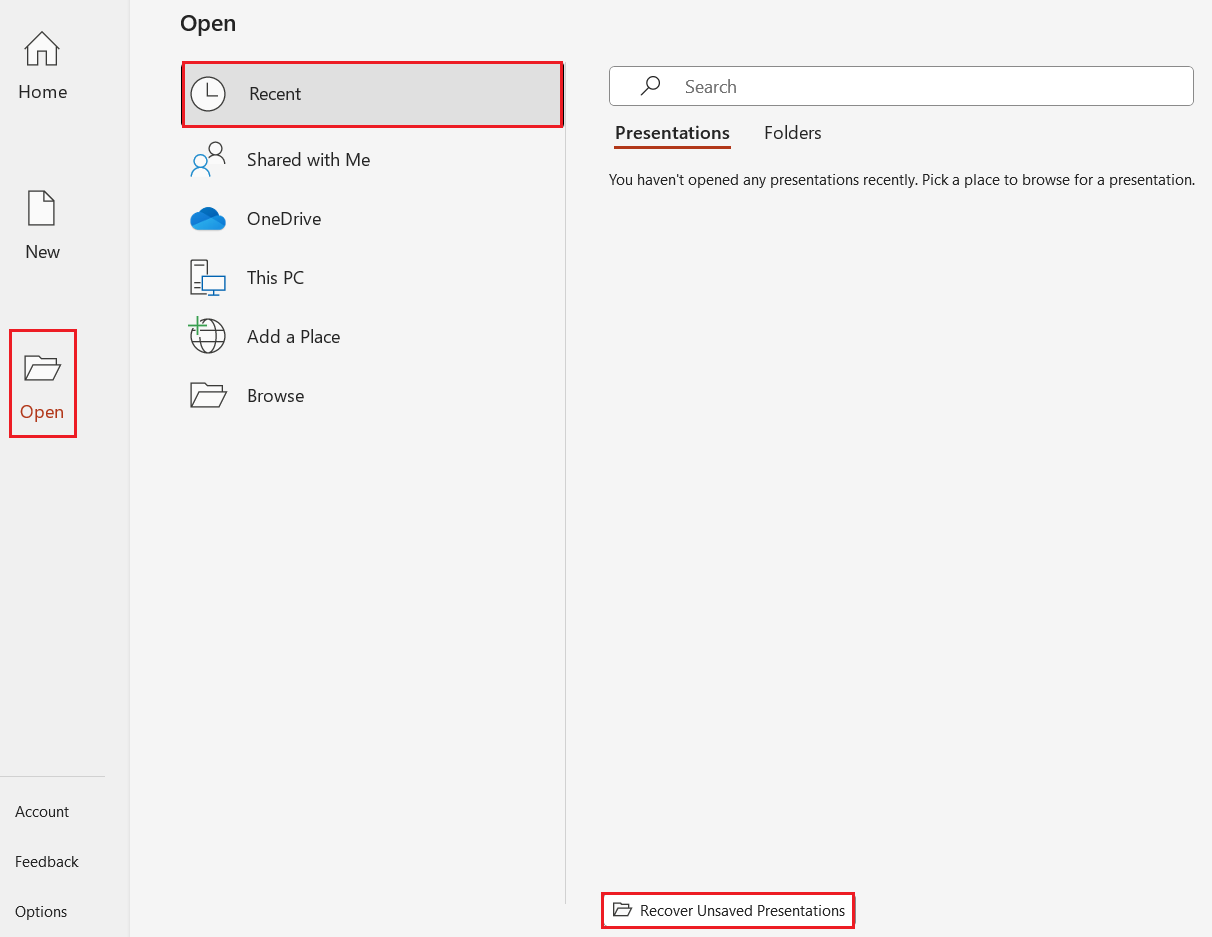
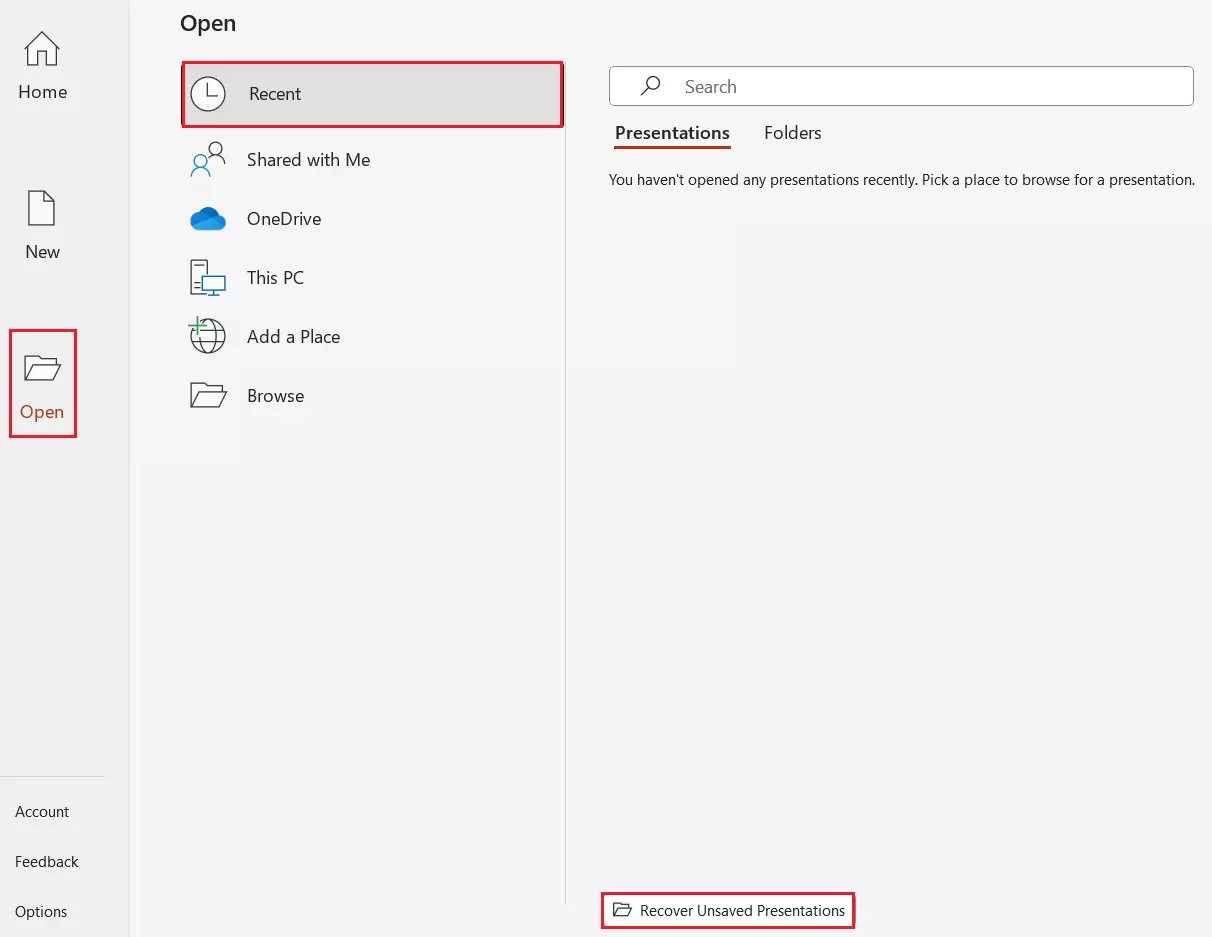
A folder will now open where you can find all saved drafts. If the file you’re looking for is there, left-click on it and select Open. Save the file. You can now continue to work on your presentation.
How to recover an old version of a PowerPoint file
While working on a PowerPoint presentation, unwanted changes can quickly be reversed with the key combination [Ctrl] + [Z]. Using this shortcut, deleted paragraphs of text can be brought back with just a few clicks. But as soon as you save a file and close it, data that you have deleted will be lost. Follow the steps below to recover an old version of a PowerPoint file.
Restoring previous versions of a PowerPoint file
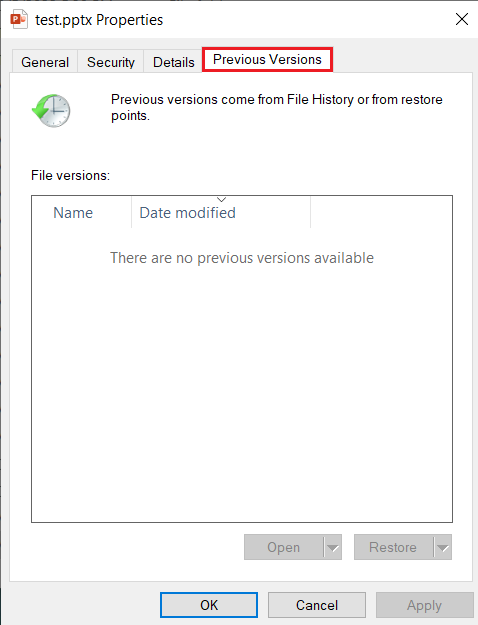
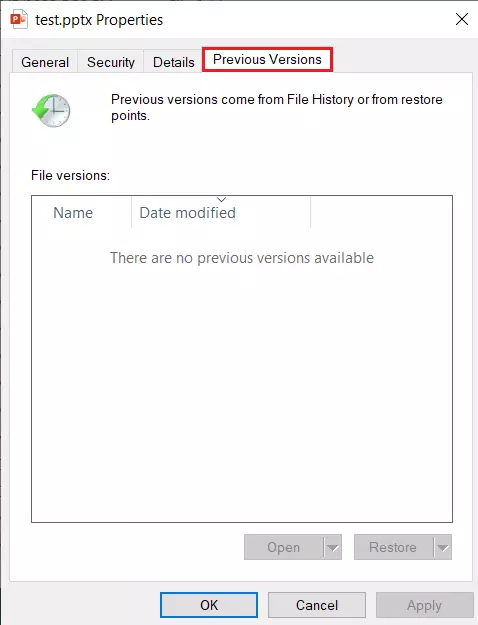
Use the right side of your mouse to click on a file and select Previous Versions from the menu bar. A new window will open with the corresponding tab. In this window, previous versions of your PowerPoint file can be found, but only if a recovery point is marked. Select a previous version to restore an old version of your PowerPoint.
Recovering old versions from cloud storage
If you automatically save your files to Dropbox, Google Drive, One Drive or another cloud storage service, you have another option for recovering an unsaved PowerPoint. Search for previous versions, manage your old files, and recover the file you’re looking for.
How to recover a deleted PowerPoint file
It’s generally a good idea to delete files that you no longer use or that are outdated. This allows you to maintain a clear overview of your file system. But what if you accidentally delete an important PowerPoint file? No need to worry. When you delete a file, it’s not completely deleted from your computer.
Step 1: Open the recycle bin
To recover a deleted file from your recycle bin, double-click on the waste bin icon.
Step 2: Search for the unsaved PowerPoint file
Enter the name of your PowerPoint file into the search field of the recycle bin program.
Step 3: Recover PowerPoint file
Now, use the right side of your mouse to click on the file and select the option Undo Delete from the menu. Your presentation will now automatically reappear in the folder where you deleted it.
Use the full Office suite Microsoft 365 for your business and enjoy benefits such as SSL/TLS encryption and secure storage.
How to recover a damaged PowerPoint file
You’ve saved a PowerPoint file, but can’t to open it? We’ll show you different ways to recover a damaged PowerPoint.
Move a Presentation to recover a PowerPoint file
In most cases, it’s not possible to tell whether the location or the file itself is damaged. If the file can be restored with the following instructions, the location is affected. In this case, it is best to restore and back up all files from this folder.
Step 1: Save the file in a temporary location
Open the folder where the damaged file is located. Open the context menu with a right-click on the file. Select Copy option to save the file to the clipboard.
Step 2: Copy the file into another folder
Next, open any folder or create a new one. Paste the file by right-clicking on a free area and selecting Paste from the context menu. You can also copy the file to the folder by using the key combination [Ctrl] + [V].
Step 3: Open the file
Try to open the file by double-clicking it. If you can do this without encountering any problems, it may be the original location itself that is damaged.
Paste slides into a new presentation
In many cases, however, it’s not the location that’s damaged, but the PowerPoint file itself. In this case, the program offers a handy function to insert the slides into a new and undamaged file.
Step 1: Open a new presentation
Open up a blank PowerPoint document.
Step 2: Recover unsaved PowerPoint
In the menu, select Start and select New Slide from the drop-down menu. Using the left side of the mouse, choose the option Reuse Slides.


A field with the same title will appear on the right. Click on the Browse button and select the file you want to restore in Explorer. A thumbnail preview of all slides will appear. Click on the slides with the left mouse button to insert them into the new presentation. To restore the entire unsaved PowerPoint file, right-click to open the context menu and click the Insert all slides option.
Step 3: Save file
As soon as you’ve transferred all slides, make sure that you save the file in a new location.
The safe mode
If a PowerPoint file cannot be opened in normal mode, try starting it in safe mode. To do this, hold down the control key [Ctrl] and then double-click on the PowerPoint file to select it. Click Yes in the confirmation window to open the presentation in safe mode.
Most Office programs can be opened in safe mode using this technique.


Now, you can look for any issues with the file before saving it under a new name.
How to avoid losing PowerPoint files
Despite the many options to recover a PowerPoint file, a successful recovery isn’t guaranteed. That’s why it’s important to use the shortcut [Ctrl] + [S] throughout your work. With this shortcut, you can regularly save your file, ensuring your work isn’t lost.
PowerPoint comes with a function that automatically saves open presentations. We’ll show you how to activate the function and avoid losing your files.
Option 1: Activation in the menu bar
Activate the feature in the PowerPoint menu bar by moving the switch to AutoSave On.


Option 2: Activation via Options
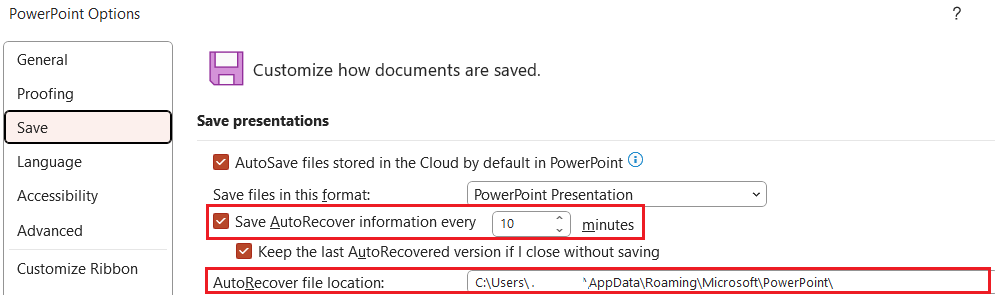
If you activate the feature in the Options area, additional custom settings are available. Select the File button in the menu. Then click on Options followed by Save. Activate the function Save AutoRecover information every… and enter the desired time interval. If you enable the Keep the last AutoRecovered version if I close without saving option, you avoid losing data if you accidentally close the PowerPoint file without saving it. If necessary, you can also adjust the location of the file to make it easier to find the backed-up file.
Files from other Microsoft 365 programs can also be recovered. Find out more about “How to recover an Excel file” and “How to recover unsaved Word documents” in our dedicated tutorials.