

Splitting PDFs Made Easy– Free Tools for Splitting PDFs

If Word, Excel or similar documents need to be sent, there are many reasons why it is useful to first convert them into a PDF. Among the advantages of this data format are a uniform presentation and limited editing options. However, when it isn’t necessary to send the entire PDF, free tools can help you to quickly and easily export parts of a PDF.
Why Split a PDF?
There are various reasons for separating a PDF. With documents that have a lot of pages especially, saving separated chapters provides more clarity. This feature is also useful when certain parts of the content are not intended for the reader. In addition, it is a simple way to not have to remove current pages from a document. After the separation process, the PDF document still contains the desired pages which are then sent the usual way.
How you can combine PDFs or individual pages with each other and join them together in a single PDF format document is explained in our "Merge PDF" article.
What are the Free Options Available for Separating a PDF?
The Software Adobe Acrobat DC (must be purchased) is among the most well-known tools for editing documents. However, there are free alternatives that offer to separate PDF pages and other features. The tools are available either online as a web service or as a free-to-download software. In the following introduction, the web service PDF2GO and the desktop program PDF24 are used as examples.
Split PDFs Online with PDF2GO: A Step-by-Step Explanation
The separation of a PDF directly in the browser is the simplest and quickest solution. For this reason, it isn’t necessary to install a program and the PDF can be edited immediately. One of the most popular tools of this kind is PDF2GO. The web solution, which also offers diverse other PDF editing options such as shrinking or repairing, is free and simple in its application. The following introduction explains how you can split individual pages from a PDF or export them together as a new document.
Step 1: Upload PDF
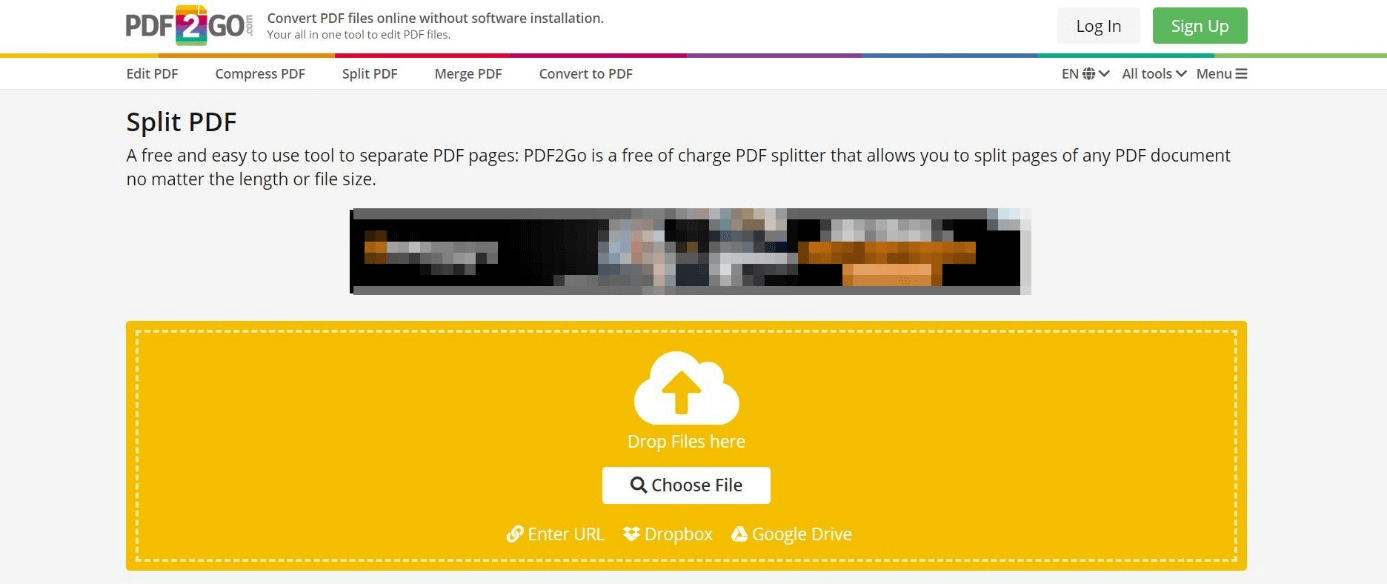
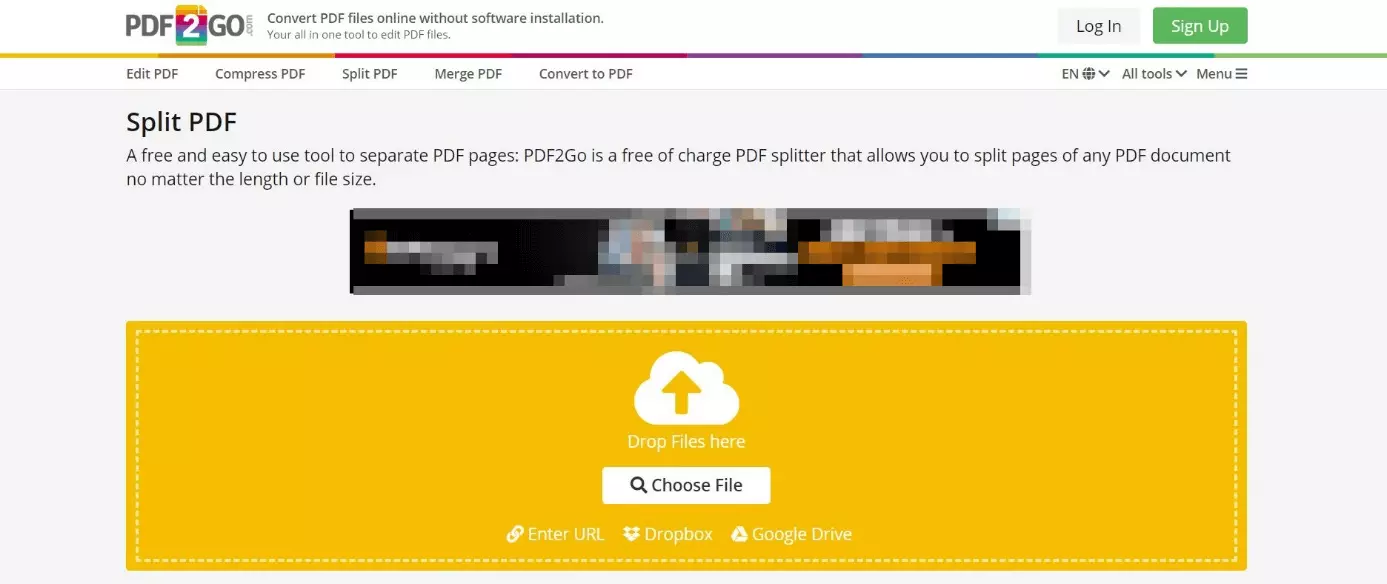
Drag the desired PDF file via Drag-and-Drop into the yellow area. Alternatively, you can use the “Choose File” button for the upload and then specify the document’s local storage area. As a third alternative, PDF2GO lastly provides the option of uploading the documents directly from a Google Drive, Dropbox or through a link.
Step 2: Edit PDF
You then edit the document as you wish. With the “Sort in ascending order” and “Sort in descending order” functions, the program provides you with the option of changing the display of the pages. For documents with many pages, this function is especially practical.
Delete Individual Pages
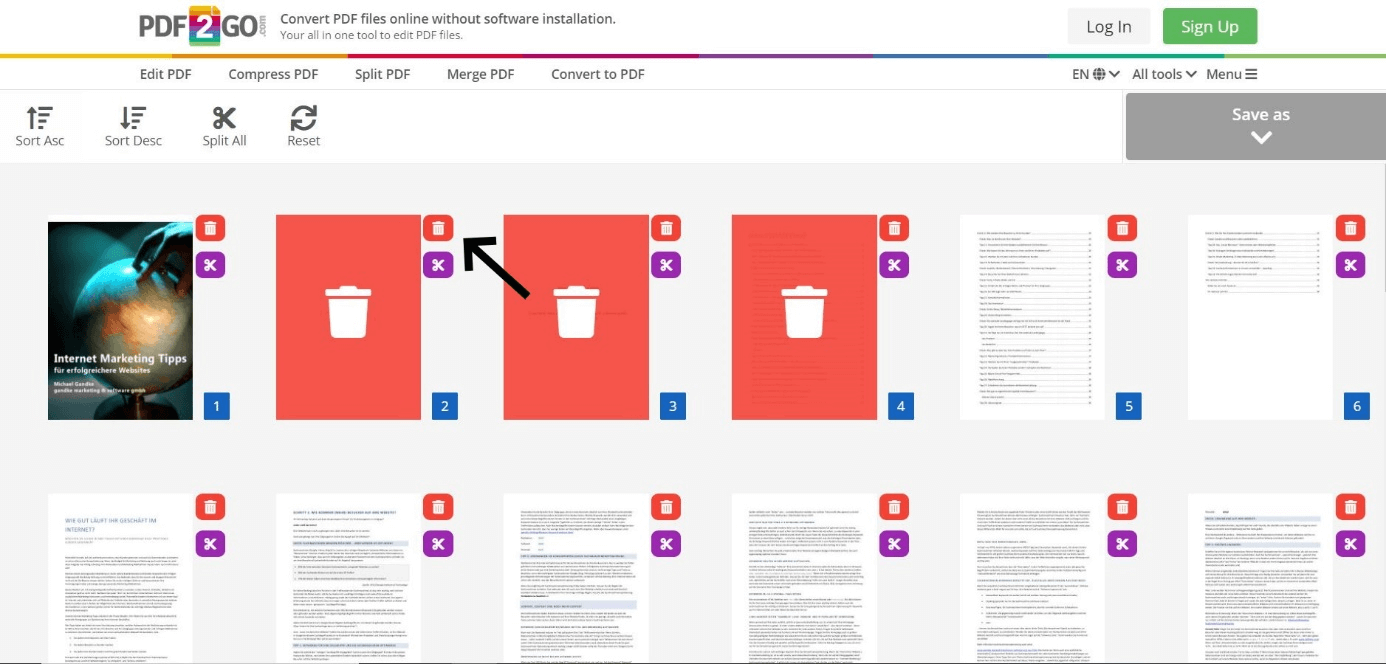
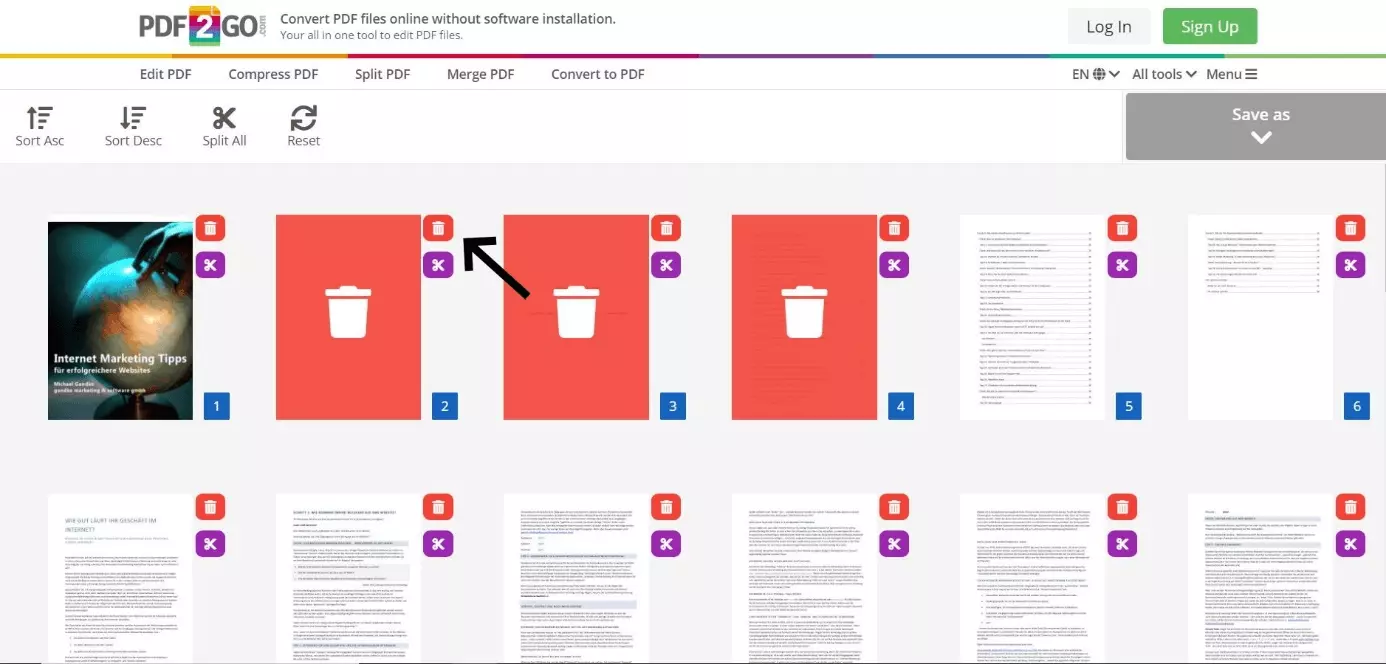
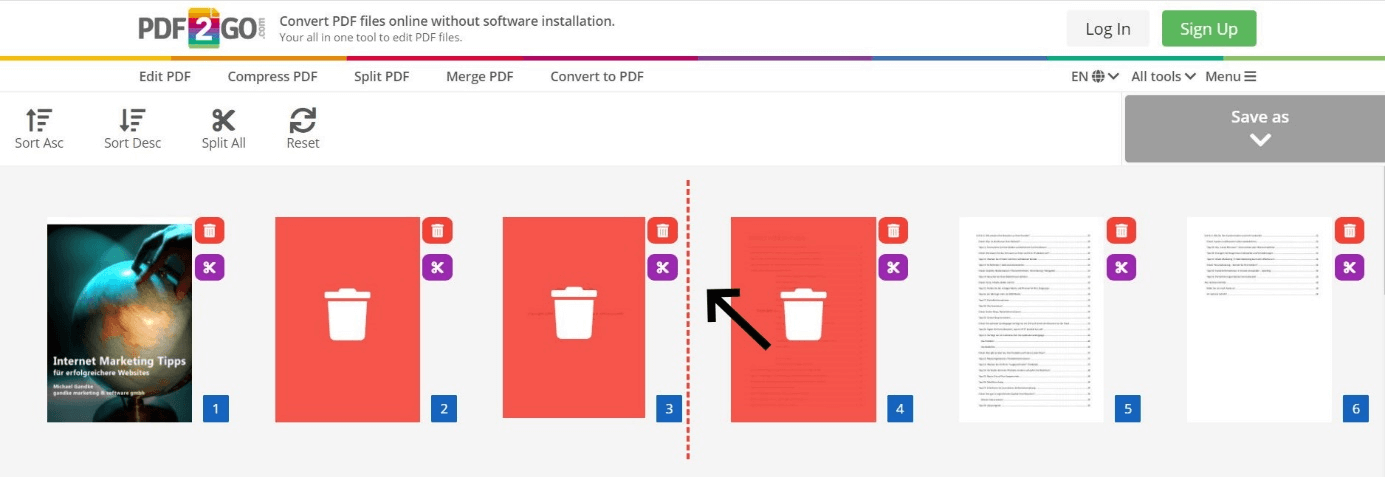
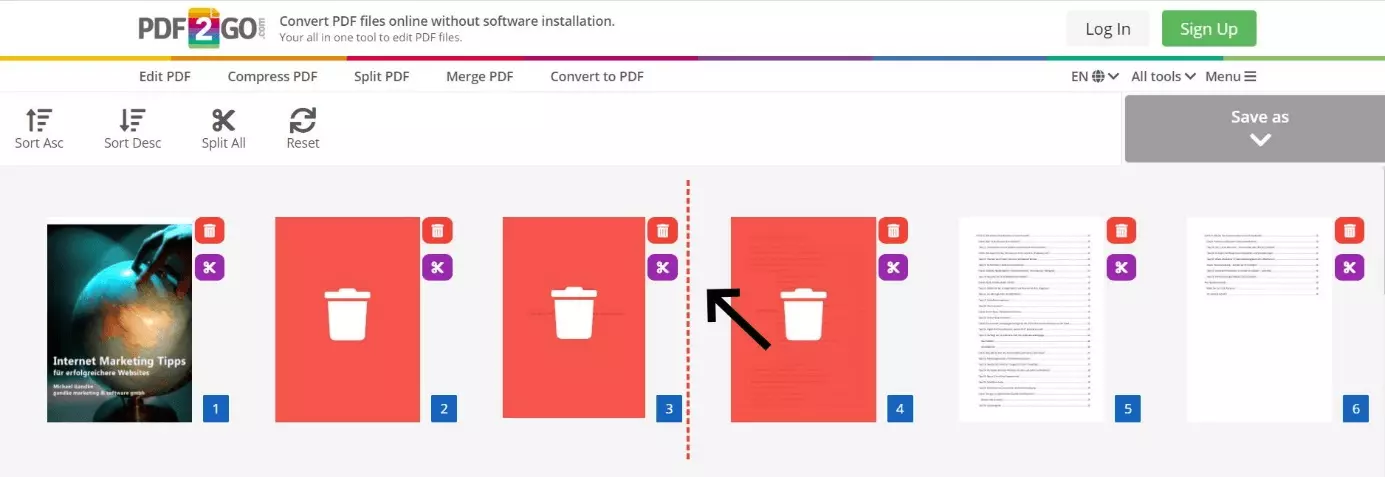
In order to delete individual pages, click on the small red button with the trash bin icon in the corresponding location. The pages are then automatically marked red and deleted from the PDF file as soon as you save or export them.
Split the PDF
Furthermore, PDF2GO gives you the option of splitting a PDF into several documents through only one process. To do this, click on the scissors symbol. The red-dotted line that is subsequently indicated marks where you’ve separated the PDF. When you go to export, you’ll then receive the separate PDF files accordingly.
Change the Page Order
You can easily change the sequence of the content with this program. To do this, click on any page and hold down on the mouse button. Then drag the element to the desired location.
Step 3: Save PDF
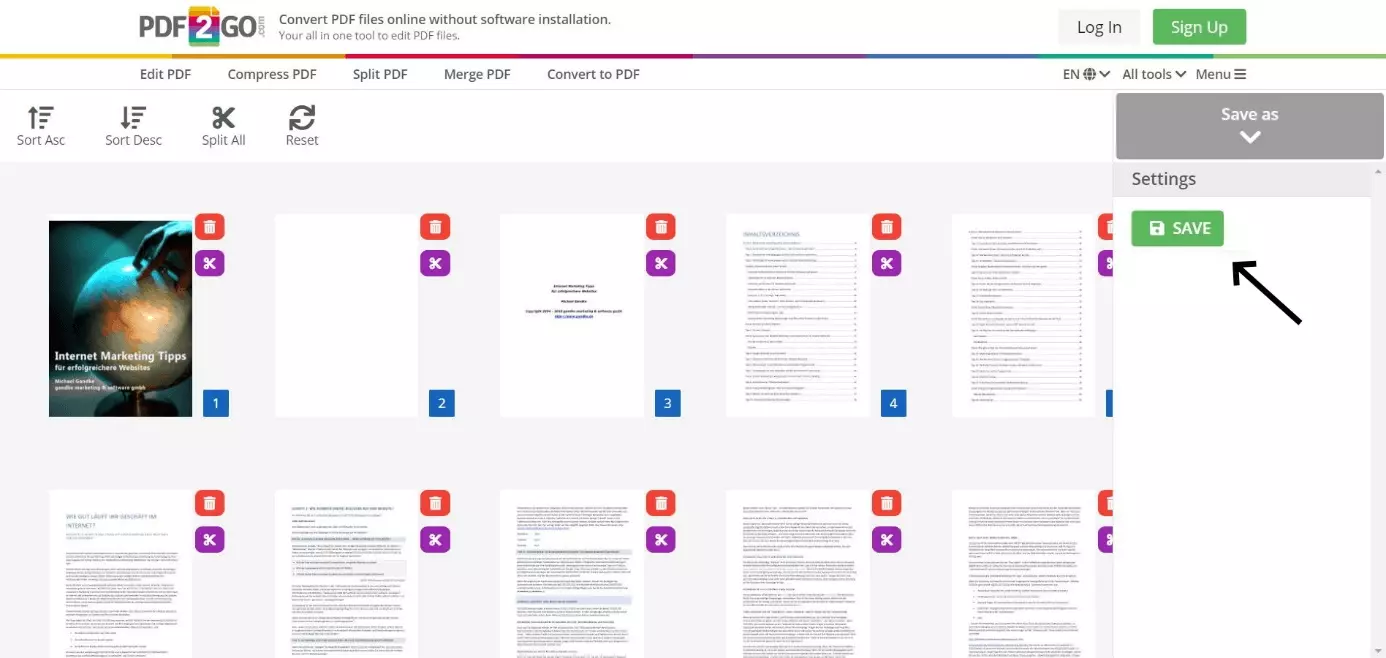
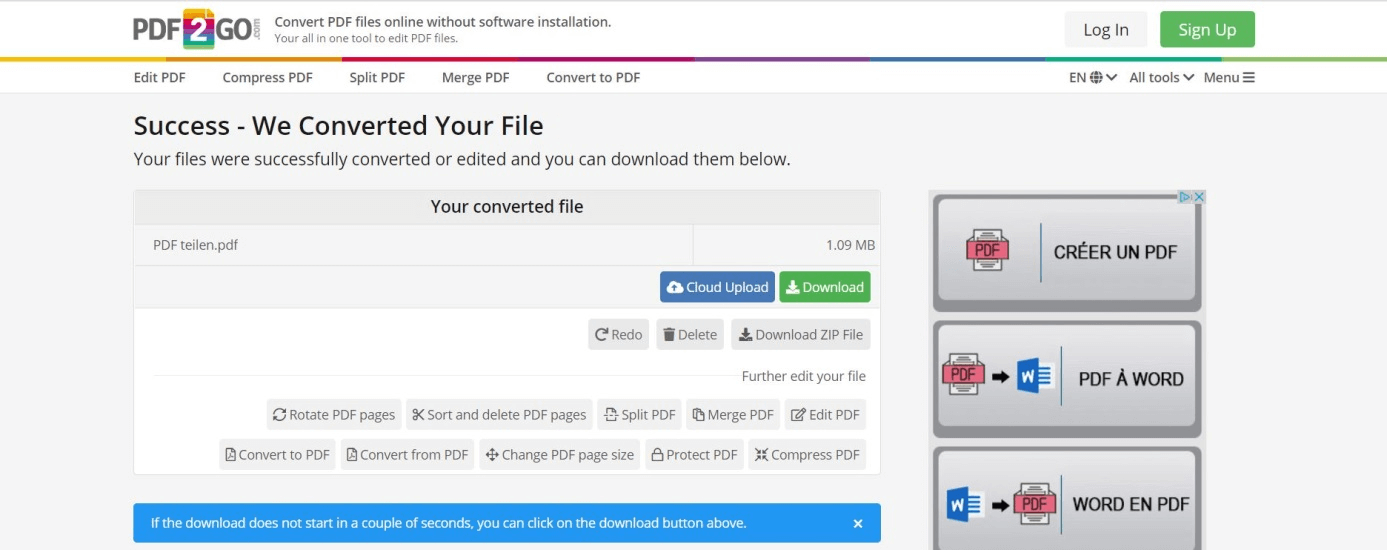
If you are done editing the PDF, click on “Save As” and then on the green “Save” button.
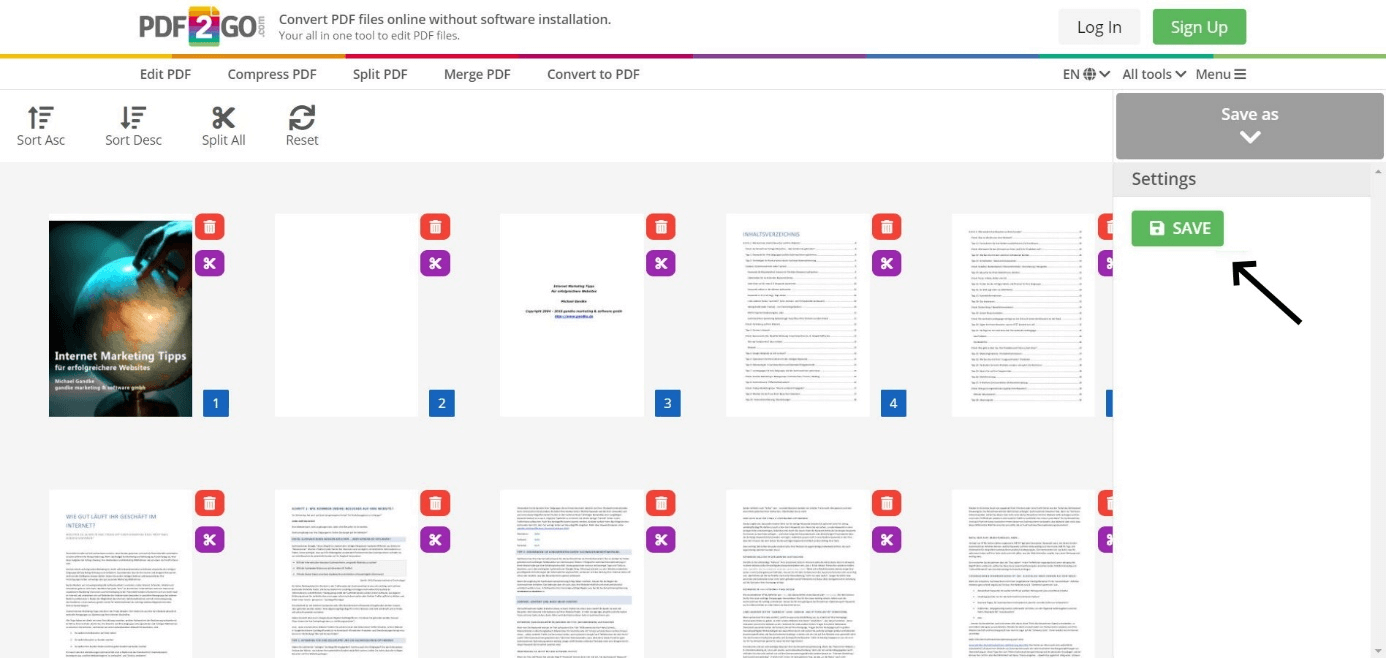
If the download doesn’t automatically occur, click on the green “Download” area. With the “Cloud Upload” function you upload the newly-created PDF into Google Drive or your Dropbox account.
- Store, share, and edit data easily
- Backed up and highly secure
- Sync with all devices
Other Online Tools for PDFs for Free
The PDF2GO tool offers, as mentioned above, diverse additional functions for editing PDF documents, which is why you can not only split PDFs, but merge them (for example) as well. However, the web has plenty of other available alternatives. Below we’ll introduce you to some other free solutions.
Soda PDF
The Soda PDF tool is available either as a web app or as a desktop counterpart. In contrast to PDF2GO, it does not offer any visual overview of the pages.
| Advantages | Disadvantages |
|---|---|
| Quick and easy editing | No visual display of the individual PDF pages |
| Few advertisements in spite of free usage | Restricted functions – only the deleting pages is possible |
| Connection to Google Drive and Dropbox | |
| Desktop version available | |
| Sends new PDF via email |
PDFCandy
The alternative PDFCandy is very similar to Soda PDF. As with PDF2Go, the document can be saved directly in Google Drive or Dropbox.
| Advantages | Disadvantages |
|---|---|
| Quick and easy editing | No visual display of the PDF pages |
| Few advertisements in spite of free usage | |
| Connection to Google Drive und Dropbox | |
| Desktop version available | |
| Save directly in Google Drive or Dropbox |
iLovePDF
The iLovePDF online tool offers many features in comparison; however, it is more complex to use than other free web services which you can use to separate PDF pages.
| Advantages | Disadvantages |
|---|---|
| Separation of a PDF into several documents | Complex design |
| Connection to Google Drive und Dropbox | Not possible to select individual pages |
| Save directly in Google Drive or Dropbox | |
| It is possible to generate a download link or QR Codes |
Split PDF with PDF24: A Step-by-Step Explanation
The PDF24 desktop software is up to 100 % free and completely usable without an active internet connection. Before using it, you must download and install the software, which is only available for Windows. Then you’ll have many features for editing a PDF available to you – among others, the ability to separate PDF pages.
Step 1: Launch the Program
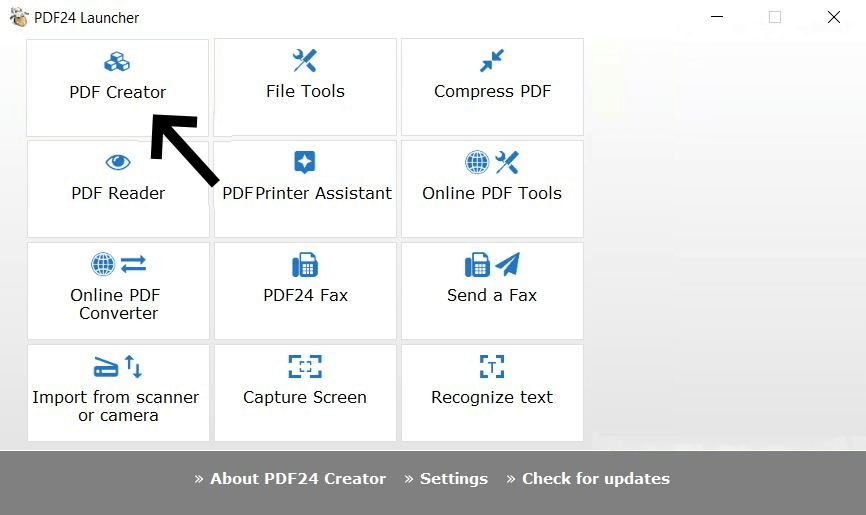
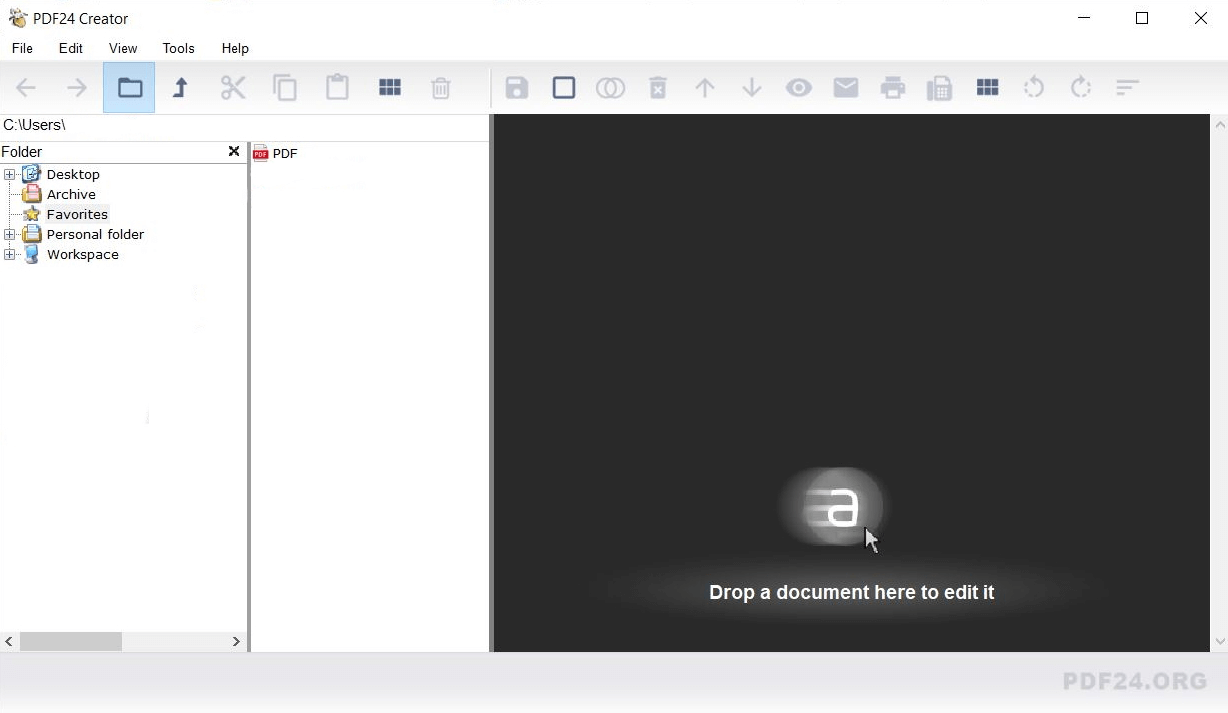
After opening PDF24, you’ll find a selection of different options. Click on “PDF Creator” in the top left in order to launch the editing manager for PDF files.
Step 2: Select PDF
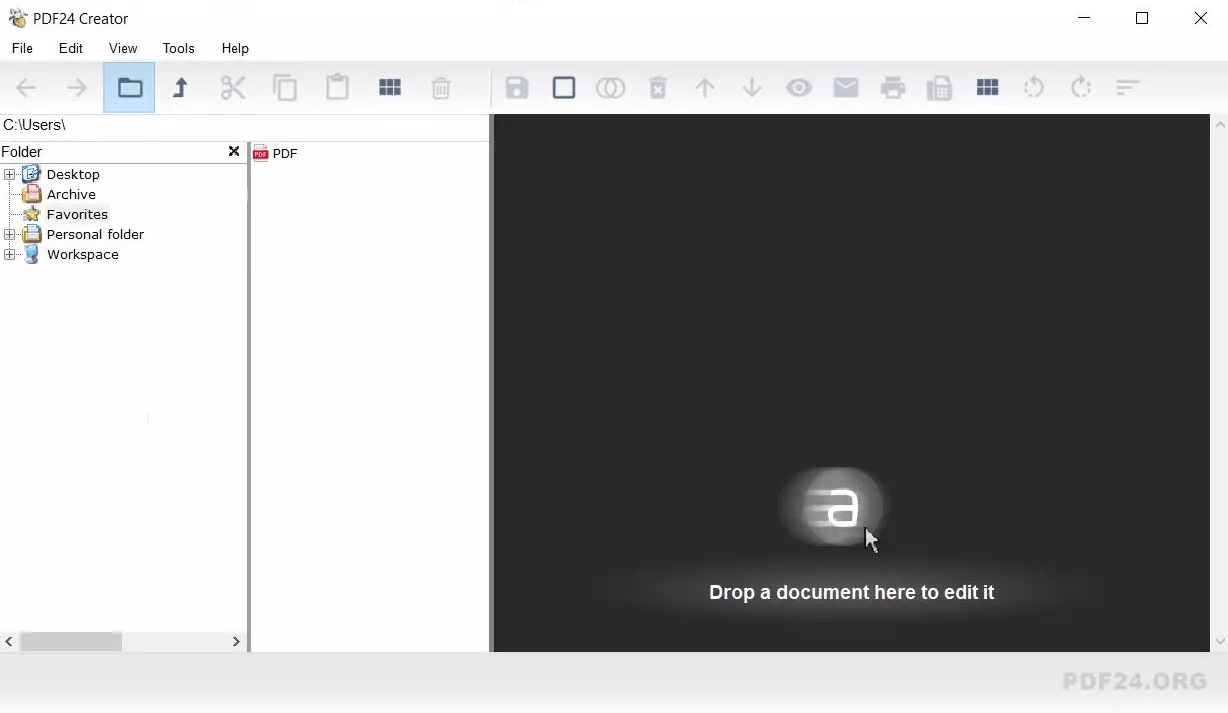
Then select the PDF that you would like to edit. Follow the “File” file path in the left area to the corresponding document. You’ll then open this with a double-click on the PDF file or by dragging the file via Drag-and-Drop into the work area.
Step 3: Edit PDF
The PDF automatically opens in the program. Now click on the individual pages that you would like to delete. Either press the [delete] key on your keyboard or select the “Delete” option after right-clicking.
In order to change the order, select a page and drag this to a location of your choosing while holding the mouse key. In this way it is also possible to open several PDF files at the same time or to drag the pages of other documents into the current PDF.
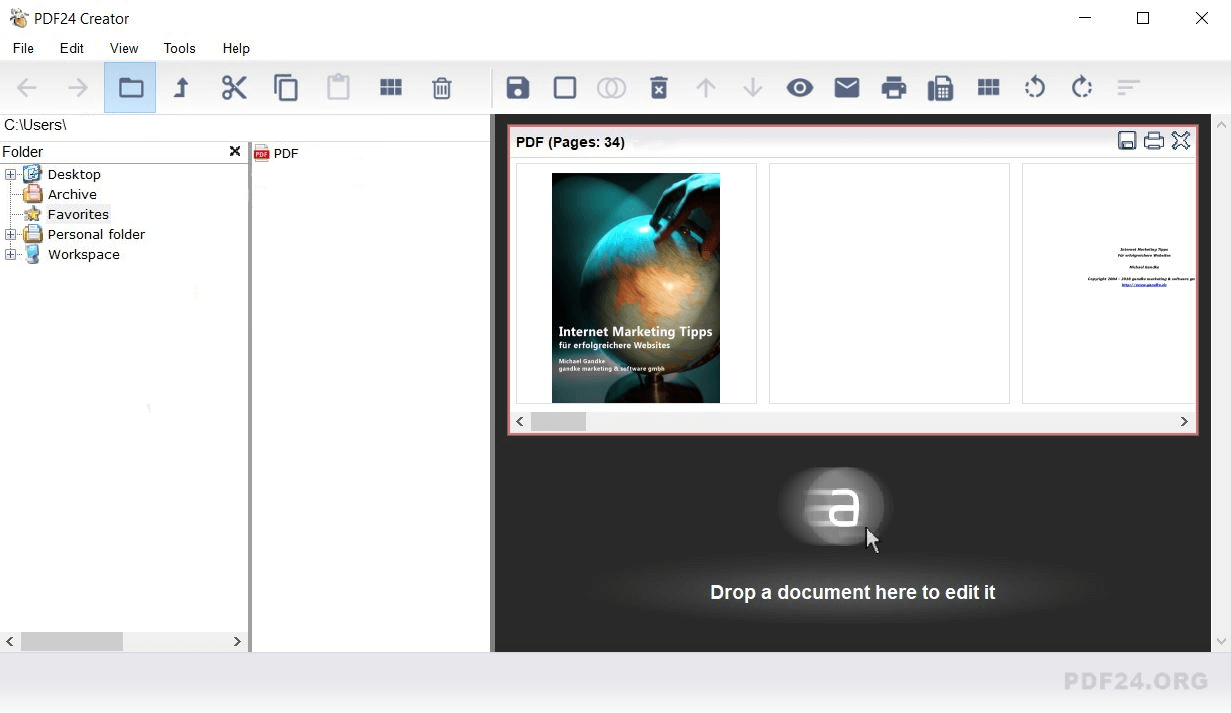
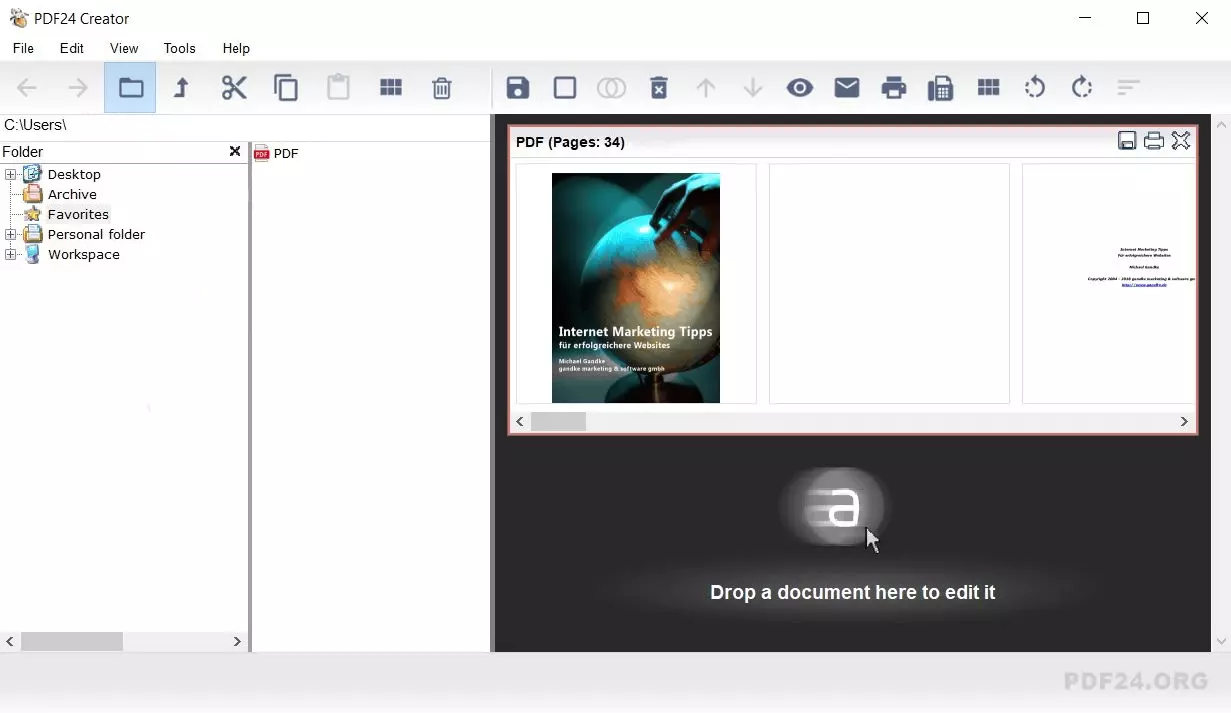
In order to rotate individual pages, click on the corresponding number and then on the rotating arrow symbol. The rotation then occurs accordingly, either clockwise or counterclockwise.
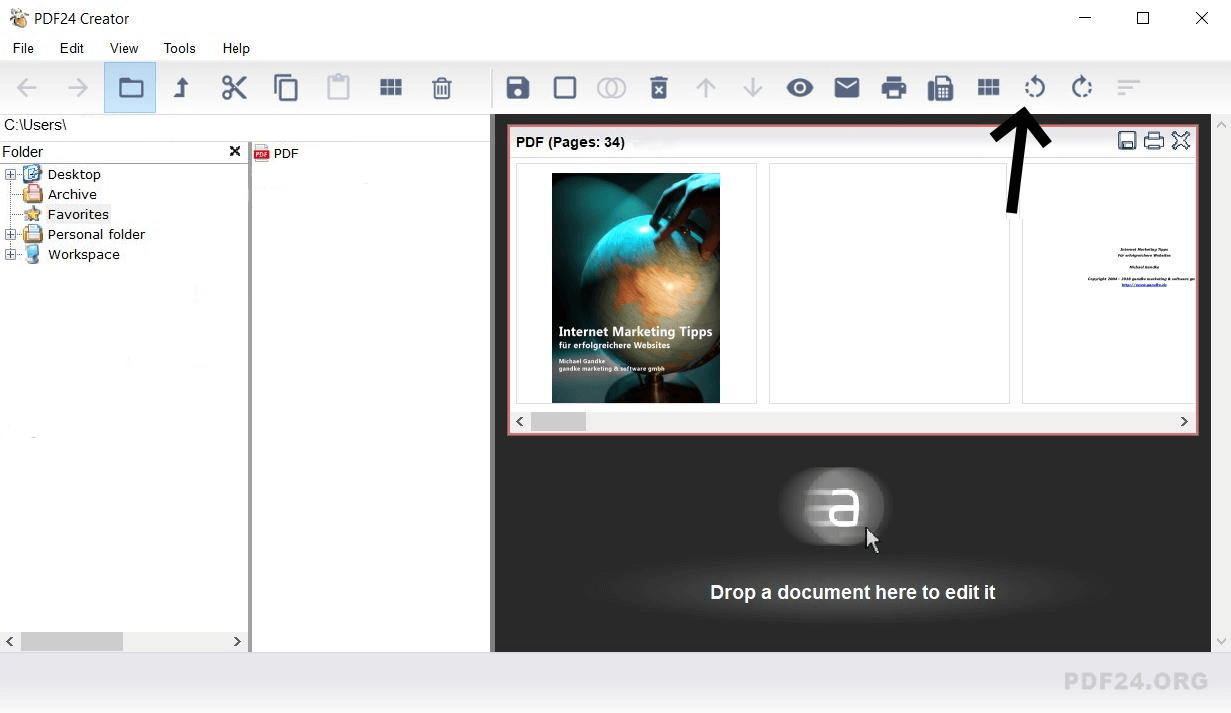
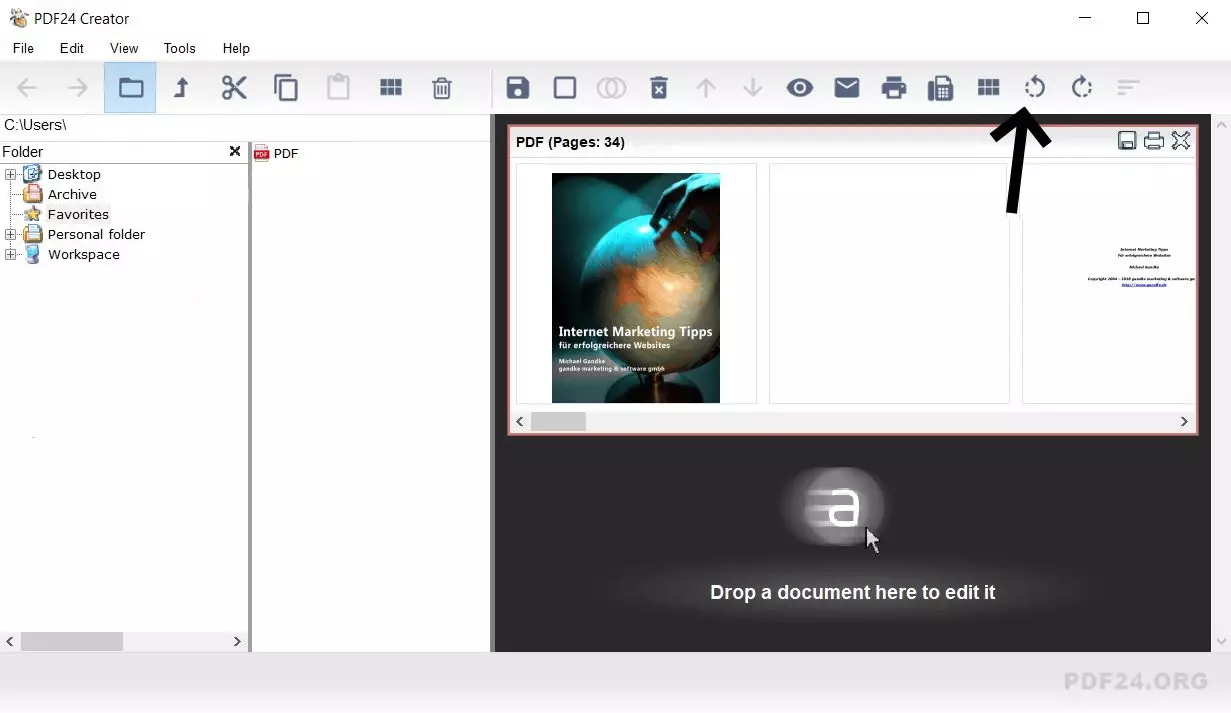
If you are done editing the PDF, click on the save symbol (disk) in order to arrive at the next step.
Step 4: Save PDF
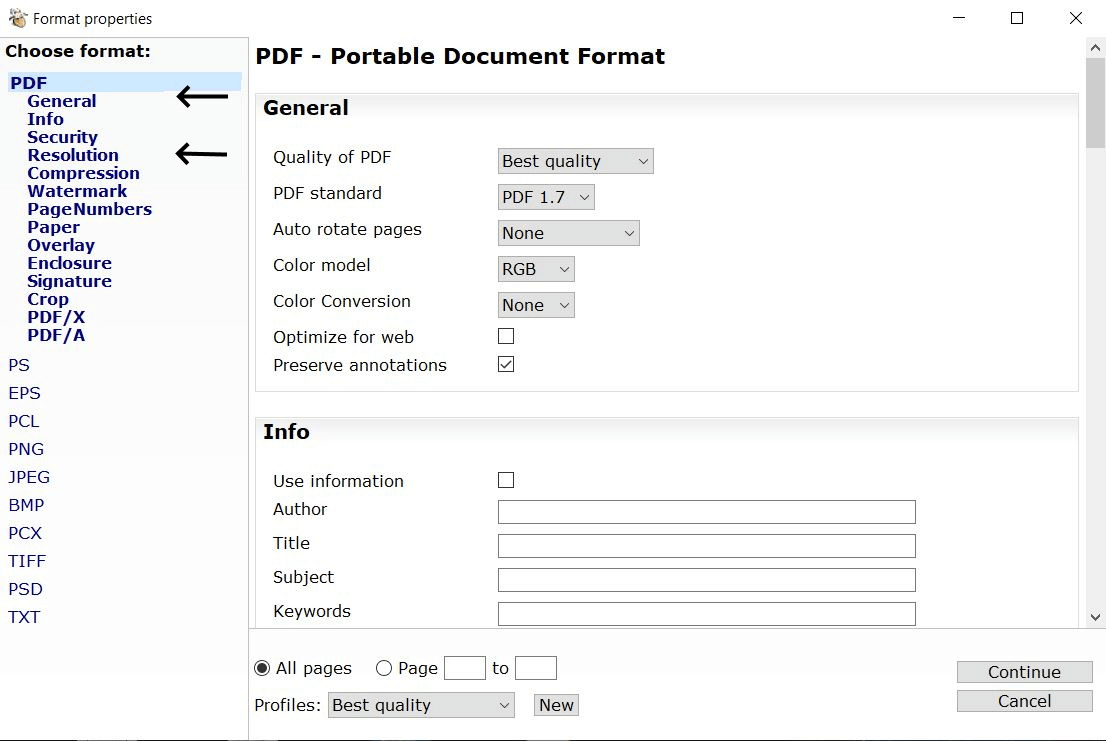
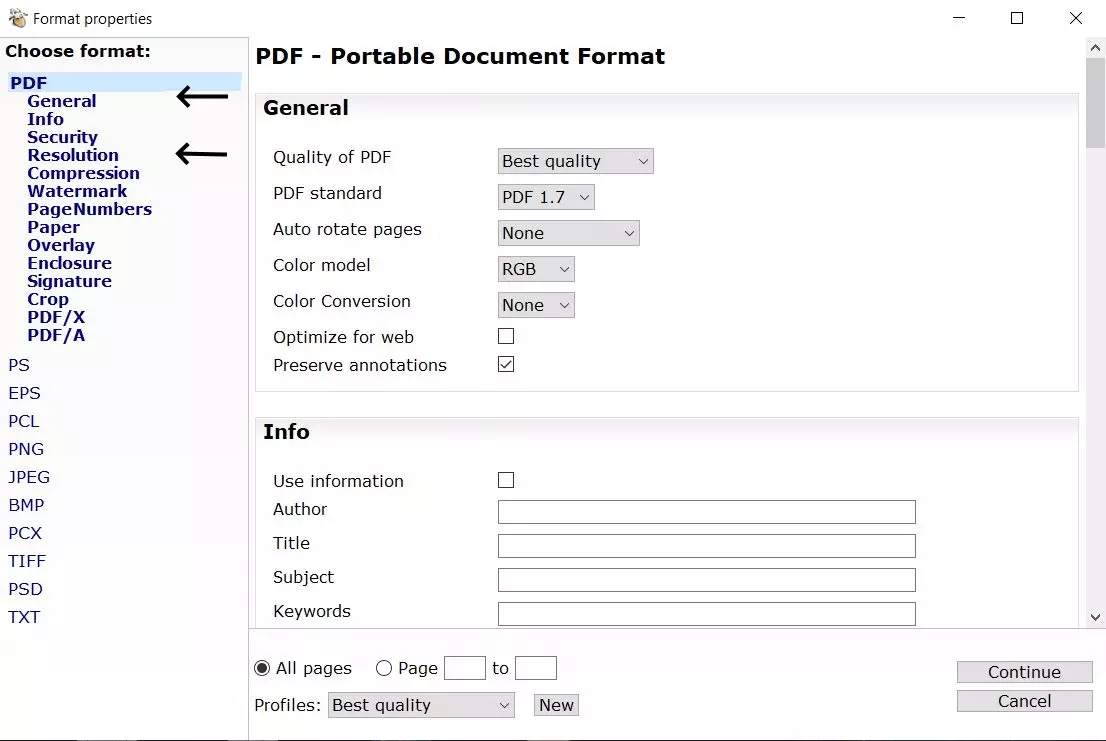
The PDF automatically opens a dialog field in which you define the details for saving the new PDF document. The most important settings options include the overall quality of the PDF as well as its resolution. These you’ll find in the “General” and “Resolution” sections. If you only need the PDF in digital form, it is normally not necessary to make changes to the settings.
At this point you also have the option of only exporting a specific section as a separate document. To do this, specify the appropriate page numbers in the lower section. Once you have defined all the settings, click on “Continue”. It is then possible to export the PDF by selecting the desired storage location.
Additional Free Desktop Tools with Which You Can Split PDFs
PDF24 is among the standard programs for splitting PDFs that are available as a desktop version. As with the online tools, however, there are other free alternatives.
PDFSAM Basic
The PDFSAM Basic program is ideal if you are looking for a cross-platform solution for Windows, macOS und Linux operating systems.
| Advantages | Disadvantages |
|---|---|
| Cross-platform | Installation of Java is required |
| For a cost, an upgrade with additional features is available | |
| No installation of programs is necessary | |
| Portable software – also usable from a USB stick |
7-PDF Split & Merge
The 7-PDF Split & Merge program is also available in a free version. This is however restricted to a specific number of PDF pages.
| Advantages | Disadvantages |
|---|---|
| Quick load times | Free version is limited to 50 pages |
| Portable software – also usable from a USB stick | |
| For a cost, an upgrade with additional features is available |