Google Docs: working on your documents offline

Google Docs, Google’s free-to-use word processor, is the leader in cloud-based, collaborative word processing. Users can create and edit documents alone or in collaboration with others irrespective of location and free of charge. These documents are stored in the cloud and can be accessed at any time from anywhere.
But what if there is no internet connection available? This is a common problem for people who travel a lot by train or plane and wish to use their time productively. In this case, the solution is simple: you can use Google Docs offline if you prepare. In this guide, we will show you how to set up Google Docs in a matter of minutes so that you can edit and save your documents even if you do not have an active internet connection.
- All your favorite Google productivity tools
- Business Gmail for your domain
- Using Gmail with your domain from IONOS
Requirements for using Google Docs offline
For a long time, Google Docs was only available through the official Google Docs website and thus required an active internet connection. Today, you can edit documents offline and automatically synchronize them later once an internet connection is available again. To use Google Docs offline, the following requirements must be met:
- Have access to a stable internet connection (from time to time for synchronization)
- Use Google Chrome
- Deactivate incognito mode
- Have adequate storage space on your local hard drive
Step-by-step instructions on how to use Google Docs offline
If you meet the requirements listed above, you can set up Google Docs for offline use at any time. We have outlined the steps required to do so in the following sections.
These instructions also apply to other Google cloud apps. So, you only need to complete these steps once to edit documents, spreadsheets, presentations, and forms offline.
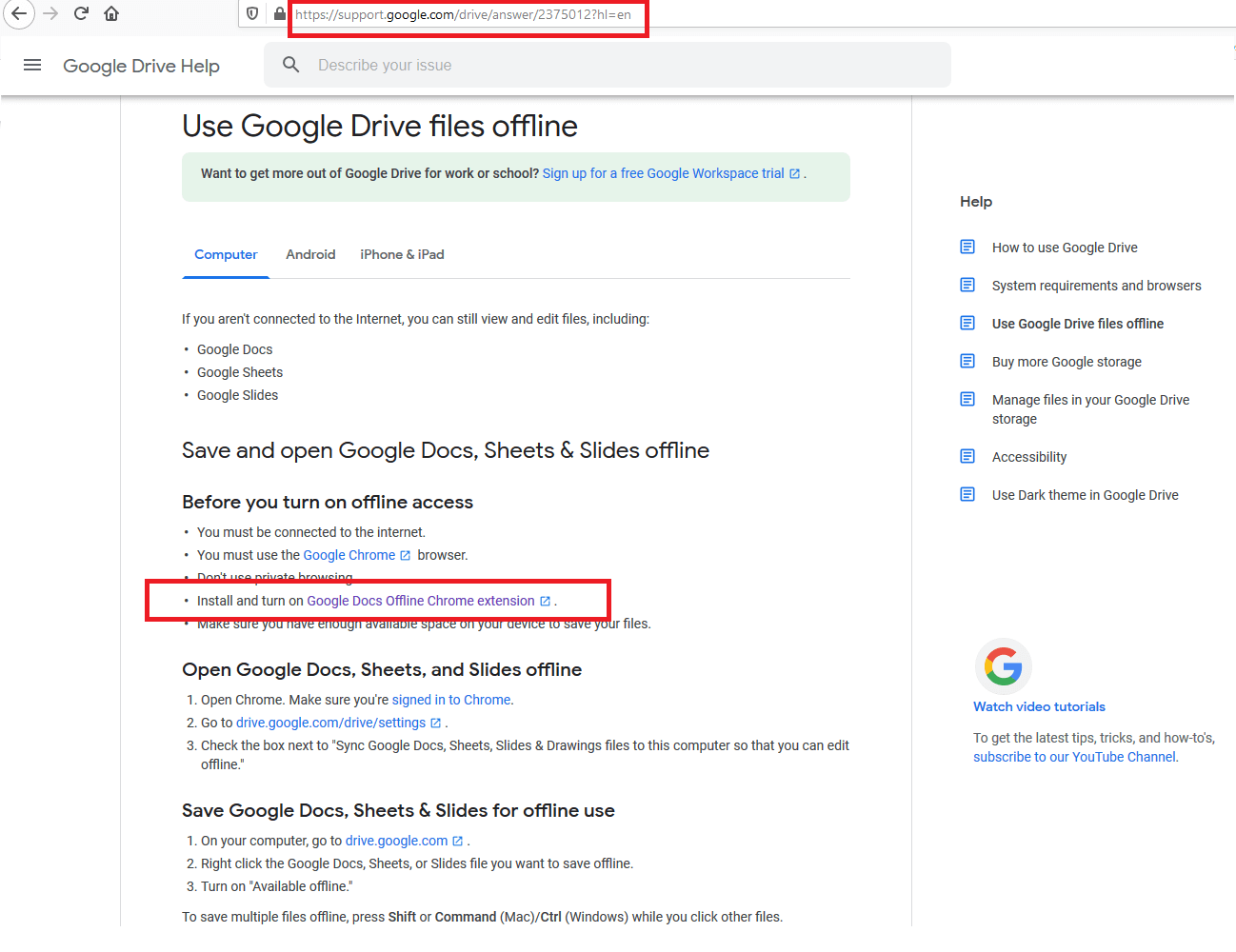
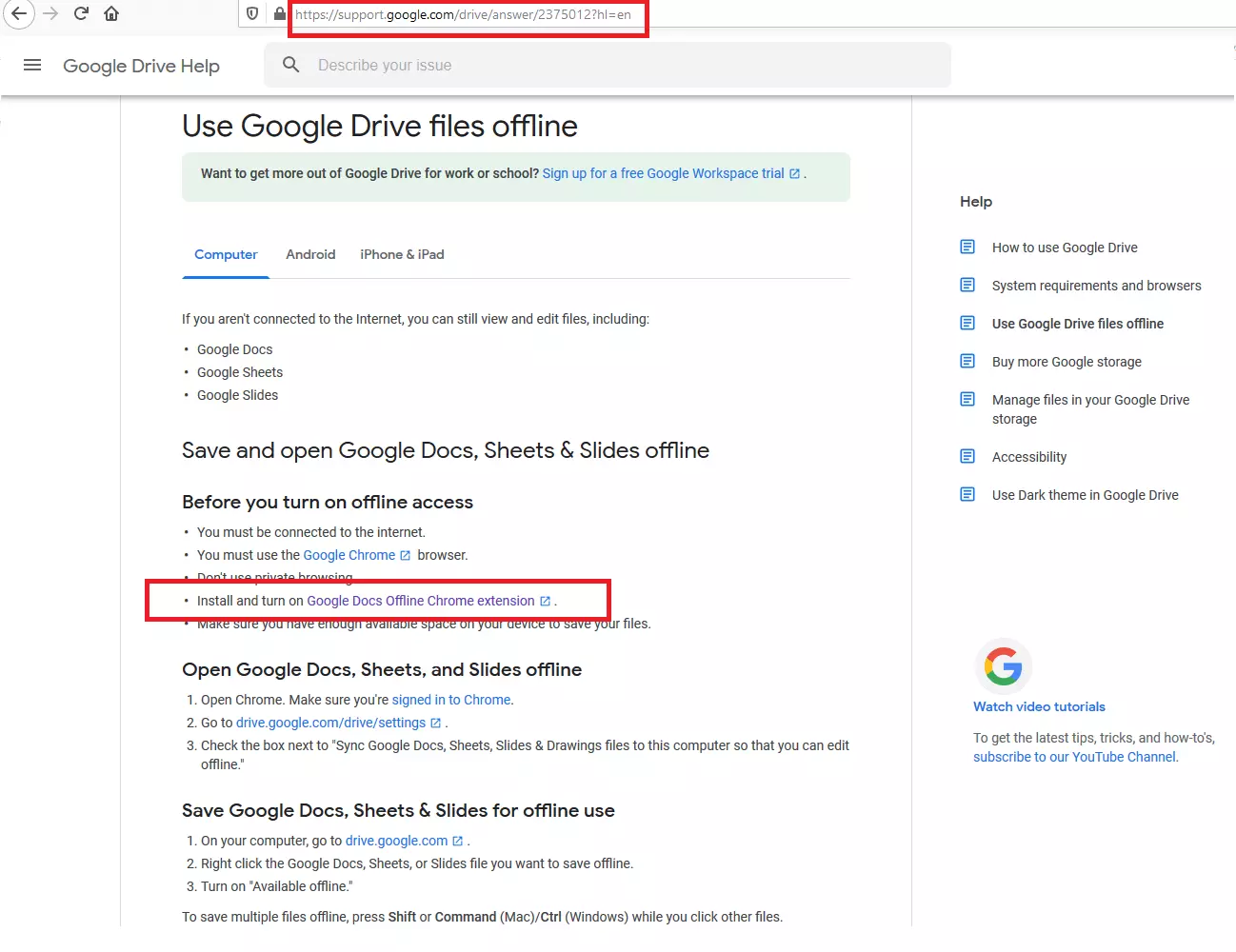
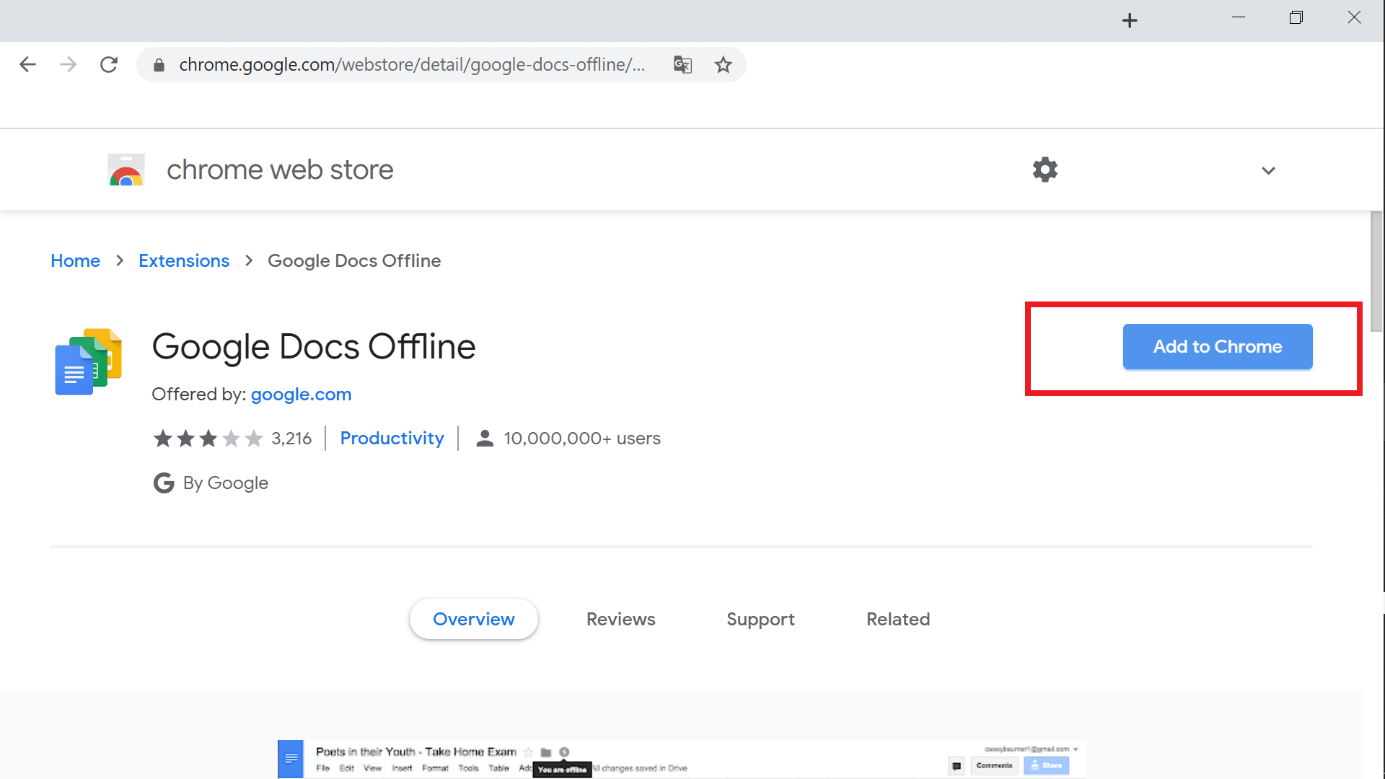
Step 1: First, you need to download the Google Docs Offline extension. To do so, go to the Google Drive Help page about “Use Google Drive files offline” and click on “Install and turn on Google Docs Offline Chrome extension”. You’ll be guided to the Chrome web store page for the “Google Docs offline” extension.
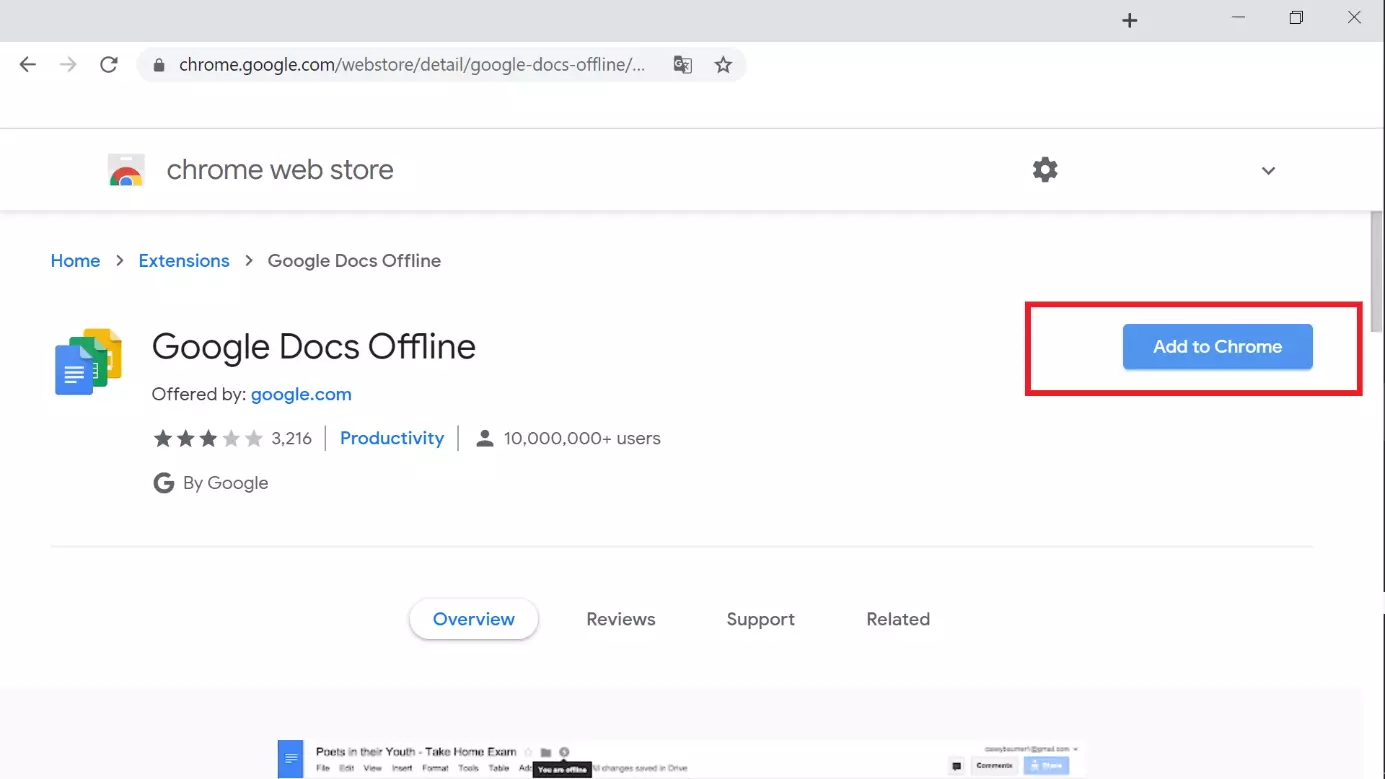
Step 2: Now, you need to install the extension. To do so, click the blue “Add to Chrome” button and follow the installation instructions provided.
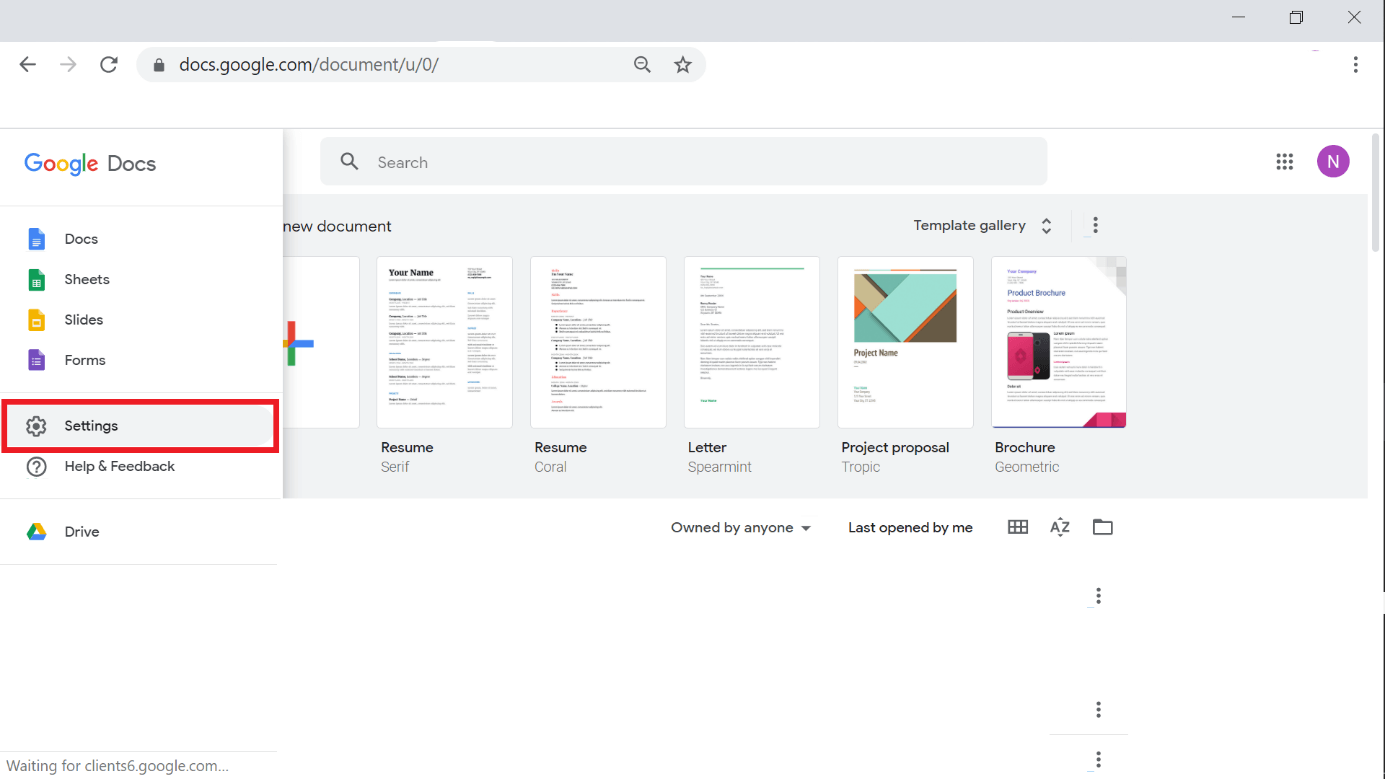
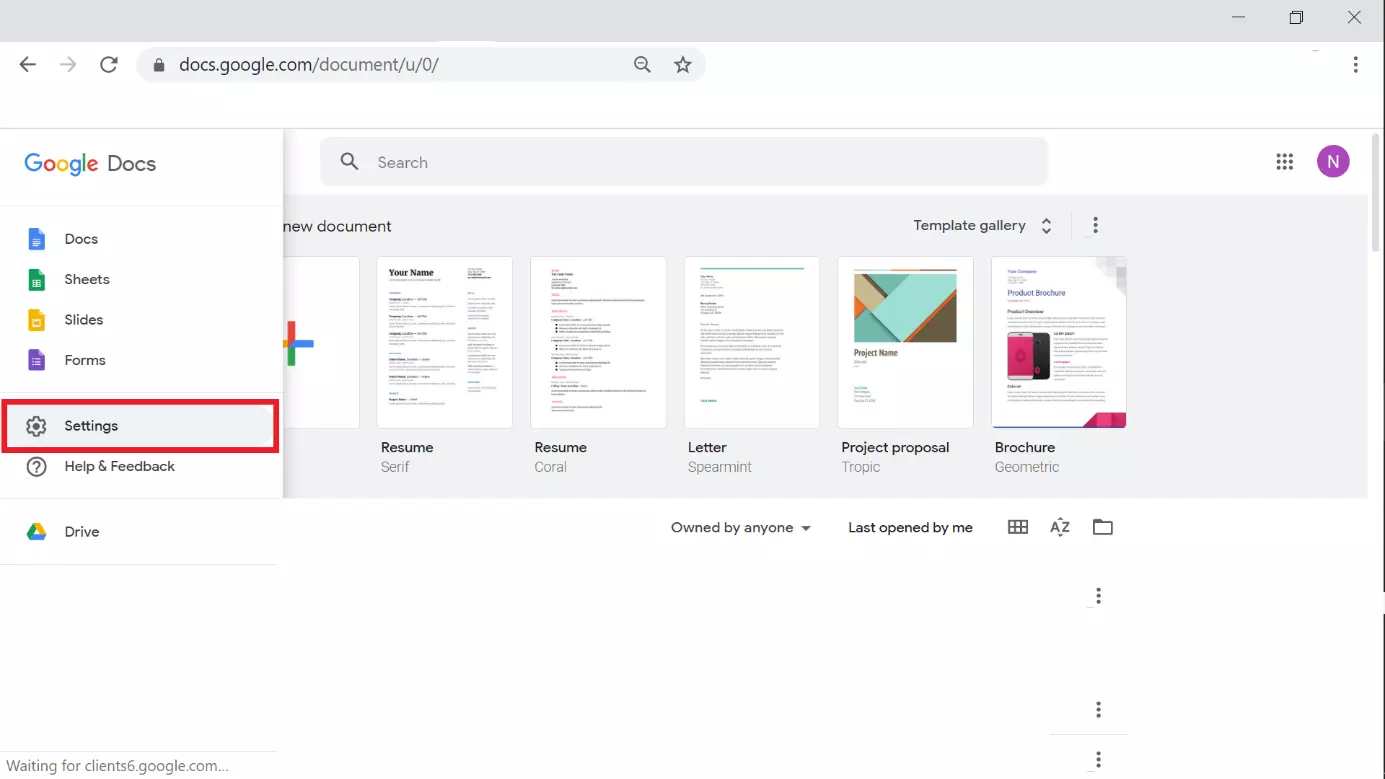
Step 3: Next, open Google Docs by going to the Google Docs website. In the upper left-hand corner, you will find the menu icon (three horizontal lines stacked on top of each other). Click this icon and then select the “Settings” menu option.
Step 4: In the Settings, you will find the “Offline” option. Move the gray slider to the right to enable this function. It will turn blue to indicate that the option has been enabled. Confirm the changes by clicking “OK”.
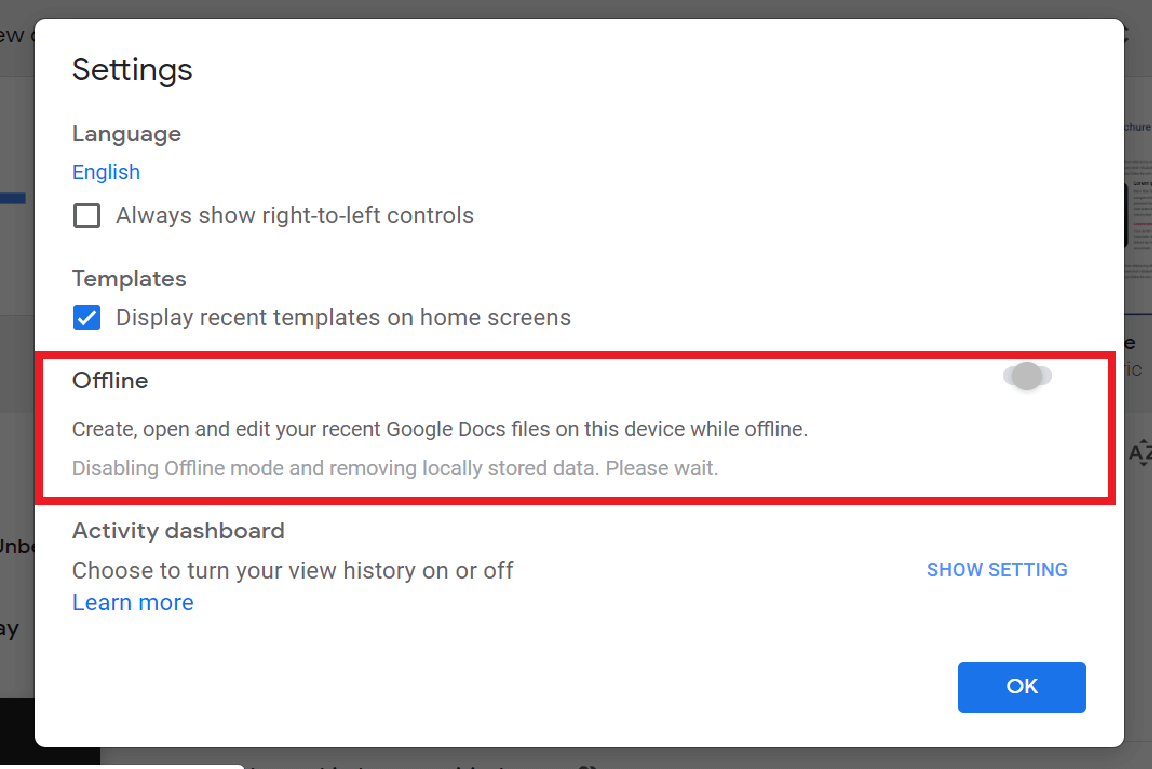
Google Docs will now automatically save all new and recently opened documents locally to your hard drive. You no longer need a consistent internet connection. Any file available offline will now have a gray checkmark in the lower left-hand corner. Now, whenever you open a document in offline mode, you will see a lightning bolt icon on the document.
You will still need an internet connection to synchronize your documents, but this is only required from time to time.
Making older documents accessible offline
To save processing power, Google Docs does not automatically synchronize all your documents with your local hard drive. Only new and recently opened documents are stored locally. To be able to edit older projects in Google Docs offline, you will have to set this up for each document individually.
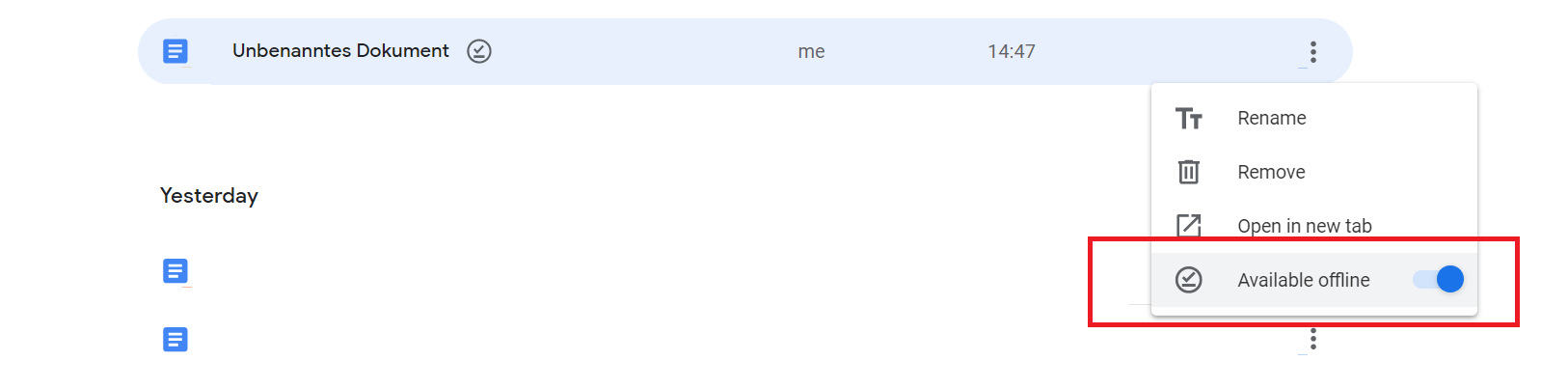
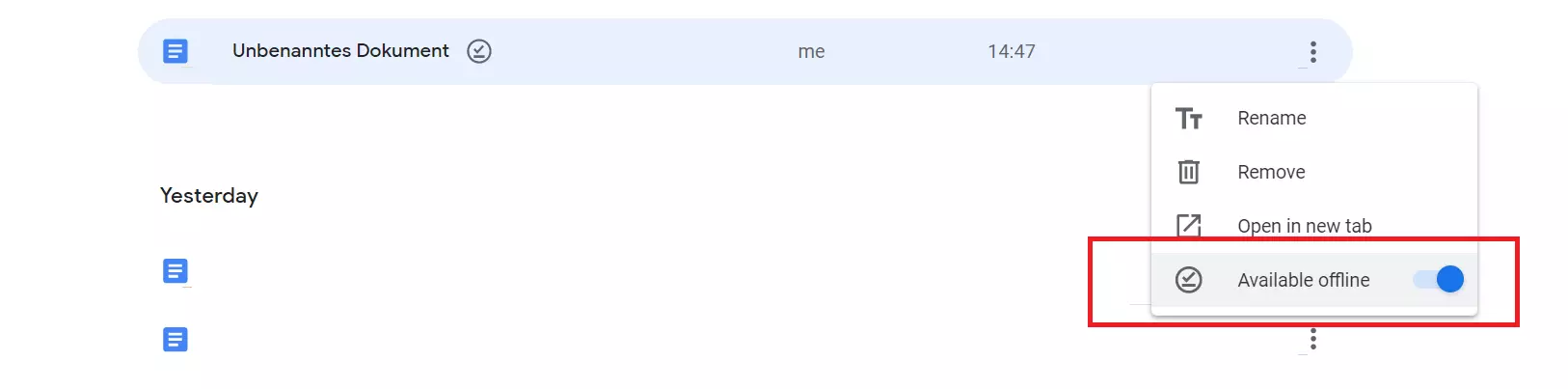
To do so, open Google Docs again. Find the document you want to make available offline, and click the three-dot icon to the right of the document name. Then, click the “Available offline” switch. The switch will now be blue, and the document will be saved locally.