

Zoom whiteboard: How to use the whiteboard in Zoom with other participants

When you’re in the office, it’s easy to visualize and develop ideas with a felt-tip pen on a whiteboard. Brainstorming together in a team leads to new trains of thought and enables you to put ideas into clearly understandable form. Just because your Zoom meeting is virtual, it doesn’t mean that you can’t brainstorm together. With the Zoom whiteboard, you and the other participants can work on your ideas together.
Share a Zoom whiteboard: Quick instructions
- Start a Zoom meeting.
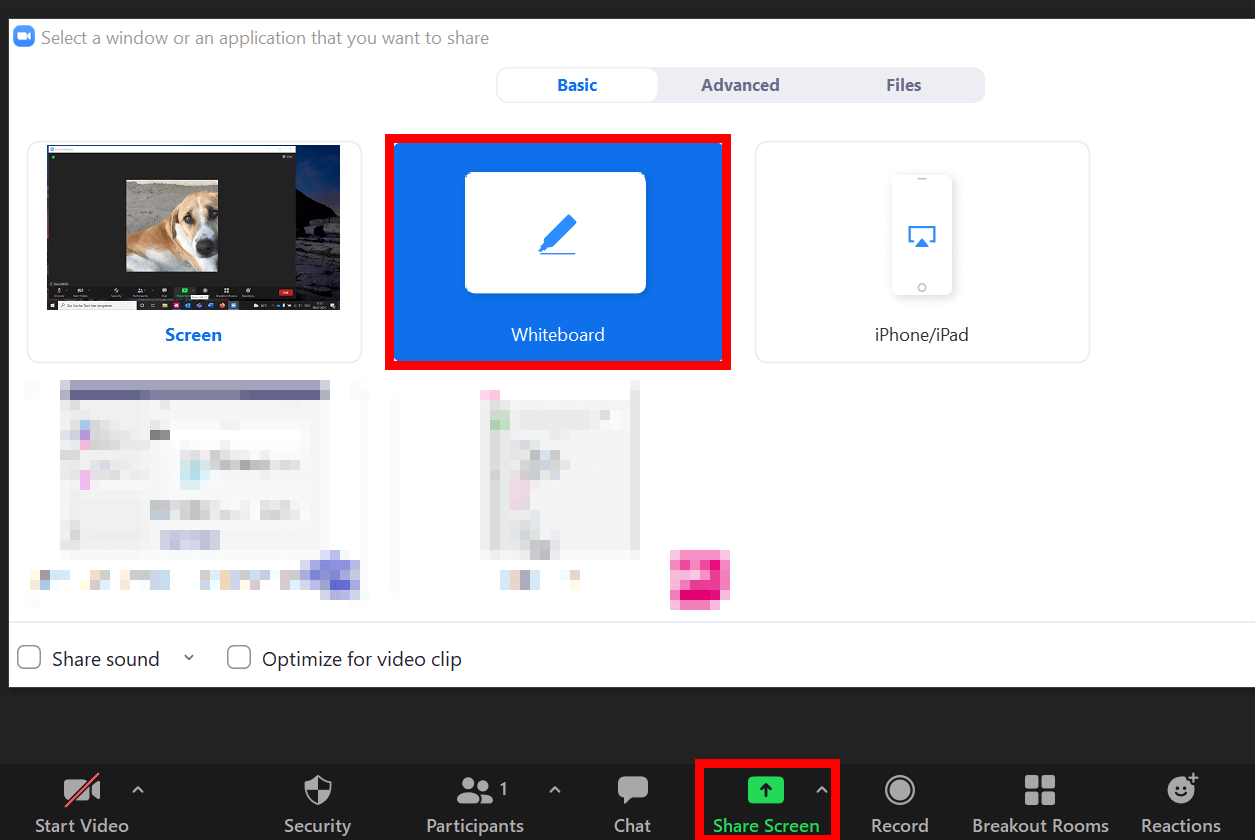
- Click on “Share Screen” or “Share”.
- Select the “Whiteboard” option and share the Zoom whiteboard using the button of the same name.
What is the Zoom whiteboard?
The Zoom whiteboard is a virtual white space that you share with other participants in a meeting or team. It enables you to write down, draw, and design ideas using Zoom’s drawing tools. The advantage over a physical whiteboard is that you can save your drafts and results after a brainstorming session, copy them, and work on them later.
The Zoom whiteboard can only be shared by the meeting host. Participants who join a Zoom meeting are therefore dependent on the host activating the whiteboard function and sharing the screen or alternatively transferring the sharing rights to other participants.
How do you share a Zoom whiteboard with other participants?
Just like screen sharing, whiteboard sharing is not complicated at all. Follow these steps to share and edit a Zoom whiteboard.
In the desktop app
- Step 1: Log in to the desktop app and create a Zoom meeting.
- Step 2: Click “Share Screen” in the bottom menu bar.
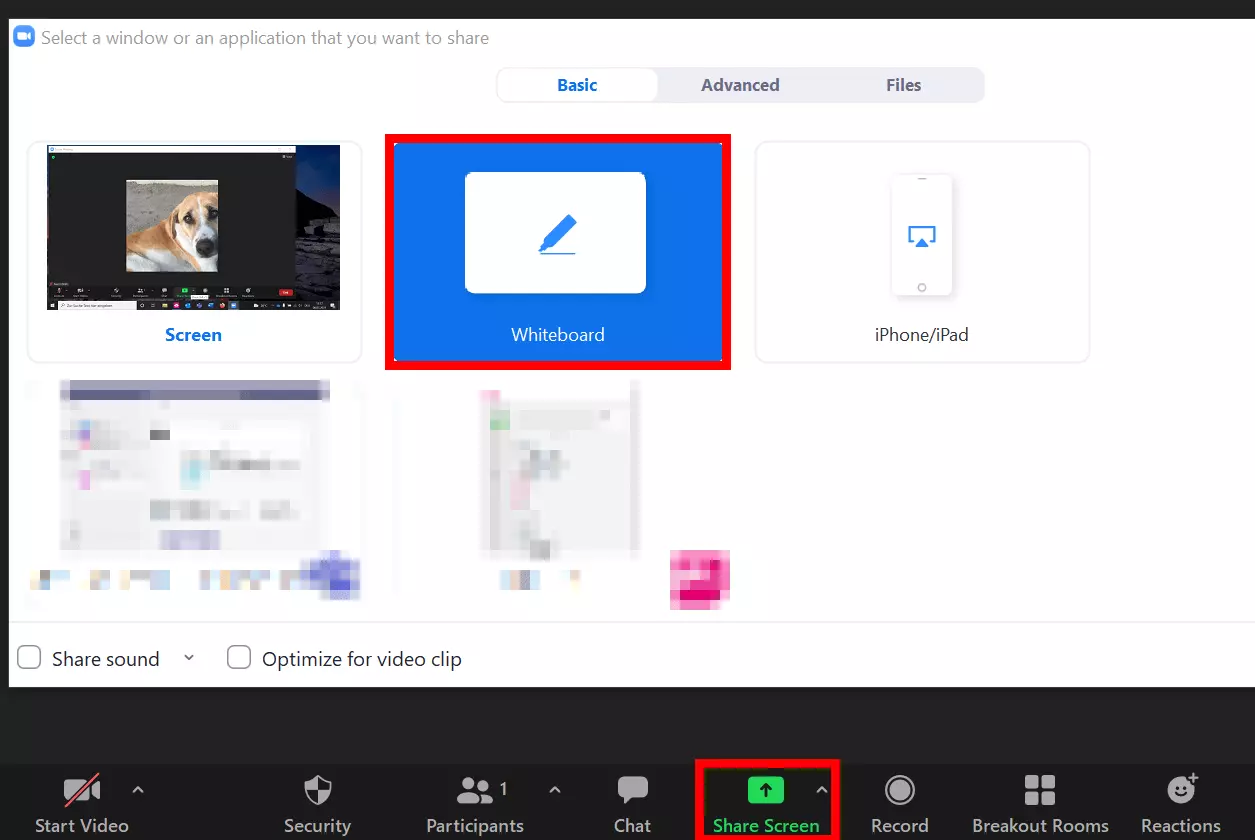
- Step 3: The screen sharing settings menu will open. Here you can select windows, documents, or files for screen sharing. Select “Whiteboard” and then click “Share”.
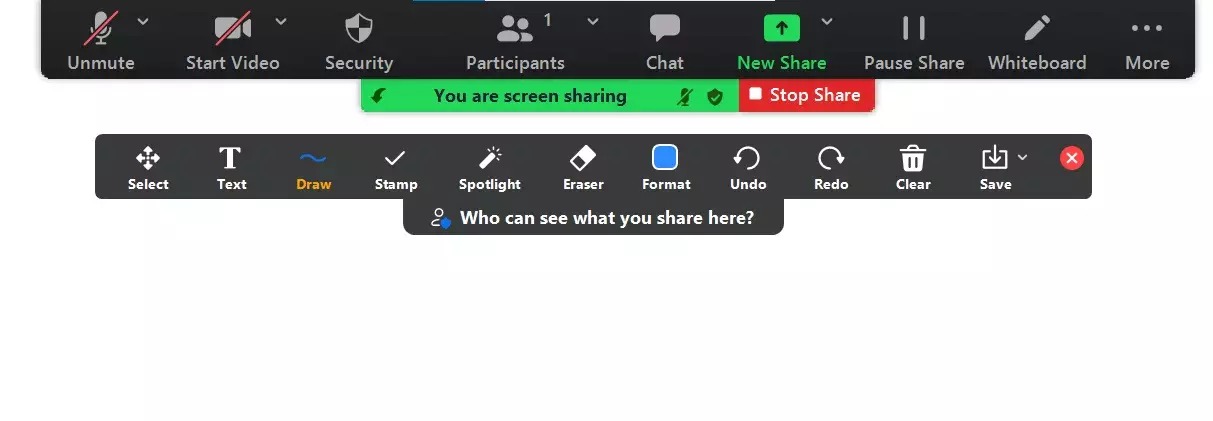
- Step 4: You can now edit the whiteboard as you wish. Tools for writing, drawing, and various stamps can also be found in the toolbar. New pages can be added with the plus symbol in the bottom right. You can turn pages using the arrows in the menu at the bottom of the page.
- Step 5: Other participants must click “Annotate” at the top of their screen to be able to write or draw on the shared whiteboard.
- Step 6: By clicking on “Clear”, you can either delete all drawings, only your drawings, or only the drawings of others.
- Step 7: To save the whiteboard once it’s full of notes or drawings, select the “Save” option in the toolbar. If you click on the arrow symbol, you have the choice between PGN or PDF formats.
- Step 8: When you have finished working on the whiteboard, click “Stop Share”.

In the mobile app
- Step 1: Open the mobile app.
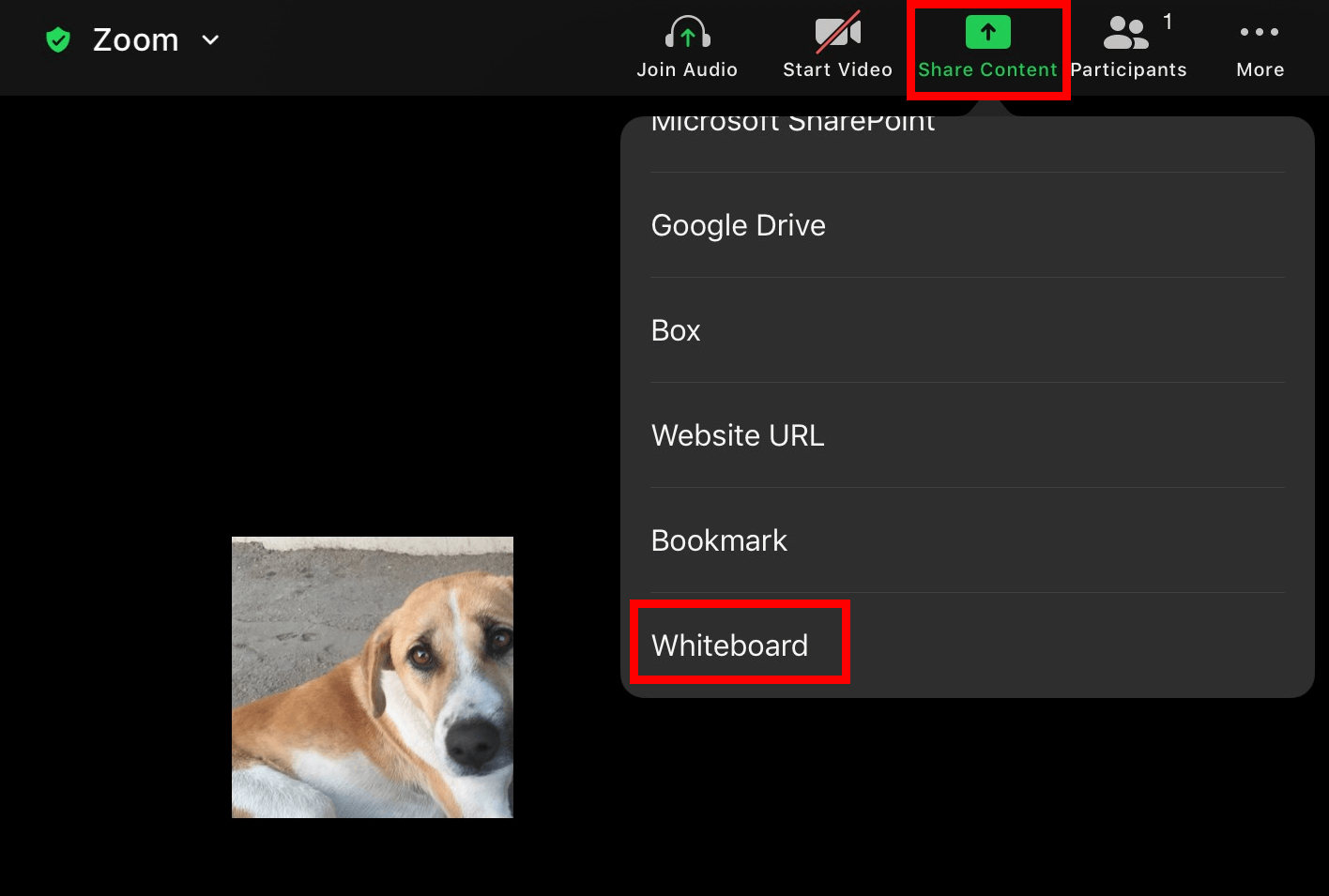
- Step 2: Press “Share Content” in the menu bar.
- Step 3: In the following window, scroll down, and tap on “Whiteboard”.
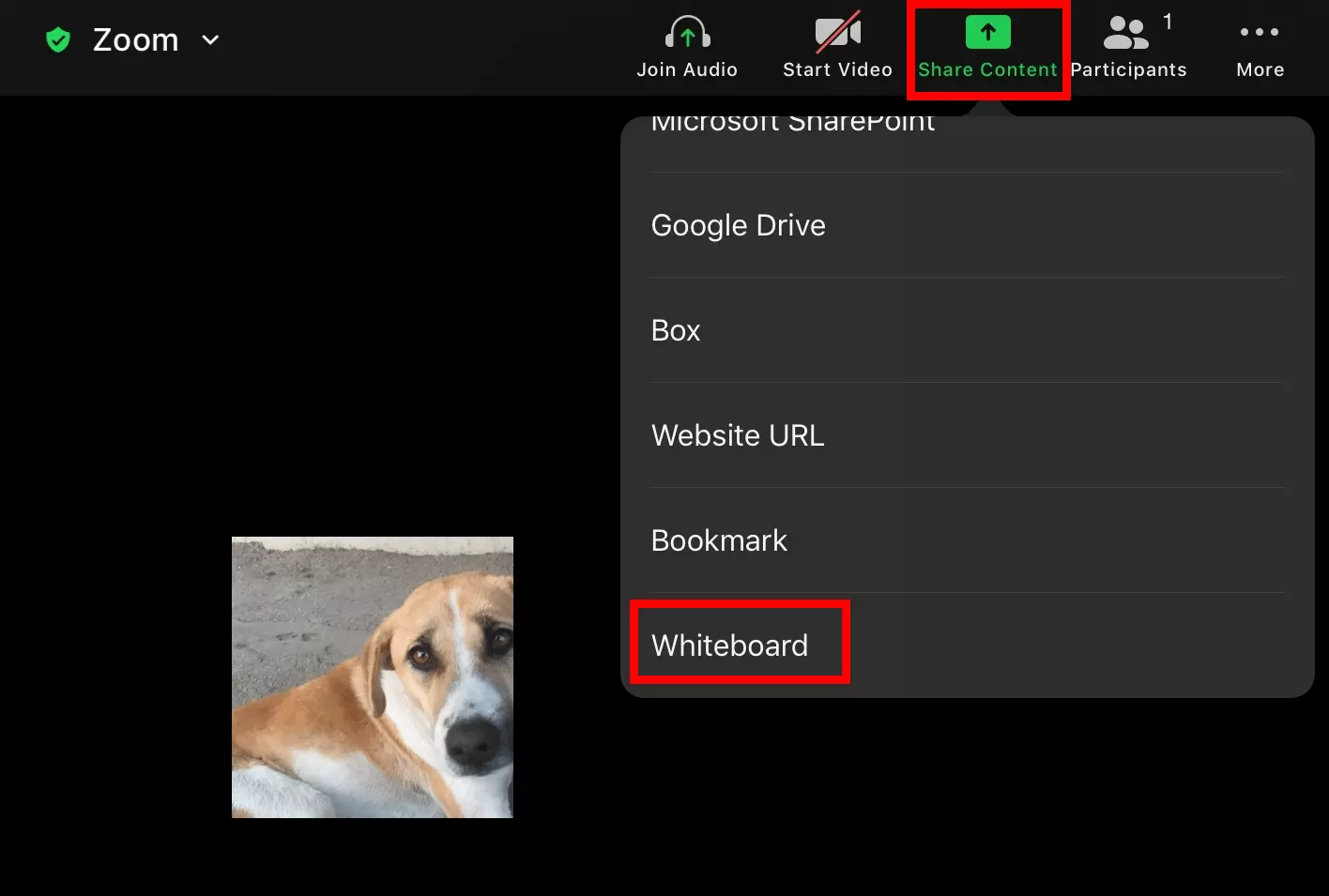
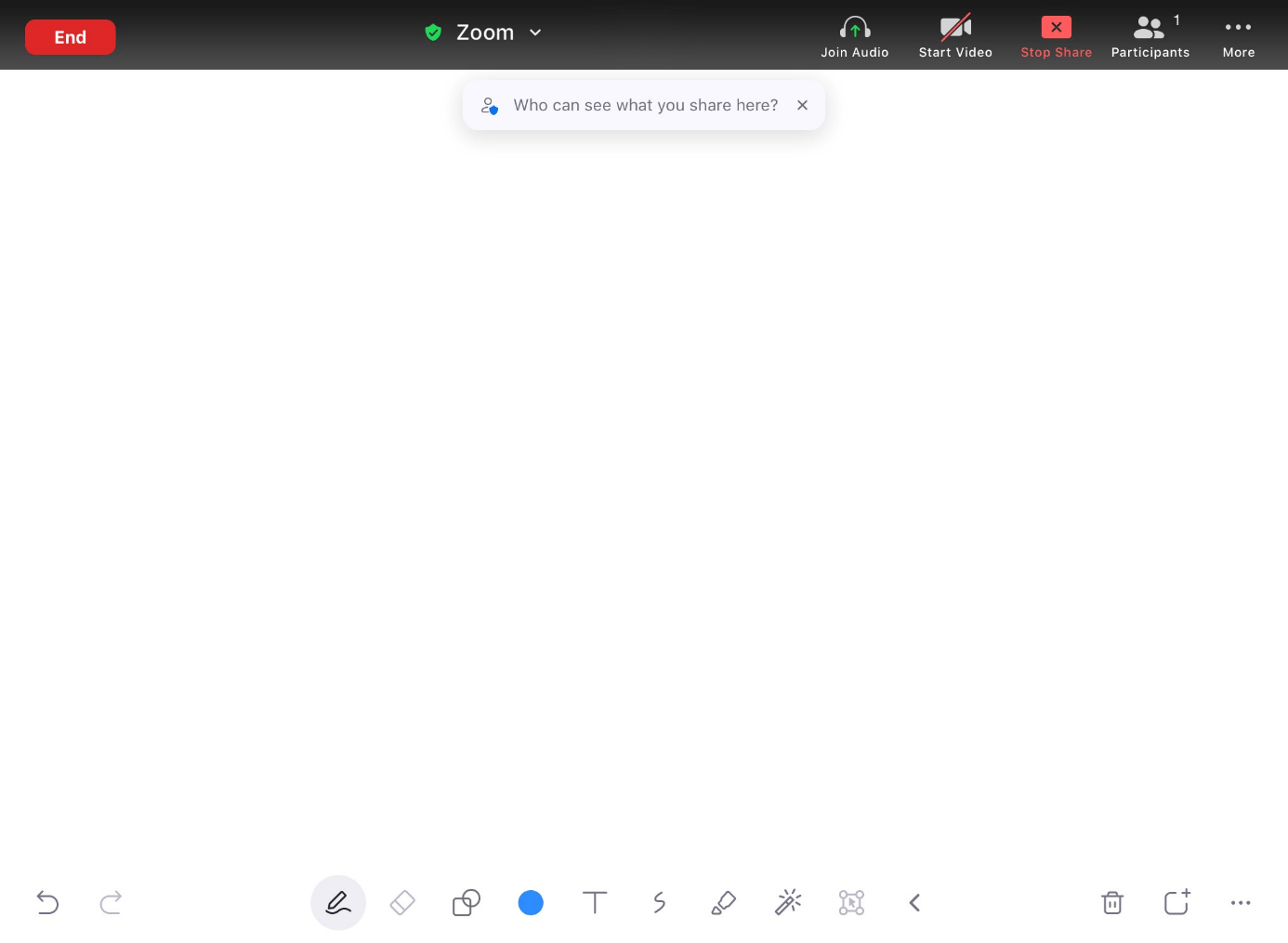
- Step 4: The whiteboard with the menu bar will now open. If the menu bar disappears, briefly tap the screen to make it visible again.
- Step 5: To open the toolbar with writing and drawing tools, tap the “pen” icon.
- Step 6: If you want to save a Zoom whiteboard, tap “...”. You have the choice to save the drawing in an album or to open another whiteboard.
- Step 7: Tap “Stop Share” to close the whiteboard.
What features does the Zoom whiteboard offer?
The Zoom whiteboard works similarly to Paint in Windows due to its white drawing and design surface. The features include various tools and utilities that you and other participants can use to capture and visualize thoughts. The Zoom whiteboard offers the following tools:
- Text (writing)
- Drawing (various lines)
- Stamps (e.g., stars, hearts, arrows, question marks)
- Eraser
- Color selection
- Undo
- Restore
- Delete
- Save
For a digital brainstorming session you don’t necessarily have to rely on Zoom. There are numerous Zoom alternatives such as Skype and Microsoft Teams that also make creative collaboration possible in a virtual conference room.
Which sharing options does the Zoom whiteboard offer?
As the meeting host, you can not only share the whiteboard with other participants in the meeting, but also allow multiple users to share the whiteboard at the same time. To do this, press the arrow symbol next to “Share Screen” in the menu bar in the current meeting. A menu will open where you can allow sharing for an individual or for several participants at the same time. Under “Advanced Sharing Options”, the host can also allow all other participants to share the whiteboard.